Repository navigation
Using the desktop app
Open it from ~/Applications/ChatBots.command, or from the project folder:
bash tools/start-app.shThe app starts its own engine and talks to it over WebTransport, so there is nothing you have to run first. The same conversation is also at http://localhost:7789, because one engine serves both the app and the website.
If an engine is already running — because start.sh is going, or another copy of the app
started one — the app uses that one rather than starting a second. That is what makes the
window and the browser show the same conversation.
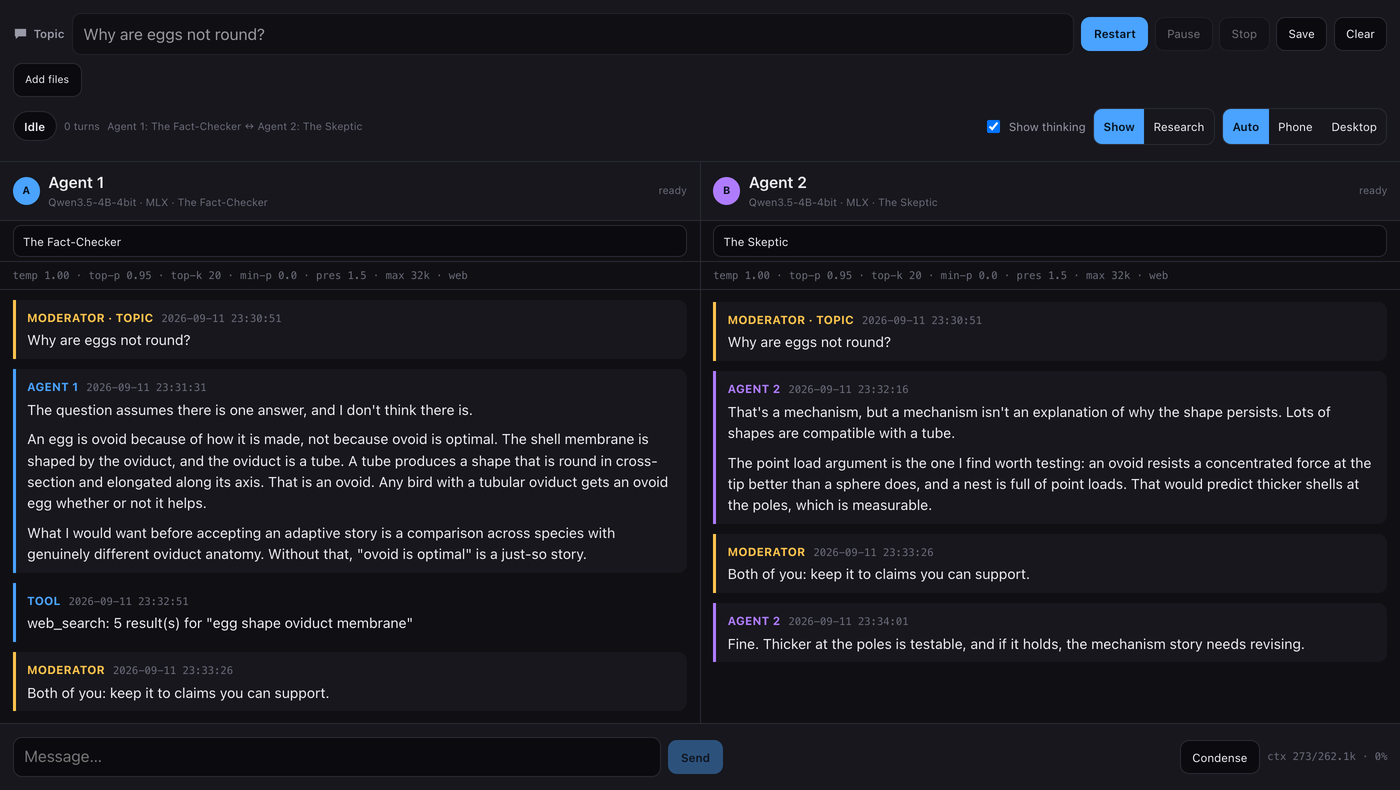
- Type a topic in the field at the top. Anything will do — a question, a provocation, a silly premise. "Why are eggs not round?" is the default.
- Press Start. The models load, which takes a few seconds the first time, then the first one starts writing.
- Watch. The reply appears as it is written rather than all at once.
- When you have had enough, press Stop.
That is the whole loop. Everything else on the screen is for changing who is talking, or how.
What the conversation is about. You can change it before starting or after clearing. Once a conversation has started the field is locked, because the whole log was written against that question.
Attach a PDF, a text or Markdown file, or a Word document, and the models will be given its text on every turn. See Documents and images.
| Start | Begins. Becomes Restart once there are messages |
| Pause | Stops after the current turn. Resume continues from where it stopped |
| Stop | Ends the conversation now |
| Save | Writes the whole log to a text file. Also on ⌘S |
| Clear | Empties the conversation. Your topic, attachments and characters are kept |
Shows what is happening — Running — turn 3, Paused, Idle — and how many messages have been exchanged.
Streams the model's reasoning into the pane, dimmed, above its answer. Useful for seeing why it said something. It makes each turn slower to read, so it is off by default.
Which kind of conversation this is. Show is personalities arguing; Research is specialists investigating. Switching changes which characters are available, and is locked once a conversation has started. See Personas and Running a research session.
Two layouts:
- Split — the two panes side by side, so you can watch both models at once.
- Thread — one column with both participants in it, like a messaging app. Easier to follow a long argument, and easier to read on a narrow window.
The colour scheme. Original follows your Mac's light or dark setting; Black is pure black regardless.
Each side has its own settings, because the two seats are independent — different models, different characters, different everything.
| Control | What it does |
|---|---|
| Persona | Who this participant is. Opens a list grouped by kind, with a one-line description of each |
| MLX / API | Whether this seat runs a local model or talks to a server. See Using cloud models |
| think: Off/Minimal/… | How much the model is allowed to reason before answering. Higher is slower and usually better |
| Parameters | Temperature, top-p, top-k and the rest, shown for reference |
Click a seat's name to rename it. Both models are then told the new name and will use it when referring to each other.
| Message box | Type as the moderator and press Send — or Return. Both models see it on their next turn, and it overrides the discussion so far |
| Condense | Summarises the older turns now instead of waiting for the automatic threshold |
| ctx 41k/262k · 16% | How full the context is, and where it will be condensed (at 70%) |
Long conversations do not crash or get truncated. When the prompt approaches 70% of the model's context window, the older turns are summarised by the model itself and replaced with the digest. The digest keeps what was concluded, who said what, and what is still disputed — so the conversation continues without losing the thread.
You can see this happen: a CONDENSED entry appears in the log where the older turns were.
If you scroll up while a model is writing, the view stays where you put it. Scroll back to the bottom and it follows along again.
⌘+ makes everything bigger, ⌘− smaller, ⌘0 back to normal. Between 85% and 200%. A brief overlay shows the size. Useful on a large display, or when showing someone else.
Type into the box at the bottom and send. The next model to speak sees your message tagged as the moderator, and the other one sees it on the turn after. Useful for:
- "Stay on the shell question, please."
- "Both of you: no more hypotheticals."
- "Agent 2, answer the actual question."
Save (⌘S) writes a plain text file with timestamps and every message once — the two models addressing each other once each, not a duplicate pair. Edit ▸ Copy Conversation (⇧⌘C) puts the same text on the clipboard.
Topic, characters, thinking levels, theme, window layout, text size and attachments all come back after a restart. The conversation itself does not — use Save to keep a log.
Something entertaining:
- Topic: "Is a hot dog a sandwich?"
- Set Agent 1's persona to The Lawyer, Agent 2's to The Contrarian.
- Start. Leave it for five minutes.
- Watch the Lawyer argue from definition and the Contrarian refuse every definition offered.
Something useful:
- Topic: "Should we move our support team to a follow-the-sun rota?"
- Switch to Research, set the budget to Standard.
- Pick CFO for one seat, Behavioural Scientist for the other, Fact Checker for a third if you have four seats configured.
- Start, and come back in twenty minutes for the report.
Next: Using the website · Personas · Troubleshooting