Repository navigation
Releases
Releases · PwiePixel/Cubiq-launcher
Cubiq Launcher 0.3.7 – Cubiq in every game

Cubiq in every game
- The Cubiq Client is now part of every game. Cosmetics, pets, the Cubiq menu, the minimap, clips and the other
in-game features come from the Cubiq Client – and from this update on the launcher really puts it into your
instances. Create an instance as usual, start it, and the Cubiq Client is there: the launcher picks the build that
fits the Minecraft version and the mod loader, downloads it once and checks it before it goes into the game. You
don't download or install anything by hand. - Vanilla, Fabric, Quilt, Forge and NeoForge. Vanilla instances get it through the Cubiq optimization, which is
on by default (instance settings → Installation → Cubiq optimization; switched off, the instance stays real
vanilla). Instances with Fabric or Quilt get it for 1.14.4, 1.15.2 and every version from 1.16.2 up to 26.3 – new
in this update: 1.20 –, Forge from 1.7.10 up to 26.3 for the versions Forge is commonly used with, NeoForge for
every version from 1.20.2 up to 26.3. For the very old versions there is no mod loader at all – those keep running
as plain vanilla. - Always up to date. The Cubiq Client updates itself, separately from launcher updates: when there is a new
version, the launcher fetches it before the next start. The launcher settings show the version that is installed
at the bottom. - Sign in once – in the launcher only. The Cubiq Client no longer has a Microsoft sign-in of its own. You sign
in once in the Cubiq Launcher, and every game you start from there is already signed in: cosmetics, friends, the
wardrobe and all other Cubiq features in game use exactly that account. There is no second sign-in window in the
game anymore, and no error page from Microsoft when you open it. When you start a game, the launcher renews the
sign-in first if it would run out soon, so it lasts for at least twelve hours of playing. - Switching accounts happens in the launcher. The account list in the game is gone. To play with another
account, pick it in the launcher's account menu and start the game again – the game then runs with that account. - Fewer secrets in the game. The launcher never passes your Microsoft tokens or your other accounts to the
running game; the game only knows the account it was started with. Accounts that older versions of the Cubiq Client
had saved in the game folder are deleted on the first start without being read.
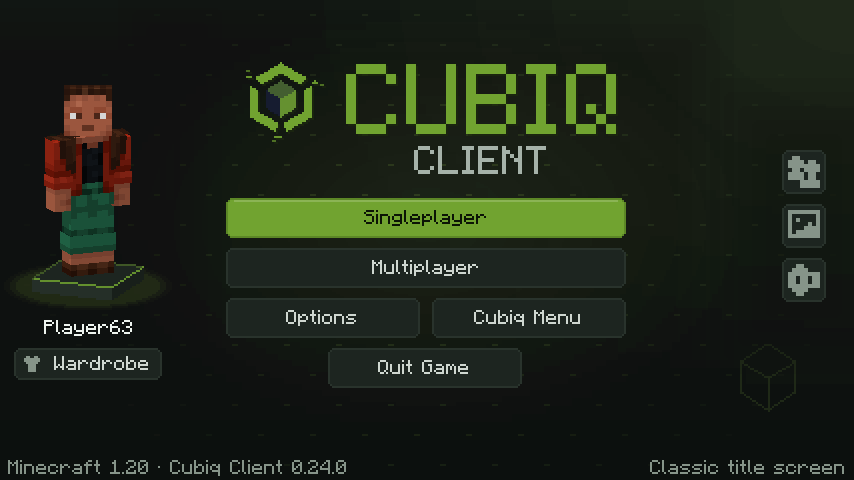
Cubiq in jedem Spiel
- Der Cubiq Client ist jetzt in jedem Spiel dabei. Kosmetik, Begleiter, das Cubiq-Menü, die Minimap, Clips und
die anderen Funktionen im Spiel kommen vom Cubiq Client – und ab diesem Update legt der Launcher ihn wirklich in
deine Instanzen. Erstelle eine Instanz wie gewohnt, starte sie, und der Cubiq Client ist da: Der Launcher wählt den
Build, der zur Minecraft-Version und zum Mod-Loader passt, lädt ihn einmal herunter und prüft ihn, bevor er ins
Spiel kommt. Du musst nichts von Hand herunterladen oder installieren. - Vanilla, Fabric, Quilt, Forge und NeoForge. Vanilla-Instanzen bekommen ihn über die Cubiq-Optimierung, die von
Anfang an an ist (Instanz-Einstellungen → Installation → Cubiq-Optimierung; ausgeschaltet bleibt die Instanz echtes
Vanilla). Instanzen mit Fabric oder Quilt bekommen ihn für 1.14.4, 1.15.2 und jede Version von 1.16.2 bis 26.3 –
neu in diesem Update: 1.20 –, mit Forge von 1.7.10 bis 26.3 für die Versionen, mit denen Forge meist gespielt wird,
mit NeoForge für jede Version von 1.20.2 bis 26.3. Für die ganz alten Versionen gibt es gar keinen Mod-Loader – die
laufen weiter als reines Vanilla. - Immer aktuell. Der Cubiq Client aktualisiert sich selbst, unabhängig von Launcher-Updates: Gibt es eine neue
Version, holt der Launcher sie vor dem nächsten Start. Welche Version installiert ist, steht unten in den
Launcher-Einstellungen. - Einmal anmelden – nur noch im Launcher. Der Cubiq Client hat keine eigene Microsoft-Anmeldung mehr. Du meldest
dich einmal im Cubiq Launcher an, und jedes Spiel, das du von dort startest, ist schon angemeldet: Kosmetik,
Freunde, die Garderobe und alle anderen Cubiq-Funktionen im Spiel nutzen genau dieses Konto. Im Spiel gibt es kein
zweites Anmeldefenster mehr und auch keine Fehlerseite von Microsoft, wenn du es öffnest. Beim Spielstart erneuert
der Launcher die Anmeldung vorher, falls sie bald abläuft – sie hält dann mindestens zwölf Stunden Spielzeit. - Konto wechseln geht im Launcher. Die Kontenliste im Spiel ist weg. Willst du mit einem anderen Konto spielen,
wähle es im Kontomenü des Launchers und starte das Spiel neu – dann läuft es mit diesem Konto. - Weniger Geheimnisse im Spiel. Der Launcher gibt deine Microsoft-Tokens und deine anderen Konten nie an das
laufende Spiel weiter; das Spiel kennt nur das Konto, mit dem es gestartet wurde. Konten, die ältere Versionen des
Cubiq Clients im Spielordner gespeichert hatten, werden beim ersten Start gelöscht, ohne gelesen zu werden.
Cubiq Client – Update-Kanal
Wird automatisch gepflegt: neue Versionen des Cubiq Clients (In-Game-Mod) für den Cubiq Launcher. client-mod.json ist mit dem Launcher-Schlüssel signiert, der Launcher lädt die Jars selbst – nichts davon von Hand installieren.
Cubiq Launcher 0.3.6 – Ready to play
Ready to play
- Microsoft sign-in works now. The updates 0.3.4 and 0.3.5 were built with a wrong setting for the Microsoft
sign-in, so signing in stopped with an error. This update has the right one. Open Accounts and sign in with
Microsoft – after that you start your instances straight from Cubiq as usual, with your own skin and on online
servers. If an account still shows an error from an earlier attempt, remove it under Accounts and sign in once more.
Your instances, worlds, mods and settings are not affected.
Bereit zum Spielen
- Die Microsoft-Anmeldung funktioniert jetzt. Die Updates 0.3.4 und 0.3.5 wurden mit einer falschen Einstellung
für die Microsoft-Anmeldung gebaut, deshalb brach die Anmeldung mit einem Fehler ab. Dieses Update hat die
richtige. Öffne „Accounts“ und melde dich mit Microsoft an – danach startest du deine Instanzen wie gewohnt direkt
aus Cubiq, mit deinem eigenen Skin und auf Online-Servern. Zeigt ein Konto noch einen Fehler von einem früheren
Versuch, entferne es unter „Accounts“ und melde dich einmal neu an. Deine Instanzen, Welten, Mods und Einstellungen
sind nicht betroffen.
Cubiq Launcher 0.3.5 – Sign-in fixed
Sign-in fixed
- Microsoft sign-in fixed. Update 0.3.4 was built with a wrong setting for the Microsoft sign-in, so signing in
could stop with an error. This update has the right one. If signing in didn't work for you, open Accounts and sign
in with Microsoft once more – after that you start your instances straight from Cubiq as usual, with your own skin
and on online servers. Your instances, worlds, mods and settings are not affected.
Anmeldung repariert
- Microsoft-Anmeldung repariert. Das Update 0.3.4 wurde mit einer falschen Einstellung für die
Microsoft-Anmeldung gebaut, deshalb konnte die Anmeldung mit einem Fehler abbrechen. Dieses Update hat die richtige.
Hat die Anmeldung bei dir nicht geklappt, öffne „Accounts“ und melde dich noch einmal mit Microsoft an – danach
startest du deine Instanzen wie gewohnt direkt aus Cubiq, mit deinem eigenen Skin und auf Online-Servern. Deine
Instanzen, Welten, Mods und Einstellungen sind nicht betroffen.
Cubiq Launcher 0.3.4 – Back in the game
Back in the game
- Microsoft sign-in works again. You can sign in with your Microsoft account in the Cubiq Launcher again. Open
Accounts, choose to sign in with Microsoft and log in on Microsoft's own page – your password is only ever entered
there. After that you start your instances straight from Cubiq as usual: with your own skin, on online servers and
with all your mods. Your instances, worlds, mods and settings were never affected and are all still there. If an
account still shows an error from an earlier attempt, remove it under Accounts and sign in once more. - Cubiq services in the launcher are back. With the sign-in, everything that needs your account works again in
the launcher too: friends and chat, your capes and cosmetics, achievements and sharing worlds and modpacks. They
stay optional – they only run if you agreed to the Cubiq services, and you can switch them off at any time under
Settings → Privacy. - The update pictures look right again. In the animated picture of the 0.3.3 update, Cubi's eyes are the same
size again and he blinks when he looks from his friend to the map. In the 0.3.2 picture he looks at the fish he
holds out and at the fox kit he pets, the penguin has no white specks on its head any more and the fox kit's eyes
stay clear of Cubi's arm. The firefly keeps both eyes, and the pictures of 0.3.0 and 0.3.2 show the penguin and the
fox kit as they look today. You can see them on the News page in the launcher.
Zurück im Spiel
- Die Microsoft-Anmeldung funktioniert wieder. Du kannst dich im Cubiq Launcher wieder mit deinem
Microsoft-Konto anmelden. Öffne „Accounts“, wähle die Anmeldung mit Microsoft und melde dich auf Microsofts eigener
Seite an – dein Passwort gibst du nur dort ein. Danach startest du deine Instanzen wie gewohnt direkt aus Cubiq:
mit deinem eigenen Skin, auf Online-Servern und mit allen Mods. Deine Instanzen, Welten, Mods und Einstellungen
waren nie betroffen und sind alle noch da. Zeigt ein Konto noch einen Fehler von einem früheren Versuch, entferne
es unter „Accounts“ und melde dich einmal neu an. - Die Cubiq-Dienste im Launcher sind zurück. Mit der Anmeldung funktioniert auch im Launcher wieder alles, was
dein Konto braucht: Freunde und Chat, deine Umhänge und Kosmetik, Erfolge und das Teilen von Welten und
Modpacks. Die Dienste bleiben freiwillig – sie laufen nur, wenn du ihnen zugestimmt hast, und lassen sich jederzeit
unter Einstellungen → Datenschutz abschalten. - Die Update-Bilder sehen wieder richtig aus. Im animierten Bild des Updates 0.3.3 sind Cubis Augen wieder gleich
groß, und er blinzelt, wenn er vom Freund zur Karte schaut. Im Bild von 0.3.2 schaut er auf den Fisch, den er
hinhält, und auf das Füchschen, das er krault; der Pinguin hat keine weißen Flecken mehr auf dem Kopf, und die
Augen des Füchschens bleiben frei von Cubis Arm. Das Glühwürmchen behält beide Augen, und die Bilder von 0.3.0 und
0.3.2 zeigen den Pinguin und das Füchschen so, wie sie heute aussehen. Du siehst sie auf der Seite „News“ im
Launcher.
Cubiq Launcher 0.3.3 – Classic maps
Classic maps
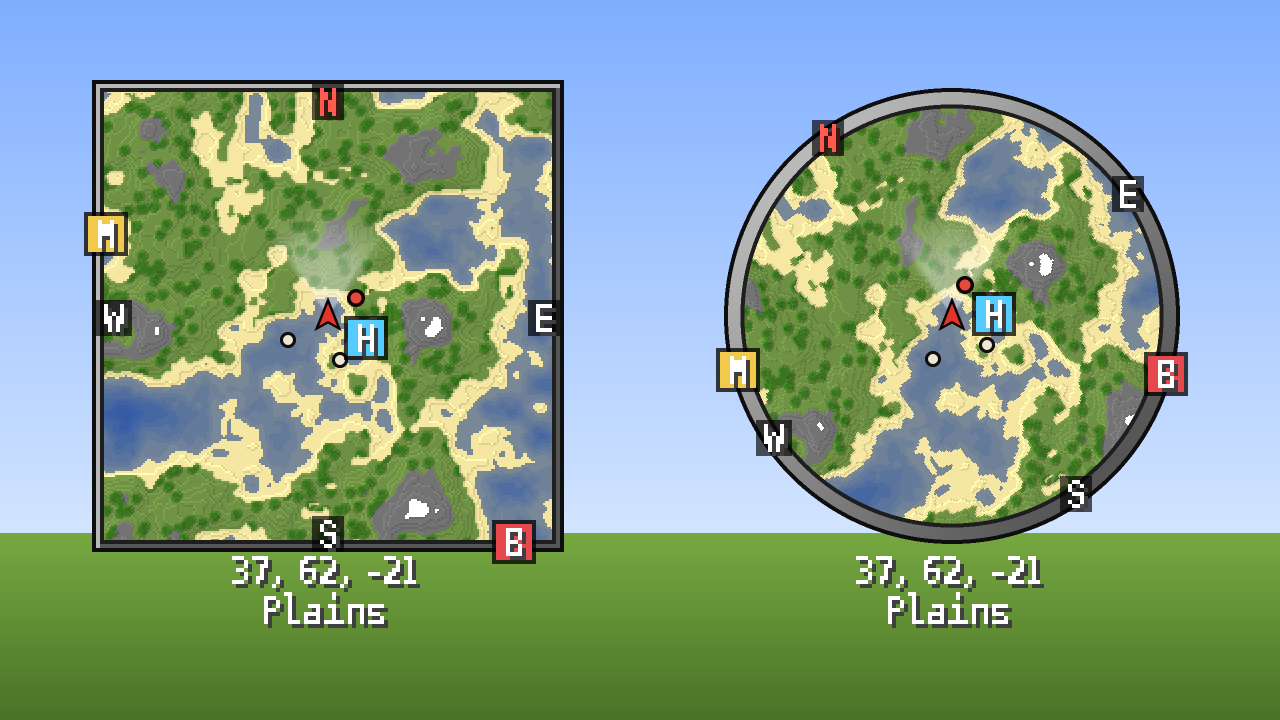
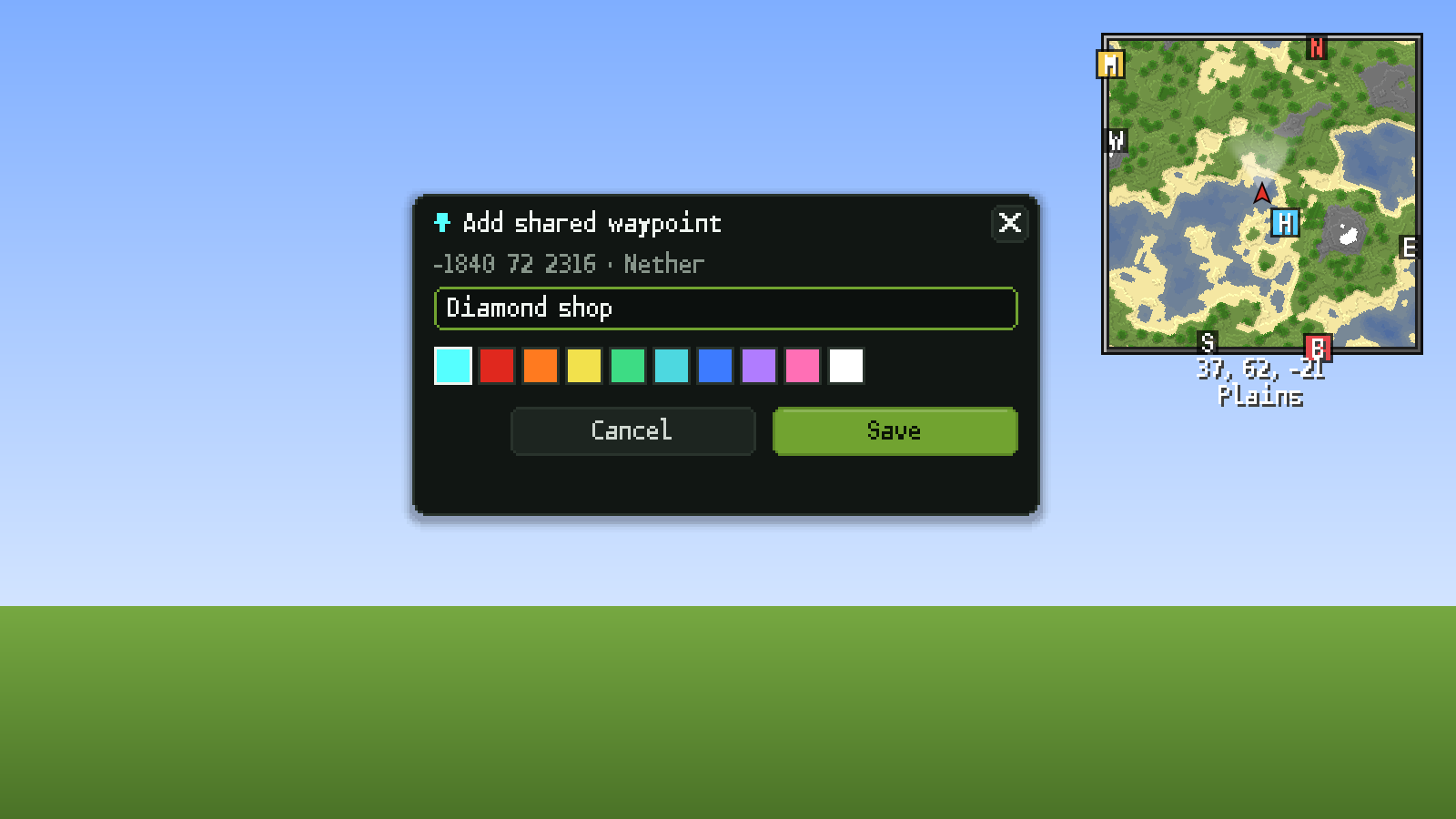
- The classic minimap look. The minimap of the Cubiq Client now looks like the classic minimap mods many players
know: a thin grey frame with light from the top left, the compass letters N, E, S and W right on the edge of the map
(north in red, each on a small dark plate, so they stay readable over snow and water), every waypoint as a small
coloured square with its first letter – inside the map and at its edge – and a red arrow for you. Below the map your
coordinates now simply read "128, 64, -256". New players start with the square map; the round one gets the same
classic ring (Cubiq menu (Right Shift) → Minimap → "Shape"). If you prefer the rounded Cubiq frame with the compass
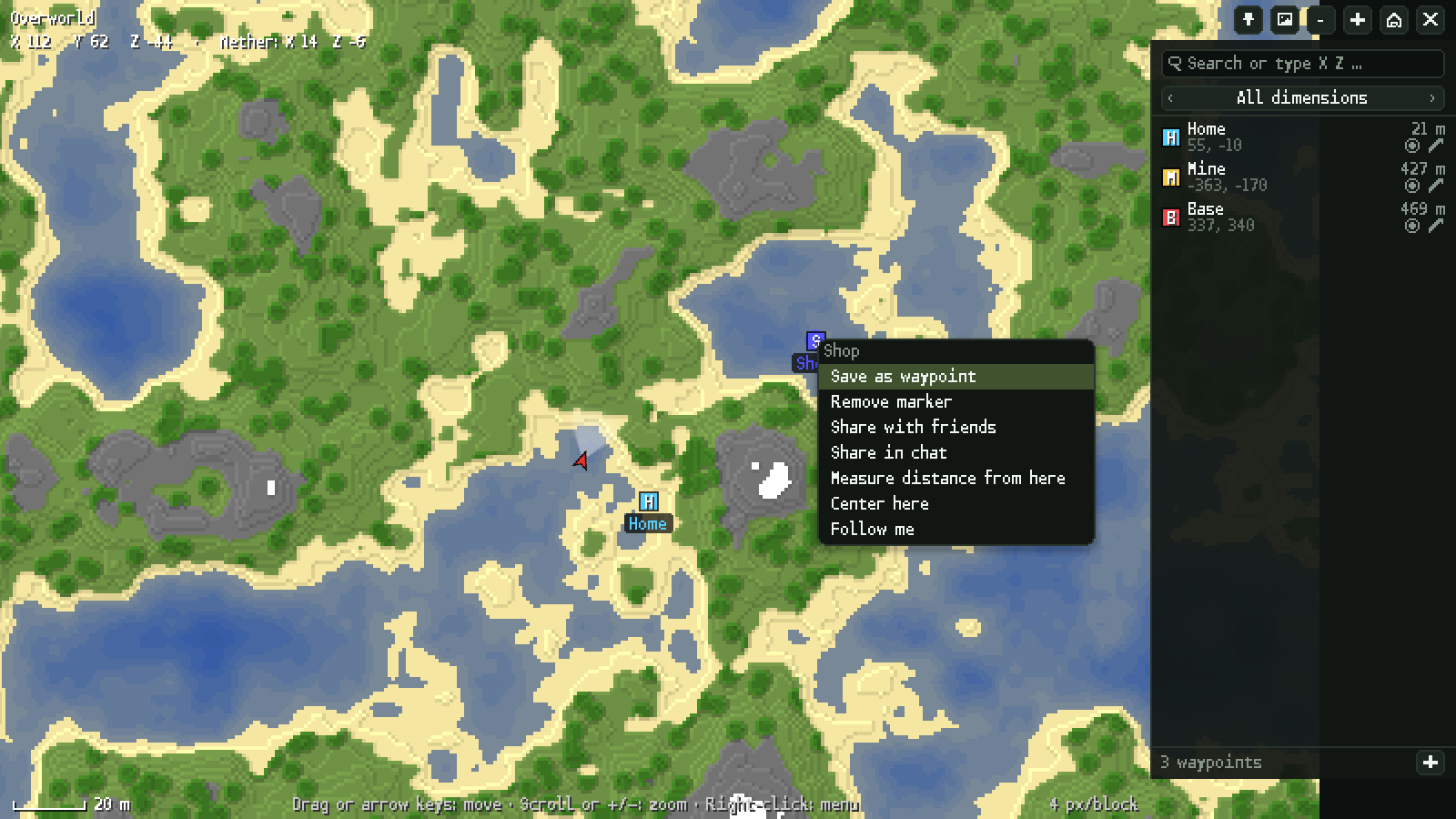
badges from the last update, switch back under Minimap → "Look" → "Cubiq". - A world map without bars. In the classic look the world map (M) uses the whole screen: at the top left you see
the dimension – click it to switch to another one you have explored – and below it the coordinates under your mouse
pointer, at the top right the buttons, at the bottom left the scale bar and at the bottom right the zoom. Waypoints
are the same coloured squares as on the minimap, in the waypoint list too, and your arrow is red. - Add shared waypoints with one click. When someone shares a waypoint in the chat with one of the popular minimap
mods – the line that starts with "xaero-waypoint:" – you now see its name in its colour, its coordinates and its
dimension instead, followed by "[+ Waypoint]" and "[Map]". "[+ Waypoint]" opens a small window with name, colour and
coordinates already filled in; change what you like, click "Save", and the waypoint is on your map – in the right
dimension, too, for example a Nether waypoint while you are in the Overworld. "[Map]" opens the world map right on
the spot and marks it: right-click the marker and choose "Save as waypoint" to keep it, or "Remove marker". The same
works for waypoints a friend sends you in the Cubiq chat – "Show" now opens a marker you can save the same way.
Shift-click puts the shared text into your chat line, so you can pass it on. This works in Minecraft 1.16 and newer
and can be switched off together with the clickable coordinates (Cubiq menu → Chat Improvements → "Clickable
coordinates and shared waypoints"). - Share your own waypoints in the chat. On the world map, right-click a waypoint, a marked spot or any place and
choose "Share in chat". Your chat line opens with the waypoint written in that widely used format – press Enter to
send it. Players with the Cubiq Client get the "[+ Waypoint]" button, and players with those minimap mods can add it
to their own map. Nothing is sent until you press Enter yourself. - Letters in the middle. The letters in the waypoint boxes and on the compass badges now sit exactly in the middle
of their box – in both looks.
Klassische Karten
- Der klassische Minimap-Look. Die Minimap des Cubiq Client sieht jetzt aus wie die klassischen Minimap-Mods, die
viele Spieler kennen: ein schmaler grauer Rahmen mit Licht von links oben, die Himmelsrichtungen N, O, S und W direkt
auf dem Rand der Karte (Norden in Rot, jede auf einer kleinen dunklen Platte, damit sie auch über Schnee und Wasser
lesbar bleibt), jeder Wegpunkt als kleines farbiges Kästchen mit seinem Anfangsbuchstaben – in der Karte und an ihrem
Rand – und ein roter Pfeil für dich. Unter der Karte stehen deine Koordinaten jetzt schlicht als „128, 64, -256“. Wer
neu anfängt, bekommt die eckige Karte; die runde hat denselben klassischen Ring (Cubiq-Menü (rechte Umschalttaste) →
Minimap → „Form“). Gefällt dir der abgerundete Cubiq-Rahmen mit den Richtungs-Plaketten aus dem letzten Update
besser, stellst du unter Minimap → „Aussehen“ → „Cubiq“ zurück. - Eine Weltkarte ohne Leisten. Im klassischen Look nutzt die Weltkarte (M) den ganzen Bildschirm: oben links siehst
du die Dimension – ein Klick wechselt in eine andere, die du schon erkundet hast – und darunter die Koordinaten unter
deinem Mauszeiger, oben rechts die Knöpfe, unten links den Maßstab und unten rechts den Zoom. Wegpunkte sind dieselben
farbigen Kästchen wie auf der Minimap, auch in der Wegpunkt-Liste, und dein Pfeil ist rot. - Geteilte Wegpunkte mit einem Klick übernehmen. Teilt jemand im Chat einen Wegpunkt mit einem der bekannten
Minimap-Mods – die Zeile, die mit „xaero-waypoint:“ beginnt –, siehst du stattdessen jetzt seinen Namen in seiner
Farbe, seine Koordinaten und seine Dimension, dahinter „[+ Wegpunkt]“ und „[Karte]“. „[+ Wegpunkt]“ öffnet ein
kleines Fenster mit Name, Farbe und Koordinaten schon ausgefüllt; ändere, was du möchtest, klicke auf „Speichern“, und
der Wegpunkt ist auf deiner Karte – auch in der richtigen Dimension, etwa ein Nether-Wegpunkt, während du in der
Oberwelt bist. „[Karte]“ öffnet die Weltkarte genau an der Stelle und markiert sie: Rechtsklick auf die Markierung
und „Als Wegpunkt speichern“ behält sie, „Markierung entfernen“ nimmt sie wieder weg. Genauso klappt es mit
Wegpunkten, die dir ein Freund im Cubiq-Chat schickt – „Anzeigen“ öffnet jetzt eine Markierung, die du auf dieselbe
Weise speicherst. Mit Umschalt-Klick landet der geteilte Text in deiner Chatzeile, so kannst du ihn weitergeben. Das
klappt ab Minecraft 1.16 und lässt sich zusammen mit den anklickbaren Koordinaten ausschalten (Cubiq-Menü →
Chat-Verbesserungen → „Koordinaten und geteilte Wegpunkte anklickbar“). - Eigene Wegpunkte im Chat teilen. Klicke auf der Weltkarte mit rechts auf einen Wegpunkt, eine markierte Stelle
oder irgendeinen Ort und wähle „Im Chat teilen“. Deine Chatzeile öffnet sich mit dem Wegpunkt in diesem verbreiteten
Format – mit Enter schickst du ihn ab. Spieler mit dem Cubiq Client bekommen den Knopf „[+ Wegpunkt]“, und Spieler mit
diesen Minimap-Mods können ihn in ihre eigene Karte übernehmen. Gesendet wird erst, wenn du selbst Enter drückst. - Buchstaben in der Mitte. Die Buchstaben in den Wegpunkt-Kästchen und auf den Richtungs-Plaketten sitzen jetzt
genau in der Mitte ihres Kästchens – in beiden Looks.
Cubiq Launcher 0.3.2 – Best friends
Best friends
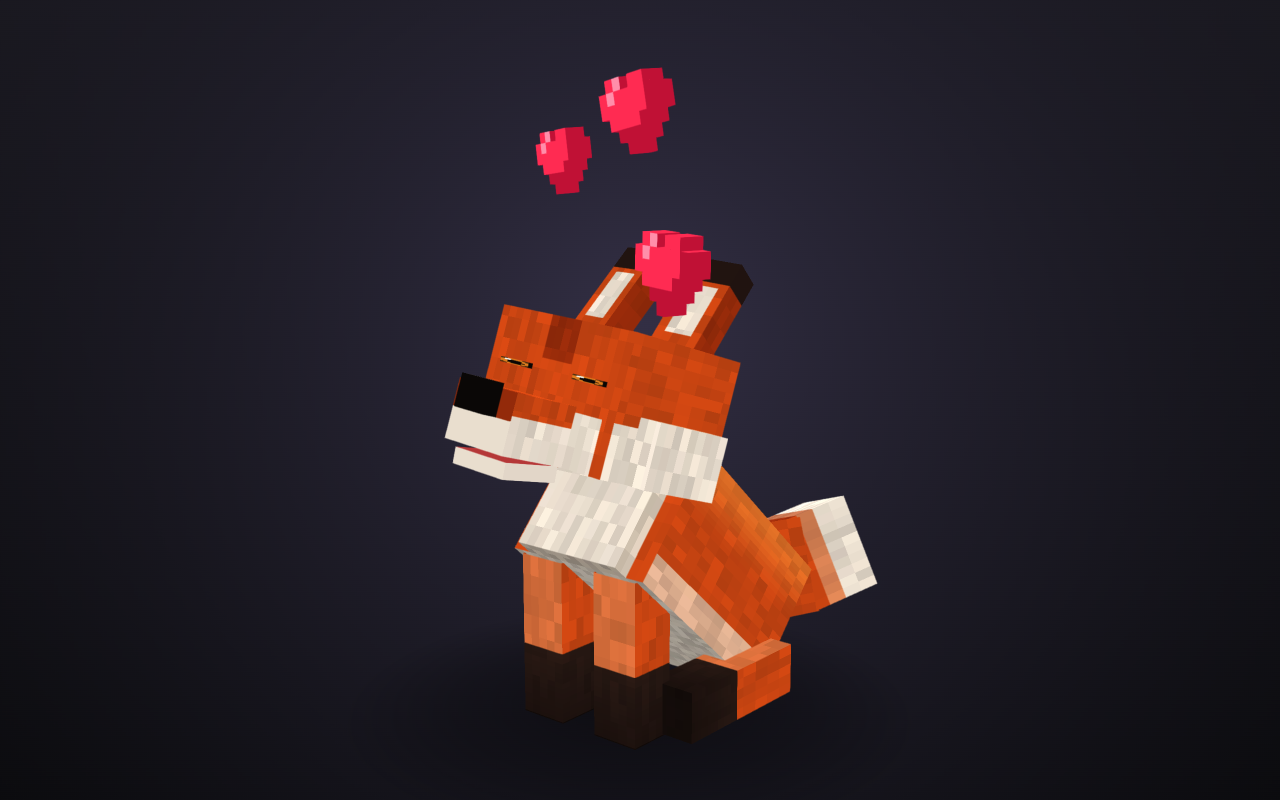
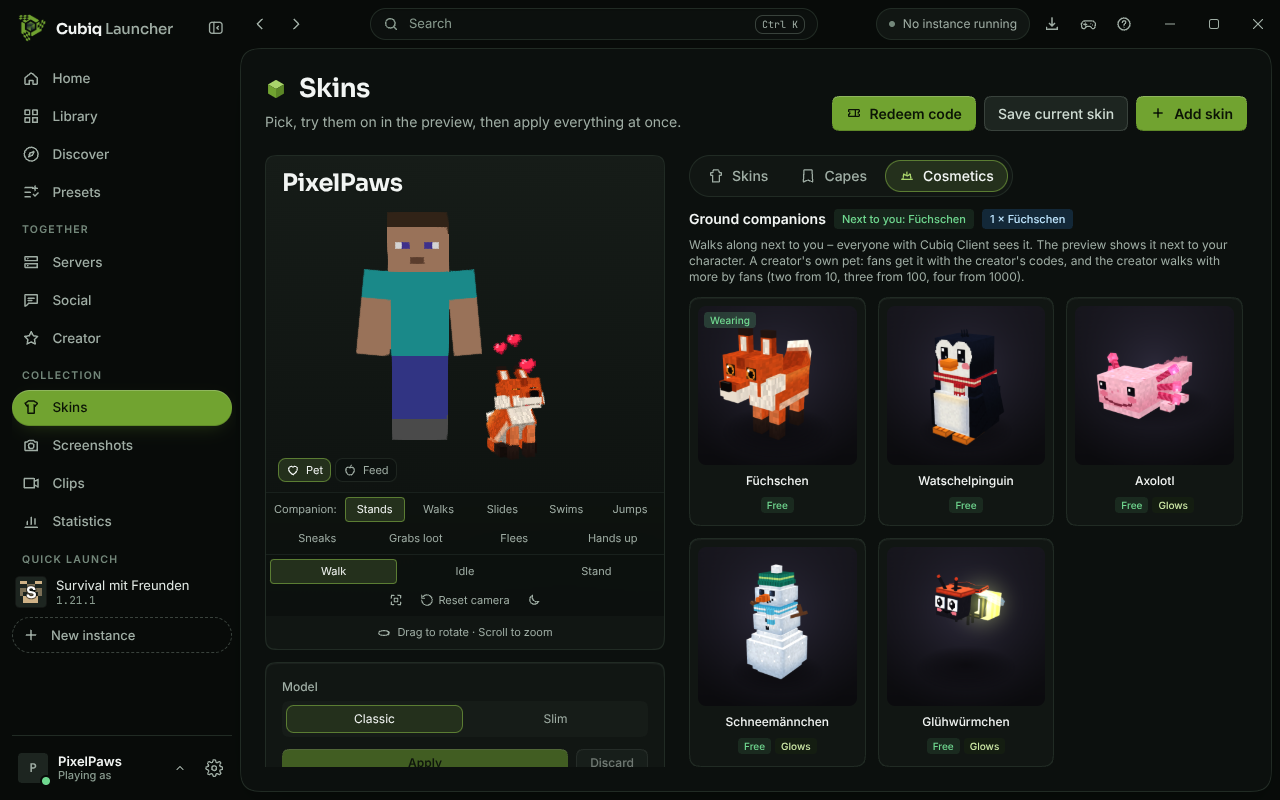
- Pet and feed your companions. Your companion on the ground now reacts to you. With the Cubiq Client in the game,
right-click your own companion: with an empty hand you pet it – it leans into your hand, closes its eyes happily,
wiggles and little hearts rise above it. Hold something to eat (bread, an apple, a cookie, …) and you feed it
instead – it looks up, takes three bites with crumbs flying and chews happily. Your food stays in your inventory; it
is just for fun and nothing is used up. While it enjoys the moment, your companion stands still and looks at you. It
works with Cubi, the penguin, the fox kit, the axolotl, the snowman and the firefly. - Only your own companion, everything else as before. The right-click only goes to your companion when you point
at it – also when it stands in grass, flowers or a field of wheat, which no longer get in the way. Blocks, doors,
chests, levers and villagers in front of it work as always. If your companion stands right in front of something you
want to use, sneak while right-clicking and the game ignores it. The reaction is only shown on your screen. If you
prefer the old behaviour, switch it off in the Cubiq Client settings under Cubiq Online ("Pet and feed your
companions (right-click)"). - Try it in the preview. On the Skins page, in the Cosmetics tab, the companion preview now has two small buttons
in its bottom left corner: "Pet" with a heart and "Feed" with an apple (on phones just the icons). Click one to watch
the reaction right there; it plays to the end and then your companion goes back to what it was doing. Point at a
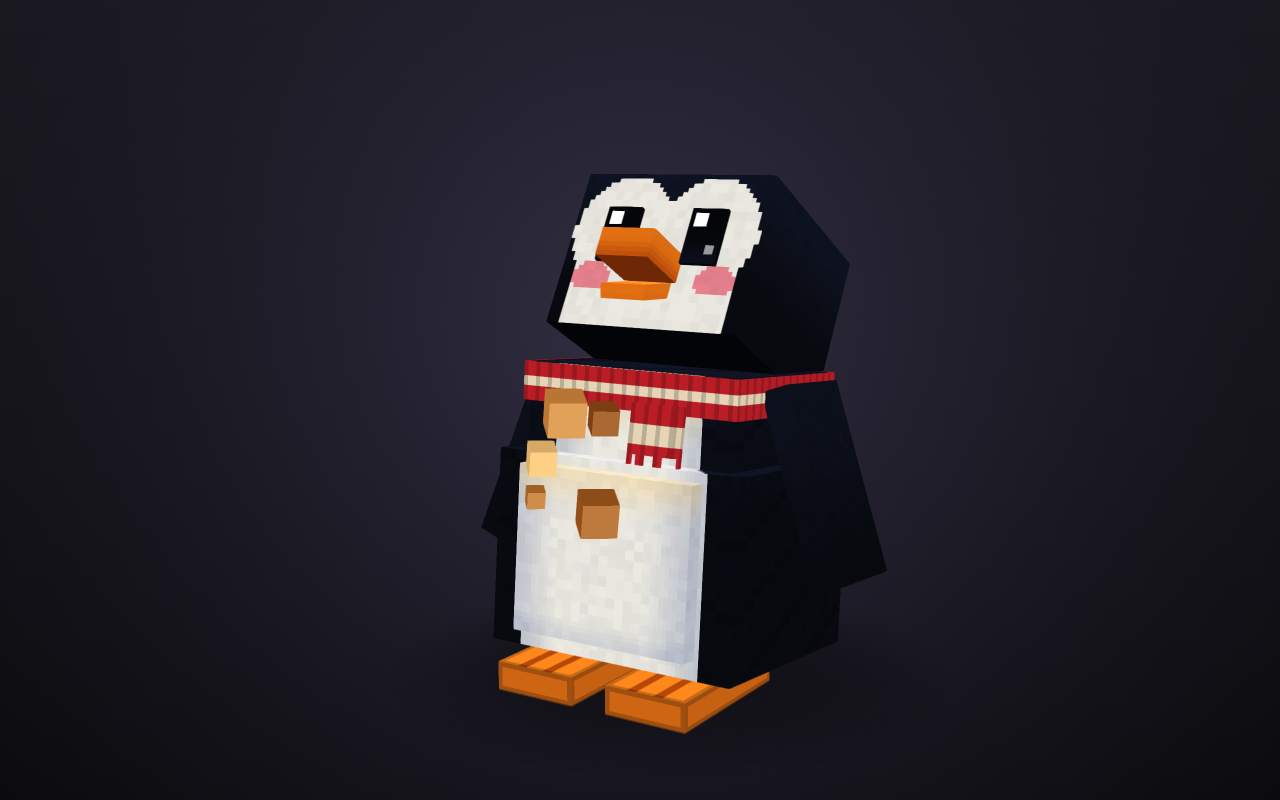
button to see how it works in the game. The cosmetics page on the website has the same two buttons. - The penguin and the fox kit look and move better. The penguin's flippers now sit on its body instead of floating
beside it, its scarf sits below the head so it no longer pokes through when the penguin looks around, and the short
end of the scarf flutters instead of sticking out stiffly. Its feet no longer hover when it walks, sneaks or jumps.
The fox kit now sits properly on its rump with folded hind legs, raises its paws without balancing on the tip of its
tail, its tail moves from its base without a gap, its ears have a cream inside and its legs no longer show gaps when
it trots. Switching between moves – for example when the fox kit snatches a berry while sitting – no longer makes
the companions jump for a moment.
Beste Freunde
- Streichle und füttere deine Begleiter. Dein Begleiter am Boden reagiert jetzt auf dich. Mit dem Cubiq Client im
Spiel klickst du deinen eigenen Begleiter mit der rechten Maustaste an: Mit leerer Hand streichelst du ihn – er
schmiegt sich an deine Hand, schließt glücklich die Augen, wackelt, und kleine Herzen steigen über ihm auf. Hältst du
etwas zu essen in der Hand (Brot, einen Apfel, einen Keks, …), fütterst du ihn stattdessen – er schaut nach oben,
nimmt drei Bissen, Krümel fliegen, und er kaut zufrieden. Dein Essen bleibt in deinem Inventar; es ist nur zum Spaß,
nichts wird verbraucht. Solange er den Moment genießt, bleibt dein Begleiter stehen und schaut dich an. Das klappt
mit Cubi, dem Pinguin, dem Füchschen, dem Axolotl, dem Schneemännchen und dem Glühwürmchen. - Nur dein eigener Begleiter, sonst alles wie gewohnt. Der Rechtsklick geht nur an deinen Begleiter, wenn du auf
ihn zeigst – auch wenn er in Gras, Blumen oder einem Weizenfeld steht; die stören nicht mehr. Blöcke, Türen, Truhen,
Hebel und Dorfbewohner davor funktionieren wie immer. Steht dein Begleiter direkt vor etwas, das du benutzen willst,
schleiche beim Rechtsklick, dann beachtet das Spiel ihn nicht. Die Reaktion siehst nur du auf deinem Bildschirm. Wer
es lieber wie bisher hat, schaltet es in den Einstellungen des Cubiq Client unter „Cubiq Online“ aus („Begleiter
streicheln und füttern (Rechtsklick)“). - Ausprobieren in der Vorschau. Auf der Skins-Seite im Reiter „Kosmetik“ hat die Begleiter-Vorschau jetzt unten
links zwei kleine Knöpfe: „Streicheln“ mit einem Herz und „Füttern“ mit einem Apfel (auf dem Handy nur die Symbole).
Ein Klick zeigt die Reaktion direkt dort; sie läuft bis zum Ende, danach macht dein Begleiter weiter wie vorher. Zeigst
du auf einen Knopf, steht dort, wie es im Spiel geht. Die Kosmetik-Seite der Website hat dieselben zwei Knöpfe. - Pinguin und Füchschen sehen besser aus und bewegen sich schöner. Die Flossen des Pinguins sitzen jetzt am Körper,
statt daneben zu schweben, sein Schal sitzt unter dem Kopf und sticht beim Umschauen nicht mehr hindurch, und das
kurze Schalende flattert, statt steif abzustehen. Seine Füße schweben beim Laufen, Schleichen und Springen nicht
mehr. Das Füchschen sitzt jetzt richtig auf dem Hinterteil mit angelegten Hinterbeinen, hebt die Pfoten, ohne auf der
Schwanzspitze zu balancieren, sein Schwanz bewegt sich ohne Lücke vom Ansatz aus, seine Ohren sind innen
cremefarben, und beim Traben zeigen die Beine keine Lücken mehr. Beim Wechsel zwischen Bewegungen – etwa wenn das
Füchschen im Sitzen eine Beere schnappt – springen die Begleiter nicht mehr kurz hin und her.
Cubiq Launcher 0.3.1 – The Map Update
The Map Update
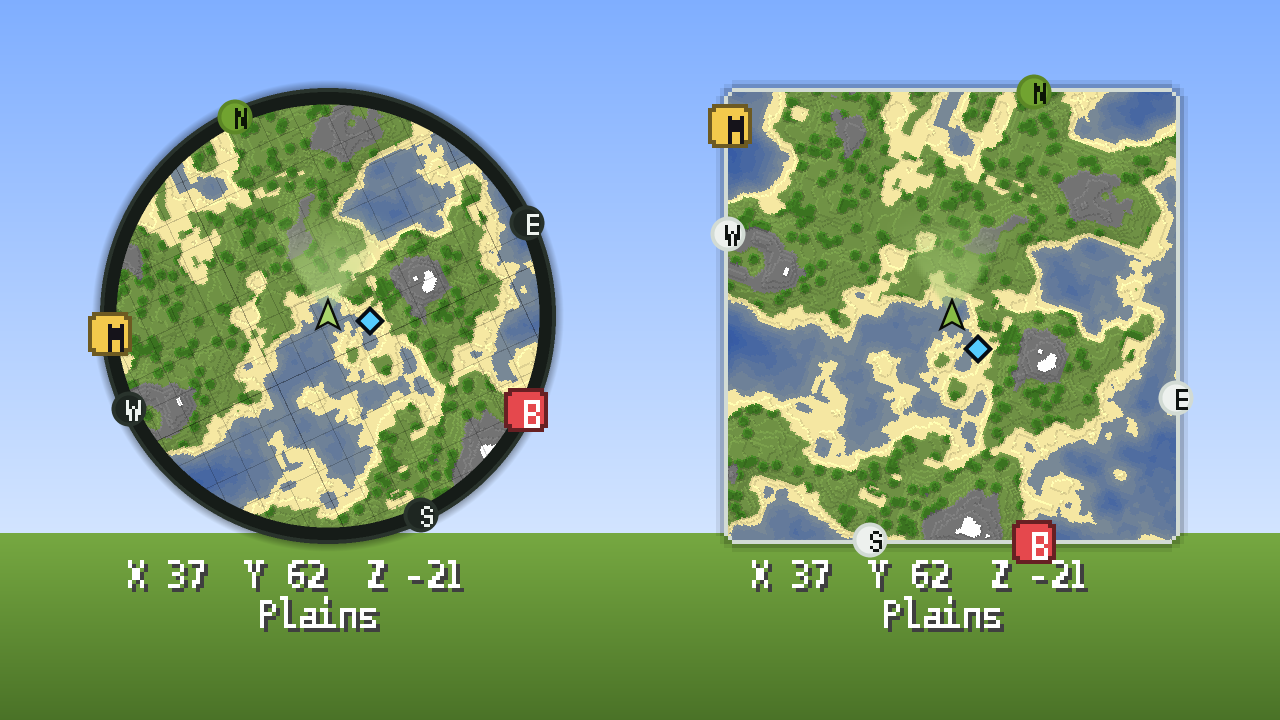
- A calmer minimap. The minimap of the Cubiq Client in the game has a new frame in the style of the launcher instead
of the old stone frame: a flat edge in the colours of your theme with a fine border, rounded corners on the square map
and a soft shadow that keeps it easy to see over bright snow and dark caves alike. The dark, OLED and light colour
schemes each get a matching frame, and the winter, fox and Halloween designs keep their own. Waypoints at the edge of
the map now sit in flat, rounded boxes with a darker outline, so their letter reads well on any ground. - Compass directions at a glance. N, E, S and W now sit on small round badges at the edge of the minimap. North is
filled with the accent colour, so you find it at once, even when the map turns with you. As before, you can switch
them on and off in the Cubiq menu (Right Shift) → Minimap → "Compass directions". - See where you are looking. A soft cone of light in front of your arrow shows the direction you are looking in – on
the minimap and on the world map. It fades out towards the front, so it never hides the map. It is on by default; if
you don't need it, switch it off in the Cubiq menu → Minimap → "View direction". - Chunk grid on the minimap. Thin lines every 16 blocks show the chunk borders, and every 128 blocks, where a new
map region begins, the line is a little stronger – handy for farms, spawn chunks and building along chunk borders.
The grid turns with the map and hides by itself when you zoom out so far that the lines would crowd together. Switch
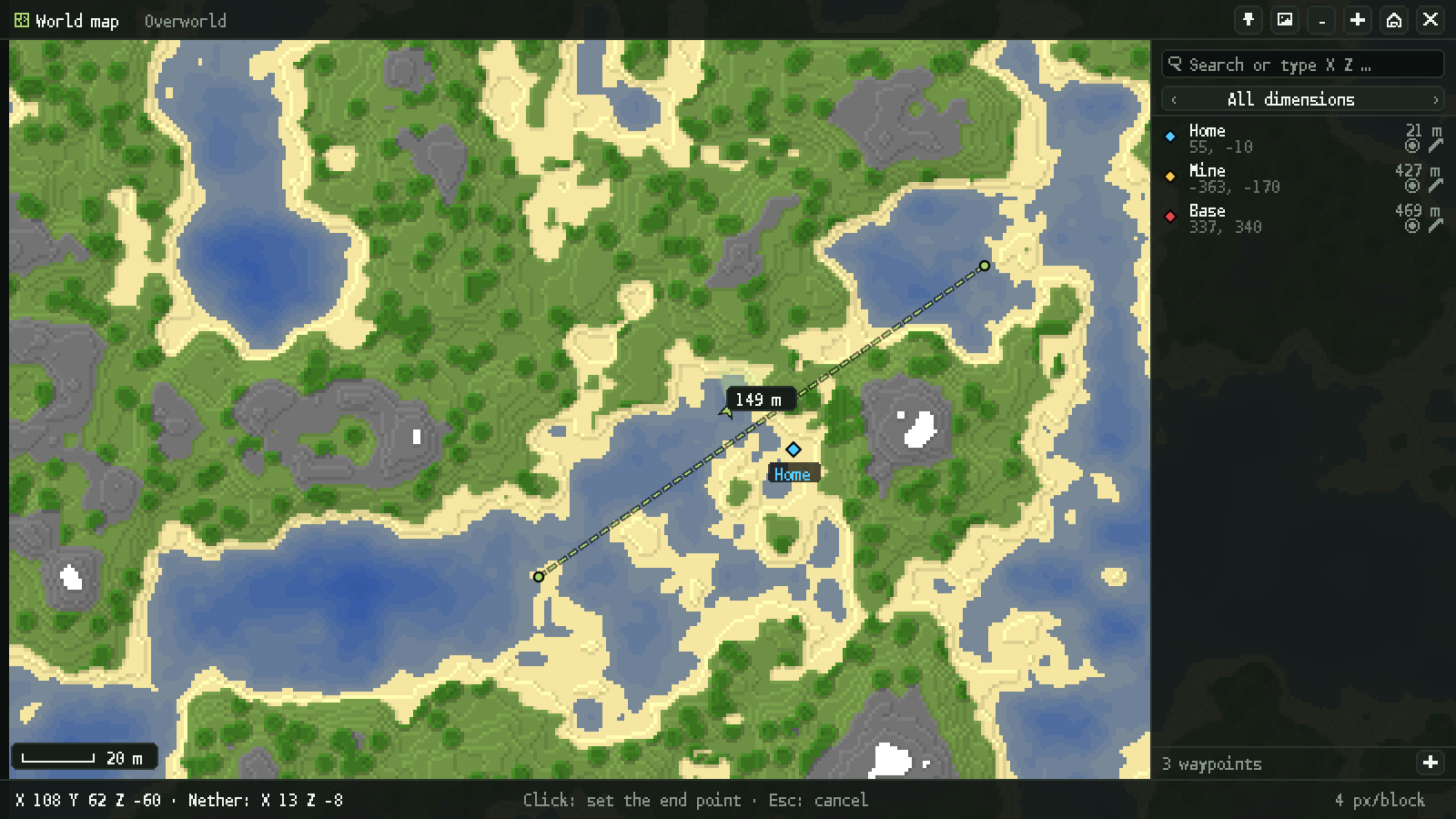
it on in the Cubiq menu → Minimap → "Chunk grid". - Measure distances on the world map. Open the world map (M), right-click a spot and choose "Measure distance from
here". A dashed line follows your mouse and shows the distance in metres, from 1,000 blocks in kilometres; a click
sets the end point. The measurement stays while you move and zoom the map. Press Esc or right-click → "Clear
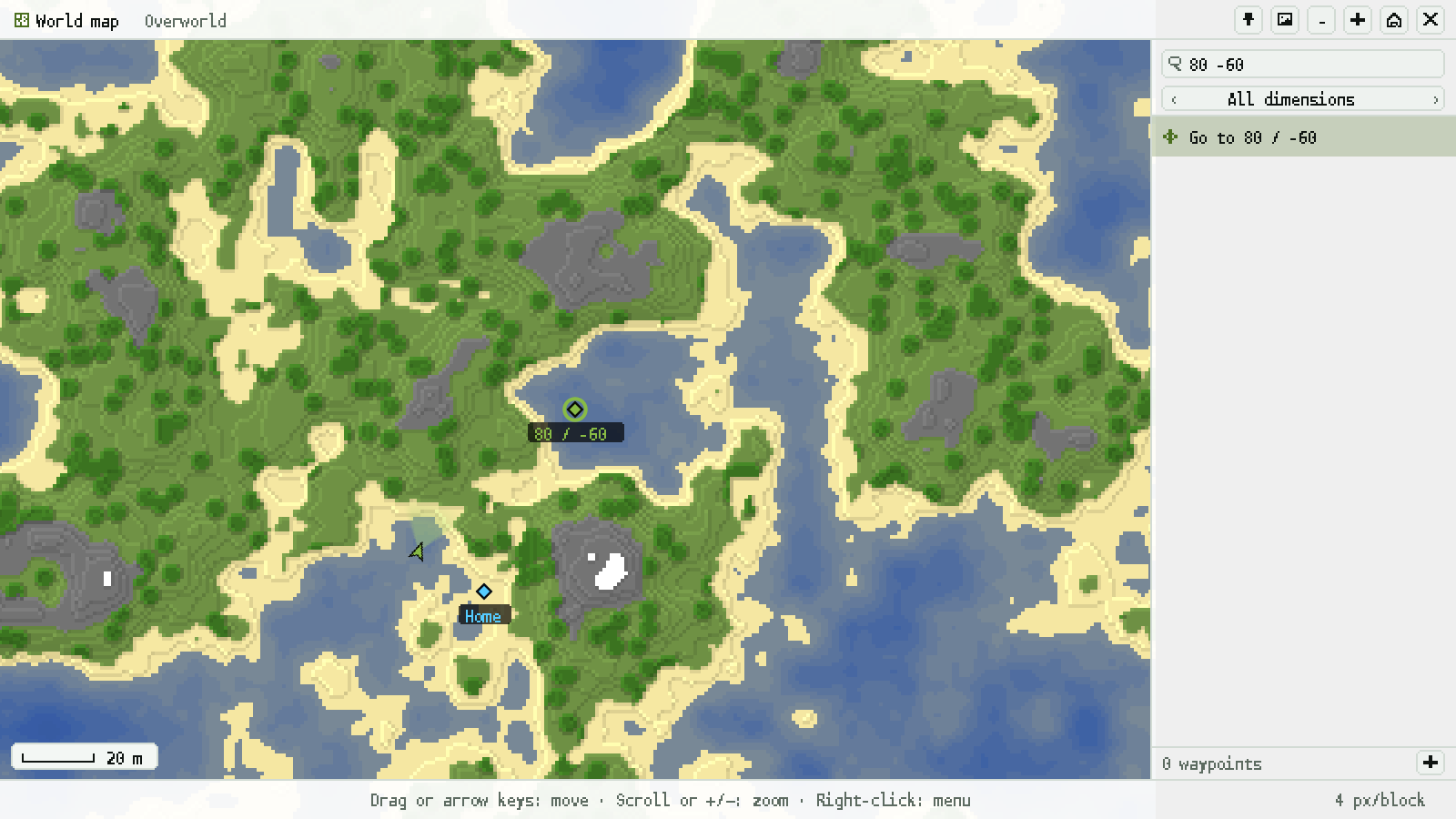
measurement" to remove it – Esc removes the measurement first before it closes the map. - A scale bar. The bottom left corner of the world map shows a scale bar with a round length – 20 m, 100 m or 1 km,
for example – that adapts while you zoom, so you can judge distances at a glance. - Jump to coordinates. Type coordinates into the search of the waypoint list, for example "120 -40", "120 64 -40"
or "x 120 z -40". A row "Go to 120 / -40" appears above the list; click it or press Enter, and the map centres on
that spot and marks it. Handy for coordinates from the chat, from a friend or from a seed map. - The world map on the keyboard. The arrow keys move the map, + and − zoom in and out, and Home takes you back to
your own position. - The world map in Cubiq colours. The bars at the top and bottom, the waypoint list, the tooltips and the hints of
the world map now use the colours of your theme – dark, OLED or light – with fine borders, like the launcher. Your
own arrow uses the accent colour and stays easy to see in the light scheme too.
Das Karten-Update
- Eine ruhigere Minimap. Die Minimap des Cubiq Client im Spiel hat statt des alten Steinrahmens einen neuen Rahmen
im Stil des Launchers: einen flachen Rand in den Farben deines Themas mit feiner Kante, abgerundete Ecken bei der
eckigen Karte und einen weichen Schatten, der sie über hellem Schnee genauso gut sichtbar hält wie in dunklen Höhlen.
Dunkel, OLED und Hell bekommen jeweils einen passenden Rahmen, Winter-, Fuchs- und Halloween-Design behalten ihre
eigenen. Wegpunkte am Kartenrand sitzen jetzt in flachen, abgerundeten Kästchen mit dunklerer Kante, so ist ihr
Buchstabe auf jedem Untergrund gut zu lesen. - Himmelsrichtungen auf einen Blick. N, O, S und W sitzen jetzt auf kleinen runden Plaketten am Rand der Minimap.
Norden ist in der Akzentfarbe gefüllt, so findest du ihn sofort – auch wenn sich die Karte mit dir dreht. Wie bisher
schaltest du sie im Cubiq-Menü (rechte Umschalttaste) → Minimap → „Himmelsrichtungen“ ein und aus. - Sehen, wohin du schaust. Ein weicher Lichtkegel vor deinem Pfeil zeigt deine Blickrichtung – auf der Minimap und
auf der Weltkarte. Nach vorn läuft er sanft aus und verdeckt die Karte nie. Er ist von Anfang an eingeschaltet;
brauchst du ihn nicht, schalte ihn im Cubiq-Menü → Minimap → „Blickrichtung“ aus. - Chunk-Raster auf der Minimap. Feine Linien alle 16 Blöcke zeigen die Chunk-Grenzen, und alle 128 Blöcke, wo ein
neuer Kartenbereich beginnt, ist die Linie etwas kräftiger – praktisch für Farmen, Spawn-Chunks und Bauen an
Chunk-Grenzen. Das Raster dreht sich mit der Karte und blendet sich von selbst aus, wenn du so weit herauszoomst, dass
die Linien zu dicht stünden. Einschalten im Cubiq-Menü → Minimap → „Chunk-Raster“. - Entfernungen auf der Weltkarte messen. Öffne die Weltkarte (M), klicke mit rechts auf eine Stelle und wähle
„Entfernung von hier messen“. Eine gestrichelte Linie folgt deiner Maus und zeigt die Entfernung in Metern, ab 1.000
Blöcken in Kilometern; ein Klick setzt den Endpunkt. Die Messung bleibt, während du die Karte verschiebst und zoomst.
Mit Esc oder Rechtsklick → „Messung entfernen“ verschwindet sie wieder – Esc entfernt erst die Messung, bevor es die
Karte schließt. - Ein Maßstab. Unten links zeigt die Weltkarte einen Maßstab mit einer runden Länge – zum Beispiel 20 m, 100 m oder
1 km –, der sich beim Zoomen anpasst. So schätzt du Entfernungen auf einen Blick. - Zu Koordinaten springen. Tippe Koordinaten in die Suche der Wegpunkt-Liste, zum Beispiel „120 -40“, „120 64 -40“
oder „x 120 z -40“. Über der Liste erscheint die Zeile „Gehe zu 120 / -40“; ein Klick darauf oder Enter, und die
Karte zentriert sich dort und markiert die Stelle. Praktisch für Koordinaten aus dem Chat, von Freunden oder von einer
Seed-Karte. - Die Weltkarte mit der Tastatur. Die Pfeiltasten verschieben die Karte, + und − zoomen hinein und heraus, und Pos1
bringt dich zurück zu deiner eigenen Position. - Die Weltkarte in Cubiq-Farben. Die Leisten oben und unten, die Wegpunkt-Liste, die Tooltips und die Hinweise der
Weltkarte nutzen jetzt die Farben deines Themas – Dunkel, OLED oder Hell – mit feinen Kanten, wie im Launcher. Dein
eigener Pfeil trägt die Akzentfarbe und bleibt auch im hellen Farbschema gut sichtbar.
Cubiq Launcher 0.3.0 – New friends
New friends
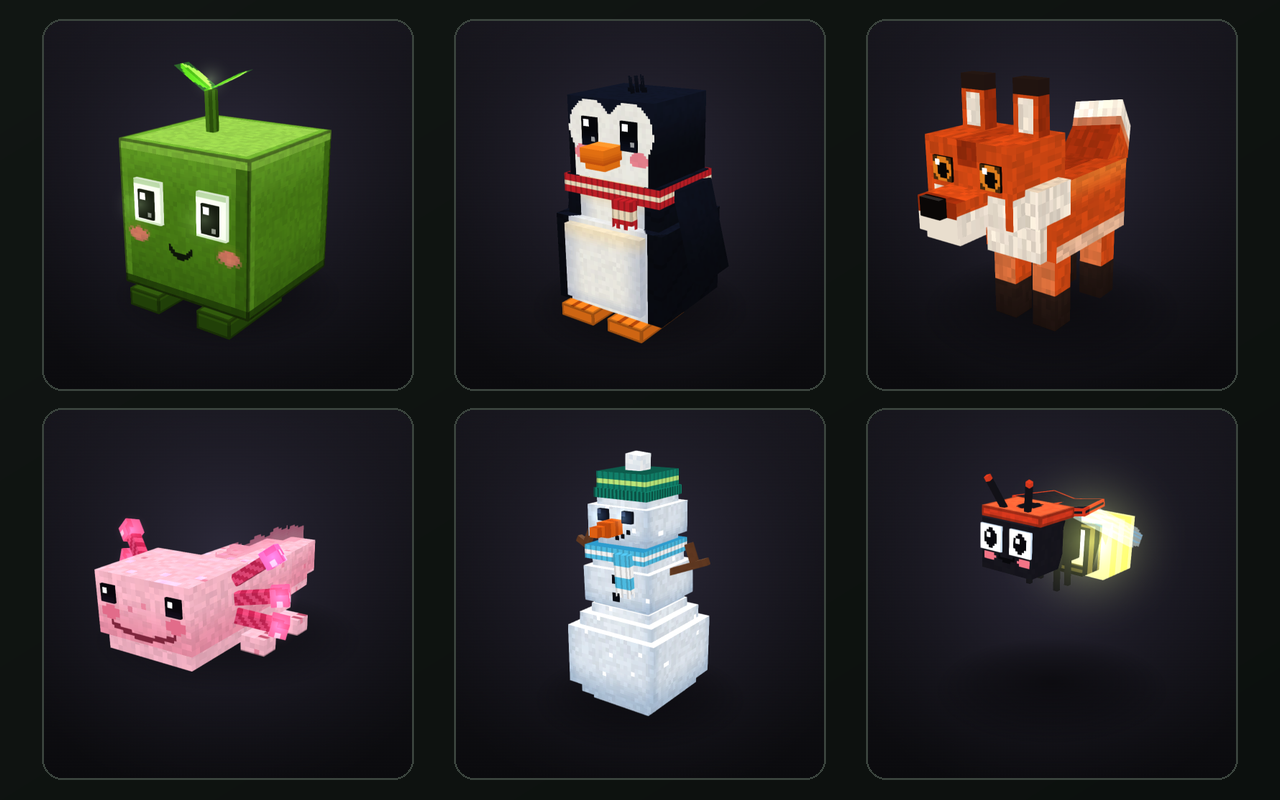
- Nine new cosmetics, free for everyone. With the Cubiq services online, new animated cosmetics arrive – nothing to
unlock, just pick them. Six companions walk next to you on the ground: Cubi, the green cube from the Cubiq logo,
hops along and rolls over its edges to catch up; a waddling penguin in a red and white scarf slides on its belly;
a fox kit trots, pounces and runs off with a berry; a pink axolotl swims with its tail and waves; a little
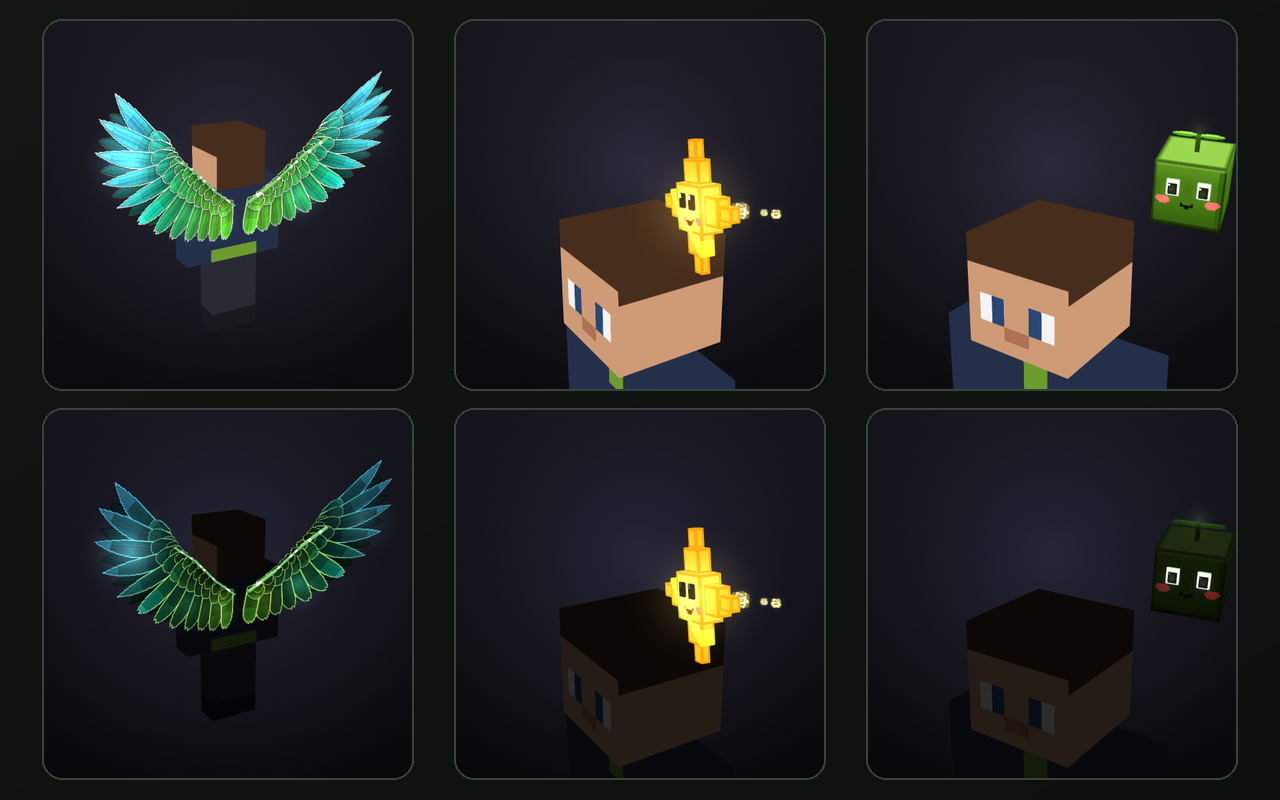
snowman hops and glides like a curling stone; and a firefly flies with its lantern glowing and loops for joy. - Wings and head companions. The aurora wings are big feathered wings of light in Cubiq green, turquoise and
ice cyan: rows of feathers with glowing edges that fan out wide when you fly, with aurora light running through
them. Two companions circle your head: a shooting star with a face and three sparkling little stars in its trail,
and Mini-Cubi, whose sprout spins like a propeller. - Glowing at night. Many of them light up in the dark: Cubi's eyes and leaves, the axolotl's gills, the snowman's
eyes, the firefly's lantern, the wings and the shooting star. - Where to find them. In the Cosmetics tab on the Skins page. With the Cubiq Client in the game you can also pick
them in its wardrobe, and other Cubiq players see what you wear. - The Cubiq services are live. The launcher is now connected to the Cubiq server. Once you agree in the launcher –
a short note tells you what is stored – you get Cubiq capes and cosmetics that other Cubiq players see too, a friends
list with online status, chat with your friends, achievements and the sync of your own skins, presets, theme, accent
colour and language between your PCs. You can turn the services off again at any time under Settings → Privacy; the
launcher then sends nothing to the Cubiq server. - Ready for the Cubiq Client. When you start Minecraft with the Cubiq services switched on, the launcher now tells
the Cubiq Client which server to use. With the Cubiq Client in your game, the capes and cosmetics of other Cubiq
players, the Cubiq badge next to their names, emotes, the Social menu with chat, friends list and your friends'
worlds, the sync of your modules and HUD profiles and bug reports from the Cubiq menu all run over the same server as
the launcher. - Links to the website that work. "Open website" under Settings → Privacy, the link in the "Sign in on the
website" window and the "Open positions" and "On the website" buttons in "My applications" now open the Cubiq
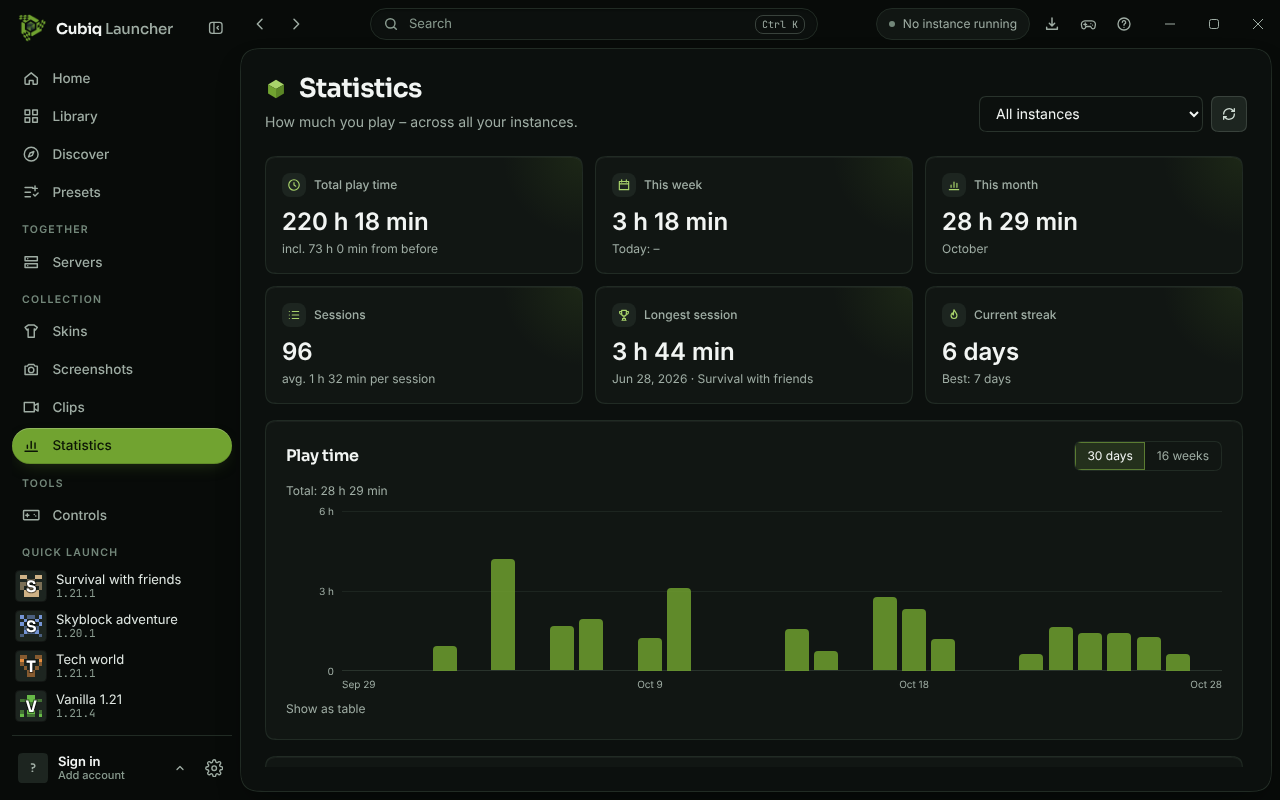
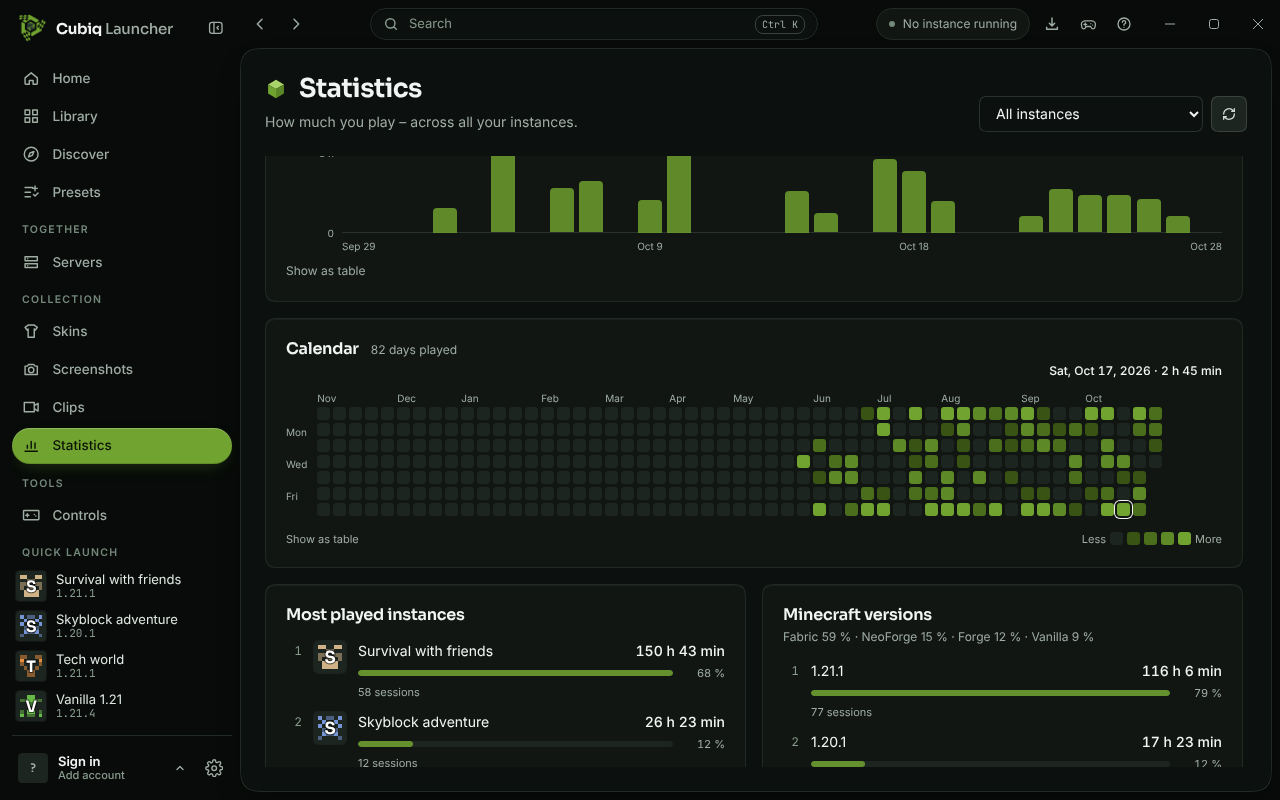
website. - Your play time at a glance. A new Statistics page in the sidebar (under Collection, also in the search with
Ctrl+K) shows how much you play: in total, this week and this month, how many sessions you had and how long they
last on average, your longest session and your current and best streak of days in a row. Below that, a bar chart
shows your play time per day for the last 30 days – or per week for the last 16 weeks – and a calendar colours every
day of the last months by how long you played, from a soft to a full green. Point at a bar or a day, or use the
arrow keys, to see the exact time; "Show as table" lists the same numbers. - Favourite instances, versions and servers. The page ranks your most played instances, the Minecraft versions and
mod loaders you play most and the servers you joined – the ones you start from the launcher and the ones you open
in the multiplayer menu of the game. Pick an instance at the top to see every number for just that one. Instances
you deleted still count and are marked as deleted. - On every instance page. The History tab of an instance now starts with a summary: total play time, number of
sessions, average and longest session and small bars for the last 30 days. "All statistics" opens the page with
just that instance. The summary follows the "Show play time" setting. - Nothing gets lost. The play time you already have counts from the start: sessions from the history of your
instances come in with their date and the version you played back then, older play time counts towards the totals.
If the launcher closes unexpectedly while you play, its next start ends the session at the moment the game last
wrote to its log and adds that time to the instance – it used to get lost. At the bottom of the page you can reset
the statistics; the play time shown on your instances stays. - Automatic world backups. Your singleplayer worlds are now backed up on their own: when you press Play, the
launcher saves every world that changed since its last backup as a ZIP file, and after you close the game it saves
the worlds you just played. Unchanged worlds are skipped, so usually there is nothing to do at all. The game never
waits for it – the backup runs in the background while the game loads, and its progress shows up with the other
tasks in the title bar. If you open a world in the game before its backup is finished, that unfinished backup is
thrown away, because a backup is never made from a half-saved world; the previous one stays, and a new one follows
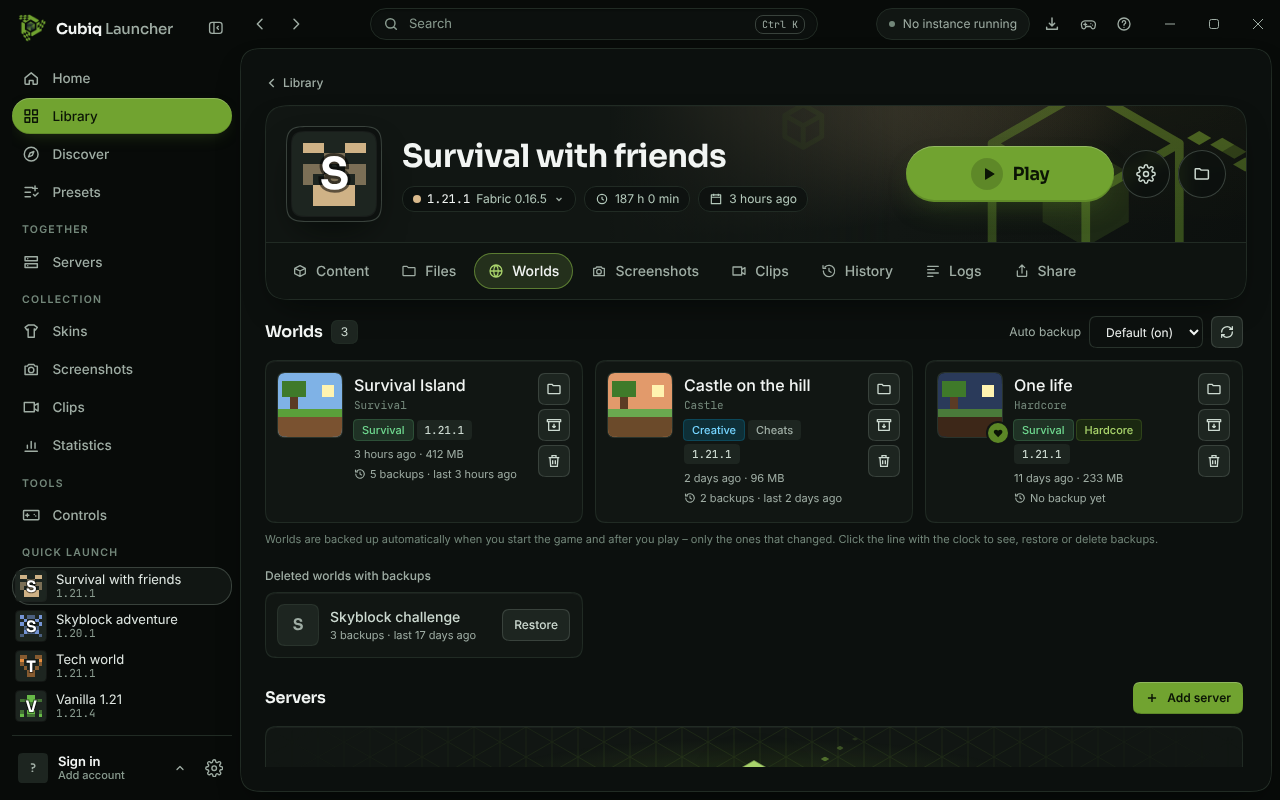
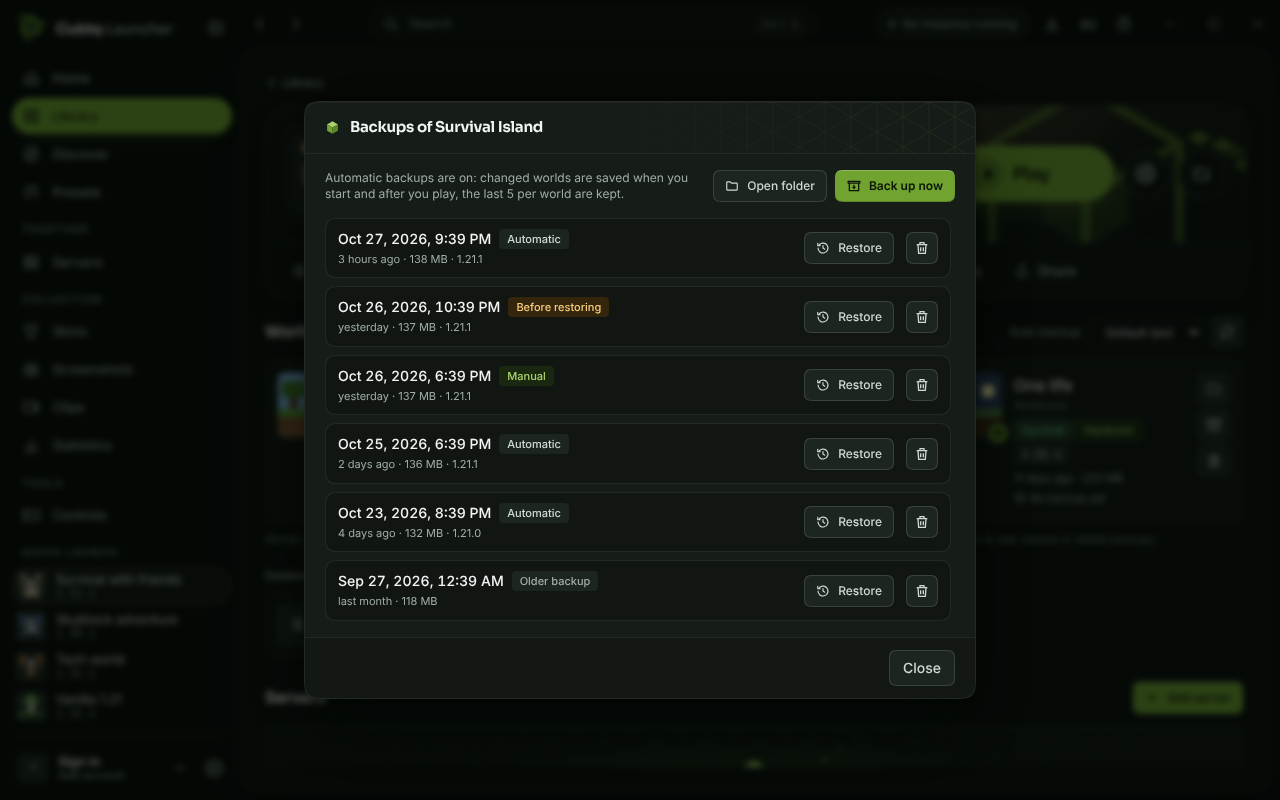
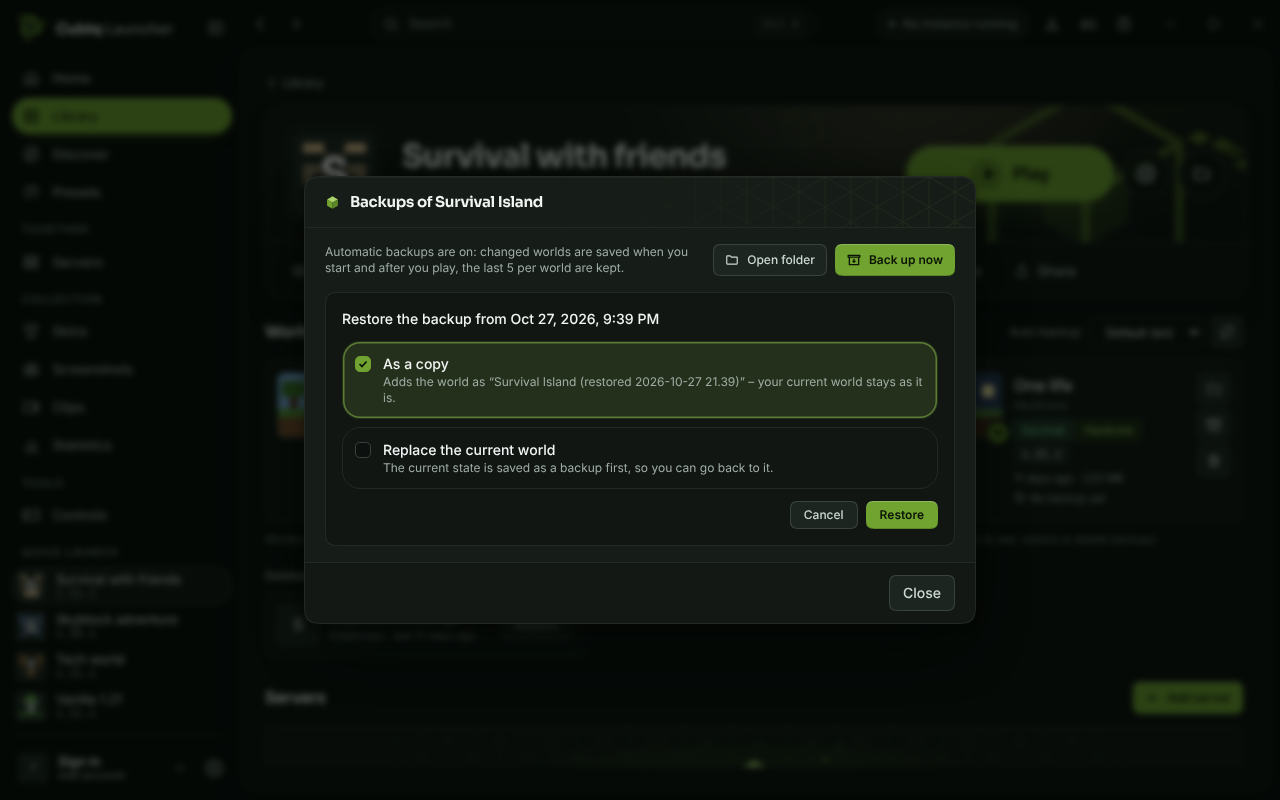
after you play. If a backup fails, you get a short notice and the game starts anyway. - See and restore backups. In the Worlds tab of an instance, every world now shows how many backups it has and
when the last one was made. Click that line to open its backups with date, size and kind. "Restore" adds a backup
as a copy next to your current world – named like "My world (restored 2026-10-27 14.05)" – or replaces the current
world; before replacing, the launcher saves the current state as a backup, so you can always go back. Worlds you
deleted that still have backups appear under "Deleted worlds with backups" and come back with one click. "Back up
now" makes a manual backup at any time, even while the game runs, as long as that world is not open. - Your choice how much to keep. Under Settings → World backups you can turn automatic backups off, choose how
many automatic backups to keep per world (5 by default) and set a size limit for all backups together – the oldest
automatic ones go first, the newest backup of each world always stays. Manual backups and the ones made before
restoring are never deleted automatically. In the Worlds tab ("Auto backup") a single instance can be switched on
or off on its own. The settings also show how much space the backups take, open their folder and can delete the
backups of instances you removed. - Animated update pictures. The pictures of the updates in "What's new" and on the update card on the home page
are small animated pixel scenes again instead of rotatable 3D models – for every update, from the very first one to
this one. They play quietly next to the title and load quickly, also on slower PCs; with "Reduce animations" under
Settings → Appearance you see the still picture. The picture of this update shows the new cosmetics: Cubi with the
aurora wings, surrounded by his new companions.
Neue Freunde
- Neun neue Kosmetik-Teile, für alle kostenlos. Mit den Cubiq-Diensten kommen neue animierte Kosmetik-Teile –
nichts freizuschalten, einfach auswählen. Sechs Begleiter laufen neben dir am Boden: Cubi, der grüne Würfel aus
dem Cubiq-Logo, hüpft mit und rollt über die Kanten, wenn er aufholen muss; ein Watschelpinguin mit rot-weißem
Schal rutscht auf dem Bauch; ein Füchschen trabt, macht den Mäusesprung und flitzt mit einer Beere davon; ein
rosa Axolotl schwimmt mit kräftigem Schwanzschlag und winkt; ein kleines Schneemännchen hüpft und gleitet wie
ein Curlingstein; und ein Glühwürmchen fliegt mit leuchtender Laterne und dreht vor Freude einen Looping. - Flügel und Begleiter am Kopf. Die Polarlichtflügel sind große gefiederte Lichtflügel in Cubiq-Grün, Türkis
und Eiscyan: Reihen von Federn mit leuchtenden Rändern, die sich beim Fliegen weit auffächern, und Polarlicht, das
durch sie hindurchzieht. Zwei Begleiter kreisen um deinen Kopf: eine Sternschnuppe mit Gesicht und drei funkelnden
Sternchen im Schweif und Mini-Cubi, dessen Pflänzchen sich wie ein Propeller dreht. - Leuchten bei Nacht. Viele leuchten im Dunkeln: Cubis Augen und Blätter, die Kiemen des Axolotls, die Augen des
Schneemännchens, die Laterne des Glühwürmchens, die Flügel und die Sternschnuppe. - Wo du sie findest. Im Reiter „Kosmetik“ auf der Skins-Seite. Mit dem Cubiq Client im Spiel wählst du sie auch in
seiner Garderobe aus, und andere Cubiq-Spieler sehen, was du trägst. - **Die Cubiq-Dienst...
Cubiq Launcher 0.2.51 – Back to green
Back to green
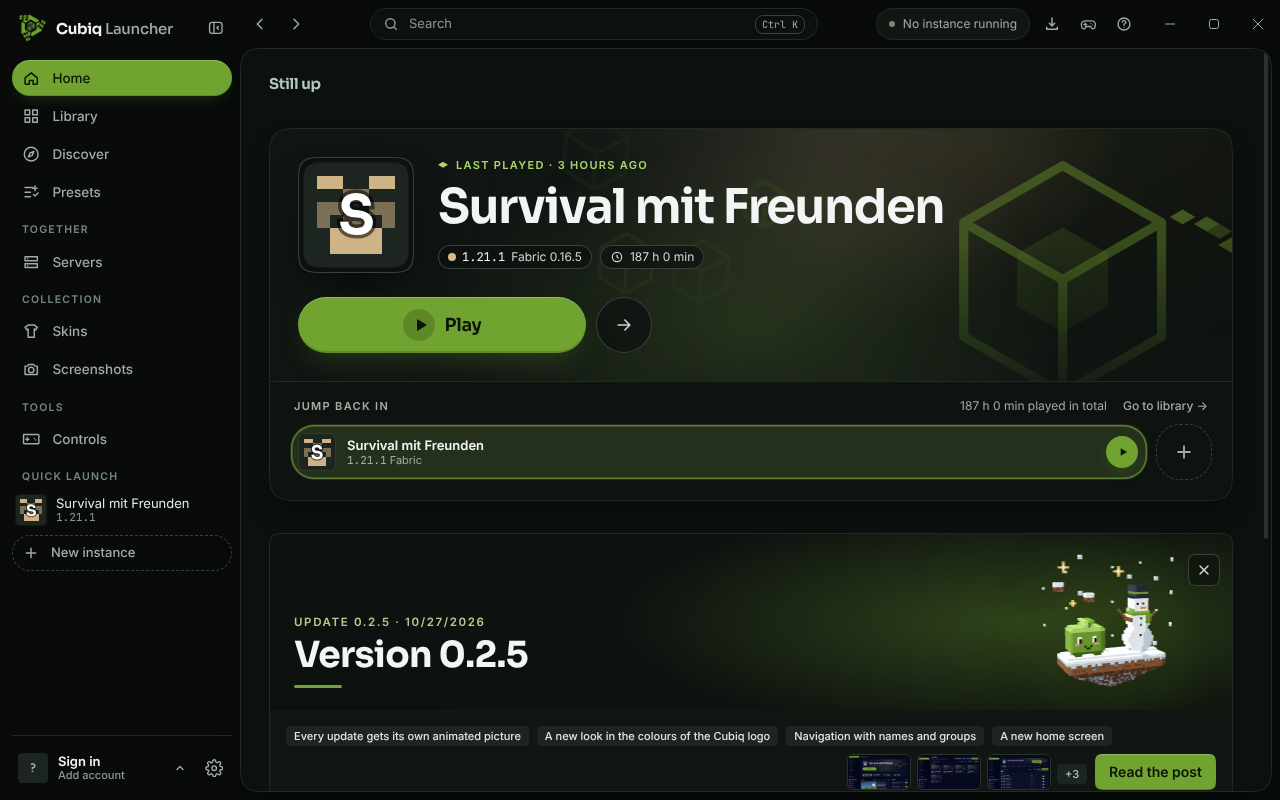
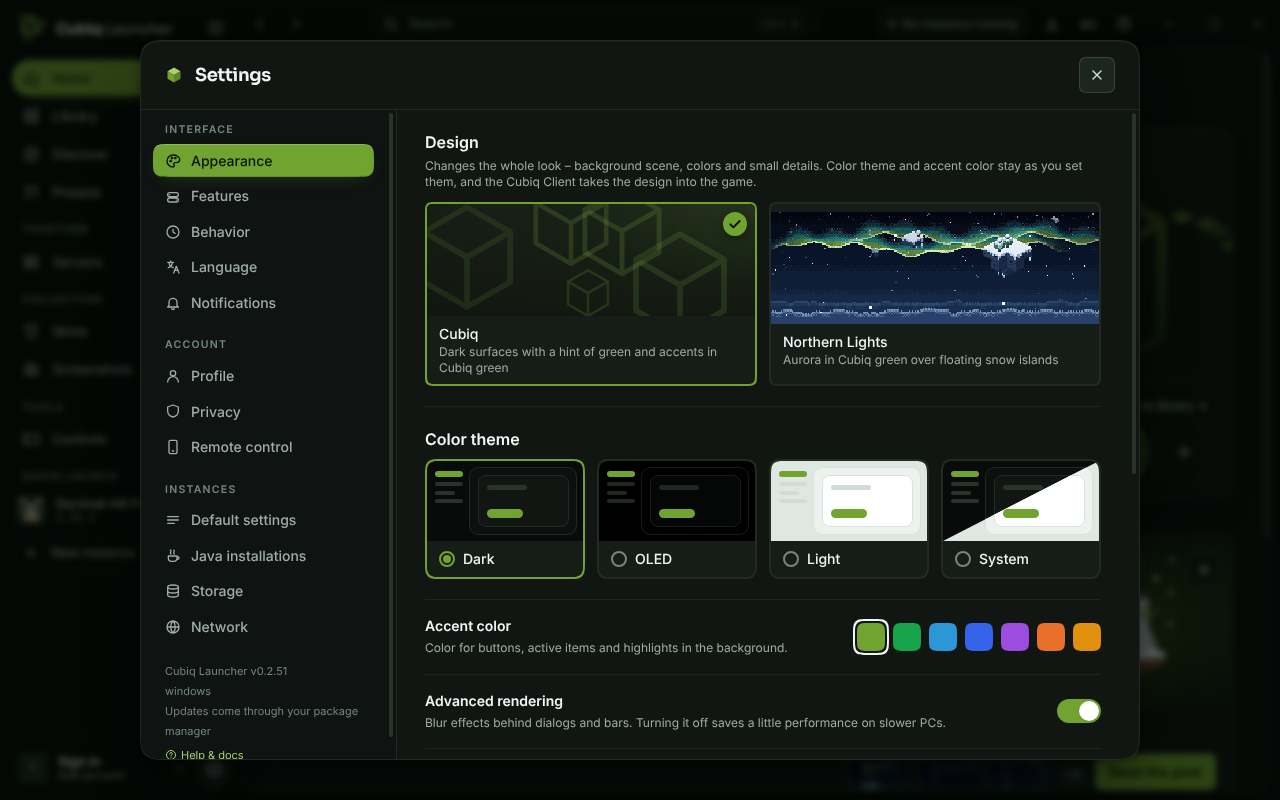
- Cubiq green is back. The launcher returns to its green colours: windows, cards, menus and dialogs sit on calm,
dark surfaces with a hint of green again instead of the navy blue of the last update, and Cubiq green stays the
colour for buttons, the page you are on and everything you can select. Everything else from the new look stays as it
is – the sidebar with names and groups, the home screen with the big play button and "Jump back in", the rounded
shapes and the animated update pictures. The light and OLED colour schemes are tinted green too, and under
Settings → Appearance you can still pick another accent colour or switch to the winter design "Northern Lights",
which stays as it was. - The same green everywhere. The menus, the title screen and the loading screens of the Cubiq Client in the game,
the touch controls on Android and the help screen of the iPhone app use the same green-tinted colours as the
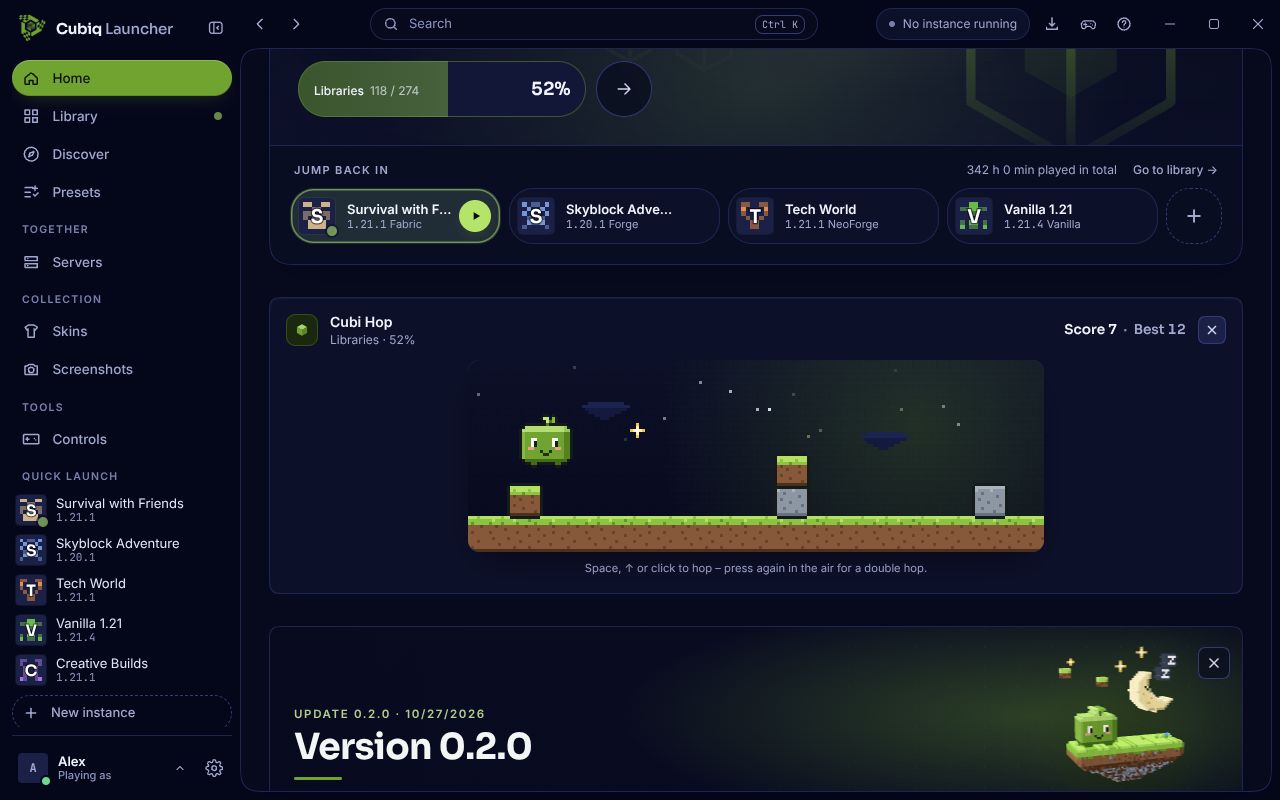
launcher, so nothing jumps back to blue when you start a game. - A mini-game while Minecraft starts. When you press Play, a small card called "Cubi Hop" appears on the home
screen and on the instance page for as long as the launcher prepares and starts the game. Cubi runs along a strip of
grass under the Cubiq night sky, and you hop over grass and stone blocks with Space, the up arrow or a click (a tap
on touch screens) – press once more in the air for a double hop. Every block you clear counts, golden sparkles give
an extra point, and the game gets a little faster with each point. Your best score is saved for each account and
shown next to your current score, and the card also shows how far the start has come. - Closes when the game is there. As soon as the Minecraft window opens, the card says "Minecraft is ready!" and
closes after a few seconds – or click "Keep playing" to finish your run; the × closes it at any time. The game never
takes the focus away from Minecraft, pauses as soon as you switch to the game or another window, and only draws
while you can see it, so the start does not get any slower. Without "Reduce animations" Cubi shows you how it works
by hopping on his own until you take over; with "Reduce animations" (Settings → Appearance → Animations) nothing
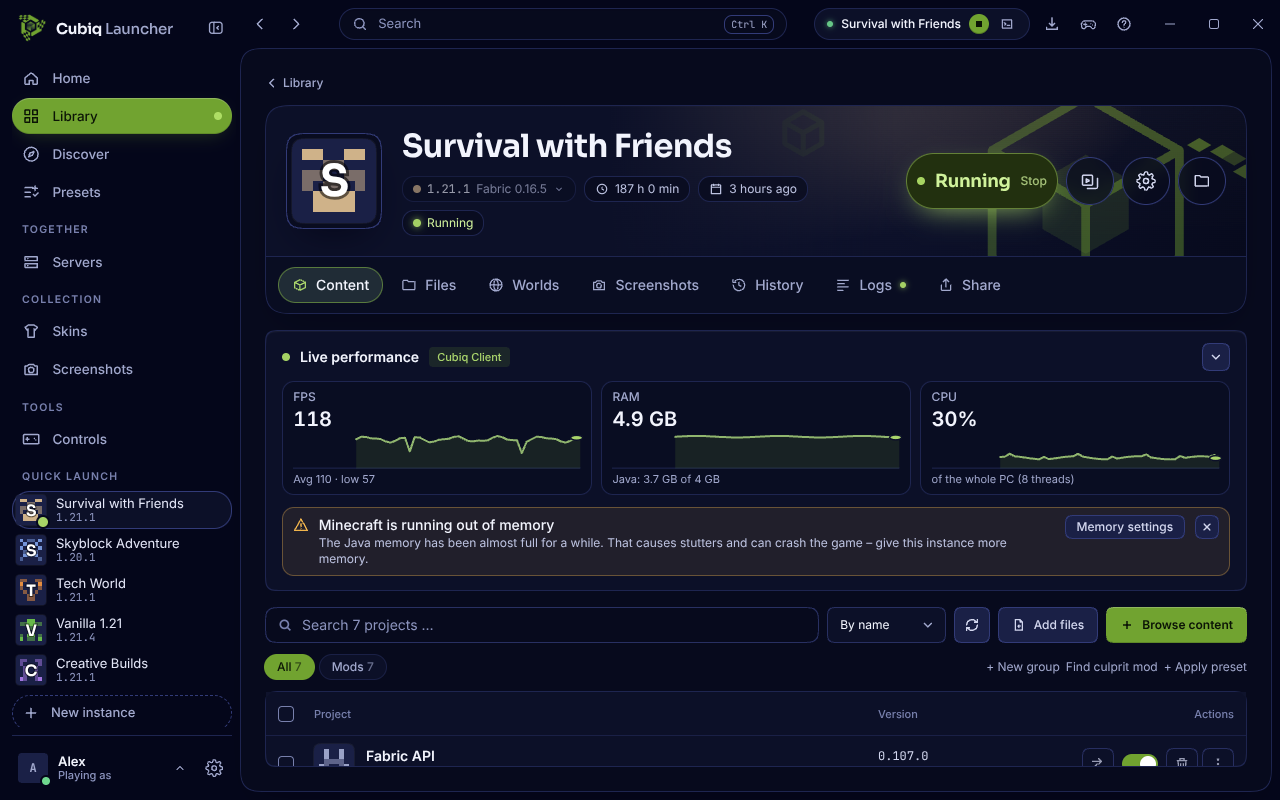
moves until you click Play in the card. - Live performance while you play. While an instance is running, its page now shows "Live performance": three
small live charts for FPS, RAM and CPU covering the last minute, updated about once per second. Below each value you
see a useful detail – the average and lowest FPS, how full Minecraft's own Java memory is (for example "Java: 3.7 GB
of 4 GB") and that the CPU value means your whole PC. Point at a chart to read the value of any second. FPS and Java
memory come from the Cubiq Client in the game; without it you still get RAM and CPU. The arrow in the corner folds
the panel into a single line with the current numbers, and it only measures while the launcher window is visible. - Tips when something is off. If a problem lasts for a few seconds, the panel explains it and helps right away:
when Minecraft's Java memory stays almost full, "Memory settings" takes you straight to the memory of this instance;
when your PC itself runs out of free memory, it asks you to close other programs instead (more memory for the game
would make it worse). For low FPS or repeated short stutters it suggests the Cubiq optimization, with a button to the
setting, or the FPS boost in the game (Cubiq menu with Right Shift → Performance), and when the processor is at its
limit it suggests a lower render and simulation distance. Each tip can be hidden with ×. - A tidier cosmetics tab. The Cosmetics tab on the Skins page and the wardrobe of the Cubiq Client in the game now
only show the sections that actually have items. Head cosmetics are gone for now, so the "Head cosmetics" section
no longer appears as an empty box – you start right with wings, companions and ground companions. If a section gets
items again later, it comes back on its own. - Halloween rewards without capes. The Halloween card on the home page no longer lists capes:
knocking at the pumpkin can still bring emotes and chat stickers, and finding all 13 pumpkins unlocks the badge
"Pumpkin Hunter 2026" plus one of four Halloween wings of your choice. The setting in the Cubiq Client is now simply
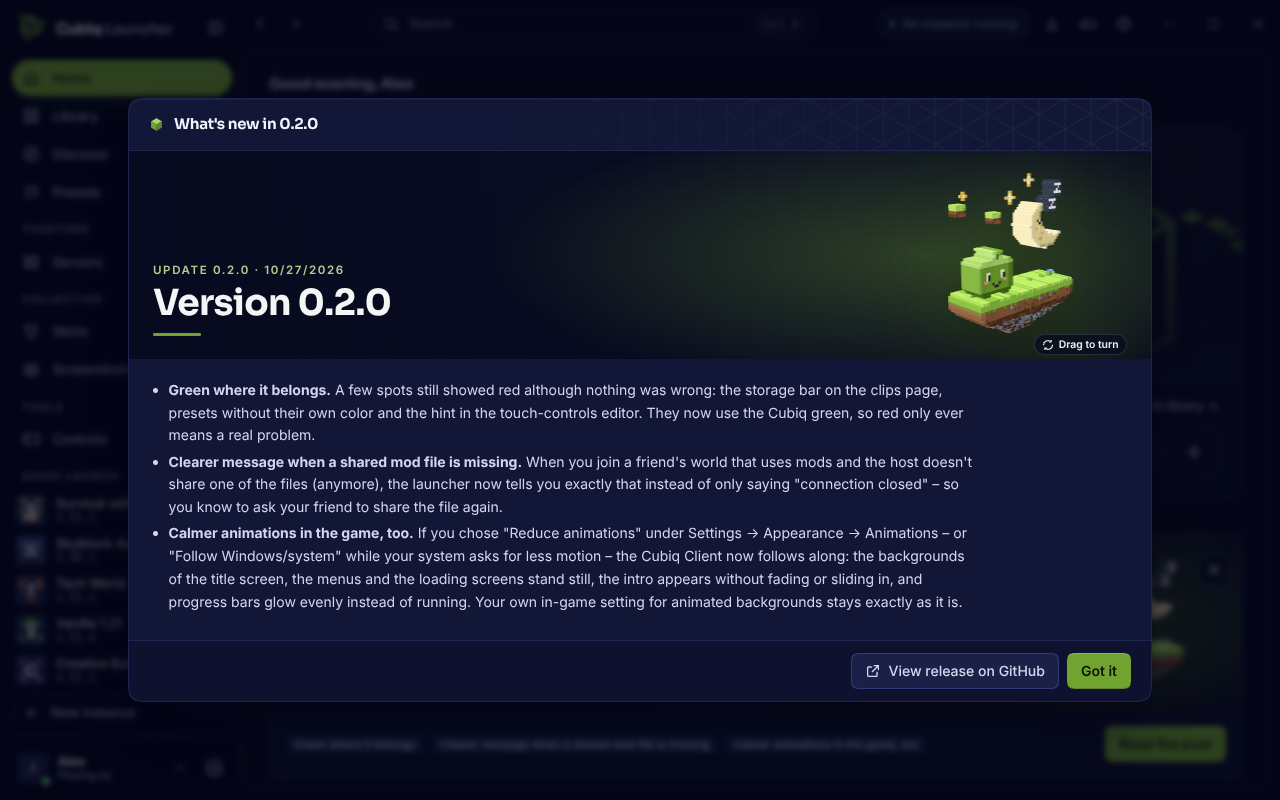
called "Show Cubiq cosmetics". - Update pictures in 3D. The little pixel-art scene of every update – Cubi on his floating grass island next to the
object of the update – is now a real 3D model in "What's new" and on the update card on the home screen. The island
is a chunky block that gets narrower towards the bottom, Cubi and the objects stand on it as solid figures, and the
sparkles are thin glints. The model gently swings from side to side. Drag it with the mouse or your finger to turn it
all the way around, or select it with Tab and use the arrow keys (Home turns it back). A short click on it still
opens the update post, just like before. It works for every update, old and new, because the launcher builds the
model from the picture itself. If you chose "Reduce animations" under Settings → Appearance → Animations, the model
stands still until you turn it, and while Minecraft is starting or running it rests as well, so the game gets all
the power. On computers without graphics acceleration it only moves when you turn it; on phones and on the smaller
news cards you keep the flat picture.
Wieder grün
- Cubiq-Grün ist zurück. Der Launcher bekommt seine grünen Farben zurück: Fenster, Karten, Menüs und Dialoge
liegen wieder auf ruhigen, dunklen Flächen mit einem Hauch Grün statt auf dem Navy-Blau des letzten Updates, und
Cubiq-Grün bleibt die Farbe für Knöpfe, die Seite, auf der du bist, und alles, was du auswählen kannst. Alles andere
vom neuen Look bleibt, wie es ist – die Seitenleiste mit Namen und Gruppen, der Startbildschirm mit dem großen
Spielen-Knopf und „Weiterspielen“, die runden Formen und die animierten Update-Bilder. Auch die Farbschemata Hell und
OLED sind grün getönt, und unter Einstellungen → Aussehen kannst du weiterhin eine andere Akzentfarbe wählen oder zum
Winter-Design „Polarlicht“ wechseln, das bleibt, wie es war. - Überall dasselbe Grün. Die Menüs, der Startbildschirm und die Ladebildschirme des Cubiq Client im Spiel, die
Touch-Steuerung auf Android und der Hilfe-Bildschirm der iPhone-App nutzen dieselben grün getönten Farben wie der
Launcher – beim Spielstart springt also nichts zurück auf Blau. - Ein Minispiel, während Minecraft startet. Drückst du auf Spielen, erscheint im Startbildschirm und auf der
Instanzseite eine kleine Karte „Cubi Hop“, solange der Launcher das Spiel vorbereitet und startet. Cubi läuft über
einen Grasstreifen unter dem Cubiq-Nachthimmel, und du hüpfst mit der Leertaste, dem Pfeil nach oben oder einem
Klick (am Touchscreen mit Tippen) über Gras- und Steinblöcke – ein zweiter Druck in der Luft gibt einen
Doppelsprung. Jeder überwundene Block zählt, goldenes Funkeln bringt einen Extrapunkt, und mit jedem Punkt wird es
ein bisschen schneller. Dein Rekord wird je Konto gespeichert und neben den aktuellen Punkten angezeigt, und die
Karte zeigt auch, wie weit der Start schon ist. - Schließt, wenn das Spiel da ist. Sobald sich das Minecraft-Fenster öffnet, meldet die Karte „Minecraft ist
bereit!“ und schließt sich nach ein paar Sekunden – oder du klickst auf „Weiterspielen“, um deine Runde zu Ende zu
spielen; mit dem × schließt du sie jederzeit. Das Spiel nimmt Minecraft nie den Fokus, pausiert, sobald du ins
Spiel oder in ein anderes Fenster wechselst, und zeichnet nur, solange du es siehst – der Start wird dadurch nicht
langsamer. Ohne „Animationen reduzieren“ zeigt dir Cubi, wie es geht, und hüpft allein, bis du übernimmst; mit
„Animationen reduzieren“ (Einstellungen → Aussehen → Animationen) bewegt sich nichts, bis du in der Karte auf
Spielen klickst. - Live-Leistung beim Spielen. Läuft eine Instanz, zeigt ihre Seite jetzt „Live-Leistung“: drei kleine Live-Kurven
für FPS, RAM und CPU über die letzte Minute, etwa einmal je Sekunde aktualisiert. Unter jedem Wert steht eine
nützliche Angabe – die durchschnittlichen und niedrigsten FPS, wie voll Minecrafts eigener Java-Speicher ist (zum
Beispiel „Java: 3,7 GB von 4 GB“) und dass sich der CPU-Wert auf deinen ganzen PC bezieht. Zeig auf eine Kurve, um
den Wert jeder Sekunde abzulesen. FPS und Java-Speicher meldet der Cubiq Client im Spiel; ohne ihn bekommst du
trotzdem RAM und CPU. Der Pfeil in der Ecke klappt die Anzeige zu einer Zeile mit den aktuellen Zahlen zusammen, und
gemessen wird nur, solange das Launcher-Fenster zu sehen ist. - Tipps, wenn etwas hakt. Hält ein Problem ein paar Sekunden an, erklärt die Anzeige es und hilft gleich weiter:
Bleibt Minecrafts Java-Speicher fast voll, bringt dich „Speicher-Einstellungen“ direkt zum Speicher dieser Instanz;
geht deinem P...