Repository navigation
Getting Started
Home / Getting started
Let's connect your server and check that you can upload and download a small file. You don't need to create a Flow for this first test.
On this page
- Requirements
- Add an FTP connection
- Verify your first file transfer
- Browse and manage files
- Use the Flow cards
- Micro Web Server
- HTTP/FTP Server
- NAS or another server
- Next steps
- A local Homey that can connect to the FTP server.
- FTP Client and Better Logic Library installed and running on Homey. Better Logic Library supplies resources used by the file browser and URL features.
- The server's address, port, username, and password. The address can be its
network name (hostname) or a numeric IP address. The port is the
connection number used by the FTP server, often
21. You can find these details in the server's settings. - An FTP account with access to the intended folder. Uploads, renames, moves, and deletions also require the corresponding server permissions.
Use your own server address and login details. Filenames such as
ftpclient-test.txt below are sample names; choose an unused test location
so you do not replace an existing file.
- In Homey, add a device and choose FTP Connection from FTP Client.
- Select a server if it appears in the discovered-device list. FTP Client can find FTP servers advertising themselves on the local network and checks for the Micro Web Server and HTTP/FTP Server integrations on Homey.
- If the server is not listed, choose the custom FTP connection and enter its address and port in the device settings after pairing.
- Enter the username and password required by the server. For anonymous FTP, use the credentials expected by that server.
- If the server requires FTPS (FTP with an encrypted connection), enable Secure. If Homey cannot check the server's certificate, read connection security before changing Allow incorrect certificate.
- Save the settings and open the device's Repair view to browse its files.
The default FTP port is 21. Your server may use a different port; use the port configured on that server.
Expected result: the Repair view shows the folders/files accessible to the FTP account, or an empty directory if it contains nothing yet. Pairing alone does not prove that the address or login works. If the listing fails, follow connection troubleshooting.
This small test checks that Homey can connect, save a file, and download it again. Use an unused test filename so you don't replace anything important.
- Create a small text file named
ftpclient-test.txton your computer or phone, containingFTP Client test. - Open the FTP Connection's Repair view and choose a writable test folder.
- Right-click or long-press inside the folder, choose Upload file(s), and select the test file. Selection starts the upload immediately.
- Wait for the loading overlay to finish, then refresh the folder.
- Download
ftpclient-test.txtusing its download control and open it.
Expected result: the uploaded file appears in the chosen folder and the
downloaded copy contains exactly FTP Client test. You now know that a small
upload and download work; test larger files separately.
If the upload fails, check upload troubleshooting. If the download fails, check URL troubleshooting. Delete only the test file when finished.
Open the FTP Connection device's Repair view. The browser starts at the folder that the FTP server makes available to your account.
Warning
Deleting a file or folder can permanently remove its contents. Check the selected item before deleting; FTP Client cannot undo the deletion.
- Use the list and grid controls to change the display.
- Open a folder to browse it. Use the parent-folder control to move up.
- Use a folder's controls or context menu to create, rename, or delete folders, or upload one or more files into it.
- Use a file's controls or context menu to download, rename, or delete it.
- Drag a file or folder onto another folder to move it. On a phone or tablet, select the item first, then begin dragging.
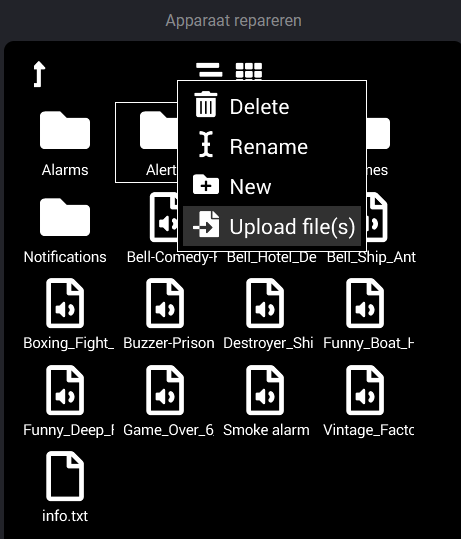
Historical developer screenshot. Look for Upload file(s) in the folder context menu. The surrounding Homey interface is in Dutch and may differ from your version.
Right-click or long-press within a folder to access its upload command, including when the folder is empty.
Selecting files in the upload picker starts the upload; there is no separate confirmation button. Wait for the operation to complete, then refresh the folder to check the result.
Once the file transfer works, you can let Flows do the work for you. FTP Client's action cards can create temporary file links, list files, pass images to another card, and save files to the server. See Flows for app-level cards and FTP Connection Flowcards for device-specific cards, with arguments, outputs, and examples on each card's page.
For complete workflows, see Examples and BLL coding.
FTP Client can connect to the FTP server provided by the Micro Web Server app:
- Install Micro Web Server on Homey.
- In Micro Web Server's settings, enable its FTP server and enable autostart.
- Add an FTP Connection in FTP Client and select Micro Web Server when it appears in the discovered-device list.
- Open the device's Repair view to manage files stored on Homey.
FTP Client checks for this local service on port 5081.
Micro Web Server's HTTP hosting is for your local network. Do not expose it to the internet by forwarding ports just to use FTP Client. See its App Store guide for the server's setup and limitations.
An alternative is HTTP/FTP Server, which offers separate users and a home directory for each account:
- Install it and open its app configuration to create an FTP user.
- Add an FTP Connection and select HTTP/FTP Server.
- Enter the user's credentials when prompted.
- Open Repair to browse the files accessible to that account.
FTP Client checks for this server on port 2100. Check the server app's
current Homey compatibility before installing it.
A NAS is a network storage device. You can connect it just like another FTP server once its FTP service is enabled.
Enable FTP or FTPS on the server and give the account permission to access the
intended folders. Enter only the hostname or IP address in IP or hostname,
not a URL or a directory such as 192.0.2.10/photos.
For automatic discovery on a Synology NAS, the community topic recommends enabling Bonjour (mDNS) under File Services → Advanced. This lets devices find the service on your network. The exact menu depends on DSM, Synology's management software. If discovery is unavailable, a custom connection works without it.
FTPS and SFTP are different protocols. FTP Client supports FTP and FTPS, not SSH-based SFTP. Enabling Secure does not make an SFTP server compatible.
- Verify a small file transfer after choosing any of the server setups above.
- Try saving a text file from a Flow.
- Use the Flowcard tables to choose the next action for your workflow.