Repository navigation
Quick Start
The Tandem dock has two modes, switched at the top: Simple for "pick platforms and go", Advanced for full control. Both edit the same targets.
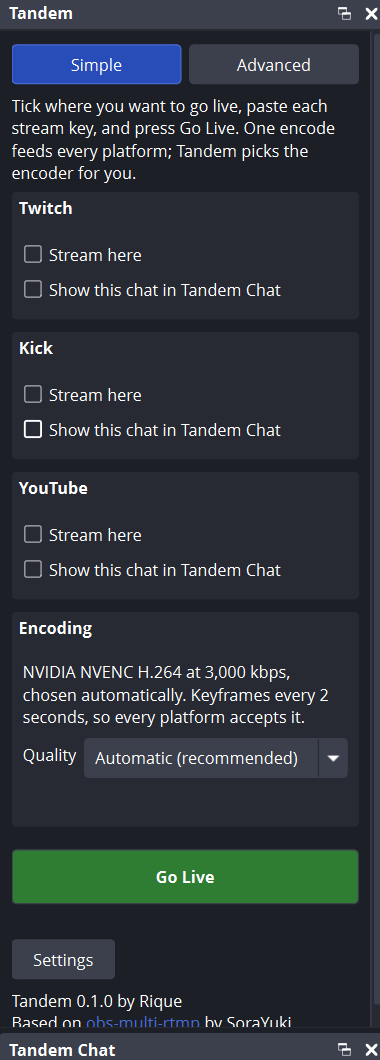
- Tick Stream here on each platform you want: Twitch, Kick, YouTube. The stream key field appears.
- Paste the stream key. Each card has a link to the page where that platform shows it (Twitch, Kick, YouTube Studio → Go live). Details.
- Kick gives each account its own server URL; if the one in your Kick dashboard differs from the default, paste it into Server URL.
- Optional: tick Show this chat in Tandem Chat and enter the channel name. For YouTube, paste your free API key and the link of your live video (or your channel ID).
- Press Go Live. The button turns red while you're live and shows which platforms are on. Press it again to stop.
What Tandem chooses for you
- The encoder: NVIDIA NVENC, AMD AMF, Intel QuickSync or Apple VideoToolbox if your computer has one, otherwise x264. Always H.264, which every platform accepts.
- The bitrate from OBS's output resolution and frame rate (for example 6,000 kbps for 1080p60, 4,500 kbps for 720p60). Pick Lower for a slow upload or Higher for a fast one.
- Constant bitrate and 2-second keyframes, which all three platforms recommend.
All ticked platforms share that one encode. Simple mode doesn't need OBS's own stream to be running, but ticked platforms also start when you click OBS's Start Streaming.
The dock shows the upload you'll need; make sure your connection can carry it. See Bandwidth and performance.
Use Advanced mode for custom servers, SRT/RIST or WHIP, reusing OBS's own encoder, different settings per platform, a different scene for one platform, or extra audio tracks.
- Click Add new target.
- Platform: Twitch, Kick, YouTube or Custom (fills in the server). Import from OBS copies OBS's own stream settings.
- Video/Audio encoder: "Reuse the streaming encoder as OBS" shares OBS's encode (OBS's stream must be running), or pick an encoder to give the target its own. Several targets can Share from one another so they still share one encode.
- Tick the box next to the target to make it go live with OBS's Start Streaming and with Start enabled.
The Simple mode platforms appear in this list too (named Twitch, Kick, YouTube) and can be fine-tuned here.
- Twitch: in Advanced mode, open the Twitch target and tick Bandwidth test mode. The stream reaches Twitch but isn't shown to viewers.
- YouTube: create an unlisted or private stream in YouTube Studio and use its key.
- Kick: stream at an off time or to a test channel.
Tick Show this chat in Simple mode, or use Tandem Chat → Settings. Chat starts with Go Live and with OBS's stream, or click Start chat. See Unified chat dock and Chat overlay.