Repository navigation
Releases: Sat32blk/uc-remote-self-control
Release list
release-1.0.7


A bug-squashing release: 1.0.4 to 1.0.7 in one go.
Install: web configurator → Integrations → Add new → Install custom → uc-intg-self-control-1.0.7.tar.gz, with Update existing driver ticked. Your settings are kept.
Fixed
- "backup failed" in the Page Editor (1.0.7). Before its first change the Page Editor used to make a full remote backup. The remote stops every integration while it does that, this one included, so the backup failed and your devices were disconnected for a while. Now the integration keeps its own copy of what the Page Editor can change: activities (pages, keys, start and stop sequences), activity groups, macros and the home screen. Last copy before changes downloads it. Keep making full backups in the web configurator.
- "Invalid sensor configuration" when saving a page (1.0.4). A sensor, select or media widget whose device is gone from the remote (for example, removed from Home Assistant) made the remote refuse the whole page. These widgets are now outlined in red and left out when the page is saved, with a note saying which ones.
New
- Level pictures & state icons list (1.0.5). A fifth list in the Pictures window shows the pictures this integration made: the frames of each level picture, state icons and ↩ pictures. Drag them onto the screen like any other picture.
- Delete unused pictures (1.0.6). In that list, Select… → Delete removes pictures that nothing uses any more. Pictures still used by a level picture, a state icon, a ↩ button or a page are kept and marked, so a level picture never loses a frame.
Note: the asset attached to the v1.0.0 release is an old 0.1.0 file. Use this release or v1.0.2 and later.
Tested on one Remote 3. Issues and ideas are welcome.
Remote Self-Control 1.0.3
Back up your remote's configuration in the web configurator before installing. If you already use the integration, also save a Backup in its builder first.
Install: web configurator → Integrations → Add new → Install custom → uc-intg-self-control-1.0.3.tar.gz. To update, tick Update existing driver. Your settings are kept.
Changes
- Screen brightness: the 10 % lower limit from 1.0.1 is removed again. Display Brightness "off", its touch slider and Controls can set the screen to its dimmest level, as before.
- Page Editor, built-in icons: in the Pictures window the remote's built-in icons are now drawn at the size of their tile. Since 1.0.2's bigger tiles, they had stayed small.
Everything from 1.0.1 and 1.0.2 is included:
- page saves while the remote is docked or asleep;
- the Pictures window as tall as the remote, with bigger pictures;
- deep links for Android TV app links.
Full details in the README.
Remote Self-Control 1.0.2
Back up your remote's configuration in the web configurator before installing. If you already use the integration, also save a Backup in its builder first.
Install: web configurator → Integrations → Add new → Install custom → uc-intg-self-control-1.0.2.tar.gz. To update, tick Update existing driver. Your settings are kept.
If you installed v1.0.0 from GitHub: its download contained an old build (0.1.0) by mistake. Please install this release instead.
Page Editor
- Pictures window:
- As tall as the remote, with long lists scrolling inside it.
- Bigger pictures that fill the window, with as many per row as the page's grid is wide.
- Saving while the remote is docked or asleep: an activity only counts as "on the remote's screen" while it's actually on and the screen is on. Before, the last activity you opened stayed "on screen" when the remote was docked or every activity was off, so its page changes waited. "On screen now" shows nothing (the remote's screen is off).
Screen brightness
The integration never sets the screen below 10 % any more. Display Brightness "off", tapping it to toggle, its touch slider and Controls used to go down to an unreadable 1 %.
Android TV app links: use deep links
Since a Google Play Store change, market://launch?id=… links no longer open apps on Android TV / Google TV. This affects every remote integration that launches apps this way, including buttons made in the web configurator. Apps built into the Android TV integration still work.
Put the app's own deep link in the App links text file instead, for example:
Remote Self-Control 1.0.0: Page Editor
Back up your remote's configuration in the web configurator before installing. If you already use the integration, also save a Backup in its builder first.
Install: web configurator → Integrations → Add new → Install custom → uc-intg-self-control-1.0.0.tar.gz. To update, tick Update existing driver. Your settings are kept.
New in 1.0.0: the Page Editor
A new first tab in the builder that edits your remote on a picture of your Remote 3 or Remote Two (picked from its model number). It covers most of what you'd otherwise do in the web configurator, and saves straight to the remote.
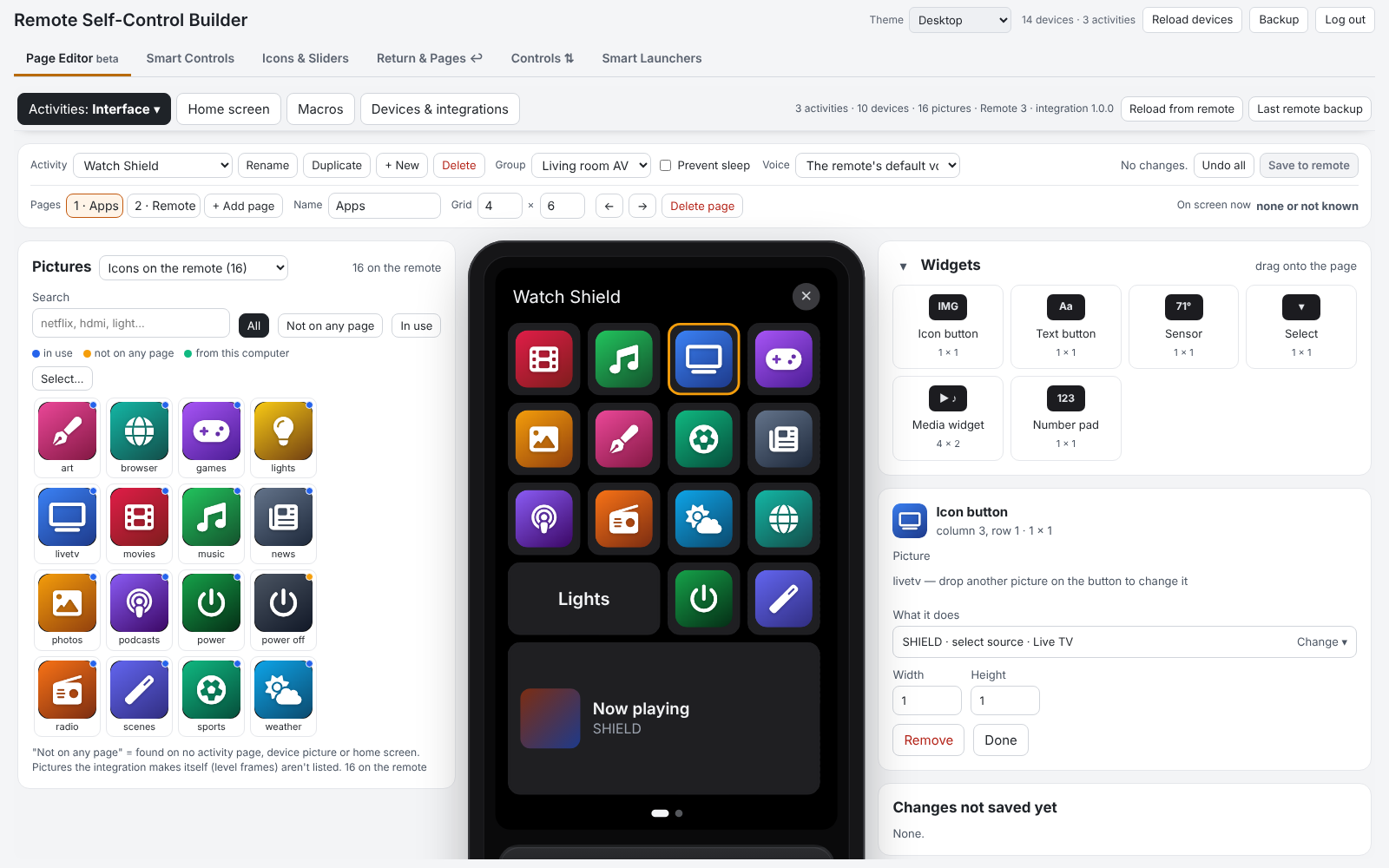
- Activities and pages
- Drag pictures onto the remote's screen. The Pictures window sits beside it, with as many pictures per row as the page has columns, each at the size it will have on a button. Sources: Icons on the remote, the remote's built-in icons, Channel icons, or a folder on your computer (uploaded when you save).
- Widgets: text button, sensor, select, media widget, number pad.
- What it does: pick a device, then its command, or search (shield movies). Custom value sends a typed value such as an app link. Not added yet adds a device straight from an integration.
- Physical keys and the touch slider; pages (add, rename, grid, move, delete); activities (rename, duplicate, delete, new, group, prevent sleep, voice assistant).
- Start and stop, with a guided setup. The start and off sequences, readiness check and what happens on a failed command. Give a button a command of a device that isn't in the sequences yet and a short setup asks what kind of device it is (display, AV receiver, streaming device, amp / subwoofer, Home Assistant, other). It then puts its steps in signal-flow order with recommended waits:
- on = display → 1.5 s → sources → 2 s → receiver + input → 3 s → amps;
- off = amps → 1 s → receiver → 1 s → display → 0.5 s → sources.
- Activity groups: what switching between activities turns off, in one plain sentence, with a grid of every switch.
- Home screen: home pages, tiles and background pictures.
- Macros: steps, duplicate, delete (shows where it's used), Try it now.
- Devices & integrations: what's on the remote and what each integration offers to add, rename, enable / disable, reconnect. + Add an integration opens Integration Manager if it's installed.
- Android TV app links: load a text file with
market://launch?id=… = Namelines. The apps show by name everywhere ("select source · Tivimate"), also on buttons that already use them. Apps the device already lists aren't added twice. - Themes for the whole builder: Automatic, Desktop, Dark mode, Remote style, Midnight blue, High contrast.
Safe saving
- A full remote backup (the same file as the web configurator's) is made before the first change of each visit. The newest two are kept on the remote, and Last remote backup downloads it.
- Pages are read again before saving, so a button you didn't touch keeps what the remote has now.
- The activity on screen is saved once you leave it, so the screen doesn't jump.
- Locked: activities made by integrations and Smart Launcher copies.
- The editor can't touch API keys, system commands or the remote's settings.
Also new since 0.8.7
- Backups with Integration Manager (0.8.8): Reconfigure → Back up settings shows your settings as text, and Restore settings from a backup puts them back. Integration Manager's Backup Config uses the same text. The app links are included.
- Faster builder: pages and larger answers are sent compressed, and the editor reads everything from the remote in parallel.
Everything else, in short
Smart Controls (if / else buttons) · state icons · sliders, quick menus and 16 level-picture designs · Controls for the volume rocker and touch slider · ↩ return to the previous activity · page jumps and start pages · Smart Launchers · the remote's own settings as entities · live device states · backup and restore. All in the README, with pictures.
Tested on one Remote 3. Issues and ideas are welcome.
maintence
v0.8.7
Beta. Back up your remote's configuration in the web configurator before installing. If you already use the integration, also save a Backup in its builder first.
Install: web configurator → Integrations → Add new → Install custom → uc-intg-self-control-0.8.7.tar.gz. To update, tick Update existing driver.
New in 0.8.5 – 0.8.7: Smart Launchers (beta)
One button that opens the activity your conditions pick, e.g. if the Shield is on → Watch ShieldTV, otherwise → Watch RokuTV. It can also run extra steps after that activity starts (optional).
- New builder tab Smart Launchers: activities, if / otherwise branches, optional extra steps (with a wait before them).
- Put the launcher on an activity page, a physical button or the home screen, from the builder or in the web configurator.
- How it works: the remote only switches to an activity's screen when the button you press starts that activity directly, so the launcher decides before the press. For each of its activities the integration keeps a launcher copy (same devices, pages and buttons, named after the launcher, extra steps at the end of its start sequence) and points the launcher's buttons at the copy your conditions pick.
- The copies follow their original within about a minute: edit the original, not the copy.
- They're in the same activity groups as their original. As for any activity, the remote skips the power-on steps of devices that are already on.
- ↩, start pages, state icons and Controls treat a copy as its original.
- A button on a page of the activity on screen is re-pointed when you leave it; physical buttons and home tiles change at once.
- This feature creates activities on your remote. Removing a launcher, or Remove everything, points its buttons back at the original activity and deletes the copies. Launchers are part of the backup.
Everything else since 0.5.0
Page jumps
The remote has no "go to page" command. The integration gets the same result by turning an activity's page order around: your swipe order stays the same and just starts at another page. Your own order comes back when you leave the activity.
- Go to page, a step for smart controls and quick menus:
- jump to a page of the activity you're in, e.g. "if the Shield is playing → Apps, otherwise → Remote";
- or set the page another activity opens on next time.
- Start pages: per activity, if conditions → open on a page, otherwise another page. It's in the Return & Pages ↩ tab, with the Device states panel beside it.
Controls
Point the volume rocker and the Remote 3 touch slider at something else for a moment, with the remote's own volume pop-up: a light, a tone control, the screen or backlight brightness, or one of your sliders (including IR up/down).
- One Control: <name> switch per control.
- A Control Active sensor.
- A timeout, or stay on until changed.
- Per activity, what the rocker and slider do when no control is on.
- Optional borrow: keeps the rocker on your TV until a control is on.
- Reset the value for devices that don't report their level.
Sliders, quick menus and level pictures
- Sliders for any number on a device, using the remote's slider pop-up and the touch slider.
- Quick menus whose choices run steps (inputs, sound modes, scenes).
- Level pictures: a button shows the slider's level.
- 16 designs: bar, column, arc gauge, ring, dots, signal, speaker, knob, tank, thermometer, equalizer, segments, battery, needle, pie and steps.
- Any color from a color wheel, and colors by value (e.g. red from 85 %).
- 12 tile icons.
Device states (live)
- See every value a device reports, including This remote: its settings, the integration's controls and its battery (level, charging, on the charger, status).
- Click a value to put it into a condition or a state icon.
- Battery and settings work as conditions, e.g. battery level < 20.
Return ↩
- Per-activity ↩ buttons, with your own picture and an optional physical button.
- Turn off when leaving sends a plain "turn off" to a device page you leave.
- The integration follows the remote's own events, so going back to an activity that is still running is seen.
Backup, restore and removal
- Backup saves everything you set up, including its pictures (never the login), in one file. Restore lets you pick the parts.
- Remove everything, for before you uninstall, puts back what the integration changed:
- state icons go back to the buttons' own looks;
- ↩ buttons are removed;
- page orders are restored;
- borrowed volume keys and quick-menu buttons are given back;
- optionally its pictures and its access key are deleted too.
Safety and fixes
- State icons and level pictures write each page at most every 5 seconds.
- If you changed a page yourself (e.g. in the web configurator), its state icons pause instead of overwriting it. Save them again to resume.
- A counter shows how many changes the integration made to the remote in the last hour.
- Editing an item that is already used on an activity no longer breaks it: saved ids stay fixed.
- The remote reports the integration's own page changes as if an activity was opened. These are now ignored, so ↩ no longer goes to the wrong activity.
- A Go to page step for a page the current activity doesn't have is skipped instead of stopping the smart control.
- Higher limits: 60 smart controls, 60 state icons (up to 25 watched devices), and 30 sliders, menus and Controls.
Full list in the README's Changes. Community project, not affiliated with Unfolded Circle.
Remote Self-Control 0.8.4 (beta): page jumps, Controls, level pictures, device states, backup
Beta. Back up your remote's configuration in the web configurator before installing. If you already use the integration, also save a Backup in its builder first.
Install: web configurator → Integrations → Add new → Install custom → uc-intg-self-control-0.8.4.tar.gz. To update, tick Update existing driver.
What's new since 0.5.0
Page jumps (new)
The remote has no "go to page" command. The integration gets the same result by turning an activity's page order around: your swipe order stays the same and just starts at another page. Your own order comes back when you leave the activity.
- Go to page, a step for smart controls and quick menus:
- jump to a page of the activity you're in, e.g. "if the Shield is playing → Apps, otherwise → Remote";
- or set the page another activity opens on next time.
- Start pages: per activity, if conditions → open on a page, otherwise another page. It's in the Return & Pages ↩ tab, with the Device states panel beside it.
Controls
Point the volume rocker and the Remote 3 touch slider at something else for a moment, with the remote's own volume pop-up: a light, a tone control, the screen or backlight brightness, or one of your sliders (including IR up/down).
- One Control: <name> switch per control.
- A Control Active sensor.
- A timeout, or stay on until changed.
- Per activity, what the rocker and slider do when no control is on.
- Optional borrow: keeps the rocker on your TV until a control is on.
- Reset the value for devices that don't report their level.
Sliders, quick menus and level pictures
- Sliders for any number on a device, using the remote's slider pop-up and the touch slider.
- Quick menus whose choices run steps (inputs, sound modes, scenes).
- Level pictures: a button shows the slider's level.
- 16 designs: bar, column, arc gauge, ring, dots, signal, speaker, knob, tank, thermometer, equalizer, segments, battery, needle, pie and steps.
- Any color from a color wheel, and colors by value (e.g. red from 85 %).
- 12 tile icons.
Device states (live)
- See every value a device reports, including This remote: its settings, the integration's controls and its battery (level, charging, on the charger, status).
- Click a value to put it into a condition or a state icon.
- Battery and settings work as conditions, e.g. battery level < 20.
Return ↩
- Per-activity ↩ buttons, with your own picture and an optional physical button.
- Turn off when leaving sends a plain "turn off" to a device page you leave.
- The integration follows the remote's own events, so going back to an activity that is still running is seen.
Backup, restore and removal
- Backup saves everything you set up, including its pictures (never the login), in one file. Restore lets you pick the parts.
- Remove everything, for before you uninstall, puts back what the integration changed:
- state icons go back to the buttons' own looks;
- ↩ buttons are removed;
- page orders are restored;
- borrowed volume keys and quick-menu buttons are given back;
- optionally its pictures and its access key are deleted too.
Safety and fixes
- State icons and level pictures write each page at most every 5 seconds.
- If you changed a page yourself (e.g. in the web configurator), its state icons pause instead of overwriting it. Save them again to resume.
- A counter shows how many changes the integration made to the remote in the last hour.
- Editing an item that is already used on an activity no longer breaks it: saved ids stay fixed.
- The remote reports the integration's own page changes as if an activity was opened. These are now ignored, so ↩ no longer goes to the wrong activity.
- A Go to page step for a page the current activity doesn't have is skipped instead of stopping the smart control.
- Higher limits: 60 smart controls, 60 state icons (up to 25 watched devices), and 30 sliders, menus and Controls.
Full list in the README's Changes. Community project, not affiliated with Unfolded Circle.
Remote Self-Control 0.8.0 (beta): Controls, level pictures, device states, backup
Beta. Back up your remote's configuration in the web configurator before installing. If you used an earlier version, save a Backup in the builder first (new in this release).
Install: web configurator → Integrations → Add new → Install custom → uc-intg-self-control-0.8.0.tar.gz (tick Update existing driver to update).
What's new since 0.5.0
Controls (new tab "Controls ⇅")
Point the volume rocker and the Remote 3 touch slider at something else for a moment: a light, a tone control, the screen or backlight brightness, or one of your sliders (IR up/down too). You get the remote's own vertical volume pop-up with it.
- One Control: <name> switch per control; turning one on switches to it.
- A Control Active sensor ("Ceiling Light · 60 %").
- A timeout, or "stay on until changed".
- Per activity, what the rocker and slider do when no control is on, or nothing.
- Optional borrow: the rocker stays mapped straight to your TV and points at Control only while a control is on.
- Reset the value for devices that don't report their level.
Sliders, quick menus and level pictures
- Sliders: any number on a device (receiver volume, a light, a blind) becomes a slider with the remote's pop-up and the touch slider.
- Quick menus: pop-up lists whose choices run steps. You can build one from a device's inputs or sound modes. To step through the choices, map a button to Select next / Select previous.
- Level pictures: a button shows the slider's level.
- 16 designs: bar, column, arc gauge, ring, dots, signal, speaker, knob, tank, thermometer, equalizer, segments, battery, needle, pie and steps.
- Any color from a color wheel, and colors by value (e.g. red from 85 %).
- Always shown, or only for a few seconds after a change.
- 12 tile icons for sliders and menus.
Device states (live)
A panel beside the editor shows every value a device reports, updated live, plus every value seen so far. Click a value to use it in a condition or state icon.
- This remote shows the screen and button brightness, sound, haptics, timeouts, the integration's own controls and the battery (level, charging, on the charger, status).
- These can all be used in smart-control conditions, e.g. battery level < 20.
- Devices are grouped by integration.
Return ↩
- Per-activity ↩ buttons with your own picture and an optional physical button.
- Turn off when leaving sends a plain "turn off" to a device page when you leave it. It no longer uses activity groups.
- The integration now follows the remote's own events, so going back with ↩ to an activity that is still running is seen.
- ↩ buttons never change a page's grid any more.
Backup and restore
Backup (top right in the builder) saves one .json file with smart controls, sliders and quick menus, state icons and level pictures, ↩ buttons and Controls, including the custom pictures, but not the login.
- Restore lets you pick the parts.
- Every part is checked before anything changes, and missing pictures are uploaded again.
Fixes and limits
- Editing an item that is already used on an activity no longer breaks it. Saved ids stay fixed, and the remote gets the new definition right away.
- Higher limits:
- 60 smart controls (12 branches, 24 steps, 60 s waits)
- 60 state icons watching up to 25 devices
- 30 sliders, menus and Controls
- The State icons tab shows how long each check takes on your remote.
- New builder layout: + Create per tab, saved items as bars with Edit, and ids locked once saved.
Full list in the README's Changes.
Remote Self-Control 0.5.0 (beta): State icons
Warning
Beta release. Tested on one Remote 3 so far. The integration changes your remote's settings, activities, pages and button mappings through the remote's own API.
Back up your remote before installing or updating: in the web configurator, create and download a backup of your configuration first, so you can restore it if anything goes wrong.
New: State icons 🟢
Make a button on an activity page change its icon with a device's state, like a power button that turns green while the receiver is on and goes back to gray when it's off.
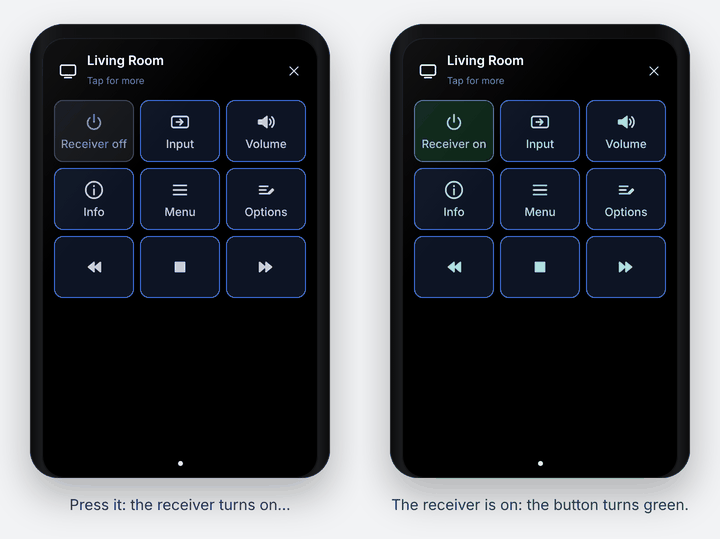
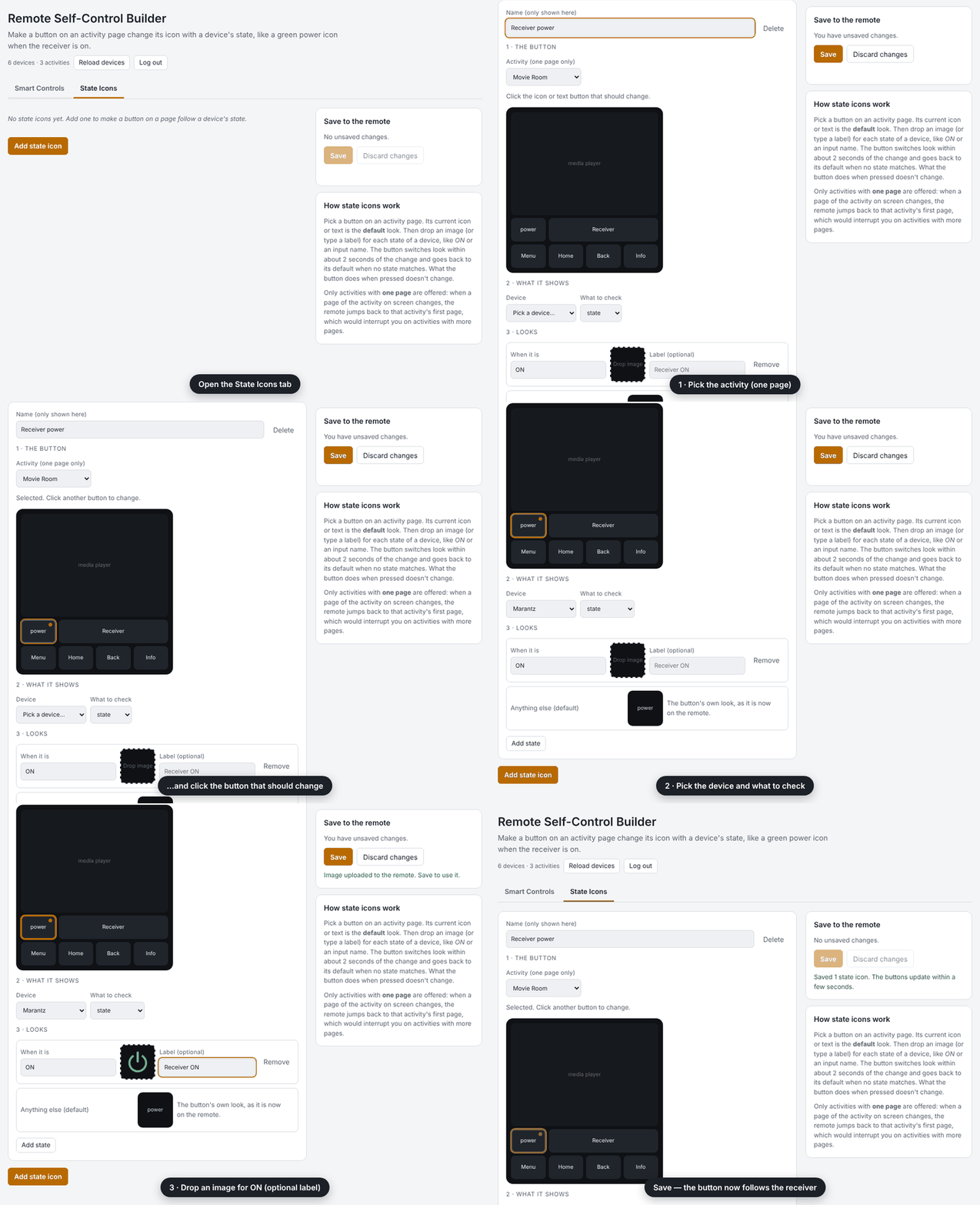
Set it up in the builder's new State Icons tab (http://<remote>.local:10123/):
- The button: pick an activity and click the button in a drawing of its page. Its current icon or text becomes the default look.
- What it shows: pick a device and what to check (power, input, mute, sound mode, …). The builder shows the current value.
- Looks: for each state (like ON), drag in an image and/or type a label. Images are resized to 90×90 and uploaded to the remote for you.
- Save. The button switches look within about 2 seconds of the change and returns to its default otherwise. What the button does when pressed doesn't change.
⚠️ State icon caveats
- Single-page activities only. On the remote, changing a page of the activity you're looking at sends you back to that activity's first page when it has more than one page. So the builder only lets you pick activities with exactly one page; activities with more pages are listed but greyed out.
- If you add a second page later, the state icon stops updating (it's never forced on a multi-page activity) and the builder shows a warning on it. Remove the extra page, or remove the state icon.
- Only icon and text buttons can change. Media player widgets, sensor tiles and lists can't be used.
- About 2 seconds' delay: the integration checks the device every 2 seconds while the remote is awake. While the remote sleeps nothing is checked; the button catches up within a couple of seconds after it wakes.
- The default look is captured when you save. If you later change that button's icon or text in the web configurator, delete the state icon and add it again so it learns the new look. Don't move the button to another spot; the integration finds it by its position.
- Uploaded images stay on the remote as custom icons (named
si_…) after you delete a state icon. Delete them in the web configurator if you don't need them.
Also in this release
- Display Brightness light entity, so the Remote 3 touch slider can set the screen brightness.
- Smart Control results name devices ("Marantz volume up") instead of showing entity ids.
- The builder is now the Remote Self-Control Builder with Smart Controls and State Icons tabs.
Install / update
- Back up your remote (see above).
- Download
uc-intg-self-control-0.5.0.tar.gzbelow. - Web configurator → Integrations → Add new → Install custom → choose the file. When updating, tick Update existing driver. Your settings, Smart Controls and ↩ setup are kept.
See the README for all walkthroughs.
Feedback
Please open an issue with your remote model, firmware version and the integration's log lines (web configurator → Settings → Development → Logs, lines starting with [self-control]).
If you enjoy it: ☕ Buy me a coffee
Remote Self-Control 0.4.0 (beta)
Warning
Beta release. This is the first public version and it has been tested on only one Remote 3. It changes your remote's settings, activities, pages and button mappings through the remote's own API.
Back up your remote before installing: in the web configurator, create and download a backup of your configuration first, so you can restore it if anything goes wrong.
Install
- Back up your remote (see above).
- Download
uc-intg-self-control-0.4.0.tar.gzbelow. - In the web configurator: Integrations → Add new → Install custom, choose the file, then run the setup with your web-configurator PIN.
See the README for setup and step-by-step walkthroughs.
What's in it
- Remote settings as entities: button backlight level and color, display brightness (also on the Remote 3 touch slider), display timeout, sleep timeout, wake sensitivity, Wake on LAN, sound effects and volume, haptics.
- Smart Controls: if / else-if / otherwise buttons, built in a browser page served by the integration (
http://<remote>.local:10123/, PIN login), with templates, save and test. - Return to previous activity: a ↩ text or icon button and/or a physical button that always points at the activity you came from.
- Last Result tile: shows what the last Smart Control did, placed on an activity page from the integration's Configure menu.
Known limits
- Integrations can't switch the remote's screen, so Smart Controls run in the background; use the ↩ button to move between activities.
- ↩ toggles between the last two activities you started (an activity that's still on isn't reported as starting again).
- The web configurator doesn't list sensor entities for activities; use the Configure menu to place the Last Result tile.
Feedback
Please open an issue with your remote model, firmware version and the integration's log lines (web configurator → Settings → Development → Logs, lines starting with [self-control]).