Repository navigation
Lucid v1.20 — Lucid 2

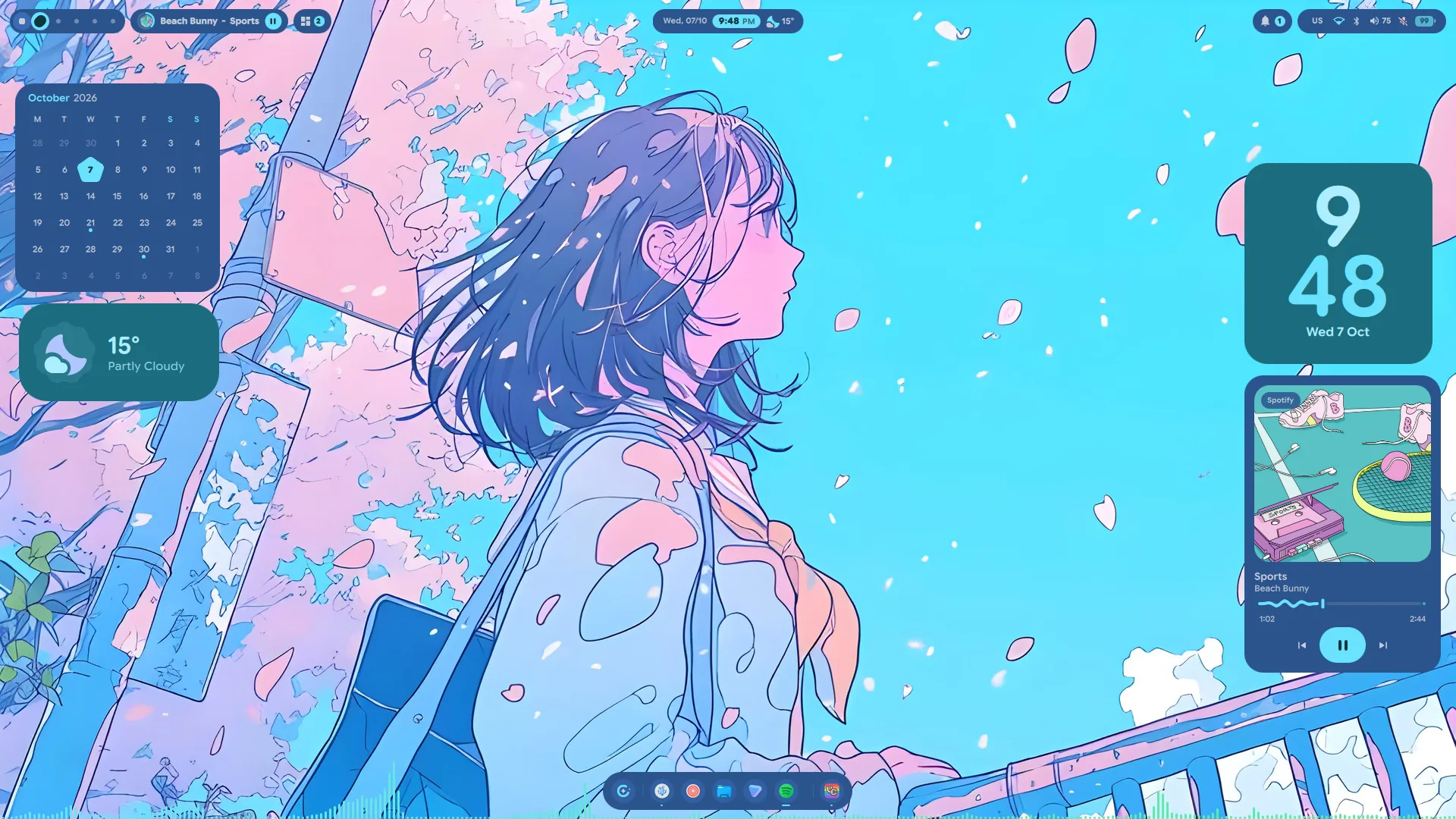
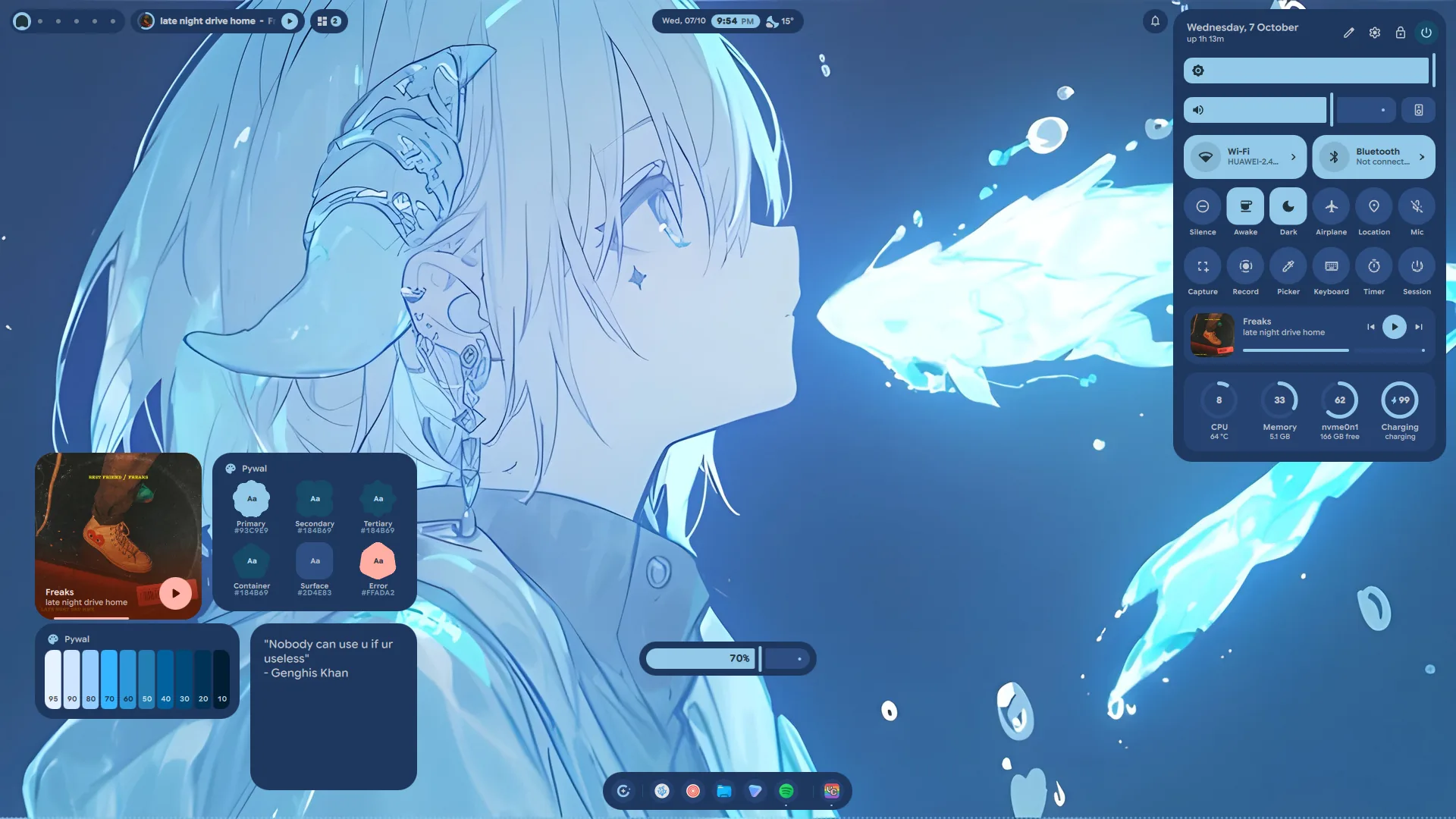
Lucid 2. Every surface is redrawn in Material You Expressive on one shared kit
of controls, the clock grows into an app, the launcher learns new modes and the
control centre's tiles are yours to arrange. On top of that sits a release's
worth of new features, most of them from Ciro Rivera, who wrote twenty-five
of the pull requests in this one. Thank you, Ciro.
Lucid 2
- What's new, in the shell. The first start after an update opens a sheet
with what the new version brings, once; Settings → About → What's new
opens it again, andqs ipc call updates whatsnewtoo. A newer release
waiting to be installed still links its notes on GitHub from the same card. - Material You Expressive, everywhere. The bar, dock, launcher, control
centre, clock, widgets, OSD, toasts, lock screen and settings now share one
kit of controls (lucidui/): buttons, chips, sliders, switches, tabs, text
fields, list items, loading indicators and the expressive shapes. Icons are
Material Symbols drawn from Google's own paths, multisampled so they stay
clean at the smallest sizes, and text is set in Google Sans Flex, bundled
under its OFL licence. - Interface size. Settings → General → Size scales the whole shell at
once, from 75 to 125 %: the bar, dock, panels, menus, desktop widgets and the
text in them. Apps and the monitor's own scale are left as they are. Widgets
keep their place against the edge or corner they sit nearest, and the new
size applies when the slider is let go. - Progress waves. Timers, the stopwatch, the media disc and the session
screen draw their rings the M3 Expressive way: the active arc waves, the track
stays still. - A session screen. SUPER+Escape opens lock, suspend, log out, restart and
shut down in one full-screen sheet. The three that end the session need a
second press within four seconds. - A window switcher. CTRL+ALT+TAB lays out every open window on every
workspace, the special ones included, newest first and with live previews.
As on Windows it stays up once the keys are let go: Tab or the arrows move,
Enter switches, Delete closes the window and Esc backs out. CTRL+ALT+TAB
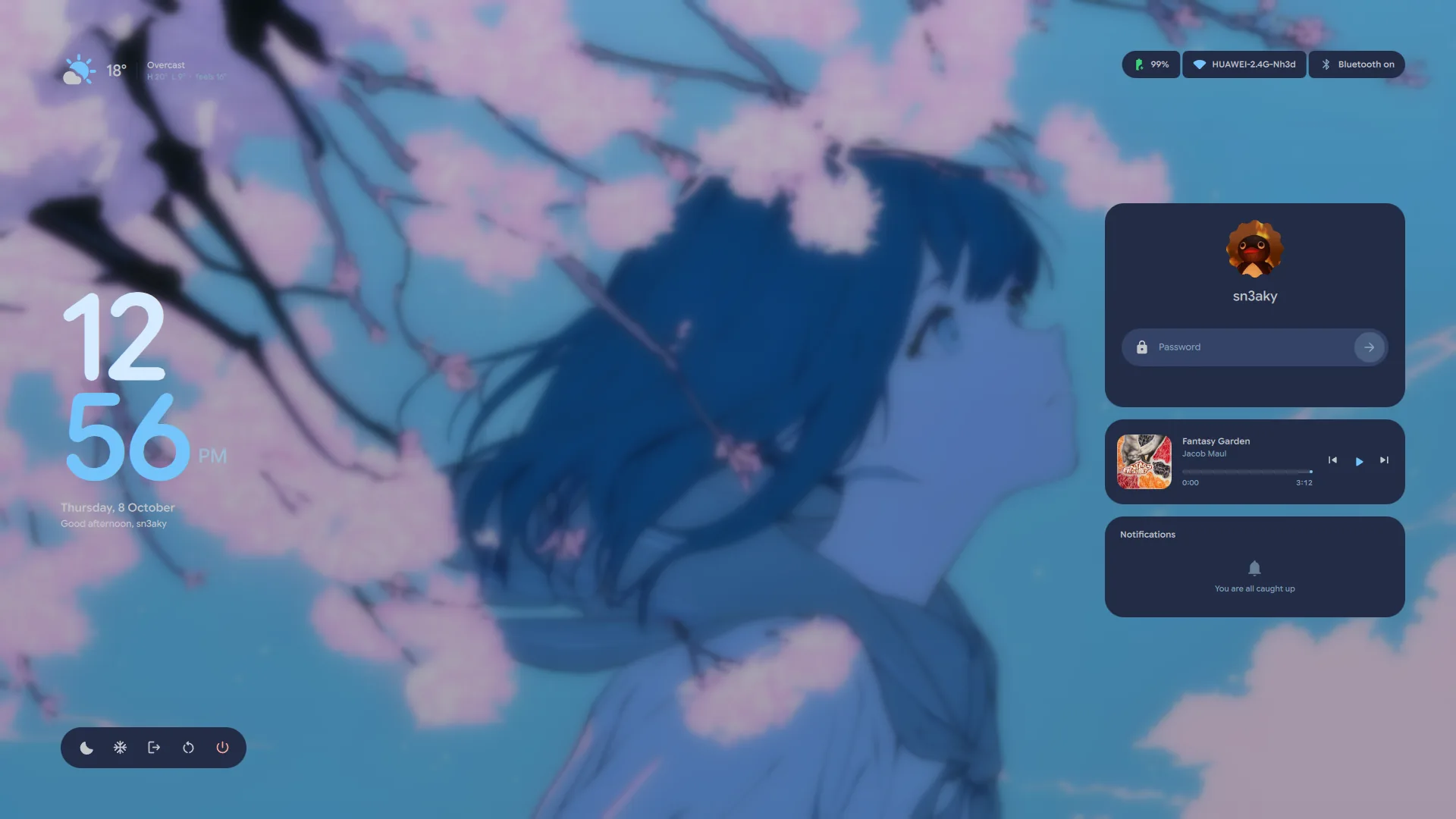
again steps on; with SHIFT it steps back. - Password beads. On the lock screen, in the polkit prompt and on the login
screen, each character typed drops a Material Expressive shape that melts
into a dot. A selection gathers its beads into one band, and Ctrl+A sweeps it
across from the left. The shapes are androidx's own MaterialShapes, worked
out from the same numbers rather than drawn by eye. - The lock screen grows out of your desktop. Locking takes a picture of
each display first, so the lock starts as exactly what was on screen, which
frosts, sinks into a card and gives way to the wallpaper. Unlocking runs it
back: the cards fall away, the desktop rises through the frost, and the last
moments fade straight onto your live windows. - Workspaces as shapes. The workspace pill's resting look: an empty
workspace is a dot, one with windows a square, the one you are on a new
Material shape on each visit, and neighbouring busy workspaces join into one
run. The pill stretches from one to the next, and the marks under it take its
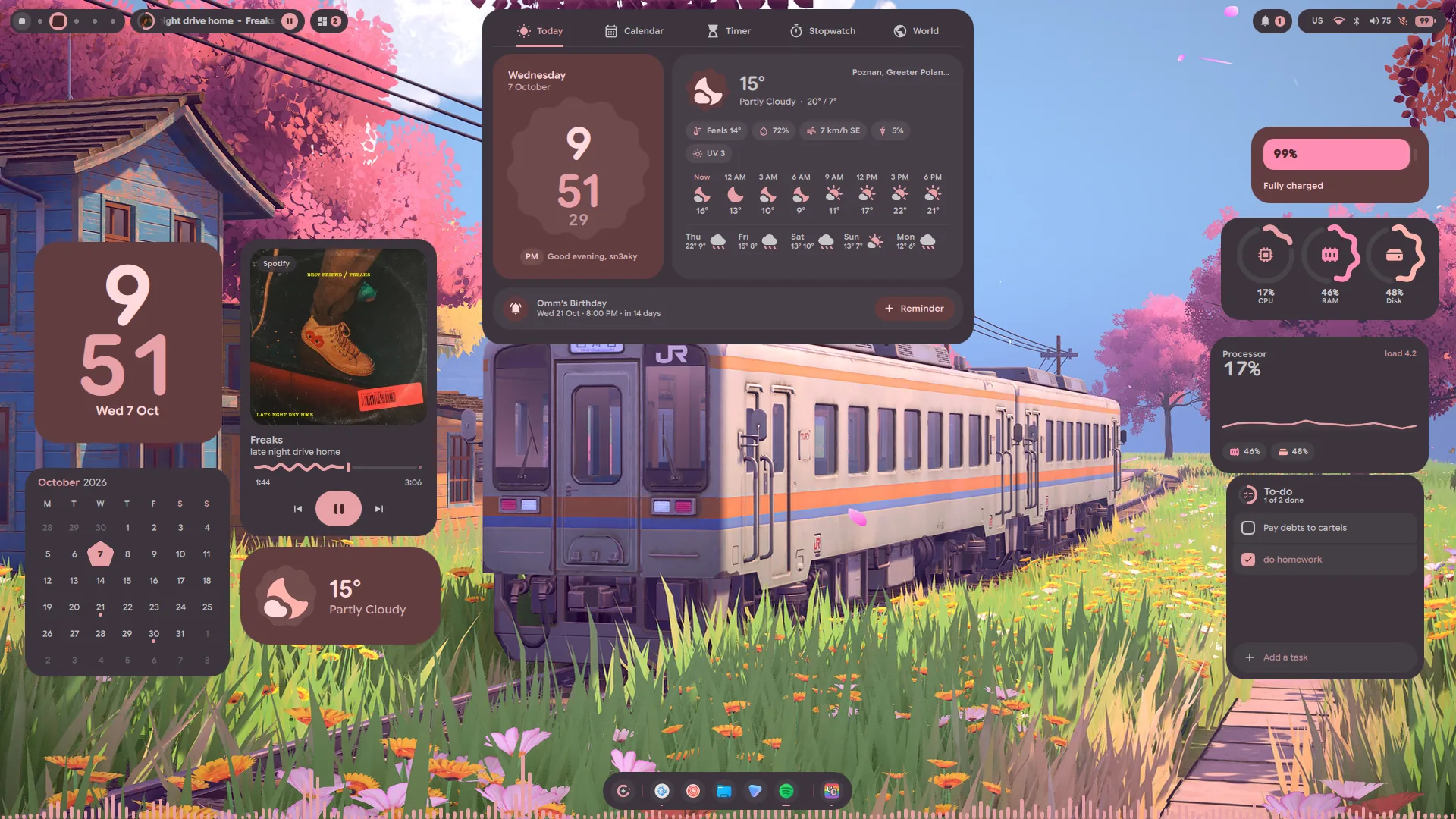
ink exactly. Hovering still brings the numbers. - The clock is an app. Behind the pill: Today, with the weather and what is
next; a month calendar with reminders; countdown timers and a pomodoro; a
stopwatch with laps; and world clocks. Whatever is counting shows on the pill
as a chip with a ring, and the timers are shared with the Timer widget and the
control centre's Timer tile. - The pomodoro has options of its own. The tune button on its card opens
them in place: four presets (25 / 5, 50 / 10, 15 / 3, 90 / 20), a stepper for
each length and for the rounds, and a daily goal the card counts toward.
Breaks and focus sessions can each start by themselves or wait for you, a set
can stop after its long break instead of repeating, and do-not-disturb can be
held for as long as a focus session runs. A phase in hand takes another
minute from the card, or any number over IPC (timer pomodoroAdd, beside
pomodoroSkipandpomodoroStop). The same options sit under Pomodoro
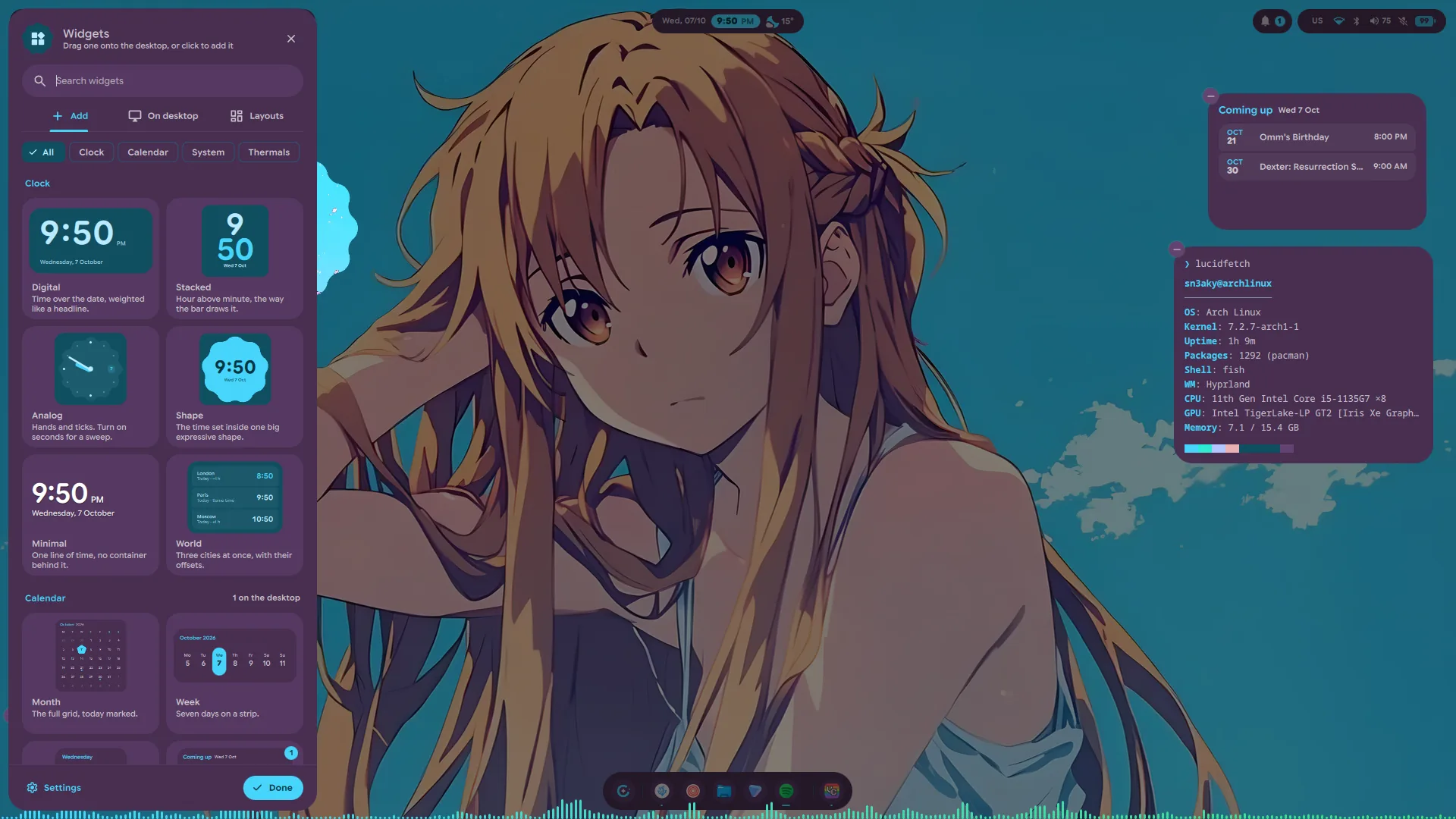
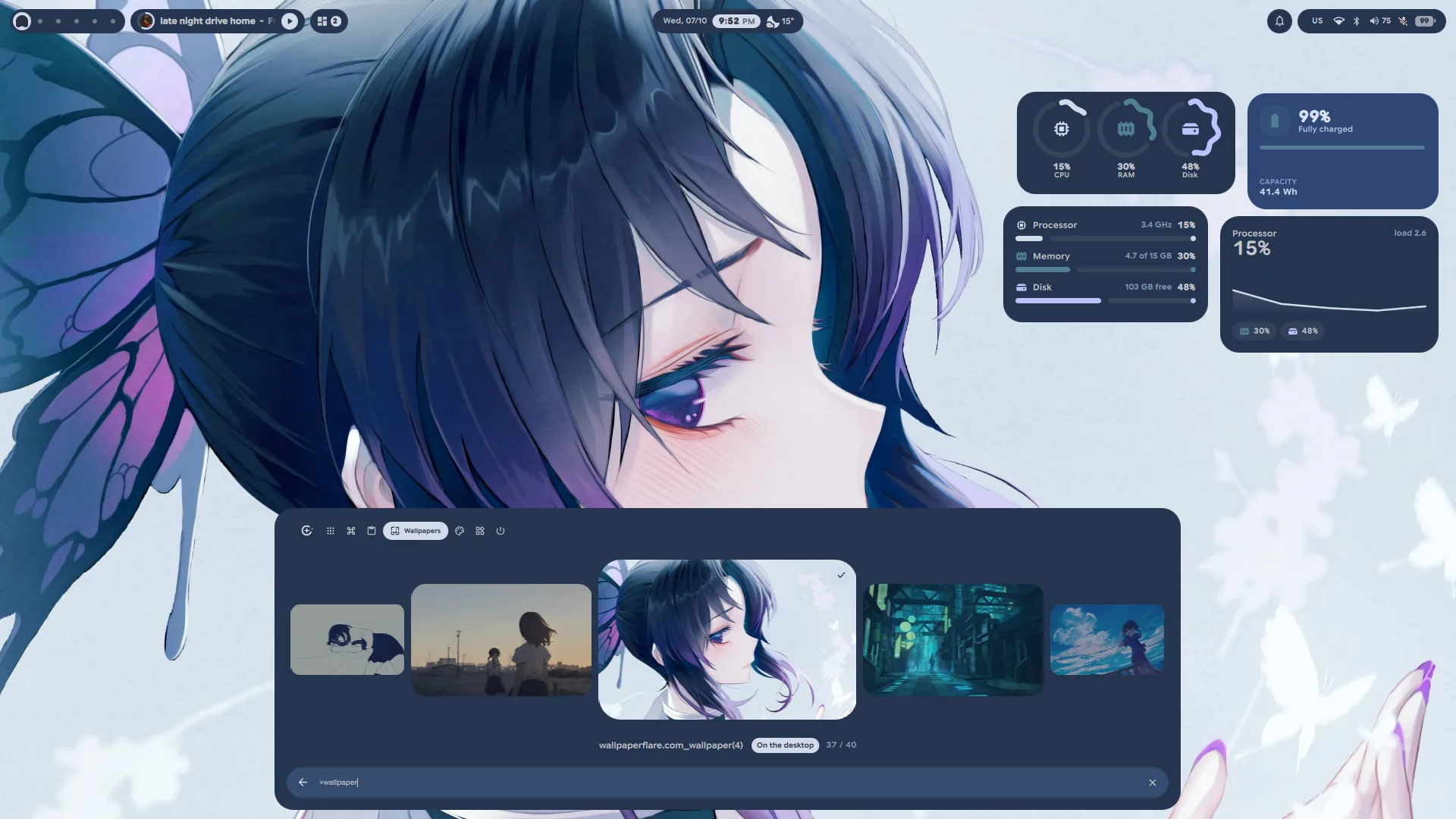
on Settings' Date & Time page. - Every widget is rebuilt, and four new ones join them: Timer, At a Glance,
Photo and Fetch. A widget's right-click menu is a new sheet with live previews
of its looks. - A widget panel. Right-click the desktop and choose Widget Panel, or pick
Widgets in the launcher's mode bar: a sheet slides in with every widget drawn
live. Drag one straight out to where it should sit — it snaps like any card —
or click it into the first free spot. It searches by name or by what a widget
does, lists what is already out (hover to find a card, click for its sheet,
lock or remove it) and switches layouts. While it is open the cards come up
over your windows with a − on each, and a card dragged onto the sheet is
taken off.qs ipc call widgets paneltoggles it. - The launcher gains a head band with its modes, the calculator's answer as
a card at the top of the results, and prefixes:?for the web,$to run a
command in your terminal and:for emoji. Apps can be hidden from it, and it
has a page of its own in Settings. - Control centre tiles are yours to arrange. Edit tiles lets you drag
them into any order and add or remove them from a shelf of spares; the
sliders ease as they move. - Switching wallpaper no longer stalls the desktop. The colours are worked
out at low priority, one run at a time with the newest request winning, and
the shell crossfades its own palette alongside the picture. Browsing the
wallpaper strip works out colours only for the picture you stop on, and
kitty, VSCodium, Discord, Spotify, Steam, GTK and the login screen follow
once, a few seconds later. The strip opens from small cached copies rather
than decoding every original, 8K ones included, each time. - Window borders follow the palette, and the starship prompt takes the
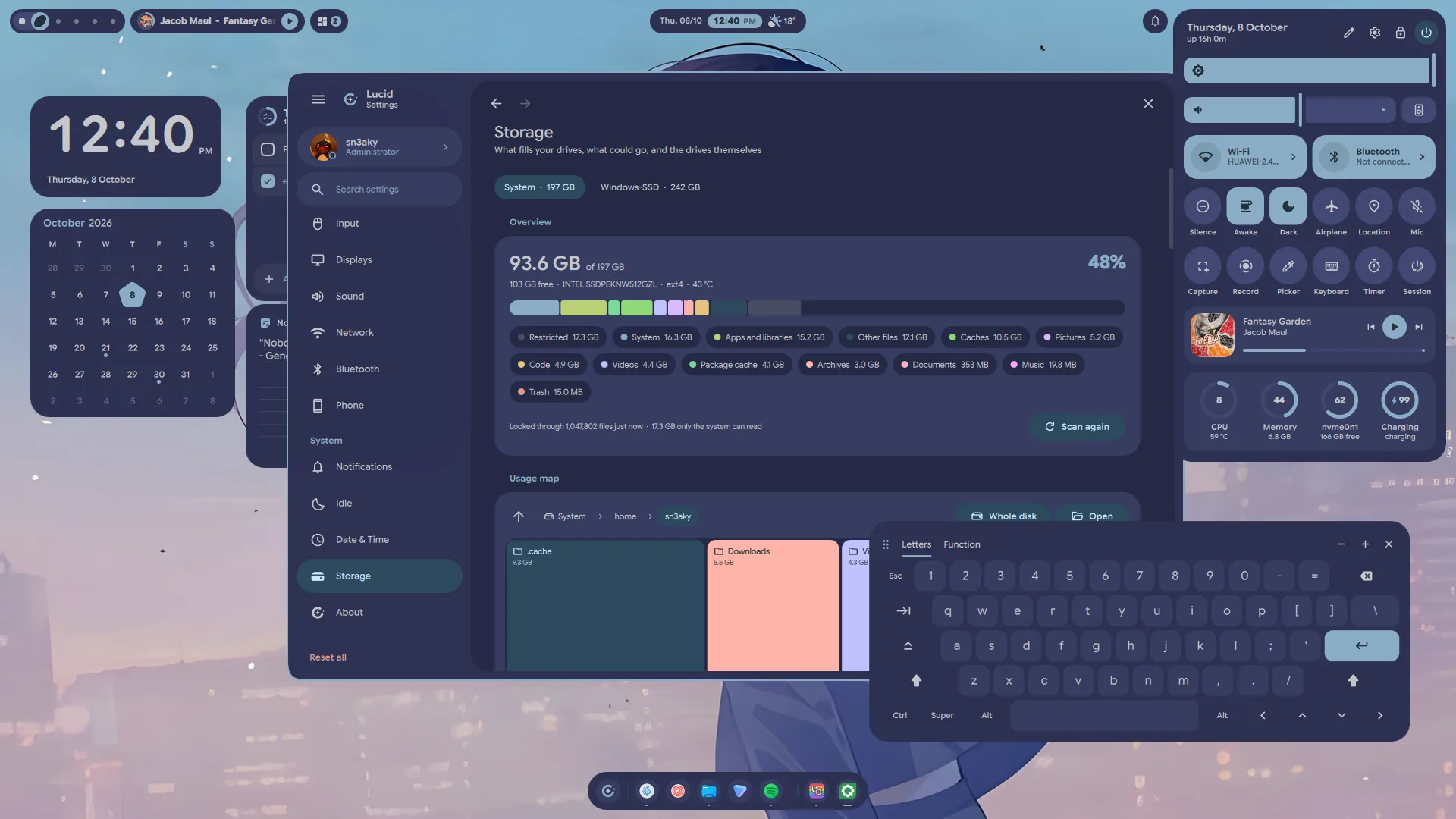
palette's colours without its format being replaced. - A Storage page. Settings → Storage shows what fills each drive, by kind
and as a map you can zoom through from your home folder or the whole disk,
what could go (package caches, old trash, duplicates and large files in your
own folders) with a confirm for each, and the drives themselves with their
health. It warns when space runs low and can empty trash after a number of
days. The bar's disk card and the System widget now count free space asdf
does, leaving the root reserve out.
Sounds
- Lucid has sounds of its own. The freedesktop bells and drops are gone;
every sound is synthesised — FM bells, plucks, blips and sweeps, nothing
recorded — bysupport/sounds/build-sounds.py, all in one key and levelled
to one loudness, so a volume you set means the same thing for each. - Eight notification sounds: Glint, Pulse, Chime, Tap, Orbit, Halo, Beacon
and Alert, picked from chips that play as you choose. A saved freedesktop
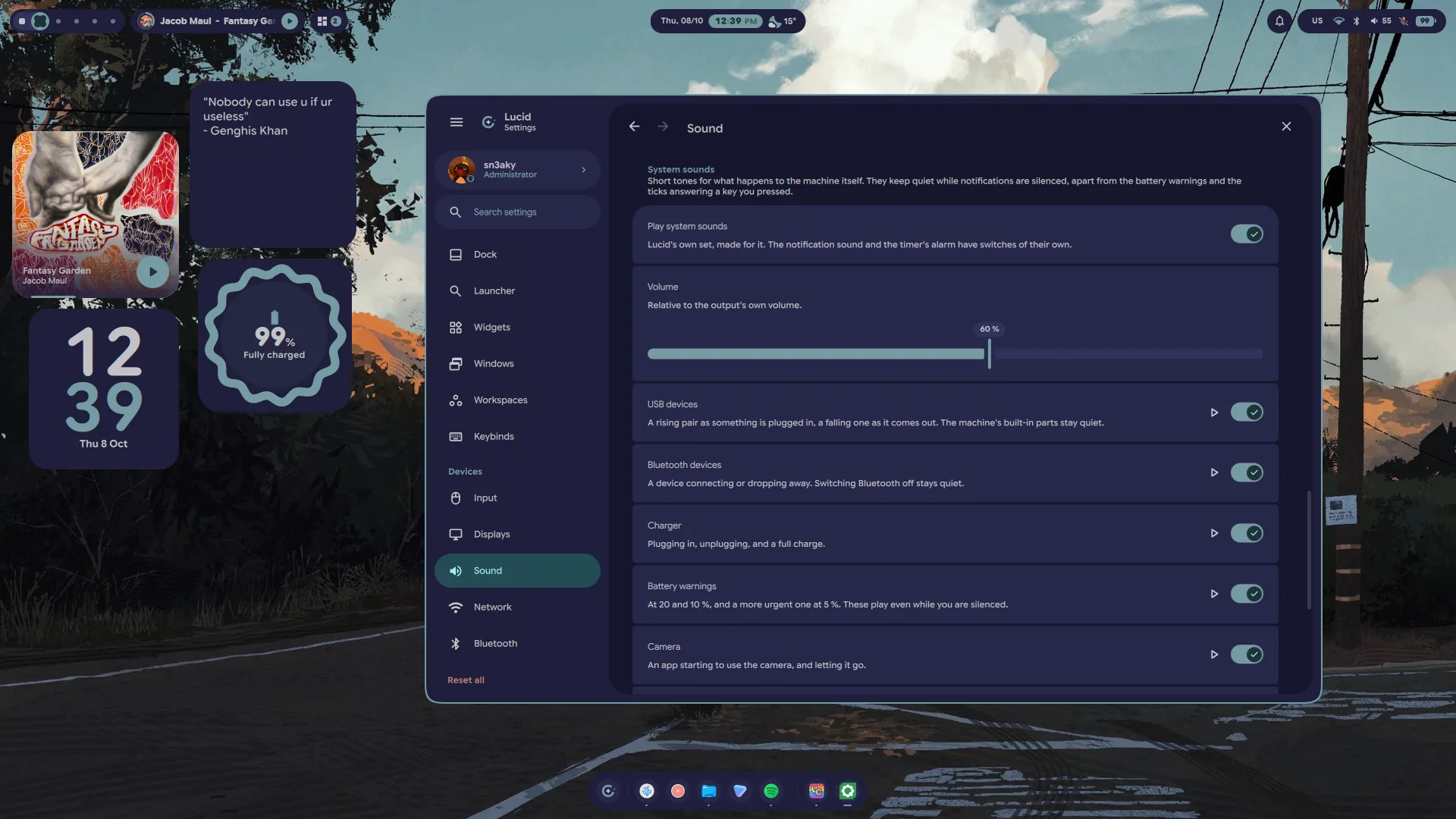
choice carries over to its nearest match. - System sounds for a USB or Bluetooth device connecting and leaving, the
charger going in and out, a full charge, low and critical battery, the camera
turning on and off, and a screenshot. Settings → Sound → System sounds has
a switch and a play button for each, and one volume for all of them. They
keep quiet while you are silenced, apart from the battery warnings. The timer
and pomodoro alarm is new as well, and reminders ring out loud now —
they used to arrive in silence — with a switch and a play button for each
under Settings → Date & Time → Timers. - Tiny ticks for your own keys: volume and brightness tick at the level
just set — where a drag or a held key starts and where it stops, not at every
step — and Caps Lock and the microphone answer on and off. Dimming while you
are away stays quiet. They start from Kenney's Interface
Sounds (CC0). - A toast for USB devices, named and drawn as what they are — a phone, a
mouse, a drive. The laptop's own built-in parts stay quiet, a hub full of
devices is one toast, and a device that drops and comes straight back is not
news. - Camera on and camera off, with the app using it, the way Windows 11 says
so. Nothing polls for it: the camera's device is watched for being opened and
closed. With the Privacy module on the bar, its own camera toast folds into
the same pill. qs ipc call -- sounds play <name>plays any of them;sounds listnames
them all.
From Ciro Rivera
Ciro wrote everything in this section, and a good deal of 1.10.5 besides. The
pull requests arrived tested, explained and ready, and the shell is better in
places nobody had asked about yet. A huge thank you, @ciroenrique4-eng.
Settings
- Search every setting. A field at the head of the settings rail searches
every row on every page, not just the page names: the results say which card
a row sits in, and opening one scrolls to the row and flashes it.Ctrl+F
focuses the field, typing anywhere starts a search, and
qs ipc call -- settings search <words>opens Settings with the search typed.
It replaces the rail's filter. By Ciro Rivera in #34. - A Windows page for Hyprland. Gaps, border width and colour (none, the
accent, or a gradient through the palette, which follows the theme), corners
and their shape, shadow, dimming; the tiling layout with each layout's own
options and a live preview; and focus, the cursor, resizing, snapping and
animations. Only what you change belongs to Lucid, it applies without a
reload, each row's reset hands the option back to your own config, and a file
of yours required after Lucid's still wins, with the row saying so. By Ciro
Rivera in #46. - An Input page for Hyprland. Keyboard layouts in order, picked from every
layout and variant the system knows; the key that switches them; what Caps
Lock does; key repeat and Num Lock. Mouse speed, acceleration, scrolling and
left-handed buttons; the touchpad's tapping, scrolling and palm rejection; and
how the workspace swipe feels. By Ciro Rivera in #47. - Corner rounding. One dial under Settings → General → Shape, from square
to half as round again as shipped, live: cards, panels, menus, the bar's and
the dock's pills, buttons, chips, switches and the search fields all follow
it, while avatars, dots and the like stay round. By Ciro Rivera in #18.
Colours and palettes
- Templates follow every palette. The matugen templates that carry the
palette into other applications (Hyprland, Zen, rofi, waybar, pywalfox and
your own) used to follow only the wallpaper; the fixed themes and pywal reach
them too now. They render one at a time, so one broken template no longer
breaks the others, and what happened to each is recorded, with a toast naming
any that failed. By Ciro Rivera in #36. - A Colours page. Matugen's scheme style (nine of them, from Tonal to
Monochrome), its contrast, and which of the wallpaper's dominant colours the
palette starts from. Your colour is a new theme built from a single colour,
typed as hex, picked off the screen or chosen from a few. Below that, every app
template with how its last render went, a switch for each, the apps that are
installed but not wired up yet, and a form for a template of your own that you
can try before adding. By Ciro Rivera in #38. - A Palettes page. A gallery of the 560 base16 and base24 schemes
tinted-theming collects, drawn in their own colours, searchable and filtered
by dark or light, one click to add or use. Themes import from a repo or a
file, light schemes are finally kept light (with a dark side worked out for
them), and the palette on screen can be edited live and exported as a Lucid
palette or base16 YAML. By Ciro Rivera in #40.
Bar
- Arrange the bar from Settings. Settings → Bar → Modules shows the bar's
three groups as lanes: drag a module along its lane or into another one, or
use the arrow keys. Each module has a card with its switch, the group it sits
in and a way to the rest of its settings, and a right click on a module in the
bar opens its card. By Ciro Rivera in #44 and #50. - Three new modules, all off until you switch them on. Privacy appears
only while something uses the microphone, the camera or the screen, says which
app, and can raise a toast as it starts. Power holds lock, suspend,
hibernate, log out, restart and shut down, in the order you pick, under the
machine's uptime. Active window shows the focused window and, opened,
floats, pins, fullscreens, moves or closes it, or switches to another window
on the workspace. By Ciro Rivera in #50. - Looks and options for the bar's own modules, each on its card, every one
starting from how the module already looks. The clock: one line or two lines
beside the accent chip, and four ways to write the date. Media: a still cover
or just the bars and the play button, a large-cover panel, and switches to
hide it while nothing plays, drop the artist, cap the title's width, hide the
play button and turn the volume wheel off. Workspaces: numbers instead of
dots, how many always show, and the wheel on or off — the wheel switches
workspaces now, which it never did. Notifications: a dot, or bell and count on
an accent chip. The tray: every app's icon in the bar, the icons in the
palette's colours, and a switch per app to keep it out. By Ciro Rivera in #50. - A bar on every display. Settings → Displays → The bar on its own →
Every display (orqs ipc call -- displays bar all) gives each screen a bar
of its own, with that screen's workspaces. Notification popups, the privacy
toast and the bar's ipc still come from one of them: the shell's display, or
the one you are on. By Ciro Rivera in #14.
Launcher
- One search for everything open and everything to do. Typed text now
finds open windows by their app or their title (Return switches to it), apps'
own actions like New Private Window (listed under the app when you type its
name), and lock, suspend, log out, restart and shut down from three letters,
ranked together with the apps and the commands. Restart, shut down and log out
ask for a second Return. A typed address gets a row of its own at the top when
nothing matches it better. Each has a switch under Settings → Launcher,
beside a line under each app from its desktop entry (off to begin with). By
Ciro Rivera in #17. - Power buttons by the search field, off to begin with: pick which of lock,
suspend, log out, restart and shut down show while nothing is typed. The ones
that end the session turn red on the first press and act on the second. By
Ciro Rivera in #17.
Sound and the phone
- The Sound page shows what a device is doing. A live level meter under the
output and the microphone volume (so a dead microphone reads apart from a
quiet one), balance for a stereo output with a way back to the centre, a
Left/Right test, an app put back on the default device, and a Behaviour card
for WirePlumber's own settings: remembering each app's volume and device,
following the default, pausing when a device goes away, headset call mode and
mono audio. The meters have a switch of their own. By Ciro Rivera in #11. - The phone widget browses the phone's files (with a switch for the
button), greys out what the phone has switched off and says why when tapped,
says what an action just did, and with more than one phone paired steps to the
next and remembers it. By Ciro Rivera in #15.
Control centre
- Night light. hyprsunset warms the screen, fading in and out, by hand, from
sunset to sunrise where you are (worked out locally, with no network) or
between hours you set. Switching it while a schedule runs holds until the
schedule next changes. Add the Night light tile with Edit tiles;
right-click it for the warmth and the schedule. Settings → Displays and
qs ipc call nightlightreach it too. By Ciro Rivera in #53. - The disk card counts LVM and LUKS volumes. A root on LVM read as
0 / 477 GB; volumes now count toward the disk they live on, and a btrfs
partition with several subvolumes mounted is counted once rather than once
per subvolume. By Ciro Rivera in #27.
Screenshots and recording
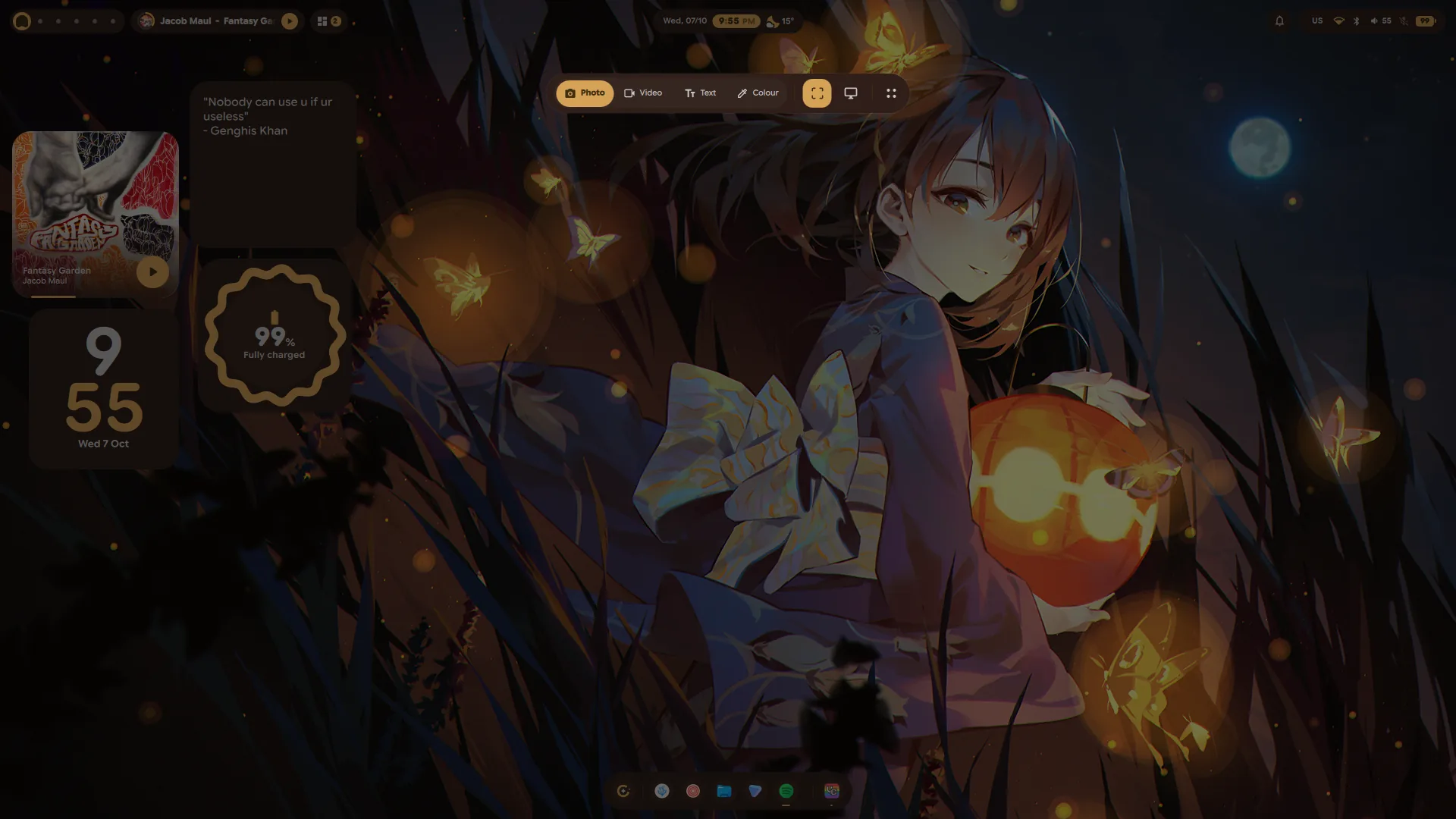
- A preview card after each capture, in the corner of the display you
captured: click to open, drag it into any app that takes files, or copy, mark
up, show in its folder or delete (twice) from its buttons. Recordings get one
too, with their length. Settings → General → Screenshots picks the card, the
old notification or nothing. Screenshots also save about three times faster.
By Ciro Rivera in #52.
Network, workspaces and the clipboard
- Share a Wi-Fi network as a QR code, from its row in Settings → Network or
the bar's Wi-Fi panel, the way phones do it. The password shows on request and
copies without landing in the clipboard history. By Ciro Rivera in #51. - Special workspaces can blur what is behind them, keep a margin from the
screen's edges so they sit like a card, and be made by you: a name, a mark,
the apps it brings up and a key of its own. By Ciro Rivera in #45. - The clipboard history has a preview pane: an image at full size, text in
full, a colour as a large swatch. Entries are sorted into images, colours,
links, addresses and text, andCtrl+Shift+Deltwice clears the lot. By Ciro
Rivera in #10.
Fixed
- The charger and low-battery toasts never fired, and the Preview button
under Notifications → System events did nothing. By Ciro Rivera in #25. - Log out did nothing on a Lua config, from the session screen, the lock
screen or SUPER+M:hyprctl dispatch exitis not a dispatcher there. It tries
hl.dsp.exit()first now. By Ciro Rivera in #30. - The bar clock's AM/PM is the locale's own now ("P.M.", "午後"). Ciro found
it doubled outside English locales in #29. - Bluetooth devices that drop two seconds after connecting, over and over:
an adapter that is not pairable lets the pairing through but throws its key
away. Pairing now holds pairable on until it is done. By Ciro Rivera in #9. - A region or a recording on a second display came from the wrong place, or
recorded both displays. By Ciro Rivera in #8. - The installer offered to restart a shell that was not running, and did,
with plainqs. By Ciro Rivera in #7.
Contributed
- Workspaces that say which display they are on. With two or more displays
the bar's dots fall into one run per display, each led by the display's number
on hover, the accent follows the display you are on, and the overview lays out
one block per display. Settings → Displays → Workspaces → Group by display
turns it off; one display looks as it always did. By @MrZtone in #54. - The installer names what a replaced
hyprland.confsourced, since a Lua
config cannot read those files, and the README gives the xray layer rule in
Lua. By @arbelonson-source in #5.
Performance
- About 150 MB less memory at rest (790 to 639 MB resident on an Iris Xe
laptop). The bundled font keeps only the three axes the shell varies, 4.15 MB
down to 569 KB; the launcher, the settings window and the emoji picker are
built the first time they are used rather than at start-up; and an unused
NVIDIA driver is no longer loaded on a machine without an NVIDIA card. - The bar no longer redraws at 60 fps on an idle desktop. Every looping
animation in it now stops while it cannot be seen. Thanks to
@theheavenlyhacker, whose measurements in #43 showed what it was costing. - Hyprland no longer freezes for five seconds while a window resizes. The
OSD asked Hyprland for the lock keys; it reads the keyboard's own LEDs now.
Installer
- New packages:
hyprsunset(night light),qrencode(Wi-Fi codes),
xdg-terminal-exec(the launcher's$mode),inotify-tools(the camera
on/off toast),sshfs(browsing a phone's files),pipewire-audiowith
sound-theme-freedesktop(the Sound page's Left/Right test), and
smartmontoolsandudisks2(drive health and mounting on the Storage page). - Google Sans Flex is installed to
~/.local/share/fonts/lucidfor the apps
the Environment page dresses, and beside the SDDM theme, which now draws in it
the way the lock screen does. - Hyprland:
modules/settings.luaapplies what the Windows and Input pages
set, andmodules/plugins.luaholds plugin settings, each applying only while
its plugin is loaded. It ships with the tilting cursor of
hypr-dynamic-cursors; the
installer offers to build it (--no-pluginsskips that) with
scripts/cursor-plugin.sh, against the headers the hyprland package installs
and without root.modules/autostart.luaruns the same script on every login,
so the cursor is still there after a restart, and is rebuilt by itself after a
Hyprland update. - The theme scripts behind the Colours and Palettes pages go into
~/.config/lucidwith the rest. - The login screen wears whoever is picked. Each account paints its own
wallpaper and palette into the SDDM theme, and choosing another account in
the user picker crossfades the greeter to theirs. Before, the installer handed
the whole theme to whichever account ran it last, and every other account's
wallpaper changes were dropped without a word. The theme now stays root's,
with one stickyusers/directory each account writes only its own part of,
and an account the greeter has nothing for yet is painted at its next login. - Settings' file choosers no longer need zenity. Picking an account
picture, a wallpaper, a template or a palette did nothing at all without it.
They now open the desktop's own chooser through the XDG portal, with zenity
and kdialog as fallbacks and a notification when none is there, and they float
instead of tiling. - Restarting the shell at the end of an install goes through
launch-shell.sh,
as a login does, so it comes up on the same render backend. - SUPER+R restarts the shell as well, as its keybind always said: Hyprland
reloads, the shell stops cleanly and comes back throughlaunch-shell.sh.
The calculator (F12) opens as a small floating window rather than tiling,
and with more than one keyboard layout Alt+Shift switches between them
(Settings → Input picks another key).
Upgrading
git pull
./install.sh- Your bar keeps its layout. The six module switches from 1.10.5 carry over,
and every module stays in the group it was in until you move it. - Your keybinds are yours: the installer only seeds
keybinds.jsonwhen it
is missing, so three shipped changes need adding by hand under Settings →
Keybinds. SUPER+Escape opens the session screen (qs ipc call session toggle), CTRL+ALT+TAB opens the window switcher (qs ipc call switcher next, andqs ipc call switcher prevon CTRL+ALT+SHIFT+TAB), and SUPER+M
should run
command -v hyprshutdown >/dev/null 2>&1 && hyprshutdown || hyprctl dispatch 'hl.dsp.exit()'. - A Hyprland config of your own gets
require("modules.settings")
appended, the same waymodules.glassis, so the Windows and Input pages can
apply what they set. - The login screen needs the theme reinstalled once, as root, to move to
per-account copies:./install.shdoes it and paints your own account
straight away, or on its ownsudo support/sddm/install-theme.sh. Any other
account that uses Lucid needs./install.shrun once as itself too, since
an oldersync-sddm.shcannot write to the new theme. Each account then
shows up as itself after its next login or wallpaper change.
Contributors


MrZtone, theheavenlyhacker, and 2 other contributors