Repository navigation

Lucid is an ecosystem. It began as a shell around your windows; now it is
everything between logging in and logging out, made to belong together. It has
apps of its own: Lumen for your files and every app's file dialog, Lens for
pictures and videos, and a rebuilt LucidShot. Its own icons and its own
pointer are drawn in your palette, and the login screen matches the lock. The
desktop is arranged in edit mode right where it stands, the bar can take the
bottom edge and open its panels as one shape with it, the control centre is laid
out on a grid of your own, whatever plays comes with its lyrics, and everything
moves on springs.
Twenty-three of the pull requests in this one are Ciro Rivera's, the
entries marked with a number below unless someone else is named. Thank you,
Ciro, and thank you @SKetU-l and @naevui.
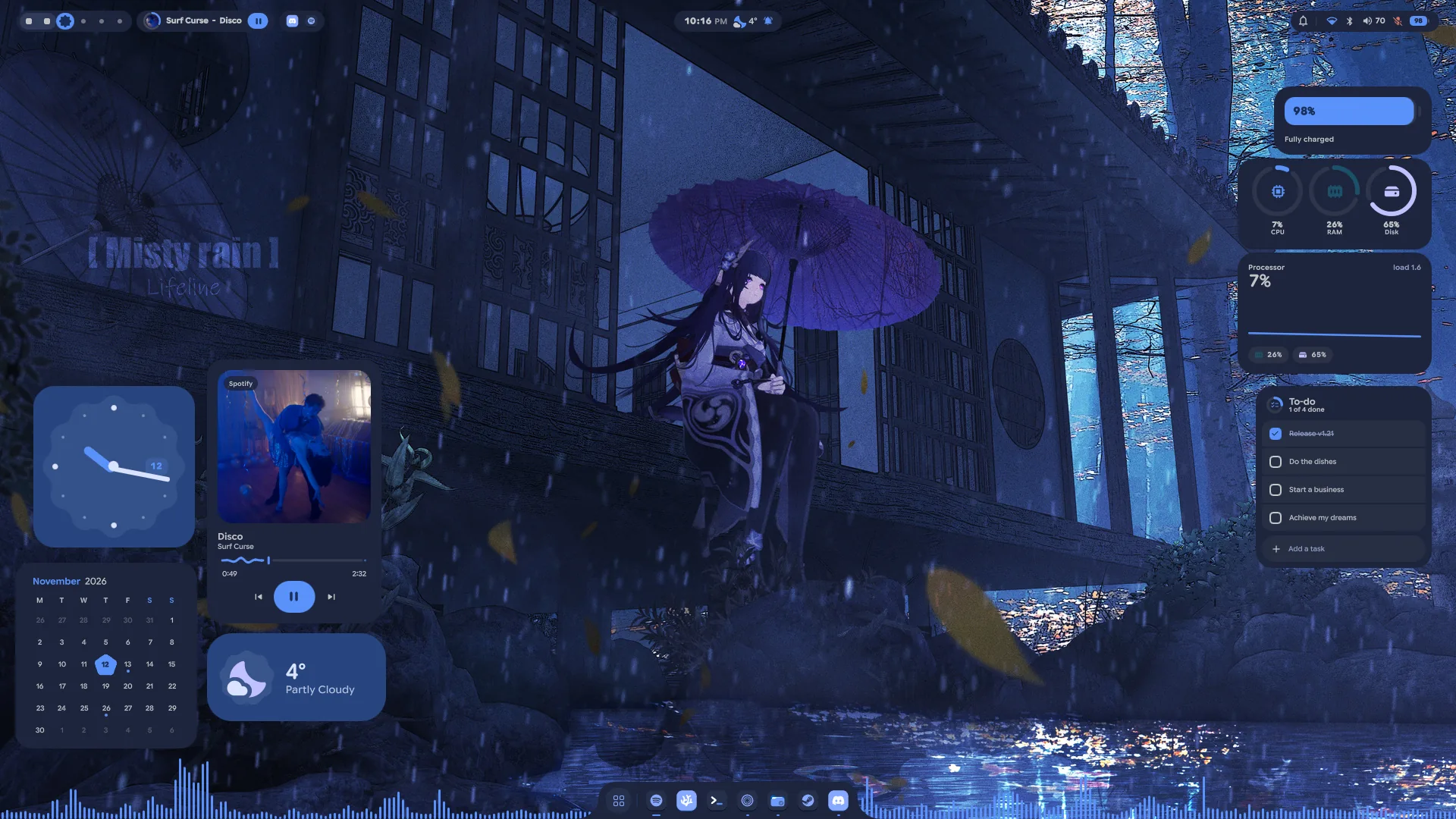
Apps of Lucid's own
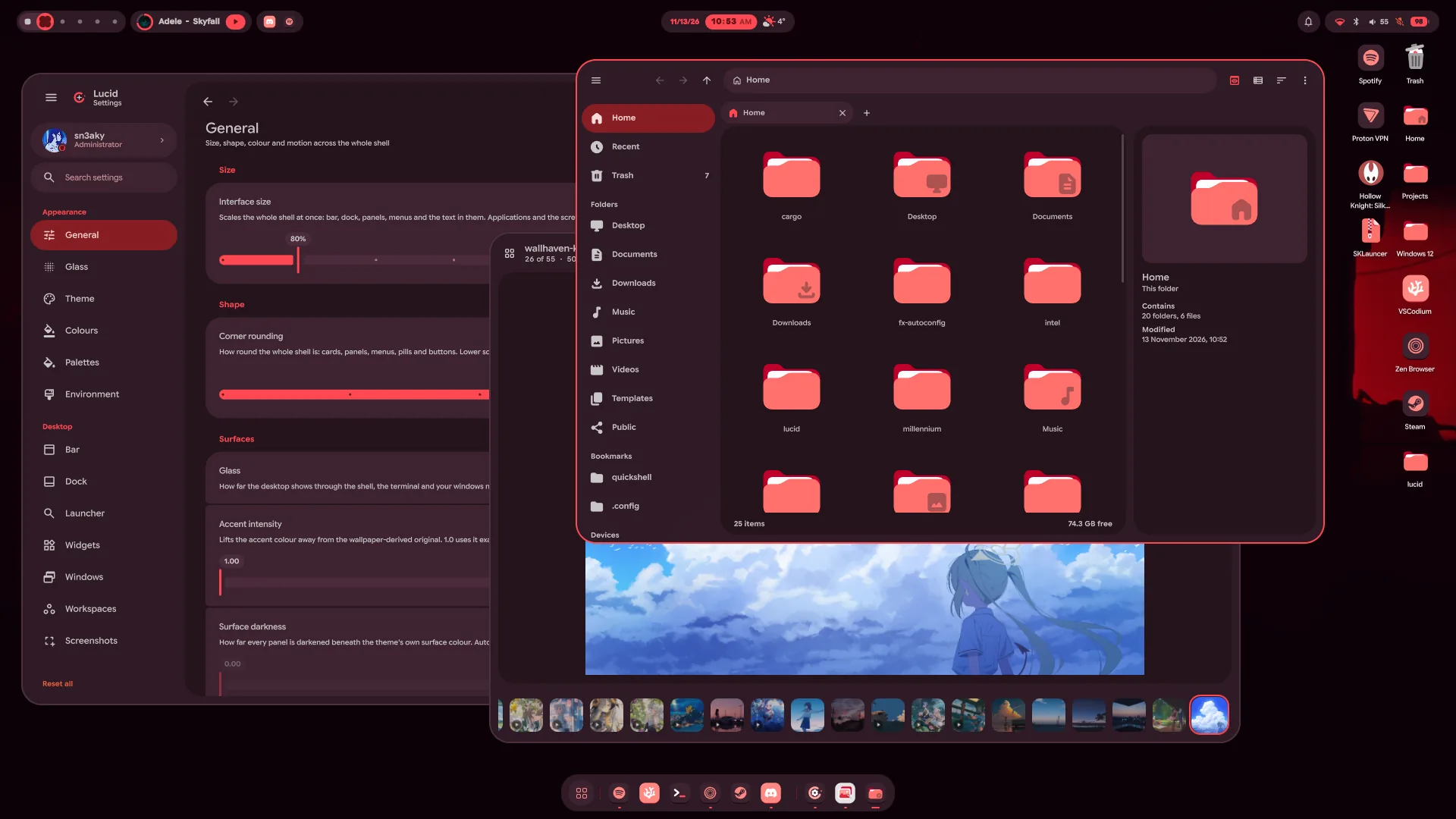
- Lumen, a file manager of Lucid's own, and every app's file dialog.
SUPER+E opens it, folders open in it, and the Open and Save dialogs of
every app are Lumen windows too, filters, overwrite check and all. Tabs with
a strip that always shows: pin one and it stays at the front of every new
window, give it a colour, drag it out into a window of its own and back.
Bookmarks with names and colours (Ctrl+D), Recent, Trash, your drives under
Devices with eject, a path bar you can type into, a grid or a list that
zooms from 24 to 256 pixels, and a preview pane. Right-click for Open
with…, Set as wallpaper, copying the path, compressing and extracting, and
more. Copies and moves run in the background, and Lumen does not quit until
they are done. - Network drives in Lumen. Connect to server (Ctrl+K, the sidebar's new
Network section or the ⋮ menu) opens a shared folder on another computer, a
NAS or a server. Type its address (smb://nas.local/media,
sftp://you@server,ftp://…, Windows' own\\server\share, or just a
name) and sign in if it asks: as a registered user or a guest, with the
password kept in your keyring if you tick it. A host Lumen has never seen asks
first. Connected shares sit under Network with their free space and a
button that disconnects them, and their files open, copy, move, rename and
delete like any others; a share has no trash, so deleting says it can't be
undone. Apps' open and save dialogs reach them too. Bookmark a folder on a
share and a click on it connects again later; the addresses you typed stay
in the dialog's Recent list, and Nearby shows the computers sharing
folders on your network once Avahi runs. - Lens, a picture viewer of Lucid's own. Open a picture and the rest of
its folder comes with it, in the order Lumen shows that folder: the arrow
keys, a swipe or a drag slide to the next one, the filmstrip jumps to any,
and All pictures (G) lays out the whole folder to search by name. The
wheel or a pinch zooms where the pointer is, a double click goes to 100%, and
a zoomed picture pans with a map of where you are. Edit (E) crops it (free,
its own shape, square, 4:3, 3:2, 16:9 or your screen's), turns, flips and
straightens it, adjusts its light and colour, or gives it one of twelve
looks; Draw (D) adds pen, highlighter, arrows, lines, boxes, rings, words
and boxes that pixelate what is under them. Edits wait for each picture until
they are saved, over it or as a copy; a turned JPEG is saved without losing
any quality. Saving over a picture keeps its original, for good: Revert to
original (right-click, the editor or Details) brings it back whenever you
like, and holding \ shows it in the edited one's place. Right-click for Set
as wallpaper, Open with…, Show in Lumen, copying the picture, its path,
the text in it or a colour off it, sending it to your phone, renaming it and
the trash. Details (I) show the camera's settings, where it was taken, a
histogram and the colours it is made of. Slideshow (F5) and full screen (F)
too. - Videos in Lens. Videos sit in the folder with the pictures and play
where they are, with a time line that waves while they play, volume, speed
and play-on-repeat; a click pauses, a double click goes full screen, and J,
L, comma and full stop step back and on. A frame can be saved as a picture or
copied, a sideways phone video turned upright without encoding it again (its
original kept), and Trim (E) cuts a part out as a copy: exactly at the
handles, or at once at the nearest keyframe.lens --default-videosmakes
Lens what opens videos as well.
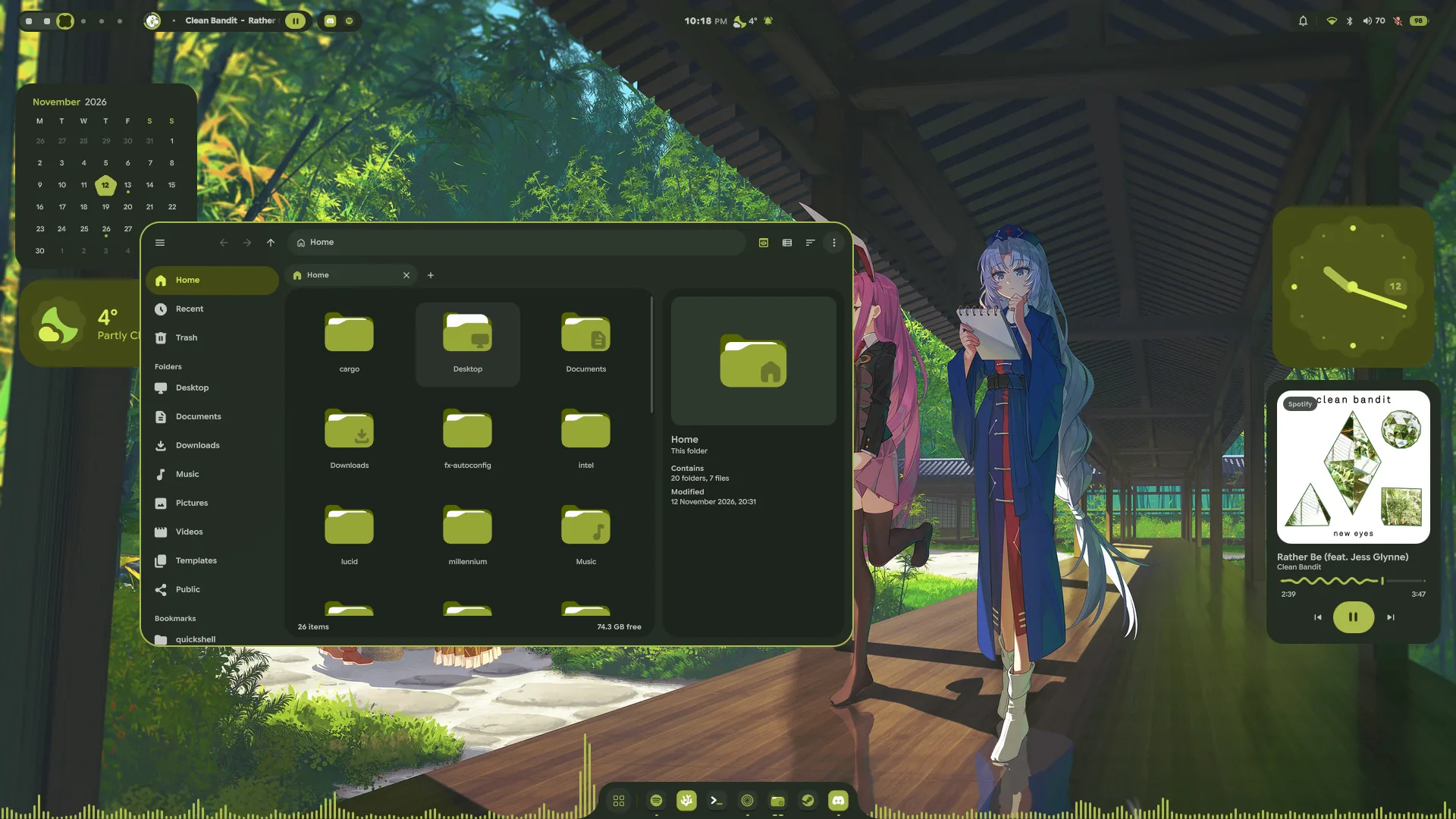
Edit mode
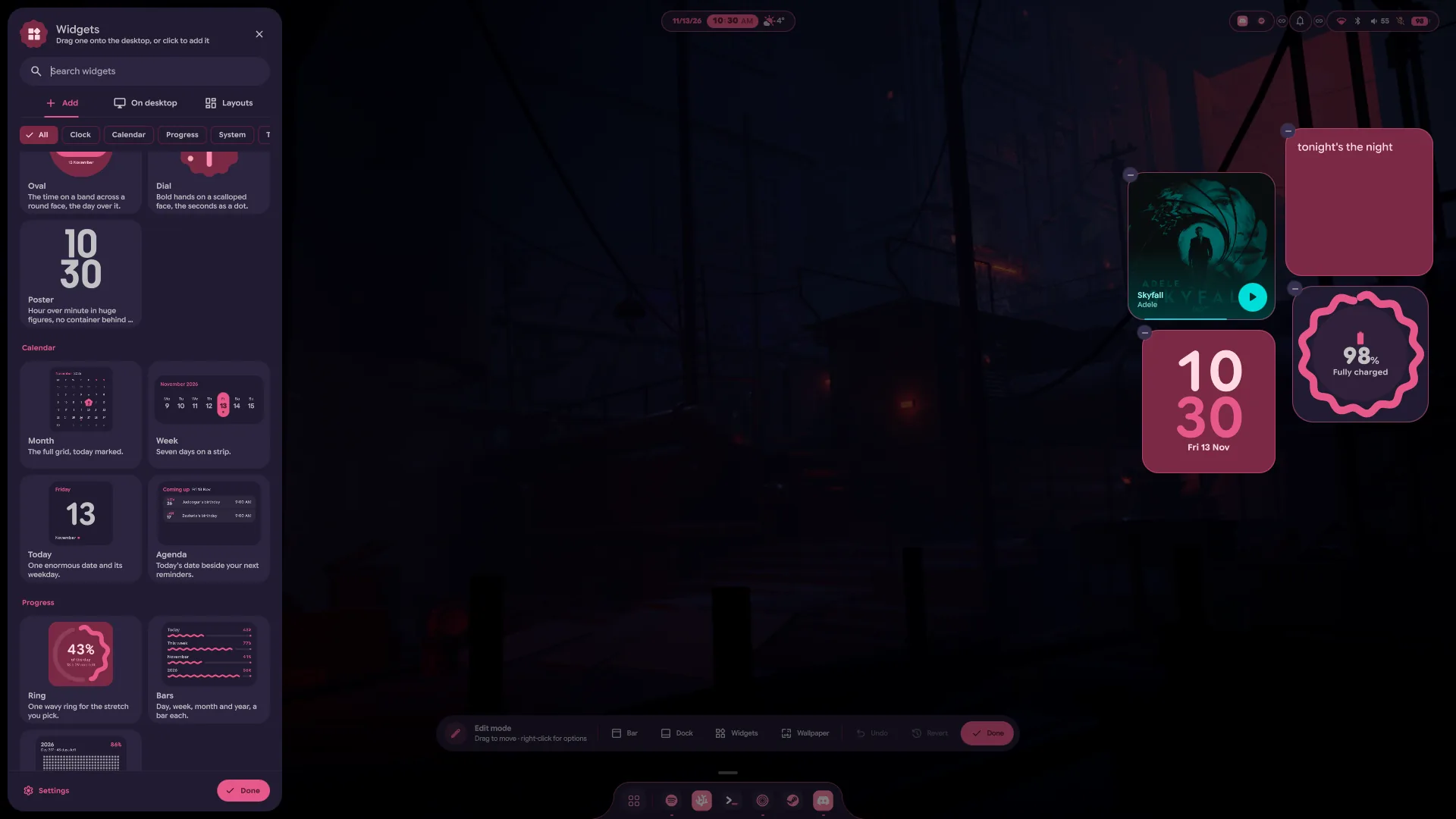
- Arrange the desktop where it stands. Pick Edit Desktop from the
desktop's right-click menu, or right-click any bar module, and the wallpaper
shades over so everything on the desktop can be arranged in place. Drag a bar
module along the bar to move it, into another group, or down off the bar to
take it out; one that has nothing to show right now keeps a dashed stand-in,
so it can be moved too, and the link between two neighbours joins them into
one island. Right-click a module, or the dock, for a sheet of its options
beside it: its looks, the bar's or the dock's style and sizes. A click still
opens a module, so the look just picked can be seen. The dock gets a handle:
drag it up to float the dock higher, or down into the bottom edge to make it
a notch. Undo takes back the last change and Revert everything since
edit mode began; Done, or Escape, leaves it. - The bar and the widgets are set up there now. Settings → Bar loses its
arrangement editor and the per-module cards, and Settings → Widgets its
layouts and its catalogue: modules are moved and set up in edit mode, and
widgets come from the widget panel on the desktop, which has the layouts too.
The Bar, Dock and Widgets pages each have a button that opens edit mode.
The bar
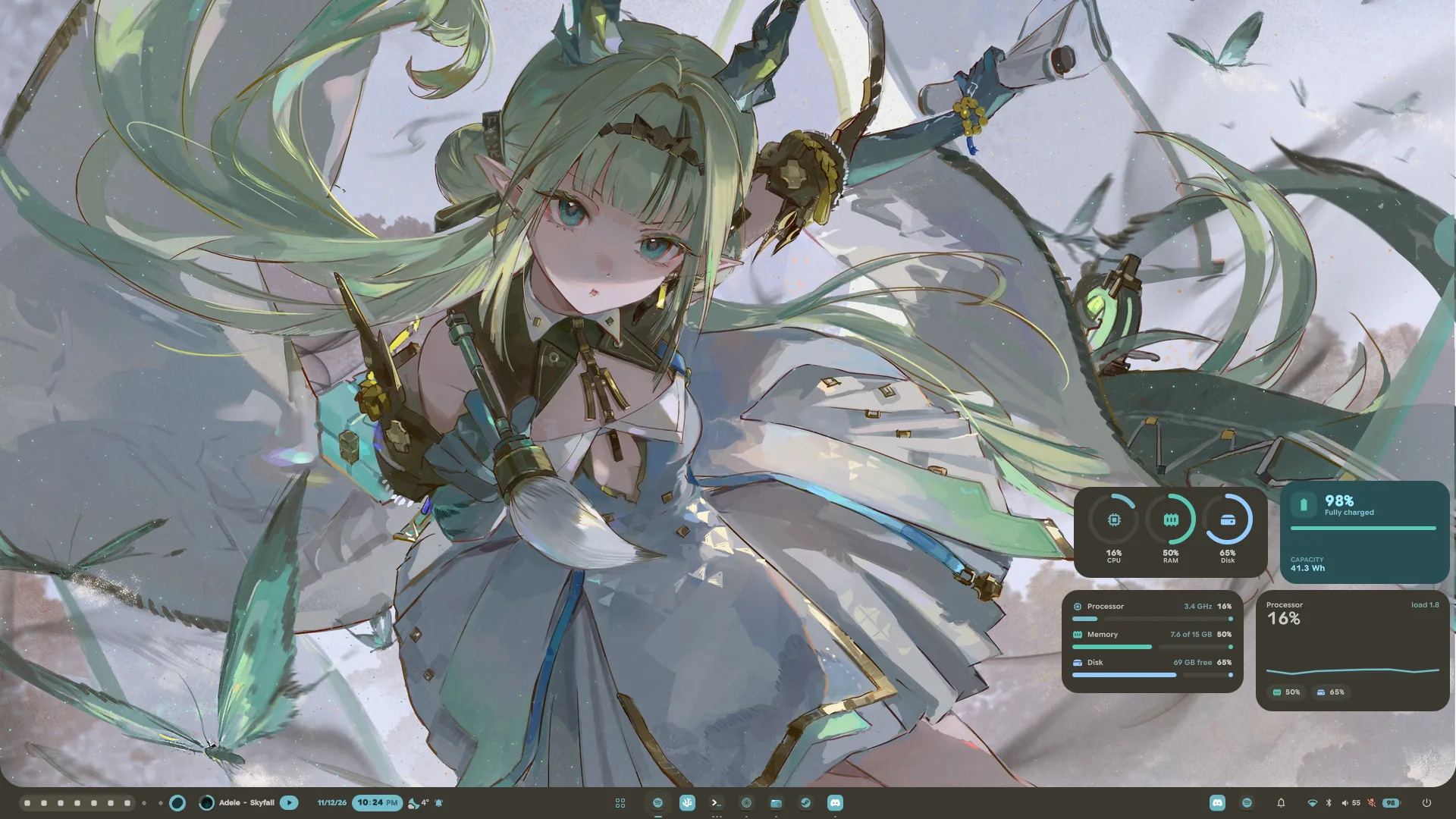
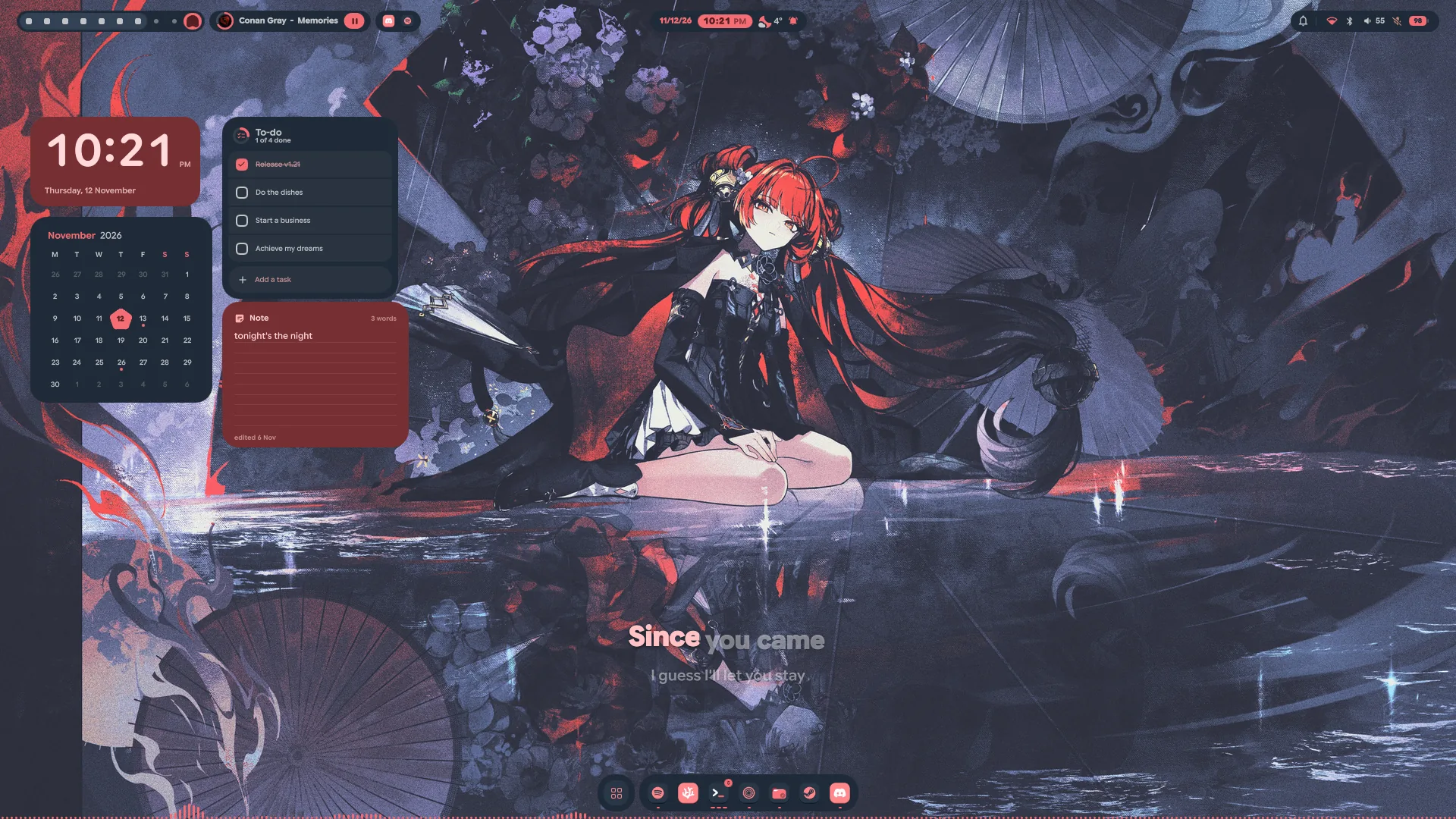
- The bottom edge. Position puts the bar on the bottom of the screen,
and it slides over to the new edge. Its pop-ups open upwards, one that hides
comes out of the bottom edge, and over a fullscreen window the launcher still
rises from the edge. With the bar there the dock steps aside, and on a full
bar the launcher rises out of the bar itself, one piece of glass with the
strip. #100 - Panels open as one shape with the bar. On a full bar and with notches, an
open panel grows out of the bar with no seam, panels side by side merge into
one shape, and a module at either end can meet the screen's side and curve
into it. #92, #95 - Start and Apps. Start is a button for the launcher, in a circle of its
own, drawn as the dock's launcher button by default, or as Lucid's mark, your
distro's logo, your picture or the word Start (#88). Apps puts the dock's pinned and running apps
on the bar, with their dots, names and right-click menus; drag a pin to
reorder it (#99). Joined, the two hover as one row. - The system tray, redesigned. Both looks are rebuilt in Material You.
Icons gives each app a slot like Apps does, with a mark that breathes
when one wants your attention; Collapsed stacks the first three icons with
a count. A click opens the tray: each app is a row with its real name, and
its menu opens right in the row, submenus sliding in beside it. A right
click on an icon opens that app's menu, a middle click and the wheel go to
the app as before, and any app can be hidden from the bar. - The System module shows what you pick of Wi-Fi, Bluetooth, the volume
and its level, the microphone and the battery. #97 - Content size. Settings → Bar → Content size scales what is in the bar,
80 to 140%, without changing the bar's own height. - Joins hold. A link between two modules carries across one that has
emptied out between them, and modules sit on whole pixels, so joined ones
leave no seam. #96 - Notch edges. A notch's edge blends are frosted like the rest of the bar,
light up with it on hover, curve as a quarter ellipse beside a short module
instead of stepping, and can reach up to 64 pixels. - Calmer motion. A panel closes on the exit curve, modules leave the bar in
order instead of all at once, a module's contents hold still while hover
grows its pill, switching a look animates, and a panel too wide for its place
clears the bar around it. Over a fullscreen window an open panel stands above
it. - Fewer, clearer looks. The clock's day and date are bold, the date in the
accent, and the window title is bolder. The Notifications module's Accent
look and the window title's Chip look are gone; a bar that used them takes
the default.
Music
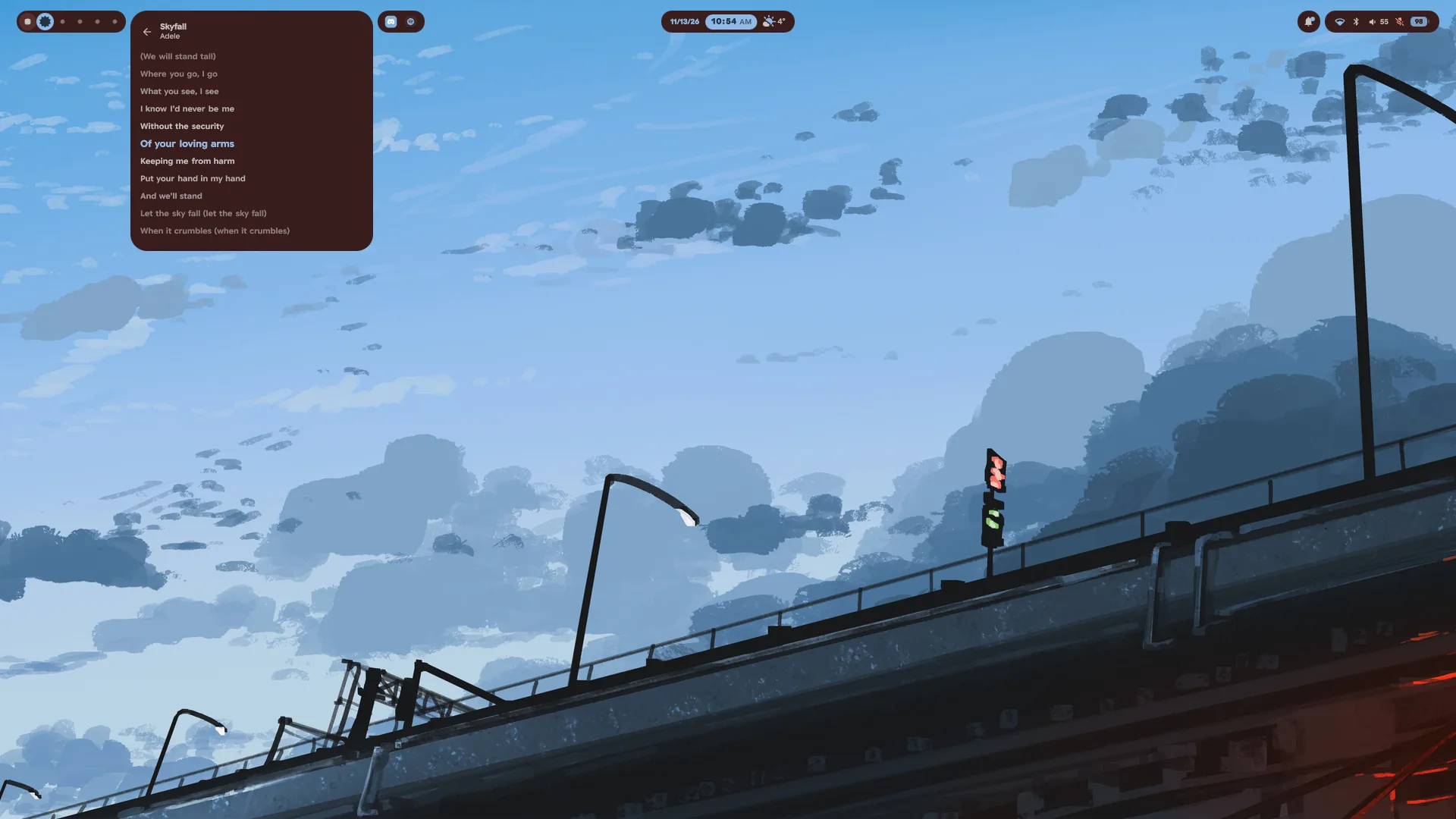
- Lyrics. The media panel has a Lyrics button beside Identify: the song
scrolls by, the line being sung springs up to full size and fills with colour
letter by letter, the word being sung stands up a little, and a pause is three
dots that fill through it and let go just before the next line. A click on a
line jumps there.qs ipc call media lyricsopens it too, and a switch on the
media module's card in edit mode takes the button away. The new Lyrics
widget follows the song in three looks: Word by word, captions that tip in
and land as they are sung; Karaoke, the line filling letter by letter, the
next one zooming up into its place as the last flies off; and Classic, the
whole song scrolling by with the sung line lit. The words come from
lrclib.net, looked up only while something shows them and kept on disk, so
each song is fetched once. #109 - The media module and its panel, rebuilt. In the bar, Progress fills the
pill as the song goes and Controls puts previous, play and next before the
track; the panel comes as Vinyl, a record that turns while it plays,
Backdrop, over the cover blurred across the panel, and Mini, besides side
by side and the large cover (#89). The wave rests while a song is paused, and
a track with no cover shows a crisp note. - Covers that never stall the shell. Covers and GIFs from the internet are
fetched into a cache of their own instead of through Qt's network stack,
which could take the whole shell down. By @naevui in #86.
Control centre
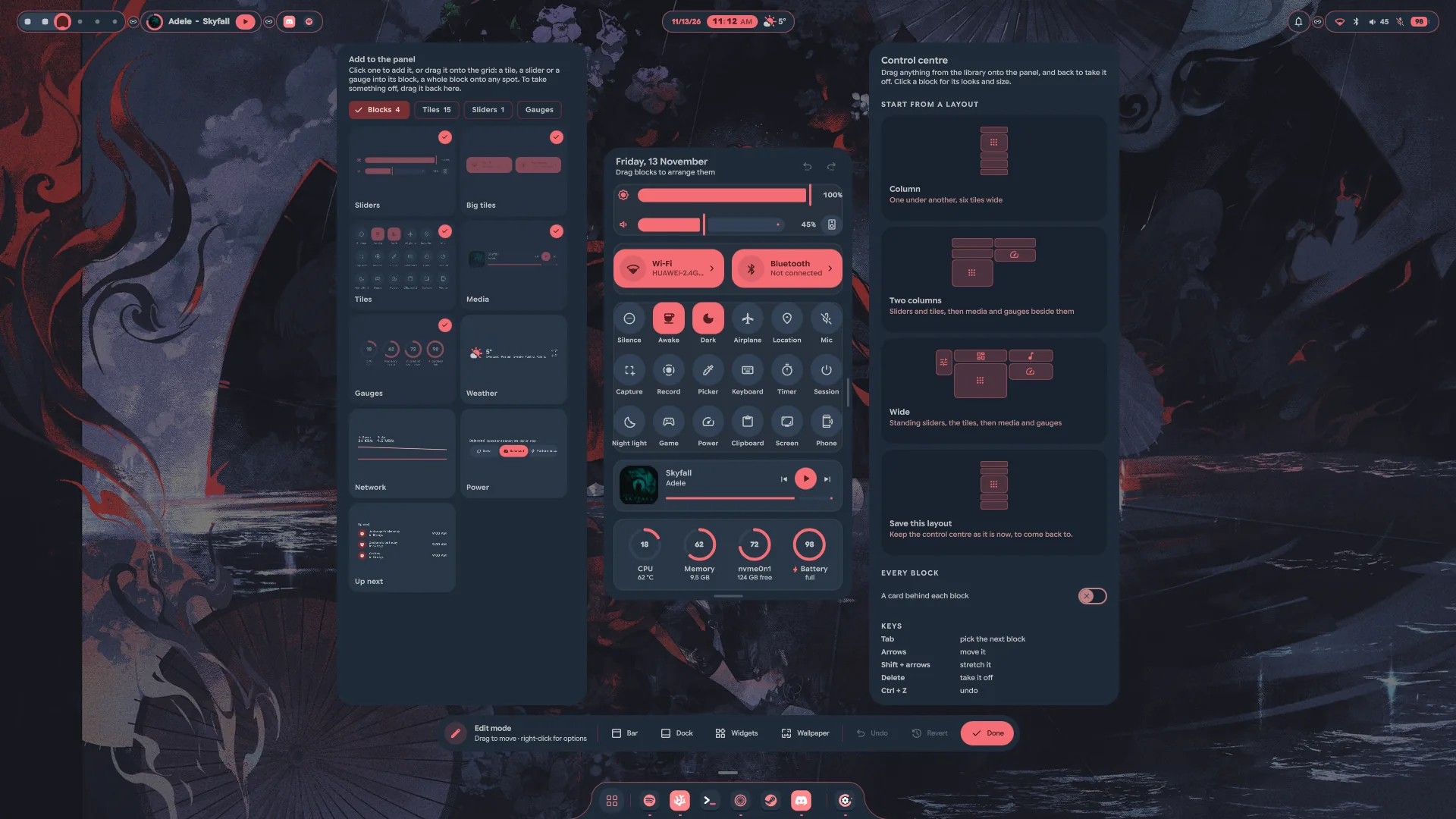
- Lay it out your way. The control centre can become a bento grid of
blocks in an editor of its own, lifted off the bar to the middle of the
display: sliders lying or standing (also Wavy), big tiles and small ones,
what is playing, gauges, and four new blocks, the weather, the network,
power profiles and what is up next. Each has looks of its own. Add them from
a shelf with a search, drag them, undo, start from a ready layout, and make
tiles of your own. Untouched, it stays the column it was, and a charging
battery's gauge reads plainly. #90 - Open it over IPC:
qs ipc call controlcentre toggle(oropen,
close), for a keybind of your own. #108
The desktop
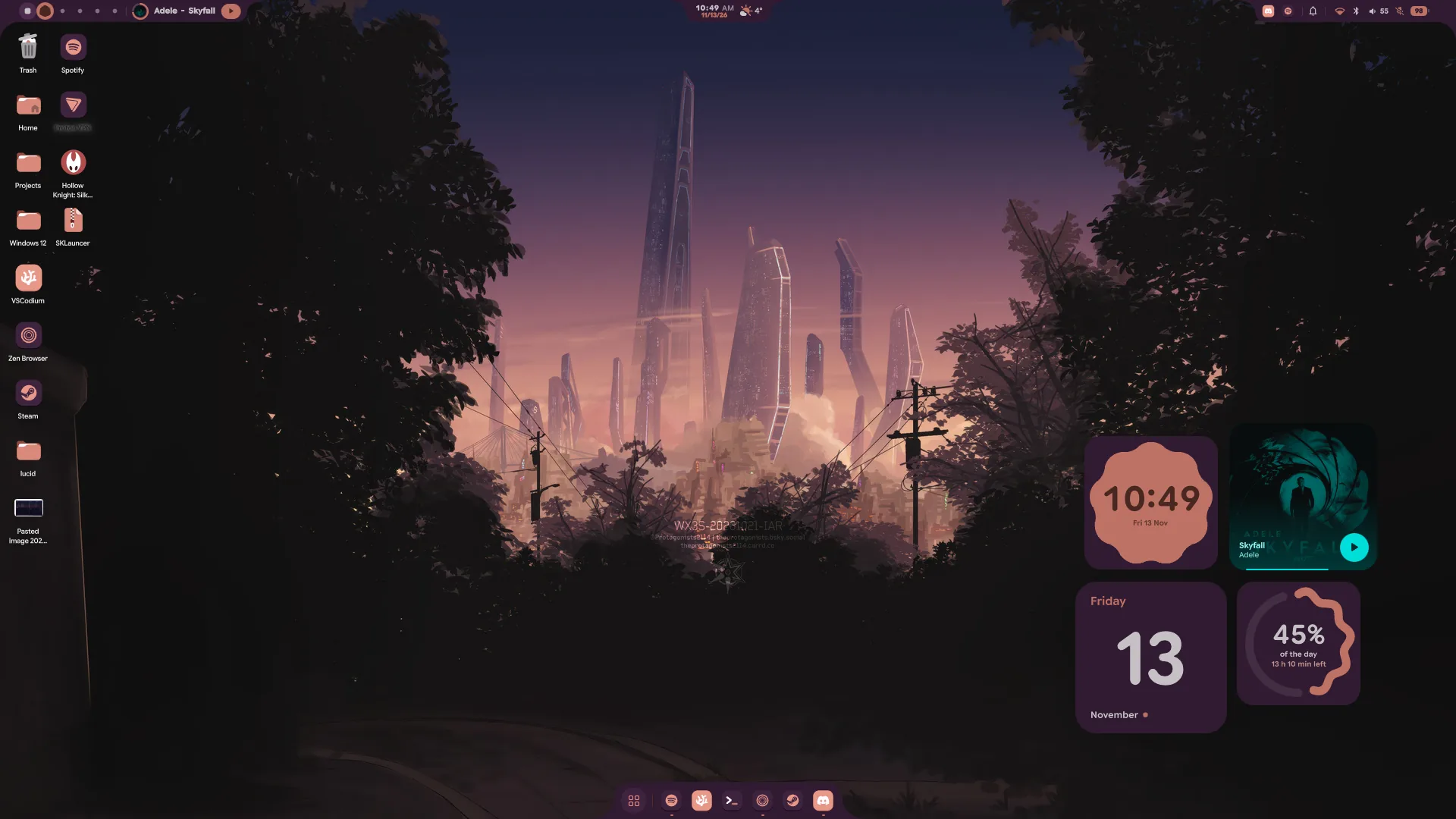
- A Poster clock. The hour over the minute in huge figures, straight on the
wallpaper with no card behind them, in white or a colour from your palette. - The Lyrics widget, in Music above. #109
- Widgets stay over fullscreen windows by default on a new install; Hide
for fullscreen windows is still in Settings → Widgets, and a choice
already saved stays as it is. #111
LucidShot
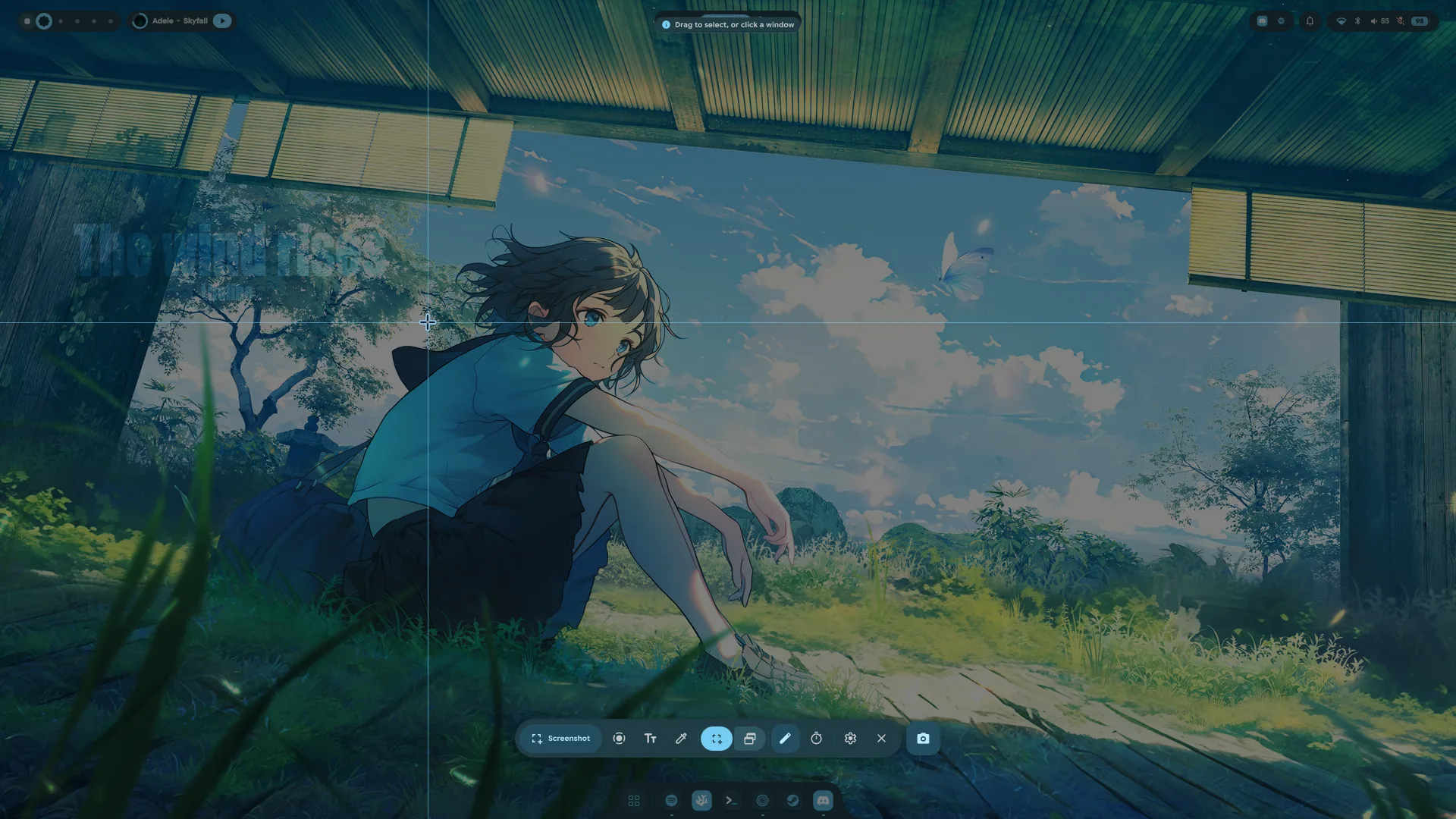
- LucidShot, rebuilt. Print freezes the screen under a Material You
toolbar with a shutter beside it: Screenshot, Record, Text or
Colour, of a region, a window or the whole screen. Drag out a region or
click a window; a magnifier shows the pixels under the pointer, edges snap to
the windows', Shift keeps it square, Alt grows it from the middle and Space
moves it. The capture flies into a card in the corner to open in Lens, mark
up, pin to the screen, read the text off, drag into an app, find in its
folder or delete. With Mark up before saving (E) the selection stays put
instead: pen, highlighter, arrows, boxes, ellipses, text, numbered steps and
pixelation, with undo, then save, copy without saving or pin. Text read off
the screen pastes the way it was written: lines that only wrapped on screen
join up again, while lists, short lines and code keep their breaks. The
self-timer takes it 3, 5 or 10 seconds later, live. - Colour and recording. Colour turns the pointer into a lens over the
frozen screen: a click copies HEX, RGB or HSL, Shift-click collects a
palette. Record takes a region, a window or the screen with what is playing
and, if you like, the microphone, mixed without muting anything; a countdown
first, a pill with pause, the two sources and stop that tucks into the bar,
and a recording carries on through a shell reload. A recording's card makes a
GIF of it. - Settings and pins. Settings → Screenshots has the folders, the card,
window corners, the magnifier, the languages text is read in and the
recorder's countdown, frame rate and encoder. Pinned captures float over your
windows: drag them, scroll to size them, Ctrl and scroll to see through them,
double-click to let go.
Look and feel
- Jelly motion. Panels, pills, menus, the dock and its icons, the OSD and
widgets settle on a spring, with a little wobble as they open and land.
Settings → General → Motion turns it off or sets how much. - A pointer of Lucid's own. The arrow, the hand and every other shape take
the colours of your palette, Dark, Light or Accent, and fade along when
the palette changes. The shapes are Bibata Modern's: Lucid fetches its source
once and draws them on your machine, so nothing of Bibata ships with Lucid.
Settings → Environment
has it, the cursor tilt (only the arrows and hands lean as they move), and a
switch back to any cursor theme you have. While you drag a widget, a pin, a
slider or a block, the shell draws the pointer itself, so it stays right on
what it holds. - Icons of Lucid's own. Folders, files, places, drives and many apps get
one tonal set drawn from your palette, in Lumen, on the desktop, in the dock
and in the launcher, folders in the accent. An app the set doesn't know keeps
its own icon. - Light or dark, by the wallpaper. The theme can follow each new wallpaper
into light or dark mode, whichever suits it (#79). A built-in theme you never
use can be taken off the list. - The OSD as a notch. Notch rises the OSD out of the bottom edge, the
Caps Lock, Num Lock and microphone cards can be toasts instead, and a
keyboard with a backlight gets a card of its own (#22). With the dock a notch
as well, the dock itself turns into the OSD and back (Morph the dock). - A Split dock. The launcher in a circle, the pins in a pill and the
running apps in a third island, which fuse into one when the launcher opens
and spring apart again. A running app dragged onto the pins pushes them
aside, and the dock's edge blends are frosted like the dock. - Settings has an icon and a name of its own, Lucid's orbit around a gear,
its sidebar highlights the way Lumen's does, and the style tiles draw each
module exactly as the bar does. Zen follows the palette live.
Sound
- Several outputs at once. Play through your speakers and headphones
together, with a volume slider under each device (#82). The audio panel has a
slider for every app playing sound. By @SKetU-l in #84.
Login and lock screen
- A live login screen. The login screen plays your live wallpaper behind
its blur (#83), takes the lock screen's size, corners and glance chips, and
the lock screen plays it too. Fingerprint login tries again with a short
wait instead of giving up, and a password typed meanwhile waits its turn. By
@SKetU-l in #80 and #81.
Updates
- Update from inside Lucid. When a new release is out, Settings → About
(and the notification that announces it) has an Update button. It warns
you what is about to happen, asks for your password once, and then installs
the release's own source with its own installer, in a pop-up with a progress
bar. Anything the installer would ask in a terminal, a yes or no or sudo
wanting the password again, is asked in the pop-up. When it is done,
Restart now, Remind me later (an hour) or Cancel. The updater
runs outside the shell, so it survives a reload, and the pop-up picks up
where it was. Only a published release counts as an update, not a push to
main. The password goes tosudoonce and is never stored. - Beta updates. A switch under Settings → About, with a warning that
things may break, offers the newest commit onmainbefore it becomes a
release. It installs the same way and needs the password too.
Displays
- Stop mirroring stops the mirror, and the display gets its own wallpaper
and bar back (#87). Each set of displays keeps its own split of workspaces,
so plugging a monitor in or out puts them back where they were (#91).
Installer
- Install from a window. In a Wayland session
./install.shopens a
window: pick what to install, watch it work beside a tour of Lucid, and
answer its questions with buttons (./install.sh --terminalstays in the
terminal). It installs Hyprland itself when it is missing, works with any
login manager or offers to make SDDM the one, takes the keyboard layout you
already type on, sets up screen sharing, and says so when the window is
closed mid-install. #94 - A way back. The uninstaller puts back the login screen, the GTK settings
and the Hyprland config you had before Lucid. #94 - Hyprland, refreshed. The glass has no grain or vibrancy boost now, the
tilting cursor turns smoother and further, and SUPER+V floats a window at
1366 by 768, centred (a plain float bind you never changed moves to it). Zen
takes Matugen's colours on a fresh install.
Performance
- Less memory for what is hidden. The visualiser's cava rests while nothing
plays. Settings is taken down a minute after it closes and opens again on
the page it was left on, and What's new and the on-screen keyboard lay
themselves out only while they are up. #98, #101
Fixed
- A timer or reminder made just as the one before it was being saved no
longer goes missing. The save finished off to one side and then wrote the
older list back over the new one. - A Wi-Fi password being typed survives network updates, and the search
for networks keeps going while one is open. #93, #106 - A panel sliding off its layer no longer frosts the whole layer for a
moment, and a long list in the launcher ends on a whole row. - The camera's on and off toasts no longer flicker when an app opens it
several times in a row, and the CPU temperature comes from the processor's
own sensor before any other. By @naevui in #86.
Upgrading
git pull
./install.sh- New packages come with the installer:
qt6-webengine(Lumen's preview
pane),python-cairo(the pointer),gvfs-smb,gvfs-nfs,gvfs-dnssd
andgvfs-wsdd(network drives),qt6-imageformats,kimageformats,
libjpeg-turboandexiv2(Lens), andxdg-desktop-portal-hyprland
(screen sharing). - From this release on, Settings → About updates Lucid in place, so the
next one is a click away. - A Hyprland module you edited is replaced by the new one, and the
installer names it; your version stays in the backup it makes.

