Repository navigation

The lock screen, made yours, and Lucid in your language. The lock screen
and the login screen are redesigned together and drawn by the same parts, and
you lay them out: six styles to start from, widgets to put where you want
them, and an editor that fills the screen to do it in. Whatever the lock
wears, the login screen wears too. Lucid now speaks Spanish, Russian, German
and Turkish as well as English, and its on-screen keyboard types in your
layout. The workspace overview comes down from the top of the screen, and a
tap of Ctrl finds the pointer.
Nine of the pull requests in this one are contributions: eight from
Ciro Rivera, who made Lucid translatable, and one from Deniz Gözen,
which brought German, Turkish and a good deal more. Their entries end in the
pull request's number. Thank you both, and thank you @cwkpete7383, @ArkLmao
and @Faoxn, whose reports are fixed here.
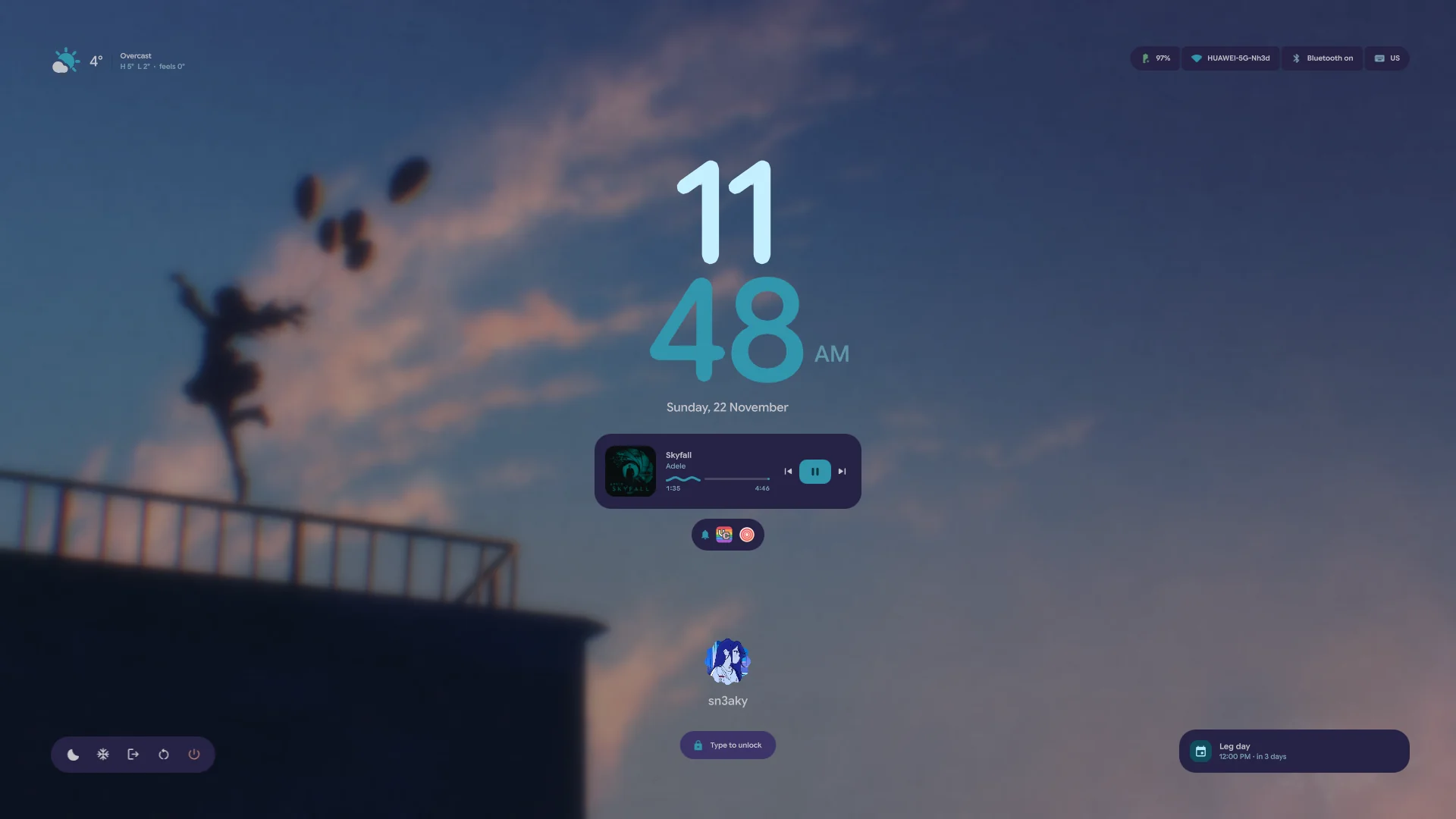
Lock and login screen
- Six styles. Centre keeps a big clock in the middle, Split puts the
day on the left and the sign-in on the right, Panel holds the sign-in in a
side sheet, Minimal shows only the time until you start typing, Bento
sets every widget on a card of its own, and Deck is made for music. Each
style has its own places for widgets and remembers what you put in them. - Widgets with options of their own. A clock (stacked, inline, a dial or
shapes, in four sizes, two-tone or plain, with seconds if you like), the
date, a greeting, the weather, the battery, network, Bluetooth, Do not
disturb and keyboard layout as chips or icons, the power buttons as a bar or
as round buttons, and a message of your own, such as who to call if this is
found. The lock also shows what is playing, your notifications (a list,
icons or a count, and Hide what they say keeps the words to yourself) and
Up next: your next reminder and the next alarm. - Deck, for music. The cover is cut to a cookie inside a ring of the
song's progress that waves while it plays, the title is set in display type,
and the play button wears the same shape until a pause rounds it into a
circle. The time sits beside it, and takes the middle when nothing plays. - An editor that fills the screen. Settings → Lock screen → Customise, a
click on the preview orqs ipc call lockstyle openopens the lock over a
frosted wallpaper. The arrows or ‹ › step through the styles, and Edit
widgets (or a click on the lock) lets you drag widgets between places, drop
them on the bin, add one where a + sits and set each one's options in a
side sheet. Preview the login screen or the field being typed into, then
Apply; closing with changes asks before dropping them. Print works over the
editor too: Window takes the lock preview, cut to its own corners, or the
side sheet, and pinned captures, preview cards and the recording controls
stay above it. - Backdrop and behaviour. Blur, Dim and Accent wash set the
wallpaper beneath. Grow out of the desktop photographs the screen first,
so the lock frosts over your windows as the desktop sinks away under it.
Back to resting sets how long after you stop typing the day comes back,
and Other screens shows them the clock or nothing. - The login screen wears your layout. Wear this layout at login sends it
to the login screen for your account only, so each account there wears its
own. Weather at login shows the last reading taken here for up to six
hours (other accounts see the sky and the temperature, never where you
are), and can be turned off. - Accounts and sessions at login. Your name (or your face) and the session
chip open Material You menus beside them, above or below wherever there is
room, and nothing behind them moves. The arrows, Enter and Escape work them,
and a letter jumps to a name. Switching to an account with a different
layout no longer pulls the list out from under the pointer. - The password field opens in one motion. Type to unlock grows into the
field: the lock stays at its left edge, the words roll over into Password
and the button grows in at the right, rather than the field's parts
appearing outside the pill as it opened. - The field asks to be used. A moment after the lock settles, and every
few seconds after that, the field lights up the way a hover lights it and
grows a little, while the lock hops and rocks. The lock answers you too: it
springs open on the right password and rattles on a wrong one as the field
shakes. - Right and wrong in your colours. The right password lights the field in
your accent's own colours rather than green, and a wrong one in a muted rose
drawn toward your accent, the way Material You harmonizes its error colour,
rather than the stock red. The login screen matches. - The on-screen keyboard, on the lock and at login. The desktop's floating
keyboard, with its Letters and Function tabs, its sizes and its grip, comes
up when a finger touches the password field, or from the keyboard chip
beside the keymap's under it. On the lock it opens at the size and tab you
last used on the desktop. It types straight into the field; Esc, Tab, the
arrows and Ctrl+A work as on a real keyboard, and the media, volume and
brightness keys go to your locked shortcuts. It floats over the screen
without moving anything, opens clear of the sign-in and stays wherever you
drag it. - No stray keyboard over the login screen. Where SDDM is set to use Qt's
virtual keyboard (its own default, which Arch's package turns off), one
covered the login screen as soon as the password field took the keys, with
or without a touchscreen, and it could flicker or leave the real keyboard
dead once closed. The login screen no longer asks for it. Reported by
@ArkLmao in #129.
Your language
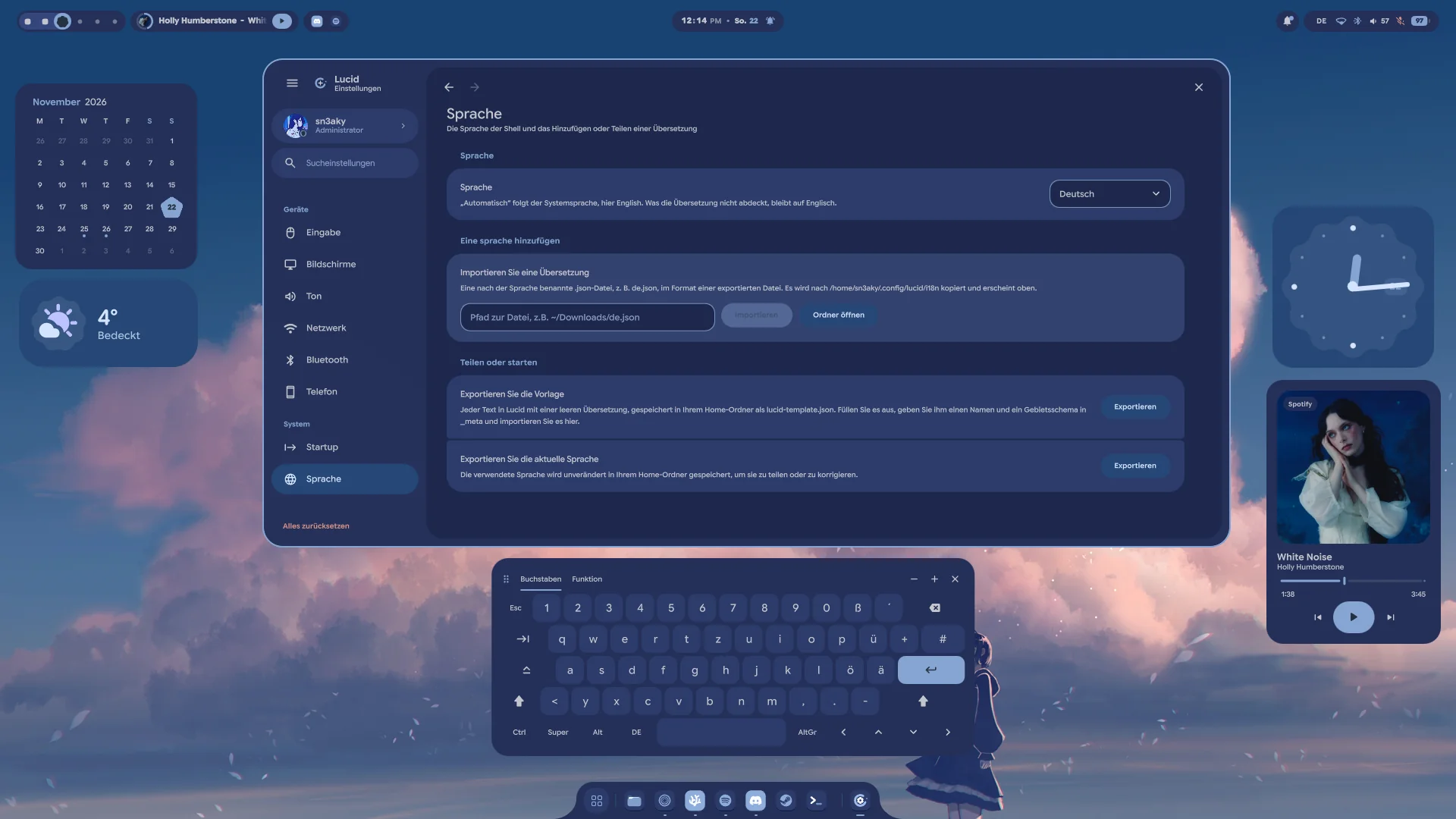
- The shell in your language. Settings → Language picks one from a menu.
Automatic follows the system's (LANG), dates and numbers follow the
language too, and whatever a translation does not cover stays in English.
Spanish and Russian come with it. #117 - German and Turkish join them, and more of what the shell says as it
works is translated: Wi-Fi, Bluetooth and the updater connecting or
checking, the desktop's file menu and Lumen's notices. #131 - Add a language, or share one. A language is a single
.jsonfile.
Export the template saves every string Lucid shows with an empty
translation for you to fill in, Import a translation adds yours, and
Export the current language saves the one in use to correct or share.
#117 - Lucid's own apps follow it. Clock, Lumen, Lens and Lucid Settings, with
their descriptions and actions, are named in your language in the launcher,
the dock and the bar. The launcher finds them, and Settings search finds a
setting, by a word in English or in your language. - The on-screen keyboard types in your layout. It was the US board
whatever you had set; now it draws the layout in use, QWERTZ and its umlauts
on German for instance, with AltGr for the symbols on the third level and
dead keys that land on the next letter (´ then e is é). With more than one
layout, a key beside the space bar switches between them. - The keyboard layout shows in the bar from the start, and follows layouts
added under Settings → Input, even while there is only one to switch to.
Workspaces
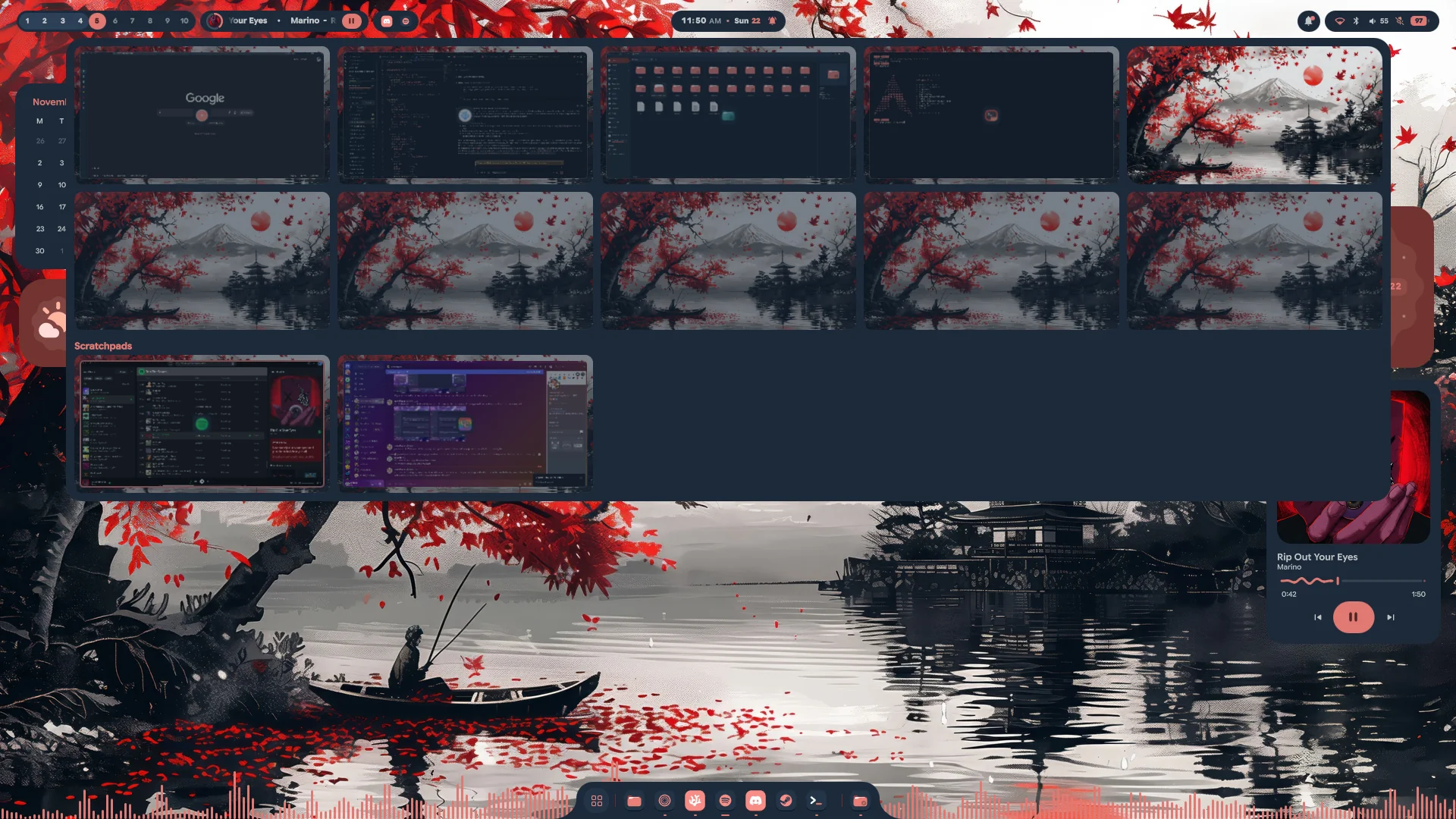
- The overview comes down from the top. A click on the workspace you are
on, a middle click on the workspaces pill or a three-finger swipe down
brings it down from the top edge of the screen, and a swipe up, Escape or a
click outside sends it back. Your workspaces sit in two rows of five, each a
little desktop of your wallpaper with live pictures of its windows and their
apps' icons, with your scratchpads in a row beneath. The one you are on
stands in the light, rounder at the corners, while the others are shaded
back until the pointer passes over them, and the workspaces pill shows their
numbers for as long as it is open. Dragging windows between workspaces works
as before. - The old overview is still there. Use legacy workspace, in the
Workspaces module's settings (right-click it), brings back the overview
that grows out of the pill in the middle of the screen. - Every workspace you ask for is there to swipe to. With How many at
ten, all ten are kept, so swiping and scrolling go through every one rather
than stopping at the sixth until the rest had a window on them.
Pointer
- Tap Ctrl to find the pointer. Tap either Ctrl key on its own and the
pointer grows for a moment, so it is easy to spot. Only a quick tap counts:
a shortcut never sets it off, whichever key you let go of first, and
neither does Ctrl with a click, the scroll wheel or in the middle of a drag.
Apps still get their Ctrl. It replaces shake to find; Settings →
Environment → Find the pointer turns it off and sets how big it grows and
for how long. - Lucid's own pointer sets. While Lucid's pointer is on, Cursor theme
picks from Lucid's own sets, each shown with its pointers. The first is
Nimbus, with Bibata Modern's soft, rounded shapes: its loading ring is
drawn like the arrow, in the body colour inside an outline, and not
allowed is a plain cross. - The pointer shows on NVIDIA. With the cursor plugin loaded, the pointer
could go invisible on an NVIDIA card, and came back only while it was grown
to be found or at a large cursor size. On NVIDIA it is now drawn in
software, so it is always there and still tilts and grows.
Launcher
- Switching modes is one smooth fade. Tab, a mode's shortcut, a click on
the mode bar or a prefix such as>clipfades the old list out before the
new one comes in, rather than the new rows appearing, blinking out and
coming back, or old rows lingering over them. The panel changes size in that
same moment, an empty mode names itself rather than the one you left, and
Pictures and Live in the wallpaper picker swap the same way. Reported by
@Faoxn in #114. - The mode bar answers at once. One pill slides to the mode you picked,
the way the selection slides between rows, and the mode's name appears as
it lands. - The selection stays inside the list while the arrow keys scroll it,
rather than sliding past the edge and back. - The selection stays on its row after the list scrolls, and when a search
drops a row above it. #119, #124
The bar
- The System module's settings are in its own sheet. What its pill shows
and the game mode commands moved from Settings → Bar to the sheet a right
click on the module opens. The Game mode tile opens them there when only one
of its commands is set. - A notch's open panel beside a screen side keeps its rounded corner when
it stops short of the side: the wall between them stays at the bar's height
and curves into the panel, rather than running down beside it. #130 - The clock panel's tabs hover as a rounded shape inside the tab rather
than a square. #122
Keys and shortcuts
- SUPER+F toggles fullscreen. #121
- The close bind closes the sheet in front, such as the keybinds sheet,
What's new or the session menu, rather than the window behind it. It closes
the lock screen's style editor the same way, asking first if there are
changes. #123 - The media keys play what Lucid shows. Play/pause, next and previous go
to the player in the media module rather than whichever oneplayerctl
lists first, so a paused browser no longer takes the key from Spotify. #131 - Region capture leaves SUPER+SHIFT+S to the scratchpad. An install still
on that old default moves it to Print. #131
Settings
- About system, under About, reads the machine itself: its model, the
system and kernel, the processor and every graphics card, memory, storage,
uptime, the session and the package count. #131 - Animation speed goes the way it says. The slider on the General page,
and the bar's own on the Bar page, set how long things took, so dragging
right to speed the shell up slowed it down. Right is faster now, from half
speed to four times as fast, with Instant at the far end for no animation
at all, and a speed you had already set stays as it was. Windows and
workspaces are animated by Hyprland rather than the shell, and the slider
now says so and where to find them. Reported on Reddit.
Fixes and tweaks
- Lumen no longer crashes as you open folders. A double click into a
folder could close Lumen out of the blue, most often in big folders outside
your home such as/usr, and take an app's open or save dialog with it. The
click was still preparing the file's drag picture when its folder was
cleared away; the picture is now made only once a drag begins, from a copy
that stays put. Reported by @cwkpete7383 in #128. - Places with an apostrophe in their name, such as Xi'an or Coeur d'Alene,
are found for the weather. #120 - The logo on a tonal plate. The mark, the Settings and Clock icons and the
README's badges sit on the brand palette's own deep teal rather than on
near-black. - Smaller fixes: the updater's questions no longer leave errors in the log
as they come and go, and Lumen's grid cells cancel their own delayed work
when they are cleared away. #131
Upgrading
git pull
./install.sh- The login screen's new look comes with the installer's SDDM step, which
asks for your password. To install only that:
sudo bash support/sddm/install-theme.sh. Your layout reaches it fifteen
seconds after the shell starts, or at once with Send it now under
Settings → Lock screen. - Shake to find is gone. A shake setting from an earlier release is
dropped; tap Ctrl instead. The newmodules/plugins.luareplaces the old
one, and if you had edited yours the installer names it and keeps it in the
backup. - Media keys and region capture take the new defaults only where you had
left them alone: the media keys follow Lucid's player, and region capture
moves to Print if it still shared SUPER+SHIFT+S with the scratchpad. - No new packages.


