Repository navigation
Releases
Yabai

Yabai Control v1.1.0 for Alfred.
- Start, restart, stop, and check yabai
- Show the current yabai version
- List processes and windows in the current display/space
- Ignore or unignore applications and persist rules in
~/.yabairc - Compatible with both the official yabai and the macOS 27 fork

Download: Yabai Control.alfredworkflow
Omni-Stacks 2.0.0
Omni-Stacks
Omni-Stacks 是面向 Stacks 2 的 Alfred 任务中心。Alfred 负责交互和轻量参数预处理,
单二进制 C++ 核心负责项目、清单、任务、计时、提醒同步和持久化。
无后台进程 无内存占用, 即时响应, 日志记录 , 覆盖日常高频次 操作 无需启动Stacks软件 , Alfred 统一操作窗口
核心源码:CXX-CMake-template
核心CLI 接口架构 业务逻辑文档:https://suchaharcan.github.io/
包大小:529,246 字节,约 517 KB
SHA-256:7146da6ca899498f929ff40a29013120b14ed540862765c1ff3b558375e269e3
拉取核心源码后执行
just docs,查看架构设计、业务接口、持久化字段和测试说明。
just package本地生成 插件包
Apple 的“无法验证”是通用文案,表示该独立二进制没有 Developer ID 签名和公证,不能说明已经检测到恶意行为。
解决方式就是你在“隐私与安全性”中选择“仍要打开”;
已经提供 源码 可审查,自行 使用 just package 生成自己的插件
开发版本信息
- Alfred 5.8.1 [2349]
- Stacks 2.7.5 Build 26248
若 Alfred 插件过高,可自行建立空白workflow, 将插件中的内容进行移植 进来即可;
因为 Alfred 仅负责 接收参数 和 处理 核心二进制文件的处理结果, 与Alfred 版本特性无关.
安装
- 下载本 Release 中的
Omni-Stacks.alfredworkflow。 - 双击文件,在 Alfred 中确认导入。
- 打开 Alfred Workflow Configuration,按需要设置命令别名、日志、通知、声音和大字号。
- 在 Alfred 输入
s,首次执行s ap选择 Stacks 2 工作区目录。 - 如果使用提醒同步,允许 macOS/Alfred 访问提醒事项与自动化 OmniFocus。
发布包不包含 data/ 和 log/。首次启动会在二进制同级自动创建空索引与日志目录;
已安装升级时会保留并迁移用户已有数据。
初始配置
默认触发词为 s。Workflow Configuration 提供:
STACKS_LOGGING:启用 bqlog 接口日志和 Debug trace,保留最近 3 个月。STACKS_DEBUG:输出完整调用链到 Alfred Debugger。STACKS_NOTIFICATION:显示操作通知。STACKS_SOUND:成功播放 Glass,失败播放 Basso。STACKS_LARGE_TYPE:用 Alfred Large Type 显示结果。STACKS_DELIMITER:任务字段分隔符,默认|。STACKS_ALIAS_*:ap/rl/cf/v/t/w/tm/i八个命令别名均可修改。


命令与操作
新建任务
输入:
s 标题|描述|开始时间|截止时间|优先级

后四项可以留空。支持 today、tomorrow、+3d、星期名称和 YYYY-MM-DD。
优先级支持 low/低、medium/中、high/高、critical/紧急。
在结果中选择项目或清单,回车创建。项目级任务进入 Backlog,清单级任务进入对应
Stack,任务文件写入当前 Stacks 工作区。
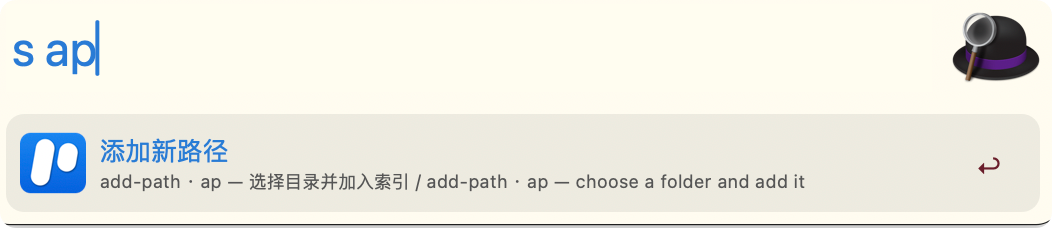
s ap:添加路径
必须先配置保存 工作区 路径 ,后续针对 工作区下的 项目 看板清单 和 任务 才能持久化到工作区文件中,这个是前置步骤
- 输入
s ap。 - 回车打开目录选择器。
- 选择 Stacks 2 工作区。
- 核心递归扫描
.project并原子重建Project.json、Stack.json。
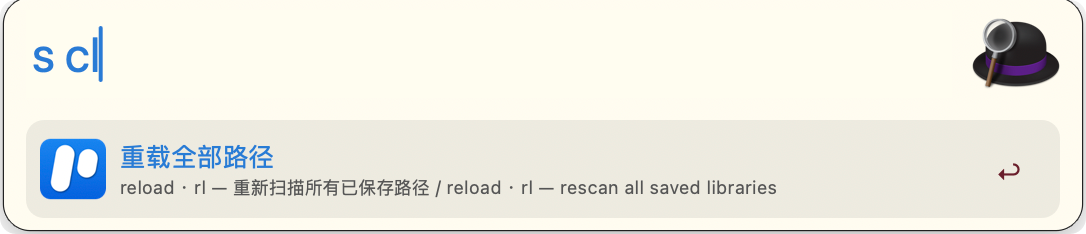
s reload 和 s cl 是兼容别名。
s rl:重载全部路径

- 输入
s rl。 - 回车重新扫描所有已保存工作区。
- 该操作不会打开目录选择器。
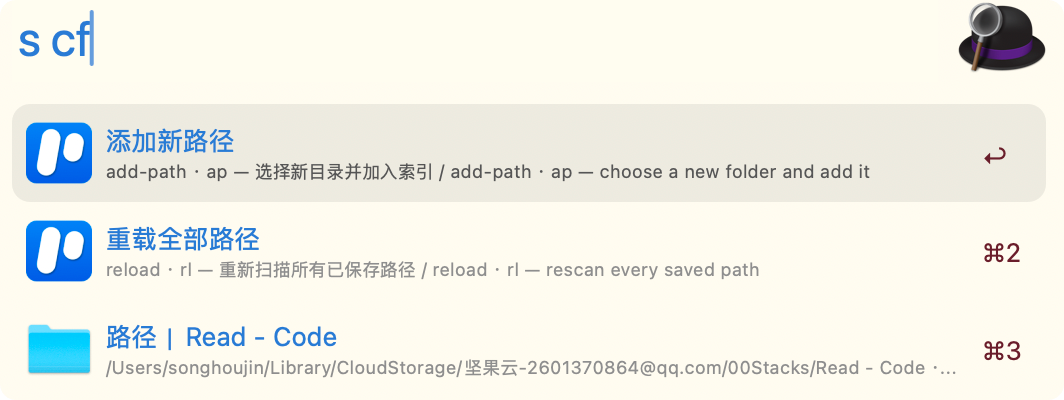
s cf:路径配置
显示“添加新路径”“重载全部路径”和所有已保存路径。第一路径是 Inbox 默认路径。
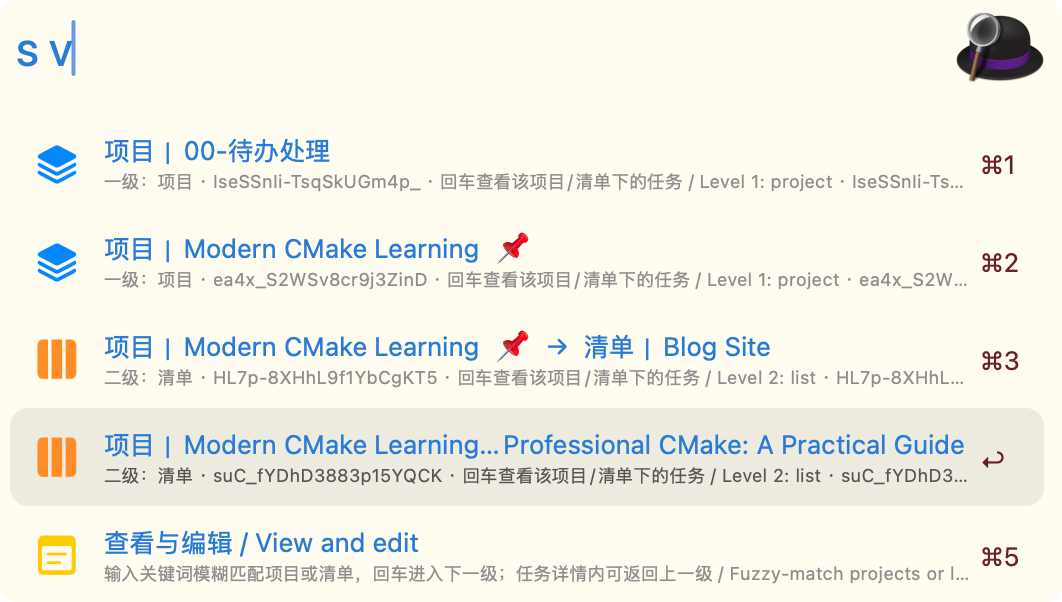
s v:项目、清单与任务
在 项目 看板清单 这 一级 和 二级 下 针对该层级的任务 支持 查看 编辑 模糊搜索 和 新建任务
- 输入
s v,模糊筛选项目或清单。 - 回车进入项目/清单任务页。
- 继续输入关键词模糊筛选该层级任务。
- 回车任务进入编辑详情。
- 有匹配时显示任务;无匹配时显示“新建任务”并进入插入流程。
- 任务页和任务详情均提供最后一行 Back。
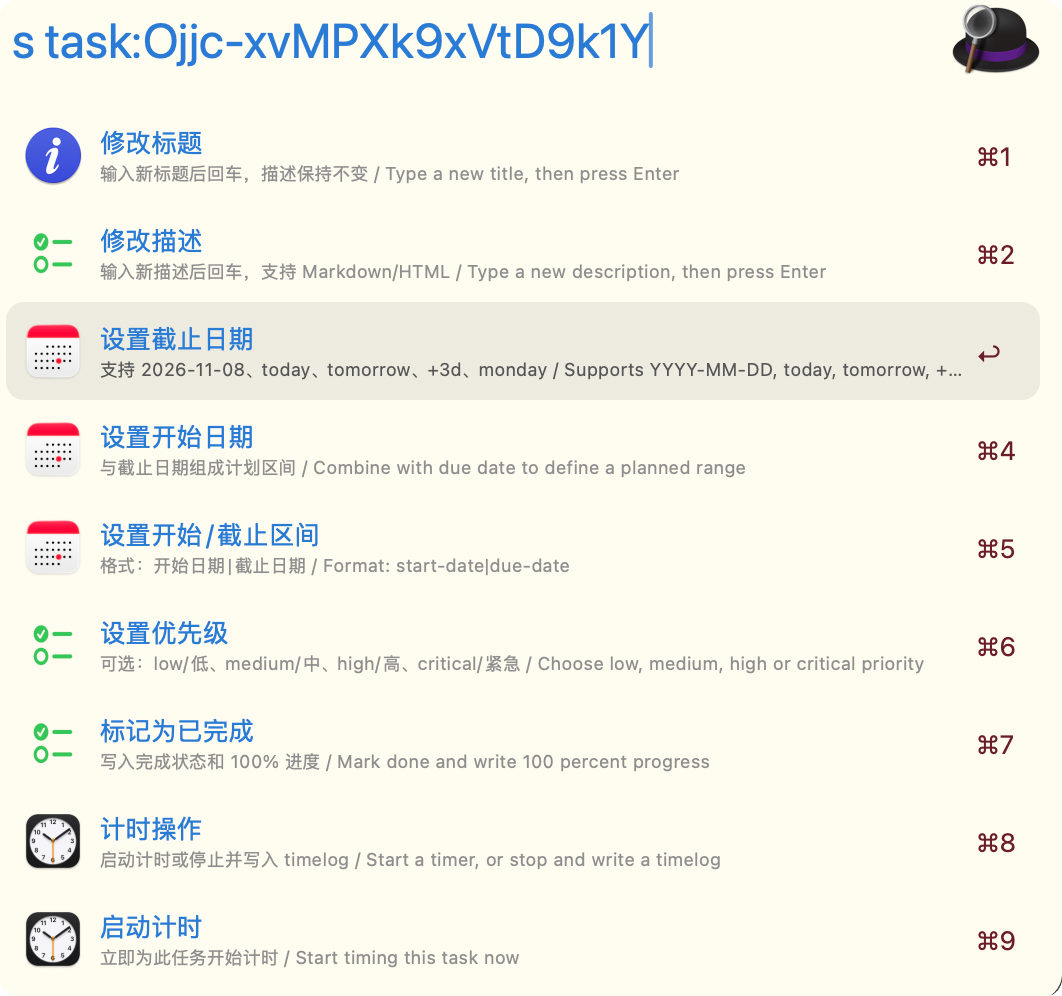
任务详情支持:
- 修改标题、描述;
- 设置开始日期、截止日期或完整计划区间;
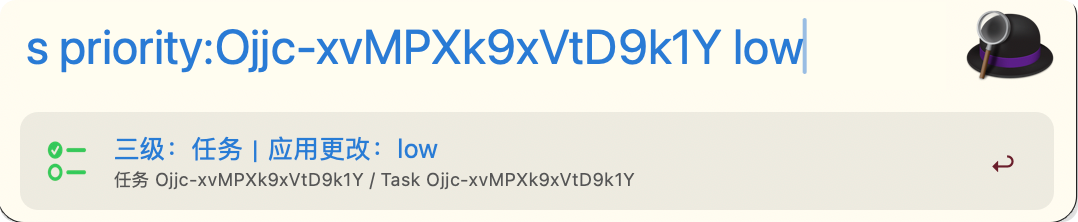
- 设置/清除优先级;
- 完成、重开、归档;
- 开始/停止计时并写入 Stacks
timelogs; - 同步 Apple 提醒、OmniFocus 或两者;
- 移到可恢复垃圾箱
tasks/.trash。
s t:全局任务搜索
搜索全部工作区、全部项目和全部清单下的任务。可输入:
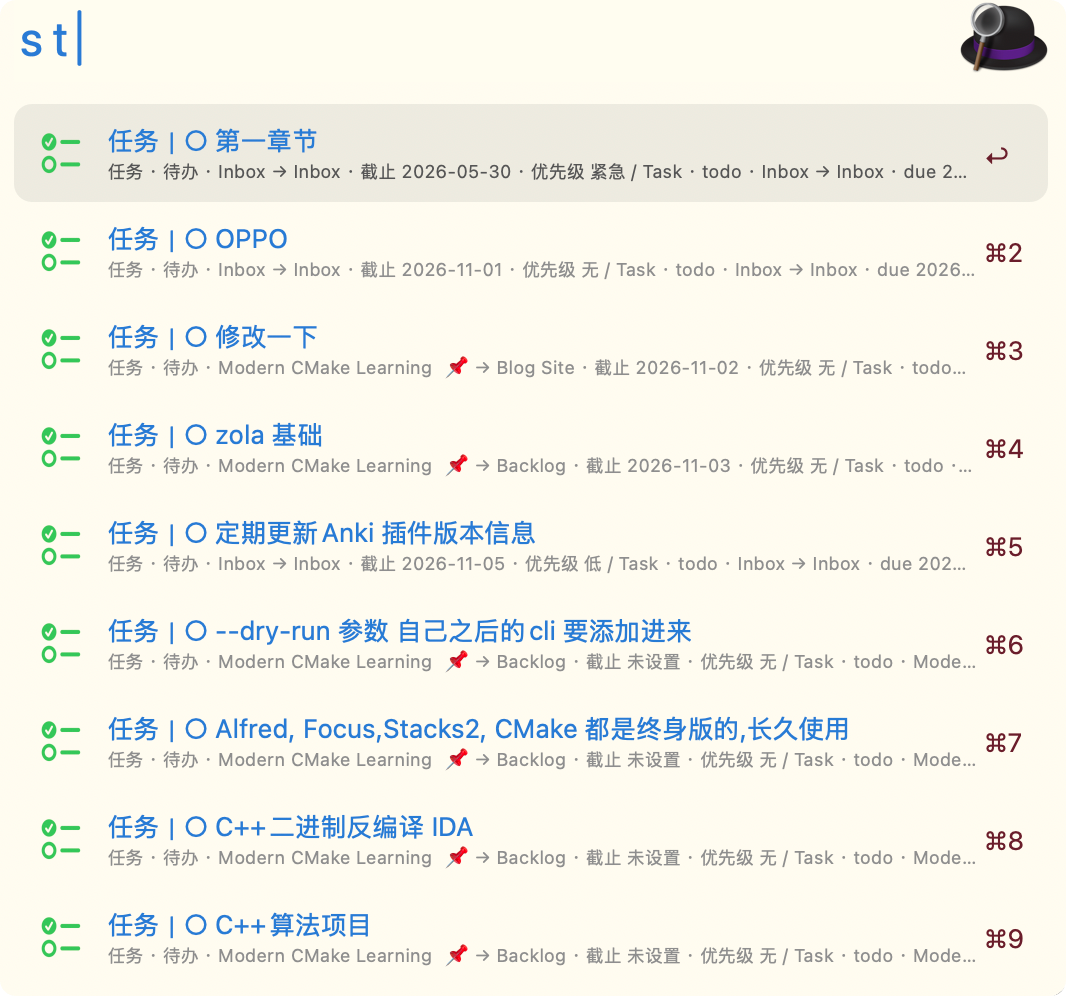
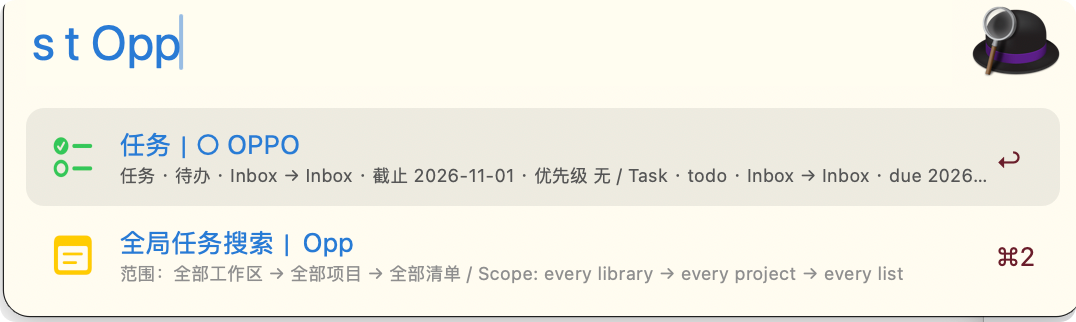
s t 关键词
s w:本周截止

聚合全部已保存工作区的本周未完成、未归档截止任务。可一键同步本周任务到
Reminders + OmniFocus。
s tm:计时

列出运行中的计时器,回车停止并写入 Stacks 兼容 timelog。
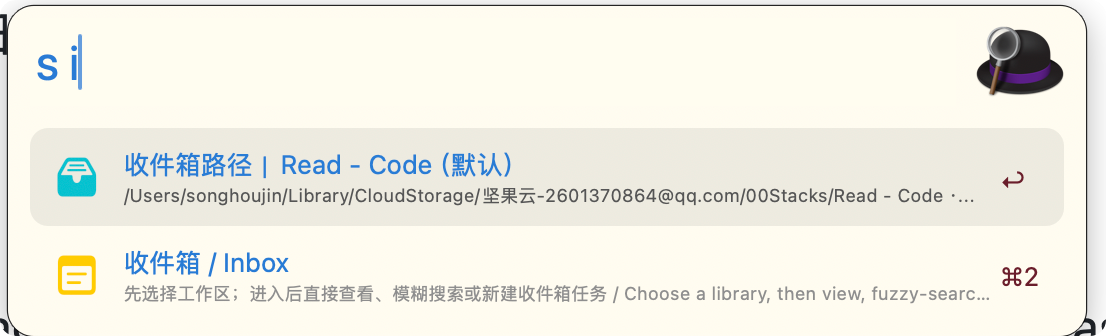
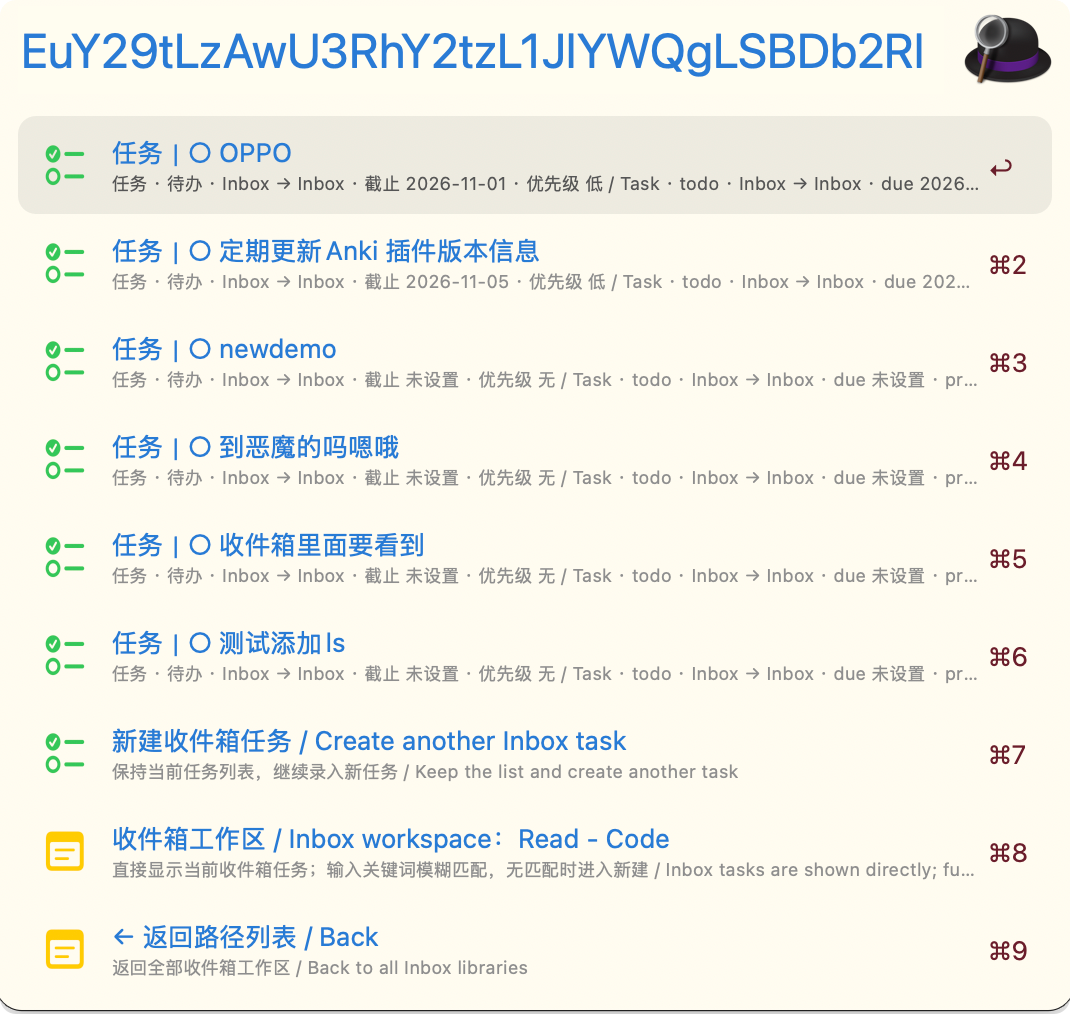
s i:Inbox
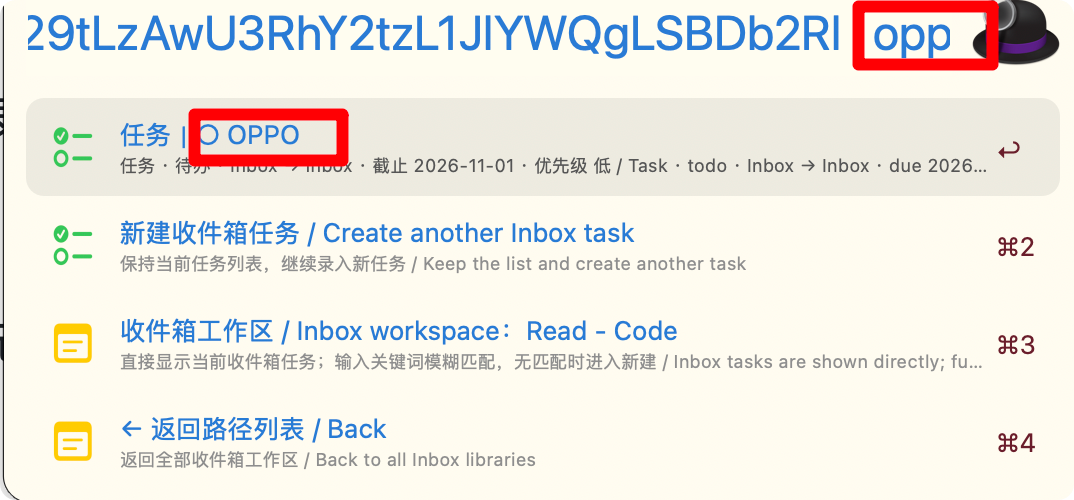
在 收件箱 内 可 模糊查询 编辑 新建 任务
- 输入
s i,列出全部工作区,第一个为默认 Inbox。 - 回车工作区,直接显示该工作区的 Inbox 任务。
- 输入关键词模糊匹配任务;回车进入编辑。
- 无匹配时自动显示新建收件箱任务。
- 当前工作区没有 Inbox 任务时直接显示“录入收件箱任务”。
- Back 固定在最后一行。
s i 后直接输入任意文本会被阻止,必须先选择工作区。
注意事项
- Stacks 应用与 Omni-Stacks 不建议同时编辑同一条任务详情。
- 创建任务会同时更新
.task与.project;后一步失败时会回滚新任务。 - 删除任务会移动到
tasks/.trash,不会立即永久删除。 - 提醒同步通过任务中的
[Stacks-ID:<id>]去重更新。 - 关闭
STACKS_LOGGING后不会写入 bqlog 或 trace 文件。 - 日志开启时自动清理超过 3 个月的接口日志和每日 trace。
- 发布包不包含用户工作区路径、索引或日志。
调试
- 在 Workflow Configuration 中启用
Logging和Debug。 - 打开 Alfred Debugger。
- 输入命令,查看
[stacks-trace]:- Alfred 入参;
- 命令判定;
- 参数预处理;
- 二进制 argv;
- 退出码和返回摘要;
- Alfred 后处理结果。
接口日志位于 log/interface.log_YYYYMMDD_N.log,每日 trace 位于
log/trace-YYYYMMDD.log。
源码与文档
git clone https://github.com/SuchaharCan/CXX-CMake-template.git
cd CXX-CMake-template/single-exe-static-modules
just
just docs
生成的文档包含架构设计、模块接口、CLI 输入输出、Stacks 字段与测试边界
开发架构文档: https://suchaharcan.github.io/
单输入框六行创建
- 一次输入
标题|描述|开始|截止|优先级。 - 下方六行实时回显各字段完整内容。
- 标题、描述、开始、截止、优先级使用同一创建 action;标题存在后按回车直接创建。
- 开始默认
today,优先级默认low,截止默认未设置。 - 描述中的
|使用\|转义。
可配置短键哨兵
task:、board:、inbox:、路径移除等短键统一追加输入分隔哨兵。- 默认哨兵为
✅。 - Workflow Configuration 新增
STACKS_HANDLE_SENTINEL,可改成任意非空文本。 - 用户删除哨兵后继续输入仍然兼容。
已完成 / 已归档任务过滤
- 默认不检索已完成或已归档任务。
- Workflow Configuration 新增
STACKS_INCLUDE_DONE_ARCHIVED。 - 开启后,项目、Stack、Inbox 和全局任务搜索同时包含完成与归档任务。
工作区与路径
- 有效工作区必须包含正确类型的 companies、documents.tree、people、tasks/
和 timeboxes/;.project 文件可选。 s cf只列出路径、移除说明和返回项。- 回车路径进入确认页;确认后只移除
Project.json、Stack.json、
Timers.json中的索引,不删除工作区文件。 - 已有失效路径或已被外部删除的工作区也可以移除其索引。
搜索与任务交互
- 模糊搜索标题和描述,标题命中优先于描述命中。
s i先选工作区,回车查看 Inbox 任务。- 任务短键使用
✅xxxxxxxx ✅,不再把完整任务 ID 放进输入框。 - 空 action、失效 action 不再显示巨大的
unknown action:。
更新检查与插件图标
- 根目录
update.json使用 Alfred 内置 Workflow Update 协议。 remote_json返回version、download_url和description。- 用户通过 Alfred 菜单中的 “Check for Workflow Updates” 检查并安装新版。
- 插件不启动自己的后台更新检查进程。
- Alfred 根
icon.png是指向icons/icon.png的符号链接,不再复制第二份图标。
日志与测试
- 核心写接口记录接口名、入参、字段变化和结果摘要。
- 32 个 GTest、安装布局和打包首启测试通过
Omni-Stacks
Omni-Stacks is an Alfred task center for Stacks 2. Alfred handles interaction and lightweight parameter preprocessing, while a single-binary C++ core handles projects, lists, tasks, time tracking, reminder synchronization, and persistence.
Core source code: CXX-CMake-template
Core CLI interface architecture and business logic documentation: https://suchaharcan.github.io/
After cloning the core source code, run
just docsto view the architecture design, business interfaces, persistence fields, and test documentation.
Installation
- Download
Omni-Stacks.alfredworkflowfrom this Release. - Double-click the file and confirm the import in Alfred.
- Open Alfred Workflow Configuration and configure command aliases, logging, notifications, sounds, and Large Type as needed.
- Enter
sin Alfred. On the first run, executes apand select the Stacks 2 workspace directory. - If you use reminder synchronization, allow macOS/Alfred to access Reminders and to automate OmniFocus.
The release package does not include data/ or log/. On first launch, an empty index and log directory are created automatically alongside the binary. When upgrading an existing installation, the user's existing data is preserved and migrated.
Initial Configuration
The default keyword is s. Workflow Configuration provides the following settings:
STACKS_LOGGING: Enables bqlog API logging and Debug tracing, retaining the most recent 3 months.STACKS_DEBUG: Outputs the full call chain to the Alfred Debugger.STACKS_NOTIFICATION: Shows operation notifications.STACKS_SOUND: Plays Glass on success and Basso on failure.STACKS_LARGE_TYPE: Displays results using Alfred Large Type.STACKS_DELIMITER: The task field delimiter. The default is|.STACKS_ALIAS_*: The eight command aliasesap/rl/cf/v/t/w/tm/ican all be changed.
Commands and Operations
Create a Task
Input:
s title|description|start time|due time|priority
The last four fields may be left empty. Supported date formats include today, tomorrow, +3d, weekday names, and YYYY-MM-DD.
Supported priorities are low/低, medium/中, high/高, and critical/紧急.
From the results, select a project or list and press Return to create the task. Project-level tasks are added to Backlog, while list-level tasks...
Alfrello
  █████╗ ██╗     ███████╗██████╗ ███████╗██╗     ██╗      ██████╗    ██████████╗
 ██╔══██╗██║     ██╔════╝██╔══██╗██╔════╝██║     ██║     ██╔═══██╗   ██╔═██╔═██║
 ███████║██║     █████╗  ██████╔╝█████╗  ██║     ██║     ██║   ██║   ██║ ██║ ██║
 ██╔══██║██║     ██╔══╝  ██╔══██╗██╔══╝  ██║     ██║     ██║   ██║   ██║ ██████║
 ██║  ██║███████╗██║     ██║  ██║███████╗███████╗███████╗╚██████╔╝   ██████████║
 ╚═╝  ╚═╝╚══════╝╚═╝     ╚═╝  ╚═╝╚══════╝╚══════╝╚══════╝ ╚═════╝    ╚═════════╝
Alfred Workflow for creating cards on a Trello board

修复 https://github.com/mikomagni/Alfrello  在Mac26  PHP 8 上的问题 ;

Trello 用户可用, 我 个人转 Stacks 了 ,该插件 我也基本存档 不再维护了
What's New
NEWMade for Alfred 5NEWSupport for all Trello Labels and Custom LabelsNEWAssign a card to yourself and or other membersNEWUse natural language for due dates. Use terms like 'today', 'tomorrow', or 'next week'.NEWPick your Date format (m/d/Y or d/m/Y)NEWPersonalise the workflow and rearrange all fields based on how you use Trello!NEWUse default overwrites so you don't have to type the same fields repeatedly.NEWAll settings are managed within the Workflow configurationNEWEnable the Debug Log to see and record helpful error messages into log.txt and your clipboardNEWPath Overwrite (for Custom PHP Installation)
How To Install
- Download the latest
Alfrello Workflowfrom the release page. - Double-click on the
Alfrello Workflowto install it in Alfred
More information on installing Workflows in Alfred here.
Requirements
- Alfred 5
- PHP 8
More information here
Note
If, for any reasons you are having issues with your PHP installation and the workflow finding the
PATHto your executables. You can define acustom PATHin the Workflow configuration.
For example:export PATH="/opt/homebrew/bin:/usr/local/bin:${PATH}"
Please be very careful when adding custom paths.
Alfrello Setup
Trello API key
- Type into Alfred
get trello api keyto generate your unique Trello API key.
More information here.
Note Make sure to be logged in to Trello in your default browser before generating your API Key.

-
Copy your unique
Trello API keyto your clipboard -
Open the
Configure Workflow

- Paste your
API Keyhere:

Trello Token
- After entering your
api key, typeget tokenin Alfred to authorise Alfrello to access your Trello data and perform actions like creating cards.

More information here.
-
Copy your
token -
Open the
Configure Workflowand paste yourtokenhere:

Trello Board id
Choose the Trello board that you wish to use with Alfrello and copy the board id
You can get the board id by simply going to your board and adding .json at the end of the URL.
- Open the
Configure Workflowand paste yourboard idhere:

For example, go to the Trello development Roadmap Board https://trello.com/b/nC8QJJoZ/trello-development-roadmap.
To view theboard idadd .json at the end of the URL https://trello.com/b/nC8QJJoZ/trello-development-roadmap.json
The Trello development Roadmap board id is4d5ea62fd76aa1136000000c
Usage
General Usage
- Launch Alfred App.
- Enter the workflow keyword that triggers this workflow (The default is
trello, but you can change it in theConfigure Workflow). - Write the fields you want to specify for your Trello card, separating each field with a semicolon
;.
The syntax looks like this: keyword {field1};{field2};{field3};....
For example, if the keyword is trello, a new Trello card with the title "Plan Meeting", description "Meeting with Team", no labels, due tomorrow, in the list "Upcoming", at the top position, with an attachment and assigned to a member, would look like this:
trello Plan Meeting; Meeting with Team;; tomorrow; Upcoming; top; https://example.com; @username
Note that we left the Labels field blank because we don't want to specify any labels.
Spaces between fields and the semicolons are optional. Both keyword {field1}; {field2} and keyword {field1};{field2} formats will work.
Available fields
Card Title: The title of the new card.Card Description: The description for the new card.Labels: The labels you want to apply to the card. If you want to apply multiple labels, separate them by commas (,) within this field.Due Date: The due date for the card. This can be an exact date or a relative date like 'today', 'tomorrow', or 'next week'.List Name: The name of the list where you want to add the new card.Card Position: Where you want the card to appear within the list. Options aretoporbottom.Attachment URL: If you want to attach a URL to the card, add it here.Assigned Member: To assign a member to the card, input their username. It can be prefixed with an@sign, or you can type the username. You can also usemeto assign a card to yourself.
Fields order
In the Alfrello workflow configuration, you have the ability to customise the order of your query fields. This allows you to define a default sequence in which you input your card's data, making the workflow better suit your personal habits or preferences.
By default, the order is set as:
name,desc,input_labels,due,list_name,position,url_attachment,assigned_member
This represents the Card Title, Card Description, Labels, Due Date, List Name, Card Position, Attachment URL, and Assigned Member.
If you'd prefer to input your data in a different sequence, you can rearrange these fields in the Trello Field Order variable in the Workflow configuration. Just make sure that a comma separates each field.

For instance, if you prefer to specify the Assigned Member first, followed by the Card Title, Card Description, and Due Date, you would set the 'Trello Field Order' to:
assigned_member,name,desc,due,input_labels,list_name,position,url_attachment
Please remember that the way you set this order should match how you input the data when you use the Alfred command, as the fields correspond to the positions defined here. So if you set 'assigned_member' as the first field when you input the command in Alfred, the first field after the keyword should be the Assigned Member's username.
By customising the Trello field order, you can further tailor the Alfrello workflow to your needs, boosting your productivity with Alfred and Trello.
Basic Usage
Card Title
trello Plan Meeting

will create a card on your board on the first list with the title Plan Meeting

Card Description
trello Plan Meeting; Meeting with Team

will create a card on your board on the first list with the title Plan Meeting and description Meeting with Team.


Labels
all(will add all the available labels)greenyelloworangeredpurpleblueskylimepinkblackAny custom labels by the name
You can add any number of labels by comma-separating them.
trello Plan Meeting; Meeting with Team; red, green, important, super important

will create a card on your board on the first list with the title Plan Meeting and description Meeting with Team with red, green, important and super important labels.
importantandsuper importantare custom labels

Due Date
The due date can be an exact date or a relative date like today, tomorrow, or next week.
You can define the date format in the Workflow configuration. For example, d/m/Y or d/m/Y.
trello Plan Meeting; Meeting with Team; red, green, important, super important; next monday

will create a card on your board on the first list with the title Plan Meeting and description Meeting with Team with red, green, important and super important labels. The due date will be set as next monday.

List Name
trello Plan Meeting; Meeting with Team; red, green, important, super important; next monday; Upcoming

will create a card on your board on the Upcoming list with the title Plan Meeting and description Meeting with Team with red, green, important and super important labels. The due date will be set as next monday.
Please note:
List namesare case sensitive

Card Position
Options are top or bottom.
trello Plan Meeting (bottom); Meeting with Team; red, green, important, super important; next monday; Upcoming; bottom

will create a card on your board on the Upcoming list with the title Plan Meeting (bottom) and description Meeting with Team with red, green, important and super important labels. The due date ...
Version 001
- reload Project List
- create new task fast ;
Core Functions
./Stacks_Tools sync "~/YourName/StacksDir"
./Stacks_Tools add "id" "taskTitle | taskDisc"
开发/使用环境: 最低版本没有验证过,可反馈调整
macOS Version 26.5 Build 25F71
Stacks Version 2.7.4 Build 25913Alfred 5.7.3 [2320]
LLVM Homebrew clang version 22.1.4 arm64-apple-darwin25.5.0
cd build.ninja
rm -rf * ( rembuild * )
cmake .. -G Ninja
cmake --build . -j 8****
How Use
First install , homebrew install jq
run s reload in alfred , use u Dir of Stack Project