Repository navigation
04 Log Viewer
The built-in Log Viewer provides a user-friendly interface within the WordPress admin dashboard to browse, search, and manage logs stored by the Database_Handler.
The Log Viewer is a feature of the Database_Handler and is disabled by default. To enable it, you must call the set_admin_viewer() method when configuring your handler.
global $wpdb;
use WPTechnix\WP_Simple_Logger\Handlers\Database_Handler;

// Instantiate the handler
$db_handler = new Database_Handler(
    table_name: $wpdb->prefix . 'app_logs'
);

// Enable and configure the admin UI
$db_handler->set_admin_viewer(
    parent_menu_slug: 'tools.php',     // Show under the "Tools" menu
    page_slug:        'app-log-viewer', // Unique page slug
    page_title:       'Application Logs', // <title> and <h1> of the page
    menu_title:       'App Logs',       // Text in the admin menu
    capability:       'manage_options'  // Required capability to view
);

// Add the handler to the manager and initialize
$manager->add_handler($db_handler);
$manager->init();
Once configured, a new submenu item ("App Logs") will appear under the "Tools" menu in the WordPress admin.
The Log Viewer is a powerful tool for inspecting your application's activity. It is built using the standard WP_List_Table class, providing a familiar WordPress experience.
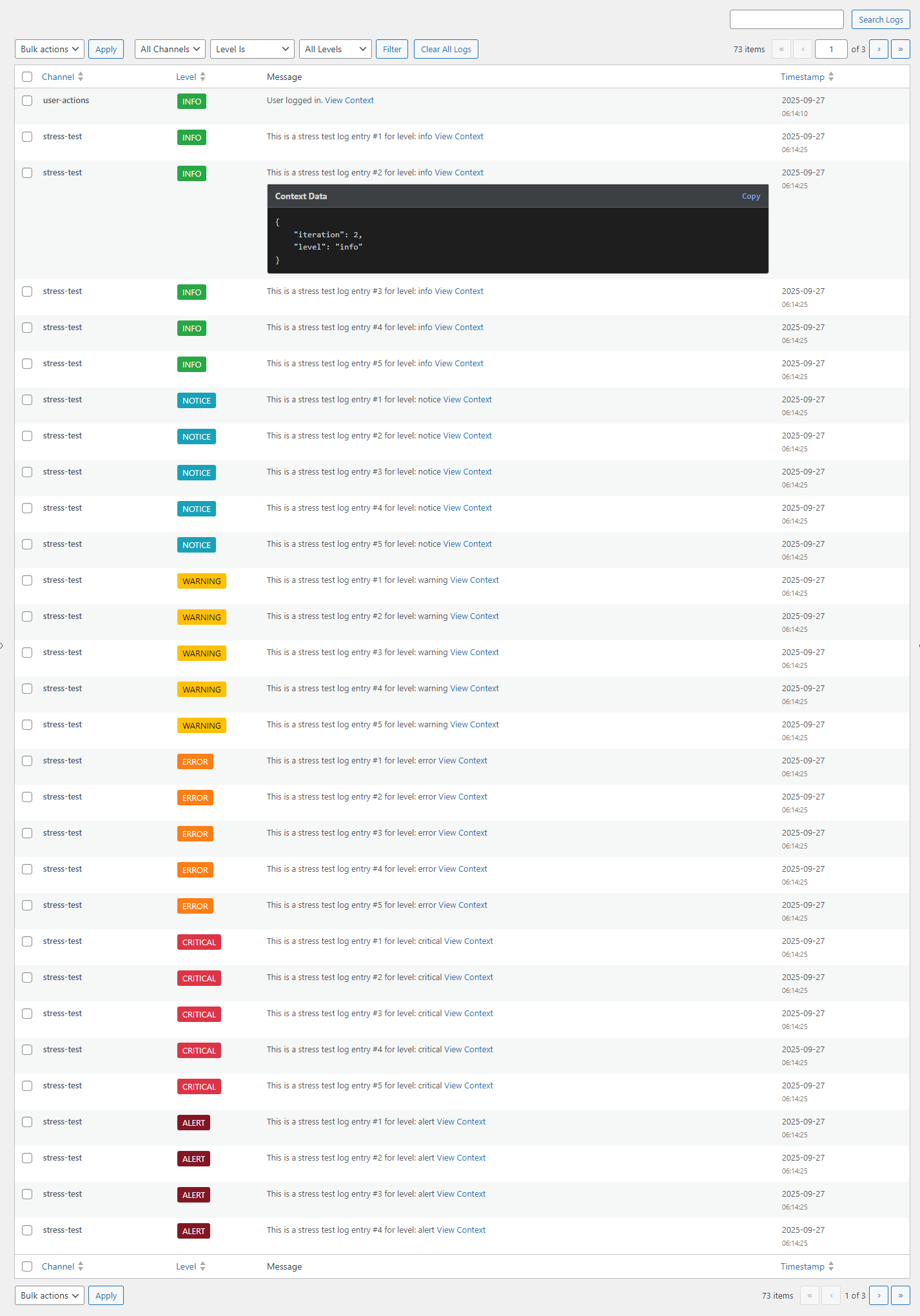
You can narrow down the log entries using the filter controls at the top of the table:
- Channel Filter: A dropdown containing all unique channel names that have been logged. Select a channel to see logs only from that source.
-
Level Filter: Two dropdowns allow for precise level filtering:
- Comparison: Choose from "Level Is", "Minimum Level", or "Maximum Level".
- Level: Select the log level (DEBUG, INFO, ERROR, etc.).
- Example: To see all errors and more critical logs, select "Minimum Level" and "ERROR".
The search box allows you to perform a case-insensitive search through the message and context fields of the logs.
- Sorting: Click on the column headers for "Channel", "Level", or "Timestamp" to sort the log entries.
- Pagination: Logs are paginated to ensure fast performance, even with millions of entries.
If a log record includes context data, a "View Context" button will appear next to the message.
- Clicking this button reveals a formatted, color-coded JSON viewer for the context data.
- A "Copy" button lets you easily copy the raw JSON data to your clipboard for analysis elsewhere.
- Bulk Delete: Use the checkboxes to select multiple log entries and delete them via the "Bulk Actions" dropdown.
- Clear Logs: The "Clear All Logs" button will permanently delete all logs from the table. If you have filtered by a specific channel, this button changes to "Clear Channel Logs", allowing you to delete logs only for that channel. A confirmation prompt will appear before deletion.