Repository navigation
Onboarding Guide for AWS CodeBuild Deployment

Welcome to the Customer Onboarding Guide for integrating Moonshot into your existing Continuous Integration and Continuous Deployment (CI/CD) pipelines.
Moonshot is a powerful AI safety evaluation tool designed to seamlessly integrate into CI/CD pipelines, automate safety testing, and ensure the reliability of AI-driven applications.
This guide provides step-by-step instructions on integrating Moonshot with different CI/CD platforms.
Continuous Integration (CI) is a development practice where developers regularly merge code changes into a central repository. Automated builds and tests are then run to catch errors early in the development cycle.
Continuous Deployment (CD) extends this practice by automatically deploying the integrated code to production, ensuring that new features and bug fixes are delivered to users quickly and consistently.
- Automation Testing: Automate various AI safety testing whenever there are updates to an existing model or a new model is deployed.
- Security & Compliance: Detect potential AI risks and ensure compliance with AI governance policies before deployment while generating logs and reports for governance and audit.
- Streamlined Deployment: Reduce bottlenecks and human intervention by integrating on-demand & scheduled AI safety checks directly into CI/CD.
- Scalability, Cloud-Readiness & Extensibility: Run multiple evaluations at scale across different cloud services and easily add new tests as AI regulations evolve.
- Flexibility & Customizability: Modular and plugin-based design allows dynamic running of selected tests based on governance policies while keeping the base image lightweight.
- Cost & Resource Efficiency: CI/CD optimization techniques such as caching and parallel execution reduce compute, storage and operation cost.
- Competitive Advantage & Business Benefits: Automated AI safety testing allows faster time-to-market, improves developer productivity with reduced manual safety testing, and ensures reliability with a better user experience in production.
In summary, Moonshot’s docker image can seamlessly integrate into your CI/CD pipeline to provide a consistent, reproducible environment for your builds and tests.
docker pull ghcr.io/aiverify-foundation/moonshot:latestaws ecr get-login-password --region <your-region> | docker login --username AWS --password-stdin <your-aws-account-id>.dkr.ecr.<your-region>.amazonaws.comaws ecr create-repository --repository-name moonshot --region <your-region>docker tag ghcr.io/aiverify-foundation/moonshot:latest <your-aws-account-id>.dkr.ecr.<your-region>.amazonaws.com/moonshot:latestdocker push <your-aws-account-id>.dkr.ecr.<your-region>.amazonaws.com/moonshot:latest-
AWS CLI / AWS Console Access
- The AWS CLI is needed to execute commands to set up and manage the integration. Alternatively, you can use the AWS console as a replacement.
-
An AWS account with IAM permissions for CodeBuild, CloudWatch, S3, and ECR
- Required to create and manage AWS resources for running the CodeBuild job and monitoring logs.
-
Necessary AWS access keys and environment variables
- Required for authentication and authorization when interacting with AWS services.
-
S3 bucket to store
buildspec.yamlfile- The
buildspec.yamlfile defines the build steps.
- The
-
S3 bucket to store CodeBuild output
- Used to store artifacts and logs generated from the CodeBuild job.
-
CloudWatch log group
- Stores logs generated by the build process for monitoring and debugging. These logs will be viewable in the CodeBuild job UI.
| Variable Name | Description | Usage | Example Value |
|---|---|---|---|
SOURCE_S3_BUCKET |
Storage bucket for buildspec and config files | Stores buildspec.yaml for CodeBuild, custom test datasets, moonshot_config.yaml, and tests.yaml for Moonshot |
moonshot-source |
S3_ARTIFACT_BUCKET |
Location to store build artifacts | Saves output files after the Moonshot job | codebuild-moonshot |
SERVICE_ROLE |
IAM Role used by CodeBuild | Grants CodeBuild permissions to access AWS services. | arn:aws:iam::123456789012:role/CodeBuildServiceRole |
MS_IMAGE |
Moonshot Image | Used as base image for CodeBuild Project | awsaccountid.dkr.ecr.ap-southeast-1.amazonaws.com/moonshot:latest |
CLOUDWATCH_LOGS_GROUP |
Log group to store CloudWatch logs | Captures logs for monitoring and debugging the build process. | /aws/codebuild/moonshot-logs |
OPENAI_API_KEY |
Key used to access OpenAI’s API | Used to call OpenAI’s API to test Moonshot | sk-proj-****** |
MS_TEST_CONFIG_PATH |
S3 location for the tests.yaml file |
The MS_TEST_CONFIG_PATH key specifies the location of the test configuration file, which contains all the test definitions and related settings. This key allows the system to access the configuration file. |
Recommended: s3://my-s3-bucket/my_tests.yaml Default: tests.yaml |
MS_CONFIG_PATH |
S3 location for the moonshot_config.yaml file |
The MS_CONFIG_PATH key defines the location of the application's general settings. General settings include configuring endpoints, metrics and attack modules. |
Recommended: s3://my-s3-bucket/my_moonshot_config.yaml Default: /app/moonshot_config.yaml |
Moonshot Variables Description Table
1. Create buildspec.yaml file
$ nano buildspec.yaml
Add the following code inside and save the file (ctrl + x):
version: 0.2
phases:
  pre_build:
    commands:
      - echo "Setting working directory to /app"
      - cd /app

  build:
    commands:
      - export MS_TEST_CONFIG_PATH=${MS_TEST_CONFIG_PATH}
      - export MS_CONFIG_PATH=${MS_CONFIG_PATH}
      - moonshot run my-run-id qa-tests my-gpt-4o-mini

artifacts:
  files:
    - "*"
  base-directory: "/app/data/results"
Tip
To use Moonshot for your use case, you should configure MS_TEST_CONFIG_PATH and MS_CONFIG_PATH to point to your my_tests.yaml and my_moonshot_config.yaml stored in your S3.
Tip
You can refer to this guide for more information on Moonshot's command to run tests.
2. Zip the file and push it to the S3 source bucket
$ zip moonshot.zip buildspec.yaml
$ aws s3 cp moonshot.zip s3://my-s3-bucket
Tip
If you prefer to use the AWS Console UI, refer to the section here
In your local environment, create a folder called moonshot and cd to it:
$ mkdir moonshot
$ cd moonshot
First, set up the following files:
1. Create .env file for Environment Variables
To store and reference required variables easily, create a .env file using nano:
$ nano .env
Next, add the following lines and save the file (ctrl + x):
SOURCE_S3_BUCKET=<your_source_bucket>
S3_ARTIFACT_BUCKET=<your_artifact_bucket>
SERVICE_ROLE=<your_service_role>
MS_IMAGE=<your_image_uri>
CLOUDWATCH_LOGS_GROUP=<your_cloudwatch_logs>
Finally, set your OPENAI_API_KEY as an environment variable
export OPENAI_API_KEY=<your_openai_api_key>
2. Create aws_codebuild.sh file
$ nano aws_codebuild.sh
Add the following code and save the file (ctrl + x):
if [ -f .env ]; then
    export $(grep -v '^#' .env | xargs)
fi

aws codebuild create-project \
--name moonshot \
--source "{\"type\": \"S3\", \"location\": \"${SOURCE_S3_BUCKET}/moonshot.zip\"}" \
--artifacts "{
  \"type\": \"S3\",
  \"location\": \"${S3_ARTIFACT_BUCKET}\",
  \"namespaceType\": \"BUILD_ID\"
}" \
--environment "{
  \"type\": \"LINUX_CONTAINER\",
  \"image\": \"${MS_IMAGE}\",
  \"computeType\": \"BUILD_GENERAL1_SMALL\",
  \"privilegedMode\": true,
  \"imagePullCredentialsType\": \"SERVICE_ROLE\",
  \"environmentVariables\": [
    {
      \"name\": \"OPENAI_API_KEY\",
      \"value\": \"${OPENAI_API_KEY}\",
      \"type\": \"PLAINTEXT\"
    },
    {
      \"name\": \"MS_CONFIG_PATH\",
      \"value\": \"${MS_CONFIG_PATH}\",
      \"type\": \"PLAINTEXT\"
    },
    {
      \"name\": \"MS_TEST_CONFIG_PATH\",
      \"value\": \"${MS_TEST_CONFIG_PATH}\",
      \"type\": \"PLAINTEXT\"
    }
  ]
}" \
--service-role "${SERVICE_ROLE}" \
--logs "{
  \"cloudWatchLogs\": {
    \"status\": \"ENABLED\",
    \"groupName\": \"${CLOUDWATCH_LOGS_GROUP}\"
  }
}"
Explanation of the command:
-
--name Moonshot- Creates a CodeBuild project named Moonshot
-
--source '{"type": "S3", "location": "$SOURCE_S3_BUCKET/moonshot.zip"}'- Uses an S3 bucket as the source to fetch
buildspec.yaml.
- Uses an S3 bucket as the source to fetch
-
--artifacts '{"type": "S3", "location": "$S3_ARTIFACT_BUCKET"}'- Stores build artifacts in the specified S3 bucket.
-
--environment '{"type": "LINUX_CONTAINER", "image": $MS_IMAGE, "computeType": "BUILD_GENERAL1_SMALL", "privilegedMode": true}'- Runs the build in the Moonshot environment.
-
--service-role $SERVICE_ROLE- Uses the provided IAM service role for CodeBuild.
-
--logs '{"cloudWatchLogs": {"status": "ENABLED", "groupName": "$CLOUDWATCH_LOGS_GROUP"}}'- Enables CloudWatch logs to monitor the build process (Note: Ensure your IAM role has permissions to create those logs).
3. Run the command
$ sh aws_codebuild.sh
4. Check if the CodeBuild project is created by running:
$ aws codebuild batch-get-projects --names moonshot
1. Start the AWS CodeBuild job
$ aws codebuild batch-get-projects --names moonshot
2. View a quick summary of the results
Go to your project page in the AWS console UI, under DeveloperTools\CodeBuild\Build projects\moonshot and select the latest run:
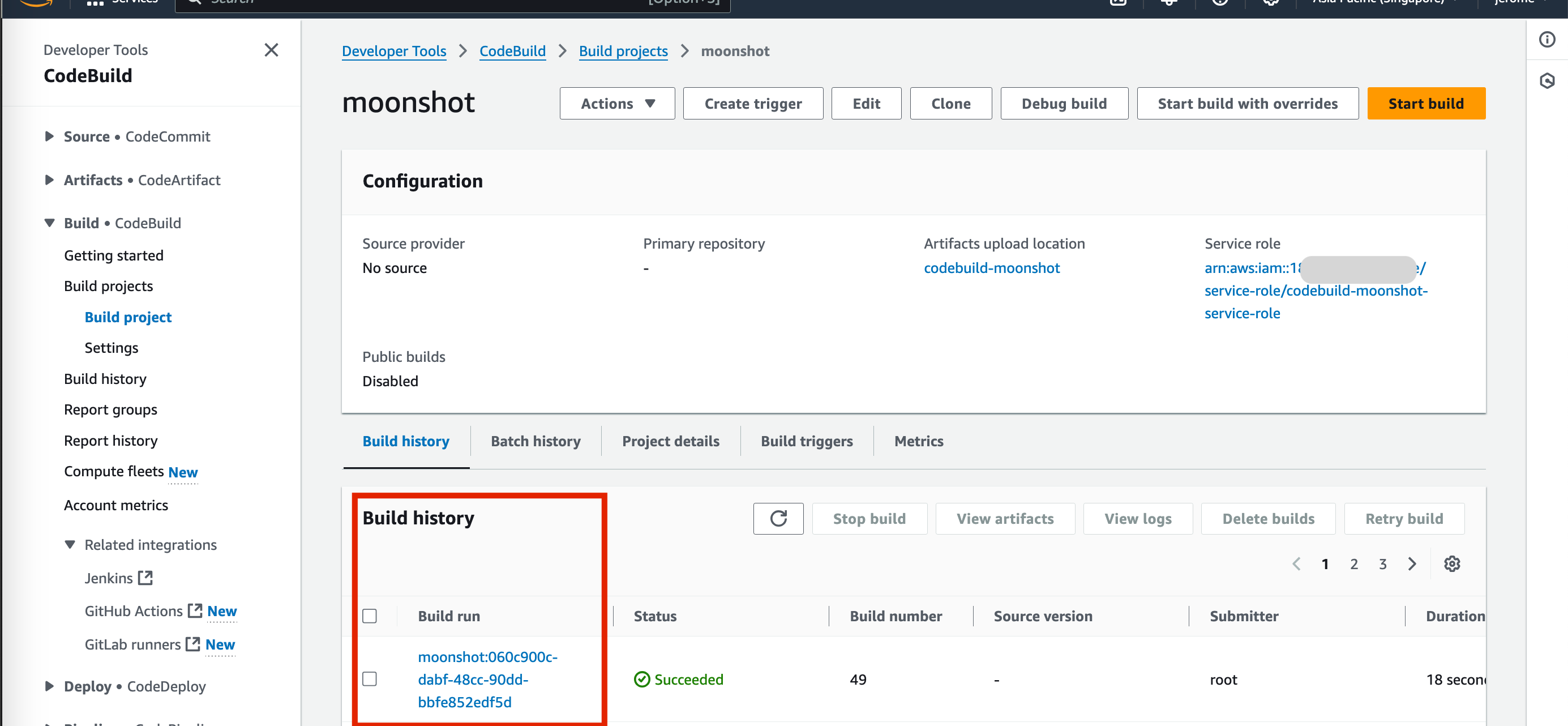
Select your latest run
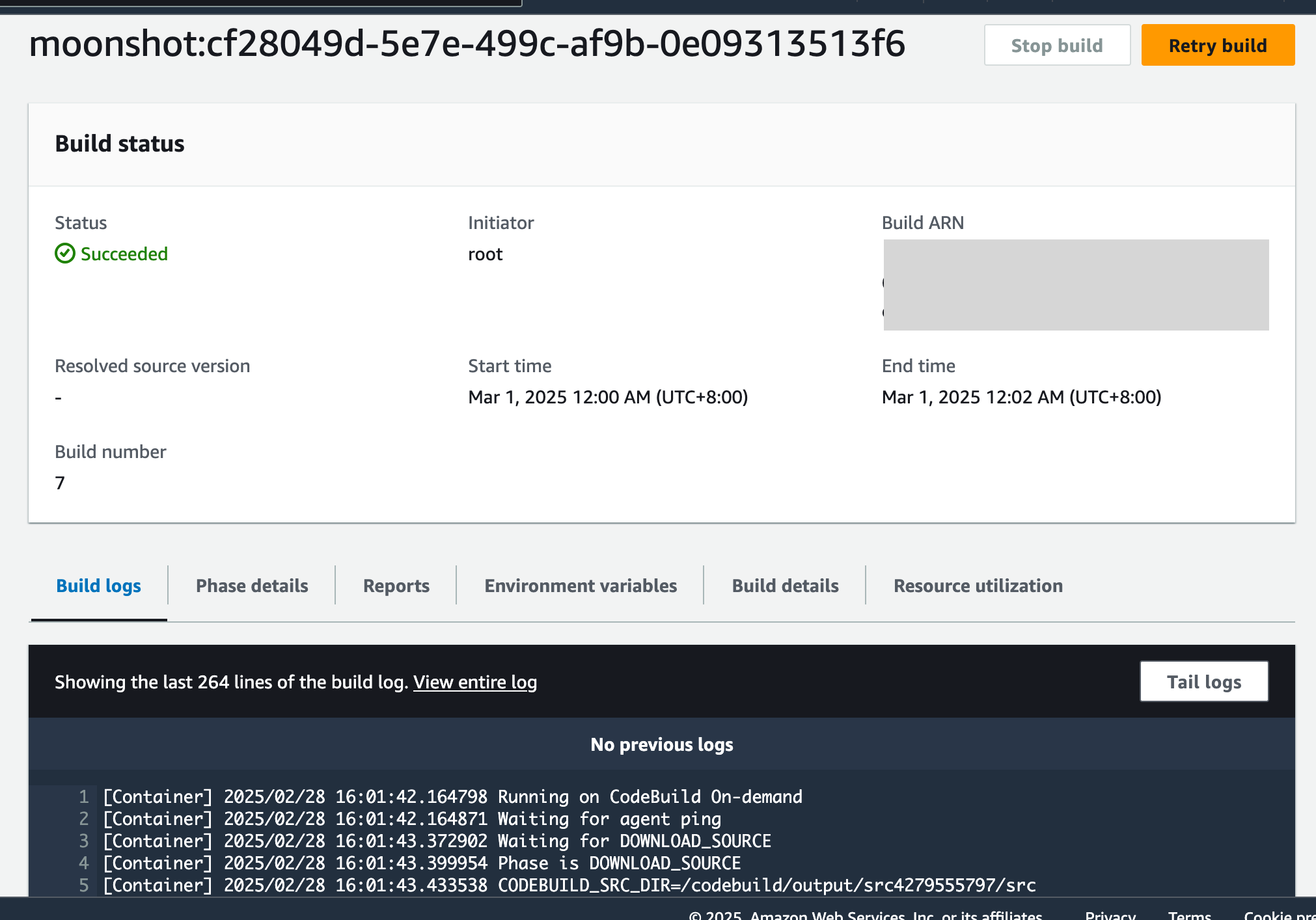
Check the output logs in CodeBuild Jobs
3. Check if the results are in S3 bucket
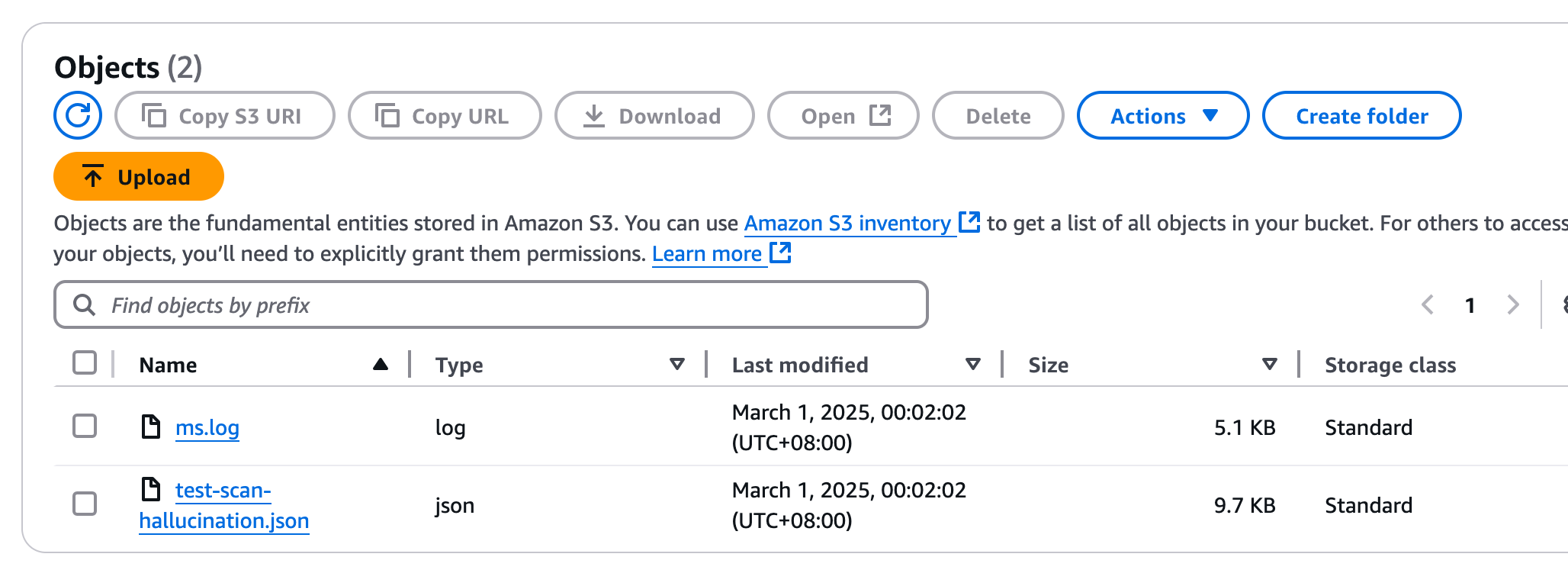
Check results
Congratulations! You have successfully run Moonshot as a CodeBuild project via AWS CLI!
1. Go to Developer Tools > CodeBuild > Build projects > Create build project
1.1 Enter "moonshot" as the project name.
Create build project
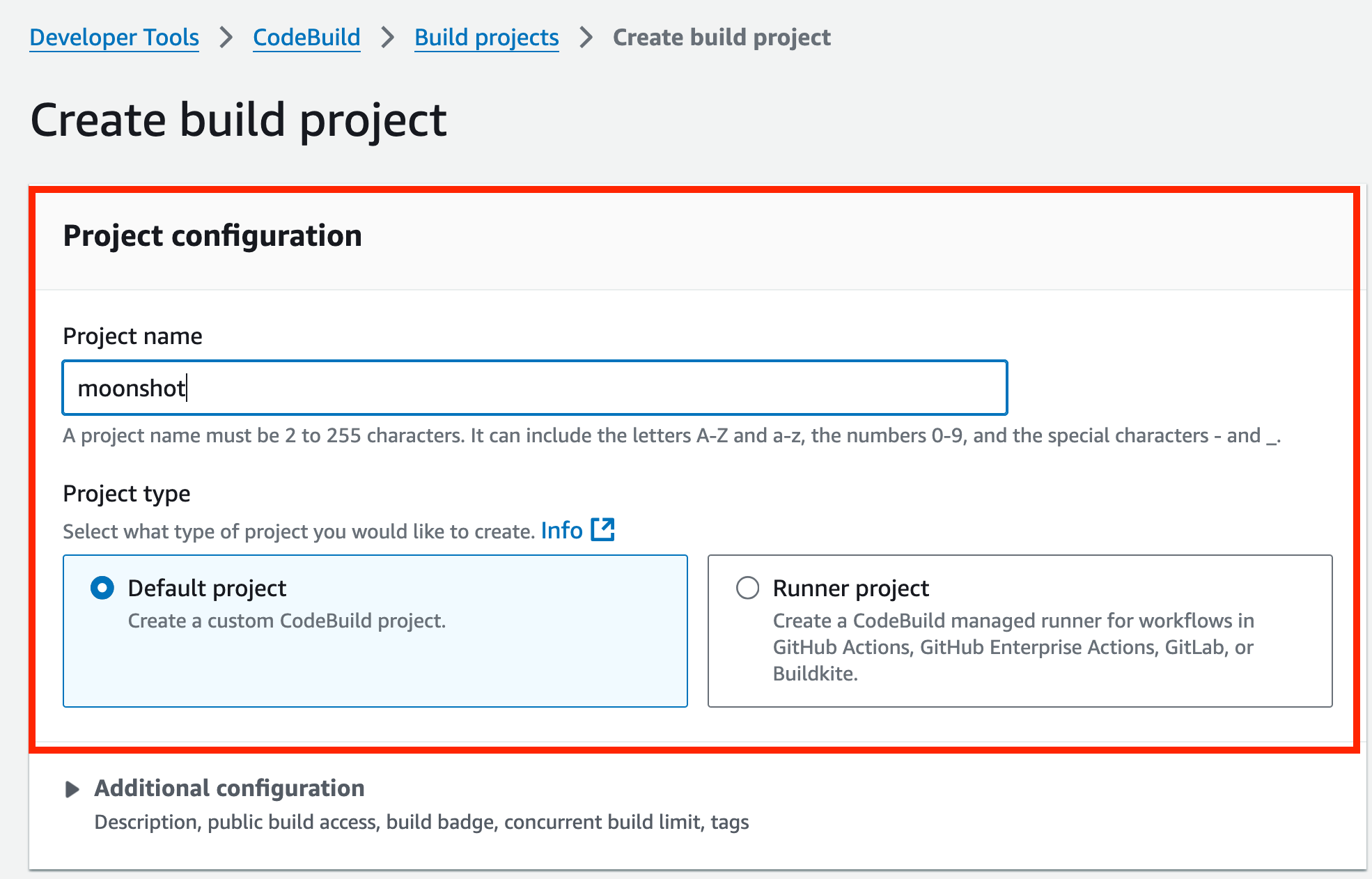
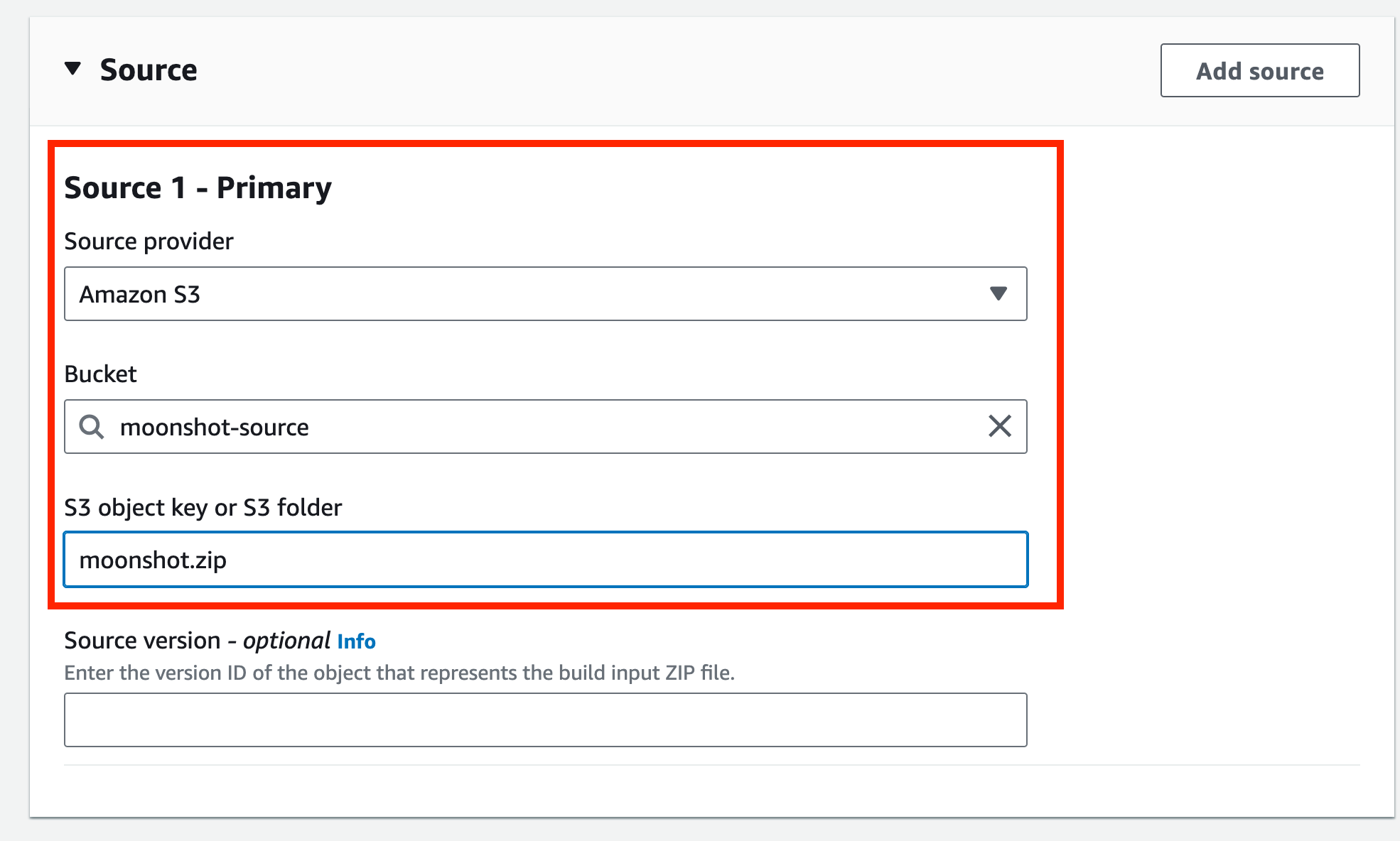
2. Create a new primary source
2.1 Select Amazon S3 as the source provider.
2.2 Choose the bucket you created earlier.
2.3 For S3 object key, enter
moonshot.zip.Set up tp read from S3 bucket
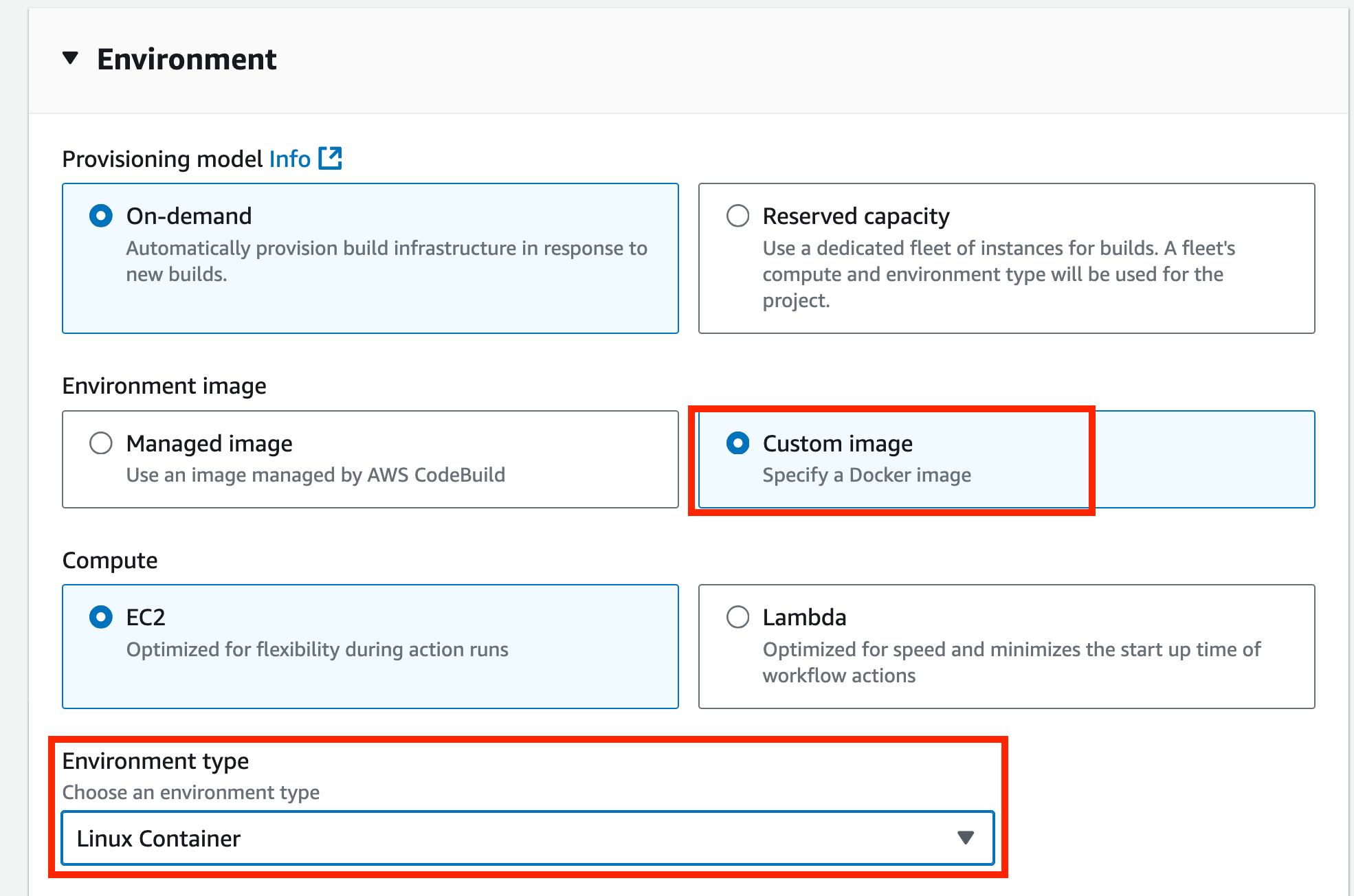
3. Update the Environment section
3.1 Update the Environment section with the following selections:
Set up the Environment section
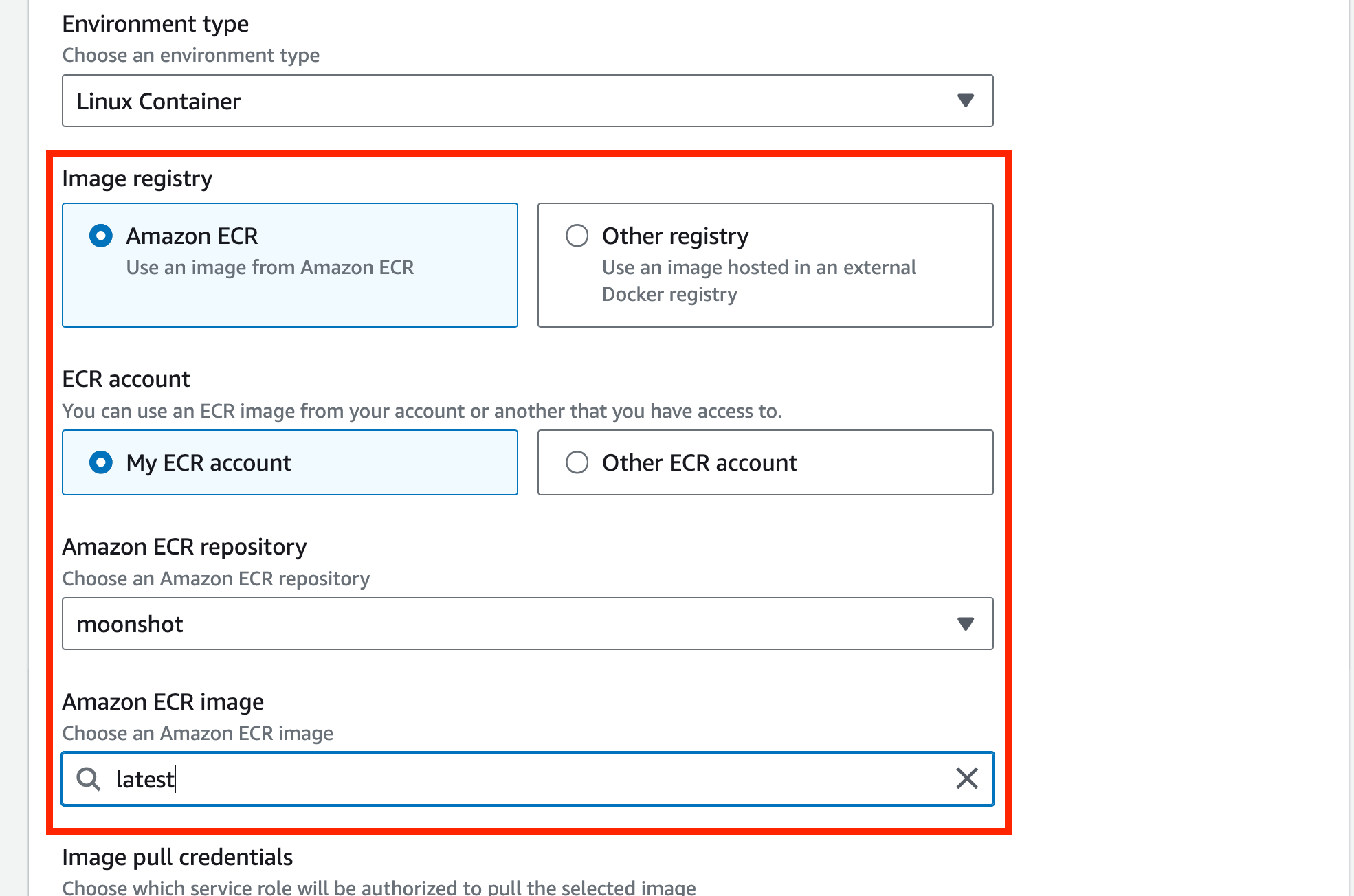
3.2 Select the container registry that you have pushed the image to:
Set up the container registry
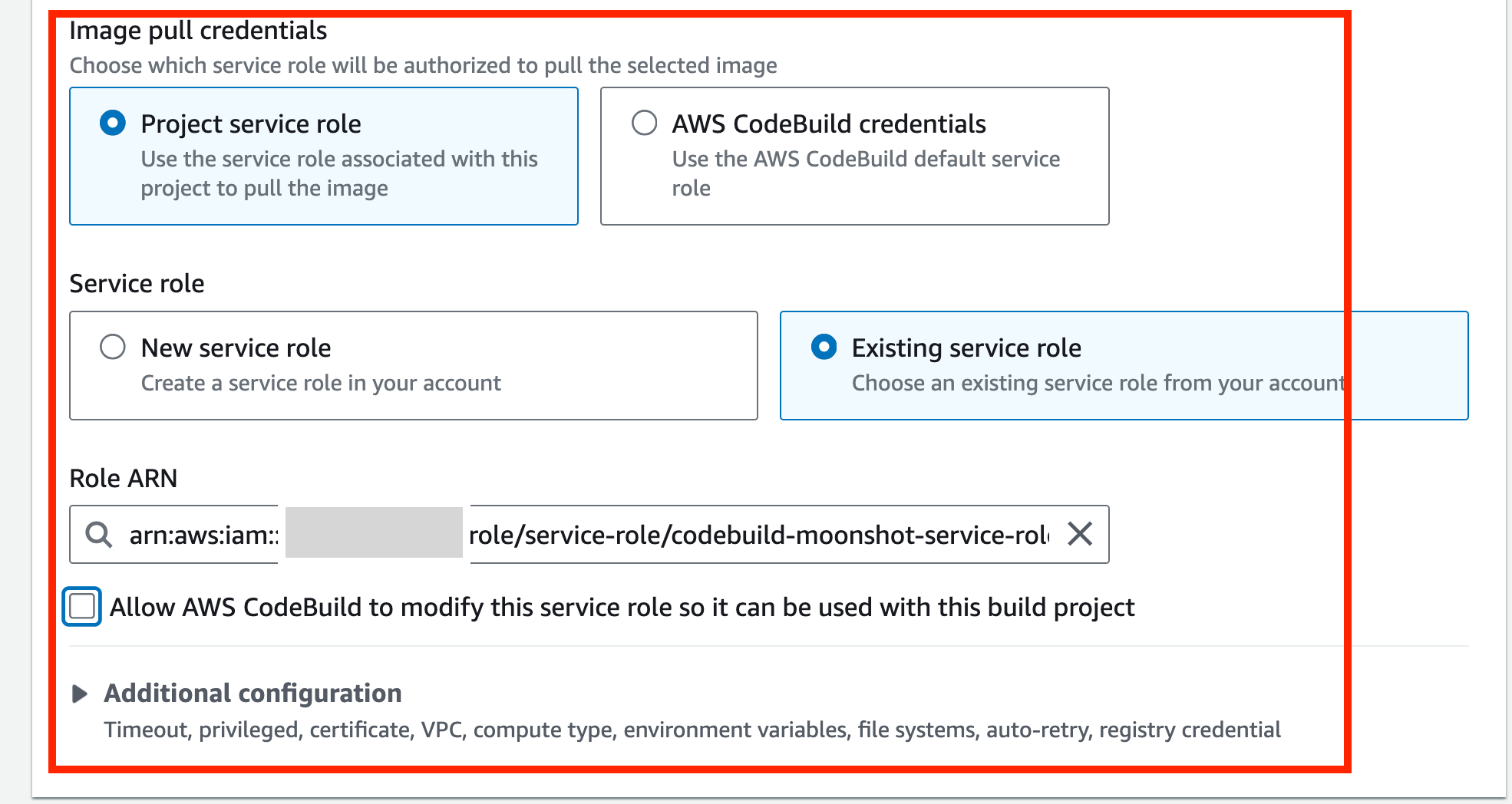
3.3 Select the appropriate role
Select service role
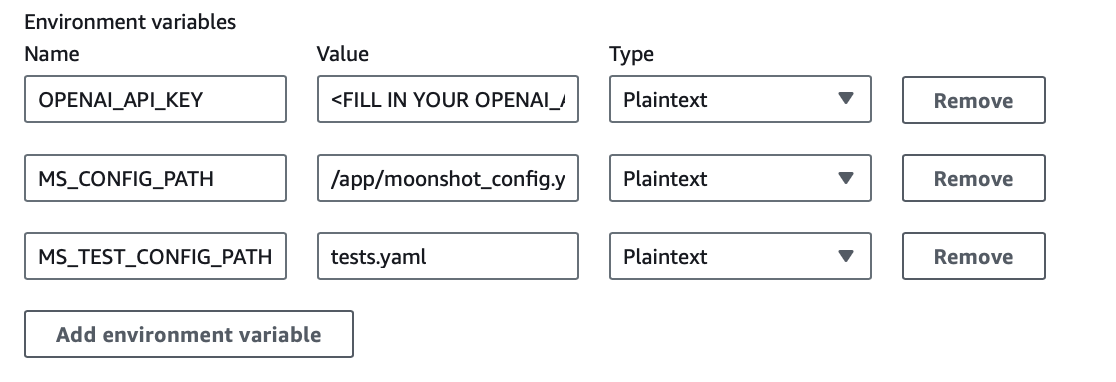
3.4 Update environment variables
Set up environment variables
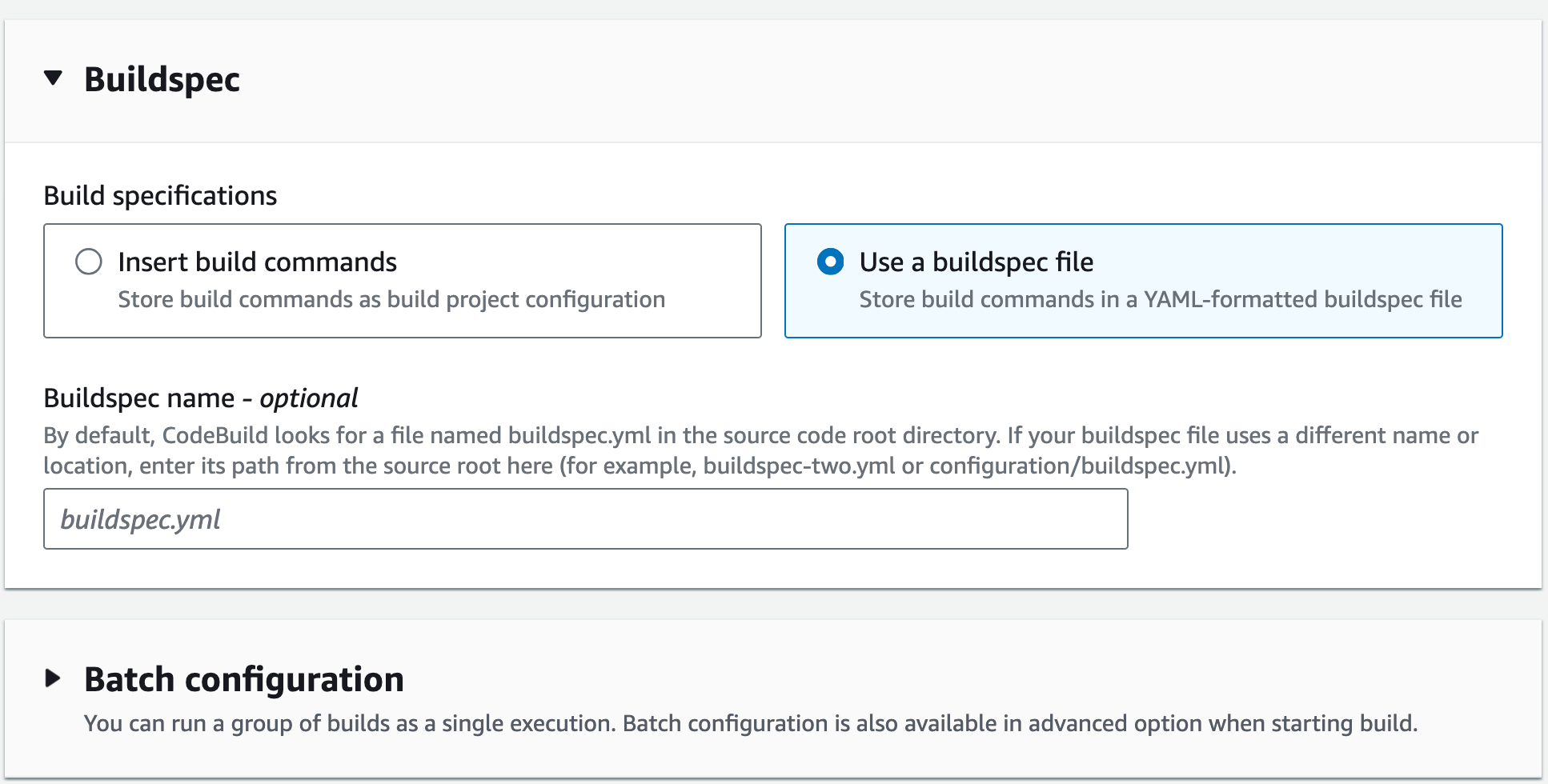
4. Configure Buildspec
4.1 Select the "Use a buildspec file" option and leave the file name blank. This is because you have uploaded the
buildspec.yamlto S3 earlier.Set up buildspec
5. Configure the Artifacts
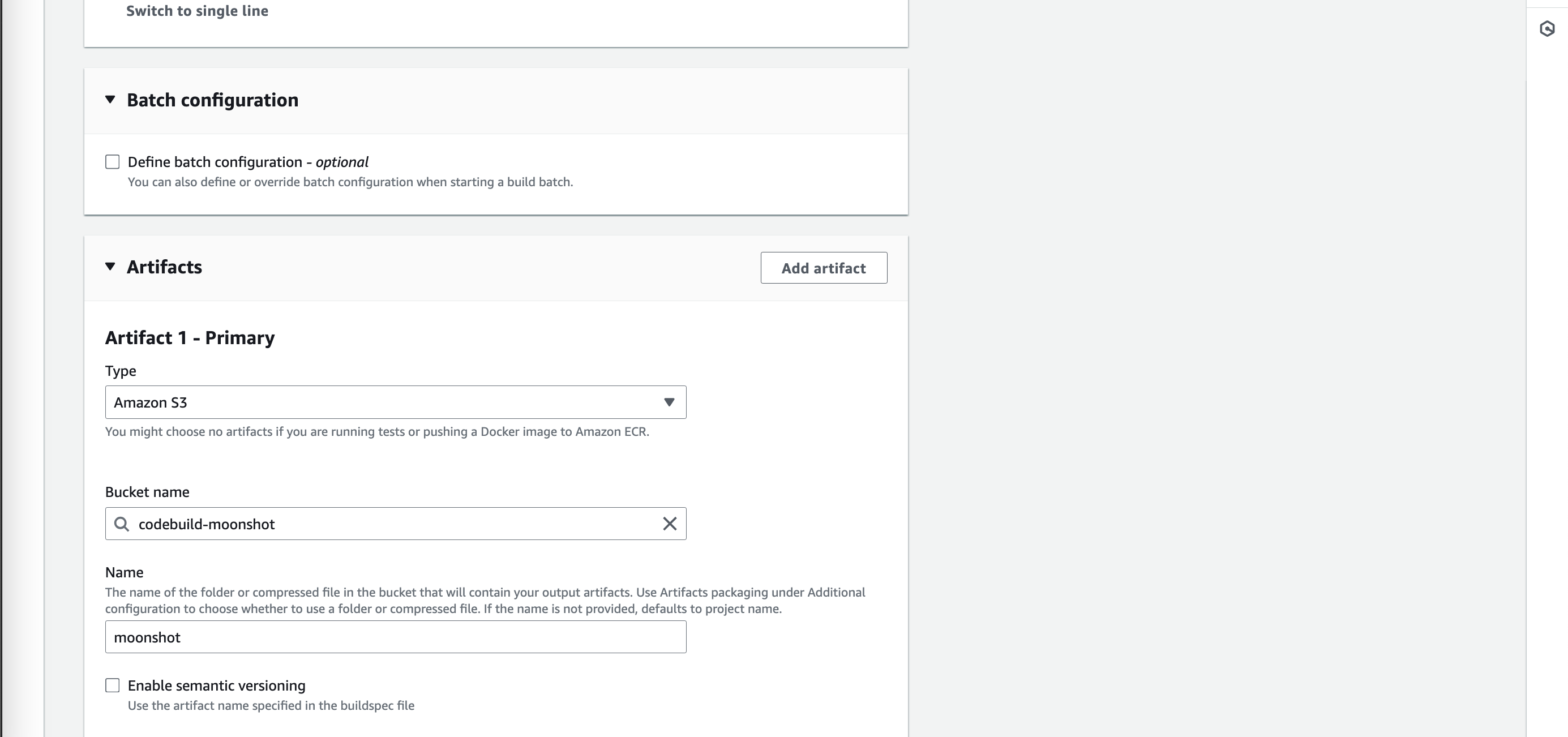
Set up artifacts
6. Configure log streams
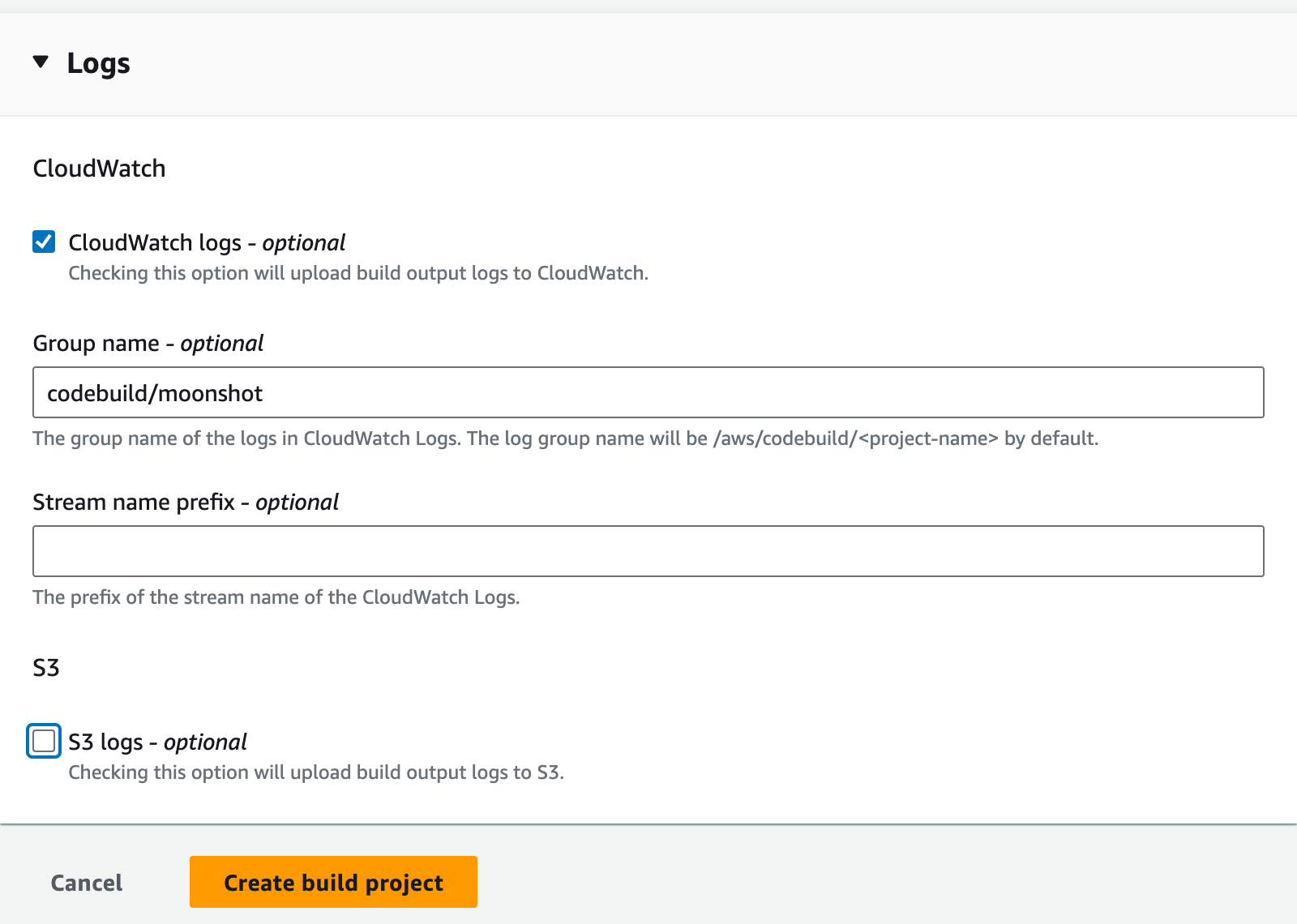
Set up CloudWatch logs
6.1 Click on the 'Create build project' button and the project will be created.
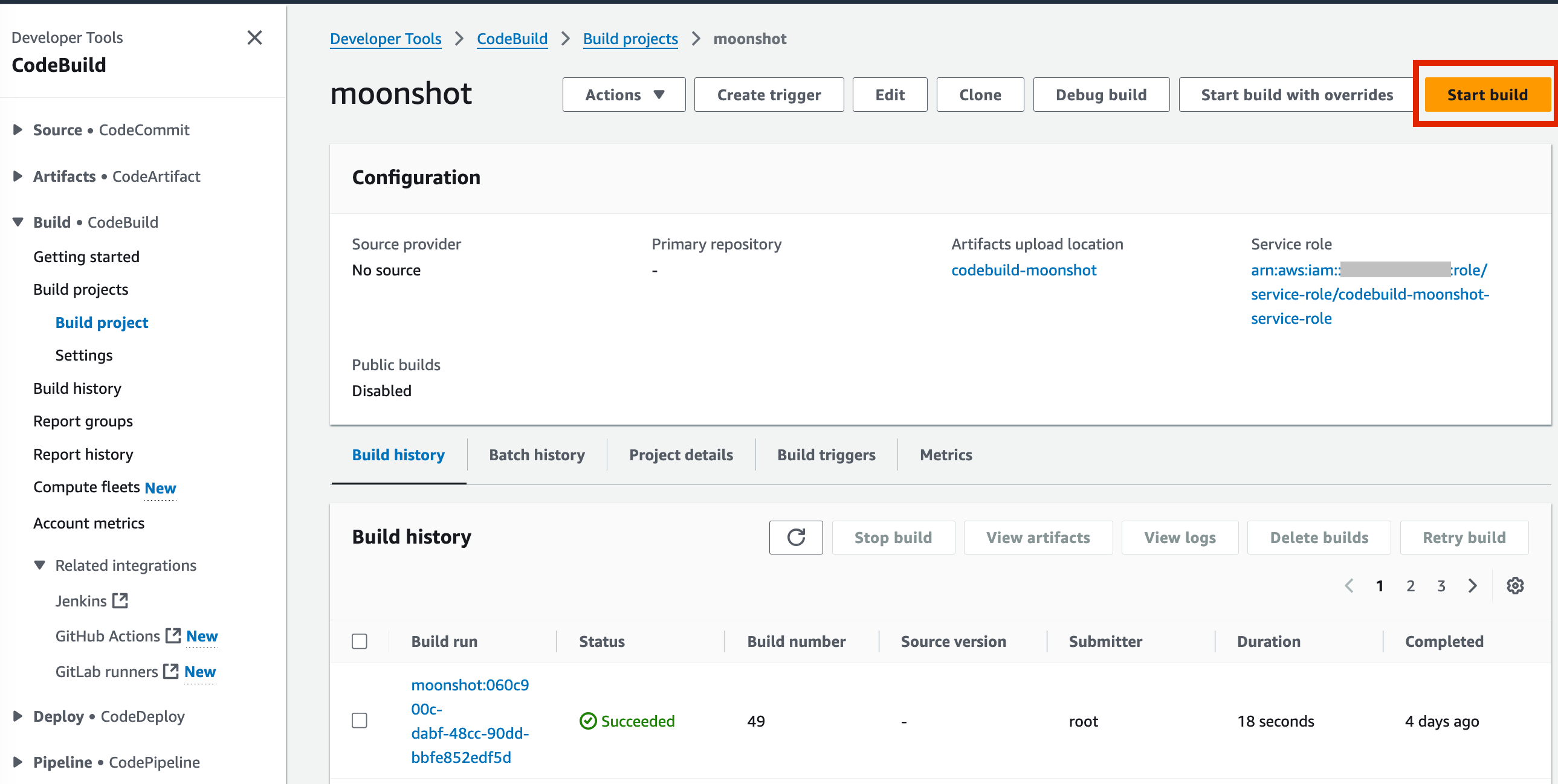
1. Run the Moonshot Project from Developer Tools > CodeBuild > Build Projects > Moonshot
1.1 Click on the 'Start Build' button
Start Moonshot build
2. Check the outputs in the CloudWatch logs
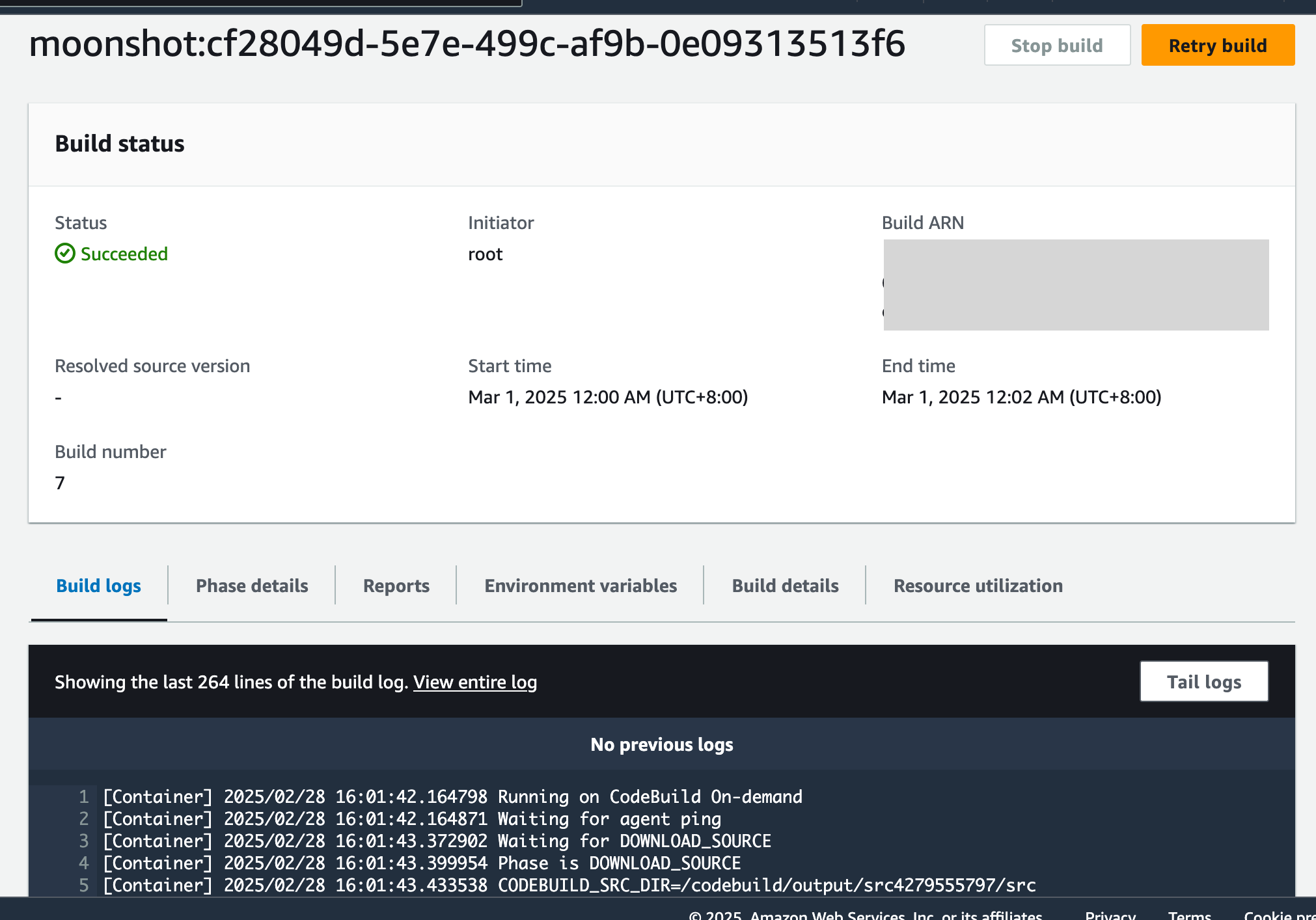
Check CloudWatch logs
3. Check that the output files are stored in S3
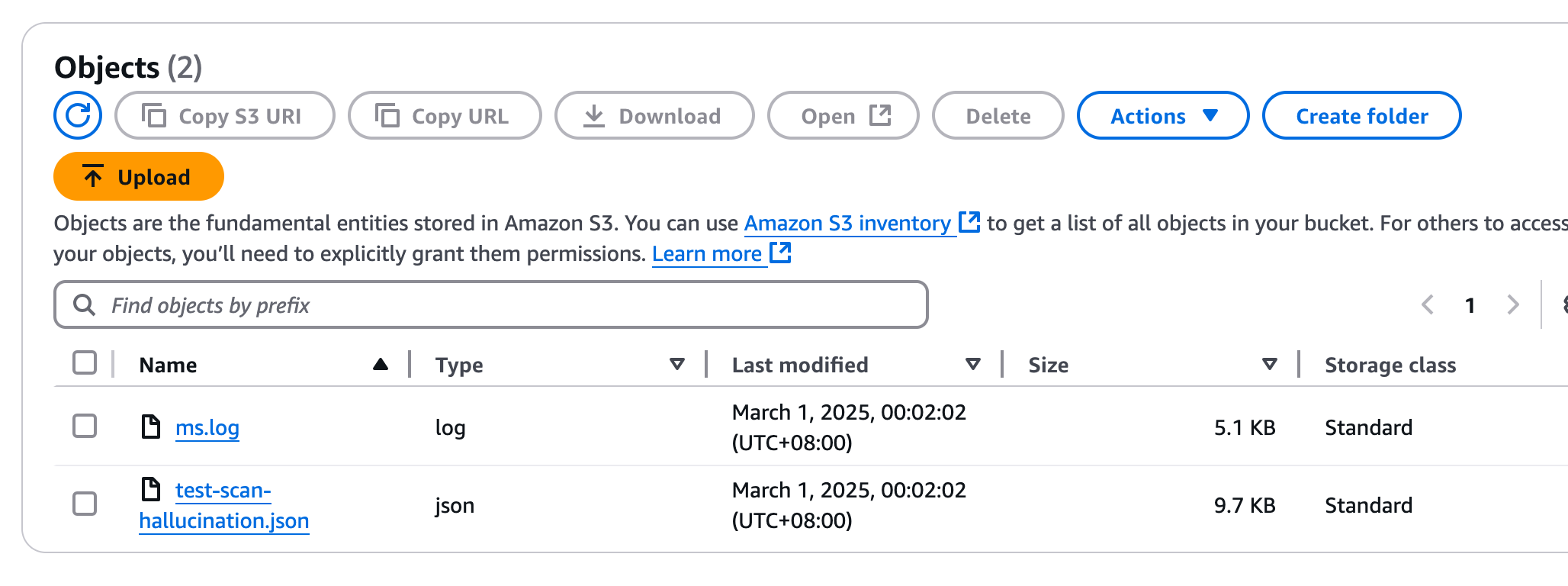
Run outputs in S3 bucket
Congratulations! You have successfully run Moonshot as a CodeBuild project via AWS Console UI!
Integrating our Project Moonshot into your existing CI/CD pipeline is essential for modern AI development.
It enables faster, more reliable, and consistent validation of large language models (LLMs) and your LLM-based applications, ensuring safety, quality and performance. With this guide, you will establish an efficient CI/CD pipeline that automates LLM application testing, enhances your AI development workflow, and delivers accurate and robust AI-driven applications to your users.
Thank you for choosing our software. We wish you the best of luck in your AI safety testing journey!