Repository navigation
Home
Welcome to the GillisDockerDepot Wiki. The repository is a modular, multi-server framework for running Docker services across several machines: a NAS, Windows desktops running Docker in WSL 2, a Linux workstation and a Raspberry Pi.
This wiki covers the environment setup, how the repository is laid out, and a setup guide for each service. Guides for services that are no longer in the main stack are kept, because they may still help someone.
About the examples: addresses, domains and names in these guides are placeholders.
192.168.1.xis a home LAN,example.comis your domain, andserver1,server2and so on are your machines. Swap in your own values.
- Repository Architecture
- How the Servers Fit Together
- Docker Environment Setup
- Service Configuration Guides
- Keeping Things Updated
- Essential Management Commands
GillisDockerDepot uses a modular template model. Each service has its own compose file, and each server's master compose file lists (include:) the services that run on it.
GillisDockerDepot/
├── appdata/                         # Application data (git-ignored)
├── compose/
│   ├── server1/ … server8/          # The services each server runs
│   ├── templates/                   # Reference templates for every service
│   ├── php/                         # Shared PHP settings mounted into PHP containers
│   ├── nextcloud/                   # Extra Nextcloud config (HSTS header)
│   └── chowdown-redirect/           # Small nginx config that redirects an old address
├── scripts/                         # Helper scripts and example app configs
├── secrets/                         # Passwords and keys as files (git-ignored)
├── wiki/                            # Screenshots used by this wiki
├── .env                             # Ports, paths and per-server values (git-ignored)
├── .env.example                     # Every variable the compose files use, without values
└── docker-compose-server1.yaml      # Master compose file for server 1 (one per server)
- Find the template in
compose/templates/(for examplecompose/templates/chrome.yaml). - Copy it into the server's folder:
cp compose/templates/chrome.yaml compose/server1/chrome.yaml
- Adjust ports, paths and environment values in that file and in
.env. - Add it to the server's master file, under
include::include: - ${COMPOSE_DIR}/chrome.yaml
- Start it:
docker compose -p mediaserver -f docker-compose-server1.yaml up -d chrome
To stop using a service, comment out its include: line rather than deleting the file, and remove the container with docker rm -f <name>.
| Server | Role in this setup | Main services |
|---|---|---|
| server1 | Main NAS: media, files, home automation, websites | Plex, *arr apps, Nextcloud, Home Assistant, Frigate, Vaultwarden, Mealie, Pi-hole (primary), Cloudflare tunnel |
| server2 | Windows desktop with an NVIDIA GPU (Docker in WSL 2) | Ollama, Open WebUI, ComfyUI, SearXNG, Kometa, Tdarr node; also the home WireGuard VPN server |
| server3 | Raspberry Pi | Pi-hole (secondary DNS), Nebula-Sync |
| server4, server7 | Family members' servers | Media stacks similar to server1 |
| server5 | Remote cabin PC | Its own VPN, Guacamole, Homepage, Cloudflare tunnel |
| server6 | Laptop | Tdarr node |
| server8 | Linux workstation | Second Ollama node, Speaches (voice), Tdarr node, Vaultwarden standby |
Remote access goes through a Cloudflared Tunnel Setup protected by Cloudflare Access: Zero Trust, with WireGuard Setup Guide as the private way in.
- Install Docker:
sudo apt update
sudo apt install -y docker-ce docker-ce-cli containerd.io docker-buildx-plugin docker-compose-plugin
- Check it works, and let your user run Docker without sudo:
docker --version
sudo usermod -aG docker $USER   # log out and back in afterwards
docker run hello-world
- Install Container Station from the App Center.
-
Copy the repository to a share, for example
/share/Docker/GillisDockerDepot, with your.env. -
Run compose over SSH. QNAP doesn't put Docker on the default path, so add it first:
export PATH=$PATH:/share/CACHEDEV1_DATA/.qpkg/container-station/bin
docker compose -p mediaserver -f docker-compose-server1.yaml up -d
-
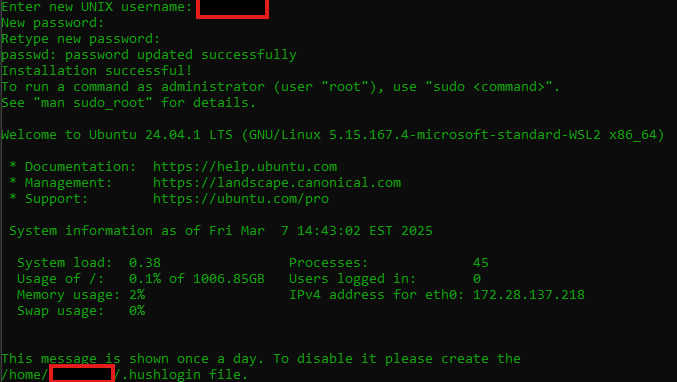
Install WSL 2 and Ubuntu (PowerShell as Administrator):
wsl --install
wsl --set-default-version 2
wsl --install -d Ubuntu
-
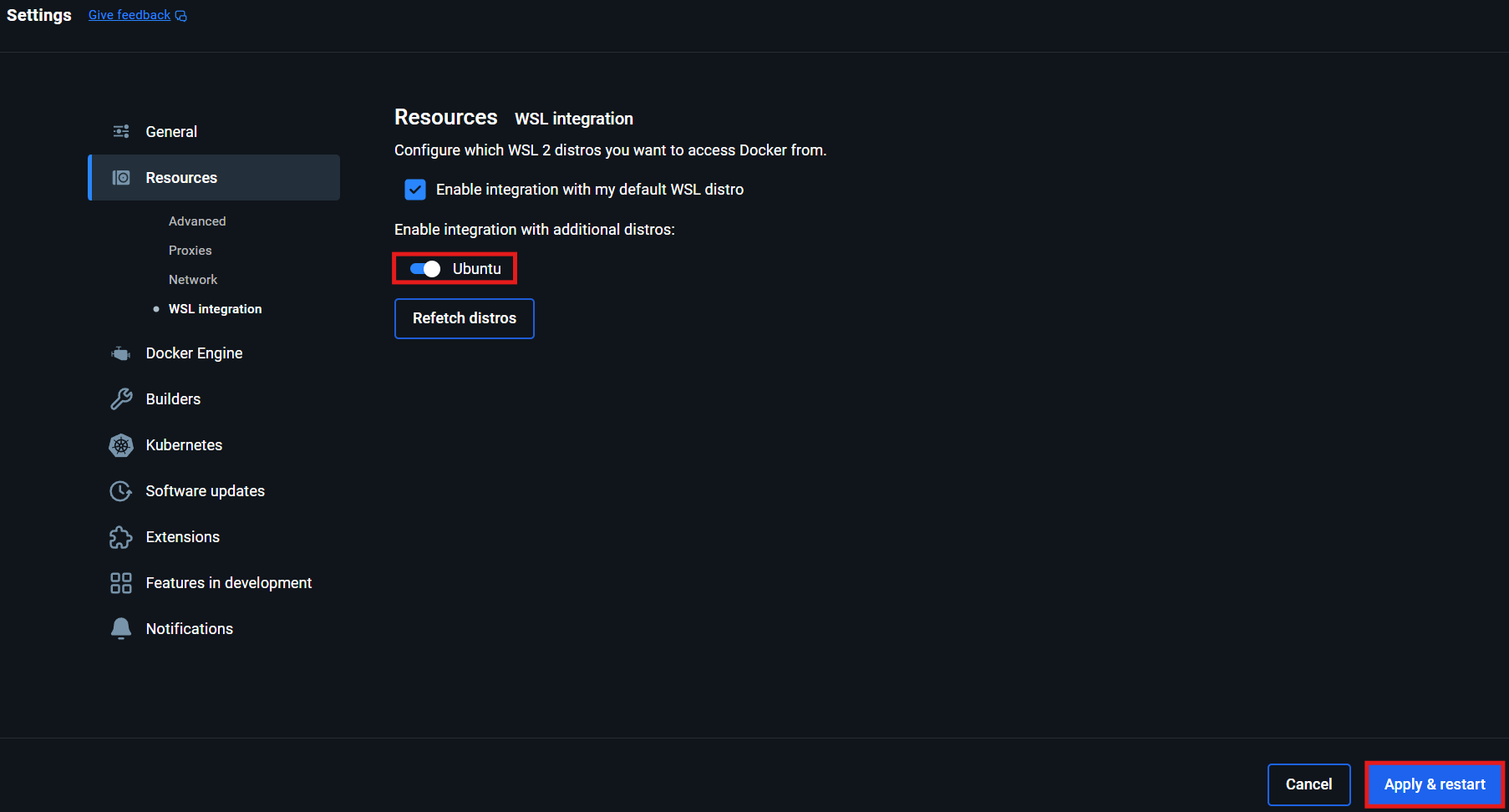
Install Docker Desktop, enable Use the WSL 2 based engine, and turn on WSL integration for Ubuntu. Alternatively, install Docker Engine directly inside Ubuntu.
-
Keep heavy data inside WSL. Folders on Windows drives (
/mnt/c,/mnt/d) are slow from WSL. Put model files and databases in Docker volumes, which live on the WSL disk. -
Ports from other machines: WSL 2 has its own internal address, so other machines on your LAN can't reach its ports directly. A Windows port proxy (
netsh interface portproxy) forwards them; the WSL address can change after a reboot, so update the rule when it does.
- Bazarr Setup Guide
- Cleanuparr Setup Guide
- Kometa Setup Guide
- Lidarr Setup Guide
- Lidify Setup Guide
- Maintainerr Setup Guide
- MusicBrainz Setup Guide
- Photoprism Setup Guide
- Picard Setup Guide
- Plex Media Server Setup Guide
- Profilarr Setup Guide
- Prowlarr Setup Guide
- Radarr Setup Guide
- RetroAssembly Setup Guide
- SABnzbd Setup Guide
- Seerr Setup Guide
- Sonarr Setup Guide
- Soulseek Setup Guide
- Spotify-to-Plex Setup Guide
- Subgen Setup Guide
- Tautulli Setup Guide
- Tdarr Server Setup Guide
- Tdarr Node Setup Guide
- Gluetun and Transmission Setup Guide
- Mealie Setup Guide
- Nextcloud Setup Guide
- Vaultwarden Setup Guide
- Home Assistant Setup Guide
- Frigate NVR Setup Guide
- Govee2MQTT Setup Guide
- Mosquitto Setup Guide
- Syncthing Setup Guide
- Ollama Setup Guide
- OpenWebUI Setup Guide (WSL2 Docker)
- ComfyUI Setup Guide
- SearXNG Setup Guide
- Jupyter Sandbox Setup Guide
- LLM Backup Setup Guide
- Speaches Setup Guide
- Chrome Setup Guide
- Cloudflare Access: Zero Trust
- Cloudflare DDNS Setup Guide
- Cloudflared Tunnel Setup
- Guacamole Setup Guide
- Guacd Setup Guide
- Homepage
- Nebula Sync Setup Guide
- Pi-hole Setup Guide
- Portainer Setup Guide
- Remote Site VPN Setup Guide
- WireGuard Setup Guide
- MariaDB Setup Guide
- PHP-Apache Setup Guide
- phpMyAdmin Setup Guide
- Repo Updater Setup Guide
- Watchtower Setup Guide
- BookBounty Setup Guide
- Calibre Setup Guide
- Calibre-Web Setup Guide
- Chowdown Setup Guide (replaced here by Mealie)
- Dozzle Setup Guide
- ErsatzTV Setup Guide
- Heimdall Setup Guide
- MineOS Setup Guide
- Nextcloud AIO Setup Guide (replaced here by the regular Nextcloud setup)
- OAuth Setup Guide
- Orbital Sync Setup Guide (replaced here by Nebula-Sync)
- Overseerr Setup Guide (replaced here by Seerr)
- Pinchflat Setup Guide
- Readarr Setup Guide (Readarr itself has been retired upstream)
- Traefik Setup Guide
- Traefik-Certs-Dumper Setup Guide
- Transmission-OpenVPN Setup Guide (replaced here by Gluetun + Transmission)
- Wizarr Setup Guide
-
Images: Watchtower Setup Guide updates most containers once a month (06:00 on the 1st). Each container opts in or out with the label
com.centurylinklabs.watchtower.enable. - Compose changes: Repo Updater Setup Guide runs on every server that receives changes. On the 1st of the month (09:00) it pulls the repository, works out which containers the new commits change, and emails a list with an Upgrade button. Its page also has Pull from GitHub now, so you don't have to wait after pushing a change. Only the changed containers are recreated, and the ones that could lock you out (the tunnel, Guacamole) are left for you to do by hand.
- Some containers are deliberately pinned to a version and updated by hand: databases (MySQL, MariaDB), Gluetun and the apps sharing its network, Nextcloud's major versions, and anything whose upgrade needs a migration step. Their compose files say why.
- Make changes on your desktop, push them, and let the servers pull. Don't edit tracked files on a server; the next pull would refuse to run.
-
Check the compose files are valid:
docker compose -p mediaserver -f docker-compose-server1.yaml config -q
-
Start or update one service (and nothing else):
docker compose -p mediaserver -f docker-compose-server1.yaml up -d --no-deps <service_name>
-
Force recreate a container:
docker compose -p mediaserver -f docker-compose-server1.yaml up -d --force-recreate --no-deps <service_name>
-
Follow a container's logs:
docker logs -f <container_name>
-
See what would change before an
up: compare a running container'scom.docker.compose.config-hashlabel withdocker compose ... config --hash="*". Treat it as a hint only: containers that Watchtower has updated can show as different, andupmay then recreate them. Passuponly the services you mean to change. -
Remove unused images (careful:
--volumesalso deletes unused volumes):docker image prune -a