Repository navigation

| Your device | File |
|---|---|
| Windows 10 or 11 (64-bit) | ComicArchiver-0.5.5-windows-x86_64-setup.exe |
| Windows, without installing | ComicArchiver-0.5.5-windows-x86_64.zip |
| Linux (x86_64) | ComicArchiver-0.5.5-linux-x86_64.tar.gz |
| Mac with an Intel processor (macOS 13 or newer) | ComicArchiver-0.5.5-macos-x86_64.zip — early Mac version: not notarized by Apple, and tested only on macOS 15 |
| Android 15 or newer (beta) | ComicArchiver-0.5.5-android-universal.apk — install steps on the Android page |
Changes in 0.5.5
- Choose which comics and novels to download. The Library page now has a checkbox for each title, with Check all and Uncheck all at the top. On Android, use Library → Episodes. Everything starts checked, including after an update. Check all includes future discoveries; Uncheck all leaves future discoveries unchecked too, until you choose them. Choices are kept separately for each provider and working library. Episode-type and extras settings still apply within checked titles.
- Saved files stay yours to manage. Unchecking a title keeps its existing CBZ/EPUB files and extras. You can remove them yourself. The app skips unchecked titles during downloads. Changes pause an active download while the new choices are saved and then let it continue. A paused download stays paused. After installing an update, the queue and saved files remain, and acquisition waits for Continue.
- Optional update checks. Open Settings → About → Check for updates to check manually, or choose automatic checks once a day. Automatic checks start off. Manual checks leave that preference unchanged. Checks contact this website for a small version file and send no sign-in, account or library information; the website host receives the usual connection information, including your IP address. Available updates link to the download page; the app does not install them automatically.
- One Backblaze sharing choice. Choose Use the same settings for all providers on the Backblaze setup page. The provider selector appears below it only when separate settings are selected. Existing connection details are retained.
- Metered connections on desktop. If you previously allowed metered or mobile connections, turn that option on again after updating. The app now saves this choice on the computer, so opening a library from another device starts with the unmetered-only setting.
- Windows keeps cached originals after saving an archive. This keeps a recovery copy if Windows loses the newly saved archive or its metadata during a power failure. The cache can use additional disk space.
- Tapas purchase history can recover from an expired pager. If Tapas rejects the current page with HTTP 400, the desktop app tries once from the first page and keeps the history check marked incomplete if the retry fails.
- Smaller support emails. Support logs are limited to 128 KiB and include the parser reason for recent EPUB failures when available.
Each is self-contained: nothing else needs installing.
Windows install and update
The app is not signed yet, so Windows warns about it twice. Both warnings are expected.
-
If Edge says the file "isn't commonly downloaded", point at the download, choose …, then Keep. If it
asks again, choose Show more, then Keep anyway. -
Run the setup file. If Windows says "Windows protected your PC", its only button is Don't run. Don't
press it. Click the small More info link under the message instead: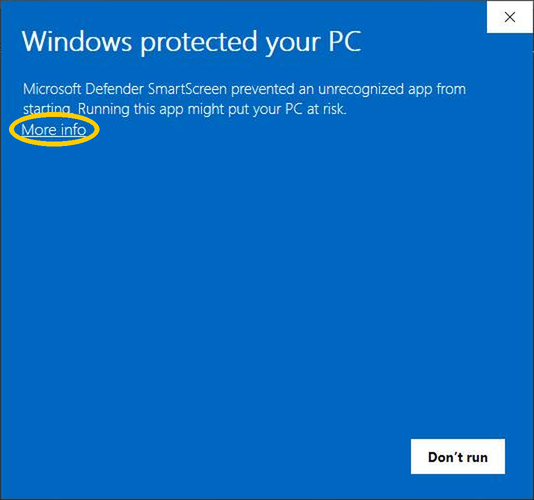
-
A Run anyway button then appears beside Don't run. Click Run anyway:
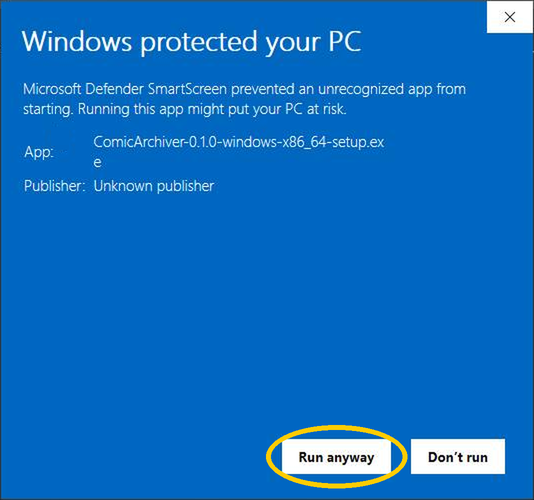
It installs Comic Archiver for your own account and never asks for an administrator.
If Windows says Smart App Control blocked it and there is no Run anyway, Comic Archiver can't be installed on
that PC yet.
The installer's window and the app's first start can each take up to a minute while Windows checks the files;
later starts are quick.
The first time
- On the dashboard, each site has its own card. Choose Sign in on your site's card, and sign in on the site's
own page in the window with your email and password.
Google and Facebook sign-in buttons may not work in that window. If that is how you normally sign in, first add
a password to your account on the comic site itself (Tapas, Tappytoon or Webtoon, not Google or Facebook): sign in to the
comic site in your usual web browser the way you always do, open your account settings, and set a password
there. Then sign in to Comic Archiver with your account's email and that password. - Press Start on that card. Signed in to more than one site? Start all starts every one.
Where your files go. Into the folder Comic Archiver in your user folder (on Windows
C:\Users\<your name>\Comic Archiver): Tapas in Tapas\Library, Tappytoon in Tappytoon\Library, Webtoon in Webtoon\Library, one folder per series.
Comics are saved as CBZ files and novels as EPUB files, which open in comic and e-book reader apps.
Updating. Run the new setup file over the old version; don't uninstall first. If Comic Archiver is open, setup
closes it first, and a download pauses until you press Continue; version 0.2.3 or older asks you to close it yourself. Your saved sign-in data, settings and episodes stay. A provider can still require a new sign-in when its session expires. Uninstalling signs Comic Archiver out of every site and
removes your Backblaze key from this computer; your saved episodes are kept.
Linux install and update
Unpack the file, open the folder and double-click comic-archiver (choose "Run" if asked). After the
first start it is in your applications menu. Files go to Comic Archiver in your home folder, as above. To
update, close Comic Archiver, unpack the new version and start it: it offers to delete the older copy, and you
keep your saved sign-in data and settings. A provider can still require a new sign-in when its session expires. To
uninstall, right-click Comic Archiver in the applications menu, choose Uninstall, then delete the folder.
Mac install and update
The Mac version is for Macs with an Intel processor running macOS 13 or newer. It has been tested on
macOS 15 only. Apple has not notarized the app, so macOS will not open it until you allow it once.
- Open the downloaded ZIP file, then drag
Comic Archiverinto your Applications folder. - Open Comic Archiver. macOS says it could not verify the app. Choose Done, not Move to Trash.
- Open System Settings, choose Privacy & Security and scroll down to Security. Beside the message
about Comic Archiver, choose Open Anyway, then confirm with your password or Touch ID.
After that it opens normally. Files go to Comic Archiver in your home folder, as above. To update, close Comic
Archiver and replace the app in Applications with the new one; you keep your saved sign-in data and settings, and
macOS asks you to allow the new version once more.
SHA256SUMS.txt lists each file's SHA-256, to check a download against. These files were built and self-tested
from the tagged source. release-evidence.json records the validation results and download
hashes checked by the Release workflow before publication.