Repository navigation
Home
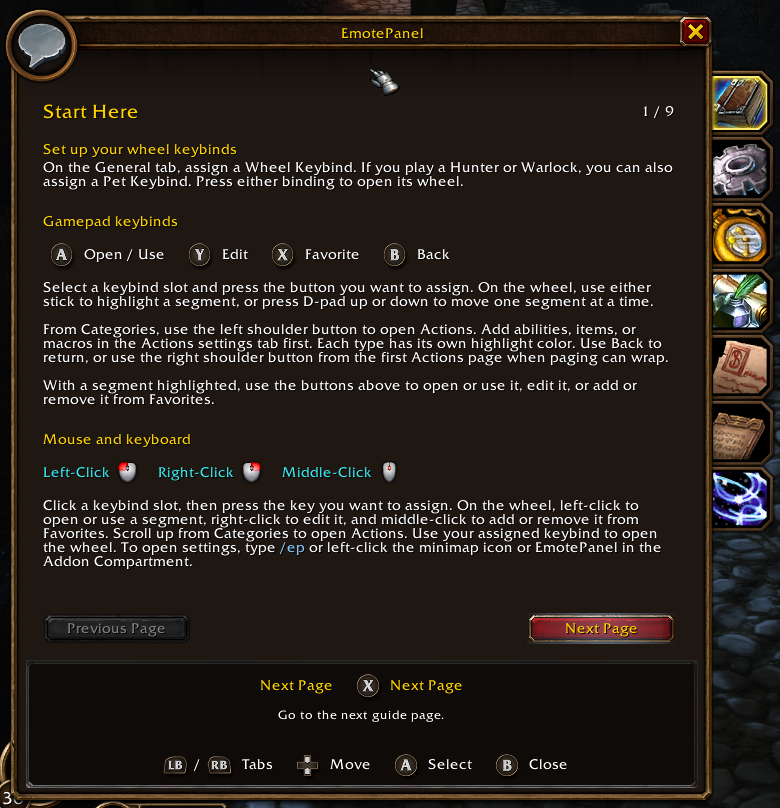
For WoW: Forever 1.60.1. Type /ep help to read the guide in game. Download and install
Start Here · Categories · Chat · Actions · Customize · Pet Wheel · Target Markers · Slash Commands
Click any screenshot to open it at full size.
- Type
/epto open Settings. Under General → Controller Setup, assign a Wheel Keybind. Hunters and Warlocks can also assign a Pet Keybind. - Press your assigned keybind to open the wheel, including in combat. In Actions settings, add something to try, such as a potion.
| Action | Controller | Mouse |
|---|---|---|
| Highlight a segment |
  or 
|
Hover |
| Change pages |
    or 
|
Scroll |
| Open or use |
 
|
Left-click |
| Add or remove a Favorite |
 
|
Middle-click |
| Edit |
 
|
Right-click |
| Back or close |
 
|
Right-click the center |
When the keybind legend is hidden, toggle it with 
 . ConsolePort is optional.
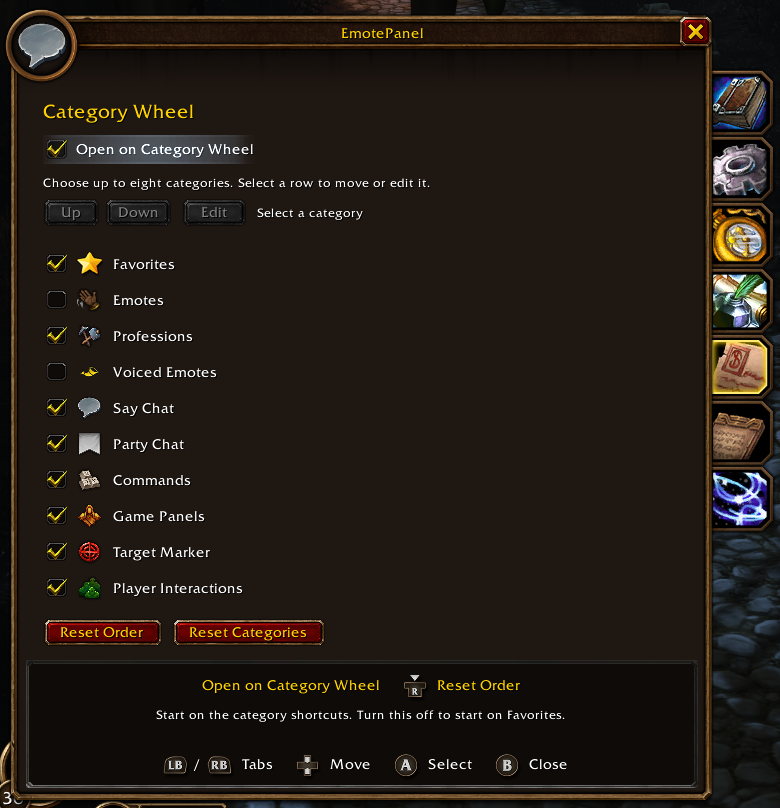
| Category | What you'll find |
|---|---|
| Favorites | Shortcuts you save, such as Wave or Backpack |
| Professions | Learned professions such as Cooking and Fishing |
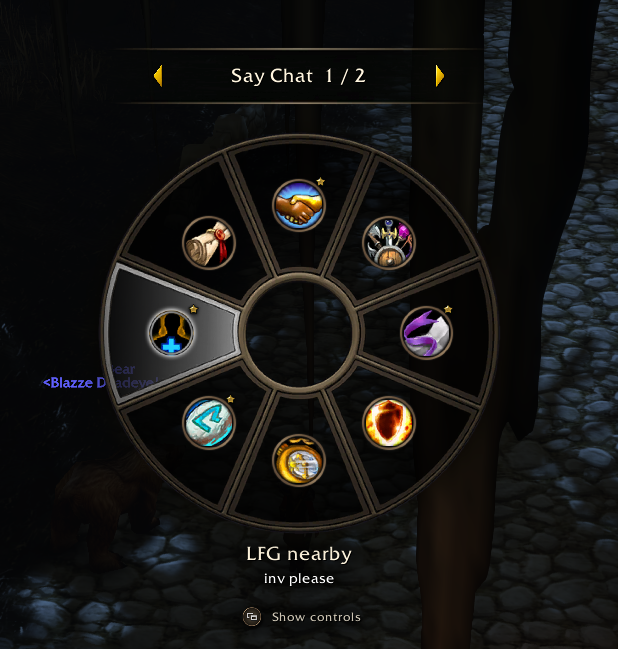
| Say Chat and Party Chat | Quick messages for nearby players or your group |
| Commands | Backpack, Roll, Ready Check, and custom commands |
| Game Panels | World Map, Quest Log, and Spellbook outside combat |
| Target Marker | Raid markers such as Skull, Cross, and Star |
| Player Interactions | Inspect, Trade, Follow, and group invites |
Emotes and Voiced Emotes are off by default on the Category Wheel. Open Settings → Categories to swap one in. The Category Wheel has room for eight shortcuts.
For a single list of pages, go to Settings → Categories and uncheck Open on Category Wheel. The main wheel starts on Favorites and lets you page through the categories directly, including Emotes and Voiced Emotes.
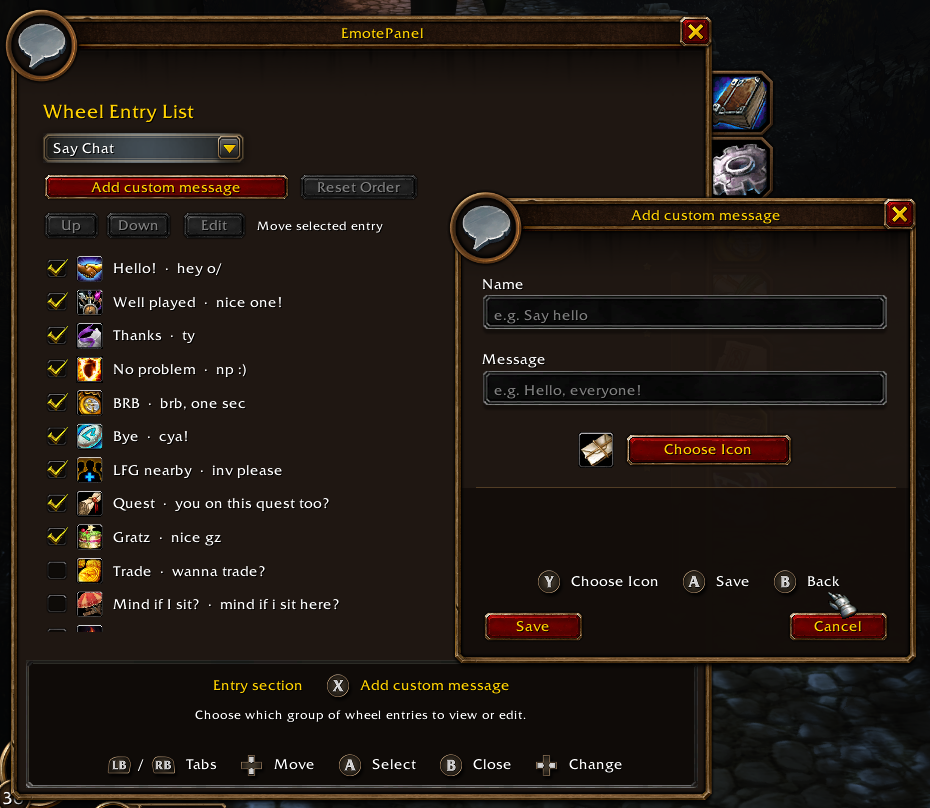
- Open Settings → Entries. Choose Say Chat, Party Chat, or Emotes.
- Use the Add custom button. For a custom emote, enter something like
/me offers everyone a snack. - Give it a name, save it, then open that category on the wheel to use it.
Controller Add an entry · Save or use
Mouse Click the Add button, then Save. Click the wheel entry to use it.
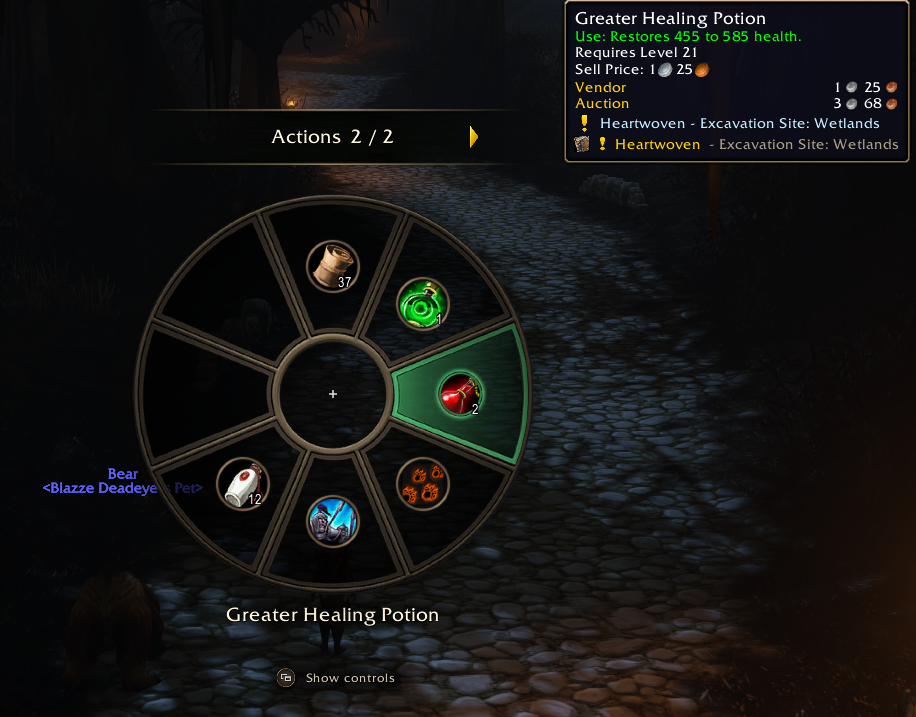
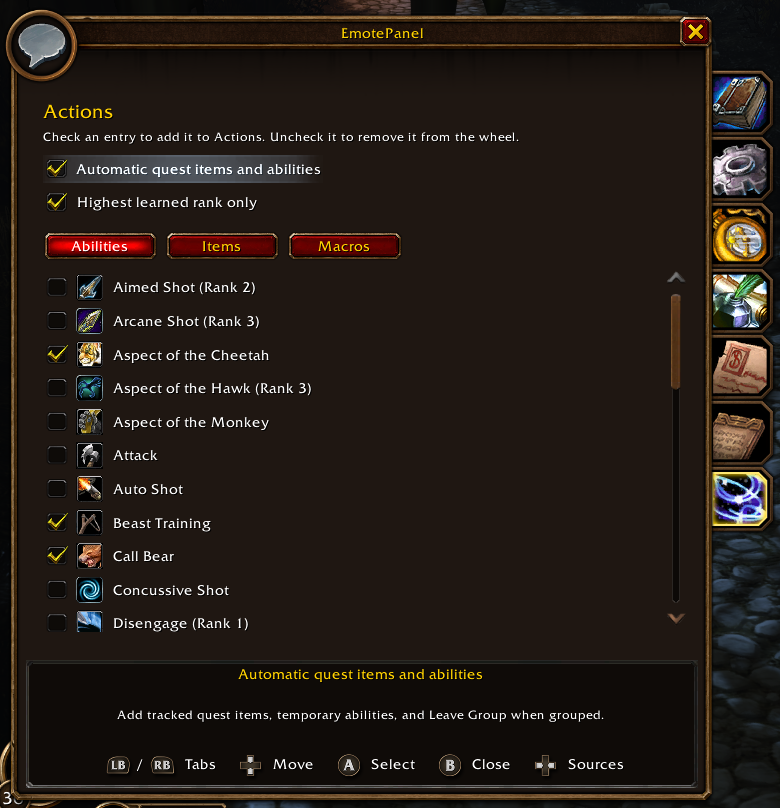
In Settings → Actions, check a spell, item, or macro to add it. Tracked quest items and temporary abilities can appear automatically. With ConsolePort, you can also add spells and items from their Options menus.
Controller Open Actions from Categories · Use the highlighted action
Mouse Scroll up from Categories, then click the action.
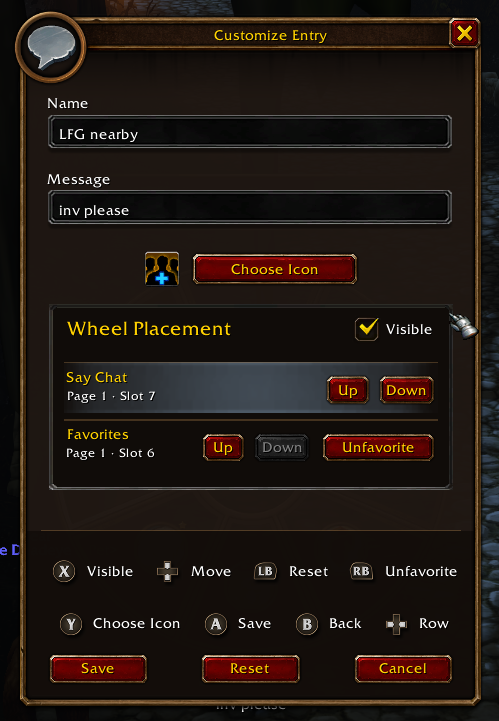
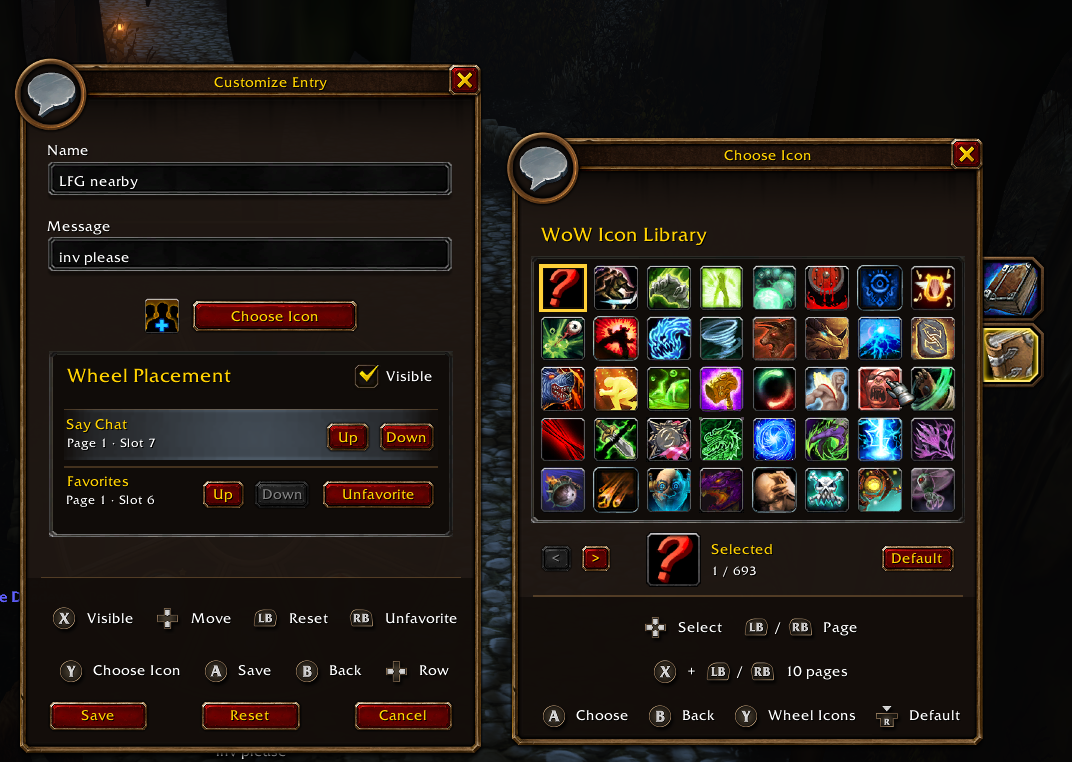
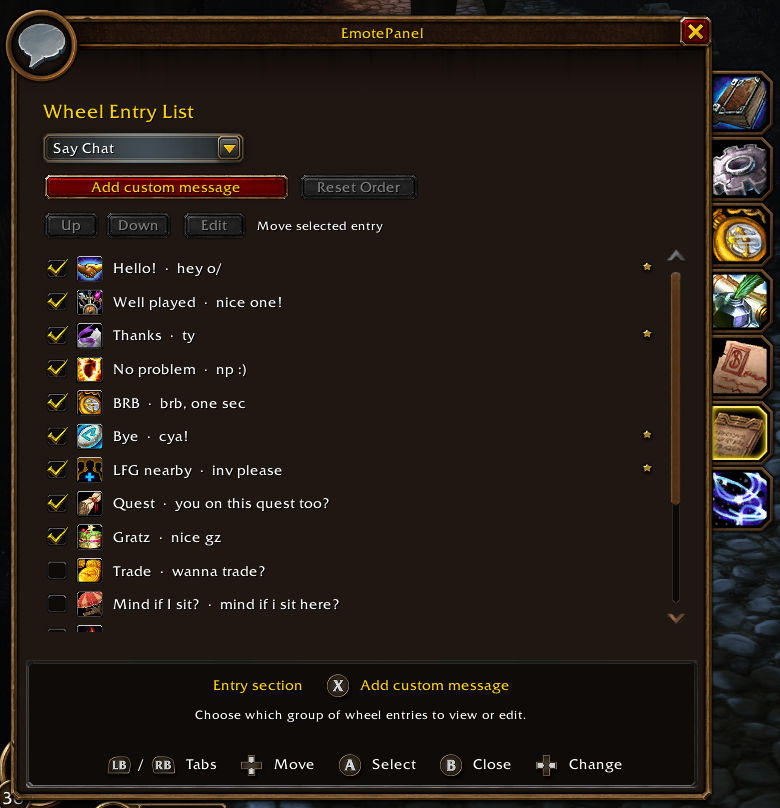
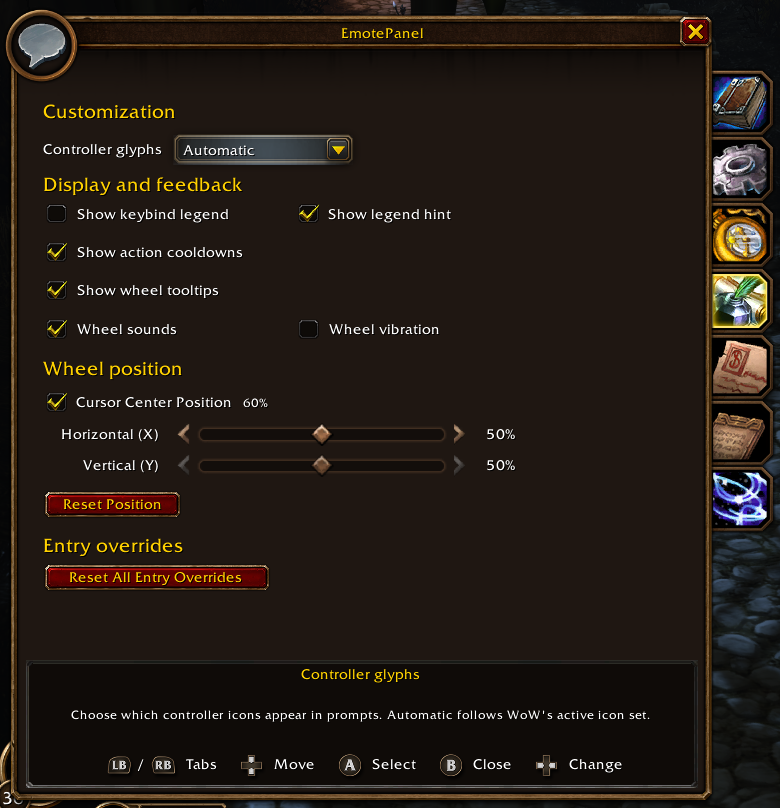
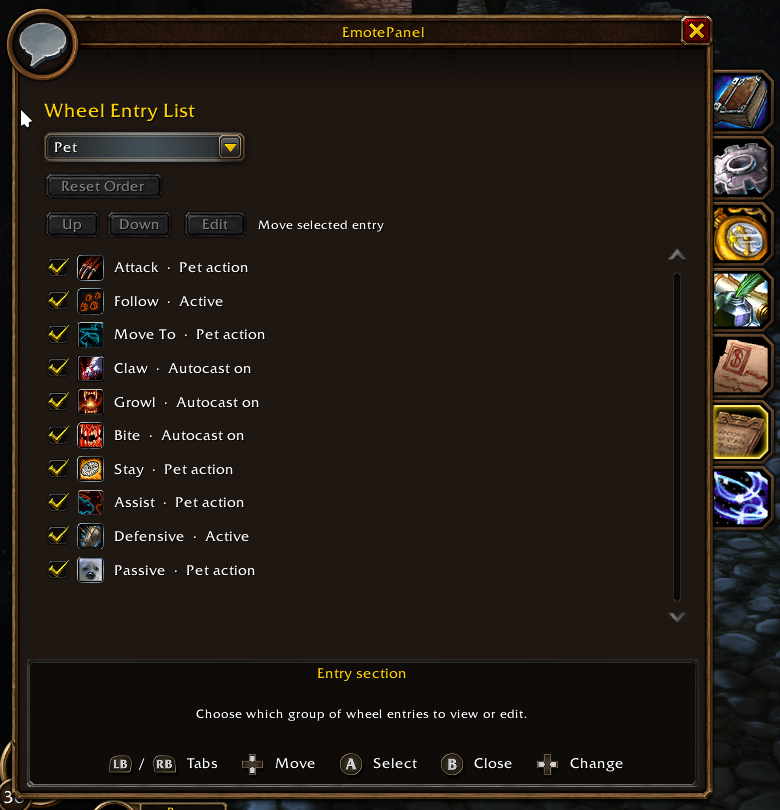
In Entries, choose a section. Use Up and Down to reorder an entry. Uncheck it to hide it. Open the editor to change the icon or add it to Favorites.
Controller Edit · Move a focused entry
Mouse Right-click the entry to edit. Select a row and click Up or Down to move it.
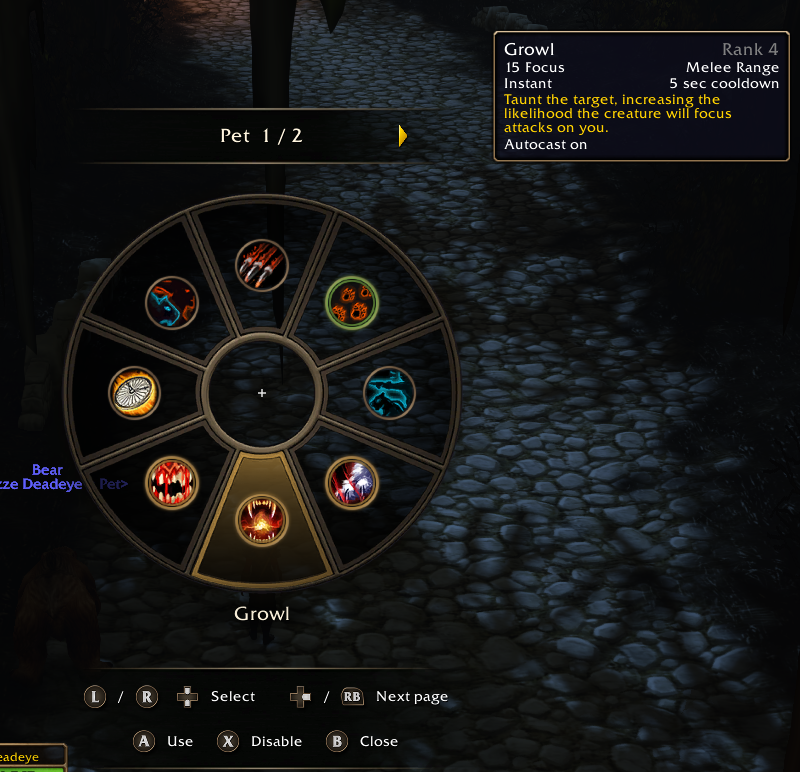
Hunters and Warlocks can open the Pet Wheel with their Pet Keybind while a living pet is summoned.
Controller Use a pet command · Toggle supported autocast
Mouse Left-click a command or right-click a supported ability to toggle autocast.
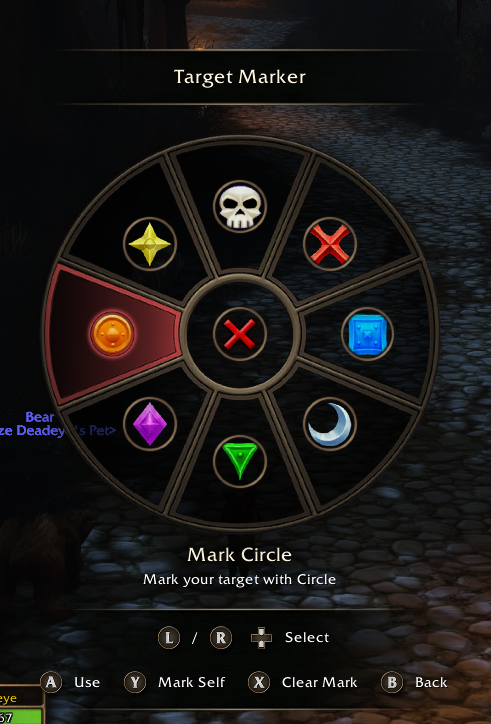
Open Target Marker from Categories or Commands. Clear Mark clears your target’s marker, or your own when you have no target.
Controller Mark target · Mark self · Clear Mark
Mouse Click a marker to apply it or click the center icon to clear it.
| Command | Opens or does |
|---|---|
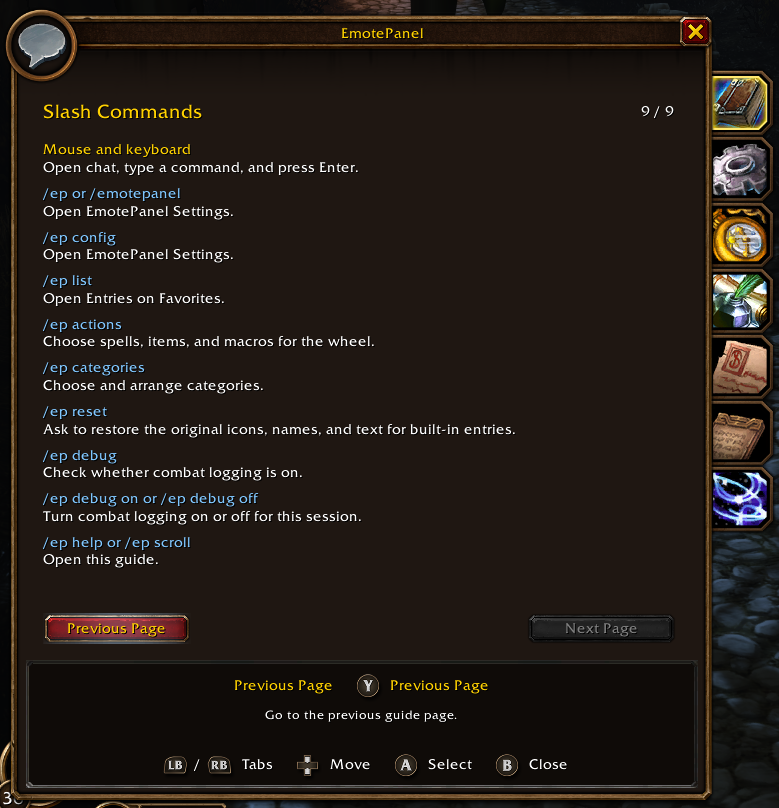
/ep, /ep config, /emotepanel
|
Settings |
/ep actions |
Actions picker |
/ep list |
Entries on Favorites |
/ep categories |
Category Wheel settings |
/ep help, /ep scroll
|
In-game guide |
/ep reset |
Confirm a reset of entry icons, names, and text |
/ep debug, /ep debug on, /ep debug off
|
Check or change combat diagnostics |
Controller artwork is from World of Warcraft’s in-game controller atlases.