Repository navigation
Releases: cbatista96/MegaCopier
Release list
MegaCopier 1.9.0

English
Highlights
- Copy, cut, paste and drag operations from the Desktop and File Explorer use MegaCopier in more situations, including modern and classic Windows 11 menus, keyboard shortcuts and the top Paste button. Existing-file prompts stay centered, retain acrylic and no longer leave empty windows after cancellation.
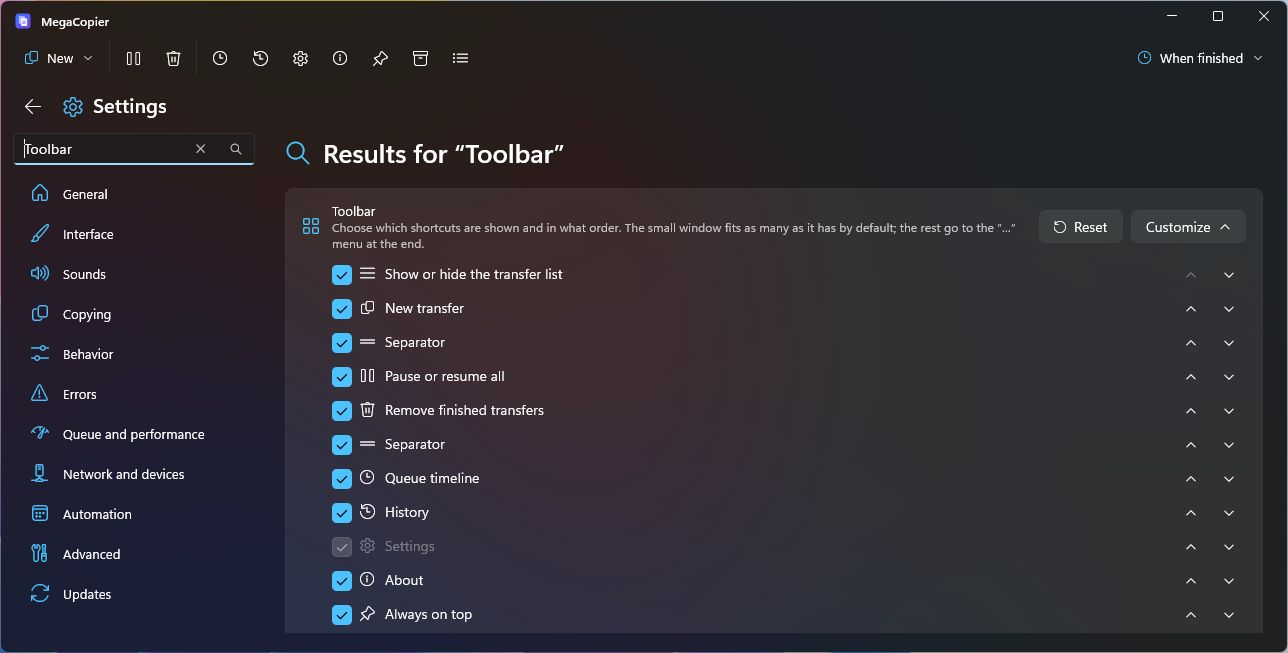
- Customize toolbar shortcuts and their order in Settings › Interface. The compact window keeps its size and places overflow actions in “…”; one button now pauses or resumes all copies.
- Copy an entire drive into a folder bearing its name, excluding Windows internal files. Names incompatible with the destination are adapted automatically, collisions are avoided and each change is logged.
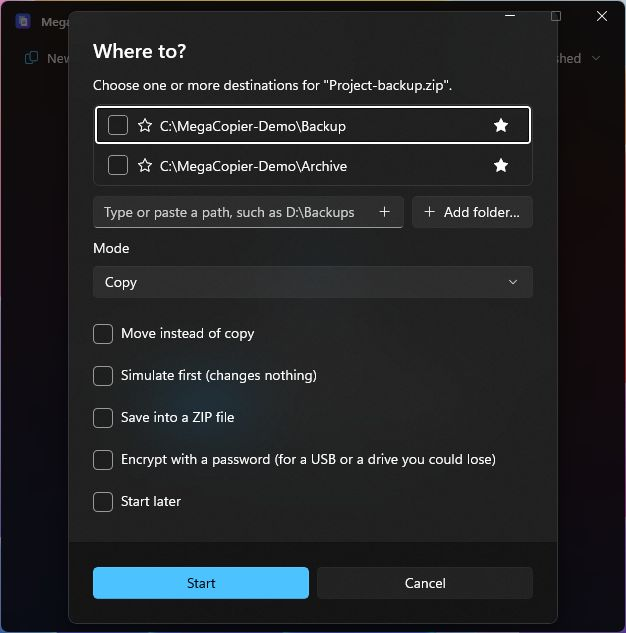
- Type or paste a destination in “Where to?”, get folder suggestions and save favourites with a star. The Status tab adds drive information, free space and folder counts.
- Verify a download by pasting its checksum: MegaCopier detects the algorithm and reports whether the file matches. It can also verify a CRC32 embedded in a file name.
- Tasks can start when a drive is connected, recognize a USB drive after its letter changes, include multiple folder pairs or run without a signed-in session through mcopy.
- Azure Blob Storage, Google Cloud Storage and SharePoint document libraries are now supported. When copying online-only files, MegaCopier warns about the required download and lets you skip them.
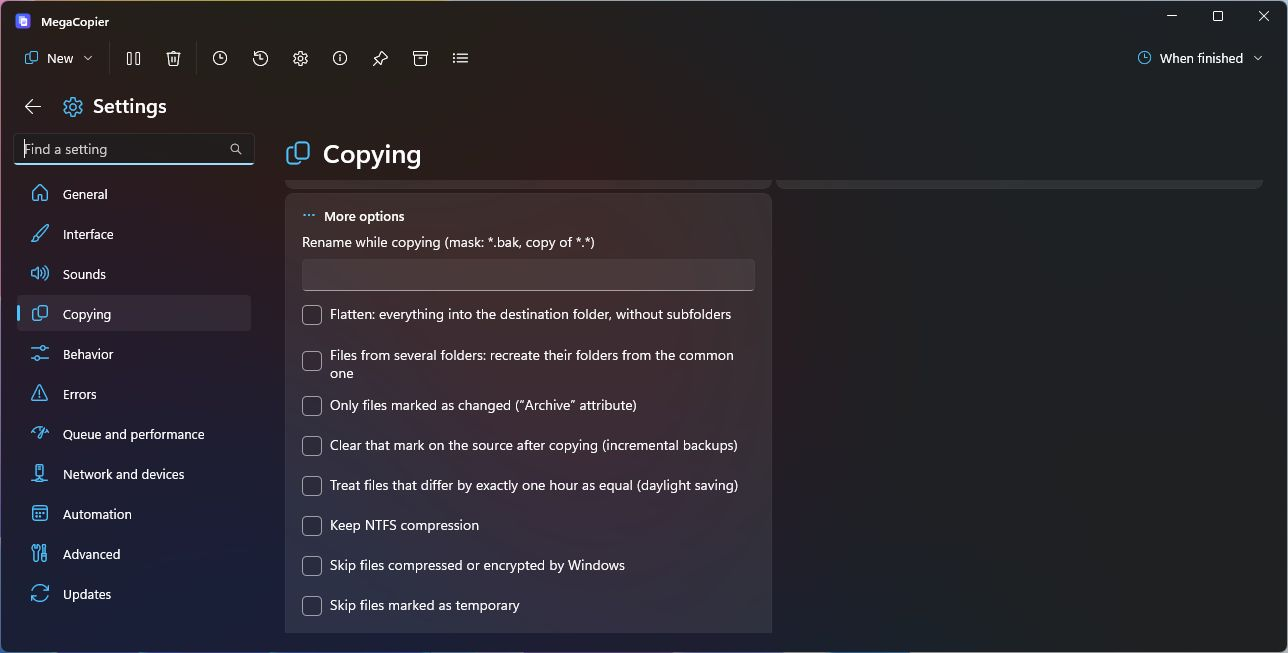
- New rules support renaming, flattening folders, preserving paths and compression, limiting depth and using .mcignore files. mcopy filters, LocalSend receiving choices and combined transfer logging have also been extended.
- Each progress icon restores its corresponding copy, including independent windows. Fixes cover crashes when transfers finish, the starting size of new copies and interface transitions; individual icons appear when their progress is not visible in a window.
Added
-
Show in the taskbar option: turning it off always minimizes windows to the system tray.
-
Customizable toolbar (Settings › Interface): show, hide and reorder its actions, and choose whether “When finished” appears. New actions, hidden by default: “Always on top” (with a pinned icon while on), “Drop shelf” and “Compare and sync”. The list of actions is collapsed and slides open with “Customize”. The small window always keeps the same number of slots as by default and “When finished” keeps its text: if you show more actions, the last slot becomes the “…” menu with the rest. The large window shows everything that fits. The “…” menu also shows the update notice when Settings is inside it.
-
Favorites from “Where to?”: a star on each folder adds it to or removes it from favorites without opening Settings.
-
Copy a whole drive (all of
E:\): its contents go into a folder named after the drive (“Games SSD 500GB (E)”), without what Windows keeps at the root (Recycle Bin, “System Volume Information”, paging files). The new folder does not inherit the root's hidden and system attributes. Moving or deleting a whole drive is still not allowed. -
Names the destination does not accept are fixed instead of failing: trailing spaces and dots are removed, forbidden characters become “_”, reserved names (CON, NUL, COM1…) are avoided and names too long for the drive are shortened while keeping the extension (to 255 bytes on network shares, as Linux NAS devices require). If that makes them match another name, they are numbered. Every change is logged, and valid names are never touched.
-
Files that are only in the cloud (OneDrive, Dropbox or Google Drive “online-only”): before copying you are told how many will be downloaded, and Rules can skip them (“Skip cloud-only files”; also “without cloud-only files” in plain language).
-
Type or paste the destination path in “Where to?”, with subfolder suggestions as you type; Enter adds and selects it.
-
Compare with a checksum (New › Check): pick a file and paste the checksum published on the download page (MD5, SHA-1, SHA-256, SHA-512, SHA3, BLAKE3, xxHash or CRC32). MegaCopier works out the algorithm, reads the file once and tells you whether it matches; it takes the checksum from the clipboard if it is already copied.
-
CRC32 in the name: when checking a folder without checksum files, files that carry their CRC32 in the name (“episode [A1B2C3D4].mkv”) are checked against it.
-
Drives and folders on the Status tab: source and destination with their type, file system and free space, and how many folders are created, apart from the files.
-
LocalSend, what to receive: choose what to do when the file already exists (keep both, do not receive it or replace it) and which types to receive or never receive. Unwanted files are not even requested from the phone.
-
mcopyfilters and lists:--include,--exclude,--min-size,--max-size,--after,--before,--skip-hidden,--skip-system,--skip-cloud,--filter "plain-language text"and sources from a file with@list.txt. -
“When the drive is connected” tasks: a saved task can start by itself every time you connect its USB drive (the destination or, if that is the removable one, the source), with MegaCopier open or in the tray.
-
Drives recognized by serial number: saved tasks and lists keep working when Windows gives the USB drive another letter; the paths are corrected automatically.
-
More clouds: Azure Blob Storage (with a container SAS token), Google Cloud Storage (with HMAC keys) and SharePoint document libraries (Microsoft 365). How to connect them is in the cloud guide.
-
More options in Rules (Settings › Copy and each transfer's Options): rename while copying with a mask (
*.bak,copy of *.*), flatten everything into the destination folder, recreate folders from the one loose files have in common, copy only what is marked as changed (“Archive” attribute) and clear that mark afterwards, treat files that differ by exactly one hour after a daylight-saving change as equal, keep NTFS compression, skip compressed, encrypted or temporary files, limit subfolder levels, filter by last-used date, set folder timestamps and attributes separately and run a command before starting (if it fails, nothing is copied). -
.mcignorefile: put it in a folder with one mask per line (*.tmp,node_modules/,/build) and that is never copied from the folder or its subfolders. -
Also eject the source drive after a successful transfer (the camera card after moving the photos).
-
Ready-made finish commands: notify the phone with ntfy, trigger an IFTTT applet, open the destination or log each transfer to a text file.
-
Single log for all transfers in the format you choose (
%time%,%source%,%destination%,%size%,%hash%,%error%…) and optional forwarding to a network Syslog server. -
More file managers as destinations: folders open in Multi Commander, xplorer2, Explorer++ and XYplorer appear next to those from Explorer, Total Commander and Directory Opus.
-
Several folder pairs in one task: a single task can copy Documents to one place and Photos to another.
-
Tasks without a signed-in user: a scheduled task can run even when nobody is signed in;
mcopyruns it without a window. New commandmcopy run <list.mclist>. -
mcopy:--max-depth,--archive,--dst,--keep-compression,--flatten,--keep-paths,--renameand--run-before.
Screenshots
Toolbar customization, destination paths and favourites, and new copy rules:
Changed
- More room for “Where to?”: from the small window, the window grows while the dialog is open (as with the “already exists” prompt) and the folder list shows longer; it returns to its size when closed.
- Pause all and resume all share one button: it shows pause while copying and play when everything is paused; the shape morphs from one into the other with every icon pack. It has the same shape as the chosen pack’s icon, outline only: rounded with the Windows 11 icons and sharp-cornered (pause as two lines) with the Windows 10 ones.
- The window background no longer turns flat when another window is active: each material switches to its partner when focus is lost and back when it returns. Mica ⇄ Mica Alt (both ways, depending on the choice) and Acrylic ⇄ Translucent.
- The window title in the taskbar and Alt+Tab also shows the speed (“56 % · 11 MB/s”), not only the percentage.
Fixed
- “New › Copy to › Manage favorites” goes straight to the favorite folders in Settings (Network and devices). It used to open Settings at the first section, or close it if it was already open.
- Menu icons (such as those in “New”) change when you pick another icon pack, even after several changes without closing the copier. They used to keep the icons of the first pack the menu was opened with.
- In Settings, switches and drop-downs could stay below each option’s text with the window already wide (after it had been narrow). They now always go back to their place on the right.
- With the Windows 10 icons, the timeline clock and the information icon looked smaller than the rest of the toolbar: now they are all the same size.
- With the “Default” theme, MegaCopier switches between light and dark at the same time as Windows, like other apps, wit...
MegaCopier 1.8.0
English
Highlights
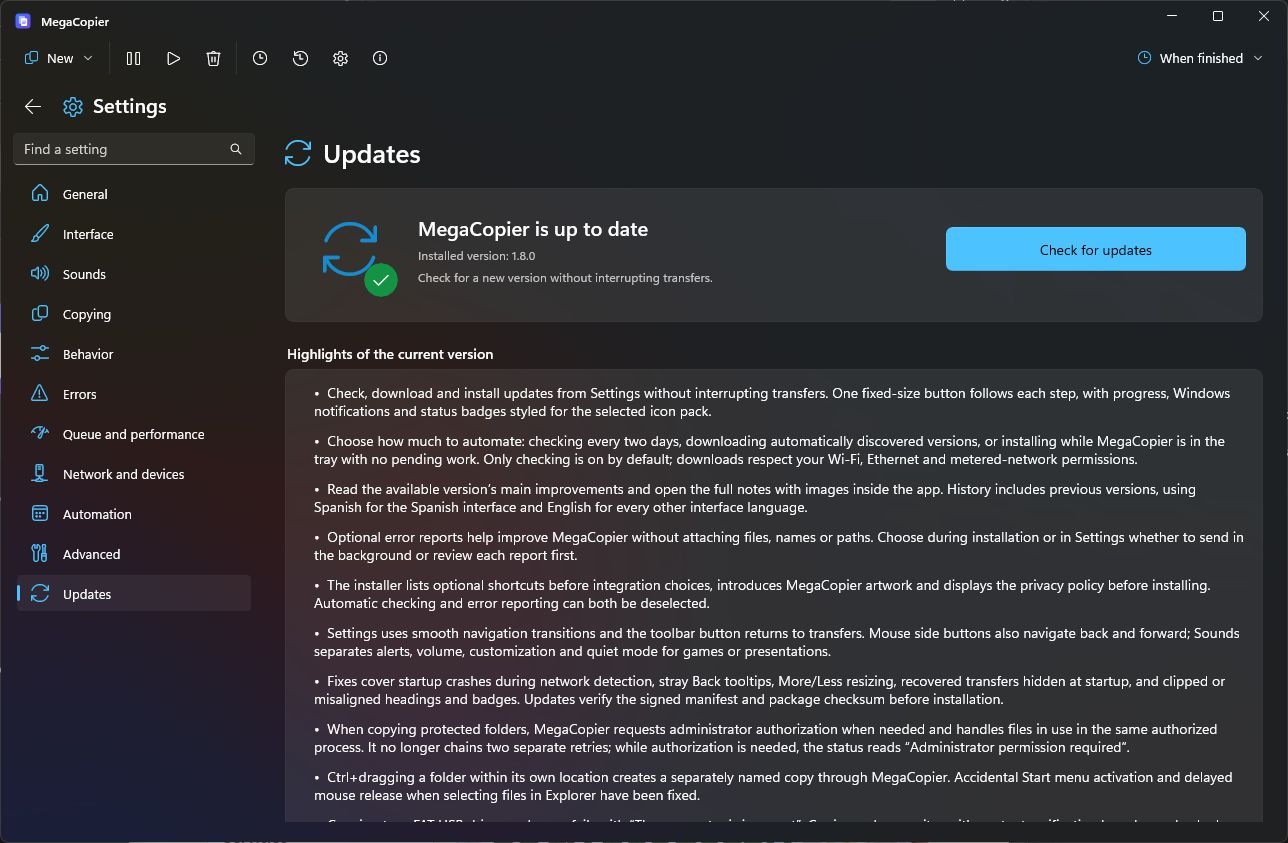
- Check, download and install updates from Settings without interrupting transfers. One fixed-size button follows each step, with progress, Windows notifications and status badges styled for the selected icon pack.
- Choose how much to automate: checking every two days, downloading automatically discovered versions, or installing while MegaCopier is in the tray with no pending work. Only checking is on by default; downloads respect your Wi-Fi, Ethernet and metered-network permissions.
- Read the available version’s main improvements and open the full notes with images inside the app. History includes previous versions, using Spanish for the Spanish interface and English for every other interface language.
- Optional error reports help improve MegaCopier without attaching files, names or paths. Choose during installation or in Settings whether to send in the background or review each report first.
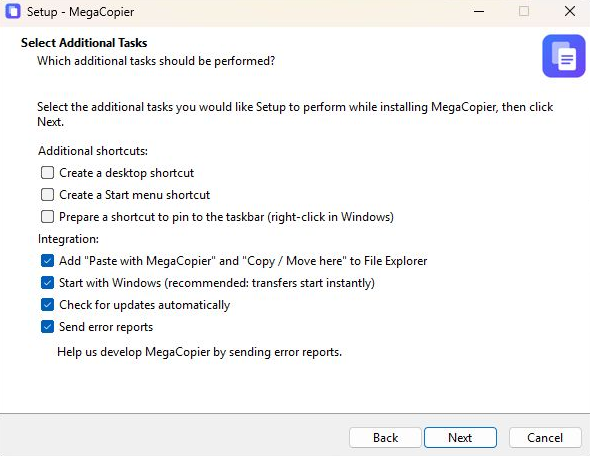
- The installer lists optional shortcuts before integration choices, introduces MegaCopier artwork and displays the privacy policy before installing. Automatic checking and error reporting can both be deselected.
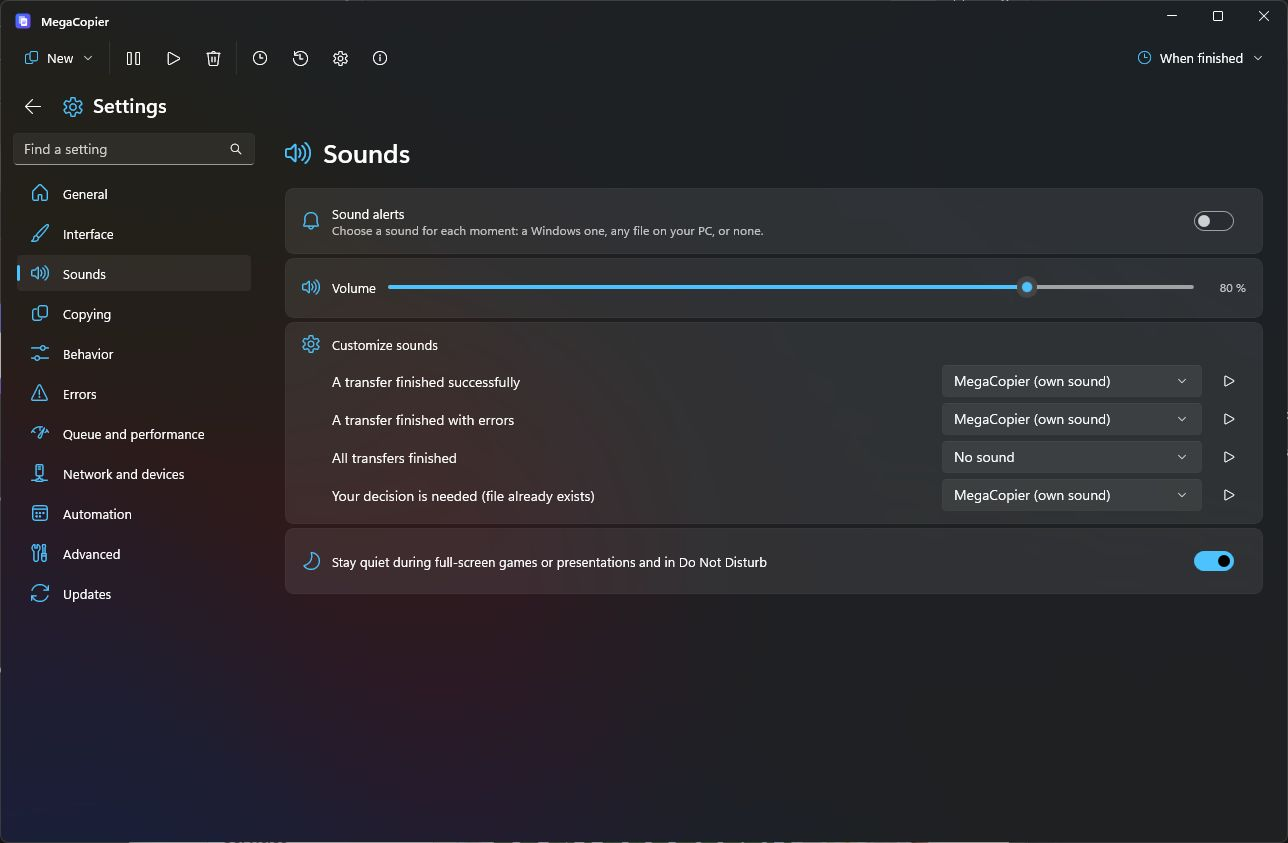
- Settings uses smooth navigation transitions and the toolbar button returns to transfers. Mouse side buttons also navigate back and forward; Sounds separates alerts, volume, customization and quiet mode for games or presentations.
- Fixes cover startup crashes during network detection, stray Back tooltips, More/Less resizing, recovered transfers hidden at startup, and clipped or misaligned headings and badges. Updates verify the signed manifest and package checksum before installation.
- When copying protected folders, MegaCopier requests administrator authorization when needed and handles files in use in the same authorized process. It no longer chains two separate retries; while authorization is needed, the status reads “Administrator permission required”.
- Ctrl+dragging a folder within its own location creates a separately named copy through MegaCopier. Accidental Start menu activation and delayed mouse release when selecting files in Explorer have been fixed.
- Copying to exFAT USB drives no longer fails with “The parameter is incorrect”. Copies and overwrites with content verification have been checked on NTFS, exFAT and FAT32; ReFS testing remains pending.
- Expanded options use cards that adapt to the available width. Settings keeps consistent margins, headings and spacing, supports the mouse wheel over empty margins, and uses longer navigation indicators with smooth movement.
Added
- Update center: check, download, cancel, verify and install with one fixed-size action on the right and a shared progress bar. Portable copies offer a ZIP only when a newer version exists.
- Independent automation: check every 48 hours and catch up after Internet access returns when overdue. Only versions discovered by automatic checks qualify for automatic download; manual checks offer Download. Download and installation are off by default. Automatic installation waits until the app is in the tray without active, pending or paused transfers, dialogs or live synchronization.
- Network permissions: unmetered Wi-Fi and Ethernet by default; mobile and metered connections require permission. Changes also apply to a running download. The interface does not display the current connection type.
- Native Windows notifications: an available version, a verified download ready to install, and a completed update. Notifications open Updates; opening that section clears the pending completed-update badge.
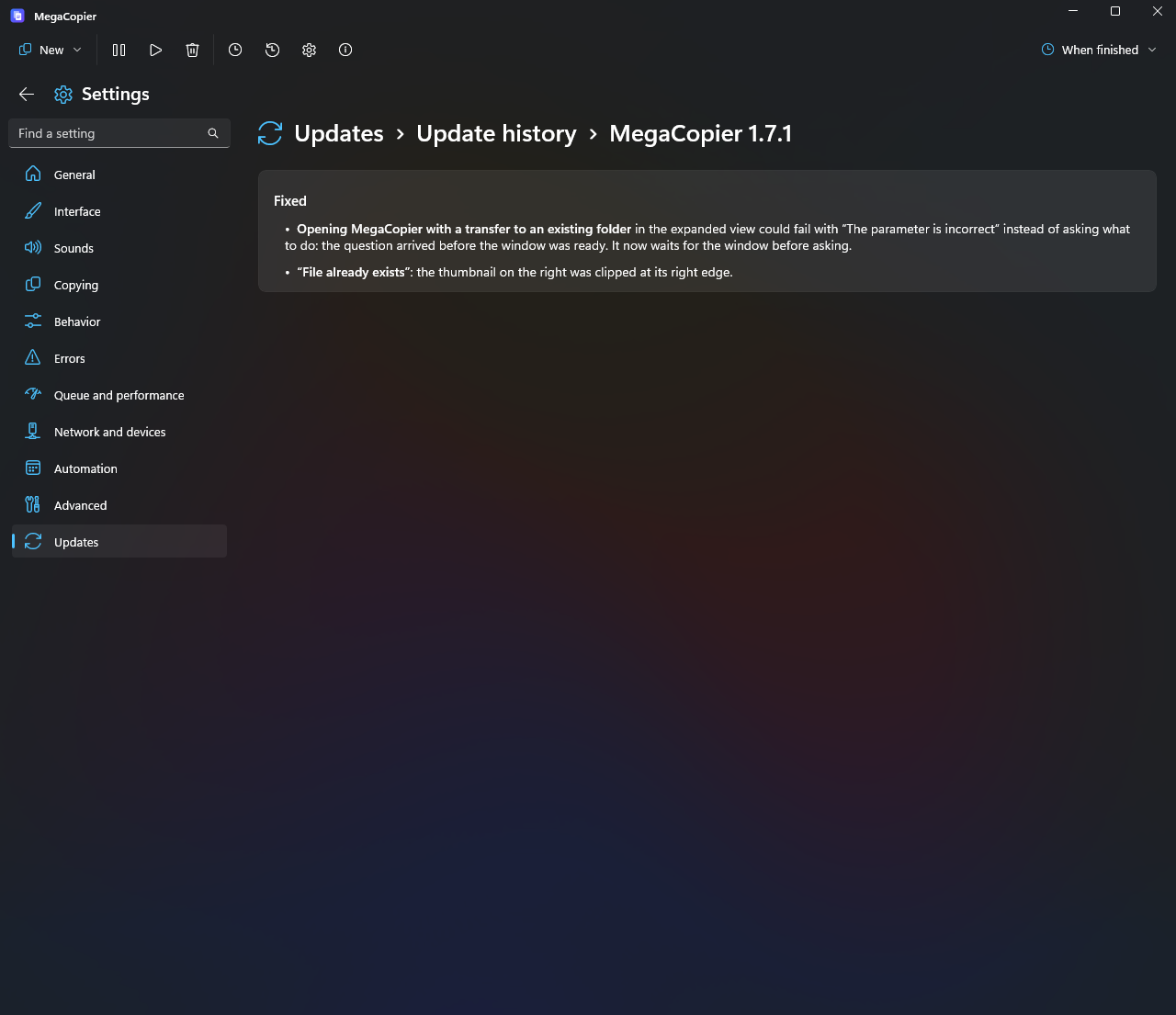
- Highlights and complete history: a summary of the installed or available version, full notes with links and images, and an Updates > Update history > MegaCopier and version breadcrumb. Images align left and cached notes remain available offline. Previous releases now also have complete English notes.
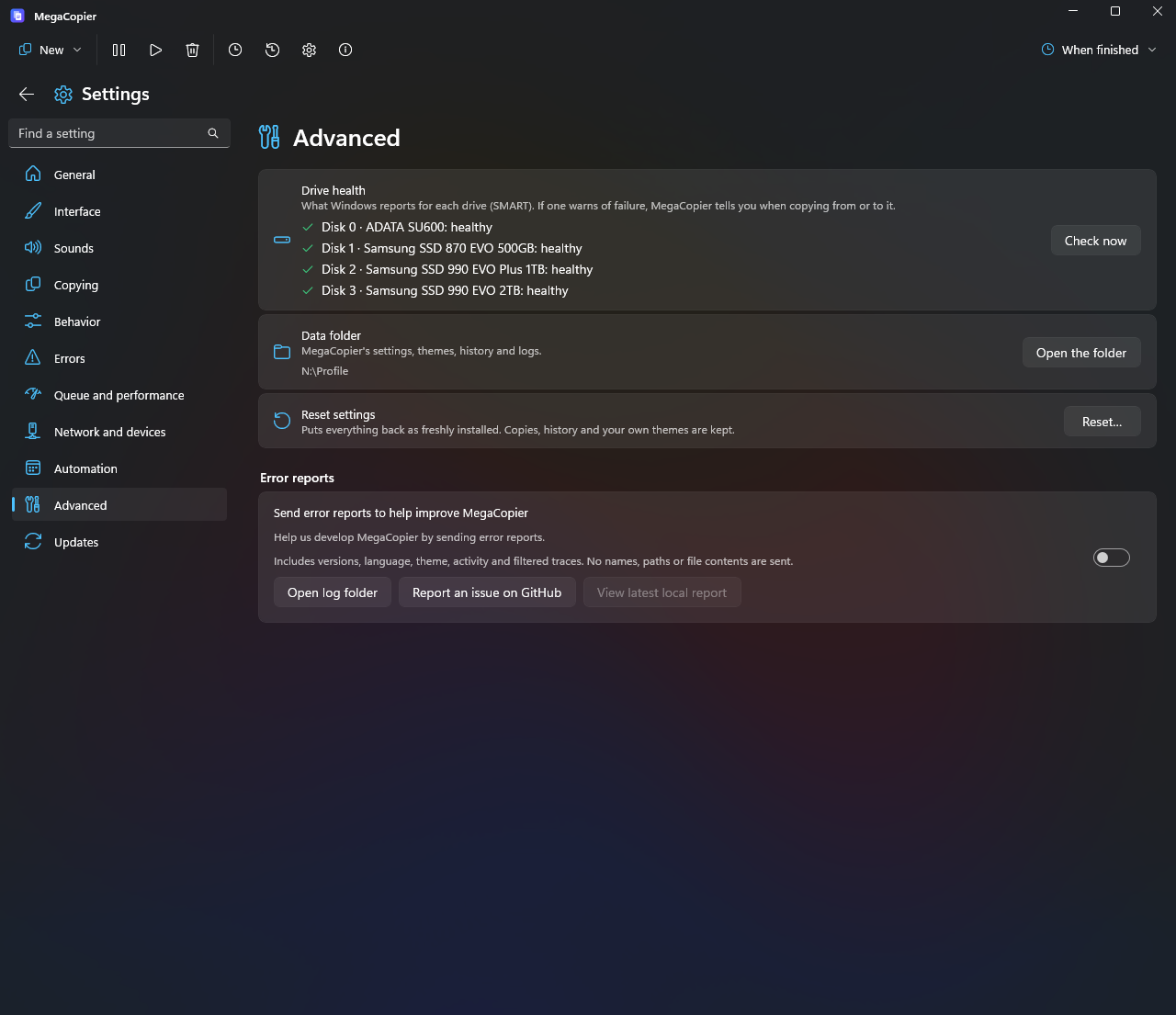
- Optional private reports: a choice in the installer and Settings > Advanced, exact report preview, local logs, and background sending without a prompt when authorized. When disabled, the dialog offers one-time sending or permission for future reports. Detects unexpected exits and available native crash events for that session; a power outage can also leave an unexpected-exit marker.
- Configured Cloudflare and private GitHub receiver: filtered traces without free-form messages, names or paths, a consented queue, limited retries and grouping of repeated failures. Disabling reporting removes local queued reports, not reports already received. The privacy policy explains providers and retention limits.
- Reorganized installer: desktop and Start menu shortcuts, plus preparing a shortcut for the user to pin through Windows, are all off by default. Integration groups Explorer, Windows startup, automatic checks and error reports last. Reporting is selected with its explanation underneath; silent updates preserve the preference. Includes original sidebar artwork and a privacy policy before installation.
- Ctrl+drag duplication: Explorer integration when dropping a folder onto empty space in the same location. A free name is chosen, empty folders and the chosen name survive resume, and duplication is kept distinct from moving and other jobs.
- History in batches: the ten latest versions are shown first; “Show more” loads ten additional versions until the full history is visible.
Changed
-
Easier language selection: Language is the second card in General. The installer starts with a choice of English or Spanish.
-
Refreshed the entire screenshot gallery in English and Spanish, including settings, themes, icon packs, dialogs and the installer. Each language uses its own application captures; the frame excludes the desktop and pointer.
-
Transfer speed always retains two decimal places, including trailing zeroes, in the current-file row, window title and summaries.
-
Speed and remaining time sit next to the current file’s size with the row’s normal spacing, without extra space reserved by previous file sizes.
-
Copied progress uses the same unit as its total from the start: GB for a multi-GB transfer, and each file’s size unit in its own progress row.
-
Copied and total sizes in the overall and current-file progress always retain two decimal places, including trailing zeroes.
-
The current-file row now shows speed and remaining duration first, without “left”, followed by the file’s copied size.
-
The GitHub project page defaults to English with a Spanish link. The gallery is recaptured separately in English and Spanish using demonstration data, with centered windows and no cursor, halo or desktop; published release pages show both languages without replacing packages. Documentation distinguishes local logs, optional automatic crash reports and private vulnerability reporting.
-
Four sound cards: alerts with a bell; an inline volume icon, label, slider and percentage; per-event customization; and a quiet-mode toggle for games, presentations or Do Not Disturb, on by default for new settings. Existing preferences are preserved.
-
Bilingual documentation: visible links to the project overview and complete changelog in English and Spanish. Future release pages show both languages, starting with highlights; separate note assets retain the full document for the app. Editorial guidance allows properly developed summaries of the necessary length and groups minor fixes without inventing counts.
-
Reviewed translations: all 14 languages share the same keys and formatting parameters. The fast-device path example comes from translated resources; filters in languages other than Spanish and English use a supported extension-and-size example instead of an untranslated English sentence.
-
Responsive options: “What to copy”, “Transfer” and “When finished” each have their own card. At medium widths the last card fills the row; wider windows fit all three. Filters, Rules, Synchronization and Security are four separate cards, arranged in one or more columns as space allows.
-
Schedule start: date, time, actions and recurring task controls rearrange with the window width, avoiding unnecessary stacking and controls outside the card.
-
Consistent settings: every page uses the same width and margins as General. Icons and headings appear aligned on the first frame, including Updates. Card, row, column and heading spacing follows Automation.
-
Interface cards: Themes, Icons and Progress bars are grouped in cards. Headings and descriptions share a left edge; information buttons are right aligned and vertically centered, including thickness, rounding, speed and glow controls.
-
Visible navigation: longer blue indicators in Files, Destination, Options, Status and Log and in the three configurable progress bar tabs, with smooth movement. The selected copy marker in the job list is also taller.
-
Copy controls: the original button size is restored while preserving al...
MegaCopier 1.7.1
English
Fixed
- Opening MegaCopier with a transfer to an existing folder in the expanded view could fail with “The parameter is incorrect” instead of asking what to do: the question arrived before the window was ready. It now waits for the window before asking.
- “File already exists”: the thumbnail on the right was clipped at its right edge.
Install: download MegaCopier-Setup-1.7.1.exe (64-bit Windows 11). SHA-256 checksums are in SHA256SUMS.txt. For Windows code-signing status, see the code-signing policy.
Español
Arreglado
- Al abrir MegaCopier con una copia a una carpeta que ya existía, con la vista completa, la copia acababa en error
(«El parámetro no es correcto») en lugar de preguntar qué hacer: la pregunta llegaba antes de que la ventana
estuviera lista. Ahora espera a la ventana y pregunta. - «El archivo ya existe»: la miniatura de la derecha salía recortada por el borde derecho.
Instalar: descarga MegaCopier-Setup-1.7.1.exe (Windows 11, 64 bits). Las sumas SHA-256 están en SHA256SUMS.txt. Consulta el estado de la firma de Windows en la política de firma.
MegaCopier 1.7.0
English
Added
- The window no longer loses its material when another window is active: the default background in Fluent themes uses Mica and switches to Mica Alt while you use another window, instead of becoming a solid color. It returns to Mica when focused. Other backgrounds selected in Settings behave like Windows backgrounds.
- “Start with Windows” in the tray menu has an icon from the selected icon pack.
Changed
- Resuming a large file starts writing immediately: previously, all previously copied source data was read again to calculate the whole-file checksum. On a USB drive with several GB, this looked like the transfer had restarted, although it had not. The checksum is now calculated only when needed by verification, a checksum file, storing the checksum in the file, or forensic mode, while the remaining data is copied. Without those features, the file list leaves its checksum empty, as it does for cloned files.
- “File already exists” plays its sound only once per transfer: “One by one” previously played it for every repeated file.
- “File already exists” always has the same size, slightly wider than before; it no longer grows or shrinks with paths, thumbnails, or identical files.
- Window background (Settings › Interface): theme background, Mica, Mica Alt, Acrylic, and Translucent (lighter, more transparent acrylic). The duplicate option was removed: the old Translucent was the same acrylic.
- Acrylic menus, option lists, and dialogs, with any theme and window background: menus (New, When finished, “…”, right-click) remain acrylic without focus; all dropdowns in Settings, dialogs, and the file filter blur what is behind them, like menus. Dialogs such as folder and file conflicts blur the window they cover instead of showing solid gray with a differently colored button area. With Windows transparency disabled or acrylic unavailable, they use a solid theme color.
- The tray menu is acrylic like other menus, regardless of the window background. About and the drop shelf also use acrylic.
- Opening Settings from the compact window now animates its growth, like shrinking, without a black rectangle. This also applies when a second transfer automatically opens the expanded view. “More” grows without an initial jump.
- The file-list view (“More”) opens at a practical default size (760 × 660); you can enlarge it. The transfer-list view is unchanged.
- Switching transfers in the compact window slides the card in the direction of the selected button.
- The destination drive is aligned to the right of its row, with the source on the left. This gives the transferred item's name more space; a long destination extends toward the middle.
- Numbers no longer shift around: file counts, sizes, speed, and remaining time keep their positions, align right, and use equal-width digits.
- Pause / Resume uses the same button colors as other buttons.
- “When pressing X” and “When minimizing” have separate cards, each with its own help button.
- Language, size units, and tray icon and progress settings moved to Settings › General.
Fixed
- Paste from File Explorer's top command bar uses MegaCopier and the active tab's folder even if a subfolder is selected. It shares the paste-interception setting with Ctrl+V and the context menu.
- A repeated individual file prompts again, even with the same size and date. It offers Replace, Keep both, and Skip, without options for other files. Resuming still detects completed files.
- Dragging between windows while transfers are running keeps Esc pressed while confirming that Explorer canceled its drag, and continues stimulating Explorer's input loop during the wait.
- Paste from Explorer's right-click menu also uses MegaCopier: modern and classic menu commands are recognized, the destination is resolved, and the menu closes before copying. Unrecognized cases retain Explorer's behavior.
- Fast Explorer drags could fall through to Windows because drag-start notification had not arrived when the mouse was released. This transition is now checked briefly without turning rectangle selection into a copy. Remote-mouse and accessibility-tool gestures are supported too.
- Dropping onto drives in the navigation pane works when Explorer inserts a root such as “Desktop (OneDrive)” before “This PC”.
- Pastes while the interface is busy: an accepted request no longer returns to Windows after a five-second wait, preventing both copiers from executing the same operation.
- Speed and remaining time with a speed limit: mcopy showed twice the actual speed and half the remaining time.
- The window returns to its earlier size after hiding the transfer list: choosing Add to this transfer or leaving only one transfer previously left it enlarged. It now restores its default or user-chosen size unless you resized it while the list was visible. Separate transfer still keeps the list open.
- “One by one” in the compact window could show the next file-conflict dialog displaced above and outside the view after Replace or another decision. The window was shrinking and expanding between files.
- MegaCopier could crash when pressing New or closing the tray menu, particularly after changing themes, such as Fluent dark to Classic blue after opening New. Changing the accent reloaded Windows control resources and broke already-open menus; the accent is now applied without reloading them. The WinUI crash probe added in 1.3 (
crashstack.log) was also removed. - Fluent light with Windows dark mode incorrectly used a dark background with low-contrast text; the window is now actually light.
- Windows high contrast: custom theme colors no longer cover system colors in buttons, lists, menus, and dialogs.
- Settings navigation and menu icons sometimes retained the previous icon pack until the theme changed.
- Ctrl+V could open MegaCopier with “No transfers” while a transfer was running and taskbar progress was visible: the transfer had remained in a window that was closing.
- Asking whether to add files to a running transfer no longer enlarges the compact window; the question fits its current size.
- Dragging while transfers were running could fall through to Windows: Windows silently removes mouse and keyboard hooks if a callback takes too long, for example during a large-transfer GC pause. MegaCopier now detects and reinstalls them, records this in
drag.log, and avoids long pauses.
Install: download MegaCopier-Setup-1.7.0.exe (64-bit Windows 11). SHA-256 checksums are in SHA256SUMS.txt. For Windows code-signing status, see the code-signing policy.
Español
Añadido
- La ventana ya no se apaga al usar otra: con el fondo de serie (el del tema, en los temas Fluent) es Mica y, mientras
usas otra ventana, pasa a Mica Alt en lugar de quedarse de un color liso. Al volver, Mica otra vez. Con otro fondo
elegido en Ajustes se comporta como las ventanas de Windows. - En el menú de la bandeja, «Iniciar con Windows» lleva su icono, con el conjunto de iconos elegido.
Cambiado
- Continuar un archivo grande sigue escribiendo al momento: antes, antes de seguir, se releía del origen todo lo ya
copiado para calcular la suma del archivo entero, y con varios GB en una memoria USB parecía que la copia volvía a
empezar (no lo hacía). Ahora la suma solo se calcula si algo la usa (verificar, el archivo de sumas, guardar la suma en
el archivo o el modo forense), y a la vez que se copia el resto. Sin nada de eso, la lista no muestra la suma de ese
archivo, igual que con los archivos clonados. - «El archivo ya existe» suena solo una vez por copia: con «Uno a uno», cada archivo repetido volvía a sonar.
- «El archivo ya existe» tiene siempre el mismo tamaño, algo más ancho que antes: ya no crece ni encoge con la ruta,
con que el archivo tenga miniatura o con que sean iguales. - Fondo de la ventana (Ajustes › Interfaz): el del tema, Mica, Mica Alt, Acrílico y Translúcida (el acrílico más
claro y transparente). Desaparece la opción repetida: la antigua «Translúcida» era el mismo acrílico. - Menús, listas de opciones y diálogos de acrílico, con cualquier tema y fondo de ventana: los menús (Nueva, Al
terminar, «…», clic derecho) siguen de acrílico aunque la ventana no tenga el foco; las listas desplegables (todas: las
de Ajustes, las de los diálogos, el filtro de la lista de archivos) dejan ver, difuminado, lo que hay detrás, como los
menús; y los diálogos (como «ya existe en el destino» o «El archivo ya existe») difuminan la ventana que tapan, en vez
de verse de un gris liso con la zona de los botones de otro tono. Con la transparencia de Windows desactivada o sin
acrílico, se ven de un color liso del tema. - El menú de la bandeja es de acrílico como los demás menús, sea cual sea el fondo de la ventana, y «Acerca de» y la
bandeja de arrastre, también de acrílico. - Abrir Ajustes desde la ventana pequeña la hace crecer animada, como al encoger, sin el recuadro negro; también al
pasar sola a la vista completa con una segunda copia. «Más» crece sin dar un salto al principio. - La vista con la lista de archivos («Más») se abre de serie con el tamaño justo (760 × 660); puedes agrandarla. La
vista con la lista de copias sigue igual. - En la ventana pequeña, al pasar de una copia a otra, la tarjeta se desliza hacia un lado u otro según el botón.
- El disco de destino va a la derecha de su fila (el de origen, a la izquierda): el nombre de lo que se copia tiene
más sitio, y si el destino es largo se acerca al centro. - Las cifras ya no bailan: archivos, tamaños, velocidad y tiempo restante guardan su sitio y se alinean a la
derecha, con tod...
MegaCopier 1.6.0
English
A release to make everything look and work as expected. Each transfer can have its own window; the selected icon pack reaches menus, tabs, and the tray; the tray menu uses WinUI; and the window supports Mica, Mica Alt, and acrylic. One by one and Overwrite now do what their names say, conflict dialogs show photo thumbnails, and Explorer dragging no longer leaves the mouse button stuck.


Added
- Each transfer in its own window (Settings › Behavior): each new transfer gets a window and starts without waiting for the others. This is still one application: all windows share the theme, icons, and settings. Each has a tray progress icon and taskbar button. For transfers targeting the same drive, New transfer to the same drive can ask whether to add it to that window's transfer or open a new window, always add it, or always open another window. Disabled by default.
- Window background (Settings › Interface): theme background, translucent, Mica, Mica Alt, Desktop Acrylic base or thin, with any theme. This replaces Translucent window; existing users keep their previous appearance. The theme editor also offers thin acrylic.
- WinUI tray menu: right-clicking the main MegaCopier icon or a transfer's icon opens a menu with the application's rounded corners, light/dark theme, and icons.
- File-conflict dialogs indicate when the files have equal size and date.
Changed
- The Pause icon morphs into Resume: its two bars join into a triangle and reverse, using the selected pack's color and background. The label changes in place instead of sliding or overlapping.
- Every icon follows the selected pack: New, When finished, “…”, and transfer-list context menus; Files, Destination, Options, Status, and Log tabs; file-list filters and checkboxes; the current-file progress ring; and the tray menu.
- Tray progress icons follow the selected pack's shape, colors, and finish: rounded, circular, or square; colored background, gloss, bevel, outline, or neon. Paused transfers show the pause symbol instead of a percentage.
- MegaCopier tray icons are marked as visible in Windows so they appear by the clock rather than behind the overflow arrow. The main icon is configured once, then your choice applies; transfer progress icons are always configured. Windows applies this at sign-in, so it takes effect from the next Windows session.
- File conflicts show photo/video thumbnails and the associated application's icon for PDFs, music, and documents, like Explorer.
- Compact window: copied files and sizes stay visible when narrowing the window. When finished keeps its label while space allows. A completed transfer's files, size, time, and speed appear next to Open folder so the card does not grow or cover transfer navigation.
- About MegaCopier is a separate small Mica window, replacing a cramped dialog inside the compact window.
- The red active-transfer badge sits at the transfer-list button's corner and looks consistent across icon packs.
- Opening and closing the transfer list slides without text flicker.
Fixed
- One by one did not ask, and Overwrite skipped already-copied files with equal size and date. Choosing Overwrite in the existing-destination dialog now recopies all of them; One by one asks about each, including identical files. Skip still leaves existing files untouched.
- Per-file prompts were clipped in the compact window; it now grows as necessary.
- Dragging in Explorer could do nothing until the next click and then invoke Windows; dropping onto a navigation-pane drive/folder in the same window never invoked MegaCopier. Explorer's drag loop only serves other applications when mouse activity occurs. MegaCopier now keeps it responsive without moving the pointer, treats each drag independently, and lets Explorer handle the drop if a decision approaches two seconds, so the button never remains stuck. Each drag and its duration are recorded in the data folder's
drag.log. - Opening Settings from compact view or automatically expanding no longer exposes a black rectangle while the window grows.
- With Add to the running transfer selected, new items went into the other transfer's folder instead of their own.
Removed
- Translucent window: it is now one of the Window background choices.
Install: download MegaCopier-Setup-1.6.0.exe (64-bit Windows 11). SHA-256 checksums are in SHA256SUMS.txt. For Windows code-signing status, see the code-signing policy.
Español
Una versión para que todo se vea y funcione como esperas. Puedes tener cada copia en su propia ventana; los iconos del
conjunto que elijas llegan por fin a todas partes (menús, pestañas, bandeja); el menú de la bandeja es de WinUI; y la
ventana puede llevar fondo Mica, Mica Alt o acrílico. Además, «Uno a uno» y «Sobrescribir» hacen por fin lo que dicen,
el aviso de «ya existe» enseña las fotos en miniatura y el arrastre en el Explorador ya no deja el botón «pegado».
Añadido
- Cada copia en su propia ventana (Ajustes › Comportamiento): una ventana por copia, que empieza ya sin esperar a
las demás. Es la misma aplicación: el tema, los iconos y los ajustes son los mismos en todas. Cada ventana tiene su
icono de progreso en la bandeja y su botón en la barra de tareas. Si la copia nueva va al mismo disco que otra,
«Copia nueva al mismo disco» decide: preguntar (añadirla a la copia de esa ventana o abrirla en una ventana
nueva), añadirla siempre o abrir siempre una ventana nueva. Está desactivado de serie. - Fondo de la ventana (Ajustes › Interfaz): el del tema (como hasta ahora), translúcida, Mica, Mica Alt,
Acrílico de escritorio (base) o Acrílico de escritorio (delgado), con cualquier tema. Sustituye a «Ventana
translúcida» (quien la tenía activada sigue igual). El editor de temas también ofrece el acrílico delgado. - Menú de la bandeja de WinUI: el clic derecho en el icono de MegaCopier, y en el de cada copia, abre un menú con el
aspecto del resto del programa (esquinas redondeadas, tema claro u oscuro) y con iconos. - En el aviso de «el archivo ya existe», una nota cuando los dos archivos son iguales (mismo tamaño y fecha).
Cambiado
- El icono de Pausar se transforma en el de Reanudar (las dos barras se juntan en el triángulo, y al revés), con
el color y el fondo del conjunto de iconos. El texto cambia sin moverse: ya no se desliza ni se monta uno encima del
otro. - Todos los iconos siguen el conjunto elegido: también los de los menús («Nueva», «Al terminar», «…», el clic
derecho en la lista de copias), las pestañas (Archivos, Destino, Opciones, Estado, Registro), el filtro y las
casillas de la lista de archivos, el círculo de progreso del archivo en curso y el menú de la bandeja. - Los iconos de progreso de la bandeja siguen el conjunto de iconos: su forma (redondeada, círculo, cuadrada…),
sus colores y su acabado (fondo de color, brillo, relieve, contorno o neón). En pausa muestran el símbolo de pausa
en lugar del porcentaje. - Los iconos de MegaCopier se marcan en Windows como «a la vista» para que salgan junto al reloj y no tras la flecha
«˄»: el principal la primera vez (después manda lo que elijas) y los del progreso de cada copia siempre. Windows
aplica este ajuste al iniciar sesión, así que se nota desde la próxima vez que entres en Windows. - El aviso de «el archivo ya existe» enseña la miniatura de las fotos y los vídeos, y en lo demás (PDF, música,
documentos…) el icono del programa que los abre, como el Explorador. - Ventana pequeña: los archivos copiados y los tamaños se ven siempre (antes se ocultaban al estrecharla), y «Al
terminar» conserva su texto mientras quepa. Al terminar una copia, su resumen (archivos, tamaño, tiempo y velocidad)
va junto a «Abrir carpeta», así la tarjeta no crece ni tapa el paso...
MegaCopier 1.5.0
English
Copy several things at once without thinking about scheduling: MegaCopier asks whether to add a transfer to an existing transfer on the same drive, and starts transfers to other drives together. Each transfer has a tray progress icon, X really cancels, dragging supports Explorer's navigation pane, difficult settings have examples, icon packs resemble their systems with seven new packs, and the window fits 1366 × 768 screens.

Added
-
New transfers to the same drive bring MegaCopier forward and explain Add to this transfer (append to its list, each item in its own folder, after checking space), Separate transfer (wait for the other transfer; Start begins immediately), and Cancel. Transfers to another drive begin concurrently, since each drive runs at its own speed. Both behaviors can be configured in Settings › Behavior.

-
Tray progress icons, one per running transfer, show its percentage and a rising bar in theme colors, amber while paused and red for errors. Completion fills the icon, adds a checkmark, and removes it automatically. Click to open that transfer; right-click to pause, resume, or stop. Configurable in Settings › Interface.

-
X and minimize behavior in Settings › Interface: X can cancel transfers like Stop, stop them to resume later, hide the window, or exit MegaCopier. Minimize can keep the taskbar button or hide the window to the tray.
-
A red active transfer count appears over the list button while the transfer list is closed.
-
Right-click the transfer list to pause, resume, stop, Archive in history (also Delete), remove including from history, or open the destination folder.
-
Help with examples for difficult per-transfer options: what/how to copy, when finished, after-transfer commands and variables, filters, rules, synchronization, and security.

-
Icons in When finished for sleep, hibernate, shutdown, sign out, and exit MegaCopier.
-
Small displays: on short screens such as 1366 × 768, the same layout is scaled down slightly to fit. Large displays are unchanged. This can be disabled in Settings › Interface.
-
New icon packs: Material You with theme colors, One UI, Nothing OS, beveled Windows 95, dark-glass Windows Vista, Cyberpunk, and Holographic.
-
About includes Developed by WML with a website link.
Changed
-
Explorer dragging supports navigation-pane folders and drives such as This PC, Local Disk (C:), and Downloads; This PC's drives; search results; and Home. Dragging a folder from the navigation pane also uses MegaCopier.
-
Window X cancels transfers, like Stop on each transfer, instead of secretly leaving them running. Configurable in Settings.
-
Pause and Continue labels were changed to Pause / Resume; Start now became Start. The icon changes with a slide without distortion.
-
The toolbar with New, pause/resume all, history, Settings, and other actions is also visible in compact view.
-
Settings expands the window to its cards' width, then restores its previous size, including compact view, when you return.
-
More compact transfer list: the top shows the action and progress or completion time; below are source, destination, file count, and size. It slides open and closed. Completed transfers stay visible while any remain active and move to history when all finish.
-
Rebuilt icon packs resemble their systems: GNOME blue circles, Mint greens, Fedora blue outlines, Arch flat tiles, Steam dark blue, Android flat circles, and flat Windows 8. Missing glyphs fall back to Windows 11, so no pack leaves an empty icon.

-
About's tagline is now “the ultimate file copier”.
Fixed
- The Pause/Resume icon became blurry and distorted after clicking it.
- Hovering over bar colors in Settings › Interface turned them black; they now receive an outline.
- Screen readers announced page back buttons as “Page_Back”.
Removed
- The version text at the bottom of Settings › Advanced; it remains in About.
- Add new transfers to one already running, replaced by separate behaviors for new transfers to the same or another drive.
Install: download MegaCopier-Setup-1.5.0.exe (64-bit Windows 11). SHA-256 checksums are in SHA256SUMS.txt. For Windows code-signing status, see the code-signing policy.
Español
Una versión para copiar varias cosas a la vez sin pensarlo: si lo nuevo va al mismo disco que una copia en marcha,
MegaCopier pregunta si sumarlo a ella, y si va a otro disco empieza a la vez. Cada copia tiene su propio icono de
progreso en la bandeja, la X cancela de verdad, el arrastre también vale sobre el panel izquierdo del Explorador, las
opciones difíciles se explican con ejemplos, los paquetes de iconos se parecen por fin a su sistema (con siete nuevos) y
la ventana cabe entera en pantallas de 1366 × 768.
Añadido
-
Copias nuevas al mismo disco: si copias algo a un disco que ya está recibiendo otra copia, MegaCopier sale al
frente y pregunta, con cada opción explicada: Añadir a esta copia (se copia al final de su lista, cada cosa a su
carpeta, comprobando antes el espacio), Copia aparte (espera a que termine la otra; Comenzar la arranca ya) o
Cancelar. Si va a otro disco, empieza a la vez sin esperar, porque cada disco copia a su velocidad. Las dos
cosas se cambian en Ajustes › Comportamiento.
-
Iconos de progreso en la bandeja: uno por cada copia en marcha, con su porcentaje y una barra que sube con los
colores del tema (ámbar en pausa, rojo con errores). Al terminar se llena, muestra una marca y se quita solo. Un clic
abre esa copia; el clic derecho la pausa, la reanuda o la detiene. Se activa o desactiva en Ajustes › Interfaz.
-
Qué hacen la X y el botón de minimizar, en Ajustes › Interfaz: la X cancela las copias (como Detener), las
detiene para continuarlas después, solo oculta la ventana o sale de MegaCopier; minimizar la deja en la barra de
tareas o la esconde en la bandeja. -
Número de copias activas en rojo sobre el botón de la lista de copias cuando la lista está cerrada.
-
Clic derecho en la lista de copias: pausar, reanudar, detener, Archivar en el historial (también con Supr),
Eliminar (también del historial) y abrir la carpeta de destino. -
Ayudas ⓘ con ejemplos en las opciones más difíciles de cada copia: qué se copia, cómo se copia, al terminar,
comandos al terminar (con sus variables), filtros, reglas y sincronización y seguridad.
-
Iconos en el menú Al terminar (suspender, hibernar, apagar, cerrar sesión, cerrar MegaCopier).
-
Pantallas pequeñas: en pantallas bajas, como 1366 × 768, la ventana se ve igual pero algo más pequeña, para caber
entera. En pantallas grandes no cambia nada. Se puede desactivar en Ajustes › Interfaz. -
Paquetes de iconos nuevos: Material You (con el color del tema), One UI, Nothing OS, Windows 95 (con relieve),
Windows Vista (cristal oscuro), Ciberpunk y Holográfico. -
Acerca de: «Desarrollado por WML», con enlace a su web.
Cambiado
- Arrastrar desde el Explorador también funciona al soltar sobre las carpetas y unidades del panel de la izquierda
(Este equipo, Disco local (C:), Descargas…), sobre las unidades de Este equipo y desde resultados de búsqueda
o Inicio. Arrastrar una carpeta desde el panel de la izquierda también lo hace MegaCopier. - La X de la ventana cancela las copias (como Detener en cada una), en lugar de dejarlas copiando a escondidas.
Se puede cambiar en Ajustes. - El botón Pausa ahora dice Pausar y Continuar pasa a Reanudar; Empezar ya pasa a Comenzar. El
icono cambia deslizándose, sin deformarse. - La barra de herramientas (Nueva, pausar y reanudar todas, historial, ajustes…) se ve también en la ventana
pequeña. - Ajustes agranda la ventana hasta el ancho de sus tarjetas y, al volver, la ventana recupe...
MegaCopier 1.4.0
English
Safer, more stable copying: MegaCopier checks available space before starting and lets you force a transfer, Stop actually cancels, transfers no longer duplicate after reopening, two transfers on one drive can run together, and Explorer dragging is more reliable. Resizing no longer causes sudden crashes or dim text, and file-list columns can be resized.

Added
-
Insufficient-space warning with two choices: before copying, MegaCopier reports required and available space and offers Cancel without copying anything or Force copy, which copies until the drive is full, waits, and resumes automatically when space becomes available. This also applies when adding items to a running transfer, considering what remains. The question fits inside the compact window.

-
File-list column dividers between Source, Size, and Destination. Drag to resize; widths are remembered. Double-click restores the default.
-
Start now on a transfer waiting for the same drive begins immediately so both transfers run together. Resume all also starts waiting transfers.

-
Dragging onto a transfer names the addition, such as Add Videos to this transfer or Add 3 items to this transfer.
-
Icon-only controls, including the transfer list, Settings, and the file-list menu, have accessible names matching their tooltips.
Changed
- Stop cancels and removes a transfer so it is not offered for resumption on reopening. Partial data is deleted if configured in Settings › Behavior; otherwise copying the same items again resumes it.
- No duplicate transfers: reopening with several saved copies of the same job keeps one; copying something previously stopped resumes that transfer rather than creating another.
- Pause and Resume share one fixed-size button, whose icon transforms between the two states.
- The compact window always restores its width after Less. Less now has a reverse animation: toolbar and tabs move up as the window shrinks.
- File list: its toolbar starts at the first file's height, and files are closer to it. Moving files up or down preserves selection without flicker.
- Animated tabs and menus: the selected-tab line slides between tabs, like Settings navigation and transfer-list selection; tab icons animate according to their meaning.
- The floating transfer list in narrow windows uses an opaque background and border instead of acrylic and shadow.
- The left gutter in “…” menus was removed; selected options use a checkmark on the right. Show checksums has an icon.
- Settings:
- Galleries show complete rows, initially 15 themes with five per row, before Show more.
- Color swatches are separated from labels, with the dropdown and help centered.
- Synchronization and security has its own card, separate from filters.
- Help for Also preserve when moving is centered in its card.
- Concurrent connections is aligned and numeric fields center their values.
- More reliable left-button dragging between Explorer windows reads source data during the drag so only the destination remains to be checked on release. Folder drops are recognized immediately, and Explorer cancellation is confirmed more carefully to prevent duplicate copying. Reasons for falling back to Explorer are recorded in
drag.login the data folder.
Fixed
- Resizing or using More / Less with a paused transfer could crash WinUI while animating file-list rows. If it recurs,
crashstack.login the data folder records diagnostic information. - Some labels, icons, and buttons stayed dim after resizing, using More / Less, or pausing until hovered.
- Enlarging the window no longer exposes a black strip on the right; it uses the theme color.
- Ctrl+V and Explorer dragging could stop using MegaCopier while the interface was busy.
- Reopening after exiting from the tray during a transfer could show several copies of the same folder, with a notification for each when resuming.
- A second transfer on the same drive could not resume while the first was paused.
- The file list of a queued transfer remained empty when it started.
Install: download MegaCopier-Setup-1.4.0.exe (64-bit Windows 11). SHA-256 checksums are in SHA256SUMS.txt. For Windows code-signing status, see the code-signing policy.
Español
Una versión para que copiar sea más seguro y más estable: MegaCopier comprueba que lo que copias cabe antes de empezar
(y te deja forzarlo), «Detener» por fin cancela, las copias ya no se repiten al volver a abrir, dos copias en el mismo
disco pueden ir a la vez y el arrastre desde el Explorador es más fiable. Además se acaban los cierres repentinos y los
textos apagados al cambiar el tamaño de la ventana, y la lista de archivos gana columnas ajustables.
Añadido
-
Aviso de falta de espacio con dos salidas: antes de copiar, si lo que se va a copiar no cabe en el destino,
MegaCopier dice cuánto hace falta y cuánto hay libre, y ofrece Cancelar (no se copia nada) o Forzar la copia: copia
hasta llenar el disco y entonces espera; al liberar espacio, sigue sola. Lo mismo al añadir archivos o carpetas a una
copia en marcha (con lo que aún le queda por copiar). En la ventana pequeña la pregunta cabe dentro de ella.
-
Líneas divisorias en la lista de archivos: entre Origen, Tamaño y Destino; se arrastran para darle a cada columna
el ancho que quieras (se recuerda) y con doble clic vuelven al de siempre. -
«Empezar ya» en una copia que espera su turno porque otra usa el mismo disco: empieza en ese momento y las dos
copian a la vez. Continuar todas también arranca las que esperaban.
-
Al arrastrar algo sobre una copia, el aviso dice qué se añade: «Añadir «Vídeos» a esta copia» o «Añadir 3 elementos
a esta copia». -
Los botones que solo llevan icono (la lista de copias, Ajustes, el «…» de la lista…) tienen nombre para los lectores
de pantalla: el de su ayuda emergente.
Cambiado
- «Detener» cancela la copia y la quita de la lista: ya no queda como copia para continuar al volver a abrir. Lo que
quedó a medias se borra si así lo tienes en Ajustes > Comportamiento; si no, al volver a copiar lo mismo se sigue
desde donde quedó. - Nunca la misma copia repetida: si MegaCopier se cerró con varias copias guardadas de lo mismo, al abrirlo queda
una sola; y si vuelves a copiar algo que estaba detenido, se continúa esa copia en lugar de crear otra. - Pausa y Continuar son un solo botón, siempre del mismo tamaño, y su icono se transforma del uno al otro.
- La ventana pequeña vuelve siempre a su ancho al pulsar «Menos», y «Menos» tiene su animación de vuelta: la barra
de herramientas y las pestañas suben mientras la ventana encoge. - La lista de archivos: la barra de botones empieza a la altura del primer archivo y los archivos van más cerca de
ella; al subir o bajar archivos siguen elegidos (y la lista ya no parpadea). - Pestañas y menús animados: la línea de la pestaña elegida se desliza de una a otra, igual que la marca de la
sección en Ajustes y de la copia en la lista de copias; los iconos de las pestañas se mueven según su significado. - La lista de copias flotante (con la ventana estrecha) tiene fondo opaco y un borde, en lugar de acrílico con sombra.
- Menús «…» sin el hueco de la izquierda (lo activado lleva una marca a la derecha); «Mostrar las sumas» tiene icono.
- Ajustes:
- las galerías enseñan filas completas (15 temas con cinco por fila) antes de «Mostrar más»;
- en la tarjeta Colores, las muestras van separadas del texto y el desplegable y la ⓘ, centrados;
- «Sincronización y seguridad» va en su propia tarjeta, separada de los filtros;
- la ⓘ de «Al mover, conservar también» queda centrada en su tarjeta;
- «Conexiones a la vez» queda alineado y los números de todos los campos, centrados.
- Arrastrar con el botón izquierdo entre ventanas del Explorador, más fiable: lo arrastrado se lee mientras arrastras
(al soltar solo falta mirar el destino), se reconoce al momento si sueltas sobre una carpeta, y MegaCopier comprueba
mejor que el Explorador canceló su copia antes de hacer la suya, para que nunca copien los dos. Los motivos por los que
un arrastre se deja al Explorador quedan endrag.log, en la carpeta de datos.
Arreglado
- MegaCopier podía cerrarse de golpe al cambiar el tamaño de la ventana o usar «Más» y «Menos» con una copia en pausa
(un fallo de WinUI al animar las filas de la lista de archivos). Si alguna vez vuelve a cerrarse así, deja en
crashstack.log, en la carpeta de datos, lo necesario para saber por qué. - Al cambiar el tamaño...
MegaCopier 1.3.0
English
The transfer window now has compact, file-list, and multiple-transfer views. New has a unified file/folder picker. This release adds 16 system-inspired icon packs and 19 original sounds, animated buttons, clickable paths, prompts that fit compact view, aligned settings, and automatic recovery of access-denied copies.

Added
Three transfer-window views
- Compact: the familiar bars and buttons. It can be widened, but not made taller or maximized because there is no additional content.
- File list (“More”): files, destination, options, chart, and log. It opens at a comfortable size, has a minimum that fits everything, and can be maximized.
- Multiple transfers: the same expanded view with a transfer list on the left, shown automatically when more than one transfer exists.

The whole panel is clickable
- Title, such as Copying Games, opens the folder being copied.
- Current file is selected in its folder.
- Source selects the source items in their folder.
- Destination selects the copied item in the destination.
One picker for files and folders
- The Windows Open dialog has an additional Select button:
- Select a folder to choose it as a whole.
- Enter it to select individual files.
- With nothing selected, choose the current folder.
- Used by Copy, Move, Send to another computer, Test, Create checksum file, Delete, mobile-device copying, and the file-list “+” button.
16 icon packs inspired by other systems (23 total)
- Android and Android tonal: colored circles or soft tones with a Material palette.
- macOS and macOS color: rounded squares with gradient and gloss, or Apple's system colors.
- Ubuntu, KDE Plasma, GNOME, elementary OS, Linux Mint, Fedora, Pop!_OS, and Arch Linux: each desktop's shapes and palettes, with outlines, glossy circles, and soft backgrounds.
- Windows XP, Windows 7 Aero, and Windows 8 Metro: glass gloss, Aero, and flat tiles.
- Steam: soft blue and green backgrounds.

19 original sounds
- Synthesized for MegaCopier without third-party samples, for transfer completion, errors, all transfers complete, and decisions:
- Short alerts, under a second: beep, double beep, pop, drop, bubbles, and tap.
- Notifications, 1.5–3 seconds: question, notice, serious alert, marimba, sparkles, glass, echo, harp, and achievement.
- Melodies, up to 4 seconds: waterfall, aurora, orbital, and dawn.
More details
- Show more / Show less in theme, icon, and bar-style galleries shows the first 12 items, then expands the rest.
- Button press animations depress the button and animate its icon by meaning: settings rotates, play advances, pause contracts, trash shakes, and history rotates backward.
- Automatic access-denied recovery: some files require administrator permissions, such as Xbox and Microsoft Store game executables, which Windows also cannot read without elevation. MegaCopier copies other files and requests permission once at the end, like Explorer. This can be disabled in Settings › Errors; running as administrator copies them without prompting.
Changed
- Left-button dragging between Explorer windows uses MegaCopier by default, like Ctrl+V. Enabled on upgrade too; configurable in Settings › General.
- Skip also works while paused: it discards the file and remains paused, ready for the next one.
- Stopping the only transfer stops it and closes the window. Copied data remains, and reopening offers to continue.
- Existing-folder questions fit inside the compact window, with options in a row and hover explanations instead of scrolling.

- Compact view always shows button labels and icons in the Paused and File chips.
- New menu is grouped into submenus, without duplicate file/folder entries:
- Copy, Move, Copy to, and Load list.
- Send to another computer, Phones/cameras/servers, and Compare and synchronize.
- Test and repair, Backups.
- Delete and Securely delete.
- File list:
- Search is left-aligned and grows to a maximum or shrinks when space is limited.
- Hide completed and Follow current remain next to search in the same row.
- Toolbar starts at the Source heading and always shows every button, smaller in short lists.
- Current files show a progress ring that closes on completion.
- Aligned Settings: dropdowns, switches, numbers, buttons, and help are vertically centered in their cards. Numeric values are centered. Scheduled speed-limit times wrap onto two lines if necessary.

- Theme changes use a soft fade without scrolling back to the top.
- Bar previews remain half-filled while copying, even after previewing Completed.
- Sounds lists Choose a file first and groups sounds under MegaCopier and Windows.
- Files and folders in Options uses one icon. Every option in the compact window's menu has an icon.
Fixed
- MegaCopier's original sounds did not play: its own-sound choice actually used Windows sounds, while the Windows choice was silent.
- Selection outlines for themes, icon packs, and bar styles are no longer clipped on the left.
Install: download MegaCopier-Setup-1.3.0.exe (64-bit Windows 11). SHA-256 checksums are in SHA256SUMS.txt. For Windows code-signing status, see the code-signing policy.
Español
Renovamos la ventana de copia con tres vistas (la pequeña, la de la lista y la de varias copias), reconstruimos el menú
«Nueva» con un único selector para archivos y carpetas, añadimos 16 conjuntos de iconos al estilo de otros sistemas y 19
sonidos originales, y pulimos los detalles: botones con animación, rutas que se pueden pulsar, preguntas que caben en la
ventana pequeña, ajustes perfectamente alineados y copias con «acceso denegado» que se resuelven solas.
Añadido
Tres vistas de la ventana de copia
- Pequeña, la de siempre al copiar: solo las barras y los botones. Se puede ensanchar, pero no hacer más alta (no
habría nada más que ver) ni maximizar. - Con la lista («Más»): los archivos, el destino, las opciones, la gráfica y el registro. Empieza con un tamaño cómodo,
tiene un mínimo con el que todo cabe y se puede maximizar. - Varias copias: la misma vista, con la lista de copias a la izquierda. Aparece sola cuando hay más de una copia a la
vez.
Todo el panel se puede pulsar
- El título («Copiando «Juegos»») abre la carpeta que se está copiando.
- El archivo en curso se muestra marcado en su carpeta.
- El origen muestra lo que se copia, marcado en la carpeta donde está.
- El destino muestra la copia ya en el destino, marcada.
Un solo selector para archivos y carpetas
- Es el diálogo «Abrir» de Windows con un botón más, «Seleccionar»:
- marcas una carpeta y la eliges entera;
- entras en ella y marcas solo algunos archivos;
- sin nada marcado, eliges la carpeta que estás viendo.
- Se usa en Copiar, Mover, Enviar a otro equipo, Comprobar, Crear archivo de sumas, Borrar, copiar a un móvil y el botón
«+» de la lista de archivos.
16 conjuntos de iconos inspirados en otros sistemas (23 en total)
- Android y Android tonal: círculos de color o tonos suaves, con la paleta de Material.
- macOS y macOS color: cuadrados muy redondeados con degradado y reflejo, o los colores del sistema de Apple.
- Ubuntu, KDE Plasma, GNOME, elementary OS, Linux Mint, Fedora, Pop!_OS y Arch Linux: la forma y la paleta de cada
escritorio, con contornos, círculos con brillo y fondos suaves. - Windows XP, Windows 7 Aero y Windows 8 Metro: brillo de cristal, Aero y mosaicos planos.
- Steam: fondos suaves con sus azules y verdes.
19 sonidos originales
- Sintetizados para MegaCopier, sin muestras de terceros, y para cualquier momento (copia terminada, con errores, todas
terminadas o cuando hace falta decidir algo):- avisos cortos de menos de un segundo: bip, doble bip, pop, gota, burbujas y toque;
- notificaciones de 1,5 a 3 segundos: pregunta, aviso, alerta grave, marimba, destellos, cristal, eco, arpa y logro;
- melodías de hasta 4 segundos: cascada, aurora, orbital y amanecer.
Más detalles
- «Mostrar más / Mostrar menos» en las galerías de temas, iconos y estilos de barra: se v...
MegaCopier 1.2.0
English
Progress bars have 22 animated styles and full customization. The rebuilt per-transfer file list has visible buttons, multi-selection, source/destination paths, saving, and resumption. Existing-folder questions can skip completed items. This release also adds a live speed limit, 21 themes, and example-based help for complex options.

Added
Customizable progress bars
- 22 styles: Fluent, Aero with a repeated highlight, Wave with a liquid edge, Moving stripes, breathing Neon, Blocks, LED, Rainbow, Pulse, Comet with trails and sparks, Glass, Fire, Terminal with a cursor, Thin line with marker, Double layer, Pixels, Metal, Outline, Flowing gradient, Bubbles, Traffic light, and Segments.
- Each bar has its own appearance: total, current file, and transfer-list mini-bars.
- Full customization in Settings › Interface › Progress bars, with animated copying, paused, error, and completed previews:
- Theme colors, custom swatches/color picker, traffic light, or rainbow.
- Thickness, rounding, effect speed, and glow.
- Percentage outside, inside, or hidden.
- Smooth, elastic, or stepped progress.
- State effects: amber stripes while paused, shake on error, green completion flash.
- Thin border and Reduce animations, also enabled when Windows animations are disabled.
- Custom themes save bar appearance and include it when exported.

Per-transfer file list
- Visible toolbar: first, up, down, last, add files/folders, remove, save, and load. Shortcuts: Alt+Home, Alt+Up, Alt+Down, Alt+End, Delete.
- Multi-selection with Shift/Ctrl moves or removes all selected items while preserving order.
- Source, Size, Destination show full paths; checksums are available from the menu.
- Saving the list saves remaining work, with destination and options. Loading starts automatically and resumes where it stopped. If the destination is missing, such as an unplugged USB drive, MegaCopier asks for a new destination for the remaining files.
- Dropping onto any part of a transfer, including its panel or tabs, appends items to that transfer and destination. Dropping onto the list shows an exact insertion line.


Folders already present at the destination
- Before copying an existing folder, MegaCopier offers Skip existing files (check each and copy only missing files), Overwrite, Rename (copy to Photos (2)), Ask one by one, or Cancel transfer. This is the default and can be changed in Settings › Copy › Rules.

21 new themes (73 total)
- Dark: Material dark, Copper dark, Silicon dark, Breeze dark, Slate, Arcade, Arctic, Vampire, Cappuccino, Tokyo night, Warm retro, Solar dark, Atom, and Mint dark.
- Light: Material light, Copper light, Silicon light, Breeze light, Chalk, Solar light, and Cappuccino light.
 Material dark |
 Silicon light |
 Cappuccino |
 Arcade |
 Vampire |
 Chalk |
Help for every option
- ⓘ buttons for 26 options explain what each option does and when to use it, with examples.

Changed
- Change speed limits live: each transfer has a switch and slider in its Options tab (256 KB/s to 1 GB/s), applied immediately without stopping it. Changing the limit in Settings also affects running transfers that use it.
- Most options for a running transfer apply immediately (existing-file policy, dates, attributes, permissions, errors, and retries); only mode, filters, block size, threads, and checksum wait until it resumes.
- Back moves to the left, beside the title, like Windows 11 Settings, in Settings, History, Timeline, and Compare. Esc and Alt+← also go back.
- Clearer descriptions for verification, existing-file policies, verification type, performance, and priority.
- Themes named after other applications are now called Classic blue, Classic gray, Cobalt, Emerald, and Tangerine.
Fixed
- Multiline tooltips, such as file details in the list, displayed “\n” instead of line breaks.
- The file progress bar no longer slides backward when the next file starts: it resets immediately.
Install: download MegaCopier-Setup-1.2.0.exe (64-bit Windows 11). SHA-256 checksums are in SHA256SUMS.txt. For Windows code-signing status, see the code-signing policy.
Español
Renovamos las barras de progreso con 22 estilos animados y personalización completa, reconstruimos la lista de archivos de
cada copia (botones a la vista, selección múltiple, origen y destino, guardar y seguir donde quedó), añadimos la pregunta
de «la carpeta ya existe» con la opción de pasar lo que ya está, el límite de velocidad en vivo, 21 temas nuevos y una
ayuda ⓘ con ejemplos en las opciones más complejas.
Añadido
Barras de progreso personalizables
- 22 estilos de barra: Fluent, Aero (con el reflejo que pasa una y otra vez), Ola (el borde ondula como un líquido),
Rayas en movimiento, Neón (con un halo que respira), Bloques, LED, Arcoíris, Latido, Cometa (con estela y chispas),
Cristal, Fuego, Terminal ([#####·····]con cursor), Línea fina con marcador, Doble capa, Píxeles, Metal, Contorno,
Degradado fluido, Burbujas, Semáforo y Segmentos. - Cada barra con su propio aspecto: la del total, la del archivo y las mini-barras de la lista de copias.
- Personalización completa en Ajustes > Interfaz > Barras de progreso, con una vista previa en movimiento que
enseña cómo queda copiando, en pausa, con error y al terminar:- colores del tema, propios (con muestras listas para usar y selector de color), semáforo o arcoíris;
- grosor, redondeo, velocidad de los efectos y brillo;
- porcentaje a la derecha, dentro de la barra u oculto;
- avance suave, elástico o a saltos;
- efectos según el estado: rayas ámbar en pausa, sacudida con error y destello verde al terminar;
- borde fino y «Reducir animaciones» (también se activa solo si Windows tiene desactivados los efectos de animación).
- Los temas propios guardan también el aspecto de las barras y lo llevan consigo al exportarlos.
Lista de archivos de cada copia
- Botones a la vista junto a la lista: al principio, subir, bajar, al final, añadir archivos o carpetas, quitar,
guardar la lista y cargar una lista. Con atajos: Alt+Inicio, Alt+↑, Alt+↓, Alt+Fin y Supr. - Selección múltiple con Mayús y Ctrl: los botones mueven o quitan todos los elegidos a la vez, en su orden.
- Columnas Origen, Tamaño y Destino con la ruta completa de cada lado; las sumas (hash), en el menú «⋯».
- Guardar la lista guarda lo que falta por copiar, con su destino y sus opciones. Al cargarla, la copia empieza sola y
sigue justo donde se quedó. Si el destino ya no está (una memoria USB que se quitó), MegaCopier lo avisa y deja elegir
otro lugar para copiar el resto. - Soltar archivos en cualquier parte de una copia (el panel o las pestañas) los añade al final de esa copia y al mismo
destino; sobre la lista, una línea marca la posición exacta.
Carpetas que ya existen en el destino
- Al copiar una carpeta que ya está en el destino con algunos de sus archivos, MegaCopier pregunta antes de empezar:
Pasar los que ya están (comprueba cada archivo y copia solo los que faltan), Sobrescribir, Renombrar (copia
en «Fotos (2)»), Preguntar uno por uno o Cancelar la copia. Es lo predeterminado y se puede cambiar en
Ajustes > Copia > Reglas.
<img src="https://github....
MegaCopier 1.1.0
English
Settings rebuilt with the Windows 11 Settings layout, 41 new themes, icon sets that work with any theme, original sounds, and new behavior and error options.

Added
Settings redesigned with the Windows 11 layout
- Sections on the left, each with its own icon: General, Interface, Sounds, Copy, Behavior, Errors, Queue and performance, Network and devices, Automation, and Advanced. Previously, everything was on one long page.
- Settings search: type “sound”, “USB”, or “errors” to show only matching options, regardless of their section.
- Every option has an icon that makes a small jump when pressed. Section content slides in when changing sections.
- In narrow windows, the section list shows icons only.

41 new themes (52 total)
- Designed for Windows 11 with their own palettes, gradients, and textures, from deep dark colors to soft light ones.
- Dark: Combustion, Black box, Metro dark, Green robot, Autumn sky, Amber, Maroon, Green code, Steam, Metro gray, Television, Player, Smoke, Eggplant, Cobalt, Emerald, Tangerine, Aurora, Galaxy, Neon, and Blue bubble.
- Light: Air, Metro light, Blue fish, Flat line, Plus, Crystal, Sky, Mint, Notebook, Wood, Shine, Snow, Lime bubble, Toxic, Earth orange, Aero, Modern 8, Messenger, Moon, and Silver.
- Gradient and textured backgrounds: embers (Combustion), carbon fiber (Black box), digital rain (Green code), northern lights (Aurora), a galaxy (Galaxy), a neon grid (Neon), waves (Blue bubble), wood (Wood), notebook paper (Notebook), and brushed metal (Crystal). Generated in code (
tools/TextureGen), without third-party images. - Themes color the entire window: buttons, dropdowns, text boxes, switches, checkboxes, lists, navigation, menus, dialogs, notices, and even scrollbars.
 Combustion |
 Green code |
 Aurora |
 Galaxy |
 Neon |
 Black box |
 Wood |
 Notebook |
 Crystal |
 Blue bubble |
 Eggplant |
 Smoke |
 Cobalt |
 Aero |
 Moon |
Icon sets independent of themes
- Seven styles, all using modern Windows 11 icons and compatible with any theme (Settings > Interface > Icons):
- Fluent: like Windows.
- Color: a different color for each icon (green play, amber pause, red stop, yellow folders…).
- Mosaic: a white icon on a colored square, like Windows 11 Settings.
- Soft: a colored icon on a subtle background of the same color.
- Gradient: using the theme’s progress-bar colors.
- Neon: vivid color with a glow.
- Windows 10: classic icons.
- All icons change together: toolbar, transfer buttons, Settings, lists, and dialogs.
 Color |
 Mosaic |
 Gradient |
 Neon |
New behavior and error options
- Ask what to do if a file keeps failing (Settings > Errors): pauses the transfer and explains why (“another program has the file open”…), with Retry, Skip, Skip subsequent errors in this transfer, and Stop transfer (it can be resumed). You can still decide the policy in advance: skip and continue, stop, or retry at the end.
- Retries and delay between attempts in the same section.
- Automatic error report: after a transfer with errors, saves a text file listing every failed file and its reason, in the destination or a fixed folder, using your chosen filename (
errorlog.txtby default).

- Add new transfers to a running one (Settings > Behavior): never, when targeting the same folder, when using the same disks, or always. Ask before adding requests confirmation; declining leaves the new transfer independent.
- Delete incomplete files when stopping a transfer (
.mcpart), with an option to preserve them if the transfer stopped because of an error. Only applies when pressing Stop; never on closing MegaCopier or after a power failure. - Eject the destination drive on completion for USB sticks, memory cards, or USB drives when no other transfer uses it, with an option to force ejection even if another program has it open.
- Preserve when moving: attributes, permissions, owner, and auditing, with their own checkboxes independent of copy settings.

- In Settings > Interface:
- Show the tray icon (when hidden, MegaCopier keeps running and opens when launched again).
- Start transfers minimized: appears on the taskbar without covering your work.
- Remember the window: reopens at its previous position and size.
- Translucent window: a more transparent acrylic background with any theme.
- In Settings > Advanced: the data folder, with a button to open it, and Restore defaults (transfers, history, and custom themes are preserved).
Original sounds
- MegaCopier now has its own sounds, original chimes generated in code (
tools/SoundGen) instead of Windows alerts: transfer complete, all complete, error, and decision needed. - Enabled by default. In Settings > Sounds, each sound can use the Windows default, a file from
C:\Windows\Media, or your own file, with a ▶ preview.
Changed
- Queued transfers show a still, empty progress bar while waiting, rather than a loading animation.
- Window options, themes, and icons are together under Settings > Interface.
- New complete documentation: step-by-step user guide, FAQ, release guide, and screenshots of all views, themes, and icon sets.
tools\publicar-version.ps1publishes a new release with one command.
Fixed
- The progress bar no longer overflows onto the list icon or outside its border when a transfer is queued, paused, or preparing.
- The small empty window no longer clips its icon, buttons, or bottom links: it grows as needed.

- An untranslated string can no longer close MegaCopier at startup.
Install: download MegaCopier-Setup-1.1.0.exe (64-bit Windows 11). SHA-256 checksums are in SHA256SUMS.txt. For Windows code-signing status, see the code-signing policy.
Español
Reconstruimos los ajustes con el diseño de la Configuración de Windows 11, añadimos 41 temas nuevos, conjuntos de iconos
que se combinan con cualquier tema, sonidos propios y nuevas opciones de comportamiento y de errores.
Añadido
Ajustes renovados con el diseño de Windows 11
- Secciones a la izquierda, cada una con su icono: General, Interfaz, Sonidos, Copia, Comportamiento, Errores, Cola y
rendimiento, Red y dispositivos, Automatización y Avanzado. Antes era una sola página muy larga. - Buscador de ajustes: escribe «sonido», «US...