Repository navigation

English
Highlights
- Copy, cut, paste and drag operations from the Desktop and File Explorer use MegaCopier in more situations, including modern and classic Windows 11 menus, keyboard shortcuts and the top Paste button. Existing-file prompts stay centered, retain acrylic and no longer leave empty windows after cancellation.
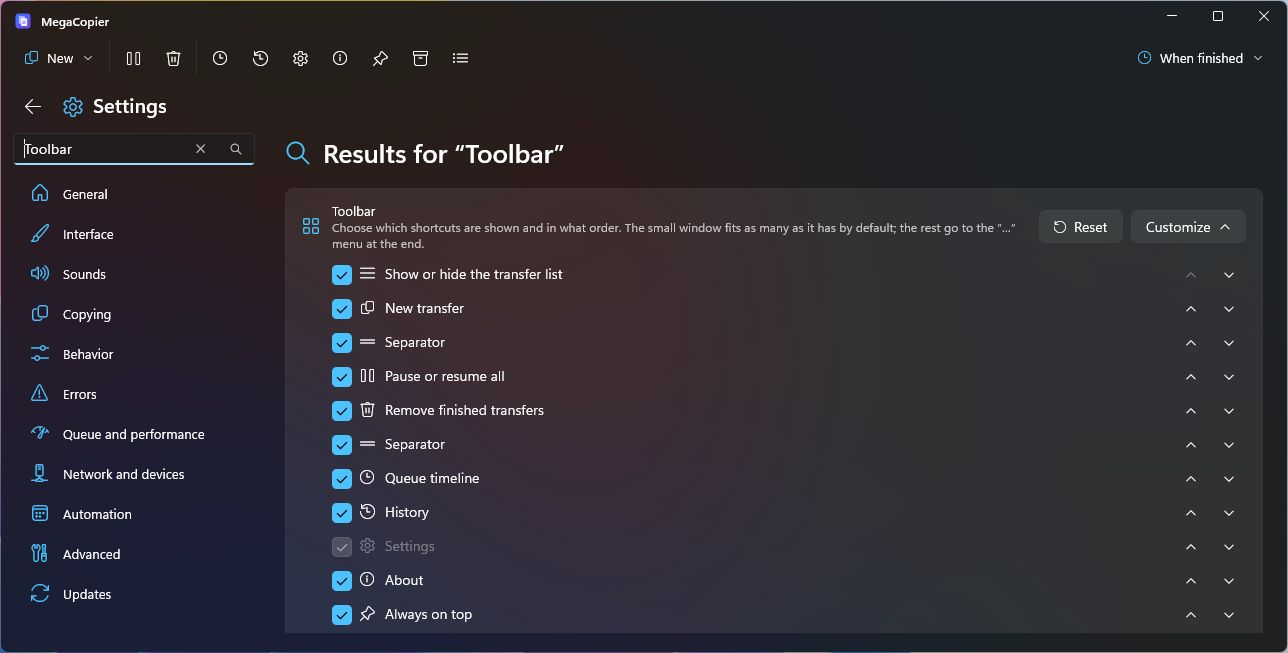
- Customize toolbar shortcuts and their order in Settings › Interface. The compact window keeps its size and places overflow actions in “…”; one button now pauses or resumes all copies.
- Copy an entire drive into a folder bearing its name, excluding Windows internal files. Names incompatible with the destination are adapted automatically, collisions are avoided and each change is logged.
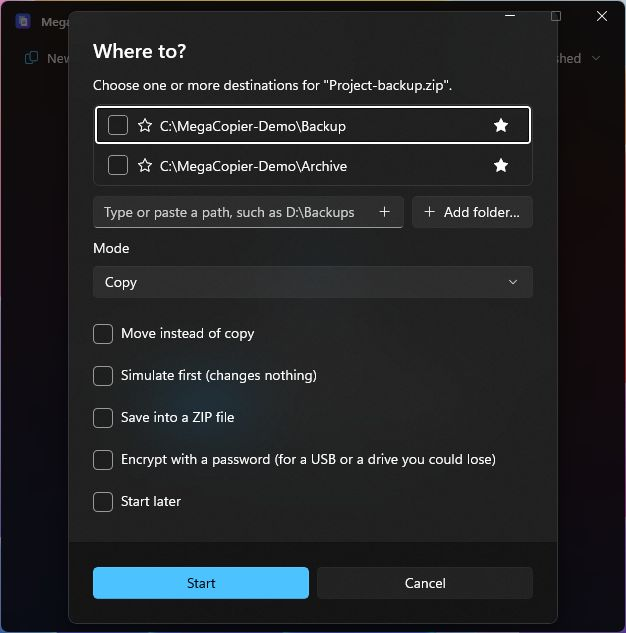
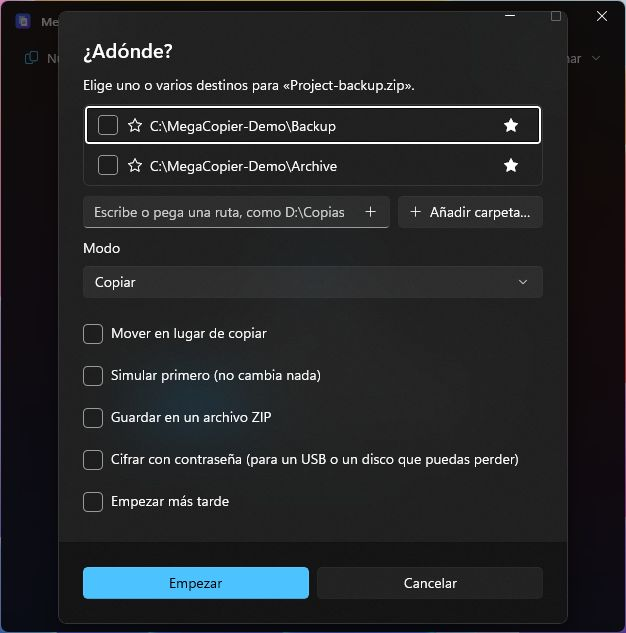
- Type or paste a destination in “Where to?”, get folder suggestions and save favourites with a star. The Status tab adds drive information, free space and folder counts.
- Verify a download by pasting its checksum: MegaCopier detects the algorithm and reports whether the file matches. It can also verify a CRC32 embedded in a file name.
- Tasks can start when a drive is connected, recognize a USB drive after its letter changes, include multiple folder pairs or run without a signed-in session through mcopy.
- Azure Blob Storage, Google Cloud Storage and SharePoint document libraries are now supported. When copying online-only files, MegaCopier warns about the required download and lets you skip them.
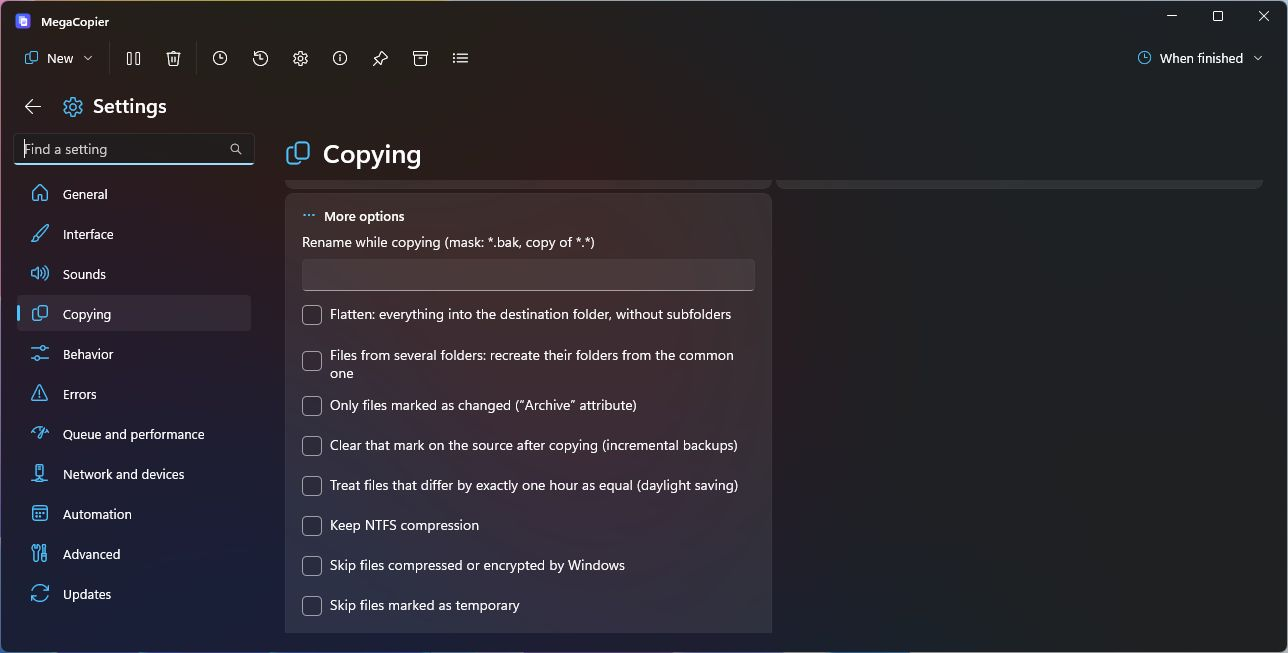
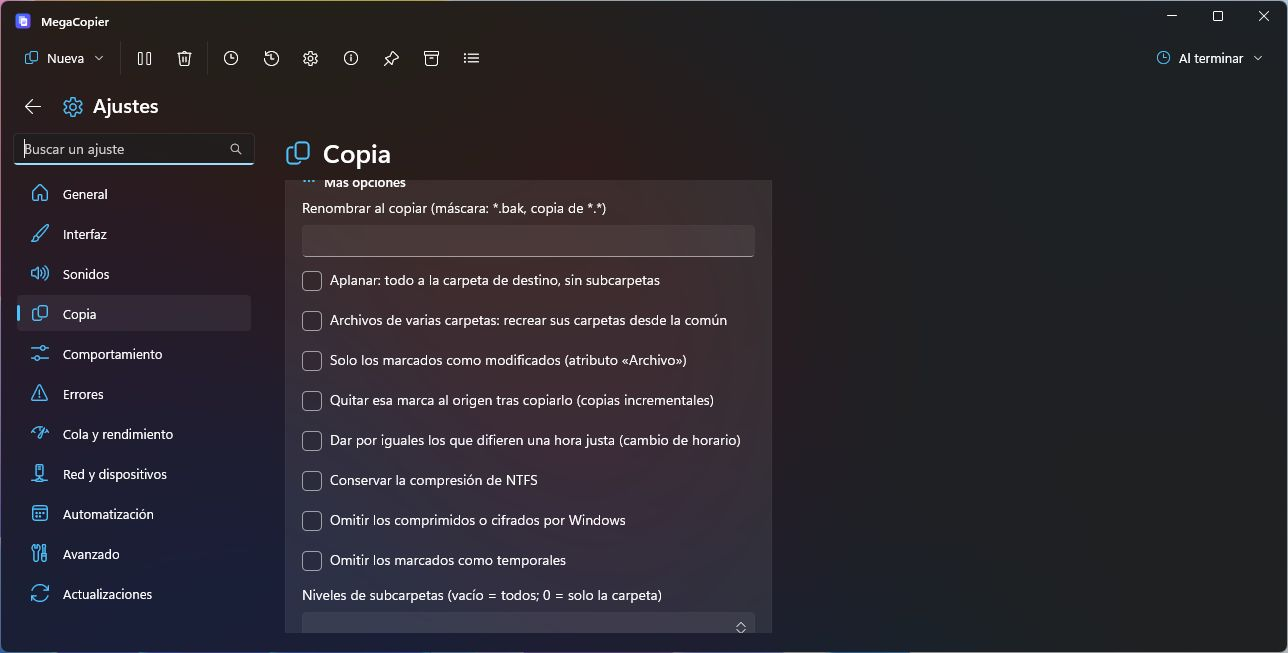
- New rules support renaming, flattening folders, preserving paths and compression, limiting depth and using .mcignore files. mcopy filters, LocalSend receiving choices and combined transfer logging have also been extended.
- Each progress icon restores its corresponding copy, including independent windows. Fixes cover crashes when transfers finish, the starting size of new copies and interface transitions; individual icons appear when their progress is not visible in a window.
Added
-
Show in the taskbar option: turning it off always minimizes windows to the system tray.
-
Customizable toolbar (Settings › Interface): show, hide and reorder its actions, and choose whether “When finished” appears. New actions, hidden by default: “Always on top” (with a pinned icon while on), “Drop shelf” and “Compare and sync”. The list of actions is collapsed and slides open with “Customize”. The small window always keeps the same number of slots as by default and “When finished” keeps its text: if you show more actions, the last slot becomes the “…” menu with the rest. The large window shows everything that fits. The “…” menu also shows the update notice when Settings is inside it.
-
Favorites from “Where to?”: a star on each folder adds it to or removes it from favorites without opening Settings.
-
Copy a whole drive (all of
E:\): its contents go into a folder named after the drive (“Games SSD 500GB (E)”), without what Windows keeps at the root (Recycle Bin, “System Volume Information”, paging files). The new folder does not inherit the root's hidden and system attributes. Moving or deleting a whole drive is still not allowed. -
Names the destination does not accept are fixed instead of failing: trailing spaces and dots are removed, forbidden characters become “_”, reserved names (CON, NUL, COM1…) are avoided and names too long for the drive are shortened while keeping the extension (to 255 bytes on network shares, as Linux NAS devices require). If that makes them match another name, they are numbered. Every change is logged, and valid names are never touched.
-
Files that are only in the cloud (OneDrive, Dropbox or Google Drive “online-only”): before copying you are told how many will be downloaded, and Rules can skip them (“Skip cloud-only files”; also “without cloud-only files” in plain language).
-
Type or paste the destination path in “Where to?”, with subfolder suggestions as you type; Enter adds and selects it.
-
Compare with a checksum (New › Check): pick a file and paste the checksum published on the download page (MD5, SHA-1, SHA-256, SHA-512, SHA3, BLAKE3, xxHash or CRC32). MegaCopier works out the algorithm, reads the file once and tells you whether it matches; it takes the checksum from the clipboard if it is already copied.
-
CRC32 in the name: when checking a folder without checksum files, files that carry their CRC32 in the name (“episode [A1B2C3D4].mkv”) are checked against it.
-
Drives and folders on the Status tab: source and destination with their type, file system and free space, and how many folders are created, apart from the files.
-
LocalSend, what to receive: choose what to do when the file already exists (keep both, do not receive it or replace it) and which types to receive or never receive. Unwanted files are not even requested from the phone.
-
mcopyfilters and lists:--include,--exclude,--min-size,--max-size,--after,--before,--skip-hidden,--skip-system,--skip-cloud,--filter "plain-language text"and sources from a file with@list.txt. -
“When the drive is connected” tasks: a saved task can start by itself every time you connect its USB drive (the destination or, if that is the removable one, the source), with MegaCopier open or in the tray.
-
Drives recognized by serial number: saved tasks and lists keep working when Windows gives the USB drive another letter; the paths are corrected automatically.
-
More clouds: Azure Blob Storage (with a container SAS token), Google Cloud Storage (with HMAC keys) and SharePoint document libraries (Microsoft 365). How to connect them is in the cloud guide.
-
More options in Rules (Settings › Copy and each transfer's Options): rename while copying with a mask (
*.bak,copy of *.*), flatten everything into the destination folder, recreate folders from the one loose files have in common, copy only what is marked as changed (“Archive” attribute) and clear that mark afterwards, treat files that differ by exactly one hour after a daylight-saving change as equal, keep NTFS compression, skip compressed, encrypted or temporary files, limit subfolder levels, filter by last-used date, set folder timestamps and attributes separately and run a command before starting (if it fails, nothing is copied). -
.mcignorefile: put it in a folder with one mask per line (*.tmp,node_modules/,/build) and that is never copied from the folder or its subfolders. -
Also eject the source drive after a successful transfer (the camera card after moving the photos).
-
Ready-made finish commands: notify the phone with ntfy, trigger an IFTTT applet, open the destination or log each transfer to a text file.
-
Single log for all transfers in the format you choose (
%time%,%source%,%destination%,%size%,%hash%,%error%…) and optional forwarding to a network Syslog server. -
More file managers as destinations: folders open in Multi Commander, xplorer2, Explorer++ and XYplorer appear next to those from Explorer, Total Commander and Directory Opus.
-
Several folder pairs in one task: a single task can copy Documents to one place and Photos to another.
-
Tasks without a signed-in user: a scheduled task can run even when nobody is signed in;
mcopyruns it without a window. New commandmcopy run <list.mclist>. -
mcopy:--max-depth,--archive,--dst,--keep-compression,--flatten,--keep-paths,--renameand--run-before.
Screenshots
Toolbar customization, destination paths and favourites, and new copy rules:
Changed
- More room for “Where to?”: from the small window, the window grows while the dialog is open (as with the “already exists” prompt) and the folder list shows longer; it returns to its size when closed.
- Pause all and resume all share one button: it shows pause while copying and play when everything is paused; the shape morphs from one into the other with every icon pack. It has the same shape as the chosen pack’s icon, outline only: rounded with the Windows 11 icons and sharp-cornered (pause as two lines) with the Windows 10 ones.
- The window background no longer turns flat when another window is active: each material switches to its partner when focus is lost and back when it returns. Mica ⇄ Mica Alt (both ways, depending on the choice) and Acrylic ⇄ Translucent.
- The window title in the taskbar and Alt+Tab also shows the speed (“56 % · 11 MB/s”), not only the percentage.
Fixed
-
“New › Copy to › Manage favorites” goes straight to the favorite folders in Settings (Network and devices). It used to open Settings at the first section, or close it if it was already open.
-
Menu icons (such as those in “New”) change when you pick another icon pack, even after several changes without closing the copier. They used to keep the icons of the first pack the menu was opened with.
-
In Settings, switches and drop-downs could stay below each option’s text with the window already wide (after it had been narrow). They now always go back to their place on the right.
-
With the Windows 10 icons, the timeline clock and the information icon looked smaller than the rest of the toolbar: now they are all the same size.
-
With the “Default” theme, MegaCopier switches between light and dark at the same time as Windows, like other apps, without restarting it. Fluent themes also pick up a new accent colour right away.
-
A file whose name ends in a space or dot is read correctly: Windows used to drop that ending when opening it, so a similarly named file could be copied instead.
-
“When finished” shows the dot on the selected option (“Do nothing” by default) from the first time it opens.
-
“Where to?” fits in short windows: the folder list shrinks so it is fully visible, and the rest of the dialog scrolls to the end.
-
Clicking a tray progress icon restores its corresponding copy and window, including in compact view. Icons recover when Explorer restarts.
-
Progress icons request placement directly beside the clock. On systems where Windows retains its overflow cache, signing out and back in once may be necessary; checked with multiple copies.
-
Cancelling the existing-folder question notifies the window that the job ended and hides it when no work remains, instead of leaving an empty transfers window open.
-
Independent windows stop their timers before closing when a copy finishes, avoiding access to a destroyed window and an application crash.
-
The existing-file dialog uses the current acrylic material and starts shrinking the window immediately on dismissal. The Settings sidebar enters only when Settings opens, without repeating the entrance when navigating back between sections.
-
After a batch finishes, automatic mode starts the next copy in the compact view. Remember size stores separate compact, details and multiple-copy dimensions; automatic expansion does not overwrite them.
-
Individual tray progress icons are hidden while that copy's progress is visible in its window and return when the window is minimized or hidden.
-
The existing-file dialog waits for the window to finish growing so it stays centered with its buttons accessible. Closing with X during a conflict cancels the transfer and keeps MegaCopier in the tray without the unexpected WinUI crash.
-
Paste in the modern Desktop menu now recognizes its separate Windows 11 host window. Keyboard shortcuts, modern and classic menus, the navigation pane and the top toolbar share copy, cut and in-place duplication rules. A menu keeps its original destination despite an earlier selection; the toolbar button is prepared before copying and uses the visible tab. Newly activated empty folders and expanded navigation nodes are covered. Shift+Insert and menus opened with the Menu key or Shift+F10, including keyboard activation, are also supported.
-
Desktop drag and drop and paste recognize the actual file view when another application's transparent overlay interferes with accessibility. Desktop and other pinned folders are also recognized when the navigation pane annotates their names. The classic menu recognizes Paste even without its shortcut; Ctrl+V also works when the desktop background retains focus. New installations start dragged transfers without confirmation; the confirmation setting remains available.
-
The Settings sidebar slides in as the window expands, and the copy list also enters with a transition when a second copy is added. Size changes do not interrupt these entrances.
-
During More/Less and opening Settings, bars, figures and controls adapt to the visible size on every frame, instead of adopting the final width too early. Sliding transitions and protection against black blocks are preserved; the list does not restart a second entrance animation after growing.
-
More/Less, Settings and the other views again resize the actual window gradually. Size constraints are applied when the transition ends, preventing abrupt opening or closing; the internal graphics surface keeps its size during movement to avoid black strips and distorted text.
-
Expanded content slides with pixel-aligned positions and exits downward when collapsing, without leaving headers over the compact window. Rapid clicks can reverse the transition; collapsing from maximized avoids overlapping Windows zoom animations.
Install: download MegaCopier-Setup-1.9.0.exe (64-bit Windows 11). SHA-256 checksums are in SHA256SUMS.txt. For Windows code-signing status, see the code-signing policy.
Español
Resumen
- Copiar, cortar, pegar y arrastrar desde el Escritorio y el Explorador usan MegaCopier en más situaciones, incluidos los menús moderno y clásico de Windows 11, el teclado y el botón superior de pegar. Las preguntas de archivos existentes se centran, conservan el acrílico y dejan de mantener ventanas vacías al cancelar.
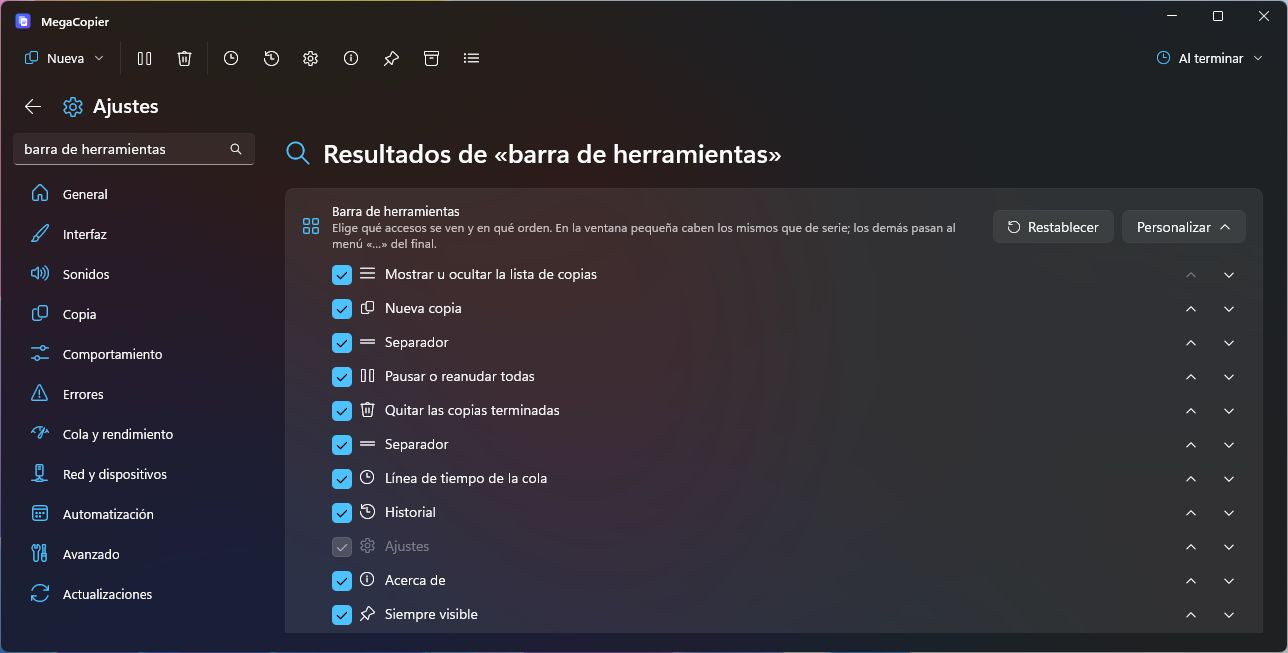
- Personaliza los accesos y el orden de la barra de herramientas desde Ajustes › Interfaz. La ventana pequeña conserva su tamaño y reúne lo que no cabe en «…»; pausar y reanudar todas las copias comparten un único botón.
- Copia una unidad entera a una carpeta con su nombre, sin los archivos internos de Windows. Los nombres incompatibles con el destino se adaptan automáticamente, se evitan colisiones y cada cambio queda en el registro.
- Escribe o pega la ruta en «¿Adónde?», recibe sugerencias y guarda favoritos con una estrella. La pestaña Estado añade información de los discos, espacio libre y número de carpetas.
- Comprueba una descarga pegando su suma: MegaCopier reconoce el algoritmo y te dice si el archivo coincide. También puede verificar el CRC32 incluido en el nombre de un archivo.
- Las tareas pueden arrancar al conectar un disco, reconocer un USB aunque cambie de letra, incluir varias parejas de carpetas o ejecutarse sin una sesión iniciada mediante mcopy.
- Se añaden Azure Blob Storage, Google Cloud Storage y bibliotecas de SharePoint. Al copiar archivos «solo en línea», MegaCopier avisa de la descarga necesaria y permite omitirlos.
- Nuevas reglas permiten renombrar, aplanar carpetas, conservar rutas y compresión, limitar la profundidad y usar archivos .mcignore. Se amplían los filtros de mcopy, las opciones de recepción de LocalSend y el registro conjunto de transferencias.
- Cada icono de progreso recupera su copia, también con ventanas independientes. Se corrigen los cierres al terminar, el tamaño inicial de las nuevas copias y las transiciones de la interfaz; los iconos individuales aparecen cuando su progreso no está visible en la ventana.
Añadido
-
Opción «Mostrar en la barra de tareas»: al desactivarla, minimizar siempre lleva la ventana a la bandeja del sistema.
-
Barra de herramientas a tu gusto (Ajustes › Interfaz): muestra, oculta y ordena sus accesos, y decide si se ve «Al terminar». Nuevos accesos, ocultos de serie: «Siempre visible» (con la chincheta clavada cuando está activo), «Bandeja de arrastre» y «Comparar y sincronizar». La lista de accesos va plegada y se despliega deslizándose con «Personalizar». La ventana pequeña tiene siempre los mismos huecos que de serie y «Al terminar» con su texto: si muestras más accesos, el último hueco es el menú «…» con el resto. En la ventana grande se ve todo lo que quepa. El menú «…» también avisa de una actualización si Ajustes está dentro.
-
Favoritos desde «¿Adónde?»: una estrella en cada carpeta la guarda en favoritos o la quita, sin pasar por Ajustes.
-
Copiar una unidad entera (
E:\completa): su contenido va a una carpeta con el nombre del disco («Juegos SSD 500GB (E)»), sin lo que Windows guarda en la raíz (Papelera, «System Volume Information», archivos de paginación). La carpeta nueva no hereda los atributos de oculta y de sistema de la raíz. Mover o borrar una unidad entera sigue sin permitirse. -
Nombres que el destino no admite: se arreglan solos en lugar de fallar. Se quitan los espacios y puntos del final, se cambian los caracteres prohibidos por «_», se evitan los nombres reservados (CON, NUL, COM1…) y se recortan los nombres demasiado largos para el disco conservando la extensión (en carpetas de red, a 255 bytes, como piden los NAS con Linux). Si así coincidieran con otro, se numeran. Cada cambio queda en el registro, y los nombres válidos no se tocan.
-
Archivos que solo están en la nube (OneDrive, Dropbox o Google Drive «solo en línea»): antes de copiar se avisa de cuántos se van a descargar, y en Reglas se pueden omitir («Omitir los que solo están en la nube»; también «sin los que solo están en la nube» en lenguaje normal).
-
Escribir o pegar la ruta de destino en «¿Adónde?», con sugerencias de subcarpetas mientras escribes; Intro la añade y la marca.
-
Comparar con una suma (Nueva › Comprobar): elige un archivo y pega la suma que publica la web de descarga (MD5, SHA-1, SHA-256, SHA-512, SHA3, BLAKE3, xxHash o CRC32). MegaCopier deduce el algoritmo, lee el archivo una sola vez y dice si coincide; la toma del portapapeles si ya está copiada.
-
CRC32 en el nombre: al comprobar una carpeta sin archivos de sumas, los archivos que llevan su CRC32 en el nombre («capítulo [A1B2C3D4].mkv») se comprueban con él.
-
Unidades y carpetas en la pestaña Estado: origen y destino con su tipo, sistema de archivos y espacio libre, y cuántas carpetas se crean, aparte de los archivos.
-
LocalSend, qué recibir: elige qué hacer si el archivo ya está (conservar los dos, no recibirlo o sustituirlo) y qué tipos recibir o no recibir nunca. Lo que no se quiere ni se pide al móvil.
-
mcopycon filtros y listas:--include,--exclude,--min-size,--max-size,--after,--before,--skip-hidden,--skip-system,--skip-cloud,--filter "texto en lenguaje normal"y orígenes desde un archivo con@lista.txt. -
Tareas «al conectar el disco»: una tarea guardada puede empezar sola cada vez que conectas su USB (el de destino o, si es él el extraíble, el de origen), con MegaCopier abierto o en la bandeja.
-
Discos reconocidos por su número de serie: las tareas y las listas guardadas siguen funcionando aunque Windows le dé otra letra al USB; las rutas se corrigen solas.
-
Más nubes: Azure Blob Storage (con un token SAS del contenedor), Google Cloud Storage (con claves HMAC) y las bibliotecas de documentos de SharePoint (Microsoft 365). Cómo conectarlas, en la guía de nubes.
-
Más opciones en Reglas (Ajustes › Copia y Opciones de cada copia): renombrar al copiar con una máscara (
*.bak,copia de *.*), aplanar todo en la carpeta de destino, recrear las carpetas desde la que tienen en común los archivos sueltos, copiar solo lo marcado como modificado (atributo «Archivo») y quitar esa marca al terminar, dar por iguales los archivos que difieren una hora justa tras el cambio de horario, conservar la compresión de NTFS, omitir lo comprimido, cifrado o temporal, limitar los niveles de subcarpetas, filtrar por la fecha de último uso, decidir aparte las fechas y atributos de las carpetas y ejecutar una orden antes de empezar (si falla, no se copia). -
Archivo
.mcignore: déjalo en una carpeta con una máscara por línea (*.tmp,node_modules/,/build) y eso no se copiará nunca de ella ni de sus subcarpetas. -
Expulsar también la unidad de origen al terminar bien (la tarjeta de la cámara tras pasar las fotos).
-
Ejemplos de órdenes al terminar: avisar al móvil con ntfy, lanzar un applet de IFTTT, abrir el destino o anotar cada copia en un archivo de texto, listos para añadir.
-
Registro único de todas las copias con el formato que elijas (
%time%,%source%,%destination%,%size%,%hash%,%error%…) y envío opcional a un servidor Syslog de la red. -
Más gestores de archivos como destino: las carpetas abiertas en Multi Commander, xplorer2, Explorer++ y XYplorer aparecen junto a las del Explorador, Total Commander y Directory Opus.
-
Varias parejas de carpetas en una tarea: una sola tarea puede copiar Documentos a un sitio y Fotos a otro.
-
Tareas sin sesión iniciada: una tarea programada puede hacerse aunque nadie haya iniciado sesión; la hace
mcopysin ventana. Nueva ordenmcopy run <lista.mclist>. -
mcopy:--max-depth,--archive,--dst,--keep-compression,--flatten,--keep-paths,--renamey--run-before.
Capturas
Personalización de la barra de herramientas, entrada de rutas y favoritos, y nuevas reglas de copia:
Cambiado
- «¿Adónde?» con más sitio: desde la ventana pequeña, la ventana crece mientras el diálogo está abierto (como con el aviso de «ya existe») y la lista de carpetas se ve más larga; al cerrarlo vuelve a su tamaño.
- Pausar y reanudar todas en un solo botón: muestra la pausa mientras se copia y reproducir cuando lo que hay está en pausa; la figura se transforma de una en otra, con cualquier conjunto de iconos. Es la misma forma que el icono del conjunto elegido, solo contorno: redondeada con los iconos de Windows 11 y de esquinas vivas (la pausa, dos líneas) con los de Windows 10.
- El fondo de la ventana no se apaga al usar otra: cada material pasa a su pareja al perder el foco y vuelve al recuperarlo. Mica ⇄ Mica Alt (en los dos sentidos, según el elegido) y Acrílico ⇄ Translúcida.
- El título de la ventana en la barra de tareas y en Alt+Tab muestra también la velocidad («56 % · 11 MB/s»), no solo el porcentaje.
Arreglado
-
«Nueva › Copiar a › Gestionar favoritos» lleva directamente a las carpetas favoritas de Ajustes (Red y dispositivos). Antes abría Ajustes por la primera sección, o lo cerraba si ya estaba abierto.
-
Los iconos de los menús (como el de «Nueva») cambian al elegir otro conjunto de iconos, aunque se cambie varias veces sin cerrar el copiador. Antes se quedaban con los del primer conjunto con el que se abrió el menú.
-
En Ajustes, los interruptores y desplegables podían quedarse debajo del texto de cada opción con la ventana ya ancha (después de haberla tenido estrecha). Ahora vuelven siempre a su sitio, a la derecha.
-
Con los iconos de Windows 10, el reloj de la línea de tiempo y el de información se veían más pequeños que el resto de la barra: ahora todos tienen el mismo tamaño.
-
Con el tema «Por defecto», MegaCopier cambia entre claro y oscuro a la vez que Windows, como las demás apps, sin tener que cerrarlo. Los temas Fluent también toman al momento un color de acento nuevo.
-
Un archivo cuyo nombre acaba en espacio o punto se lee bien: antes Windows quitaba ese final al abrirlo y se podía copiar otro archivo con el nombre parecido.
-
«Al terminar» marca con su punto la opción elegida («No hacer nada» de serie) desde la primera vez que se abre.
-
«¿Adónde?» cabe en ventanas bajas: la lista de carpetas se encoge para que se vea entera y el resto del diálogo se puede desplazar hasta el final.
-
Al pulsar un icono de progreso se recupera su copia y su ventana correspondiente, también en la vista compacta. Los iconos se recuperan al reiniciarse el Explorador.
-
Los iconos de progreso solicitan mostrarse directamente junto al reloj. En equipos donde Windows mantiene su caché de ocultos puede hacer falta cerrar sesión y volver a entrar una vez; comprobado con varias copias.
-
Cancelar la pregunta de carpeta existente comunica el final a la ventana y la oculta cuando ya no queda trabajo, evitando dejar «No hay copias» abierto.
-
Las ventanas independientes detienen sus temporizadores antes de cerrarse al terminar una copia, evitando consultar una ventana ya destruida y cerrar la aplicación.
-
El aviso de archivos existentes recupera el acrílico del tema y empieza a encoger la ventana en cuanto se cierra, sin espera adicional. La entrada del menú lateral de Ajustes solo se reproduce al abrirlo, no al retroceder entre secciones.
-
Tras terminar una tanda de copias, el modo automático vuelve a iniciar en la vista pequeña. «Recordar tamaño» conserva por separado el ancho compacto y los tamaños de detalles y de varias copias; las ampliaciones automáticas no sustituyen esos tamaños.
-
Los iconos individuales de progreso de la bandeja se ocultan mientras el progreso de esa copia está visible en su ventana y reaparecen al minimizarla u ocultarla.
-
El aviso «El archivo ya existe» espera a que la ventana termine de crecer para centrarse y mantener sus botones accesibles. Cerrar con la X durante un conflicto cancela la copia y deja MegaCopier en la bandeja, sin el cierre inesperado de WinUI.
-
«Pegar» del menú moderno del Escritorio ya reconoce su ventana independiente de Windows 11. Teclado, menús moderno y clásico, panel lateral y barra superior comparten las reglas de copiar, cortar y duplicar en el mismo sitio. Se respeta la carpeta donde se abrió el menú aunque haya una selección anterior; el botón superior se prepara antes de copiar y usa la pestaña visible. Se cubren las carpetas vacías recién activadas y los nodos desplegados del panel lateral. También se admiten Mayús+Insertar y menús abiertos con la tecla de menú o Mayús+F10, con activación por teclado.
-
Los arrastres y el pegado en el Escritorio reconocen la vista real aunque una capa transparente de otra aplicación interfiera con la accesibilidad. También se reconoce Escritorio y otras carpetas ancladas cuando el panel lateral añade anotaciones a sus nombres. El menú clásico reconoce «Pegar» aunque no publique su atajo; Ctrl+V también funciona cuando el fondo del Escritorio conserva el foco. Las instalaciones nuevas inician los arrastres sin confirmación previa; el ajuste de preguntar sigue disponible.
-
El menú lateral de Ajustes entra deslizándose al expandir la ventana, y la lista de copias también aparece con una transición al añadir una segunda copia. Los cambios de tamaño no interrumpen esas entradas.
-
Durante «Más/Menos» y la apertura de Ajustes, las barras, cifras y controles se adaptan al tamaño visible en cada fotograma, en lugar de adoptar el ancho final antes de tiempo. Se conserva el deslizamiento y la protección contra cuadros negros; la lista no reinicia una segunda animación de entrada al terminar de crecer.
-
«Más/Menos», Ajustes y las demás vistas recuperan el cambio gradual del tamaño real de la ventana. Los límites de tamaño se aplican al terminar, evitando la apertura o el cierre de golpe; la superficie gráfica interna conserva su tamaño durante el movimiento para no mostrar franjas negras ni deformar el texto.
-
El contenido de «Más» se desliza con posiciones alineadas a píxeles y sale hacia abajo al plegarse, sin dejar cabeceras sobre la ventana pequeña. Las pulsaciones rápidas pueden invertir la transición; desde maximizado se evita superponer el zoom de Windows.
Instalar: descarga MegaCopier-Setup-1.9.0.exe (Windows 11, 64 bits). Las sumas SHA-256 están en SHA256SUMS.txt. Consulta el estado de la firma de Windows en la política de firma.