Repository navigation

NoteTweet 0.7.1
Scheduling a post no longer needs the Natural Language Dates plugin: you pick the time with your device's own date and time picker. The composer keeps your draft open until it's posted or scheduled, and on phones it stays above the keyboard and no longer hides the text you're typing. Each vault now keeps its own scheduler password, and the plugin is less than half the size it was.
To update, open Settings → Community plugins, click Check for updates, and then Update next to NoteTweet.
Pick the schedule time with a date picker
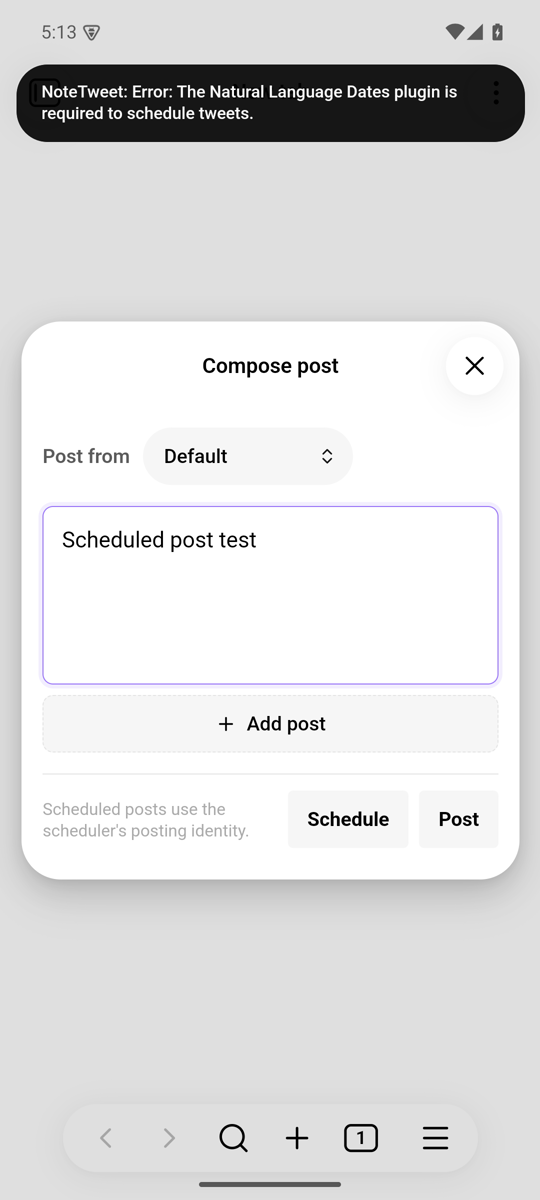
Scheduling a post needed the Natural Language Dates community plugin. You typed a time such as tomorrow at 9am into a text prompt, and if that plugin wasn't installed, you only found out afterwards, from an error notice.
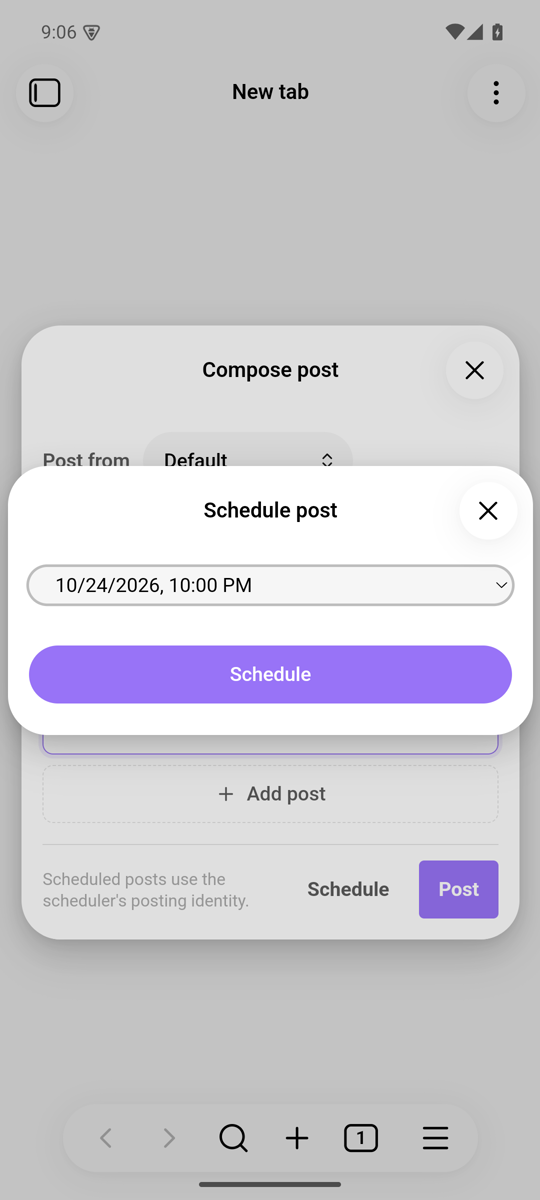
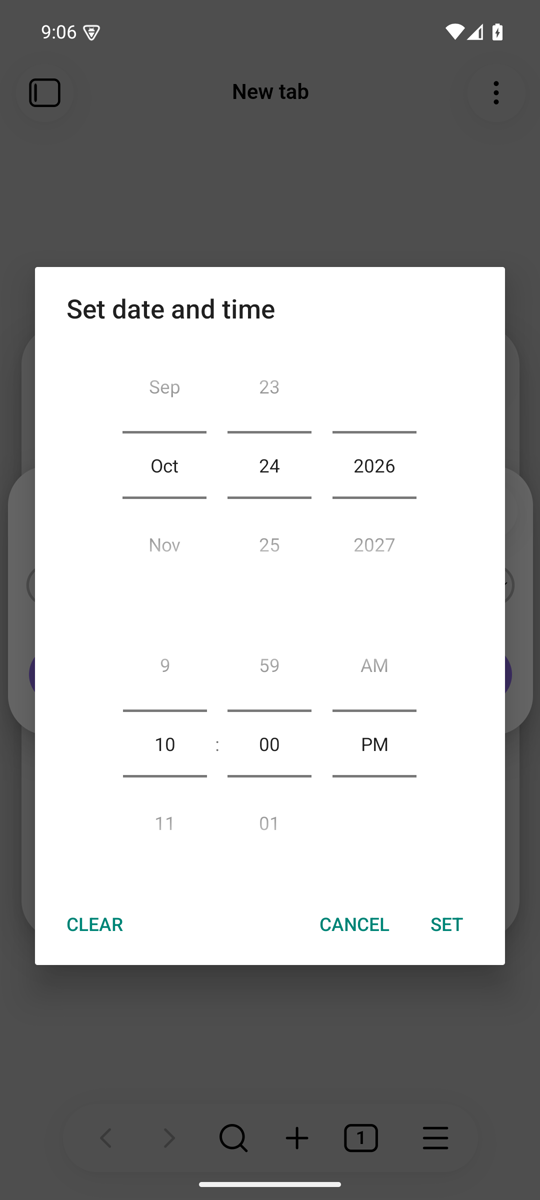
Now Schedule opens a small Schedule post window with a date and time field. On mobile, tapping it opens your system's date and time picker. On desktop, you type or step through the date and time in the field. It starts at the next full hour, or at the post's current time when you reschedule from Scheduled tweets.
| Before | After | The picker on Android |
|---|---|---|
 |
 |
 |
Schedule is turned off, with "Pick a valid time in the future.", when the time is in the past, the field is cleared, or the time doesn't exist, such as 02:30 on the night the clocks spring forward. If the time passes while the window is open, NoteTweet catches it when you click Schedule.
If you installed Natural Language Dates only for NoteTweet, you can uninstall it. Your scheduler doesn't need any changes.
Your draft stays open until it's sent
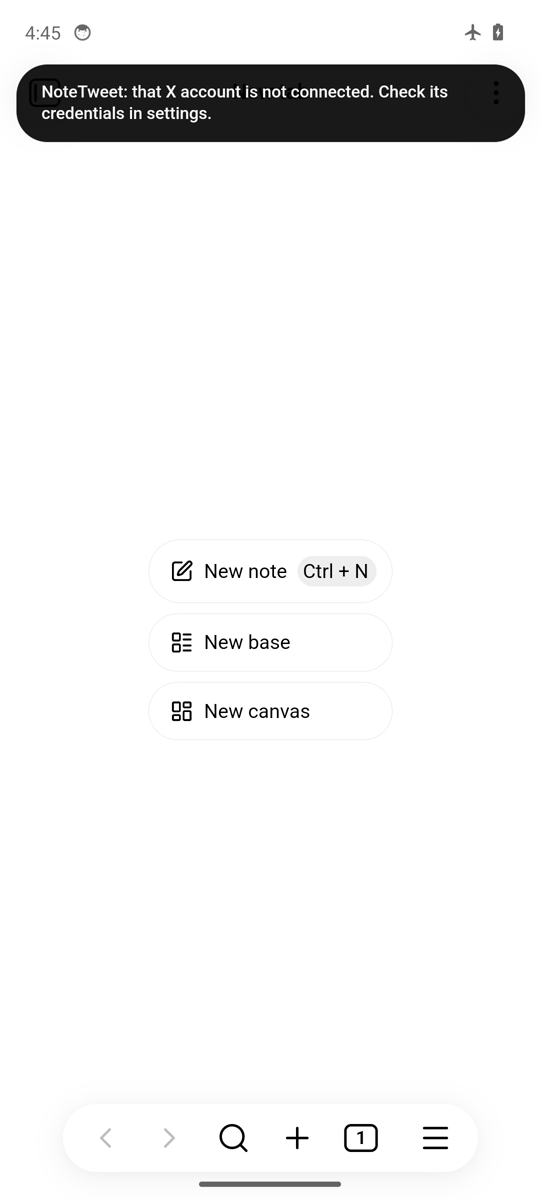
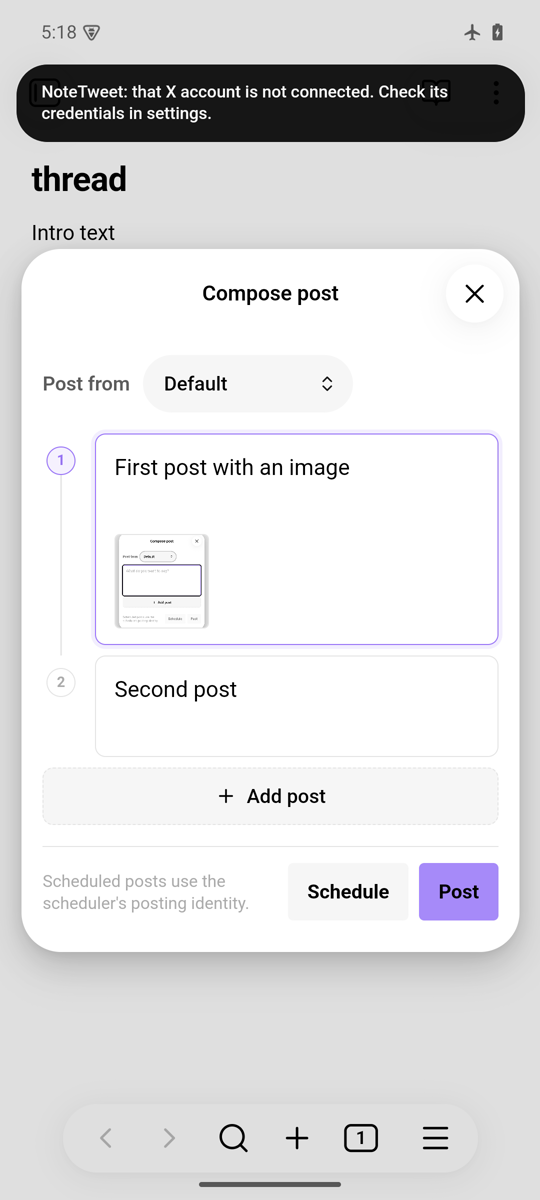
The composer closed as soon as you clicked Post, before anything was sent. If the post then failed, because you were offline, the account's keys were revoked, or X rejected the post, everything you wrote was gone. The same happened when scheduling failed.
Now the composer stays open while it sends, and the button reads Posting… or Scheduling…. The draft can't be edited while it sends, so nothing you type gets lost. If nothing went out, the composer stays open with your text, images, and selected account, and a notice shows the error. If a thread fails part-way, the notice says Posted 2 of 5, the rest failed: …, the posts that went out are listed so you can undo them, and the full draft stays open.
| Before (offline) | After (offline) |
|---|---|
 |
 |
The composer on phones
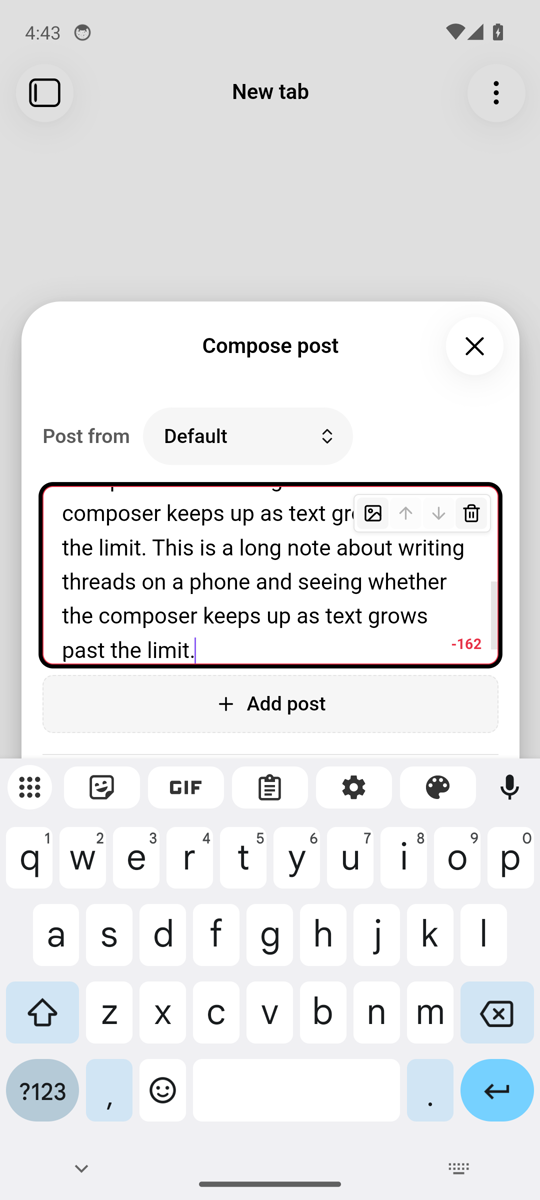
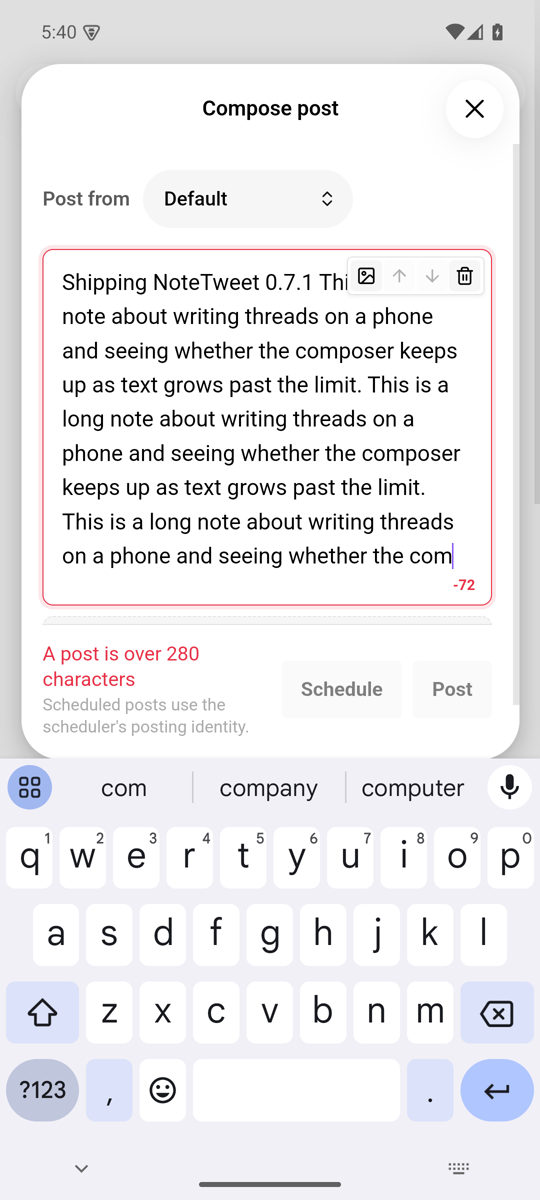
On Obsidian mobile, the keyboard covered the bottom of the composer while you typed, including Post, Schedule, and the "A post is over 280 characters" message. You had to close the keyboard to see why Post was turned off. The composer now sits between the top of the screen and the keyboard, and the line you're typing stays above the buttons.
| Before | After |
|---|---|
 |
 |
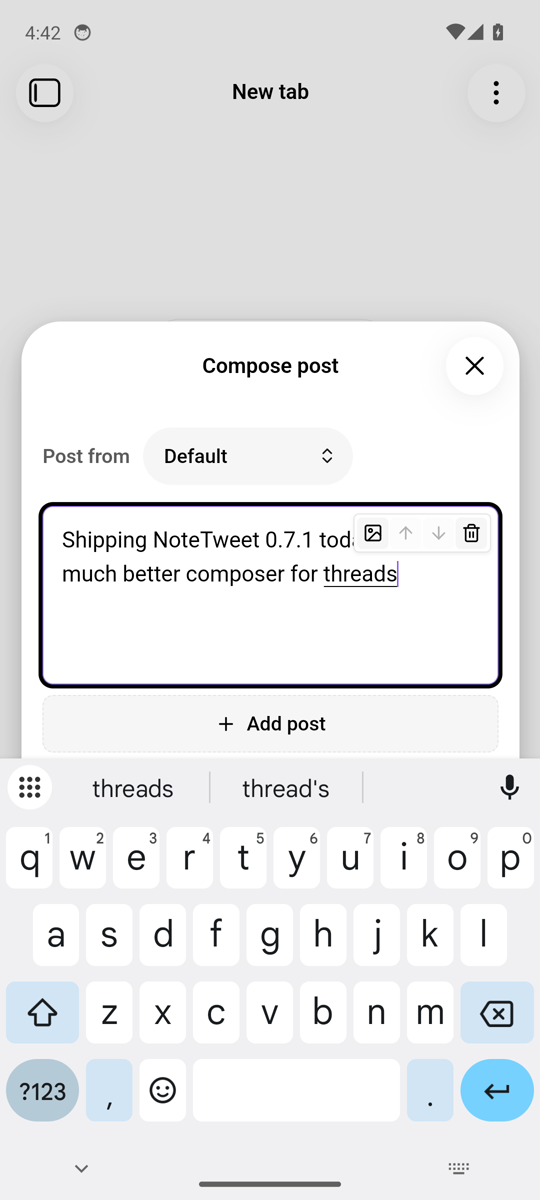
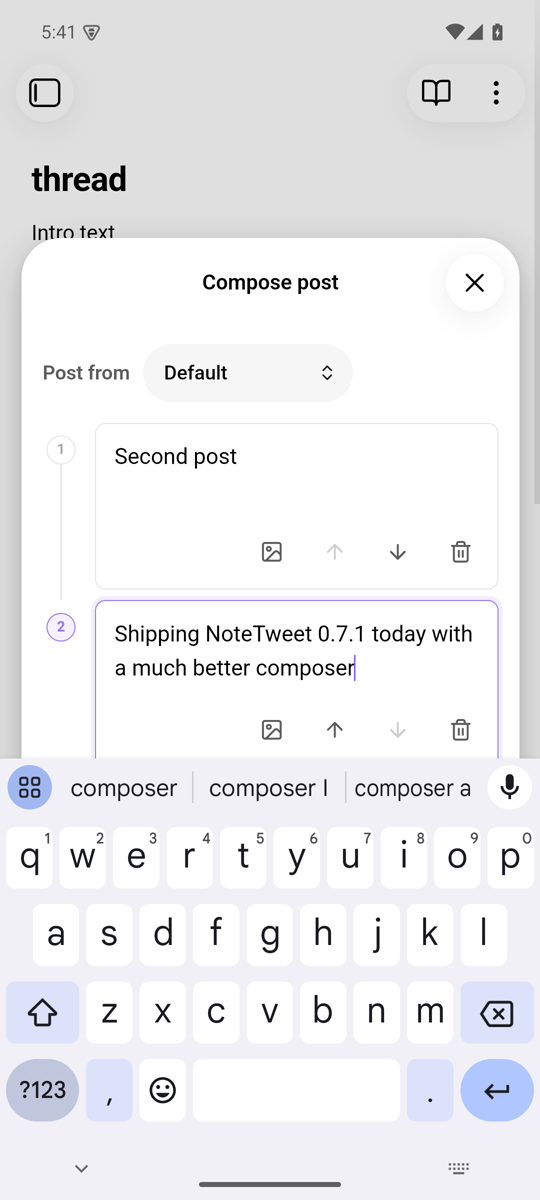
Each post's buttons (attach image, move up, move down, delete) floated over the end of the first line and covered what you were typing. Phones have no hover, so they also stayed on whichever post you tapped last. On phones, they're now a row under the text, with buttons big enough to tap, and the button that removes an attached image is always visible. On desktop, they still show when you hover over a post.
| Before | After |
|---|---|
 |
 |
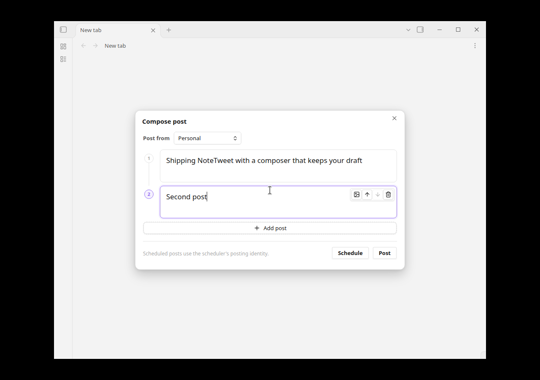
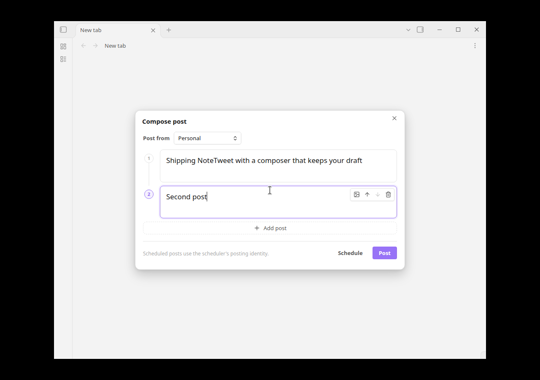
On every platform, Obsidian's default button style won over the composer's, so Post was never in your accent color, and Schedule, Add post, and the post toolbar had a gray fill. They now look as intended. A tapped button also no longer stays highlighted on touch screens.
| Desktop before | Desktop after |
|---|---|
 |
 |
A post with a long URL also no longer makes the composer wider than its window, which pushed the post's buttons out of view.
Each vault keeps its own scheduler password
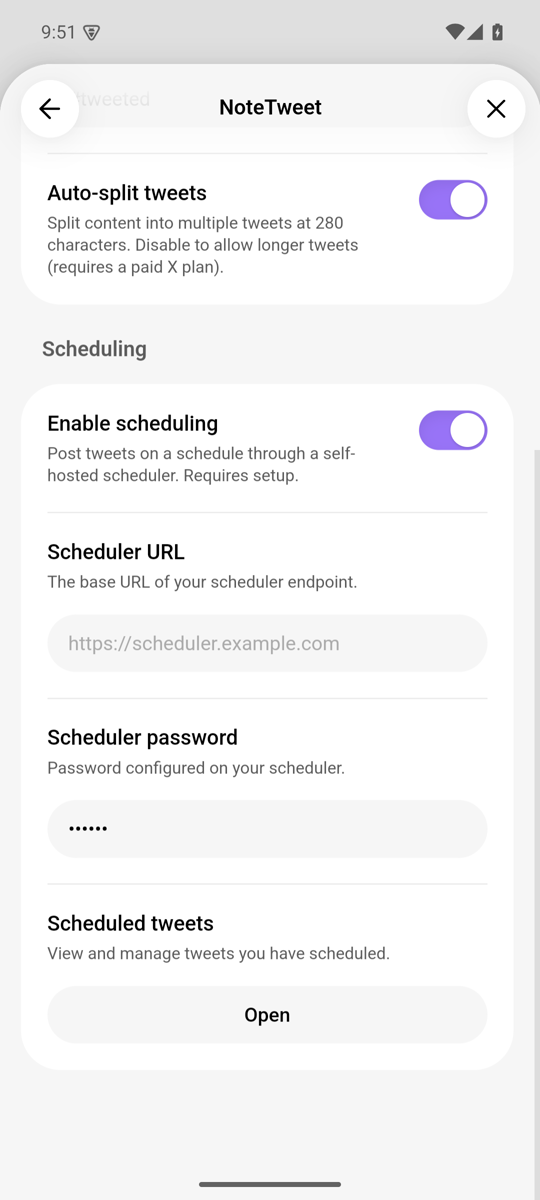
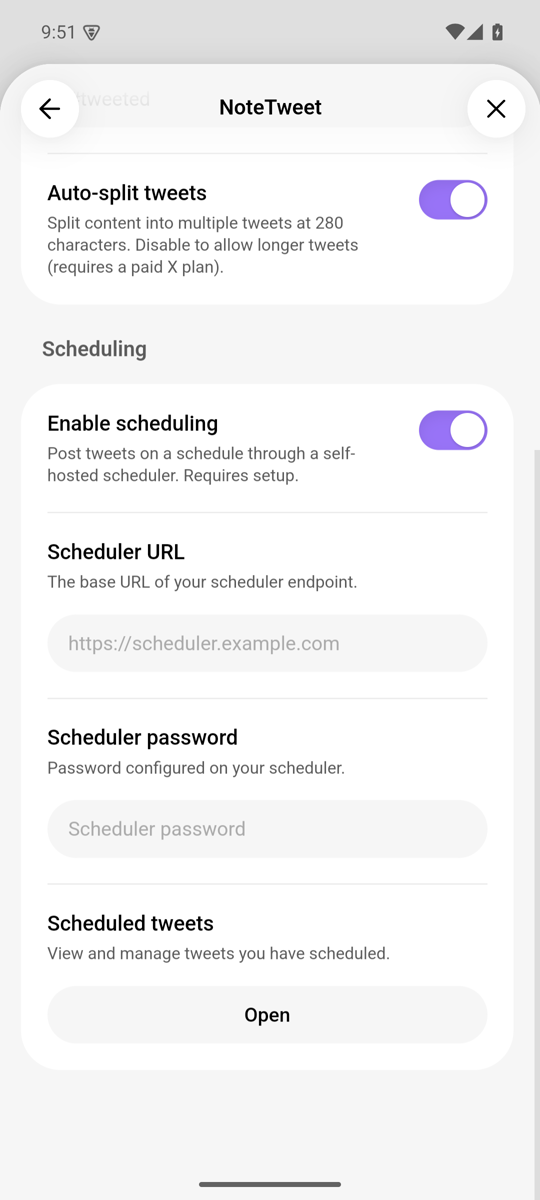
Obsidian keeps secrets per device, not per vault, and NoteTweet stored the scheduler password under one fixed name. So a new vault's settings showed the scheduler password from another vault, and two vaults that used different schedulers overwrote each other's password. Now each vault stores its own.
| Before (a brand-new vault) | After (a brand-new vault) |
|---|---|
 |
 |
When you update:
- If a vault had scheduling turned on, or a scheduler URL filled in, it keeps using the password you already saved on that device. You don't need to enter it again.
- Once you change or clear the password in a vault on a device, that vault uses only its own password on that device.
- Vaults that hadn't set up scheduling start with an empty password.
- The old shared password is not deleted, so vaults you haven't updated yet keep working.
- A copy of a vault folder shares its scheduler password with the original.
Connection status on phones
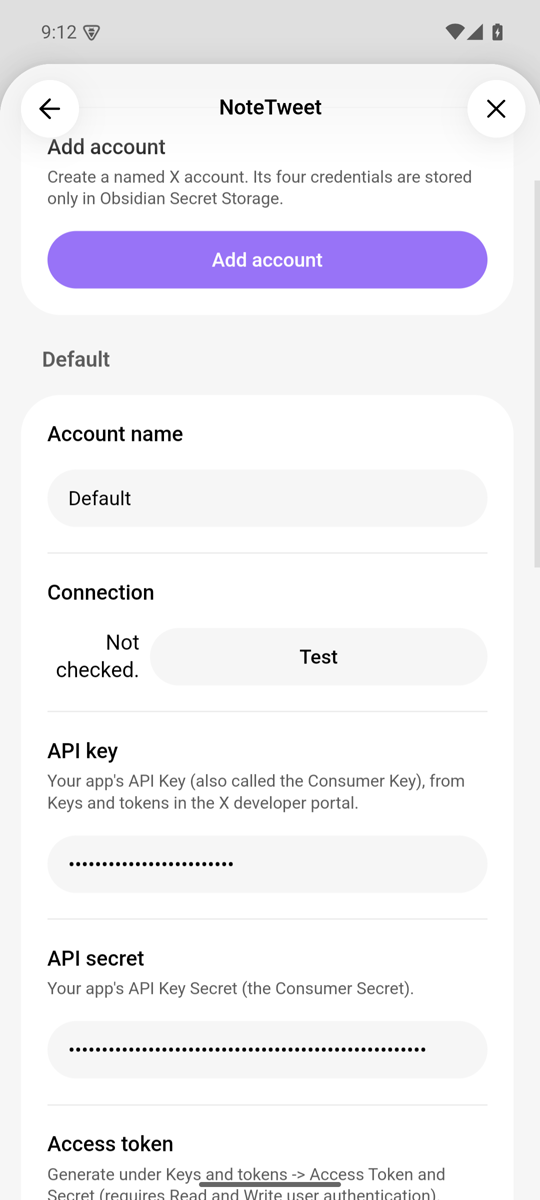
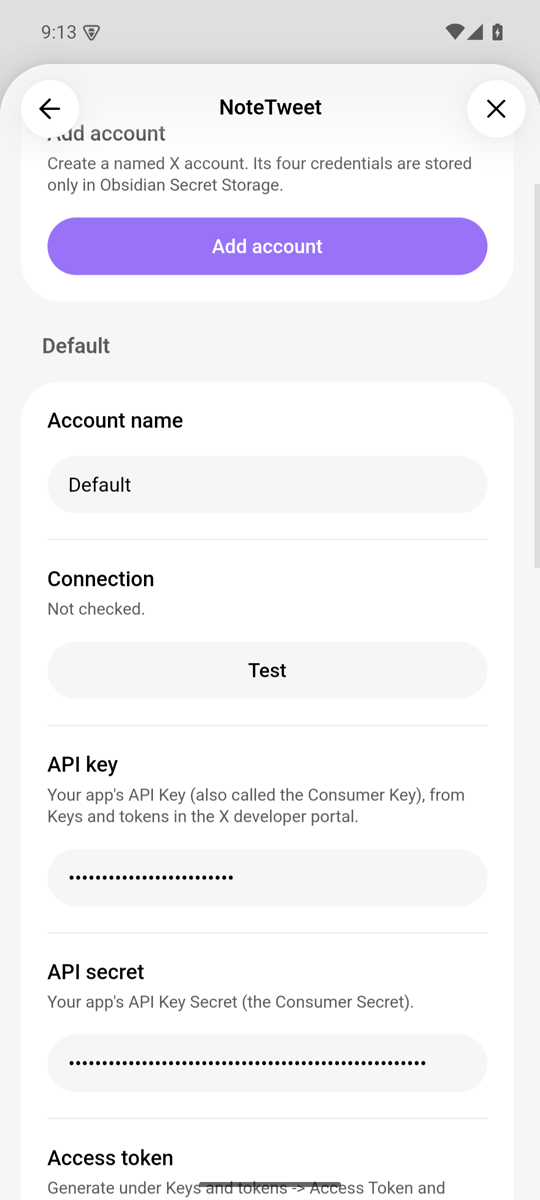
On phones, each X account's Connection row squeezed "Not checked." or the test result into a narrow column next to a full-width Test button. The status now shows under the Connection heading, still green or red after a test. On desktop, it moved under the heading too.
| Before | After |
|---|---|
 |
 |
A smaller plugin
main.js went from about 332 KB to about 137 KB. NoteTweet bundled all of the crypto-es library only to read credentials from older Secure Mode versions, so it now decrypts those with the browser's built-in Web Crypto. The migration from Secure Mode works as before. NoteTweet also no longer bundles the core-js polyfills that came with X's twitter-text library, which changed built-in JavaScript objects that Obsidian and other plugins share.
Also in this release
For contributors: a security sweep went through every dependency, updating or removing them where needed. It took pnpm audit from 33 advisories to none, and closed the open Dependabot alerts. It moved to Node 24, pnpm 12, Vitest 5, and ESLint 10, and installs only releases that are at least 7 days old, apart from our own test tooling (#77). The unit tests use obsidian-test-kit 0.2.0 (#81). Releases now run on version 5 of the shared release workflows, and Prepare release has a dryRun option (#78, #80, #82).
Pull requests: #83, #85, #86, #87, #88, #89, #90.
Full changelog: 0.7.0...0.7.1