Repository navigation
Guide landing pages
A landing (pre-landing, prelander) is your own page that the visitor sees before the offer: a story, a quiz, a review, a "special price" page. It warms the visitor up, and a warmer visitor converts better. The button on it leads to the offer through the tracker, so Orbitra knows who clicked.
Do you need one? For many offers a direct link works fine. A landing is worth testing when the offer page is cold, when the ad cannot say everything, or when you want to pre-qualify visitors.
| Type | Where the page lives | When to use |
|---|---|---|
| Local | You upload a ZIP; Orbitra serves it from your domain | The usual choice — fastest, and the button link is filled in automatically |
| Redirect | On your own hosting or another domain | You already host the page elsewhere |
| Preload | Another URL, fetched by Orbitra and shown under your domain | Quick reuse of an existing page |
| Action | Nothing is shown; the tracker does something | Special cases |
| PWA | An installable "app" built in the panel | See PWA apps |
- Prepare the page: a folder with
index.html(and its images, CSS, JS) zipped into one archive. Use relative paths (img/photo.jpg). - Make the button lead to the offer with the
{offer}macro:
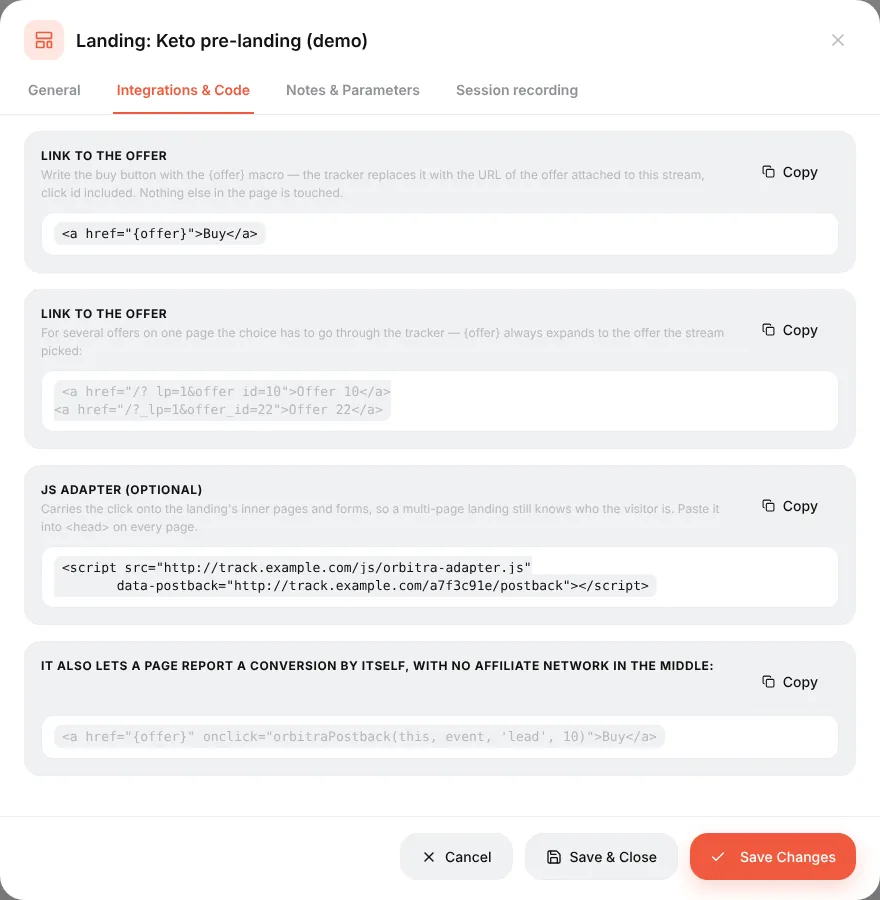
<a href="{offer}">Get the offer</a>Orbitra replaces {offer} with a tracked link to the offer chosen in the stream. You do not paste the offer URL into the page.
- Landings → Create → type Local → name, folder (optional) → drop the ZIP → Create Landing.
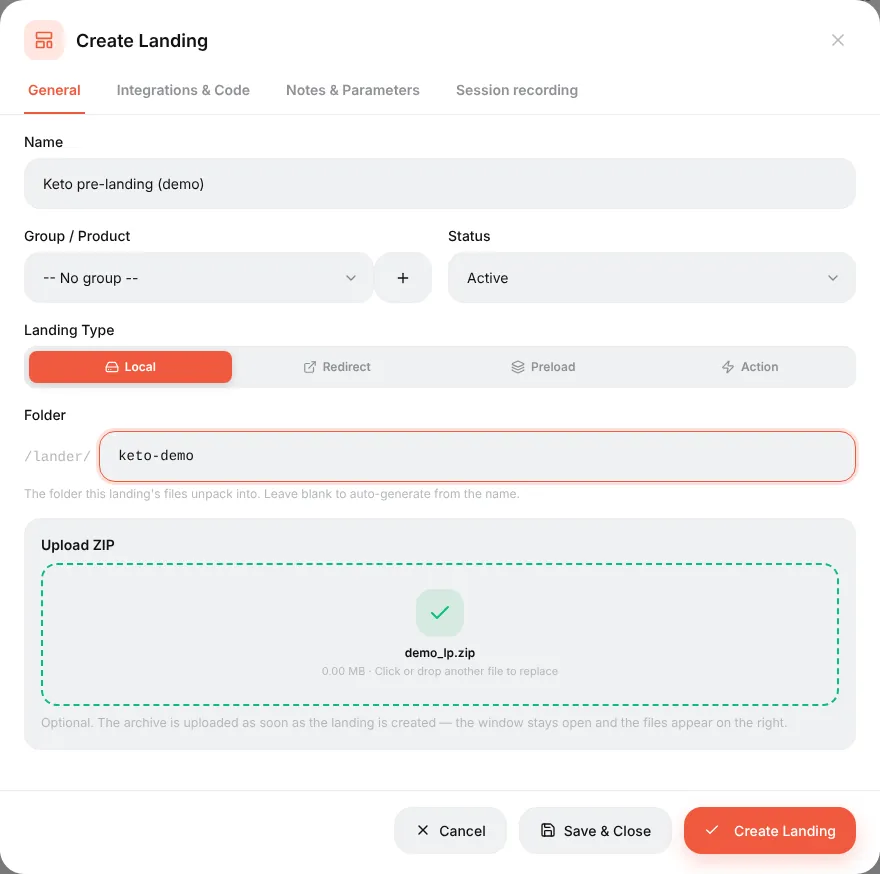
The files appear in the built-in file manager, where you can edit them without re-uploading.
Several offers on one page (for example, three products): link each button to a specific offer — <a href="{offer}&offer_id=10">. To pass a choice made on the page (a product, a quiz answer) to the offer, add sub_id_5=… to the link; the offer URL can use it as {sub_id_5}. Details: Landing pages (reference).
The landing is on your hosting, so the page cannot use {offer}. Install the tracking script from the landing's Integrations & Code tab into the page's <head>, and link the button to /?_lp=1 as shown there. The script lets the tracker recognise the visitor coming back from your site.
In a stream choose the schema Landing + Offer, press Add landing pages and Add offers. Several landings are split by weight — the easiest way to A/B test landings.
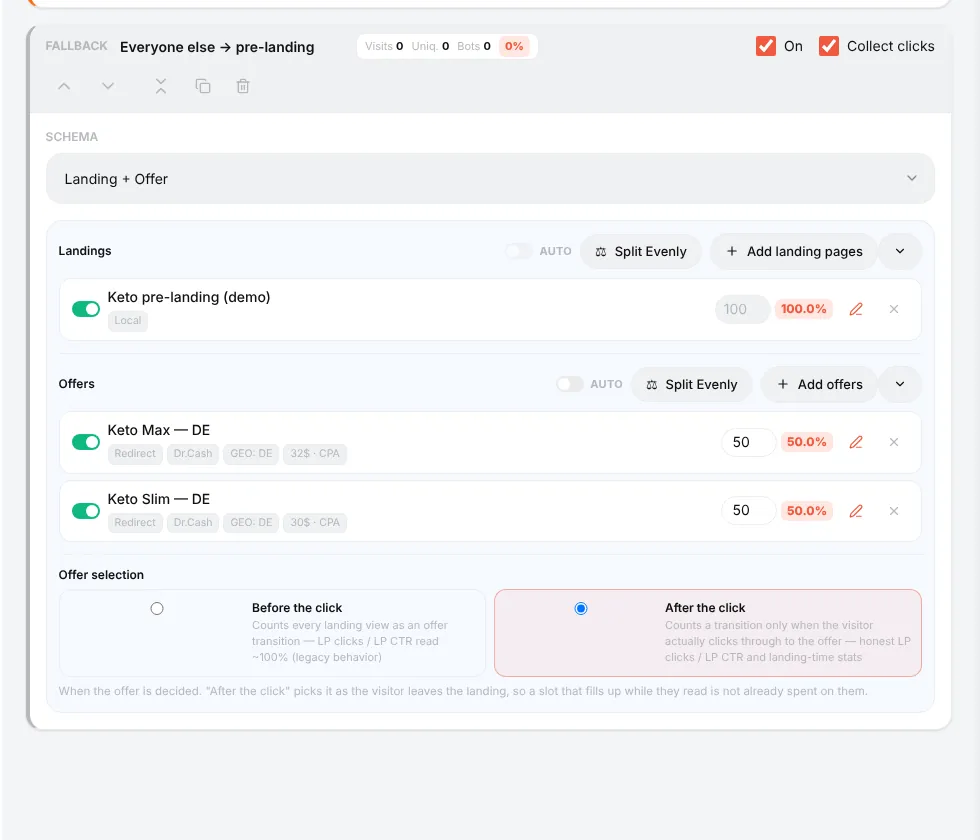
Keep Offer selection: After the click: the offer is chosen when the visitor really presses the button, so the landing statistics are honest.
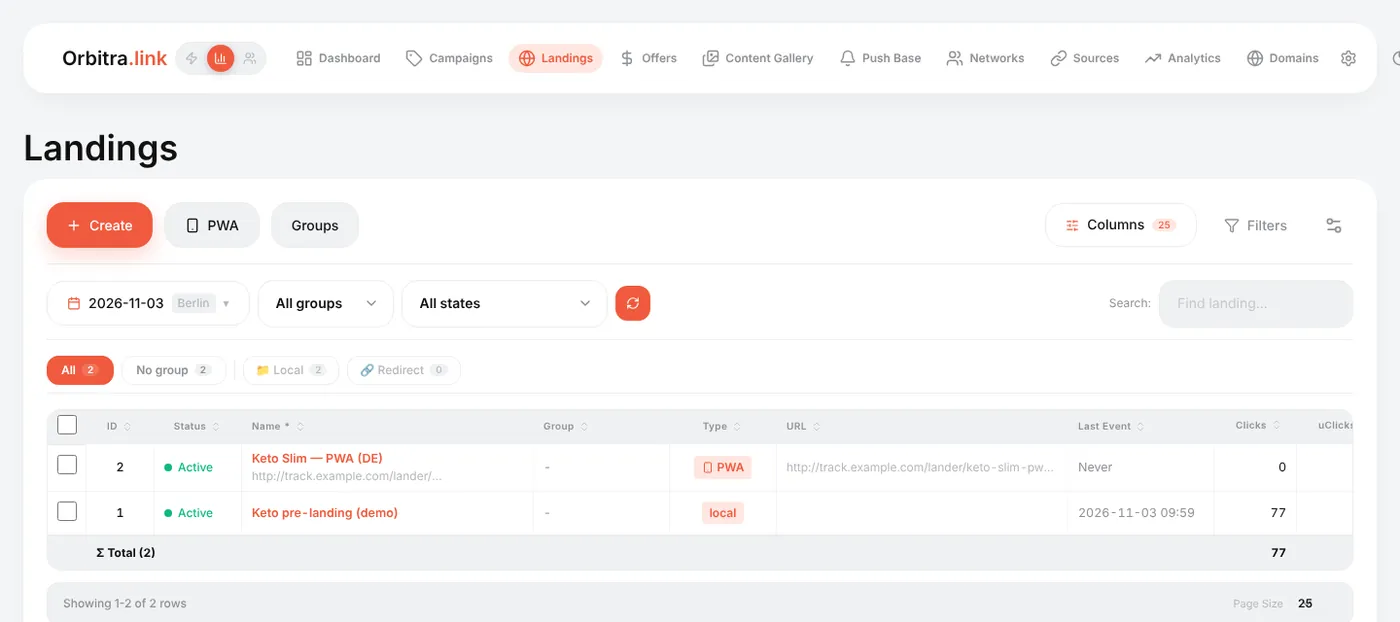
The Landings list and the campaign report have landing-specific columns:
| Column | Meaning |
|---|---|
| LP Views | How many times the landing was shown |
| LP Clicks | How many visitors pressed the button and went on to the offer |
| LP CTR | LP Clicks ÷ LP Views — how well the landing pushes to the offer |
| Time on LP, LP bounce, LP scroll | How long people stay (only visible time), the share who left in under 5 seconds, how far they scroll. Measured automatically on local landings |
| CR, EPV | Conversions per click and earnings per visit — the final verdict |
Want to see what visitors actually do? Turn on Session recording in the landing editor — Clarity-style replays and click heatmaps, stored on your own server. → Session recordings
Reference: Landing pages, Tracking Client (PHP).