Repository navigation
Guide push notifications
When someone installs your PWA, the app can ask: "Allow notifications?". Everyone who says yes becomes a subscriber in your Push Base. You can then send them notifications — a reminder, a new bonus, a discount — for free, and every tap on a notification brings the visitor back to the offer, attributed to their original click.
Orbitra does it all on your own server: the subscriber base, the encryption keys, the sending. Google and Apple only deliver the messages to the phones.
Open Push Base.
-
Sender contact —
mailto:you@yourdomain.com(or anhttps://address). Apple rejects notifications with a placeholder contact, so use a real one. Press Save changes. - Generate keys. That is all — the keys (VAPID) are given to every PWA automatically; nothing to paste anywhere.
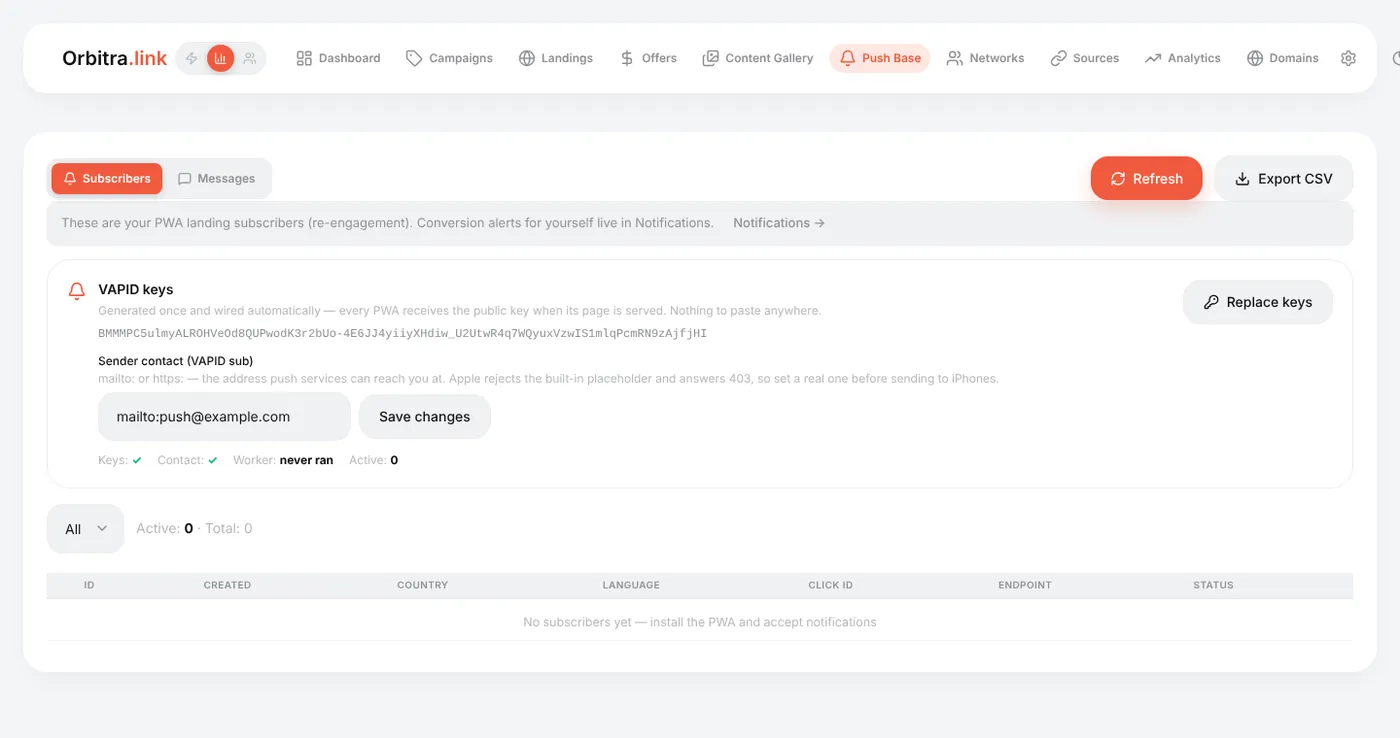
The strip under the keys shows the state: Keys ✓, Contact ✓, Worker (when the sending job last ran) and the number of active subscribers.
Generate the keys once. Replace keys invalidates every subscription; devices re-subscribe the next time they open the app, but until then they receive nothing.
In the PWA builder, step Screens, tick Push notifications and save. After install, the app offers notifications once.
Notifications are sent by a background job every minute (cli/push_cron.php). The installer sets it up. If Worker says "never ran" on a real server, check the cron:
crontab -u www-data -l | grep orbitra-pushThe Subscribers tab lists the base: country, language, click ID, status (active / dead). Subscriptions die by themselves when a phone uninstalls the app — no cleanup needed.
The Send button on a subscriber row sends a test push to that one device instantly, bypassing the queue — the fastest way to test the whole chain on your own phone.
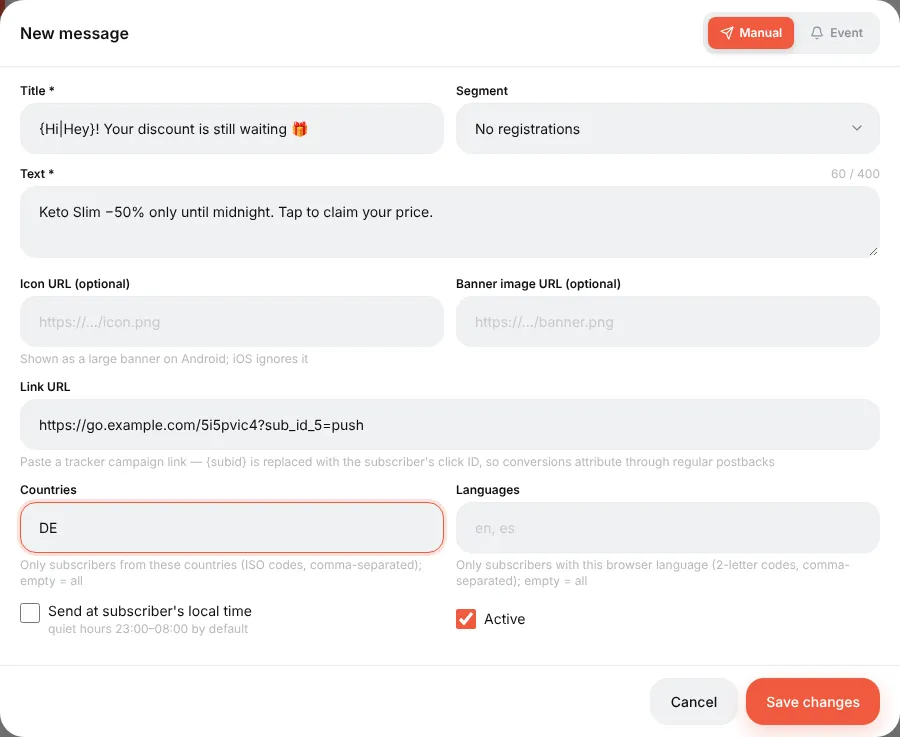
Messages → New message. Two kinds:
- Manual — you press Send now and it goes out.
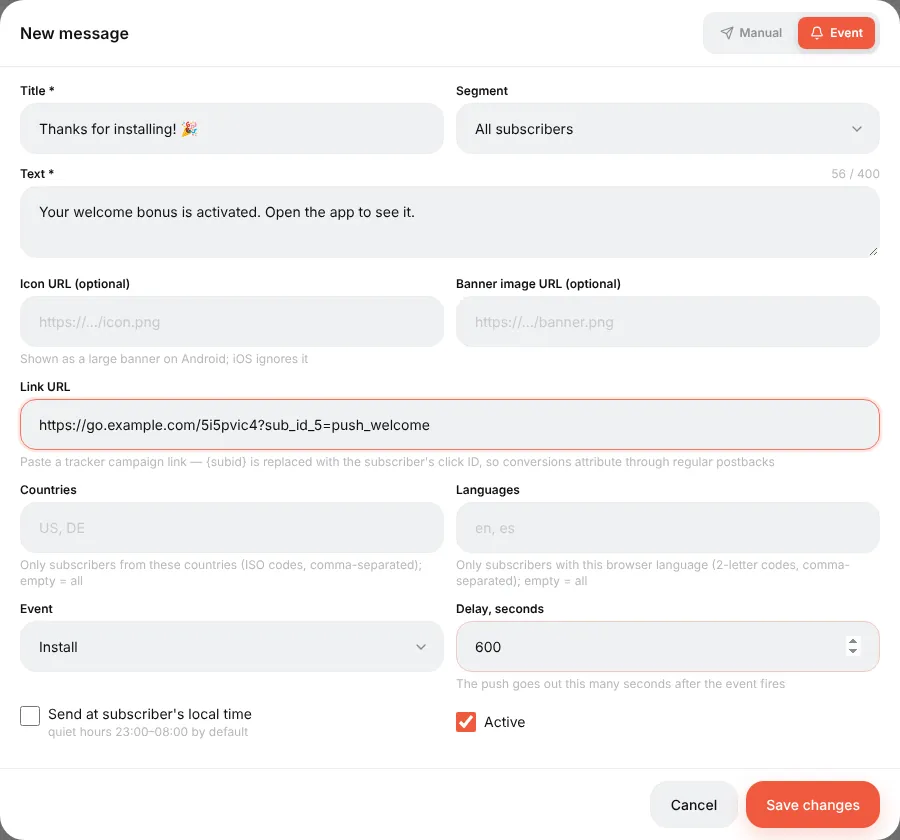
- Event — sent automatically after an event: Install, Lead or Sale, with a delay you choose (e.g. 600 seconds after install).
| Field | Tips |
|---|---|
| Title, Text | Short. {Hi|Hey|Hello} picks a random variant for every recipient; {subid} and other click macros are filled in at send time |
| Icon, Image | URLs, conveniently copied from the Content Gallery. The big image shows on Android only |
| Link | Where a tap leads. Put a campaign link (optionally with sub_id_5=push to see pushes in reports) |
| Segment | All subscribers / no registration yet / registered without deposit / with deposit — built from the conversions of each subscriber's click |
| Countries, Languages | Narrow the audience: DE, de
|
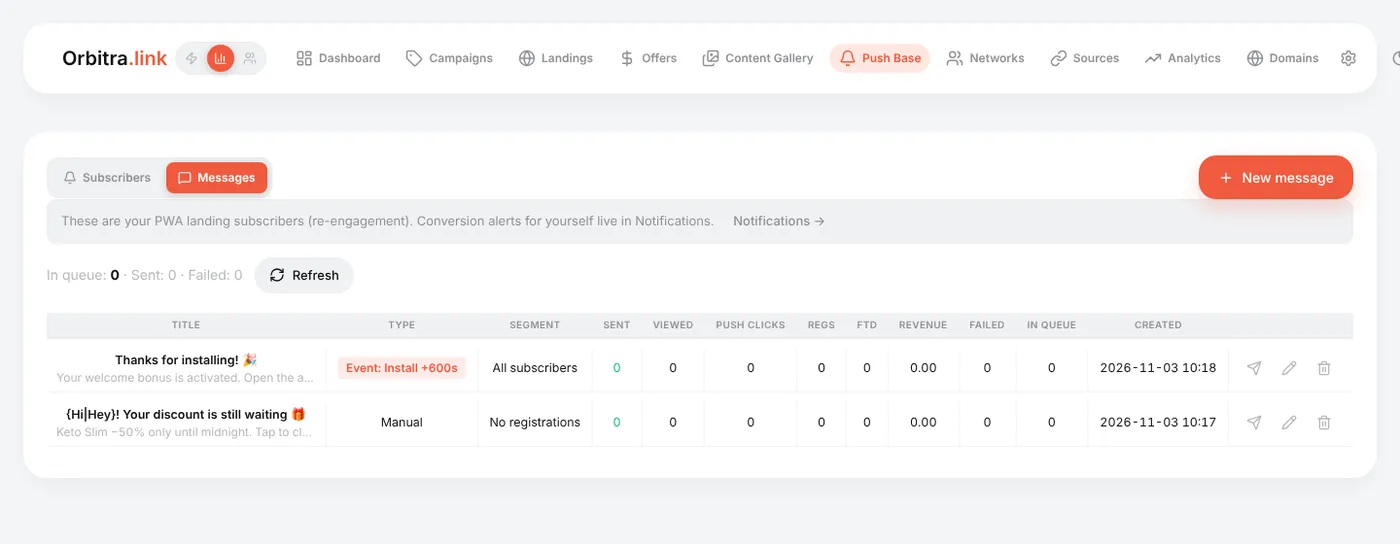
The message list shows for each message: Sent, Viewed, Push clicks, and what the clicks brought — Regs, FTD, Revenue.
- Start with an Install event message ("Thanks for installing! Your bonus is waiting") — it has the best click rate.
- Send manual messages at a sensible local time; do not spam — every unsubscribe is a lost channel.
- "Sent" means the push service accepted the message; only the phone decides whether it is shown. Test on your own device first.
Reference: PWA and Web Push.