Repository navigation
Viewer
The Viewer displays collected objects and their relationships in an interactive graph. Use it to inspect permissions, group membership, and paths between objects.
When you open a JSON file, the Viewer displays the overall graph. Nodes represent directory objects; edges represent collected relationships and permissions.

Click a node to focus it and view its details in the right-hand panel. The graph focuses on relationships relevant to that object. Available sections depend on the object type and may include Members, Member Of, Outbound Object Control, and Inbound Object Control.

For a group, Members lists its members. Click an object in the list to focus it and view its details. Press Esc twice to step back through navigation, or click Home in the bottom toolbar to return to the full graph.


Member Of lists the groups that contain the selected object. Its entries are clickable too.

Outbound Object Control lists permissions the selected object has over other objects. Inbound Object Control lists objects that have permissions over the selected object. Expanding a section adds its relationships to the graph. Expand multiple sections to compare them, or collapse a section to remove its relationships from view.


Click an edge to view the permission details and the available ACE description. If a group holds the permission, the panel may also show its members to help identify the principals behind the relationship.

When an abuse recipe is available, the panel shows Linux Abuse with a command prefilled from the selected relationship. DACLhound does not retrieve passwords: known values are filled in, while secrets are left for you to provide. References links to more information about the technique.

Use Search to find objects included in the loaded JSON. Select a result to focus it and open its details.


Expand sections in the side panel to add the focused object’s membership and control relationships to the graph. The graph and panel stay in sync.


If you have moved nodes or want a clearer layout, use Reset current graph positions to rearrange the current graph.

The Labels control changes how much text is shown on nodes and edges.

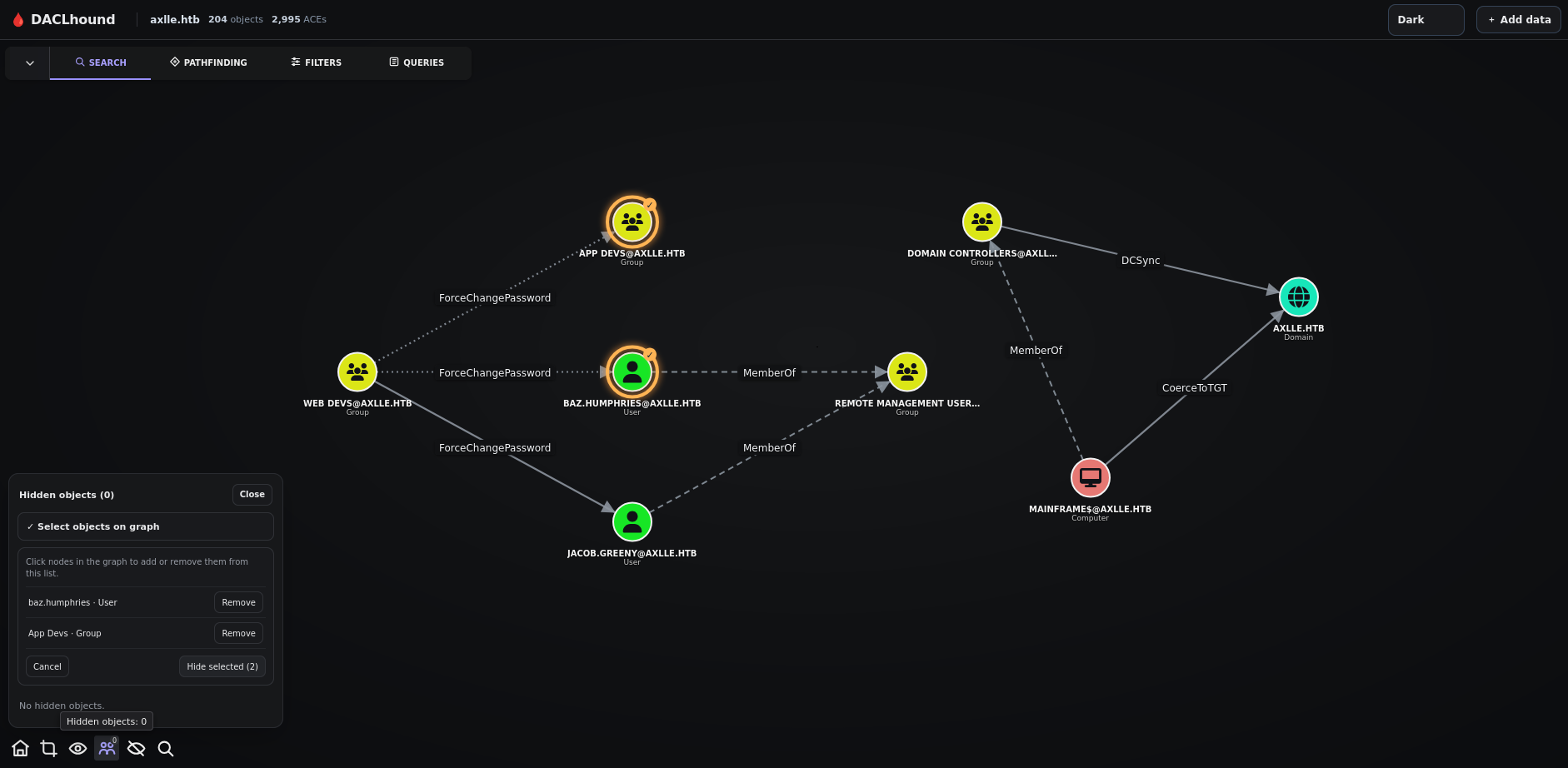
The hidden-objects control lets you select and hide nodes in the graph. Use the same control to restore hidden objects, either all at once or individually.

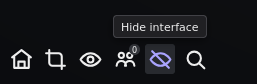
Hide interface temporarily hides the Viewer controls to clear the graph, for example, when taking a screenshot.
The bottom-toolbar search finds nodes currently present in the visible graph. Selecting a result highlights and focuses that node. To search all objects in the JSON, use Search in the main panel.


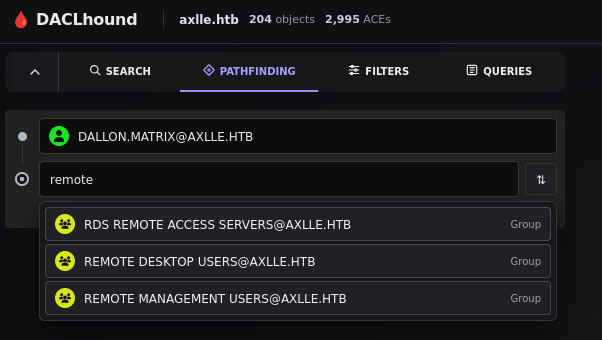
In Pathfinding, choose a starting node and a target node to look for a route between them. When the loaded data contains a route, the Viewer displays the relationships that make it up.

Queries contains predefined searches for groups of objects or relationships. Select a query to display its results in the graph.

If the JSON was collected with --sccm, the graph may include SCCM/MECM sites, roles, and attack transitions. See the SCCM/MECM guide for collection instructions and how to interpret these items.