Repository navigation
GUI Guide
The Scoreboard tab is the primary interface. It allows you to specify all scoreboard values supported by the application.
The left side is for home team fields. The right side for the away team fields. The center is for shared game fields.
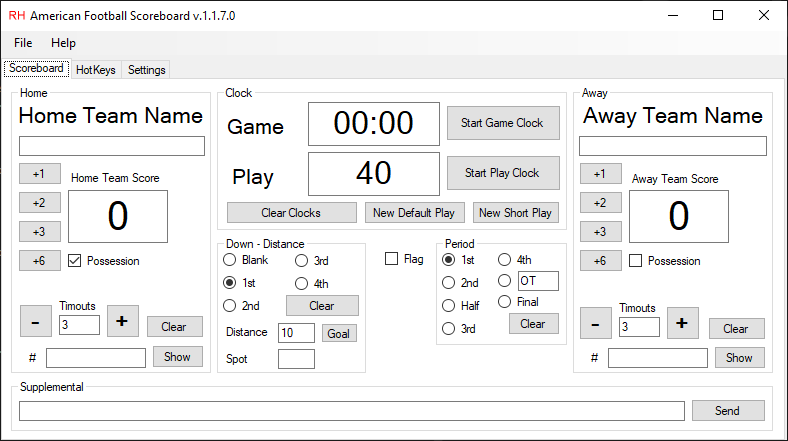
- The display name/mascot for the hope team is entered in the top text box beneath Home or Away Team. The name will be written when focus is lost (press tab).
- The team's current score is entered in the next lower text box. The 4 score buttons allow you to add 1, 2, 3, or 6 points. You can manually update the score by typing the value in the score text box. The value will be written when focus is lost (press tab).
- Possession allows you to indicate which team has possession. Possession may be indicated for one or neither team.
- Timeout may be increased or decreased by clicking on the respective button. Timeout may also be manually edited with any changes taking immediate effect.
- The Clear button clears all fields in the Home group box and resets them to default values.
- The # fields at the bottom of the respective group boxes are for displaying an image of the specified player. Enter the file name (I recommend naming image files for the player's respective jersey numbers), then press enter or click on the "Show" button. To hide the image, click on the "Hide" button.
- The game clock text box shows the time remaining in the period. The game clock can be started or stopped by clicking on the Start Game Clock / Stop Game Clock button. The game clock can be manually set to an arbitrary time. The time will be written when focus is lost (press tab).
- The play clock text box shows the time remaining on the play clock. The play clock can be started or stopped by clicking on the Start Play Clock / Stop Play Clock button. The play clock can be manually set to an arbitrary time. The time will be written when focus is lost (press tab).
- The "Clear Clocks" button resets both the Game and Play clocks to their default values.
- The "New Default Play" button resets the play clock to the default play clock value (as configured in the settings) and starts it.
- The "New Short Play" button resets the play clock to the short play clock value (as configured in the settings) and starts it.
- Select the appropriate radio button for the desired down. Distance to achieve a first down can be entered in the "Distance" text box.
- When the down is set to 1st, distance is set to a default value of 10.
- Click on the "Goal" button to show the value configured in the settings in the distance field.
- Enter the spot of the ball in the spot field. The spot will be written when focus is lost (press tab).
- Click on the "Clear" button to reset the down to "Blank" and clear the value for distance.
- Display the flag image. The flag image will be displayed until the box is unchecked, or the user-configurable time expires, whichever comes first.
- Select the appropriate radio button for the desired period. The text configured in the settings will be written to the file.
- Arbitrary period text, e.g. OT or OT2 may be displayed by using the button beside the text box. Text in the box is immediately written to the file as it is changed.
- Supplemental is intended to be used to display arbitrary information such as delay information, etc. Text is written to the file when the "Send" button is clicked.
The File menu options allow you to perform various application functions.
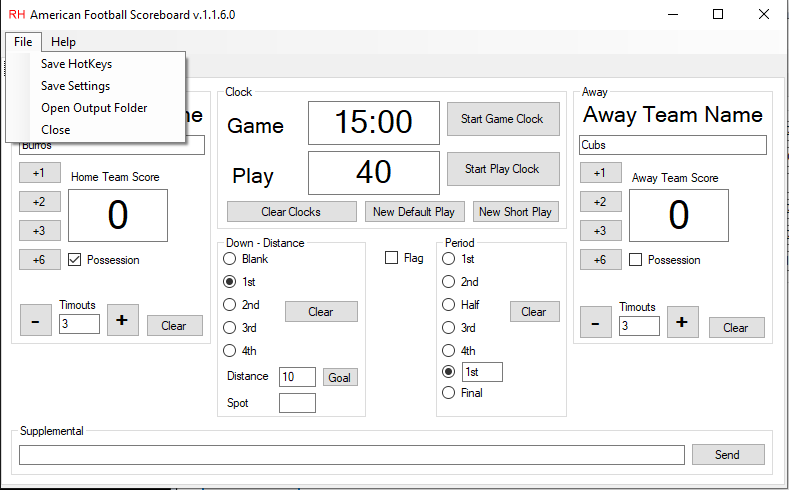
- "Save HotKeys" saves HotKey settings, the same as clicking on the save button on the HotKeys tab.
- "Save Settings" saves application settings, the same as clicking on the save button on the Settings tab.
- "Open Output Folder" opens the folder, configured in application settings, where files are stored.
- "Close" closes the application.
The Help menu options allow you to perform various support options.
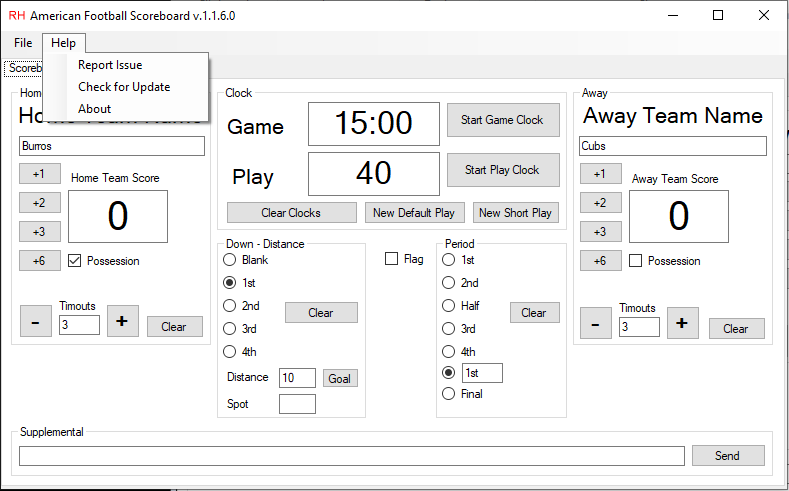
- Report Issue takes you to the project's GitHub Issues page where you can report any issues.
- Check for Update checks for updates. If there are any updates, you will be notified of them and be given the option to install them. Installing updates requires an application restart for the update to take effect.
- About takes you the the project's GitHub wiki page.
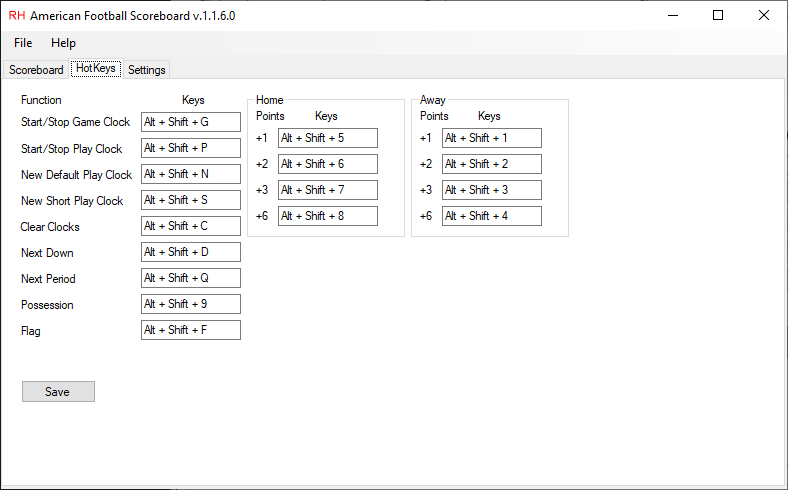
The Hotkeys tab allows you to configure system level HotKeys to allow key strokes or application automation to perform various commands.
The Settings tab allows you to configure various application settings.
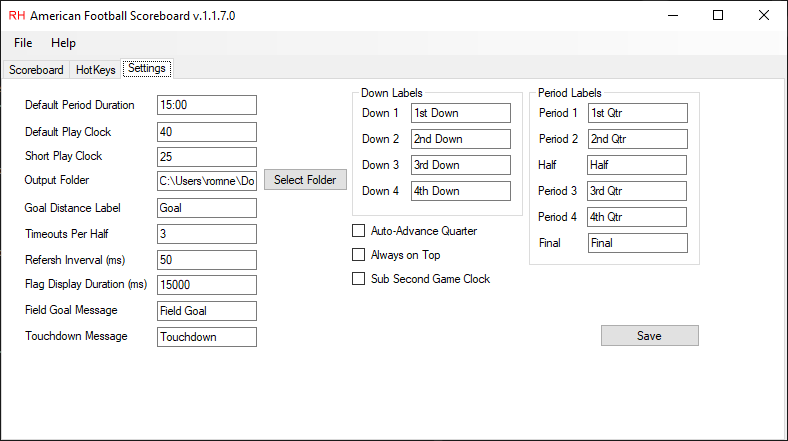
- Default Period Duration sets the time to which the game clock resets.
- Default Play Clock sets the time to which the play clock resets for the default time.
- Short Play Clock sets the time to which the play clock resets for the short time.
- Output Folder specifies the operating system folder where value files are stored / written.
- Goal Distance Label specifies the text to be shown for down-and-distance when it is down-and-goal.
- Timeouts Per Half specifies the number of timeouts per half (3 or fewer for image compatibility).
- Refresh Interval (ms) specifies how often the application should update game clock and play clock value files.
- Flag Display Duration (ms) specifies how often long the flag image should be displayed before it is automatically hidden.
- Field Goal Message specifies a text message which may be displayed after 3 points are added to the scoreboard using the button.
- Touchdown Message specifies a text message which may be displayed after 6 points are added to the scoreboard using the button.
- Auto-Advance Quarter specifies whether the quarter number should move to the next quarter and the game clock should reset automatically when the 1st, 2nd, and 3rd quarters expire.
- Always on Top specifies whether the scoreboard application should try to stay on top of other applications.
- Down Labels specify the text written to the value files for the respective downs.
- Period Labels specify the text written to the value files for the respective quarters.