Repository navigation
WHM Administration
The WHM plugin is where the server administrator (and resellers, within their own accounts) decides
what gets collected, tunes the settings and runs jobs. Open it under WHM » Plugins » WebPulse
Analytics, or go to https://<server>:2087/cgi/webpulse/index.cgi. Since 0.4.0 the page sits
inside WHM's own chrome: the WHM top bar, the left navigation (with WebPulse Analytics
highlighted) and the breadcrumbs stay on screen, so you can move to any other WHM tool directly.
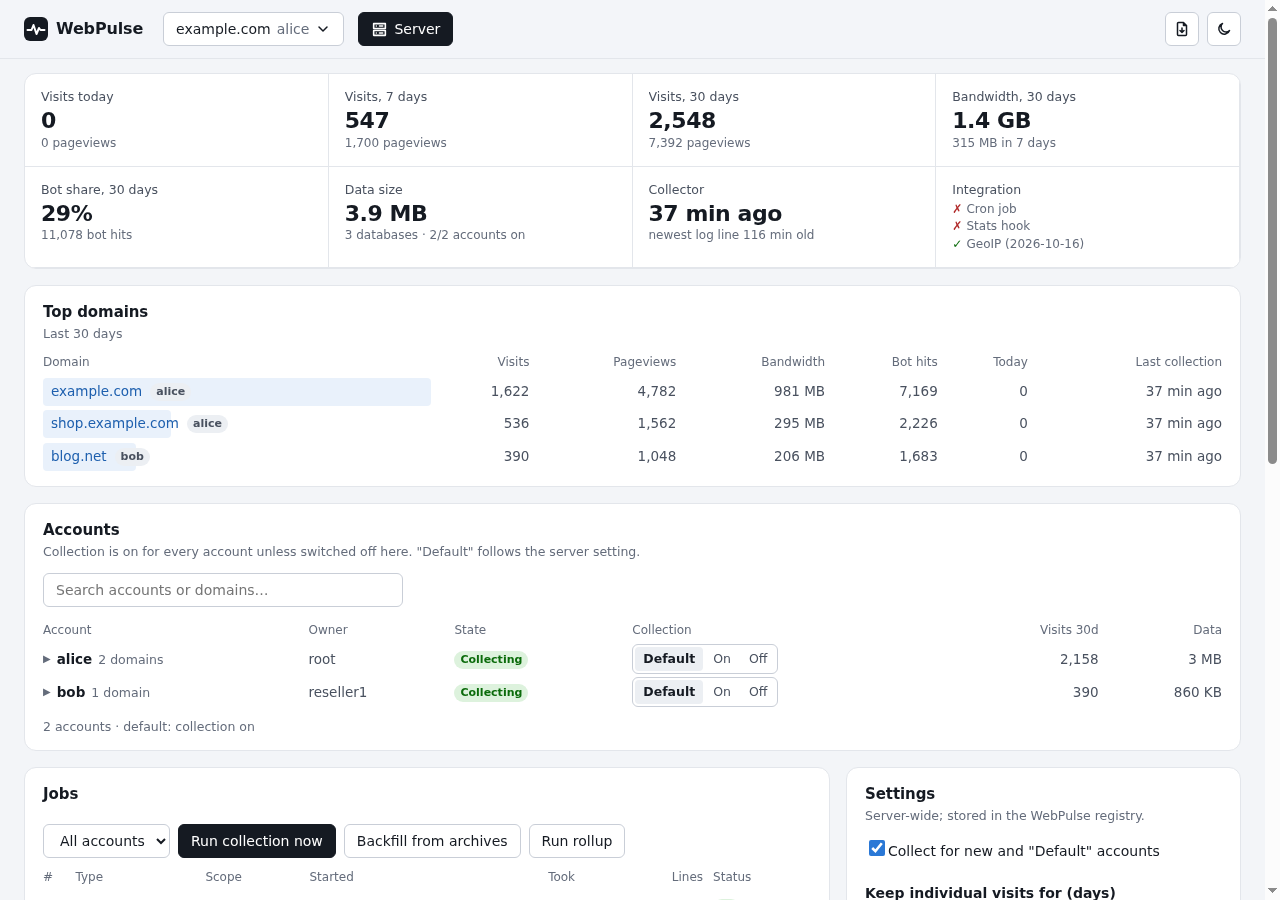
The page is the normal dashboard plus a Server button next to the domain picker. The plugin opens
on the server view; pick a domain in the domain picker (or click one under Top domains or
Accounts) to see its tabs, and press Server to come back. The date range, Compare and the
live line apply to domains only and are hidden in the server view. The address of the server view
ends in #server, so it can be bookmarked and the browser's Back button works. The cPanel-only
Settings tab is not shown in WHM.
A row of tiles at the top:
| Tile | Shows |
|---|---|
| Visits today, Visits, 7 days, Visits, 30 days | Totals across all accounts you can see, with pageviews. |
| Bandwidth, 30 days | Bytes sent to human visitors, with the 7-day figure. |
| Bot share, 30 days | Share of requests from bots, with the number of bot hits. Marked (partial) on very large servers (more than 300 domains). |
| Data size | Disk space of all domain databases, the number of databases and how many accounts collect. |
| Collector | When the last collection ran, and how old the newest log line is (the lag). |
| Integration | Tick or cross for Cron job, Stats hook and GeoIP (with the database date). Click GeoIP to jump to the GeoIP card. |
Below it, Top domains lists the busiest domains of the last 30 days with visits, pageviews, bandwidth, bot hits, visits today and the last collection. Click a domain to open its dashboard.
The Accounts table lists every account with its owner (reseller), a state badge (Collecting or Off), the switch, visits in the last 30 days and the size of its data. A search box filters accounts and domains. Click an account to expand its domains.
Each account and each domain has a switch with three positions:
| Position | Meaning |
|---|---|
| Default | Follow the server setting Collect for new and "Default" accounts (on unless you changed it). For a domain: follow the account. |
| On | Collect, whatever the default says. |
| Off | Do not collect. |
Rules to remember:
- A domain setting wins over its account setting, except when the account is explicitly Off: that turns off all its domains.
- Switching off stops new collection. Data that was already collected stays until you purge it.
- Accounts and domains are discovered by the collector. A new account appears after the next collection run. A domain shows no data yet until its first log line is processed.
- The same switches exist on the command line:
webpulse accounts enable|disable|reset <user>andwebpulse domains enable|disable|reset <user> <domain>(Command Line).
Server-wide settings are stored in the WebPulse registry and win over config.json. They are also
editable with webpulse config set (Configuration).
| Label | Key | Meaning |
|---|---|---|
| Collect for new and "Default" accounts | default_enabled |
Whether accounts without an explicit On/Off switch are collected. |
| Keep individual visits for (days) | raw_retention_days |
1 to 3650. How long the visits log and raw events are kept. Aggregated reports are kept forever. |
| Visit timeout (minutes) | session_timeout_min |
5 to 240. Inactivity that ends a visit. |
| Max rows per report per day | max_rows_per_dim |
10 to 100000. Longer tails are folded into (other) by the nightly rollup. |
| Store visitor IP addresses in the visits log | store_ip |
Off by default. See Privacy and GDPR. |
| Geolocate visitors (needs the GeoIP database) | geoip.enabled |
Country lookup for new hits. |
| Excluded IPs / CIDRs (server-wide) | exclude_ips |
Not counted for any account. |
| Excluded path prefixes (server-wide) | exclude_paths |
Not counted for any account. |
| Default timezone | timezone |
Used when neither the account owner nor the account sets one. Empty means the server timezone. |
Settings apply to data collected after you save. They are not applied retroactively.
Three buttons start a background job (the same commands as the CLI, with --job so that they show up
in the history):
| Button | Runs | Notes |
|---|---|---|
| Run collection now | webpulse collect |
For one account, or for all accounts when "All accounts" is chosen. Cron does this every 5 minutes anyway. |
| Backfill from archives | webpulse backfill --user <account> |
Imports /home/<account>/logs/*.gz. You must pick an account. Files already imported are skipped, so it is safe to repeat. |
| Run rollup | webpulse rollup |
Closes stale visits, caps report sizes, applies retention. Administrator only; cron runs it nightly at 02:10. |
The job table shows the number, type, scope, when it started, how long it took, how many log lines it
processed and its status (running, ok, error, skipped). It refreshes by itself while a job is
running. The history keeps the last 500 jobs.
The GeoIP card (below Jobs and Settings) shows whether visitors are geolocated and lets the administrator manage the database. Resellers see the status only.
GeoIP adds the country of each visit: the Countries card and the country column of the visits log. The lookup uses a database file on the server; IP addresses are never sent anywhere.
Status (left):
- Share of visits with a known country in the last 30 days, over the 25 busiest domains you can see. A low figure with GeoIP on usually means the database is missing or very old.
-
Geolocation: on or off (
geoip.enabled). - Country database: type and build date read from the file (for example DBIP-Country-Lite, built 1 Oct 2026), size, IP version, number of nodes, languages, path and when the file was written; Missing when the file does not exist.
-
City database: optional (
geoip.city_db). -
Monthly refresh: whether
/etc/cron.d/webpulsecontains thegeoip-updateline the installer adds (30 4 1 * *, 04:30 on the 1st of each month). -
Last download: result and message of the last
geoip-updaterun (from WHM or cron).
Actions (administrator):
| Control | Does |
|---|---|
| Geolocate visitors | Saves geoip.enabled at once (same as the Settings checkbox). |
| Download database now / Update database now | Starts webpulse geoip-update --force as a job: downloads the file for the current month (the previous month if not published yet), checks it is a valid MaxMind DB and replaces the old file. A progress bar shows while it runs; the card refreshes with the new build date. The download also works while GeoIP is off — the card then reminds you to enable it so new visits get a country. |
| Download URL |
geoip.url. An https:// address ending in .mmdb or .mmdb.gz; {YYYY} and {MM} become the year and month (a preview shows the next download). Empty: the free DB-IP database. |
| City database (optional) |
geoip.city_db. An .mmdb file you placed in /var/webpulse/geoip. Empty: none. |
Things to know:
- The free database is DB-IP's IP to Country Lite, licensed CC BY 4.0. While it is in use, every dashboard footer shows IP Geolocation by DB-IP as the licence requires.
- Only new visits are geolocated. Visits collected before GeoIP was enabled (or before the database
was installed) keep the country
(unknown); they are not looked up again. - The monthly cron job refreshes the file when GeoIP is enabled (
webpulse geoip-updatewithout--forcedoes nothing while GeoIP is off). - Command line:
webpulse geoip-update [--force],webpulse config set geoip.url …(Command Line).
In the server view, Download PDF (the document icon in the header) opens a printable server report in a new tab: the server name, the overview tiles, every domain with data (not only the top 10), the accounts with their state and switch setting, and the 20 most recent jobs. The settings are not included. The print dialog opens once everything has loaded; choose Save as PDF. A reseller's report covers its own accounts only. From a domain's tabs the same button prints that domain's report (see Using the Dashboard).
Every night the rollup asks GitHub for the latest WebPulse release (at most once every 20 hours; the request is made by the server, never by your browser). When a newer version exists, the bell in the header (next to Download PDF) shows a dot and its tooltip reads "WebPulse X.Y.Z available". Click it for the installed and latest version, the release date and a link to the release notes. The same information is in the Updates card at the bottom of the server view.
-
Upgrade now (administrator only) asks for confirmation, then runs
/usr/local/webpulse/install.sh --update --ref <tag> -yin the background. It shows up as a job of typeupgradeand takes about a minute; the WHM pages stay available meanwhile. The panel follows the job and, when it is done, shows "Upgraded to X.Y.Z" and reloads the page after 5 seconds. If the installer fails, the message says so and the full output is in/var/webpulse/log/upgrade.log(the installer puts the previous release back by itself). - Check again asks GitHub right away (at most once every five minutes; within that window you get the last result).
- Resellers see the notice and the release notes link, not the buttons.
To check or upgrade from the shell: webpulse update-check (--force skips the 20-hour cache) and
install.sh --update. To stop the nightly check (for example on servers without outbound HTTPS):
webpulse config set update.check falseA reseller can open the plugin and sees only the accounts it owns (the OWNER= line in
/var/cpanel/users/<account>). Root owns its own accounts. Within that scope a reseller can:
- see the server view, the top domains and any of its accounts' dashboards,
- change the Default/On/Off switches of its accounts and their domains,
- run collection and backfill for one of its accounts (a reseller must pick an account).
A reseller cannot see or change the global settings, cannot run the rollup, and cannot purge data. Requests for accounts owned by someone else are refused. Any other user who is neither root nor a reseller with accounts gets "forbidden".
The WHM interface has no purge button. Use the CLI as root:
webpulse purge --user <user> --yes                    # all databases of an account
webpulse purge --user <user> --domain example.com --yesThe cPanel icon is controlled by a cPanel feature called webpulse. In WHM » Feature Manager the
entry is called "WebPulse Analytics". Which accounts are collected is controlled by the switches on
this page; which accounts see the icon is controlled by the feature list. They are independent.