Repository navigation
Releases
NexaView v2.13.0 (early version, may have bugs)

Early version: there may be bugs. If something doesn't work, please report it.
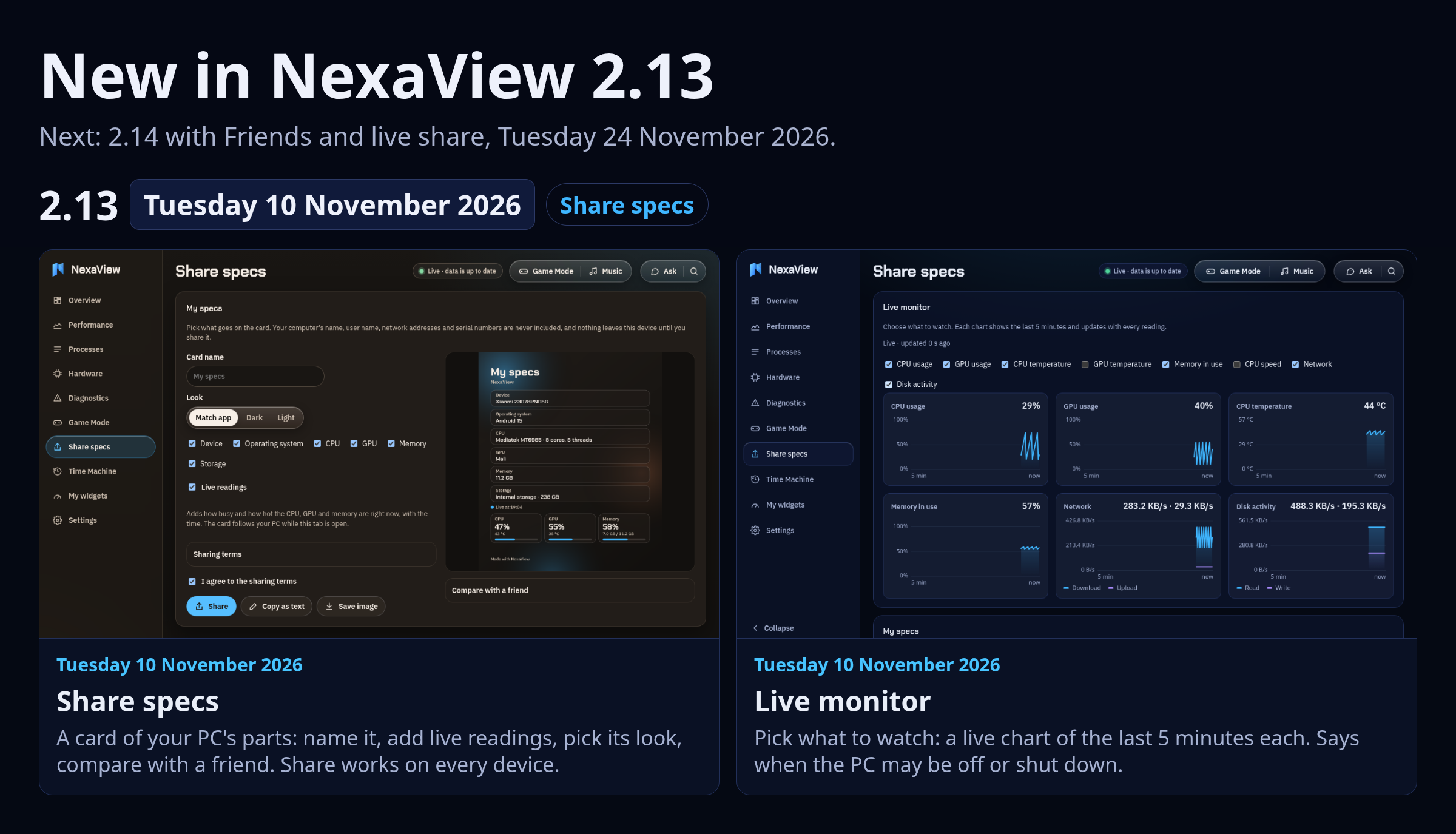
What's new in 2.13.0
- Share specs (its own page in the menu): makes a picture or text of your PC's parts to share with friends. Name the card, add live readings (how busy and hot the CPU, GPU and memory are right now), let it match the app's look or pick dark or light, and compare with a friend's specs side by side. You pick what goes on it, and it never includes your computer's name, user name, network addresses or serial numbers. Short sharing terms come first. Share opens your device's share menu; in the Android app it opens Android's share sheet (WhatsApp, Discord, Messenger…); on a PC without one (Linux) the picture is copied so you can paste it into a chat. With "match the app", the card also takes your look's corners and style (Cockpit's grid, Neon's glowing edges). Hide the page from the menu in Settings → Dashboard → Share.
- Live monitor (on the Share specs page): choose what to watch (CPU and GPU use, temperatures, memory, CPU speed, network, disk activity) and see a live chart of the last 5 minutes for each. Your choice is remembered.
- "Computer may be unavailable or has been shut down": when your PC stops answering, the page says so, keeps the last readings on the charts, and carries on by itself when the PC is back.
- Choosing Guest: NexaView no longer goes into Guest by itself. It asks each time you open it, and Guest lasts until you close that window. Accounts stay signed in.
- New to NexaView: the "Fixed in" list no longer pops up on your second start.
Downloads
Windows: download NexaView-Windows.exe and double-click it. If Windows says
"Windows protected your PC", click More info → Run anyway (the program isn't
code-signed). Allow network access when Windows asks.
Linux: download NexaView-Linux, right-click → Properties → Permissions →
tick "Allow executing file as program", then double-click it. After the first start
NexaView is in your app menu.
Android: download NexaView-Android.apk on the phone and open it (if you have
older NexaView downloads, delete them first so the phone can't open an old one). Android asks to allow
installing apps from your browser or Files: allow it, then tap Install. On Xiaomi (HyperOS)
you may see a security check first: tap through it (the app isn't from the Play Store).
iPad and iPhone: NexaView-iPad.ipa is added to this page a little later (it's built on a Linux PC,
not here). Install it from your PC with iloader. Step by step: the iPad guide.
Mac: not rebuilt for this version; the newest Mac file is on the project's front page and earlier releases.
The dashboard opens in its own window (Edge or Chrome without tabs; other browsers show it as a normal page). Settings → Connection → "Show QR code" to pair a phone or tablet.
NexaView v2.12.0 (early version, may have bugs)
Early version: there may be bugs. If something doesn't work, please report it.

What's new in 2.12.0
- Driver updates (Hardware → Drivers): see the driver each important part of your PC uses (graphics, network, sound, Bluetooth, storage) with its version, and the updates waiting for them.
- Windows: the driver updates Windows Update has for your PC, with a button that opens Windows Update's optional updates.
- Linux: driver packages from your system's updates (the kernel with its built-in drivers, NVIDIA, Mesa, firmware…), grouped and explained, plus firmware updates from fwupd. The exact command to install them, with a copy button.
- Mac: macOS updates, which carry the drivers.
- NexaView only checks: installing stays with your system, which asks for your password and knows which drivers fit your PC.
- Drivers button next to Game Mode in the top bar: NexaView checks by itself (when your PC connects, then every 6 hours) and shows how many updates are waiting.
- Charts you can customise (Settings → Customize → Charts, with a live preview): Line, Area, Bars, Steps, LED segments, Blocks or Dots; straight or smooth; thickness, fill, grid (lines or boxes), a frame, axis labels, a dot on the newest reading, glow, colour by level (green, amber, red) and min / average / max lines; a colour for each of CPU, GPU, RAM, storage and network. One tap for a whole design: NexaView, Grid monitor, Terminal, LED meter, Overlay, Minimal or Soft. - Health Score (Diagnostics → Health): scores your PC's thermals, storage free space and battery wear on a 0–100 scale. Tap any category to see what's dragging it down. History is saved per PC so you can track changes over time.
- Advanced demo (Settings → Connection → Advanced demo): a full simulated PC with every page filled in — CPU, GPU, RAM, storage, network, processes, battery, all showing realistic values. Good for exploring NexaView without a connected machine.
- Real + demo (Settings → Connection → Real + demo): shows your real PC readings and fills in anything your PC doesn't report with demo data. Orange text and a "demo" tag mark which values are simulated. Health Score, Bottleneck and the report only use real readings.
- Colour indicators: a bar across the top of the screen shows the current mode — green for real data, orange striped for demo, green-and-orange for Real + demo. Individual demo values are highlighted in orange with a dashed underline.
Downloads
Windows: download NexaView-Windows.exe and double-click it. If Windows says
"Windows protected your PC", click More info → Run anyway (the program isn't
code-signed). Allow network access when Windows asks.
Linux: download NexaView-Linux, right-click → Properties → Permissions →
tick "Allow executing file as program", then double-click it. After the first start
NexaView is in your app menu.
Android: download NexaView-Android-<version>.apk on the phone and open it (if you have
older NexaView downloads, delete them first so the phone can't open an old one). Android asks to allow
installing apps from your browser or Files: allow it, then tap Install. On Xiaomi (HyperOS)
you may see a security check first: tap through it (the app isn't from the Play Store).
Mac and iPad: not rebuilt for this version; the newest Mac and iPad files are on the project's front page and earlier releases.
Web files (for your own website): NexaView-Web.zip is the dashboard as plain files. Unzip it and double-click
index.html (it shows demo data), or upload the zip to a web host such as Netlify as it is.
The dashboard opens in its own window (Edge or Chrome without tabs; other browsers show it as a normal page). Settings → Connection → "Show QR code" to pair a phone or tablet.
NexaView 2.11.4 – Happy Halloween
Happy Halloween! (2.11.4)
- Halloween look: a new look in Settings → Customization: a purple-black night with pumpkin orange and a little slime green, in dark and light.
- Halloween decorations (Oct 25 – Nov 1): "Happy Halloween" greeting with a pumpkin, and a few bats on the screen. They go away by themselves after Nov 1, or switch them off early in Settings → Customization. The bats keep still when animations are off.
- Spookier Ask NexaView: during Halloween the AI adds a playful spooky touch ("a haunted CPU") while keeping its numbers and advice exactly right. You can also ask it to "switch to the Halloween look".
- Halloween hello: on Oct 31, NexaView says hello once with a button to try the Halloween look.
Also includes every fix from 2.11.1 – 2.11.3.
Downloads
Windows: download NexaView-Windows.exe and double-click it. If Windows says "Windows protected your PC", click More info → Run anyway (the program isn't code-signed).
Android: download NexaView-Android-2.11.4.apk on the phone and open it. It installs over the old app and keeps your settings. Phones with NexaView 2.11 or newer also get an Update button in the app.
iPad / iPhone (iOS 17 or newer): install NexaView-iPad.ipa from your PC with iloader. It replaces the old app and keeps your settings.
Linux: if you installed with git clone, NexaView updates itself. Mac: not rebuilt for this version; use the Mac file from 2.11.0.
NexaView 2.11.3
Fixed in 2.11.3
- iPad and iPhone: the app no longer closes by itself a few seconds after opening when Cloud relay is on.
- Friends: Cloud relay links (
https://…/watch/…) can now be added as a friend, with live readings on their card. - Fixed-bugs list: after a small update, NexaView now shows once what was fixed.
Fixed in 2.11.2 (if you're coming from an older version)
- Cloud relay: a PC's readings were being turned away, so friends saw nothing. They now arrive, and friends in other cities see the same readings.
- Cloud relay: switching it on now makes the watch link by itself. There's no address to paste.
- Updates: on busy networks (school, shared Wi-Fi), NexaView no longer wrongly asks for a GitHub key.
Downloads
Windows: download NexaView-Windows.exe and double-click it. If Windows says "Windows protected your PC", click More info → Run anyway (the program isn't code-signed).
Android: download NexaView-Android-2.11.3.apk on the phone and open it. It installs over the old app and keeps your settings. Phones with NexaView 2.11 or newer also get an Update button in the app.
iPad / iPhone (iOS 17 or newer): install NexaView-iPad.ipa from your PC with iloader. It replaces the old app and keeps your settings.
Linux: if you installed with git clone, NexaView updates itself. Mac: not rebuilt for this version; use the Mac file from 2.11.0.
NexaView 2.11.2
What's new in 2.11.2
- Cloud relay just works: switch it on in Live share and the watch link and invite link appear. There's no relay address to paste any more.
- Cloud relay fixed: a PC's readings were being turned away by Cloudflare, so friends saw nothing. They now arrive, and friends in other cities see the same readings.
- Updates on busy networks: when GitHub's hourly limit is used up (common on school or shared networks), NexaView reads the newest version from the download page instead of asking for a key.
Also in this version: everything from 2.11.1, including Ask NexaView AI (your own Gemini key or the shared AI) on PCs, phones and iPads.
Downloads
Windows: download NexaView-Windows.exe and double-click it. If Windows says "Windows protected your PC", click More info → Run anyway (the program isn't code-signed).
Android: download NexaView-Android-2.11.2.apk on the phone and open it. It installs over the old app and keeps your settings. Phones with NexaView 2.11 or newer also get an Update button in the app.
iPad / iPhone (iOS 17 or newer): install NexaView-iPad.ipa from your PC with iloader. It replaces the old app and keeps your settings.
Linux: if you installed with git clone, NexaView updates itself. Mac: not rebuilt for this version; use the Mac file from 2.11.0.
NexaView 2.11.1
What's new in 2.11.1
- Ask NexaView AI: ask about your PC in your own words ("why is my PC slow?"). It answers from your live readings and can open pages or change NexaView's settings for you, each with Undo. It only helps with NexaView and your PC, and it can't end programs, install or delete anything.
- With your own Gemini key: paste it in Settings → General → Ask NexaView AI (free at aistudio.google.com → Get API key). The key stays on your PC.
- Without a key: turn on "Use NexaView's shared AI" in the same place, up to 50 questions a day.
- Neither: the built-in offline helper still answers simple questions.
- Cloud Relay: friends can watch your PC's or iPad's live readings from any network, with an invite link to set it up.
- Updates without a key: from this version on, NexaView updates itself from the public downloads page. Coming from 2.10 or earlier, download the file for your system once.
Downloads
Windows: download NexaView-Windows.exe and double-click it. If Windows says "Windows protected your PC", click More info → Run anyway (the program isn't code-signed).
Android: download NexaView-Android-2.11.1.apk on the phone and open it. It installs over the old app and keeps your settings. Phones with NexaView 2.11 or newer also get an Update button in the app.
iPad / iPhone (iOS 17 or newer): install NexaView-iPad.ipa from your PC with iloader. It replaces the old app and keeps your settings.
Linux: if you installed with git clone, NexaView updates itself. Mac: not rebuilt for this version; use the Mac file from 2.11.0.
NexaView 2.11.0
What's new in 2.11
- Cloud Relay — share your live PC or iPad readings with friends from anywhere, no port forwarding needed
- Invite link — one-click setup for friends to connect to your relay
- iPad/iPhone Cloud Relay — push readings directly from your iPad without needing a PC
- Google Sign-In for the iPad app
- Ask NexaView AI — ask about your PC in your own words ("why is my PC slow?") and it answers from your live readings and can open pages or change settings for you (with Undo). Paste your own Gemini key in Settings → General (free at aistudio.google.com → Get API key), or turn on "Use NexaView's shared AI" there to use it without a key (50 questions a day). Without either, the built-in offline helper still works.
How to update
- PC (Windows/Mac/Linux): Coming from an older version (2.10 or earlier)? Download the file for your system below once and run it. From 2.11 on, NexaView updates itself from this page, no key needed (Settings → About → Check for updates).
- Android: Tap the Update button in the top bar, or download the APK below.
- iPad/iPhone: Install the latest .ipa via iloader or SideStore.
NexaView early files (before 2.11 release)
Early files. Android 2.11.0, Windows 2.9.2. The full 2.11 release comes on 1 November