Repository navigation
v1.1.0

·
14 commits
to main
since this release

- The new interface from the 1.1 betas is now the only interface. The old one is removed.
- Your settings, replays, replay index and session stats carry over. You don't need to set anything up again.
- On Linux, a new launcher signs in to your Wargaming account, installs and updates the game, and starts it through Proton.
- Match contribution (MC) rates a player's performance in one battle on the personal rating (PR) scale.
- The replay renderer plays at 30 frames a second, has drawing tools without a collab session, and takes a third to nearly half less time per frame.
- The Model Viewer opens any model in the game, including armored buildings and gun mounts.
- Session stats can chart almost any battle statistic and leave out ships, games or days.
- Every language is fully translated.
New interface
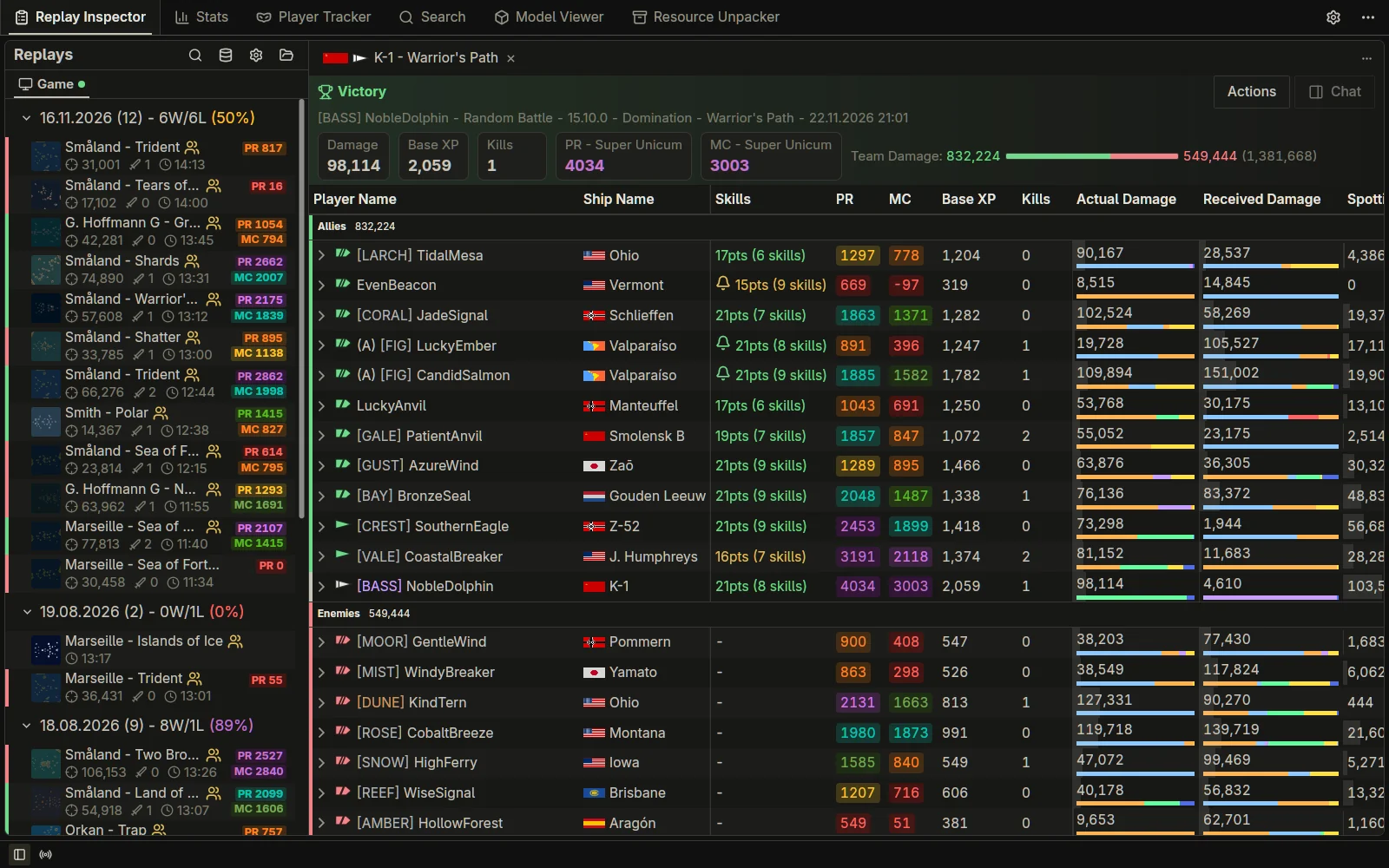
- Panels dock, split and move by dragging their tabs.
- The interface has light and dark themes and zoom shortcuts. You can select and copy text.
- Settings open in a drawer with a search box. A setting in error is marked, and a warning's button opens the setting it is about.
- A status bar holds side panel toggles, running jobs with their progress, the collab session control and held modifier keys.
- Messages appear at the bottom right above the status bar. They no longer cover the Play button or the tab strip.
- Ctrl+K opens the command palette. It ranks matches fuzzily, and every list filter in the app marks the letters it matched. Escape clears a filter.
- On first run the app picks your system language and a game install it finds.
- Your Player Tracker view settings and saved stats charts are imported from the old interface once.
- The crash dialog links to GitHub and Discord and can clear your settings. License notices are shown in the app.
Launcher on Linux
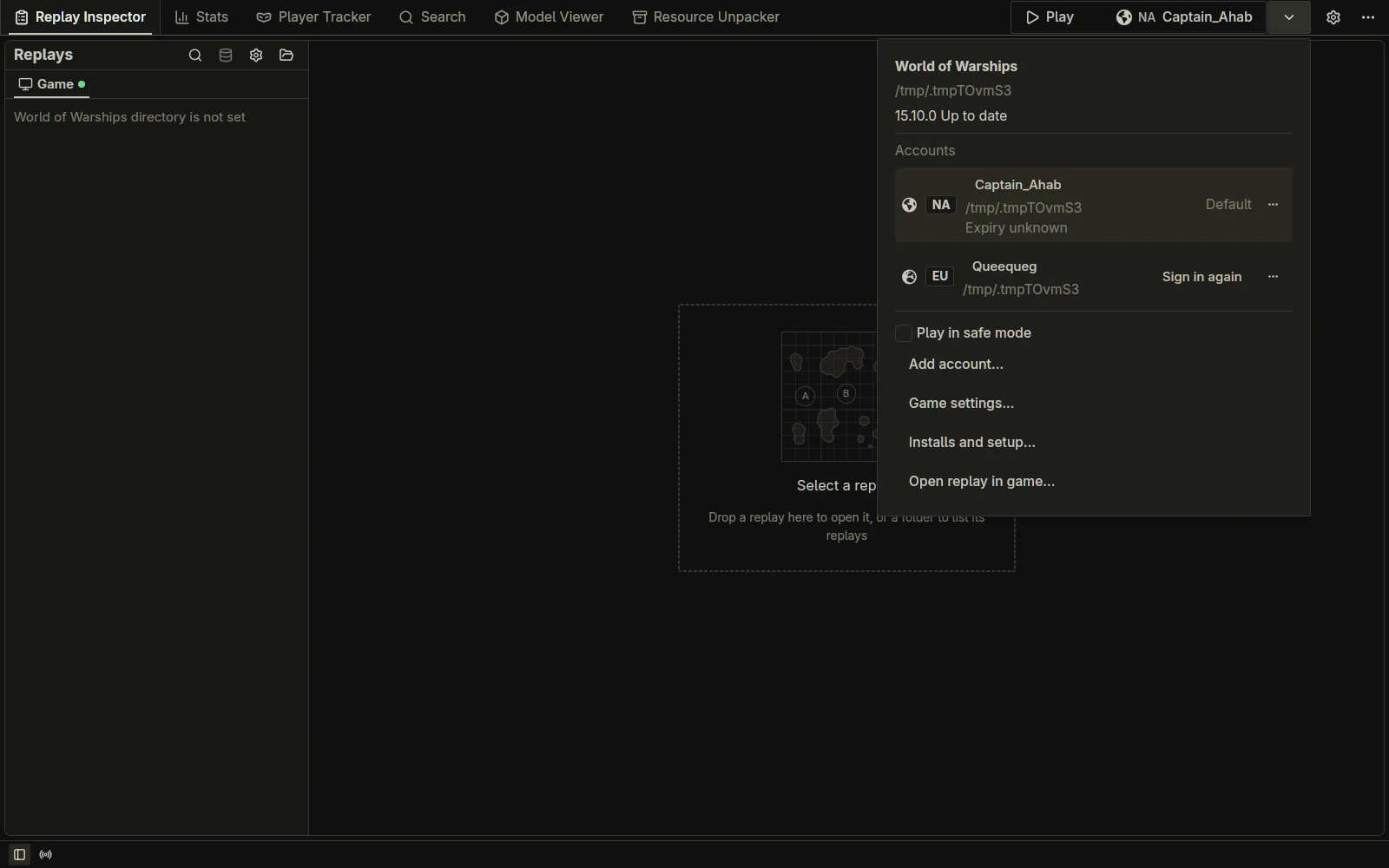
- The launcher is opt-in. Turn on Enable game launcher in settings to get a Play button and saved accounts. Wargaming does not support this way of playing.
- Sign in to your Wargaming account, update or install the game, and start it. You choose the destination folder before an update starts.
- The game runs through Proton or umu on an overlay of the install. Each install keeps its own shader cache.
- Safe mode applies to every way you start the game.
- Steam installs play through Steam by default. You can switch each Steam install to the Wargaming login instead.
- Account rows show when a session expires and have a Sign out action.
- Sign-ins are kept in the system keyring. Without a keyring they are saved to an unencrypted file, and the launcher tells you so.
- The Play button keeps its size and place while the game starts and runs.
- The Wine processes started by the toolkit end when the game exits or is stopped.
Replay inspector and listing
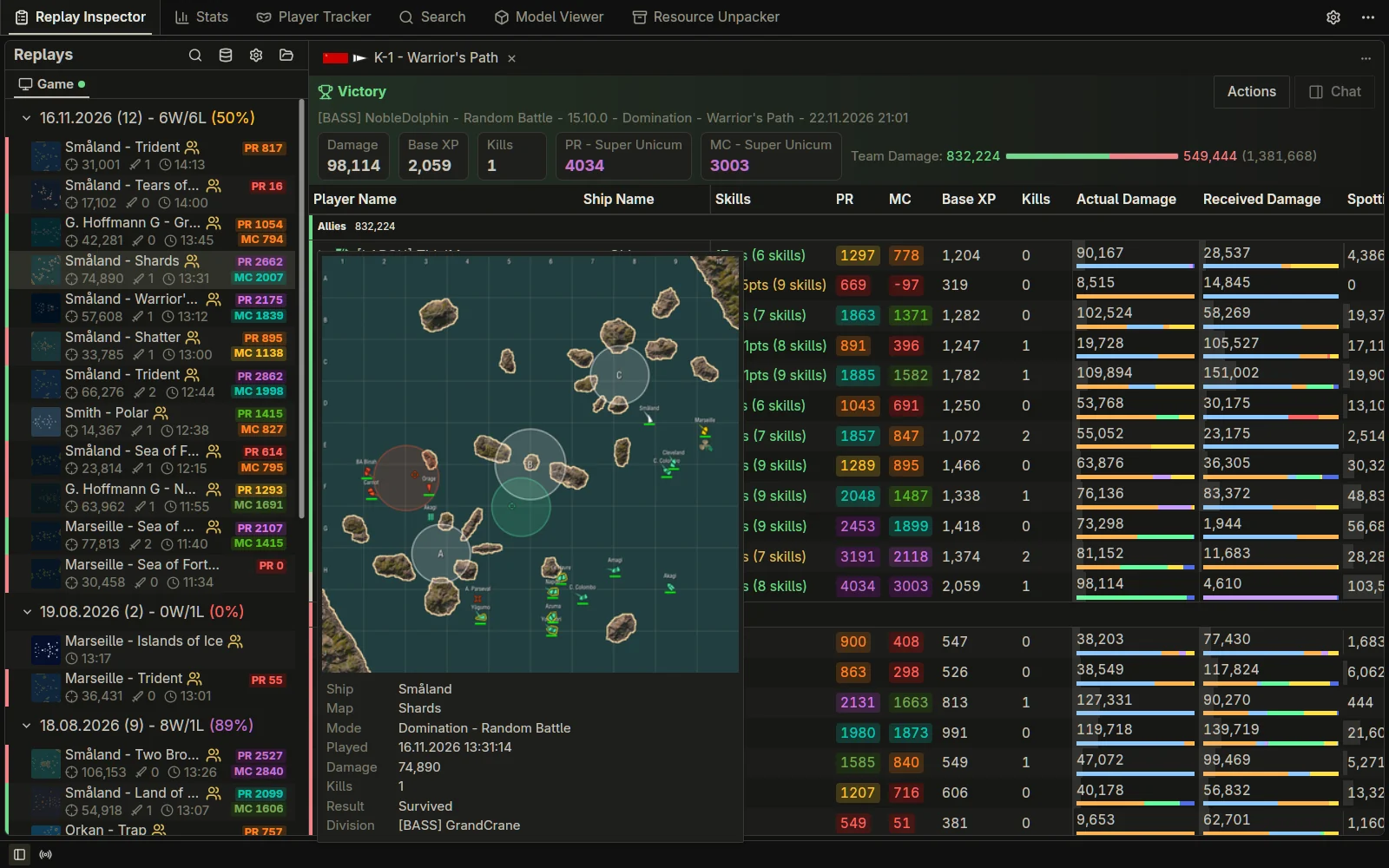
- Replay folders open as tabs in the listing. Drop a folder to open it, or drop several replays to list them in a tab of their own. Subfolders are listed, indexed and watched too.
- Listing rows show a map thumbnail, the result, PR and MC. The listing's options choose what else each row shows: division, Twitch, damage, kills and battle time.
- Hover previews start at the battle start, not at the countdown.
- Rows are ordered by battle time. Open folders stay at the top while their contents scroll past.
- New battles are announced, briefly highlighted and tagged New. The listing keeps its scroll position, selection and closed groups when a battle lands.
- Group headers count only Random and Ranked battles in their win rate, colored by band. A listing option counts every game mode instead.
- Right-click a date or ship group to set or add it as session stats, or to render it to video or the clipboard. Right-click a replay to render it.
- Rendering a replay to a file or the clipboard uses your saved renderer options, such as your own ship's range circles.
- Battles played while the app was closed are indexed when it starts, and exported when auto-export is on.
- The replay header shows the result, stat tiles, your damage split and the match date. Hover the date to see how long ago it was.
- Hovering a replay's tab title marks its row in the listing.
- The player table can reorder, pin and auto-fit columns. Damage cells show the mix of damage types and each player's share of the team total.
- Ribbons and achievements are laid out as grids. Ship names show nation flags, and a disconnect time is a chip you can click to copy.
- The match timeline sits beside the table and keeps its filters. The Actions menu also opens it in a window with search, copy and save.
- The raw JSON side panel is highlighted and searchable.
- Fire chance names the ships and modifiers behind it.
- Enemy builds show once another recording of the same battle is merged in.
- Players seen in the Twitch chat you monitor around a battle are flagged in the replay panel and in the listing.
- The Anonymize player names option shows generated names and clan tags everywhere in the app. Exports keep the real names.
- Changing the language updates replays that are already open.
Ratings
- Match contribution (MC) rates one battle on the PR scale. It is shown beside PR in the replay table, search results and stats.
- Hover PR or MC to see what it is made of.
- PR and MC are shown only for Random and Ranked battles. Other battle types show a dash that explains why.
- A new battle's PR and MC appear as soon as it lands. Replays indexed before the rating table arrived are rated once it does.
Replay renderer
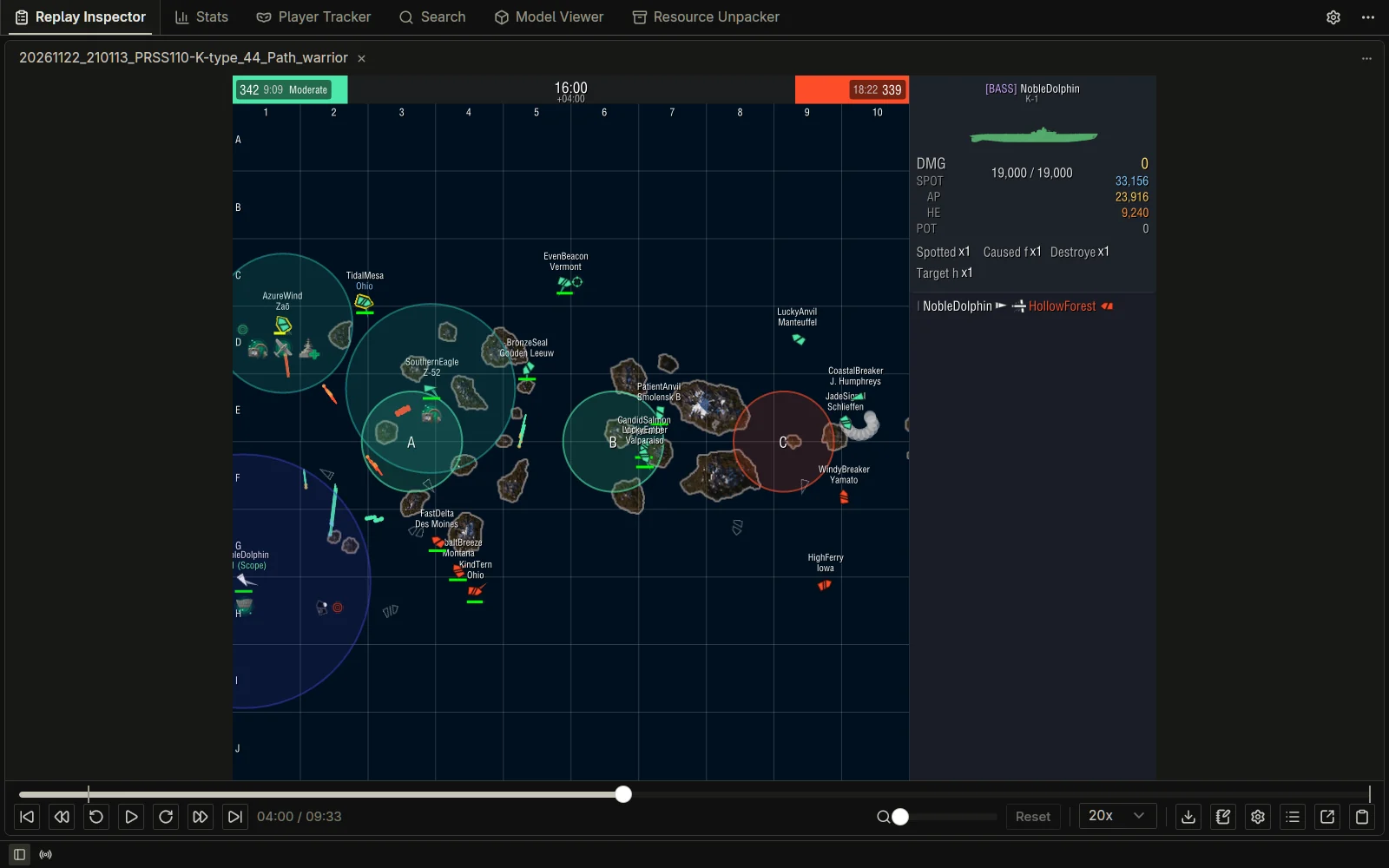
- Playback runs at 30 frames a second at every speed. Ships, shells, torpedoes, planes and smoke move smoothly between recorded frames, and seeking lands on the exact time.
- The battle clock counts down once per game second.
- The renderer draws at the screen's full resolution, so it stays sharp in a large window or on a high-DPI display.
- Drawing tools and undo work without a collab session. Shapes can be filled, have a custom ink, and are edited from a popup beside the picked drawing. Clear All removes every drawing.
- Right-click puts a drawing tool down. The mouse wheel turns a ship you are placing.
- Measurements show a tick every half kilometer and their total length.
- Trails use every recorded position. Speed trails, dead ship trails and the score timer can be turned on and off.
- The camera direction is drawn as a wedge under each ship icon.
- The stats panel is available in the renderer and in video exports.
- Event jumps say which event they landed on, and the speed is shown when a key changes it.
- The export settings fit a video to a length or play it at a speed. Batch renders use the same setting.
- Exported videos include trails, drawings and range circles, and are named by battle start, player, map and ship. The renderer says where a video was saved or that it was copied.
Armor and Model Viewer
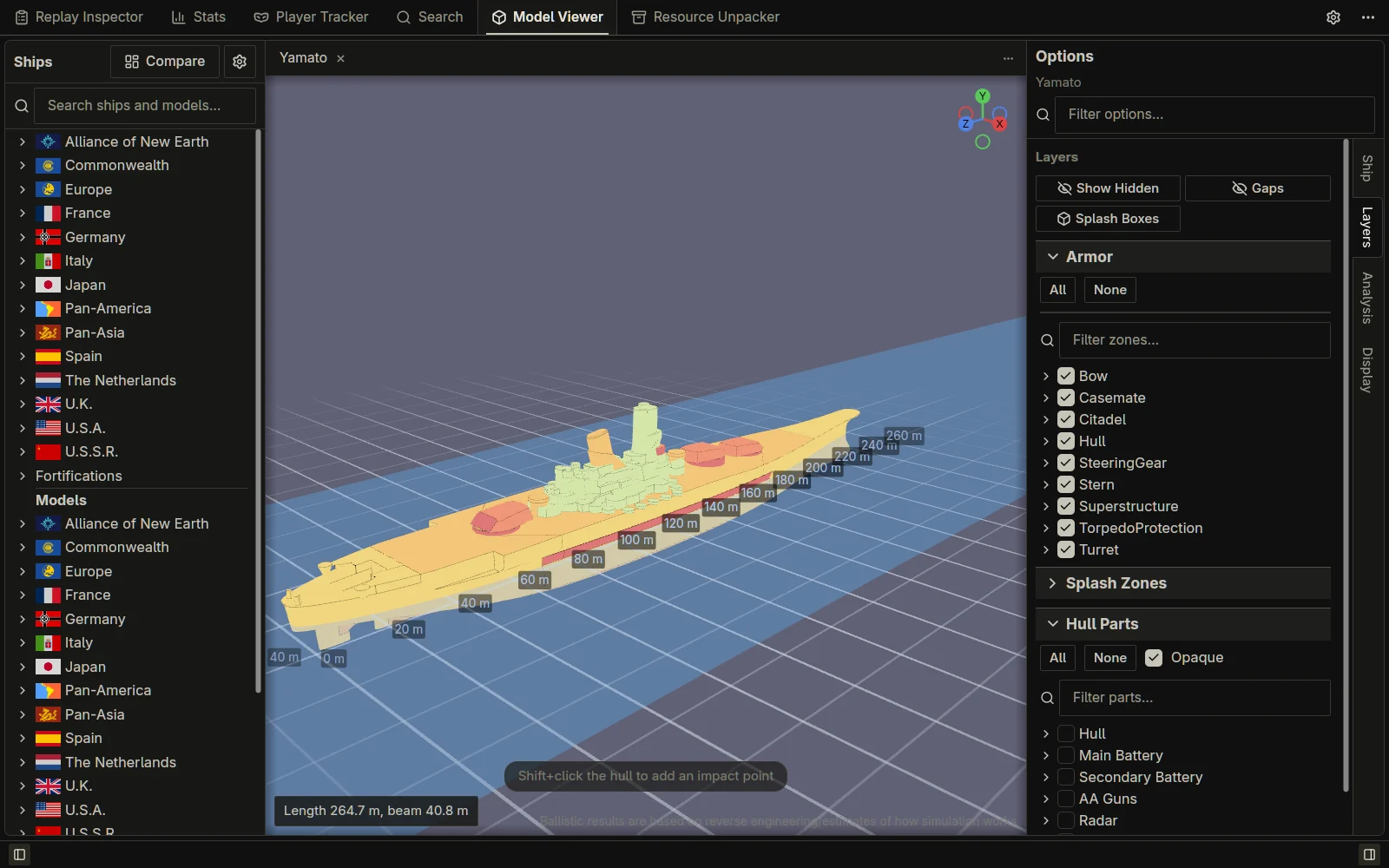
- The options panel is grouped into Ship, Layers, Analysis and Display tabs. Its search covers every tab.
- Shift+click the hull to cast a shell. The trajectory editor lists each plate the shell struck with its thickness, impact angle, zone and what the shell did there.
- Click a salvo or shell in the incoming fire log to draw its path through the hull. Each salvo names its shell, caliber and range.
- A ship placed from a replay shows a compass rose that turns with its heading, and a health strip labeled with the battle clock.
- The Layers tab lists a ship's splash boxes by group.
- Ship searches list the closest matches first. Clicking a ship loads it without unfolding its parts.
- Ctrl+Z, Ctrl+Shift+Z and Ctrl+S work anywhere in the viewer.
- The viewer starts with the water off and the grid on.
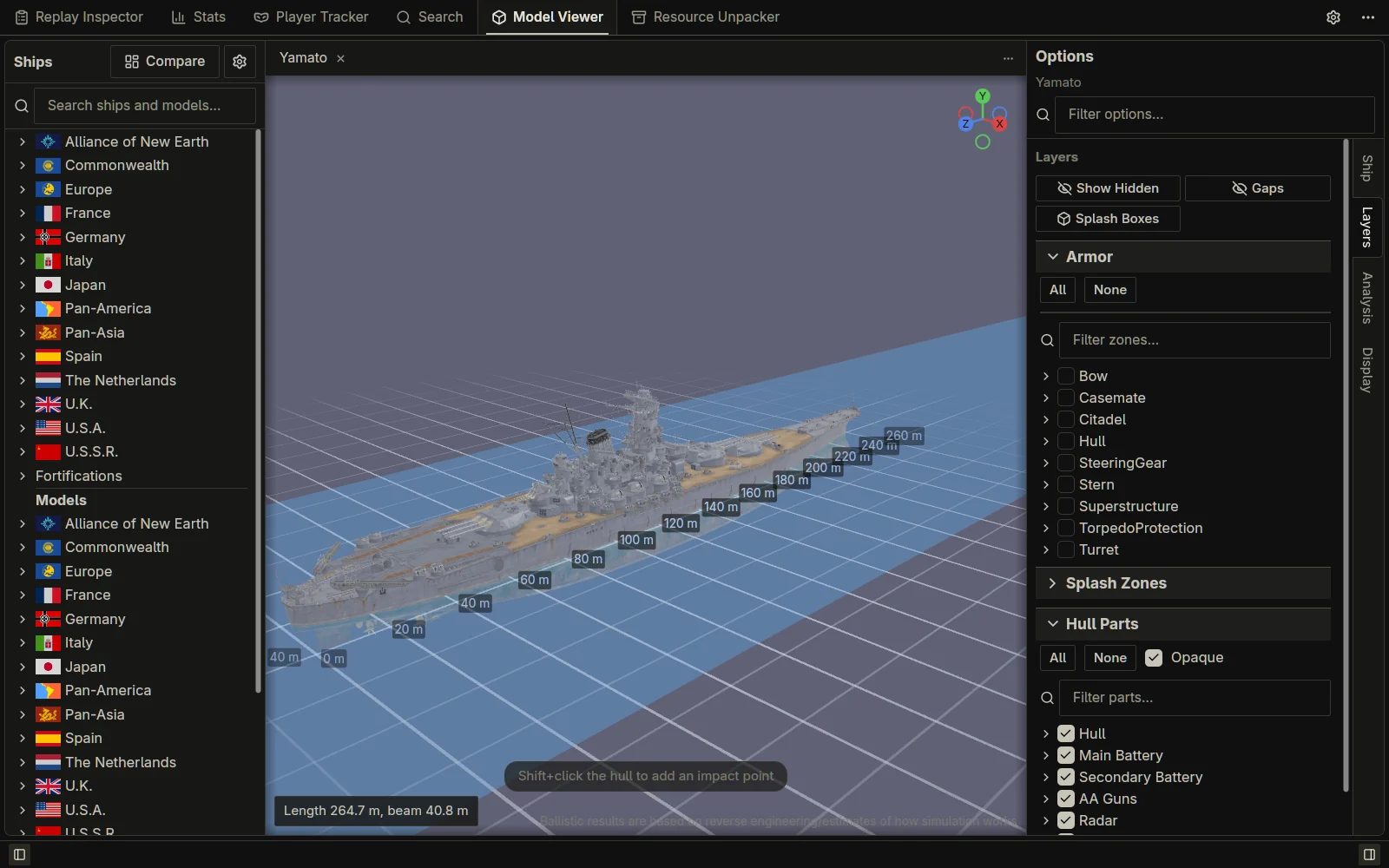
- The Model Viewer opens any model in the game, including armored buildings under Fortifications and their gun mounts.
- Hover a model to see the name of the part under the pointer.
- Models list the textures they use. Normal and metal-gloss maps are drawn and included in GLB exports.
- Search ships and models by name or game ID, and filter ships by a tier range.
Player Tracker
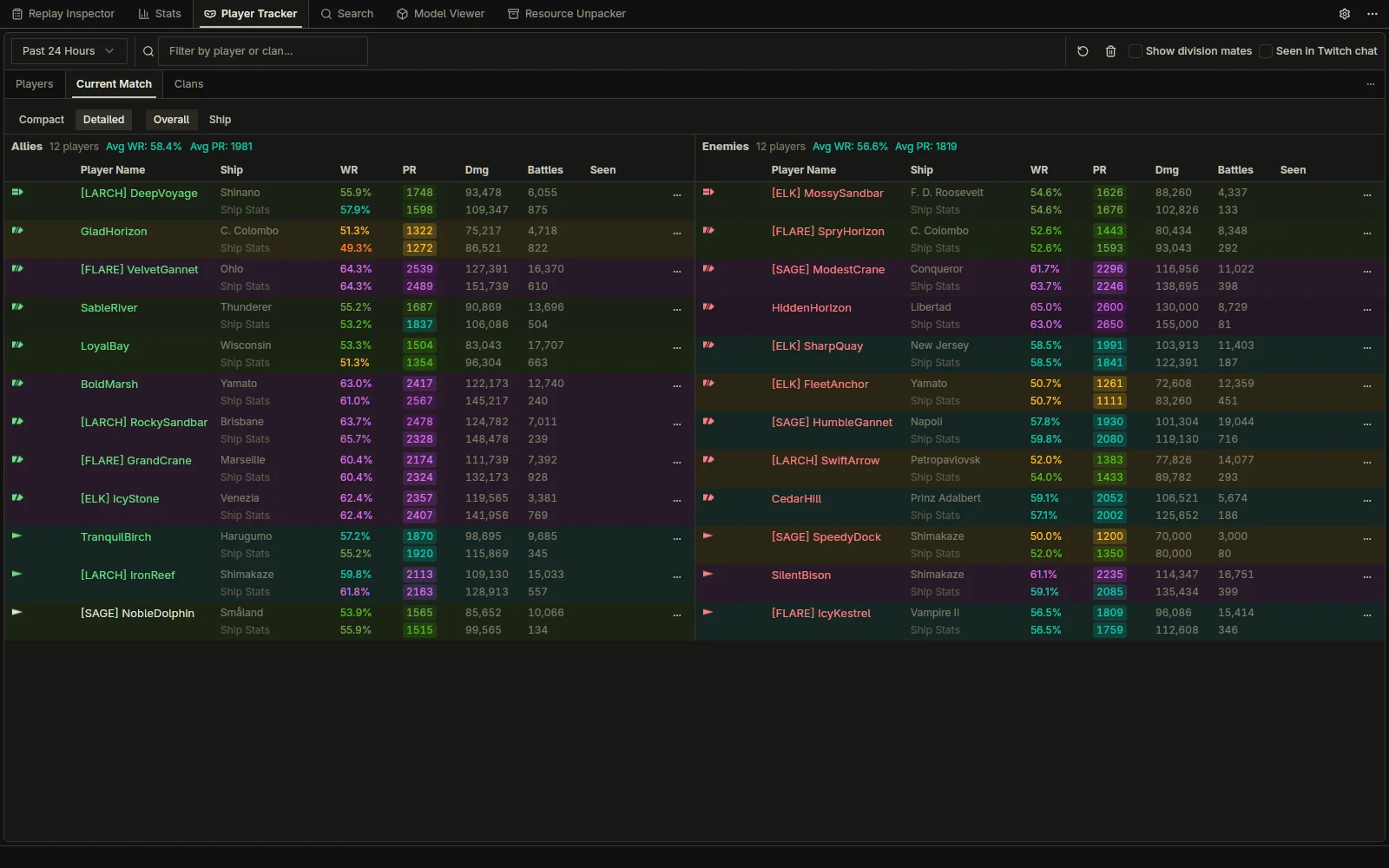
- Current Match, Players and Clans are panels you can place side by side. The layout and your filters are saved.
- Current Match shows team averages for win rate and PR, colored by the band each value falls in. Ship class icons keep their proportions.
- Players from every indexed replay are recorded, and division mates are marked. Populate fills the tracker from the replay index.
- Players seen in Twitch chat during a battle with you show a Twitch icon naming their login. The Seen in Twitch chat box narrows the list to them.
- The tables refresh when a battle is recorded while the tab is open.
Stats
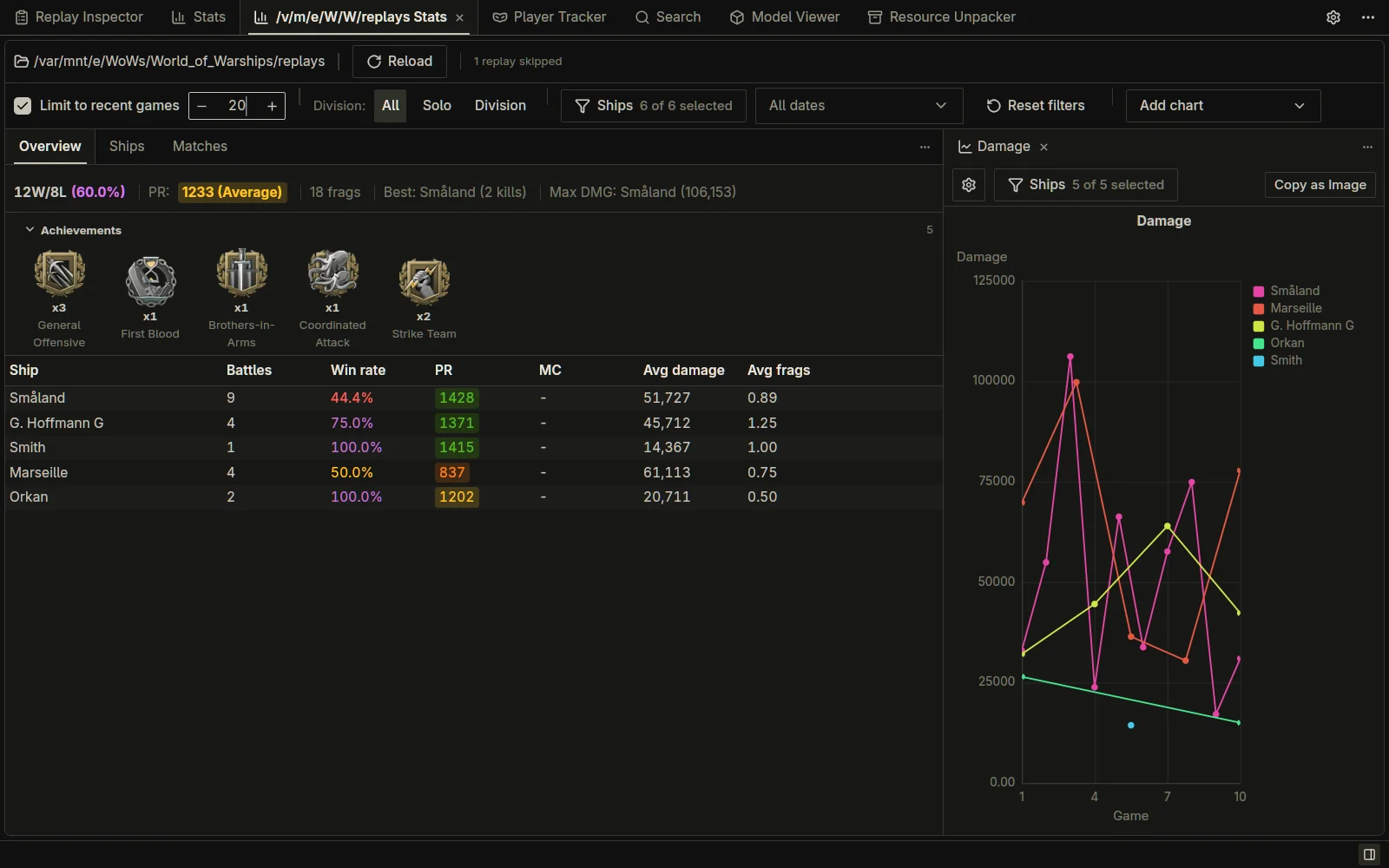
- Session stats can hold your saved session or every battle since the app opened. Choose from the listing's options or the Stats tab.
- Battles you play are added to session stats as the game writes them.
- Charts can plot potential damage, damage received, hits, fires, floods, citadels, critical hits, distance traveled, capture points, planes shot down, anti-air damage, time lived, survival rate, torpedoes spotted, heals and MC. Pick one from a list that narrows as you type.
- Battles saved before these statistics were kept are left out of their charts. Rebuilding the replay index fills them in for saved session battles whose replays are still on disk.
- Leave ships, single games or days out of the stats. Reset filters shows every game again.
- Hover a point or bar to see its value. Drag or scroll over an axis to stretch or squeeze that axis alone.
- Random and Ranked win rates are colored by band in the session record, the Ships panel and the charts.
Search, Unpacker, tactics board and collaboration
- Search pills name the players, ships and folders they filter on. Results can pin columns and render a replay to the clipboard. A search runs again when new battles are indexed.
- The Unpacker's file viewer supports text selection, copy and find with match case. Filter results show their folder.
- The tactics board sets a placed ship's hull, Concealment Expert, range upgrades and range circles. Picked shapes are edited from the toolbar.
- A peer's pointer shows only on the replay or board it is over, under that peer's name.
- Watchers of a collab session follow the host's layers, range circles and trails. The watched view can zoom and pan, and shows peers, pings, drawings and the score bar.
Translations
- Every language is fully translated, including strings that were left in English.
- Counted text, such as a number of battles, uses each language's plural forms.
- You can correct a translation without a new release. Put a
translations/<language>.ftlfile next to the app, for exampletranslations/de.ftl. The messages it names replace the bundled ones.
Fixes
- PR, MC and stats win rates count only Random and Ranked battles. Ratings stored for other battle types are cleared from the replay index.
- The player stats lookup waits up to a minute and retries a request that timed out once.
- A battle is auto-exported when its results arrive after you leave early. Exports use the game's clan colors, keep each player's ship data attached, and leave out placeholder ship and captain names.
- The game's temporary replay file is no longer read while a battle is in progress.
- A replay the game rewrites is indexed again.
- The replay index keeps matching when the install folder is reached through another path, such as a symlinked mount point.
- Old replays keep their retired module and skill icons.
- Hits that land in the same tick are all counted in merged damage events.
- In a playback merged with another team's recording, enemy icons are no longer all shown as spotted.
- Shared replays are recorded as sent only when ShipBuilds accepts them, so a failed upload is sent again later. Replays that cannot be read are skipped.
- Beta updates are offered only to beta builds. On Windows an update is offered only once its archive is uploaded.
- The macOS app starts on a Mac without Nix.
Performance
- Each rendered frame takes a third to nearly half less time, in the renderer and in exported videos, because the map layer is composited in about a tenth of the time.
- Large and high-DPI windows show the battle moving every frame, because several frames are drawn at once.
- The palette index, the Unpacker's folder trees, the renderer's roster and folder checks are read off the UI thread. Long jobs run on their own pool, so the listing and thumbnails stay responsive during indexing and downloads.
- Waiting screens redraw at 10 frames a second instead of the display rate.
- The Model Viewer decodes each model and texture once per ship and loads the default view first. Only the newest camouflage pick is decoded.
- The armor viewport keeps the drawn scene while only its overlay animates.
Other
- Generate game constants from the installed client when none are published for its build yet. The status bar says when it runs and how it went.
- The app can run an MCP server from settings, so AI assistants can query your replays and game data.
- The command palette can open any ship in ShipTool. The build link in a player's menu reads Open Build in WoWs SB.
- The app warns once game data loads if the install folder lists no replays.
- Windows show the application icon, including in their title bar.
- Settings from versions old enough to keep them in
app.ronare moved into the new settings store on first start.
Command-line tools and libraries
- The desktop app runs replayshark commands as
wows_toolkit replayshark <args>. - The minimap renderer CLI takes
--video-lengthor--speed, and--max-size-mibrefuses a size the video cannot fit. - wows-query adds computed ballistics and torpedo quantities, battle impact factors,
salvo_kill,gun_module_matchups,torpedo_rankings,module_comparison, historical IFHE and skill dispersion, and AP penetration by range. - wows-mcp is a library that embedders extend with their own tool sets. Raw GameParams are stored as a deduplicated memory-mapped tree with jq queries.