Repository navigation
Options and Keybinds
Everything you need to know to customize Reimagined Intro and install custom Intro Packs.
Tip: Almost every setting adapts to your active Intro Pack. If a setting is greyed out, the pack you currently have selected does not include that feature (for example,
Intro VolumeshowsNo Audioif a pack has no sound file).
On the Title Screen, you have three ways to access Reimagined Intro:
- Minecraft Options: Click Options... > Reimagined Intro... (can be hidden in settings).
- Keyboard Shortcuts: Works directly on the Title Screen.
- Mod Menu (Fabric): Click Reimagined Intro in the Mods list.
You can rebind any key under Options > Controls > Key Binds > Reimagined Intro.
| Default Key | Action | Where it works |
|---|---|---|
F6 |
Replay Startup Intro | Title Screen (if the active pack has an intro) |
F7 |
Open Options | Title Screen (useful if you hide the Options button!) |
F8 |
Open Intro Packs | Title Screen |
ESC |
Skip Intro / Stop Audio | Skips during intro playback; stops leftover intro audio on the Title Screen |
Open the Intro Packs screen (F8 or Options > Reimagined Intro...) to switch between Installed and Online packs:
-
Online Marketplace (
Onlinetab):- Browse official and community packs, type in the search bar to filter by name/author, and click Download.
- Click the refresh button (
🗘) to check for newly added packs.
-
Direct URL (
Onlinetab >+ URL):- Paste any direct
.ziplink (such as a GitHub Release link) and click Download & Install (max512 MB).
- Paste any direct
-
Local
.zipor Folder (Installedtab >Open Folder):- Click Open Folder to open
.minecraft/intros/. - Drop a pack
.zipor unzipped pack folder inside, then return to Minecraft and click🗘to load it.
- Click Open Folder to open
- Select (or click the card): Makes the pack active.
- Preview: Plays the pack's startup intro right away.
-
✕(Red button): Uninstalls a custom pack from yourintrosfolder (the built-in Reimagined Intro pack cannot be removed). -
Hover any card: Shows version, resolution, FPS, file size, included features (
Intro,Title Screen,Audio), and description.
Press F7 on the Title Screen (or click Options... inside the Intro Packs screen) to open Reimagined Intro Options.

-
Values:
Yes(default) /No - What it does: Plays the active pack's startup animation right after the Mojang loading screen when launching Minecraft.
-
Note: Disabled if the active pack does not include an
intro/animation.
-
Values:
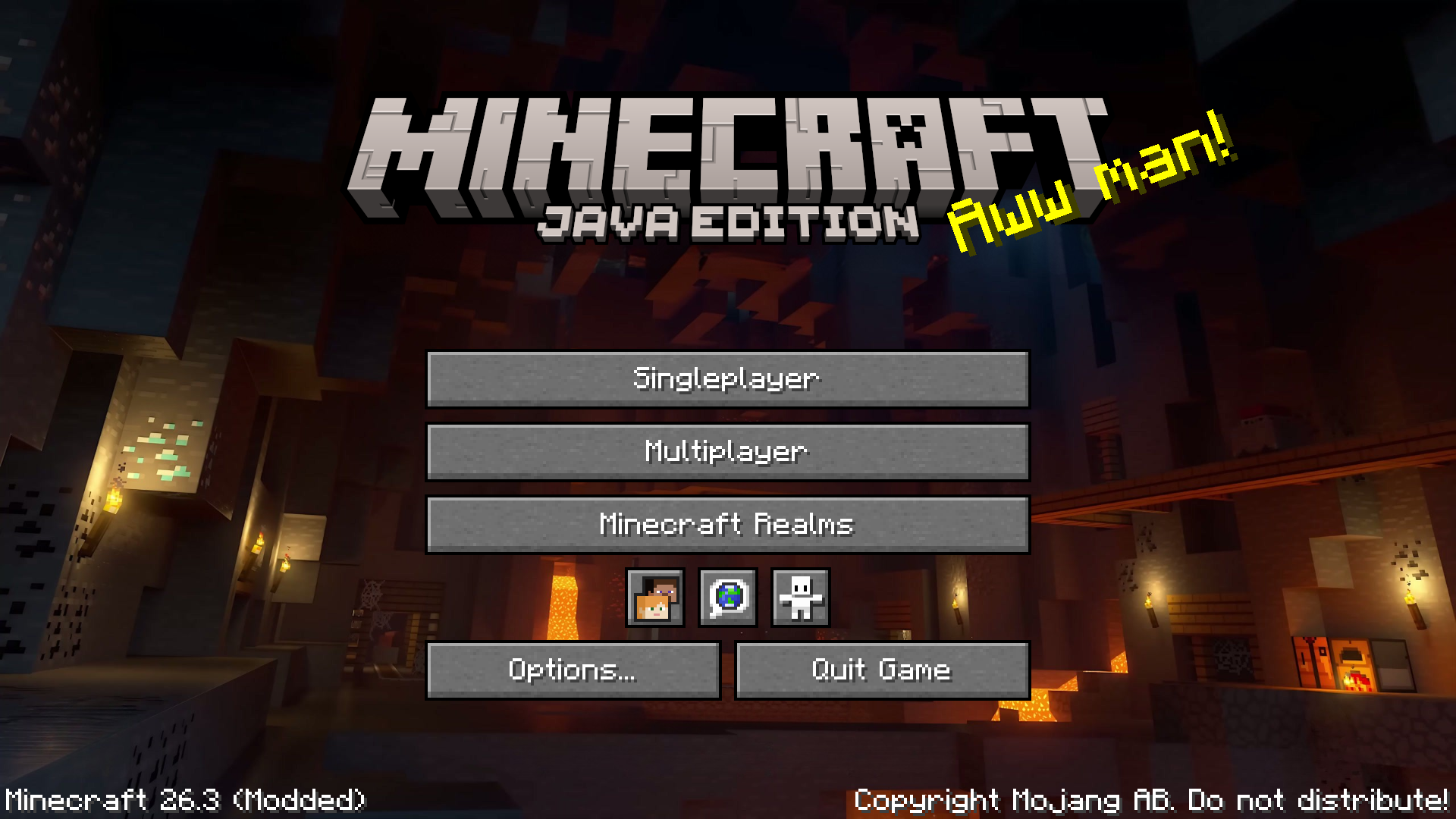
Animated(default) /Static -
What it does:
-
Animated: Plays the active pack's looping animation across the Title Screen background and hides the overlapping vanilla Minecraft logo/version watermark for a clean cinematic look. -
Static: Displays a standard rotating Minecraft panorama instead (uses the pack's custompanorama/if included, or falls back to Minecraft's vanilla panorama).
-
-
Note: Locked to
Staticif the active pack does not includeloop/frames.
Before (Static) |
After (Animated) |
|---|---|
 |
 |
-
Values:
Yes(default) /No -
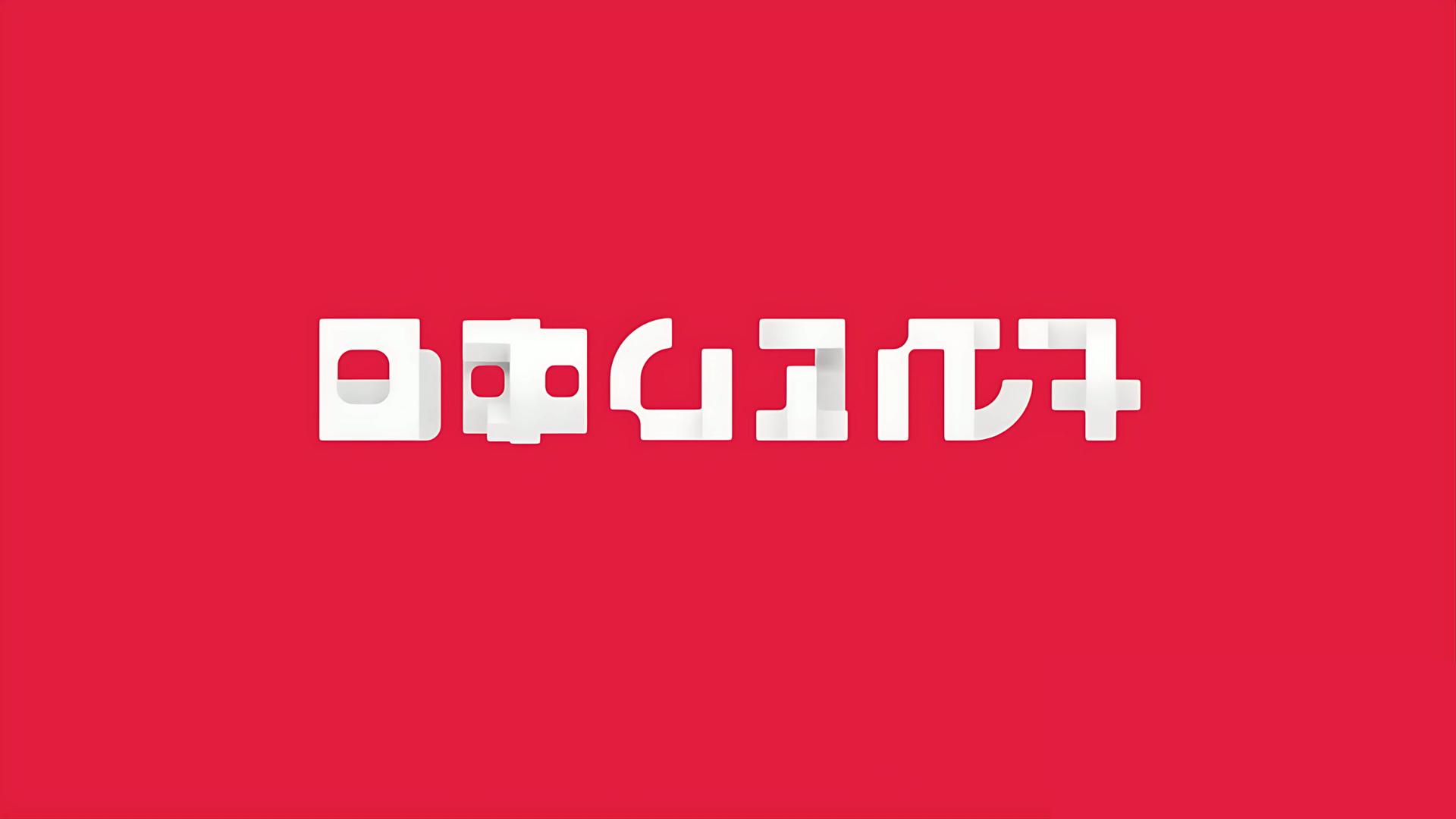
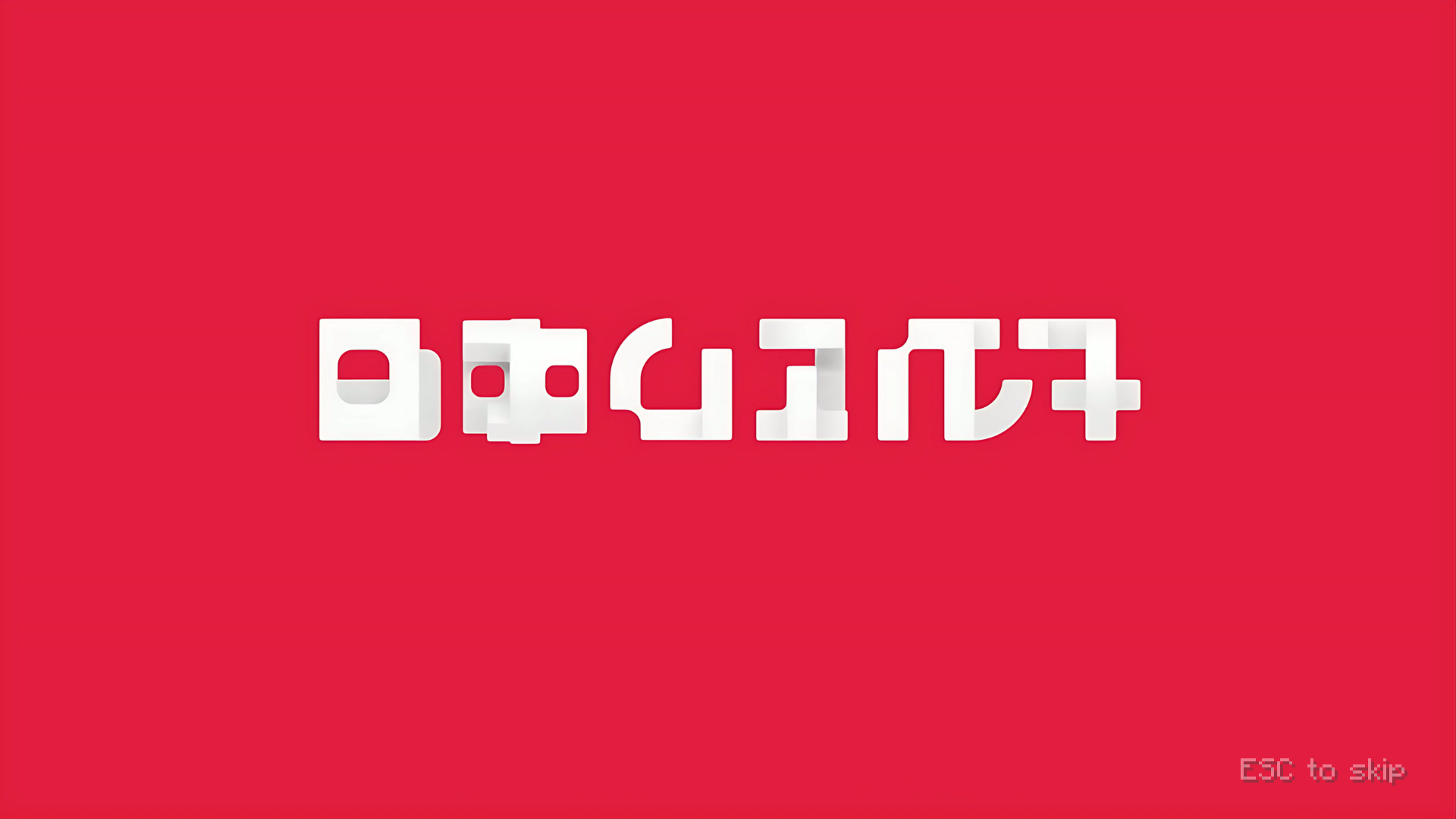
What it does: Controls whether the subtle
ESC to skiphint appears in the bottom-right corner ~1.5 seconds into the startup intro. Even when hidden, pressingESCstill skips the intro.
Before (No — Hidden) |
After (Yes — Shown) |
|---|---|
 |
 |
-
Values:
Shown(default) /Hidden -
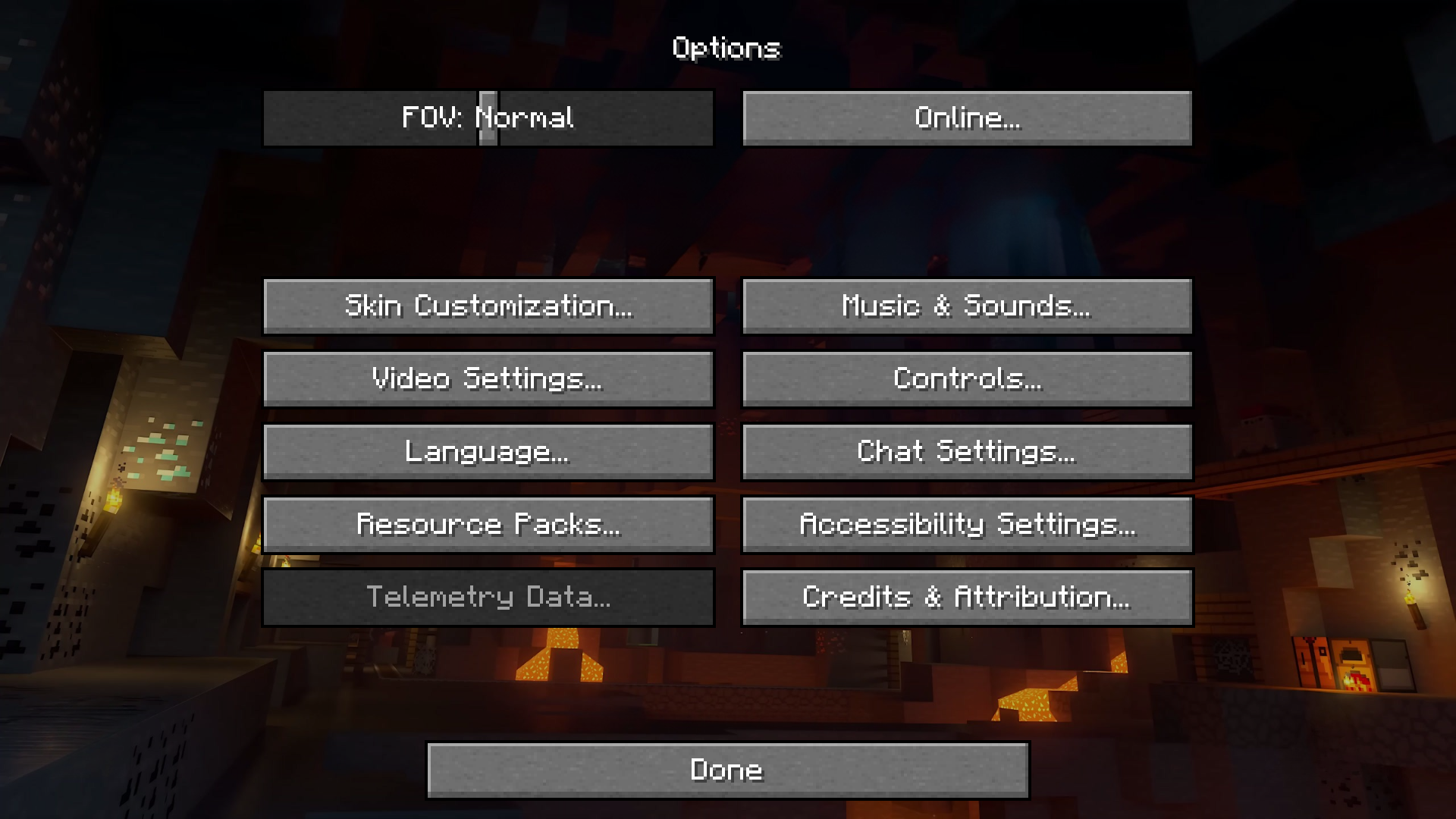
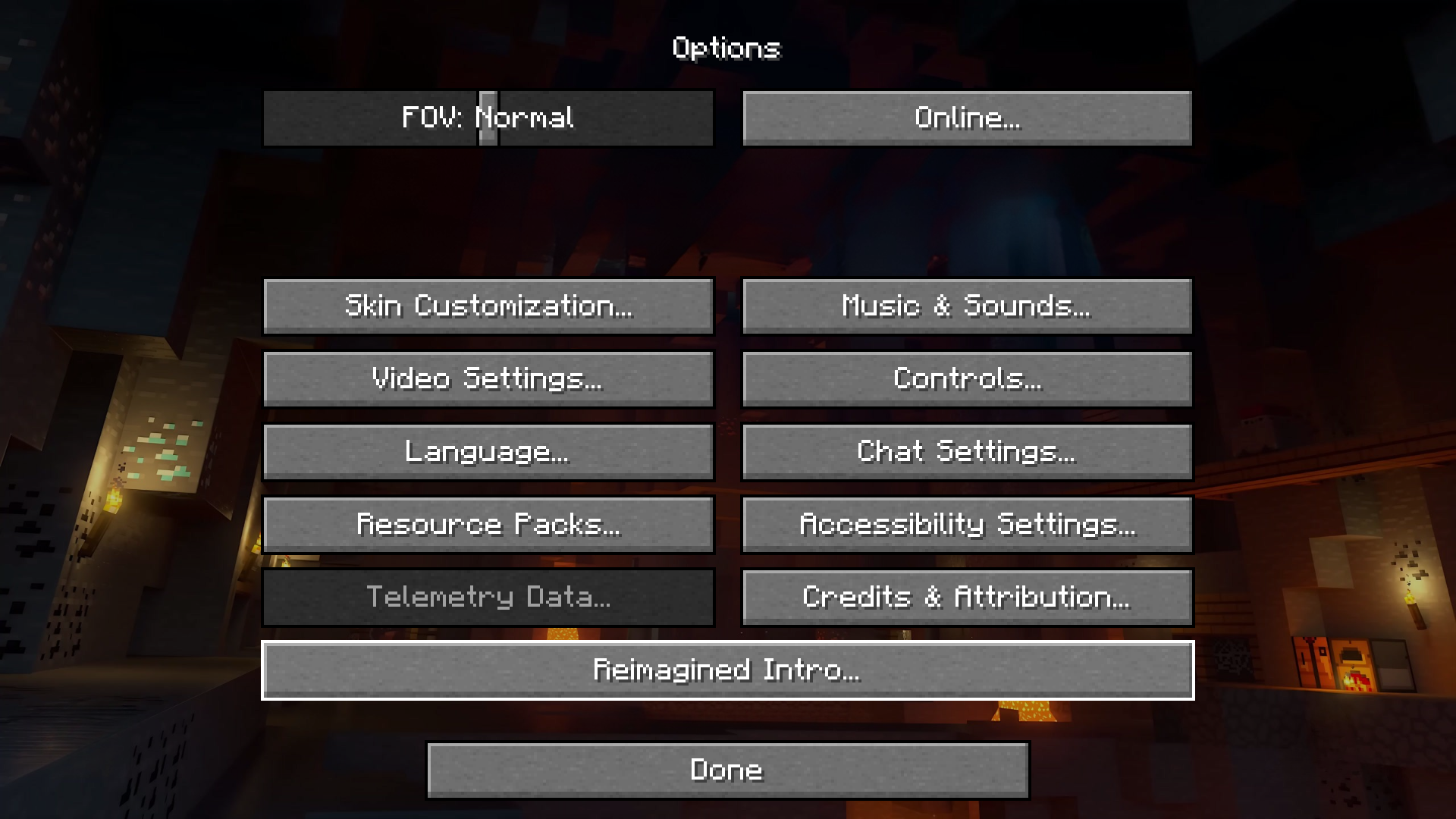
What it does: Shows or hides the Reimagined Intro... button inside Minecraft's Options menu. Hide this if you want a completely clean vanilla Options menu — you can still open Reimagined Intro anytime with
F7orF8on the Title Screen (or via Mod Menu on Fabric).
Before (Shown) |
After (Hidden) |
|---|---|
 |
 |
-
Values:
0%–100%(default100%) -
What it does: Adjusts playback volume for the active pack's
audio.ogg. DisplaysNo Audioif the current pack has no audio file.
If high-resolution (1440p) packs feel laggy on your PC or use too much memory, you can downscale playback right inside Options — no separate Lite version needed.
-
Resolution (
Max/1080p/720p/480p):- Lowers the frame resolution used during playback while keeping the aspect ratio intact. Only presets lower than the active pack's source resolution are shown.
-
FPS (
Max/60/30/15):- Lowers playback frame rate by sampling fewer frames over the same duration, keeping audio perfectly in sync. Only presets lower than the pack's native FPS are shown.
-
ApplyButton:- Starts preparing the downscaled frame cache under
.minecraft/cache/reimagined-intro/. Shows generation progress (%), then turns green (Ready) once finished.
- Starts preparing the downscaled frame cache under
-
✕(Clear Button):- Resets both Resolution and FPS back to
Maxand deletes cached downscaled files to free disk space.
- Resets both Resolution and FPS back to
-
Config Location: Settings are stored in
.minecraft/config/reimagined-intro.json. -
Upgrading from v2 (FancyMenu): Reimagined Intro
3.0.0+is completely standalone. If old v2 FancyMenu layouts are detected on startup, a built-in migration prompt will offer to disable them cleanly so screens do not overlap.