Repository navigation
Releases
Jotiva 0.2.0

Jotiva 0.2.0 围绕便签速记、Jev 管理、脱离鼠标、即时渲染、图片管理五大核心体验进行了全面升级:新增目录级图片管理、文档感知的内置终端、预览标签与标签批量操作、主题管理与全局 CSS 微调、中英双语即时切换以及应用内签名更新,并将底层编辑器引擎升级至 @jot-md/editor v0.4.1。
新功能
- 目录级图片管理:新增「设置 → 图片管理」与文件夹右键「图片管理…」,支持按目录配置三种存图方式——跟随文档(存入文档旁子目录如
_assets,支持按文档名建子目录)、固定共用目录(支持相对路径,适合博客/工程统一存放配图)与 HTTP 图床上传(支持自定义表单字段、JSON Pointer 与系统凭据库密钥)。子目录自动继承最近一层已配置的上级目录规则,并支持同名自动编号与可选的静态 PNG / JPEG 体积压缩。 - 文档感知的内置终端:在主窗口按
Ctrl+Shift+`即可在当前文档或侧栏所选项所在目录打开或切回终端,也可右键文件夹/标签选择「在此处新建终端」。支持多会话并行、切换标签页不断连、按F2重命名会话、拖入文件自动插入转义路径,以及在脚本中通过JOTIVA_INBOX_DIR环境变量把生成的.md直接送入收件箱。 - 主题管理、新内置主题与全局 CSS 微调:
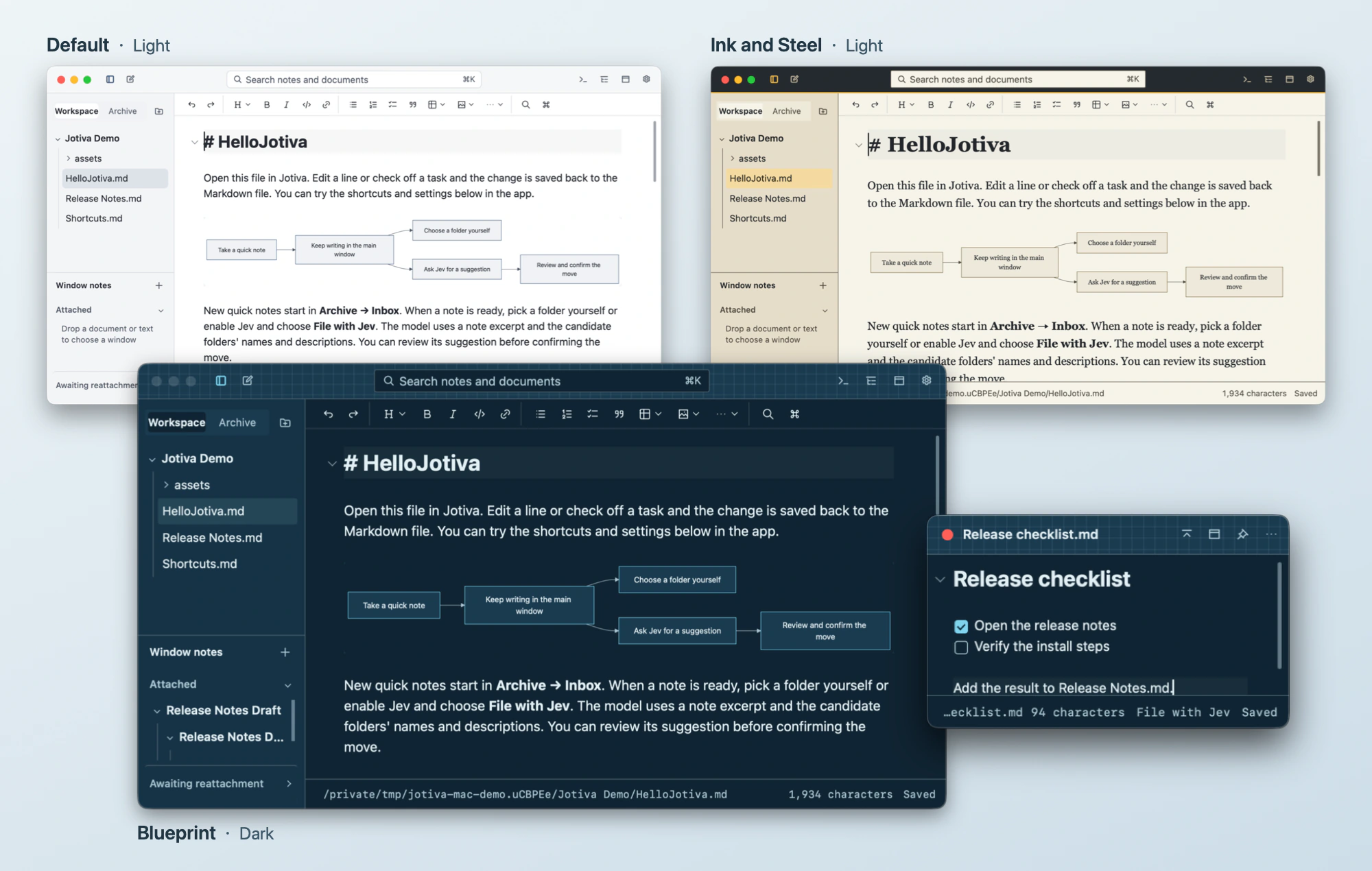
- 新增 Material 与 蓝晒(Blueprint) 两套内置明暗主题,Mermaid 图表(流程图、时序图、甘特图等)现在会自动跟随当前主题配色。
- 支持在「设置 → 界面外观 → 我的主题」中导入、重命名与同名热更新
.css主题文件。 - 新增「全局样式微调」,支持在设置内直接编写、一键格式化并保存跨主题生效的自定义 CSS。
- 预览标签与标签页批量操作:
- 单击侧栏文件默认以斜体预览标签打开,继续浏览其他文件时自动复用,防止标签页无限堆积;双击、开始编辑或右键选「保留标签」即可固定(可在「设置 → 编辑选项」关闭)。
- 标签页右键菜单新增复制文档内容、制作副本、在此处新建终端、在新窗口打开,以及关闭左侧 / 右侧 / 其他标签等批量操作。
- 中英双语即时切换(i18n):新增英文桌面界面与原生菜单支持,可在「设置 → 界面外观 → 界面语言」中实时切换简体中文与 English,所有已打开窗口立即生效。
- 应用内签名更新:新增「设置 → 软件更新」与后台自动检查。从本版本起,启用更新签名的 macOS、Windows 与 Linux AppImage 安装包支持在应用内检查并安装更新(重启前自动保存已打开文档,有运行中的终端会话时会先弹窗确认)。
功能优化与问题修复
- 随窗便签速记体验优化:统一全局快捷键
Control+Shift+Space与便签菜单里的「新建便签」的创建链路——在同一窗口再次按下快捷键会直接新建一张独立便签;切回原宿主窗口时,挂在该窗口下的已保存便签会一并恢复显示。 - 全局搜索覆盖未打开文件与滚动懒加载:
⌘K/Ctrl+K搜索现可直接检索工作区和归档目录中尚未打开的本地文档文件名,并将结果列表由分页改为滚动连续懒加载。同时补充了归档目录重命名后仍能参与 Jev 归档建议的回归测试。 - 侧栏新建文件防丢失优化:新建文件时立即落盘并进入原位重命名(重名自动追加序号),中文输入法选词或意外失焦时,即使还没按
Enter,文件也已经创建。 - 脱离鼠标的快捷键扩充:新增切换任务列表(
⌃⇧9/Ctrl+Shift+9)、勾选或取消待办完成状态(⌘⌥Enter/Ctrl+Alt+Enter)默认快捷键,并在快捷键设置中支持绑定「重排有序列表编号」等操作。 - 跨平台窗口与细节打磨:统一 Windows 与 Linux 的自绘标题栏布局,调整各平台的标题栏细节与设置页卡片间距;Windows 与 Linux 主窗口在窄宽度下会自动将搜索栏收拢为紧凑图标。
- 编辑器核心引擎升级(
@jot-md/editorv0.3.1→v0.4.1):同步升级底层 Markdown 编辑器组件,包含本地图片选取与粘贴钩子、工具栏交互和待办失焦样式等改进,并修复 WebKit 中鼠标点击「选择本地图片」无法打开文件选择框的问题。组件详细变更请查看 jot-md-engine Releases。
下载与升级说明
- 若你正在使用
0.1.1,请从下方下载对应平台的新版安装包完成升级。从0.2.0起,macOS、Windows 和 Linux AppImage 版可直接在「设置 → 软件更新」中检查并安装后续签名更新。Linux DEB 用户请从 Releases 页面下载新版安装包。 - 本版 macOS 安装包未经 Apple 公证,Windows 安装包没有发布者签名。系统可能在首次打开时提示。macOS 更新后若需要重新授权辅助功能,可以在「设置 → 窗口关联」重新发起授权。Apple 打开应用说明
- 下载区的
HelloJotiva.zip包含中英文示例笔记与本地配图,解压后用 Jotiva 打开即可体验窗口挂载、表格、待办、LaTeX 公式与 Mermaid 图表。所有安装包与示例均可通过SHA256SUMS校验。
English
Jotiva 0.2.0 brings major upgrades across Window-Attached Quick Notes, Jev Smart Filing, Mouse-Free Workflow, Instant Live Rendering, and Per-Folder Image Management—introducing per-folder image storage rules, a document-aware integrated terminal, preview tabs and batch tab actions, CSS theme management with global CSS tweaks, live English / Simplified Chinese switching, signed in-app updates, and an upgrade to @jot-md/editor v0.4.1.
New Features
- Per-Folder Image Management: Configure image storage globally under Settings → Images or per folder via Image settings…—choose Beside the document (e.g.,
_assetsor per-document subfolders), Shared directory (with relative path support), or HTTP upload (custom form field, JSON Pointer, and OS keyring bearer token). Subfolders inherit the nearest configured parent rule automatically, with duplicate numbering and optional static PNG/JPEG compression. - Document-Aware Integrated Terminal: Press
Ctrl+Shift+`to open or return to a terminal for the current document or sidebar selection, or right-click a folder/tab and choose New terminal here. Supports multiple persistent sessions across tab switches, session renaming (F2), dragging files to insert escaped paths, and writing toJOTIVA_INBOX_DIRto send generated.mdfiles straight into your Inbox. - Theme Management, New Built-in Themes & Global CSS Tweaks:
- Added Material and Blueprint light/dark themes. Mermaid diagrams now automatically follow your active theme palette.
- Import, rename, and update single-file
.cssthemes in place under Settings → Appearance → My themes. - Write, format, and save Global CSS tweaks that persist across theme switches.
- Preview Tabs & Batch Tab Actions:
- Single-click a file in the sidebar to preview it in a reusable tab; double-click, edit, or choose Keep tab to pin it (configurable in Settings → Editor).
- Right-click any tab to Copy document text, Duplicate document, New terminal here, Open in new window, or Close tabs to the left / right / others.
- Live Bilingual UI (i18n): Switch between English and 简体中文 on the fly under Settings → Appearance → Interface language across all open windows and native menus.
- Signed In-App Updates: Added Settings → Software updates and background update checks for macOS, Windows, and Linux AppImage builds configured for signed updates, automatically saving open documents and confirming active terminal sessions before restarting.
Improvements & Fixes
- Unified Quick Note Creation & Multi-Note Restore: Pressing
Control+Shift+Spaceagain on the same window (or clicking the new-note button in a quick note) now consistently creates a separate note attached to that window, and saved notes bound to a host window restore together when you switch back. - Unopened File Search & Continuous Scrolling:
Cmd+K/Ctrl+Know finds unopened files across your Workspace and Archive folders by filename, replacing pagination with smooth infinite scrolling. Added regression coverage for renamed archive folders remaining eligible for Jev filing suggestions. - Reliable Inline File Creation: Creating a new file writes an empty file on disk immediately during inline naming, so the file is already created if IME composition or a focus change leaves the name unconfirmed.
- Expanded Keyboard Shortcuts: Added default shortcuts for toggling task lists (
Ctrl+Shift+9) and task completion (Cmd+Option+Enter/Ctrl+Alt+Enter), plus assignable actions such as renumbering ordered lists. - Cross-Platform Window Polish: Aligned custom title bars on Windows and Linux, and refined title-bar details and settings cards across platforms; narrow Windows and Linux main windows automatically collapse the search bar into a compact button.
- Editor Engine Upgraded (
@jot-md/editorv0.3.1→v0.4.1): Upgraded the core Markdown editor component with image paste/picker hooks, toolbar refinements, and unfocused task-item styling improvements. Also fixed mouse clicks on the local image option failing to open the file picker in WebKit. See the full component changelog at jot-md-engine Releases.
Downloads & Upgrading
If you are upgrading from 0.1.1, download the installer for your platform below. Starting with 0.2.0, macOS, Windows, and Linux AppImage builds support signed in-app updates under Settings → Software updates (Linux DEB users can download new .deb packages from Releases). Unzip HelloJotiva.zip to try the bilingual sample notes and local assets, and verify downloads against SHA256SUMS.
The macOS installers are not notarized by Apple, and the Windows installer has no publisher signature. The system may show a prompt when you first open one. If macOS asks for Accessibility access again after an update, request it under Settings → Window attachments. Apple’s guide to opening apps
User Guide · Shortcuts · Themes · Report an Issue
安装包 / Downloads
| 平台 / Platform | 安装包 / Package |
|---|---|
| macOS 14+ (Apple Silicon, Intel) | Universal DMG, PKG, ZIP |
| Windows x64 | NSIS -setup.exe |
| Linux x86_64 | DEB, AppImage (Ubuntu 24.04 build) |
Jotiva 0.1.1
Jotiva 新增 Windows 和 Linux 支持。可以打开电脑里的 Markdown 和 UTF-8 文本,改动会存回原文件。
- Windows 可以从资源管理器打开文档,把便签挂到其他应用的窗口旁,并用 Ctrl 快捷键操作。
- Linux 可以浏览本地文件夹,也能把便签单独开在一个窗口里。兼容 EWMH 的 X11 会话还支持把便签挂到别的窗口旁。
- 编辑文件 时可以切换即时预览和 Markdown 源码,也可以用大纲跳到指定段落,或搜索本地便签和文档。编辑纯文本时,Jotiva 会保留原来的换行格式。
- HelloJotiva.md 是一份可以直接打开的示例笔记。勾掉一项待办,或在表格里加一行,改动就会保存在你下载的文件里。
下载
| 平台 | 安装包 |
|---|---|
| macOS 14+(Apple 芯片、Intel) | Universal DMG、PKG 或 ZIP |
| Windows x64 | NSIS 安装程序(-setup.exe) |
| Linux x86_64 | DEB 或 AppImage,构建于 Ubuntu 24.04 |
macOS 安装包未经 Apple 公证,Windows 安装包没有代码签名。可用 SHA256SUMS 核对下载文件。
Jotiva 0.1.0
Jotiva 是一款 macOS Markdown 编辑器。你可以原地编辑文件,也可以把便签留在会议、浏览器或其他工作窗口旁。
- 即时预览可直接编辑表格和任务列表。工作区侧栏、标签和文档大纲可以一起使用。
- 速记和窗口关联支持全局快捷键。文档仍以普通 Markdown 文件保存。
- 支持浅色和深色外观、自定义 CSS、改键和本地归档。
macOS 下载
需要 macOS 14 或更新版本。文件名含 universal 的包同时适用于 Apple 芯片和 Intel Mac。任选一种格式即可。
- DMG。打开映像,把 Jotiva 拖进「应用程序」。
- PKG。按 macOS 安装器提示安装。
- ZIP。解压后,把
Jotiva.app移到「应用程序」。
安装包使用本机签名,未经过 Apple 公证。从浏览器下载后,macOS 可能提示无法验证开发者。SHA256SUMS 可核对下载的文件。挂载便签时,请按应用提示打开辅助功能权限。 使用手册
Windows
Windows 版本将先支持打开、编辑及保存 Markdown。欢迎告诉我们你使用的 Windows 版本与架构,以及希望先试用的操作。 Windows 反馈