Repository navigation
Releases: lolitemaultes/Gridline
Release list
Gridline 0.7.2

Gridline 0.7.2 is a point release on top of 0.7.1. Notes bend in the piano roll with a new Pitch bend tool, Junction becomes a map of modules and cables you wire by hand, Crest gets its full round, and the browser can rename, move and trash files with every reference following along. Loupe can be pinned into the main layout and drags audio out to the playlist, playlist tracks get a "+" menu, plugins can be favourites, and Windows gets ASIO. Projects from 0.7.1 open as they are, with one exception for Plasma, listed under Upgrading. Gridline's update check offers 0.7.2 to everyone on an earlier version.
Highlights
Pitch bend on piano roll notes
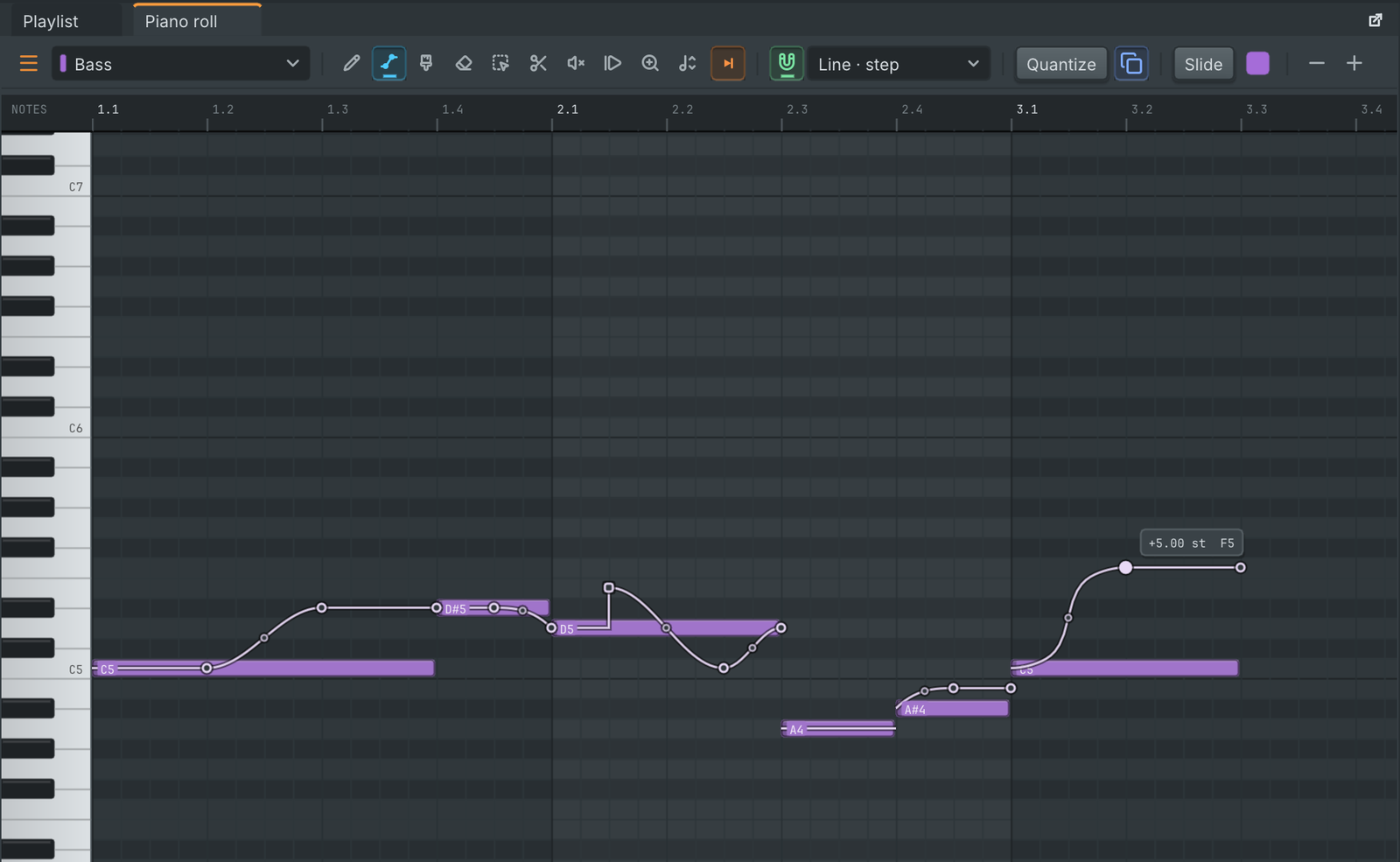
A Pitch bend tool sits beside the pencil (key N) and shows a line on every note. Drag anywhere on a note or its line to bend it like an automation line, with the value and the note it reaches shown beside the point.
- Snap. Points follow the piano roll's snap and whole semitones. Alt frees them, or with Snap off snaps them to the grid in view.
- Curves. Right-click a point for the glide into it: straight, smooth, ease in, ease out or step (hold, then jump), with a curve amount. Drag the small ring half way along a glide to bend it. The line shows the curve exactly as it plays.
- Double-clicks. Double-click a point to remove just that point, a glide or its ring to make it a straight ramp again, the note itself to reset its whole line. Each is one undo step.
- Chords. With several notes selected, a chord bends as one. Back on the pencil the lines stay visible, dimmed.
- Everywhere. Bends play per note on Gridline's instruments and on hosted plugins with per-note tuning, and as channel pitch bend on other plugins and MIDI Out. They travel with moves, copies, splits, chops and glue, are written to and read from MIDI files, and export to FL Studio as slide notes.
Junction, wired by hand
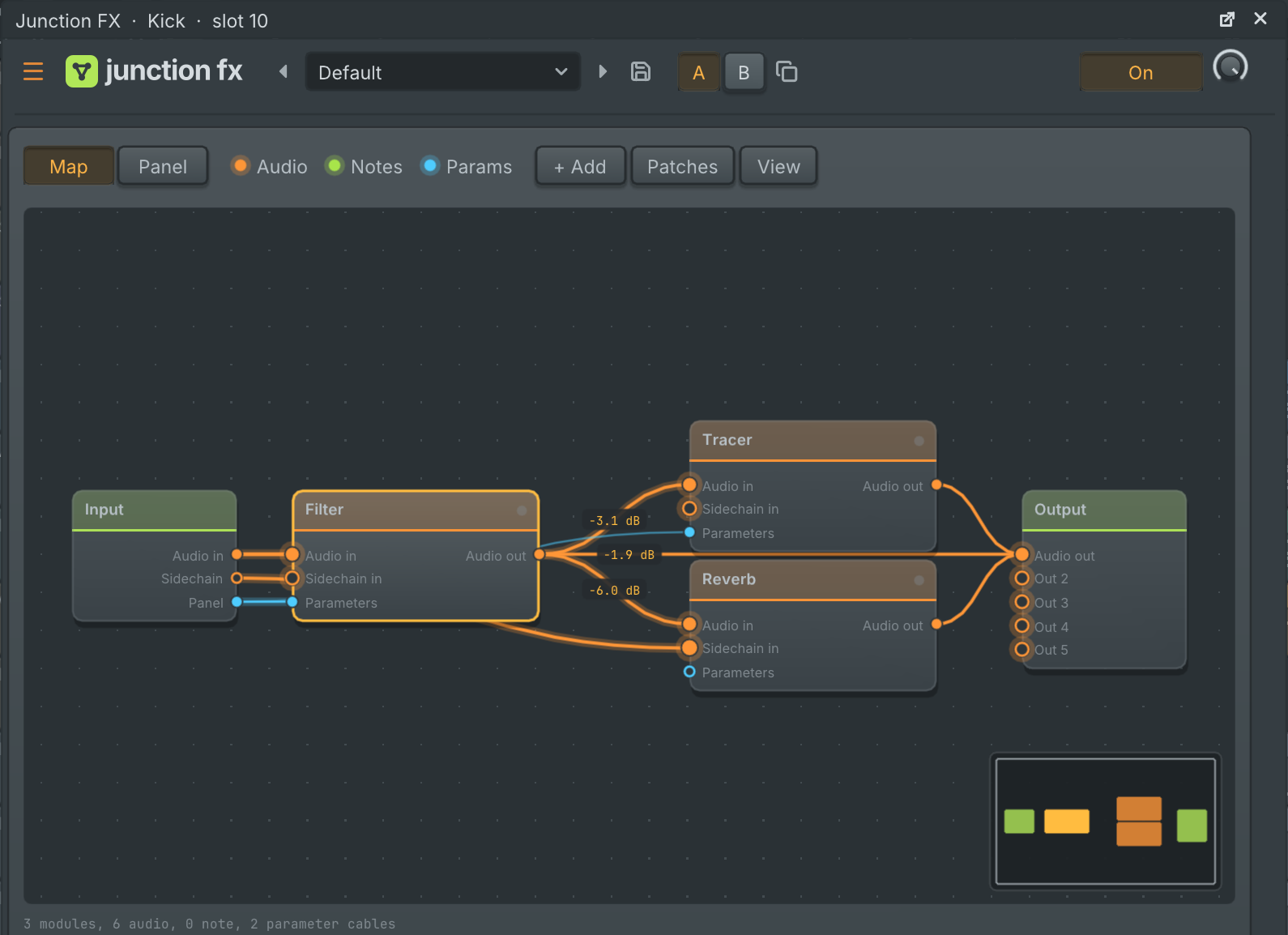
Junction and Junction FX now open on a map of modules and cables. Drag from any port to wire audio, notes or parameters, in parallel, across sidechains and to several outputs.
- Cables. Each cable has its own level, and a right click inserts an effect into it. A cable that closes a loop becomes a feedback cable, drawn dashed, that arrives 256 samples later whatever the buffer size. Latency between parallel paths is compensated.
- Modules. Rename, colour, bypass, mute, duplicate and disconnect them. Note processors can sit before instruments, and installed plugins run inside with their own interface.
- The map. It zooms and pans smoothly, with box select, automatic arrange, a minimap and filters per cable kind.
- The Panel page holds the eight macros and any parameter put on it, with names, ranges and snapshots. Its knobs automate as before.
Six new patches show what it can do. Every edit is one undo step, and existing projects and presets keep their sound and data until you rewire them.
Crest, full round
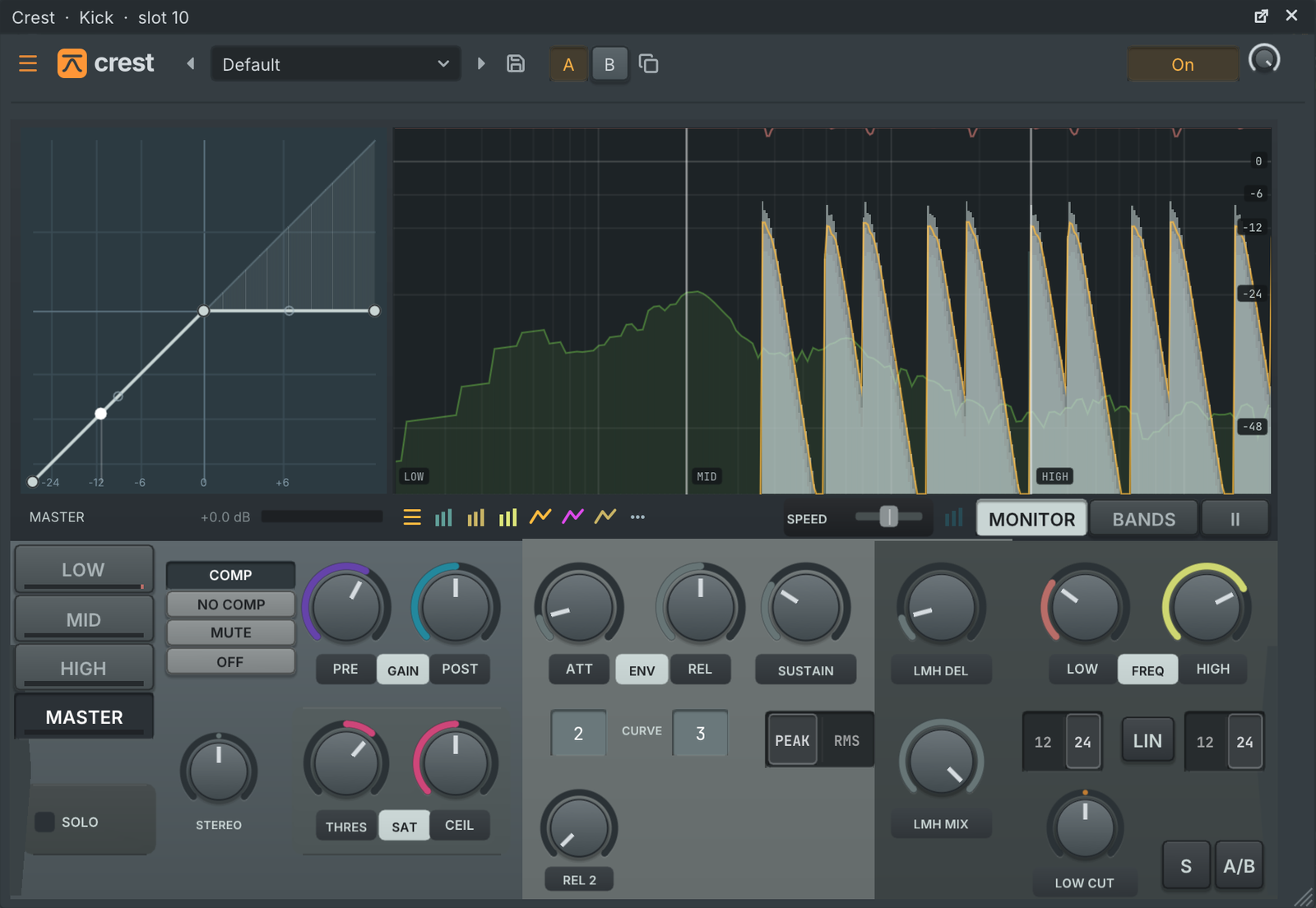
New instances of Crest run the engine that FL Studio import uses, with six new presets:
- Oversampling (2x, 4x, 8x), curves of up to 64 points and all 13 point shapes (right-click a point).
- A monitor with scrolling peaks, curve level and gain for one band or all four, pause and speed.
- A spectrum and heatmap with range, tilt and smoothing, and gain meters in the band tabs.
- dB, ms and Hz readouts on the knobs, and a linear-phase button with its quality menu.
Older projects and presets keep their engine and their sound.
Organise files in the browser
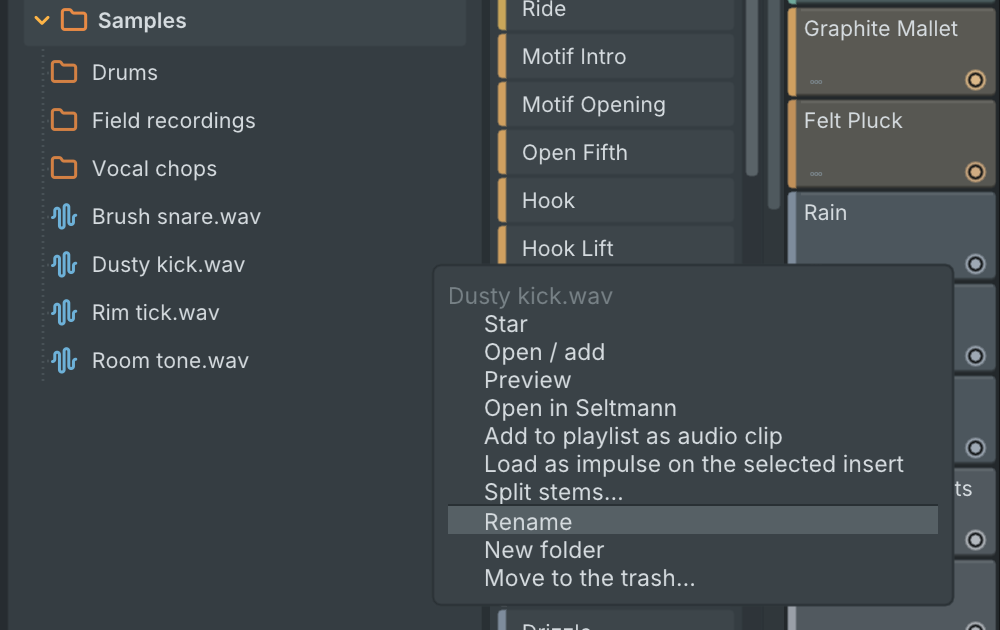
Right-click a file or folder to rename it in place, make a new folder or move it to the trash (asked first). Drag files and folders onto a folder to move them. Channels and clips that use a renamed or moved file follow it, in one undo step, and its sidecar files move along. Only your own folders and Gridline's folders can be changed; elsewhere the menu says why not.
The browser's PROJECT tab also lists every audio file the project uses, and the Edited audio folder now sits in that tab.
Loupe, pinned and dragged out
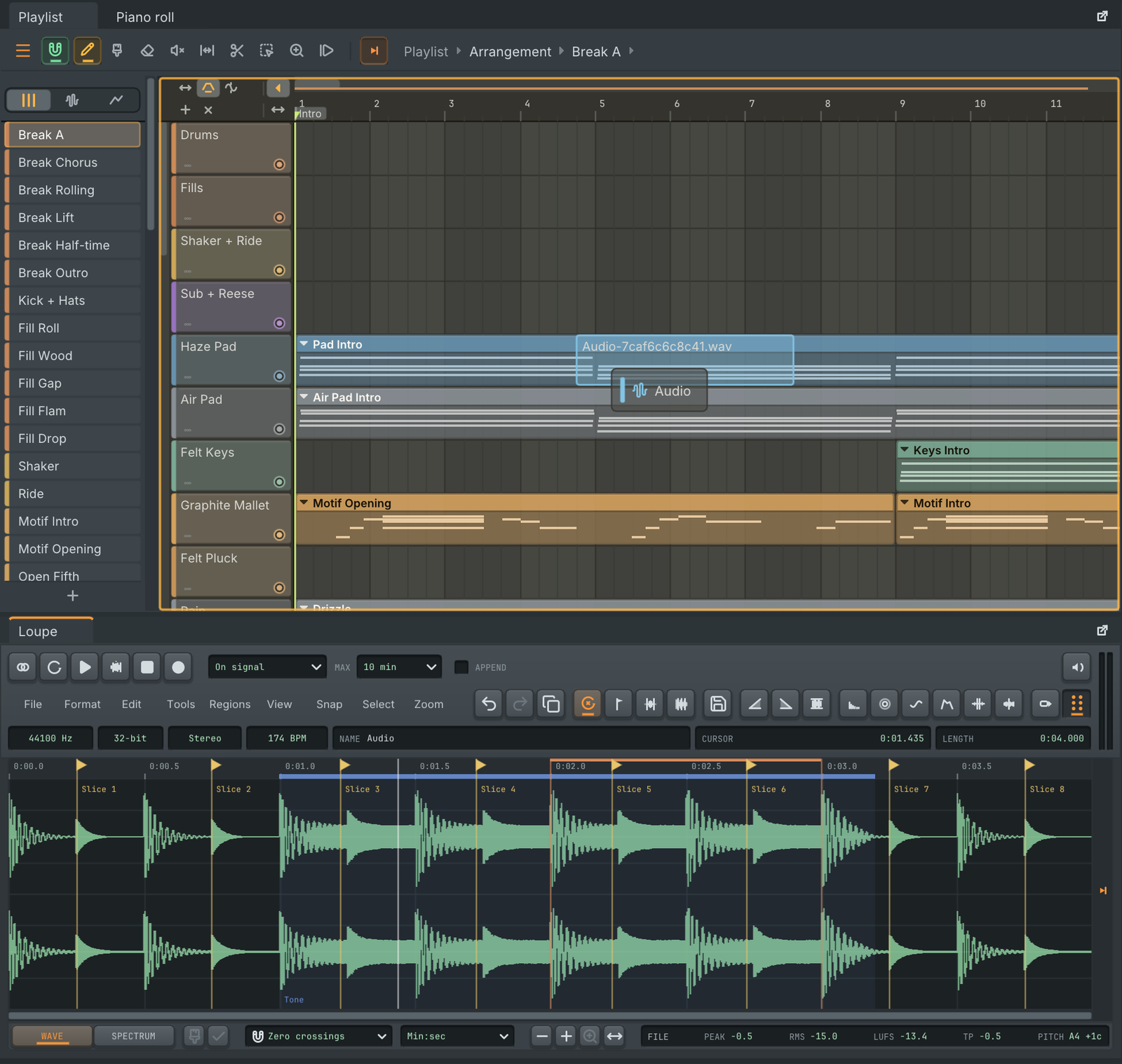
Loupe's View menu pins it as a tab next to the playlist, below the playlist, on the left with the browser, on the right with the mixer, or as a floating panel, and its tab can be dragged to any other dock spot. While pinned, every sample or Loupe effect you open shows there.
The grip button in Loupe's toolbar drags the selection (or the whole file when nothing is selected) onto the playlist, where it lands as an audio clip at the drop position on the grid, or onto the channel rack and samplers. A dragged selection is saved as a new file in the project's Edited audio folder.
A "+" on every playlist track
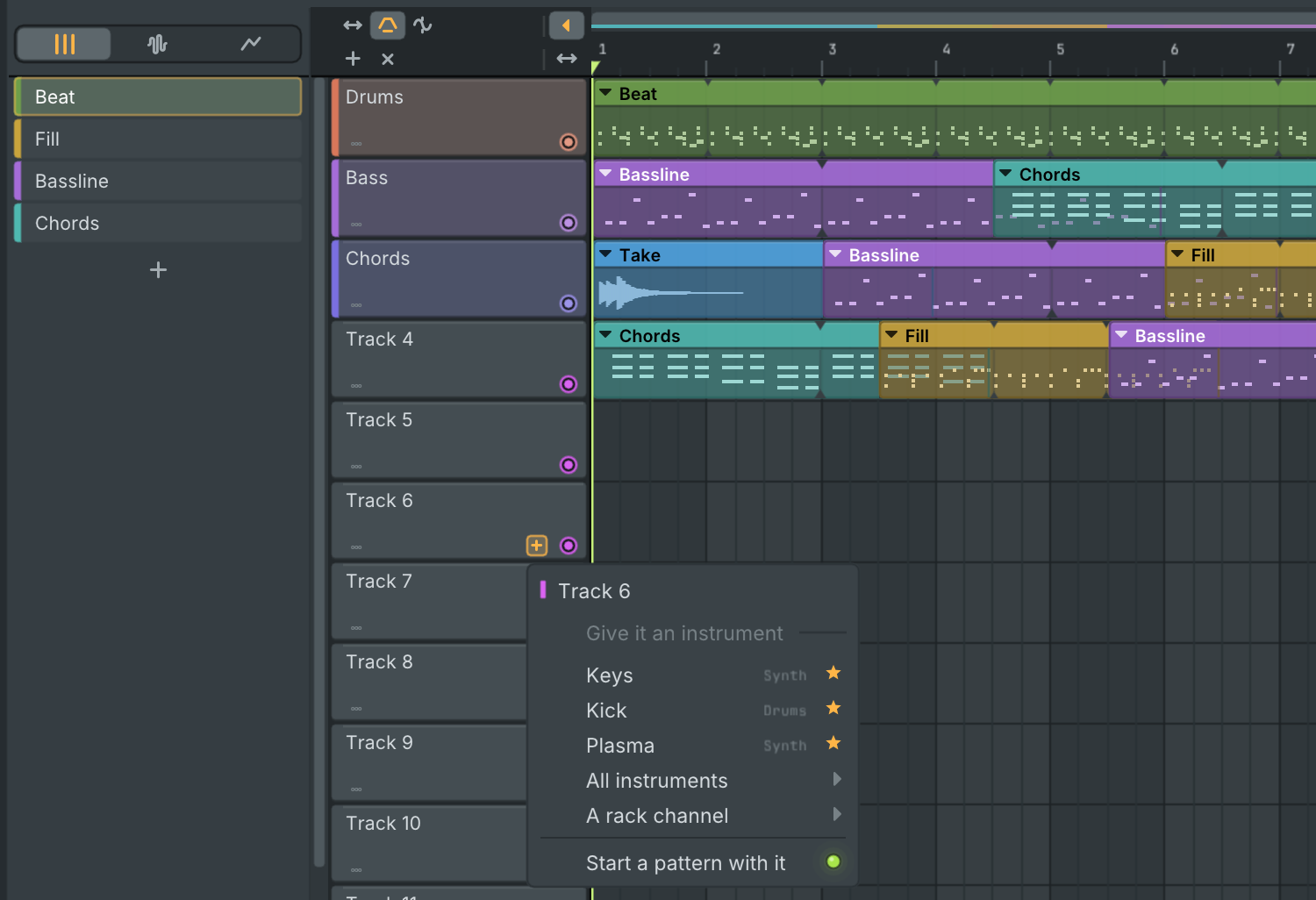
Hover a track header and a small "+" appears beside its mute switch. Its menu gives the track an instrument (your starred instruments are listed right there, then every instrument, or a channel already in the rack) and on an empty track starts a first pattern for it, named after the instrument and opened in the piano roll. On an instrument track it makes a new pattern at the song position (or the start of the view), changes the instrument or makes it an ordinary track again. Each action is one undo step. Turn it off in the playlist menu, View, Track + button.
Double-click a track's name to rename it. On a track that plays an instrument, double-clicking anywhere else on its header shows that instrument's window.
Favourite plugins
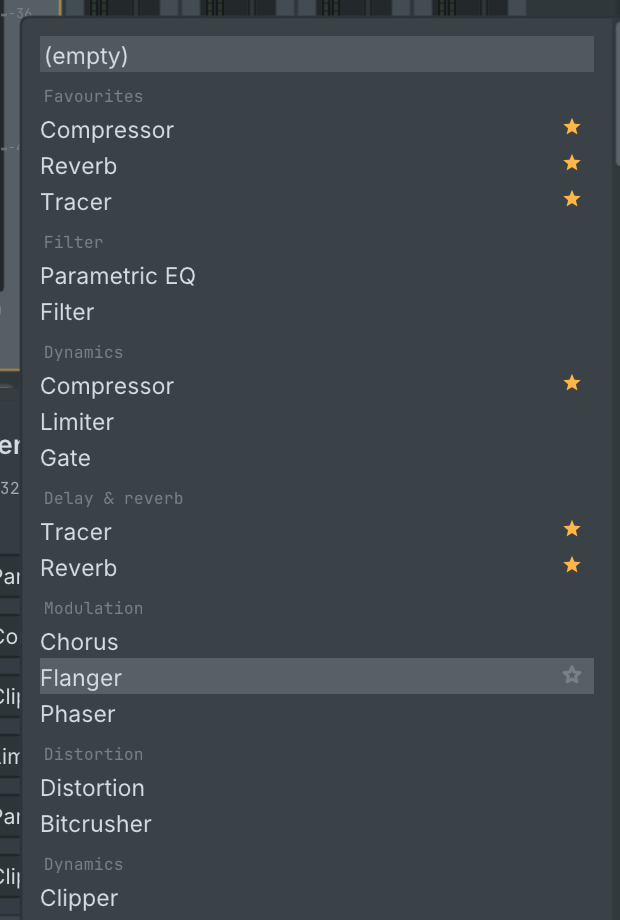
A star on each plugin in the mixer slot list, the channel and instrument menus and the browser's plugin database marks it as a favourite. Favourites come first in those lists and have their own group in the browser, for built-in and installed plugins alike. The mixer slot list and the channel menus now also list installed plugins, not only built-in ones.
ASIO on Windows
Settings, Audio has a driver type switch between the system audio (WASAPI, still the default) and ASIO. Pick any installed ASIO driver, its sample rate and buffer size from the sizes the driver allows, and open the driver's control panel. Device inputs feed the mixer's In 1 to In 16, the main output pair is selectable and other output pairs can each carry a mixer track. The driver's reported latency sets the recording offset, and resets the driver asks for reopen it on their own. An unplugged device falls back to the system audio. See docs/asio.md.
Plugin folders per format
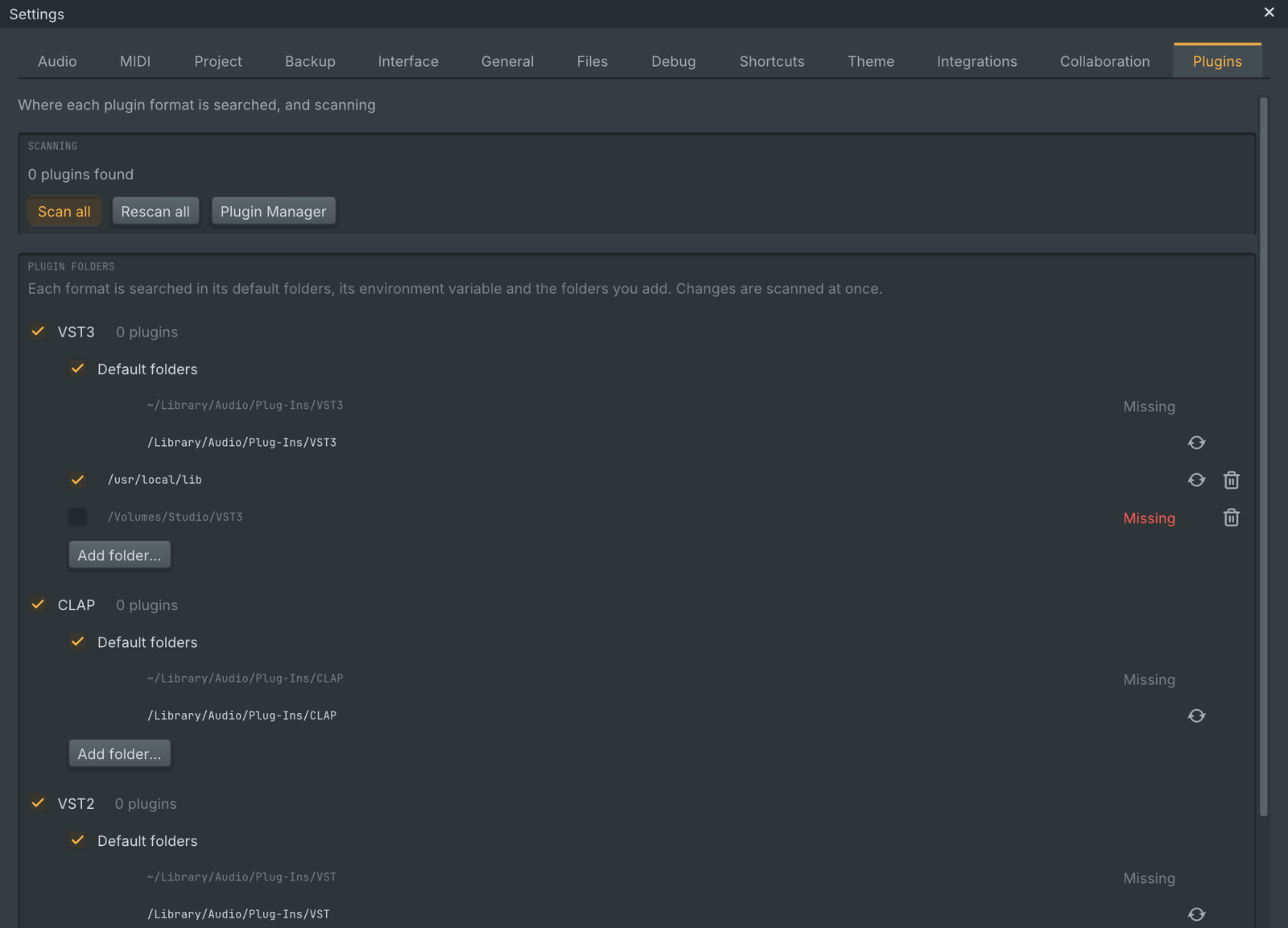
Settings, Plugins lists where VST3, VST2, CLAP, LV2 and AU plugins are searched. Add your own folders per format or for every format, switch folders or the default folders off, and rescan one folder or all. The Plugin Manager links to it. The VST3_PATH environment variable now adds VST3 search folders, as VST_PATH, CLAP_PATH and LV2_PATH already did.
Loop notches and overlapping clips
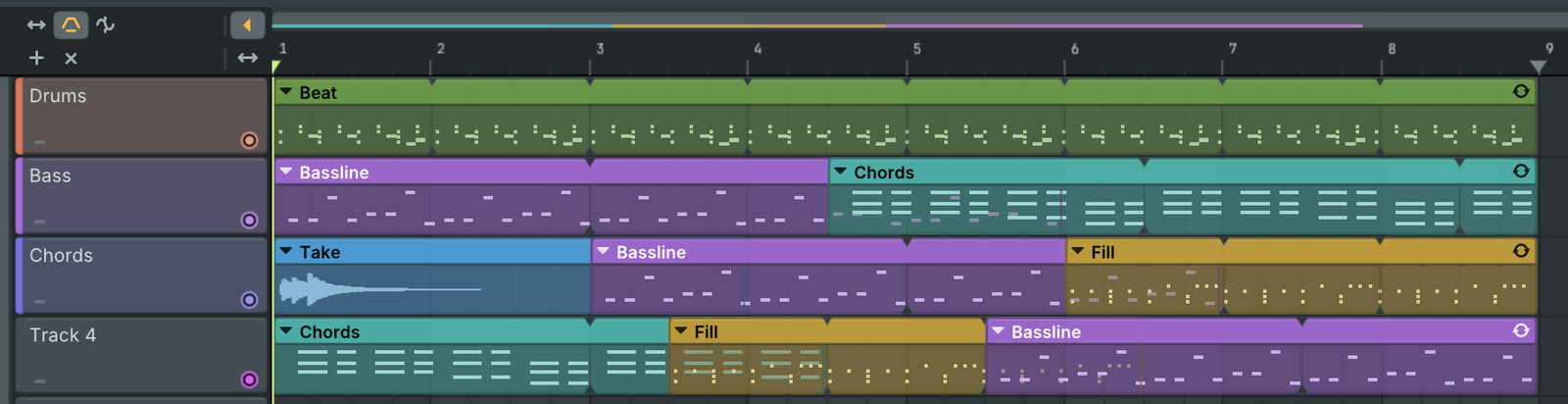
Looping clips show their loop points as small notches in the clip's top and bottom edges, with a faint line through the clip. The repeats are no longer dimmed, so a long loop reads calmer.
Where a clip lies over another on the same track, the notes, waveform or automation curve of the clip beneath stay visible through it, a little dimmed, while the top clip's own content and name stay clear. A click in the overlap still picks the top clip.
Channel rack steps in the piano roll
Open a ...
Gridline 0.7.1
Gridline 0.7.1 is a point release on top of 0.7.0. Track Receipt measures which parts of which original recordings a project plays, for filling in sample licenses. Turntable is a new instrument for scratching a sample on a platter, Seltmann records from an input and gives every step of its sequence its own length and pitch, recording into the playlist draws each take live, and tracks and channels take icons. Plasma plays imported Serum 2 presets much closer to the original, Loupe has a redrawn interface, and a set of fixes comes along. Projects from 0.7.0 open as they are. Gridline's update check offers 0.7.1 to everyone on 0.7.0, on a 0.7.0 beta and on 0.6.x.
Highlights
Track Receipt: what your project samples, measured
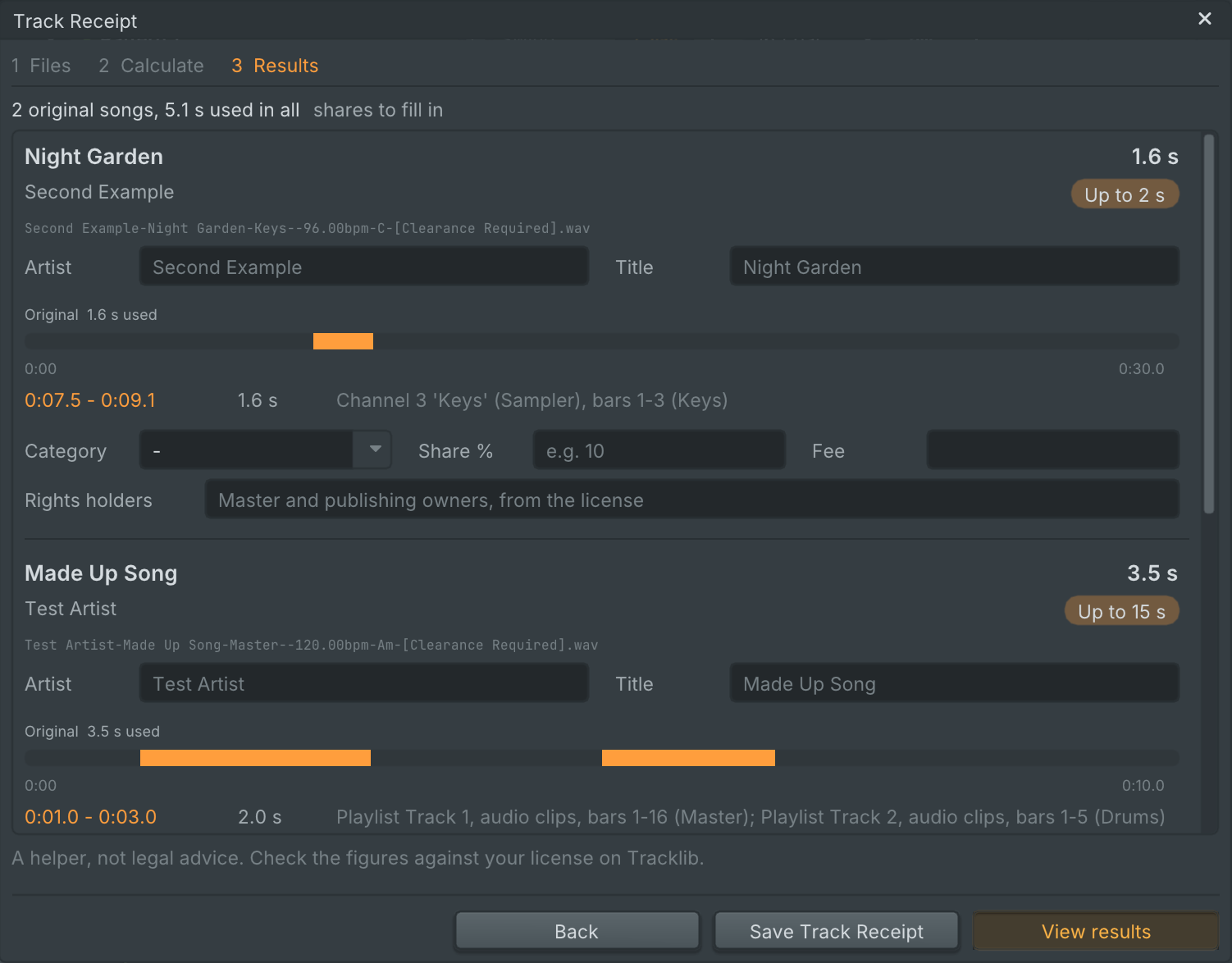
Help, Track Receipt... is a helper for filling in sample licenses, for example on Tracklib. It lists every audio file the project uses, grouped by original song, and ticks the files named like Tracklib downloads. Calculate plays the project through offline and measures which parts of each original are actually heard, in the playlist and in every built-in sampler:
- Counted once. Loops and repeats count once, the same part heard from several stems counts once, and chopped parts add up.
- Per song. The results show the seconds used per song, the length tier, each part used with its timestamps and where it comes from. Muted parts are listed but not counted, and a song over 60 s is flagged.
- Traced back. Files Gridline makes from others (edits, stems, stretched clips, slices, renders) remember where they came from, so their uses map back to the original. Files inside third-party plugins count as the whole file until you type the parts used.
- Ready to send. Save Track Receipt writes a spreadsheet (Licenses, Usage, Release, Splits), and View results saves a PDF and opens it. What you type (category, share, fee, release details, writers) is saved in the project. On the command line:
gridline track-receipt <project> --out <folder>.
Track Receipt is a helper, not legal advice. Check the figures against your license.
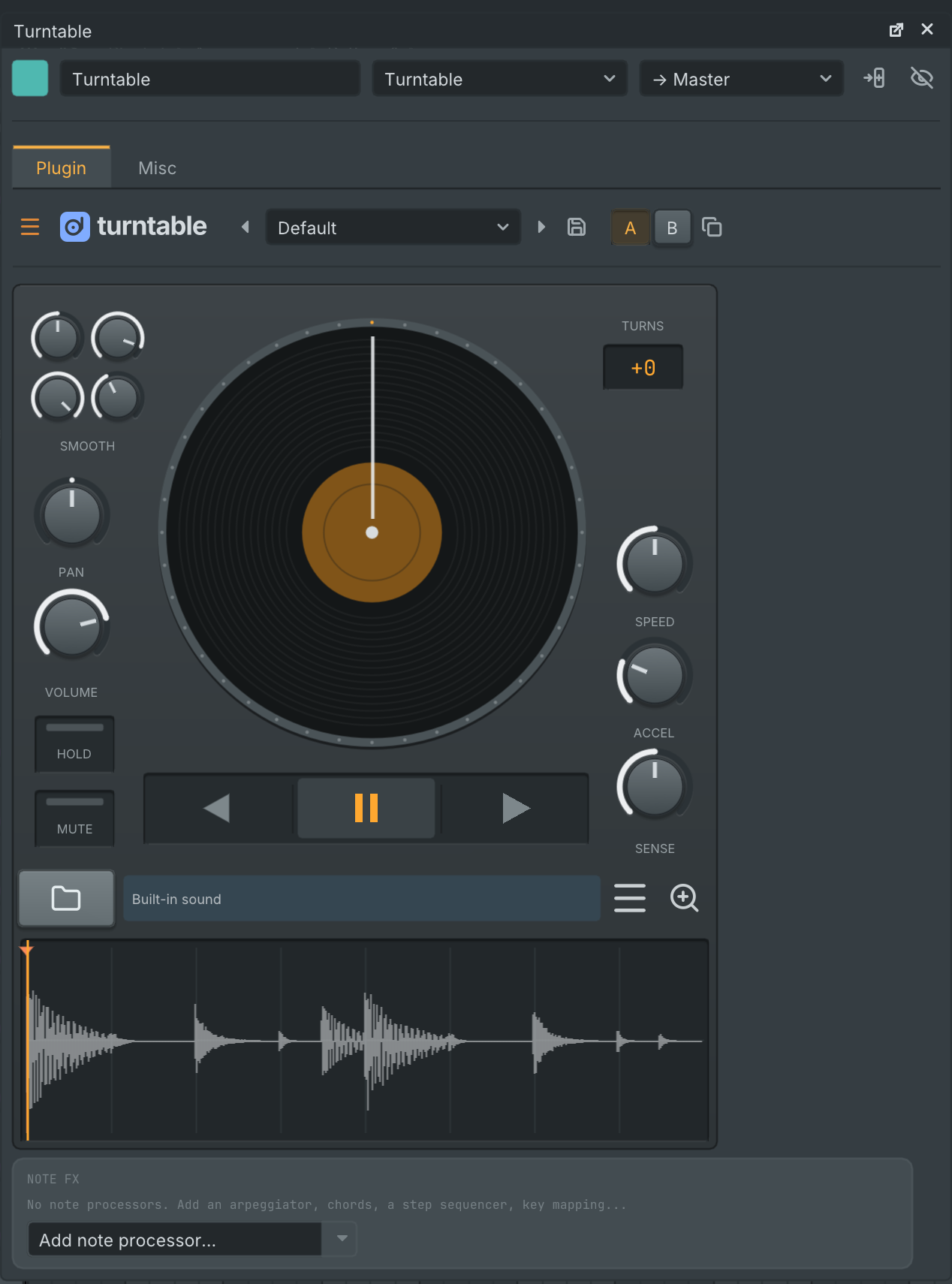
Turntable, a new scratch instrument
Load a sample and scratch it on a platter. Drag the platter up and down or the waveform sideways to scratch (Ctrl for fine moves), with the platter's speed, acceleration, sensitivity and hold, four smoothing controls, whole extra turns and the motor (reverse, pause, forward). A new Turntable plays its own built-in sound until you load a sample or drop one anywhere on the editor. Notes can start the motor or jump to a cue point, key tracking sets the speed, and a large view gives the waveform more room. Five factory presets.
FL Studio projects with Fruity Scratcher open with Turntable and sound the same: every setting, the sample, automation clips and recorded movements come along, and saving to FL Studio writes it back. The previous scratch effect stays as Turntable FX, so projects that use it sound as before. Turntable is part of the Gridline Suite too, so it also runs in other DAWs.
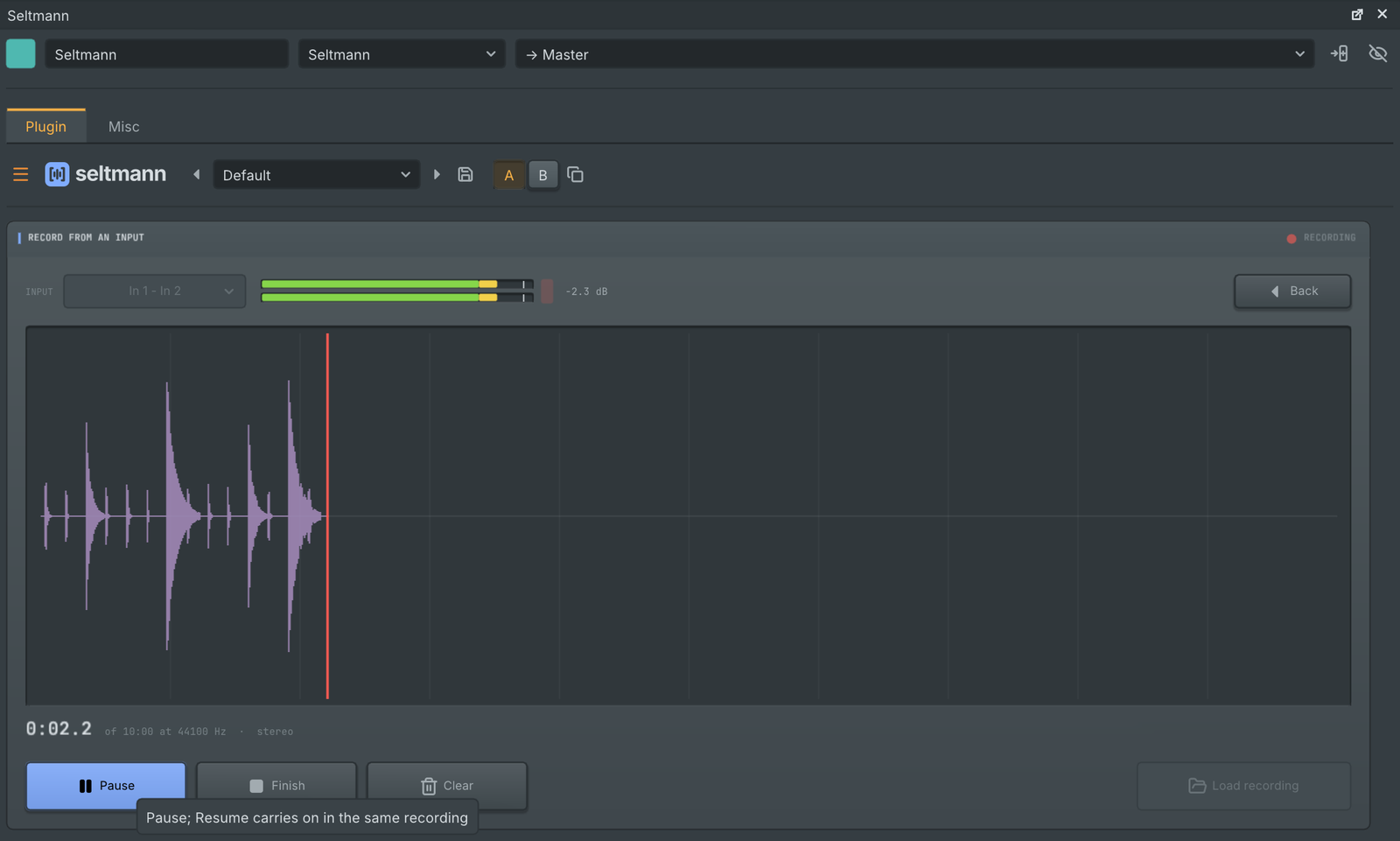
Seltmann records, and its steps get their own length
- Record from an input. Record, next to Load on Seltmann's start screen, opens a recorder with an input picker, a live level meter, Record, Pause and Resume, Finish, Clear and a running time, with the take drawn as it records. Load recording saves the take in the project's Recorded folder and chops it like any file.
- Steps with their own length. Drag the right edge of a block in the sequence to change how long that step lasts without changing its region: a shorter step is cut, a longer one plays its region out and then rests. Once a step has its own length, the sequence lasts whole bars, so the loop stays in time. Reset length gives a step its default length back.
- Steps with their own pitch. Turn the mouse wheel over a block to pitch that step by a semitone per notch (Shift for tenths); the region's other steps keep theirs. Each block shows the pitch it plays at.
Recording you can watch
Audio recorded into the playlist now appears while you record: each take is a growing clip on the track it will land on, with its waveform filling in as the audio arrives and a red outline and record head while it is live. Loop passes stack on the tracks below, and several armed tracks record side by side. When recording stops, the finished clip takes its place without a jump.
Track icons
139 icons in 16 categories, with a search field and a category list in the icon menu. Mixer tracks, playlist tracks and channels all take them, and the mixer's icon sits in its own corner of the name plate at every strip width. FL Studio projects open with their icons, and saving to FL Studio writes them back.
Plasma, closer to Serum 2 presets
Imported Serum 2 presets play much closer to the original: the delay, compressor, reverb models, distortion, convolution, chorus, phaser, flanger, frequency shifter and multiband compressor, driven filters, LFO point modulation and synced divisions, the waveshaper warps, the spectral oscillator's level across the keys, the arpeggiator's rates and launched clips, and a noise that follows the keys, the pitch wheel and the tuning.
And more
- Loupe's interface is redrawn on one grid: one size per row of buttons, captions inside the info boxes, a wave and spectrum switch, readable slider values in the tool dialogs, and an editor that fits the window at 150 and 200 % interface scale.
- Stop clicked while stopped, or double-clicked, goes back to the beginning.
- The playlist's pattern list has a "+" under the last pattern for a new pattern.
- Drop an instrument on a playlist track to make it an instrument track playing it; an effect dropped on a track goes into its mixer track.
- Replacing an instrument renames an automatically named channel after the new one and resets the preset selector; undo brings both back.
Fixed
- "Make unique" in a playlist clip's menu no longer closes Gridline when the pattern has piano roll notes.
- Sampler notes in the Stretch and Rubber Band time modes no longer play silence when the sample start (or, in reverse, the end) falls between two samples of the file, live and in exports.
- Control changes recorded into FL Studio patterns, such as scratching recorded on Fruity Scratcher, land on their exact sample, and the control keeps its value until the first change of each pass.
- Gridline started with command-line options no longer saves its window layout over yours.
- "Browser only" in Import from URL adds the file to a collaborative project's shared audio, so collaborators receive it.
- Plasma's noise gets a key range with Fold, and imported presets keep the noise's key range and pitch.
The complete list is in CHANGELOG.md.
Upgrading from 0.7.0
- Projects open as they are.
- Plasma: the closer laws switch on when a preset is imported, so Plasma's own sounds keep their sound. A Serum 2 preset imported in 0.7.0 and saved in a project picks up part of the changes by itself; open the original preset again to get all of them.
- Seltmann sequences you already have sound as before; whole-bar loops start only once a step has its own length.
- Installing 0.7.1 replaces the Gridline Suite copies in your plug-in folders at the first start, so they match this version (Turntable joins the suite).
- Collaborative projects: everyone in a session updates to 0.7.1.
Install
| System | File |
|---|---|
| macOS 11 or later (Apple Silicon and Intel) | Gridline-0.7.1-macos-universal.dmg |
| Windows 10 / 11, x64 | Gridline-0.7.1-windows-x64-setup.exe or -windows-x64.zip |
| Windows 10 / 11, ARM64 | Gridline-0.7.1-windows-arm64-setup.exe or -windows-arm64.zip |
| Linux x86_64 | .AppImage, -linux-amd64.deb, -linux-x86_64.rpm or -linux-x86_64.tar.gz |
| Linux aarch64 | .AppImage, -linux-arm64.deb, -linux-aarch64.rpm or -linux-aarch64.tar.gz |
| FreeBSD, OpenBSD, NetBSD (x86_64) | -freebsd-x86_64.tar.gz, -openbsd-x86_64.tar.gz, -netbsd-x86_64.tar.gz |
- macOS: open the
.dmgand drag Gridline to Applications. The first time, open it with right-click, then Open. - Windows: run the
-setup.exe. If SmartScreen appears, choose "More info", then "Run anyway". - Linux: use the
.AppImage,.deb,.rpmor.tar.gz. - BSDs: use the
.tar.gzfor your system.
The Gridline-0.7.1-media-tools-<system>.zip files hold FFmpeg for Import from URL. You do not need to download them: the packages already carry it, and a Gridline built from source fetches the one for its system the first time Import from URL is used, checked against the checksums below.
Checksums
Every file's SHA-256 checksum is in Gridline-0.7.1-SHA256SUMS. Check a download with sha256sum -c Gridline-0.7.1-SHA256SUMS --ignore-missing (Linux, BSD), shasum -a 256 -c Gridline-0.7.1-SHA256SUMS --ignore-missing (macOS) or Get-FileHash <file> (Windows PowerShell). G...
Gridline 0.7.0
Gridline 0.7.0 is here. It is the biggest Gridline release so far and brings together everything from the four 0.7.0 betas and the weeks since. Two or more people can now make music together, live, on one project. Gridline's own instruments and effects run in any DAW as the Gridline Suite. Platter puts two DJ decks and a mixer on a channel, and Seltmann chops any audio you drop on it. Around them: Plasma, stem splitting, Import from URL, a reworked Kerf, clips that follow the tempo, smoother motion and many fixes. Projects from 0.6.1 and from every beta open as they are. Gridline's update check offers 0.7.0 to everyone on 0.6.x and on a 0.7.0 beta.
Highlights
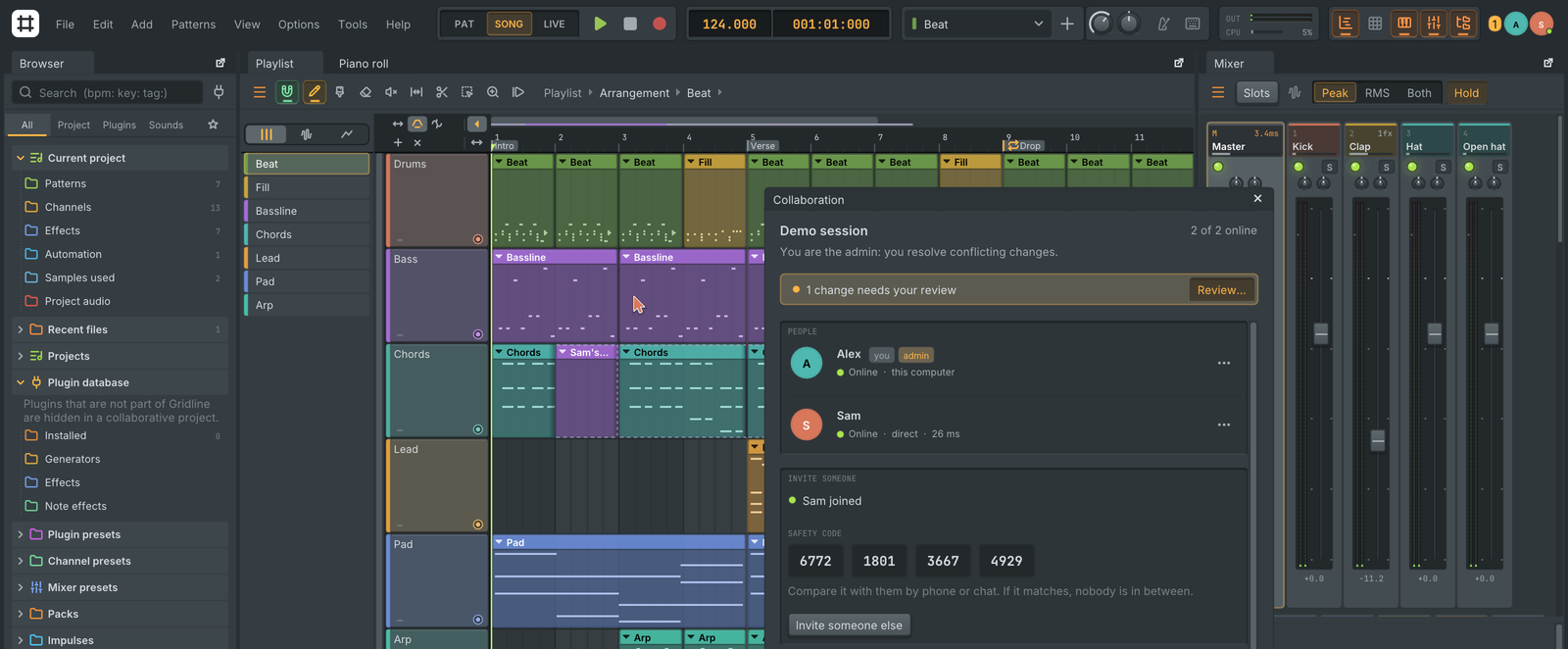
Make music together, live
Open the Collaboration panel, give the project a name and press Make collaborative, then invite people with a one-time code that expires after 15 minutes to 24 hours. They paste it in File, Join collaborative project... and choose where their copy of the project goes. From then on channels, notes, the playlist, the mixer, automation, Gridline's plugin settings and audio files sync in a fraction of a second, and everyone keeps their own windows and transport.
- Peer to peer, no server and no account. Computers connect directly on the same network, through routers (hole punching and automatic port opening), through another collaborator, or through an optional TURN relay. Test my connection reports what your network allows.
- Private by design. Everything is end-to-end encrypted, every change is signed by its author, and safety codes let you check who you are talking to. Nothing goes anywhere but to the people you invited and the STUN or TURN server you configure.
- See each other work. Collaborators' cursors point at the same track, note, step, knob or mixer strip on every screen, whatever the window size, zoom or interface scale, and changes flash in their author's colour. People show in the top bar with their picture, an online lamp and Follow their playhead.
- Sound stays on your computer. Playback, previews, held keys, solo and recording are never shared, and a collaborator's edits never make sound on yours.
- Work offline. The project saves itself continuously and stays a normal project folder. Changes travel the next time two computers that have them are online together, and edits made to the same thing while apart go to the admin's Sync review. Undo takes back only your own changes.
- The Collaborative view on the welcome screen joins with a code, starts or shares a project, and lists every collaborative project on this computer with its members, your role, what is waiting for you and who is working on it right now.
The full guide is in docs/collaboration.md.
The Gridline Suite: Gridline's plugins in any DAW
Every download carries the Gridline Suite: 118 of Gridline's instruments and effects, each a plugin of its own for other hosts, as VST3, CLAP and (on macOS) Audio Unit. Each plugin is the same sound and the same editor as inside Gridline, with named, automatable parameters, the factory presets, a sidechain input where the effect uses one, and a state that moves between Gridline and another host unchanged.
Gridline Suite Mini adds 35 compact single-purpose effects in the same formats: tone, dynamics, drive, pitch, motion, time and utility, each with one clear job and a small editor.
The Windows installer and the Linux packages put both suites where hosts find them. On macOS, with the AppImage and with the .tar.gz builds, Gridline asks on first launch whether to copy them into your plug-in folders, and every new Gridline brings the copies to its own version. See docs/gridline-suite.md.
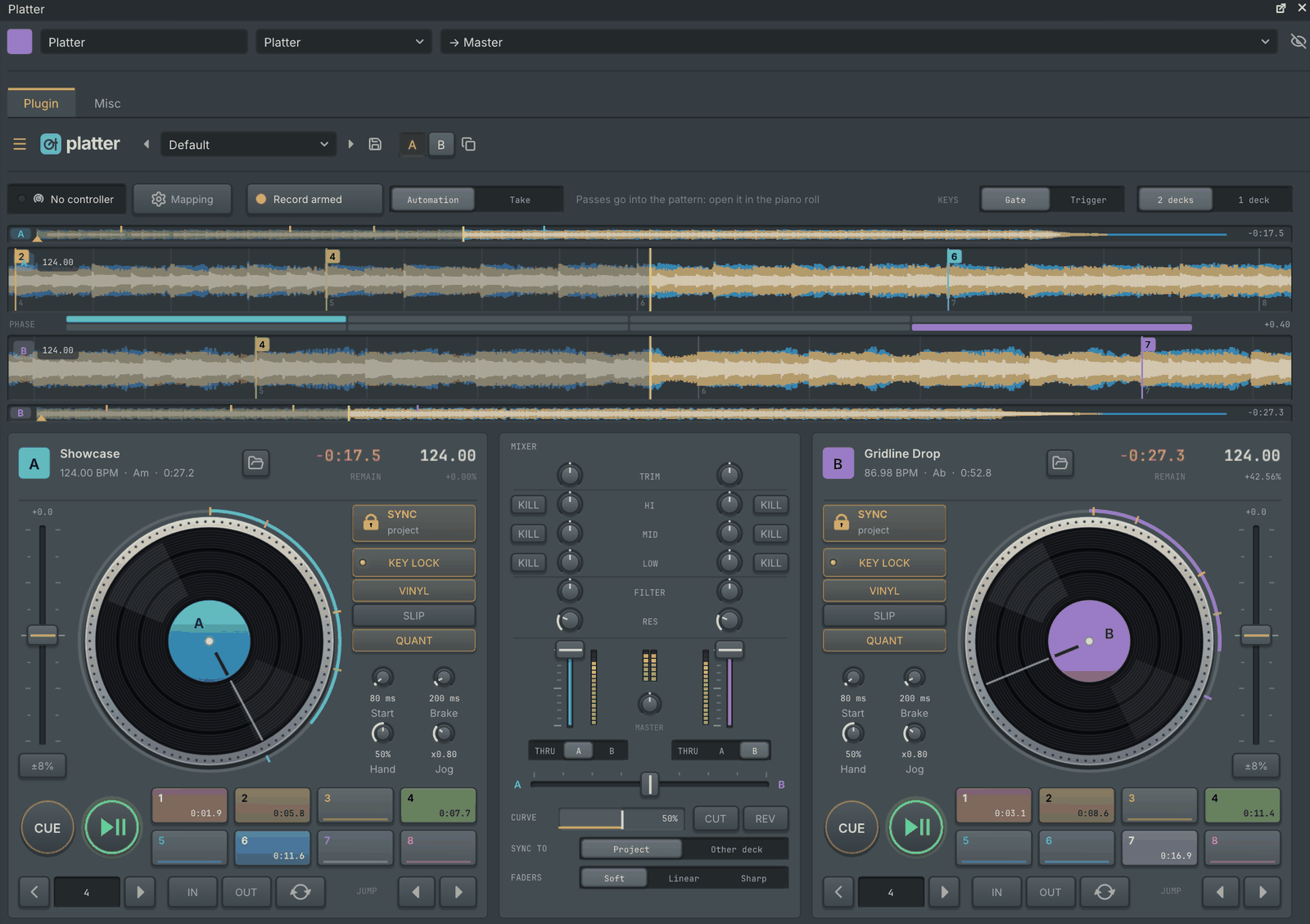
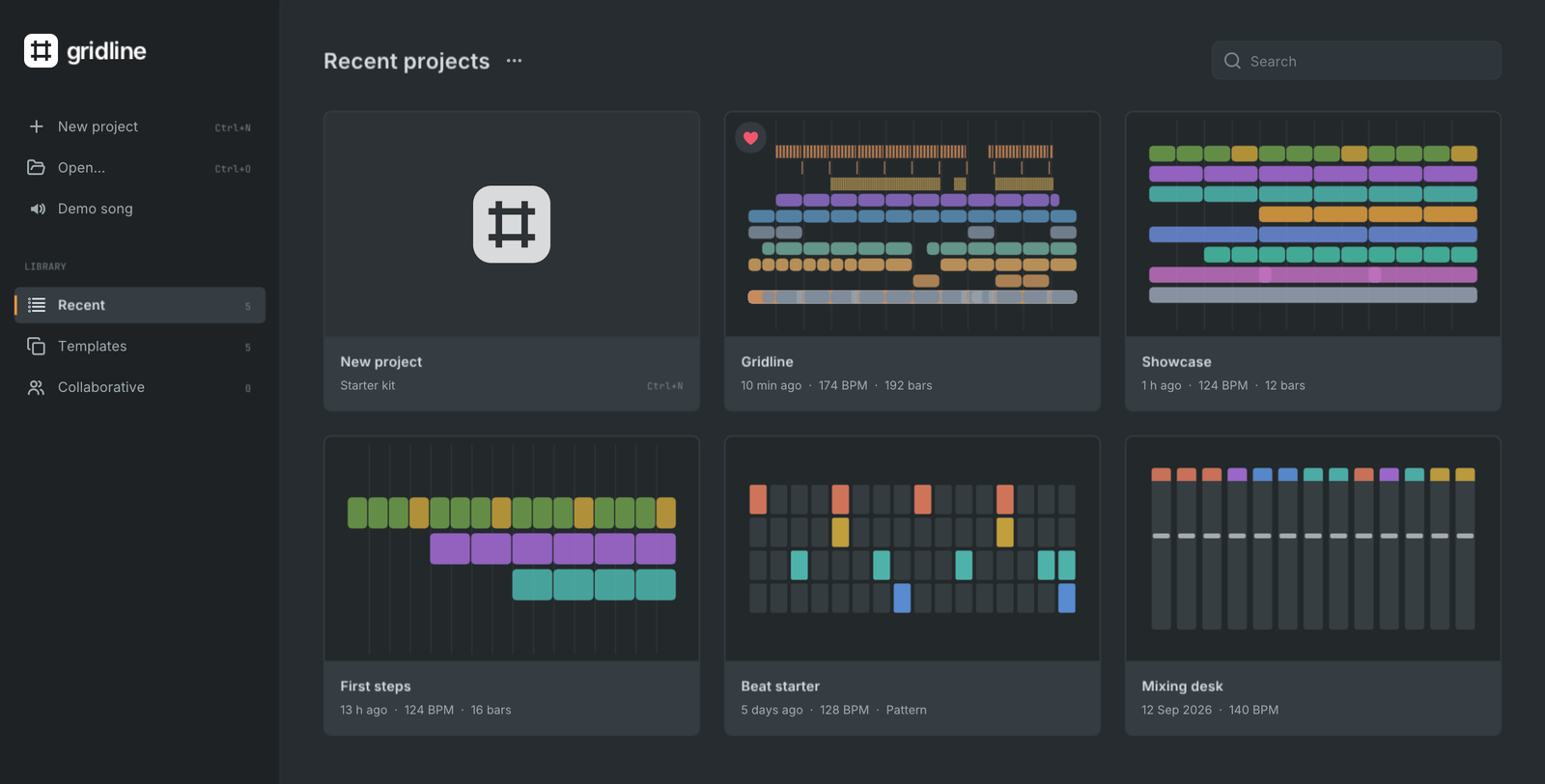
Platter: two decks on a channel
Platter is a whole DJ setup as an instrument: deck A and deck B with a mixer between them.
- Decks. Drop a track on a deck and Platter finds its tempo and beat grid, then plays it in time with the project or with the other deck. Drum and bass reads at its real tempo, and /2 and x2 correct a track heard at half or double time. Each deck has key lock, cue and play, eight hot cues, loops and beat jumps, slip mode and a pitch fader, with stacked colour waveforms, beat grids and a phase meter.
- Mixer. Trim, a three-band EQ with kills and a filter on each channel, channel faders with meters, a crossfader with assign, curve, cut and reverse, and the master level, with 0 dB at 12 o'clock like a DJ mixer.
- Scratching that feels like a record. A jog wheel sets the record's speed from how fast its ticks arrive, very quick flicks included; a mouse drag follows the hand and a fast release throws the record. Touching a playing record catches it, and letting go ramps it back up.
- DJ controllers. Ready mappings for three popular controllers map both decks and the mixer at once, with LEDs that follow each deck. Any other controller maps through MIDI learn.
- Performances you can edit. While Gridline records, what you play becomes automation clips, one per control you used, kept together in a pattern that lands once on the playlist where you played it. Left as recorded, a pass replays exactly as played; cut it, trim it, move it or edit a curve, and playback can start anywhere in it.
See docs/plugins/platter-recording.md.
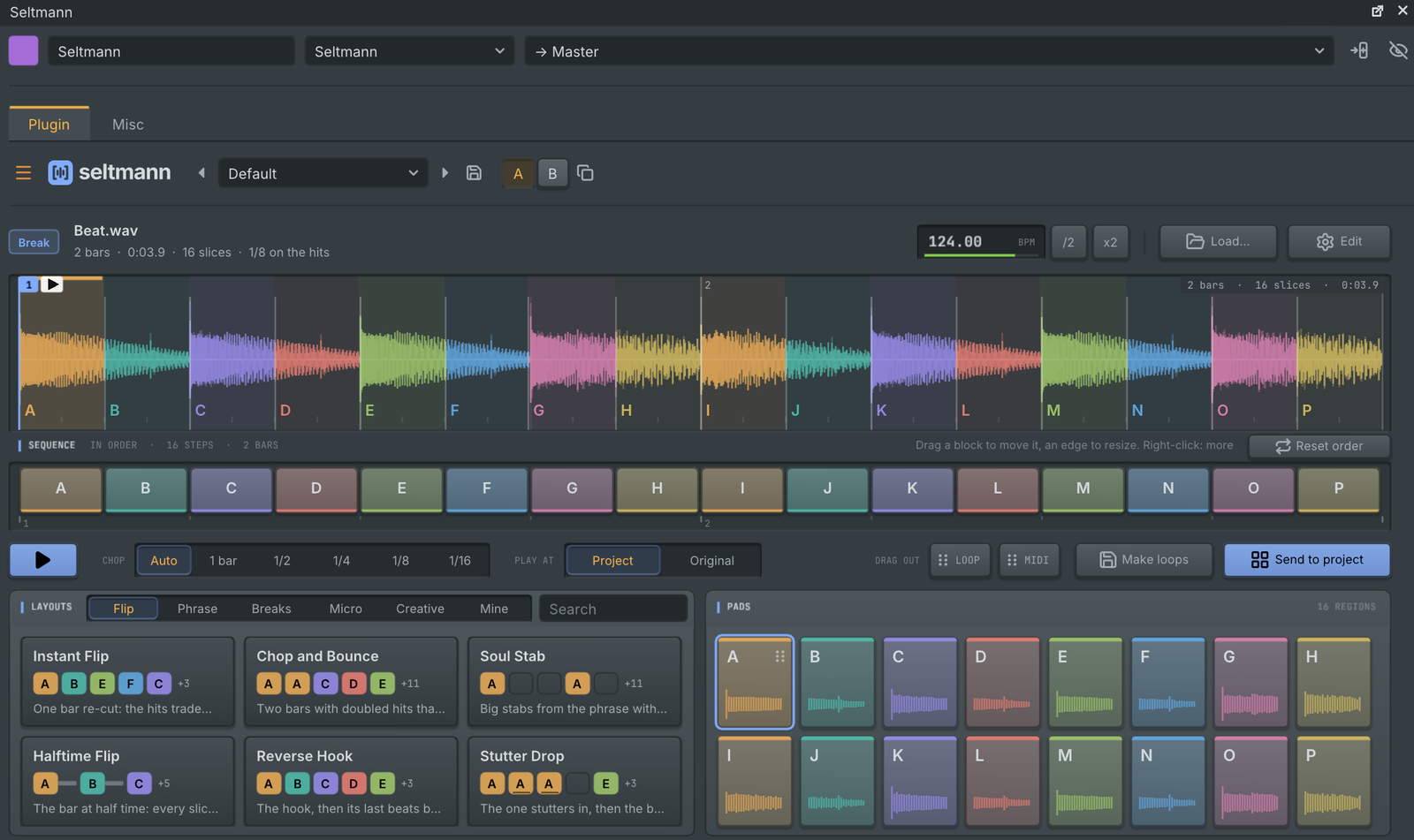
Seltmann, the automatic sample chopper
Drop audio on Seltmann and it works out what the sound is, its tempo and where bar 1 starts, chops it at a size that suits it into lettered regions, and plays as soon as you pick one of 59 layout cards. Breaks, melodic loops, whole songs, one-shots and textures all work.
- The sequence lane reorders, splits and joins regions, and the cut between two regions drags right in the waveform.
- Pitch each region where it is: drag the small readout on a pad or region, or turn the mouse wheel over it.
- Start the sequence on any cell: the cells before it move to the end, so the loop keeps its length.
- It plays as an instrument in time with your project, and the result goes out as a loop or a pattern.
Plasma, a wavetable hybrid synth
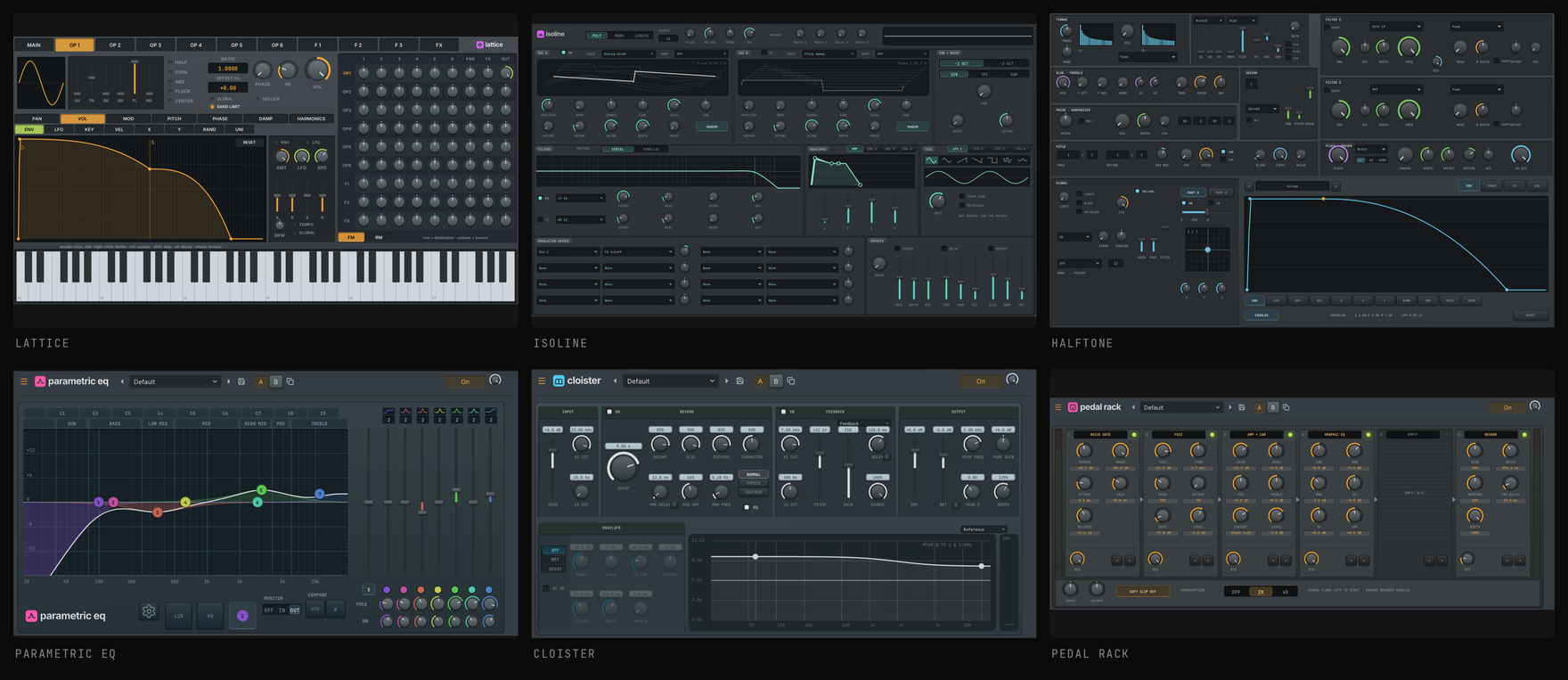
Plasma has three oscillators (wavetable, multisample, sample, granular or spectral) with two warp slots each, unison up to 16 voices, a sub oscillator, a noise layer and two filters, 4 envelopes, 10 LFOs, 8 macros and a 64-slot modulation matrix (drag a source onto any knob), three effect racks, an arpeggiator, a clip player and a wavetable editor, in a calm editor that follows Gridline's theme.
Plasma also opens your own Serum 2 presets (.SerumPreset) and Serum .fxp files and turns them into Plasma sounds, with the wavetables, samples and other audio they carry. Its browser lists the preset folders found on your computer as a folder tree. Imported presets sound close to the original, and they get closer with each update. A project whose Serum or Kickstart is not installed plays it with Plasma or Tideline and keeps the original for a computer that has it. See docs/plugins/plasma.md.
Split stems
Right-click an audio clip and pick Split stems... to separate it into vocals, drums, bass and other; the six-stem model adds guitar and piano. The stems land on new tracks right under the clip, lined up with it and with its settings, in one undo step, or as files in the project's Stems folder. The split runs on your computer in the background, with progress and Cancel, and nothing is sent anywhere. A model is downloaded from its official address the first time you use it, after its licence note. See docs/stems.md.
Import from URL
File, Import, Import from URL... (Ctrl+Shift+U) brings the audio of a web page into the project: paste a link, check the title and length, keep a range if you like, and the audio arrives as a lossless 32-bit float WAV clip on a new track at the playhead. The packages carry the programs it needs. Import only media you have the rights to use: Gridline does not sign in to sites or get around copy protection. See docs/import-url.md.
And much more
- Kerf, the slicer, is laid out like a full region slicer: a large wave view with numbered, named region flags, a region list, a deck bar with menus, a pad keyboard and calm cards. It slices on the beat grid (bars, beats, eighths, sixteenths, thirty-seconds and triplets) with Seltmann's beat analysis, and it ...
Gridline 0.7.0-beta.4
Gridline 0.7.0 beta 4 is a beta. It is published as a GitHub Pre-release, so Gridline's update check only offers it to people who turn on Include beta versions in Settings, General, Updates. Anyone can download it from this page, and 0.7.0 itself follows later. Projects from 0.6.1 and the earlier betas open as they are. If something does not work as it should, please open an issue on GitHub; every report helps get 0.7.0 ready.
Beta 4 makes big projects open without freezing, behind a loading window that shows what is happening. Patterns can hold automation clips, and Platter performances are now recorded as automation clips you can cut and play from anywhere. Tideline follows a mixer track, a channel or MIDI that you pick in its own window. Many fixes land as well: clip pitch, Rubber Band start-up, tempo detection for drum and bass, and FL Studio project import and export. Collaborative projects need everyone on the same version, so for this beta everyone in a session runs 0.7.0 beta 4.
Highlights
Projects open without freezing
Opening a project no longer stops Gridline while samples and plugins load.
- A loading window takes over the moment you pick a project: its name, a progress bar that counts every sample and plugin, what is loading right now (which plugin is starting, 3 of 9) and a log of everything loaded with its time, so a slow plugin is easy to spot.
- Warnings for missing samples, plugins that are not installed and stand-ins are listed in the window and stay on a notification card afterwards.
- Cancel (or Esc) goes back to the project you had open, exactly as it was. A project that cannot be read says why in the same window.
- Quick projects open without the window flashing up. It works the same for Gridline projects, FL Studio projects, zipped projects and collaborative projects.
Automation clips inside patterns
- A pattern can hold automation clips. They play wherever the pattern plays and are edited in the automation editor like any other clip: points, curve shapes, the LFO tool, a name and a colour.
- Add one from a control's right-click menu (Create automation clip in pattern), from the channel rack's or the pattern's menu, or move or copy a playlist automation clip into the pattern.
- See them on the playlist. A pattern's clips in the playlist draw the curves over the notes, and the View menu can show notes only or automation only. Double-click a curve to edit it. The channel rack lists them as rows below the channels, and the browser under Current project.
- Changing a pattern's pitch wheel or volume no longer needs the piano roll's event lane. Pattern lanes from older projects open as clips and sound exactly the same.
Platter passes as automation clips
- Every pass becomes named automation clips, one per control you used, such as "Platter A wheel": the record's position, play, the wheel and its touch, the mouse, loops, reverse and pitch bend, and every fader and knob. In song mode they are a grouped set of clips in the playlist; in pattern mode they are clips of a new pattern, so the wheel shows moving on the pattern's playlist clips.
- Play from anywhere. The clips hold the decks' state, so a pass plays from wherever playback starts: cut its clips, trim their start or move them and the decks pick the pass up there.
- Left as recorded, a pass still replays exactly as played, at any buffer size, and passes recorded as notes in beta 3 keep playing as before.
- A pass recorded in song mode is one pass, even on a short or empty song: recording without a time selection plays on past the song end instead of looping back and splitting the performance.
- Tempo: Platter and Seltmann read drum and bass at its real tempo (174 BPM, not 116 or 87), and Platter's decks get /2 and x2 buttons next to the load button for a track heard at half or double time.
Tideline follows the project
- Pick a source in Tideline's window. In Audio mode choose a mixer track or a channel (audio clip channels too) from the new Source list, and Tideline makes the sidechain route for you; it shows in the mixer. A Look-ahead control (up to 10 ms) lets the duck land right on the hit while the project stays in time.
- MIDI mode can follow a channel: every note of its patterns and the playlist, notes you play live on it and each start of its audio clips, exactly on the sample, with no detection. It can also follow the MIDI input or MIDI Out ports, and a note filter takes one note or a range.
- MIDI triggers are now sample-accurate instead of firing at the start of the audio block.
Fixes
- Clip pitch keeps the clip. Changing an audio clip's pitch on the playlist no longer changes its length or how its audio fills it, in every time mode. Switching a clip's time mode no longer resizes it, a trimmed clip stays trimmed when its time factor changes, and a resampled, stretched clip on a pitched channel renders at the pitch it plays at.
- Rubber Band starts without crackles. Notes in patterns and the playlist and audio clips do Rubber Band's start-up work in small pieces during the blocks before they play, so a chord or several clips on one beat no longer take several blocks' worth of CPU at once.
- FL Studio 2026 projects open with their whole playlist arrangement: pattern and audio clips with their lengths, offsets, fades and gain. An arrangement Gridline cannot fully read is reported instead of dropped quietly.
- Slicex chops arrive in Kerf exactly: every region in its order, on its key, with its own start, end and name, and they go back out the same way when you export to the FL Studio format.
- Third-party plugins such as Serum 2 export to the FL Studio format with their original plugin host settings, and a plugin that was played by a stand-in is written back as the original instrument with its name.
The full list is in CHANGELOG.md.
Known limits
- Half-time grooves may still read at half speed in Platter and Seltmann; the /2 and x2 buttons put them right.
- Notes played live on a Rubber Band instrument still start the moment you play them, so their start-up work is not spread out ahead.
- Collaborative projects use Gridline's own plugins only, and everyone in a session needs 0.7.0 beta 4.
Upgrading
- Projects from 0.6.1 and the earlier betas open as they are. Pattern automation lanes open as automation clips inside their patterns, and Platter takes and note-based passes keep playing.
- Audio clips from earlier versions whose pitch was changed fill their clip again, as described above. Imported FL Studio projects keep their original timing.
- Tracks analysed by Platter or Seltmann before are analysed again.
Install
| System | File |
|---|---|
| macOS 11 or later (Apple Silicon and Intel) | Gridline-0.7.0-beta.4-macos-universal.dmg |
| Windows 10 / 11, x64 | Gridline-0.7.0-beta.4-windows-x64-setup.exe or -windows-x64.zip |
| Windows 10 / 11, ARM64 | Gridline-0.7.0-beta.4-windows-arm64-setup.exe or -windows-arm64.zip |
| Linux x86_64 | .AppImage, -linux-amd64.deb, -linux-x86_64.rpm or -linux-x86_64.tar.gz |
| Linux aarch64 | .AppImage, -linux-arm64.deb, -linux-aarch64.rpm or -linux-aarch64.tar.gz |
| FreeBSD, OpenBSD, NetBSD (x86_64) | -freebsd-x86_64.tar.gz, -openbsd-x86_64.tar.gz, -netbsd-x86_64.tar.gz |
- macOS: open the
.dmgand drag Gridline to Applications. The first time, open it with right-click, then Open. - Windows: run the
-setup.exe. If SmartScreen appears, choose "More info", then "Run anyway". - Linux: use the
.AppImage,.deb,.rpmor.tar.gz. - BSDs: use the
.tar.gzfor your system.
Every file's checksum is in Gridline-0.7.0-beta.4-SHA256SUMS.
Gridline 0.7.0-beta.3
Gridline 0.7.0 beta 3 is a beta. It is published as a GitHub Pre-release, so Gridline's update check only offers it to people who turn on Include beta versions in Settings, General, Updates. Anyone can download it from this page, and 0.7.0 itself follows later. Projects from 0.6.1 and the earlier betas open as they are. If something does not work as it should, please open an issue on GitHub; every report helps get 0.7.0 ready.
Beta 3 brings Platter, a two-deck DJ setup that lives on a channel, with performances you can record, see and edit. Gridline now starts on a welcome screen with your projects, favourites and a Collaborative view that shows who is working right now. All audio stretching and pitching runs through one smooth engine, with Rubber Band as a choice for clips. The plugin manager is redesigned, and many smaller things are better. Collaborative projects need everyone on the same version, so for this beta everyone in a session runs 0.7.0 beta 3.
Highlights
Platter: two decks on a channel
Platter is a whole DJ setup as an instrument: deck A and deck B with a mixer between them.
- Decks. Drop a track on a deck and Platter finds its tempo and beat grid, then plays it in time with the project or with the other deck. The padlock frees a deck to its own tempo. Each deck has key lock, cue and play, eight hot cues, loops and beat jumps, slip mode and a pitch fader, with stacked colour waveforms, beat grids and a phase meter.
- Drag and drop. Drag audio from the browser, your desktop or the playlist's clip list onto deck A or deck B, and it loads on the deck you dropped it on. Only the deck under the pointer lights up while you drag.
- Mixer. Trim, a three-band EQ with kills and a filter on each channel, channel faders with meters, a crossfader with assign, curve, cut and reverse, and the master level. The EQ and master knobs now have 0 dB at 12 o'clock, like a DJ mixer, so a mixer set by eye no longer sounds far too quiet.
- Scratching that feels like a record. The scratch mechanics follow the model Mixxx uses: a jog wheel sets the record's speed from how fast its ticks arrive, a mouse drag follows the hand and a fast release throws the record. Touching a playing record catches it, letting go ramps it back up, and Jog and Hand feel knobs set how it responds.
- DJ controllers. On first open, Platter asks whether you use a controller. Ready mappings for the Pioneer DDJ-200, Hercules DJControl Inpulse 200 and Numark Mixtrack Pro FX map both decks and the mixer at once, with LEDs that follow each deck. Without one, map your own controls with MIDI learn. Mappings are saved with the project and as presets.
- Recorded performances you can edit. While Gridline records, what you play on Platter becomes pattern data: every control you move becomes an automation lane, every button press (play, cue, hot cues, loops, beat jumps) a note on a named key in the piano roll, and scratches lanes for the mouse hand, the jog wheel and nudges. You see exactly when each thing happens, and editing the notes and lanes changes the sound. Left as recorded, it replays exactly as you played it, at any buffer size. A second pass never records over the first: it goes into a new pattern, and loop recording makes one pattern per pass. Record as: Take keeps a performance as one note instead, and takes recorded earlier keep playing.
A welcome screen
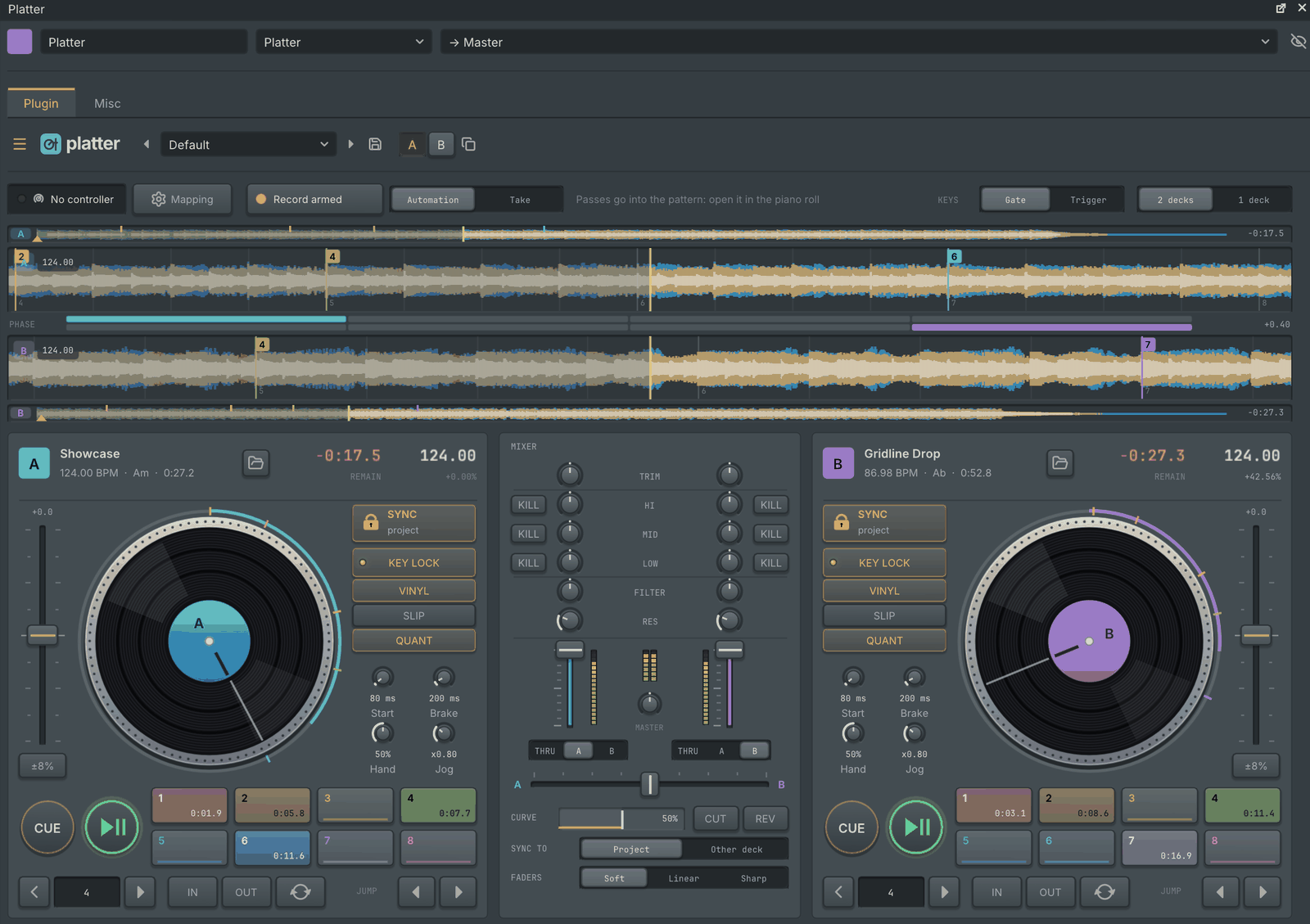
Gridline now opens on a welcome screen, and a click on the Gridline logo brings it back at any time.
- Your projects in a large grid, each tile with a sketch of the arrangement, when it was last opened, its tempo and its length. The first tile starts a new project.
- Favourites. The heart on a tile (or F) keeps a project at hand; favourites are never pushed off the list.
- Templates and the demo song, opening from disk, search and tidying the list, all from the keyboard as well as the mouse.
- The Collaborative view lists every collaborative project on this computer with its members, your role and what is waiting for you, and shows who is working on each one right now. Presence is checked directly with your collaborators, encrypted, with no server.
To start straight in a project instead, turn off Show the welcome screen in Settings, General, On startup.
One smooth stretch and pitch engine
- One engine for all audio. Audio clips, the sampler, slices, the audio editor, the Pitch Shifter, Platter and the other pitch and time effects all use the same continuous stretch. Every picker offers Stretch (time and pitch apart) and Resample (pitch and speed together, like a turntable).
- Smoother sound. Far fewer clicks and glitches from half speed to four times, no aliasing on pitched material, steadier bass, quieter noise around held notes, and drum hits without pre-echo. Live playback sounds the same as a render at any buffer size.
- Rubber Band is a third choice for clips, the sampler and the audio editor. It keeps drums and transients sharper, at a higher CPU cost.
- Projects saved with the older stretch modes open with Stretch.
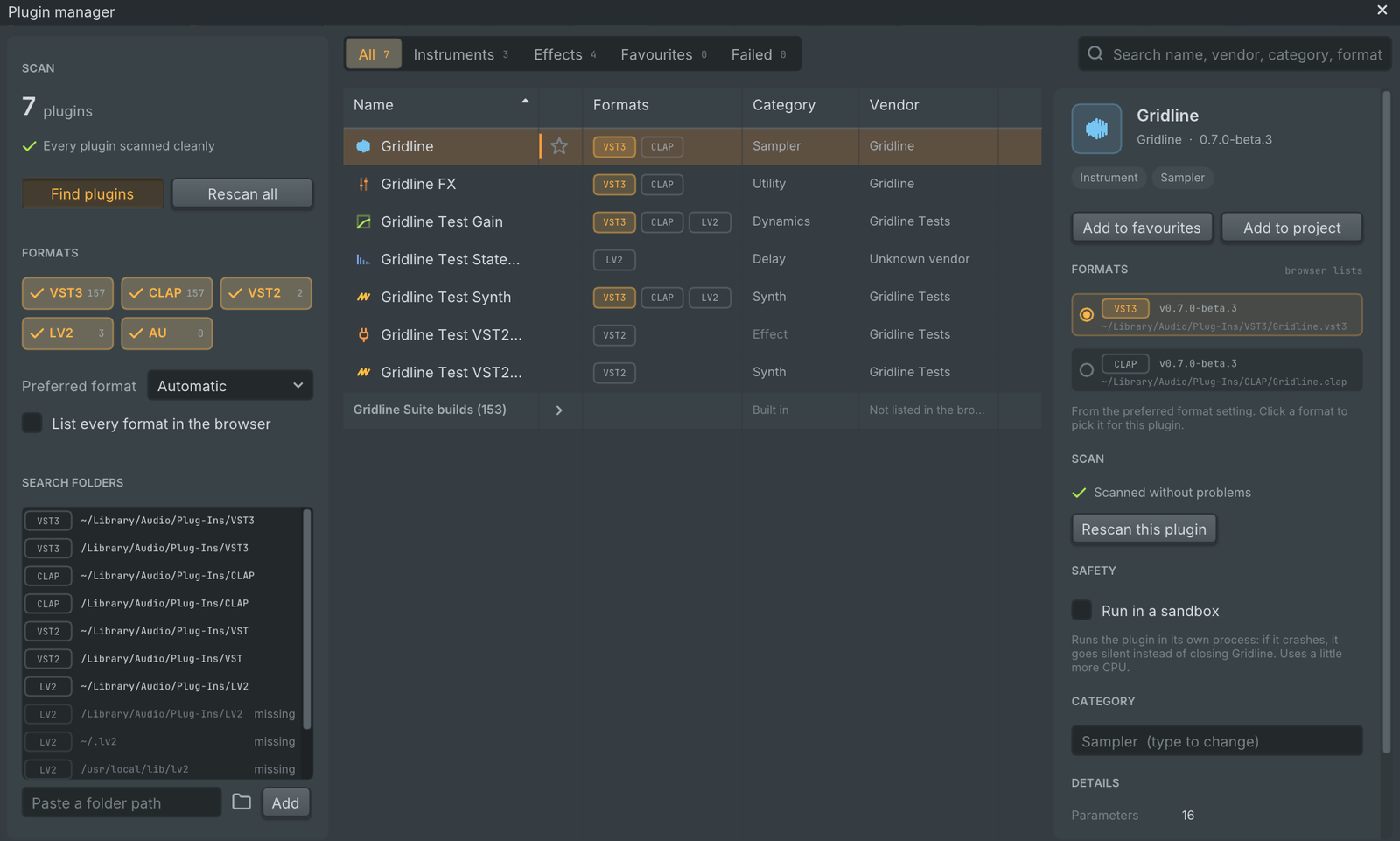
A new plugin manager
- One row per plugin, with the formats it is installed in as tags, a clean category, a star for favourites and a sortable table.
- A preferred format, or one per plugin: the browser and the plugin picker list each plugin once, in that format.
- A details panel with every format's version and location, scan problems with retry, the sandbox switch, a category override and Add to project.
Smaller changes
- Playlist:
- with several audio clips selected, a change to one clip's level, fades or pitch moves every selected clip by the same amount, and one drag is one undo step;
- a right-click on a clip's title strip deletes it, like a right-click on its body.
- Seltmann:
- a new Sequence lane plays the regions in order and lets you reorder them, split a region into equal parts and join it to its neighbour;
- the editor is a quarter shorter, in Gridline's look, with calmer region colours.
- Big plugin windows stay inside Gridline. Platter, Seltmann, Plasma and the other wide editors no longer pop out on their own, and a window larger than the space it has scrolls instead of running off the edge.
- The OUT meter in the top bar is now a real master output meter, with a peak hold and a clip lamp that lights only above 0 dBFS. Meters fall more calmly and no longer show a peak marker in silence.
- The "Song sketch" project template is gone.
The full list is in CHANGELOG.md.
Install
Install steps are the same as for the earlier betas:
- macOS: open the
.dmgand drag Gridline to Applications. The first time, open it with right-click, then Open. - Windows: run the
-setup.exe. If SmartScreen appears, choose "More info", then "Run anyway". - Linux: use the
.AppImage,.deb,.rpmor.tar.gz. - BSDs: use the
.tar.gzfor your system.
Every file's checksum is in Gridline-0.7.0-beta.3-SHA256SUMS.
Gridline 0.7.0-beta.2
Gridline 0.7.0 beta 2 is a beta. It is published as a GitHub Pre-release, so Gridline's update check only offers it to people who turn on Include beta versions in Settings, General, Updates. Anyone can download it from this page, and 0.7.0 itself follows later. Projects from 0.6.1 and beta 1 open as they are: the project format has not changed. If something does not work as it should, please open an issue on GitHub; every report helps get 0.7.0 ready.
Beta 2 builds on beta 1's live collaboration and refined interface. Gridline's own instruments and effects now run in any DAW as the Gridline Suite, with Gridline Suite Mini beside it. The interface gets five control styles with Slate as the new default, plus sound themes. Swing is now smooth, and there is a new demo song, "Gridline". Collaborative projects need everyone on the same version, so for this beta everyone in a session runs 0.7.0 beta 2.
Highlights
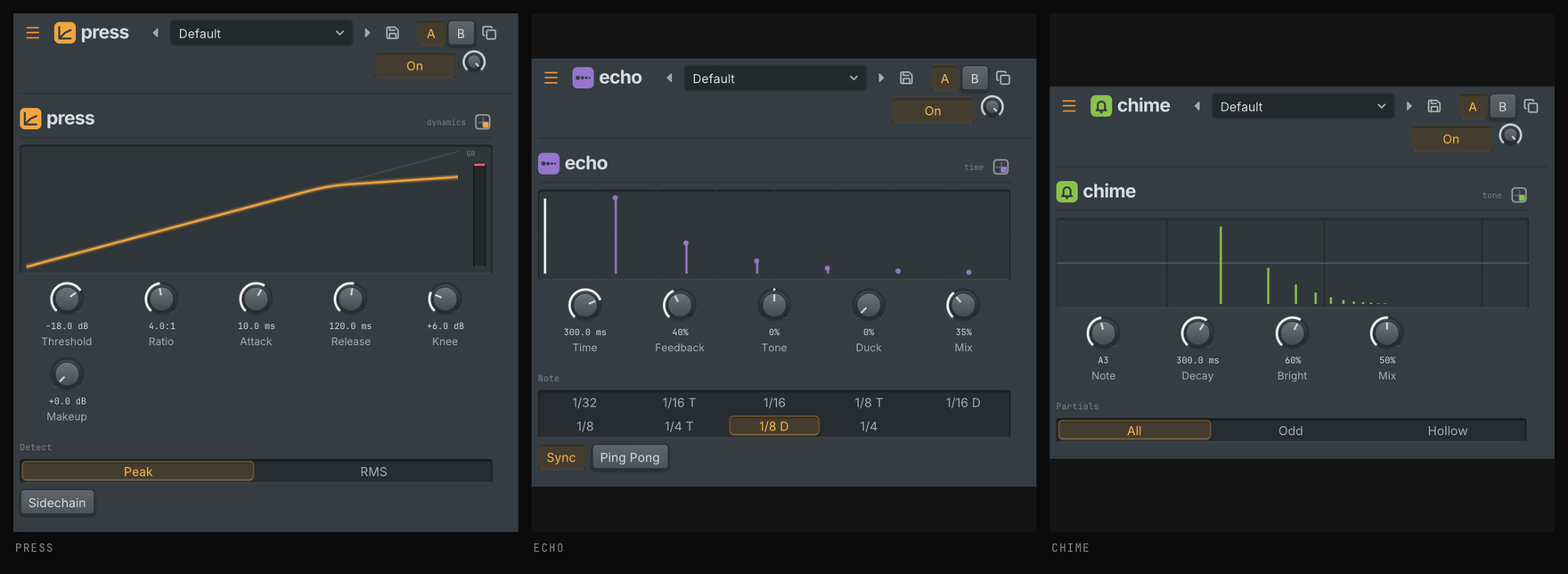
Gridline's plugins in any DAW
Every download carries the Gridline Suite: Gridline's instruments and effects, each a plugin of its own for other hosts, as VST3, CLAP and (on macOS) Audio Unit. Each plugin is the same sound and the same editor as inside Gridline, with named, automatable parameters, the factory presets, sidechain inputs where the effect uses one, and a state that moves between Gridline and another host unchanged.
Gridline Suite Mini adds 35 compact single-purpose effects in the same formats: tone, dynamics, drive, pitch, motion, time and utility, each with one clear job and a small editor. A project that uses one of the Kilohearts single effects that is not installed opens with its Mini counterpart in the slot. The original plugin and its settings stay in the project, so it is hosted again on a computer that has it.
The Windows installer and the Linux packages put both suites where hosts find them. On macOS, with the AppImage and with the .tar.gz builds, Gridline asks on first launch whether to copy them into your plug-in folders. See docs/gridline-suite.md.
Your look, your sounds
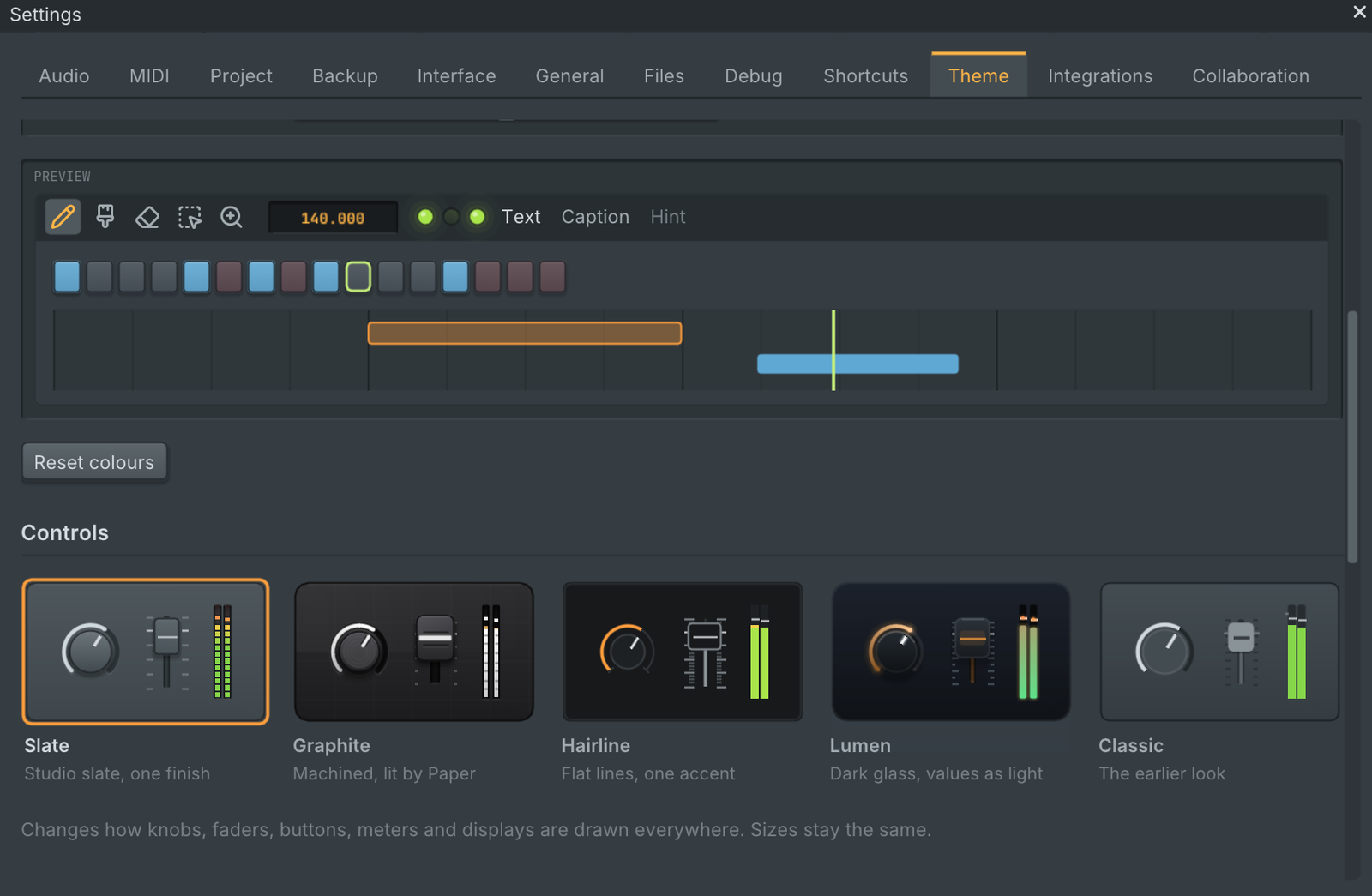
Settings, Theme brings everything about the interface's look and sound together in one place.
- Control styles change how knobs, faders, buttons, meters and displays are drawn everywhere, without moving anything:
- Slate, the new default: a quiet studio slate.
- Graphite: machined and lit.
- Hairline: flat lines with one accent.
- Lumen: dark glass, with values shown as light.
- Classic: the earlier look.
- Light and dark themes, your own accent, and colours for lit glyphs, LEDs and the song position.
- Sound themes for the interface sounds (start-up, save, export, record and the rest). Graphite is the default, and you can preview each theme before you choose it.
Every built-in plugin now shows its own wordmark, in its window header and in its own editor.
Swing that feels right
- Smooth at every setting. Swung steps and notes are now placed between ticks and played to the sample, so every percent of the swing knob is heard. Before, small amounts did nothing and the knob moved in coarse jumps.
- Notes swing too. Song swing now moves piano roll notes as well as channel rack steps. In each pair of steps, the off-beat moves later and everything between moves in proportion, so 32nds and triplets bend with the groove instead of jumping. Notes keep their written positions in the piano roll; only playback swings.
- Note Sequencer and Arpeggiator stay on the song grid, even for a key pressed a little late. The Note Sequencer's step velocity can now scale how hard you play.
- Drum and plugin sequencers fixed. Drum sequencers no longer drift, Plasma's arpeggiator swings on the grid, and its clip player no longer skips notes.
A new demo song
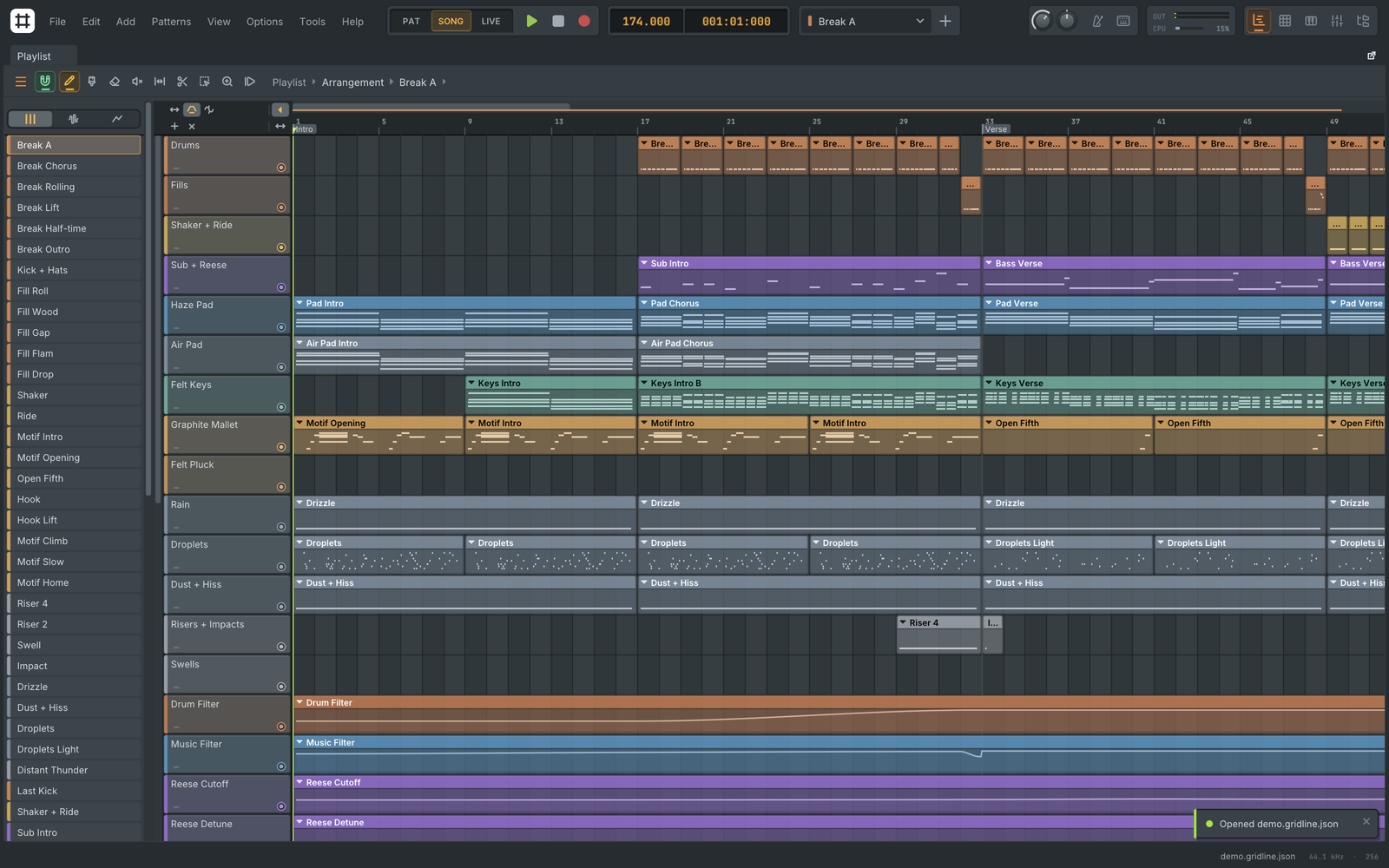
The new demo song, "Gridline", is a 4:25 atmospheric liquid drum & bass track at 174 BPM, made only with Gridline's own instruments, effects and automation: no samples. It opens by itself once, on the first launch of a new install, and any time from Help, Load demo song. It is a full project to take apart:
- the felted wooden mallet lead, built from the Graphite interface sound;
- the moving reese over a mono sub;
- a synthesised rain bed;
- buses, sidechains and automation shaping every section.
Smaller changes
- Knobs:
- double-click resets a knob to its default, or opens the value box when it is already there;
- the right-click menu starts with Reset to default;
- this works in every built-in plugin, the mixer and the channel rack.
- Fader caps sit exactly on their tracks in every style and at every interface scale.
- No more cut-off outlines. Selection outlines, the playing step and focus rings are no longer cut off at the edge of their panel.
- Playlist song markers are quieter: each marker's tick is now the left edge of its label.
- Installers: the macOS disk image and the Windows setup are in Gridline's design, and the Linux packages carry AppStream metadata for software centres.
The full list is in CHANGELOG.md.
Install
Install steps are the same as for beta 1:
- macOS: open the
.dmgand drag Gridline to Applications. The first time, open it with right-click, then Open. - Windows: run the
-setup.exe. If SmartScreen appears, choose "More info", then "Run anyway". - Linux: use the
.AppImage,.deb,.rpmor.tar.gz. - BSDs: use the
.tar.gzfor your system.
Every file's checksum is in Gridline-0.7.0-beta.2-SHA256SUMS.
Gridline 0.7.0-beta.1
Gridline 0.7.0 beta 1 is a beta. It is published as a GitHub Pre-release, so Gridline's update check only offers it to people who turn on Include beta versions in Settings, General, Updates. Anyone can download it from this page, and 0.7.0 itself follows later. Projects from 0.6.1 open in this beta as they are: the project format has not changed. If something does not work as it should, please open an issue on GitHub; every report helps get 0.7.0 ready.
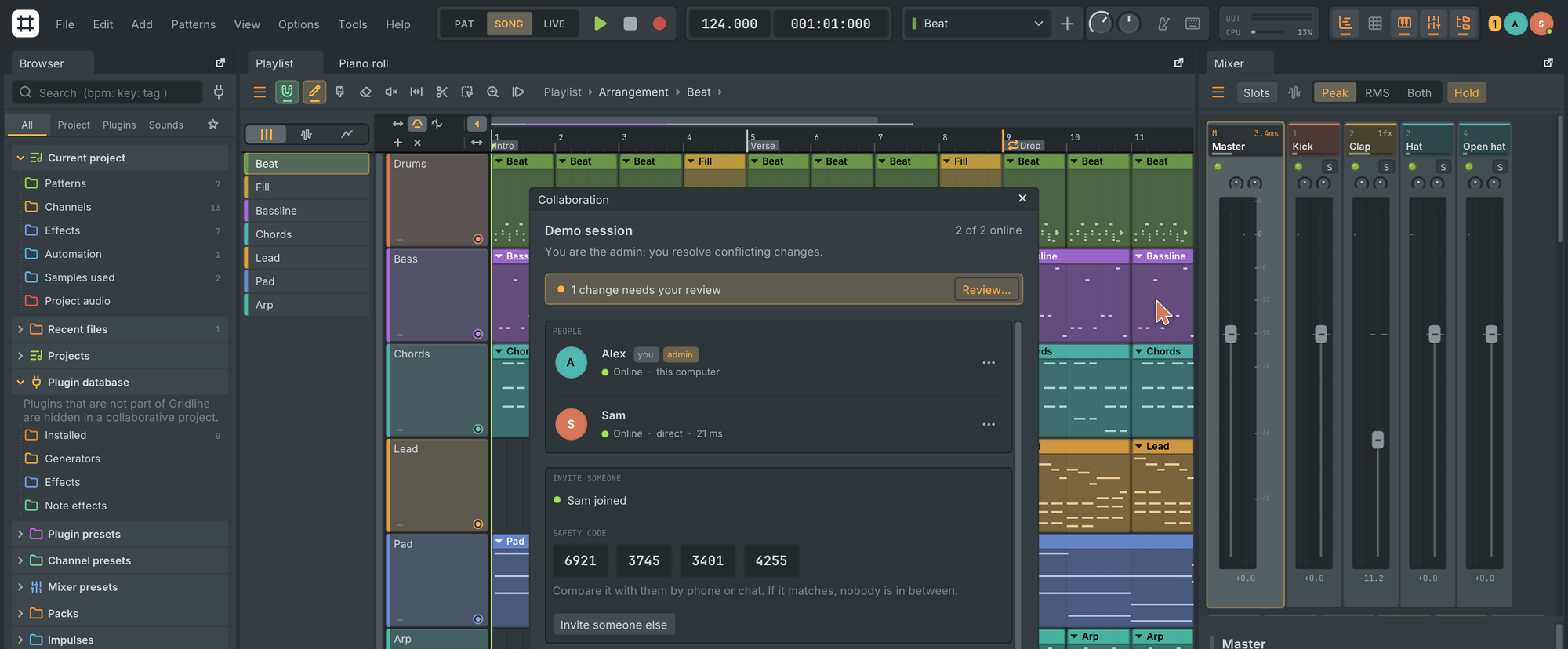
The two big changes in 0.7.0 are real-time collaboration, where two or more people work on one project live, on the same network or across the internet with no server and no account, and a refined interface: panels and editors that pop out onto any monitor, every icon redrawn as an SVG, and plugin windows that give their editor more room. The beta also brings Plasma, a new wavetable synth that opens Serum presets as Plasma sounds, stand-ins for a missing Serum or Kickstart, one undo step per gesture in every plugin editor, Seltmann, the automatic sample chopper, and a Stop button that silences everything.
Highlights
Make music together, live
Open the Collaboration panel, give the project a name and press Make collaborative, then invite people with a one-time code that expires after 15 minutes to 24 hours. They paste it in File, Join collaborative project... and choose where their copy of the project goes. From then on channels, notes, the playlist, the mixer, automation, Gridline's plugin settings and audio files sync in a fraction of a second, and everyone keeps their own windows and transport.
- Peer to peer, no server and no account. Computers connect directly on the same network, through routers (hole punching and automatic port opening), through another collaborator, or through an optional TURN relay. Test my connection reports what your router allows.
- Private by design. Everything is end-to-end encrypted, every change is signed by its author, and safety codes let you check who you are talking to. Nothing goes anywhere but to the people you invited and the STUN or TURN server you configure.
- See each other work. Collaborators' cursors point at the same track and time, key, step, knob or mixer strip on every screen, whatever the window size, zoom or interface scale. They are drawn at the size of your own mouse pointer in each person's colour, and changes flash in their author's colour. People show in the top bar and in the panel with their profile picture, an online lamp and Follow their playhead.
- Sound stays on your computer. Playback, previews, held keys, solo and recording are never shared, and a collaborator's edits never make sound on yours.
- Work offline. The project saves itself continuously and stays a normal project folder. Changes travel the next time two computers that have them are online together, and edits made to the same thing while apart go to the admin's Sync review.
- Undo takes back only your own changes, plugin edits included.
- Rename in place. Click the project's name at the top of the Collaboration panel to rename it for everyone. Recent collaborative projects in the File menu reopens a session, and members reconnect by themselves.
- People and files. The admin can remove a member, and leaving or stopping sharing asks what happens to the project folder.
Collaborative projects use Gridline's own plugins only, and everyone needs the same Gridline version: for this beta, everyone in a session runs 0.7.0 beta 1. The full guide is in docs/collaboration.md.
A refined interface
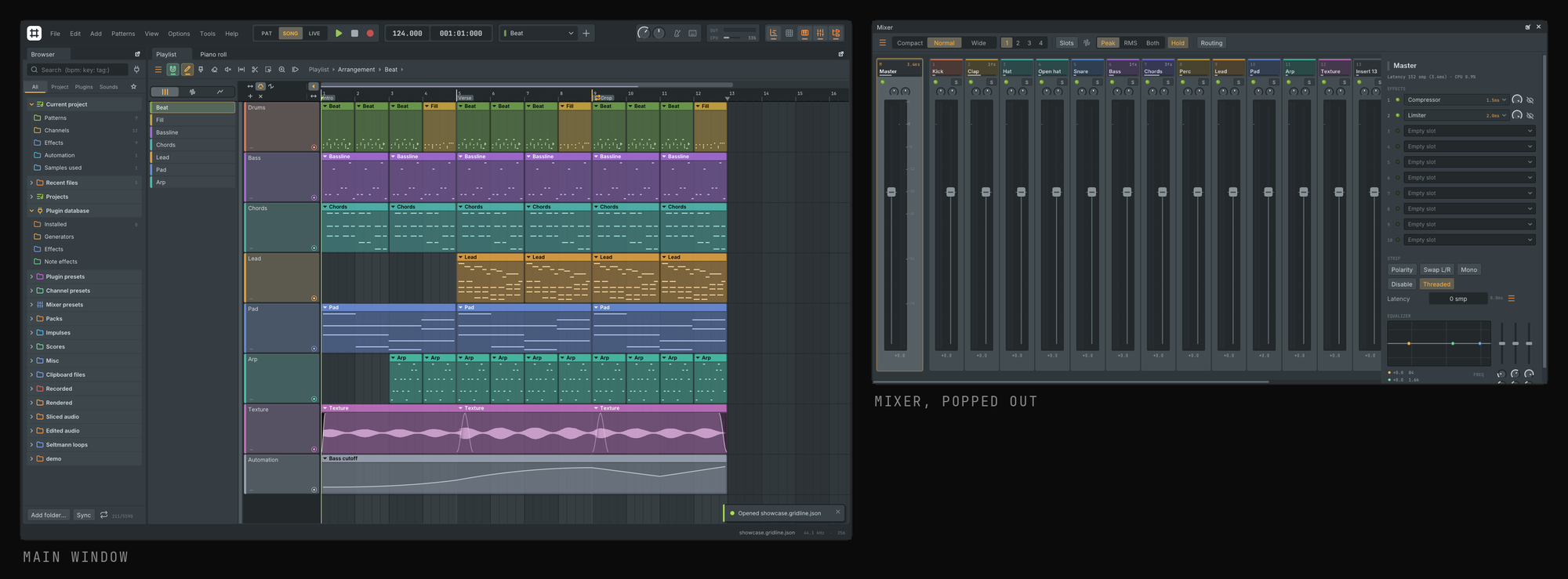
Windows on every monitor. Every panel (mixer, channel rack, playlist, piano roll, browser, ...) and every Gridline plugin editor has a pop-out button in its title bar: it becomes an ordinary window of your system that you can move to another monitor and resize by its edges, with its contents following the resize live. Its dock button or its own close button brings it back where it was. Shortcuts, the typing keyboard and drag and drop work in every window, and popped-out panels reopen where they were, on the same monitor. Plugin windows open inside the main window unless you pop them out. View, Bring all windows back into Gridline gathers everything, and Settings, Interface, Allow windows outside the main window turns the feature off.
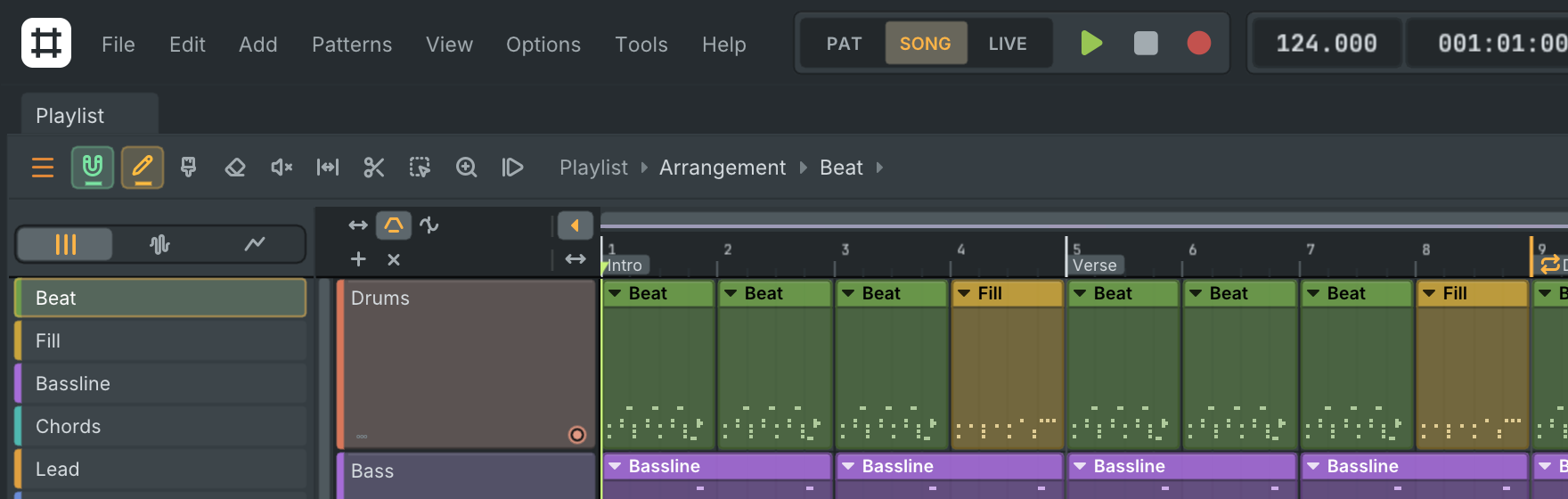
Every icon is an SVG. The icons that were still drawn as shapes or text characters (menu and tree arrows, check marks, close crosses, the mixer and track header glyphs, playlist clip glyphs, plugin window header buttons, the audio editor's toolbar and plugin editor captions) now come from the same SVG set as the rest of the interface, with 88 new icons drawn for Gridline. Each one sits exactly where the old glyph was, so no layout moves. Tool icons in the playlist, piano roll and automation editor are one size each, the selected tool carries the same underline as the top bar's window buttons, play and pause match stop and record, and knob pointers are straight to their ends.
More room for plugin editors. The strip at the top of a plugin's channel window (volume, pan, pitch and the preview keyboard) is now hidden, and the eye button in the window's header slides it down when you need it. The window grows and shrinks with it, docked or popped out.
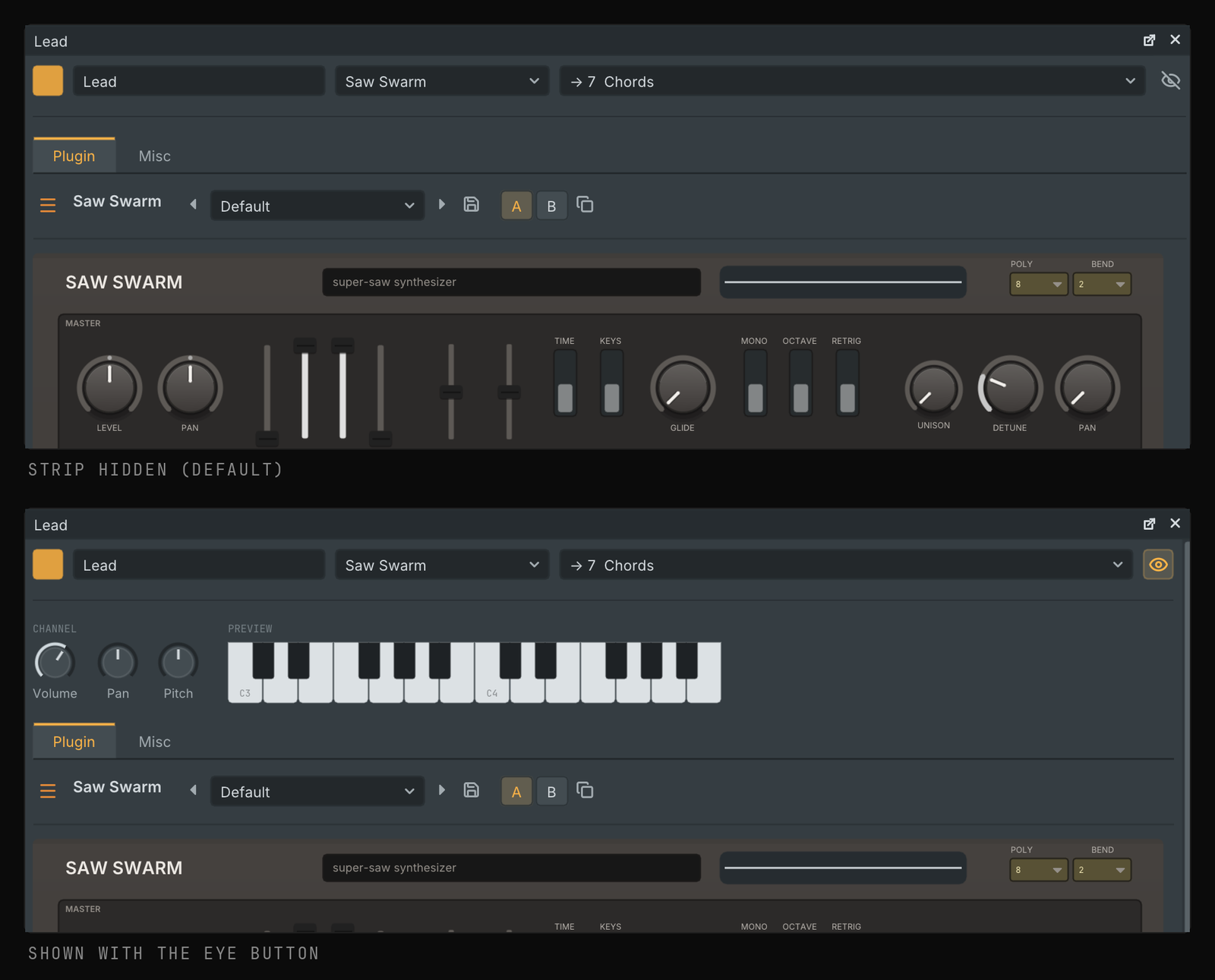
Windows stay in reach. Floating windows inside Gridline can no longer be dragged off the edge and lost: past an edge they follow with growing resistance and spring back when you let go (Elastic edges in Settings, Interface). The window layout now comes back at the next start, and the main window redraws continuously while you resize it.
A clearer playlist. Clicking a clip makes that clip, as it is, what the draw and paint tools place: a trimmed audio clip paints with its length, fades, gain, pitch and stretch. Where two audio clips crossfade, the overlap shows both blended the way they play.
Plasma: a wavetable synth that opens Serum presets
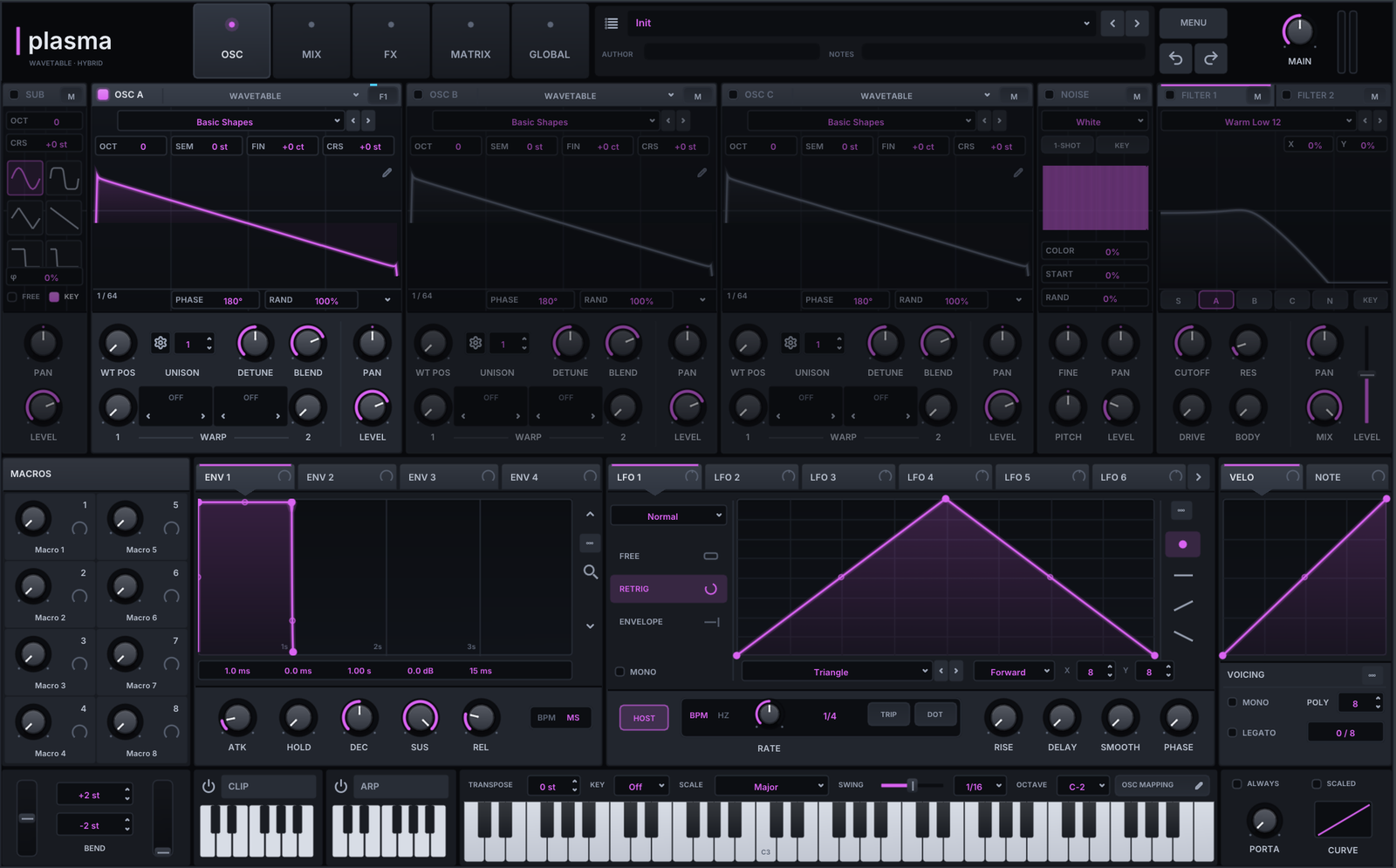
Plasma (gl.plasma) is a new wavetable hybrid synth: three oscillators (wavetable, multisample, sample, granular or spectral) with two warp slots each, unison up to 16 voices, a sub oscillator, a noise layer and two filters. It has 4 envelopes, 10 LFOs, 8 macros and a 64-slot modulation matrix (drag a source onto any knob), three effect racks with up to 24 modules, an arpeggiator, a clip player and a wavetable editor.
Plasma opens Serum 2 presets (.SerumPreset) and Serum 1 .fxp files from your own folders and turns them into Plasma sounds, from the preset menu, the preset browser or by drag and drop. The browser's Serum library lists the Serum preset folders found on your computer, indexed in the background and searchable as a whole. Whatever was approximated is listed behind a small info mark next to the preset name. See docs/plugins/plasma.md.
Stand-ins for a missing Serum or Kickstart
A project (Gridline or FL Studio) that uses Serum or Serum 2 on a computer where it is not installed now plays it with Plasma, and a missing Kickstart or Kickstart 2 plays with Tideline. The plugin's saved state is mapped onto the stand-in and its automation follows. The original plugin and its state stay in the project untouched, so once it is installed the project opens with it again. Installed plugins are always hosted as themselves. Replace with Plasma or Replace with Tideline in the plugin window keeps the stand-in for good.
Undo in plugin editors, one step per gesture
Ctrl+Z (Cmd+Z on macOS) and Ctrl+Shift+Z or Ctrl+Y now undo and redo what you did in any Gridline plugin editor, also in a popped-out window. Every gesture is one step: a knob drag, a turn of the mouse wheel, a typed value, a menu pick, one stroke on a drawn shape, an effect added or moved, a preset loaded. In external plugins (VST3, CLAP, AU, VST2), an edit in the plugin's own interface is one undo step too, and undo and redo no longer lose the redo history.
Seltmann, the automatic sample chopper
Drop audio on Seltmann (gl.seltmann) and it works out what the sound is, its tempo and where bar 1 starts, chops it at a size that suits it, and plays as soon as you pick one of 59 layout cards. Breaks, melodic loops, whole songs, one-shots and textures all work. It plays as an instrument in time with your project, and loops drag out as audio files or patterns. See docs/plugins/seltmann.md.
Stop silences everything
Stop now releases every sound, not only the song: notes from the piano roll an...
Gridline 0.6.1
Gridline 0.6.1 answers everything reported in the first issue on GitHub, checks every control of every built-in plugin and brings a new plugin. The interface opens at the right size on Linux laptops, the flagship plugins have names of their own, Shuttle, the Bitcrusher and the Convolver are rebuilt, freehand drawing is smooth everywhere, and files dropped on the channel rack replace what they land on. Projects, presets and FL Studio files from 0.6.0 open unchanged and sound the same.
Highlights
Fixes from issue #1
- The right size on Linux. Gridline used to work out its interface size from the screen's physical pixel density, so a 1920x1080 laptop set to 100% opened at 150%, plugins included. It now follows your desktop's own scale setting. A new option, Settings, Interface, Follow the system's display scale, can be turned off to choose the size yourself.
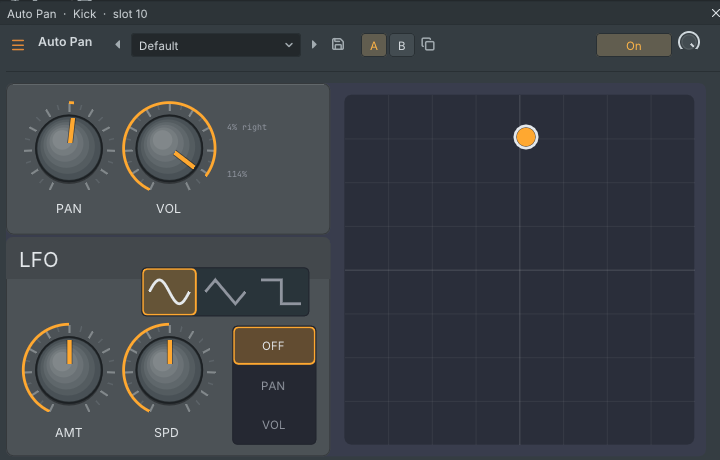
- Auto Pan pad. The live dot used the wrong volume scale and could sit outside the pad. It now stays inside the pad and follows the pointer.
- Windows dragged to the top stop under the top bar in one piece, with no empty band above their content.
- Space in a plugin's own window. On Linux, Space, F1 to F12 and Ctrl or Alt shortcuts now reach Gridline while a hosted plugin's window has focus.
- Play, stop and record react as soon as you press them.
- A ticking metronome. With the metronome on, its icon flips on every beat while the song plays. A new Interface animations switch in Settings, Interface, Motion turns decorative animations off and follows your system's reduced motion setting.
Tideline: pump the mix on the beat
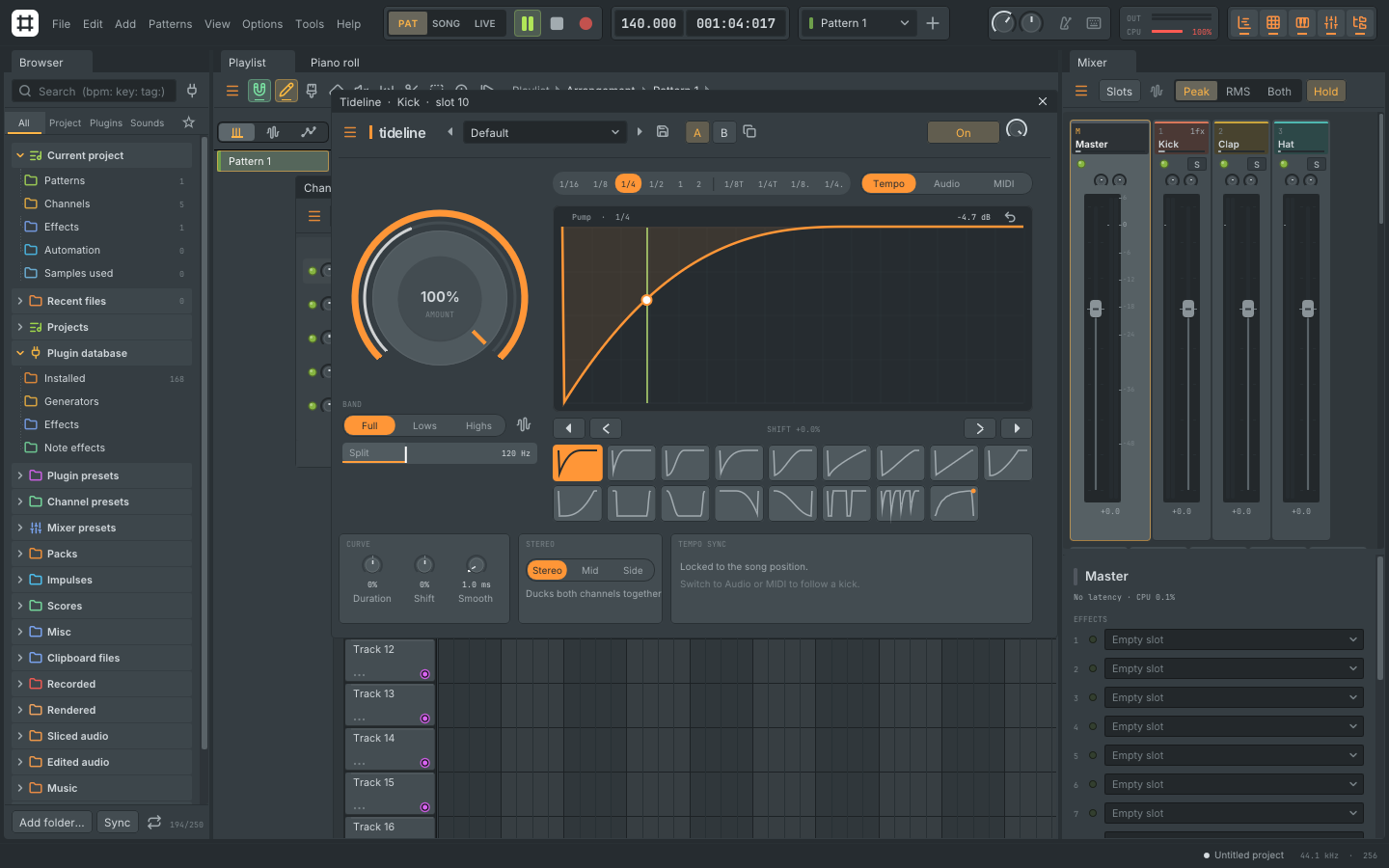
A new rhythmic volume ducker. One big Amount dial, 16 curves for pumping, sub bass, kick trimming, reverse swells and rhythm, plus a curve you draw yourself. It follows the tempo, a kick on another track through sidechain routing, or MIDI notes, in loop or one-shot mode, and adds no latency. Search the plugin picker for "sidechain", "pump" or "ducking".
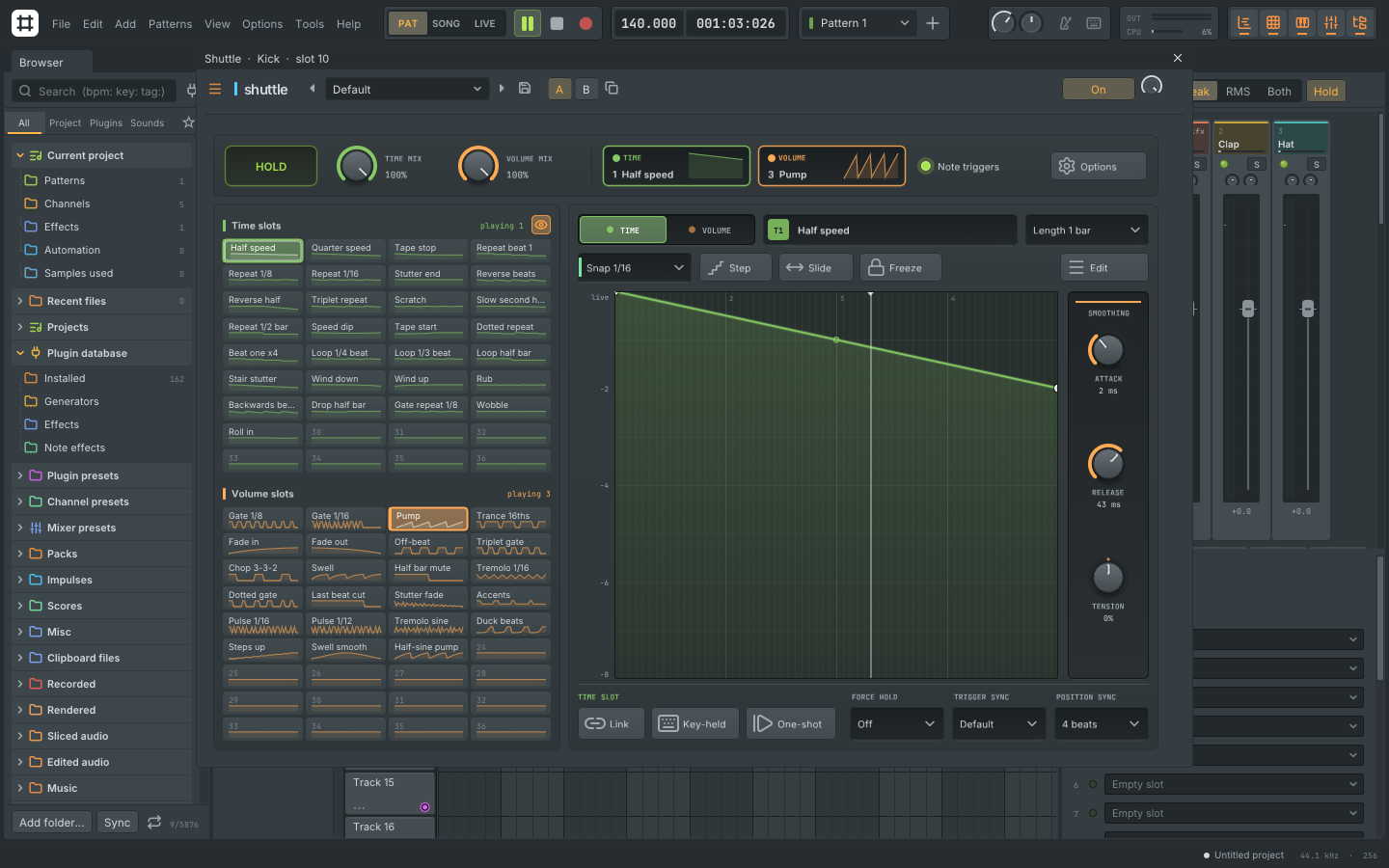
Shuttle, redesigned
Shuttle (the time and volume gate) has a new layout: a header with a big Hold pad, the Time and Volume mix dials and live chips for the playing slots; both slot banks side by side with a preview of every envelope; a large envelope editor with a beat grid, a labelled toolbar and the smoothing dials beside it; and an Options panel with settings that had no control before.
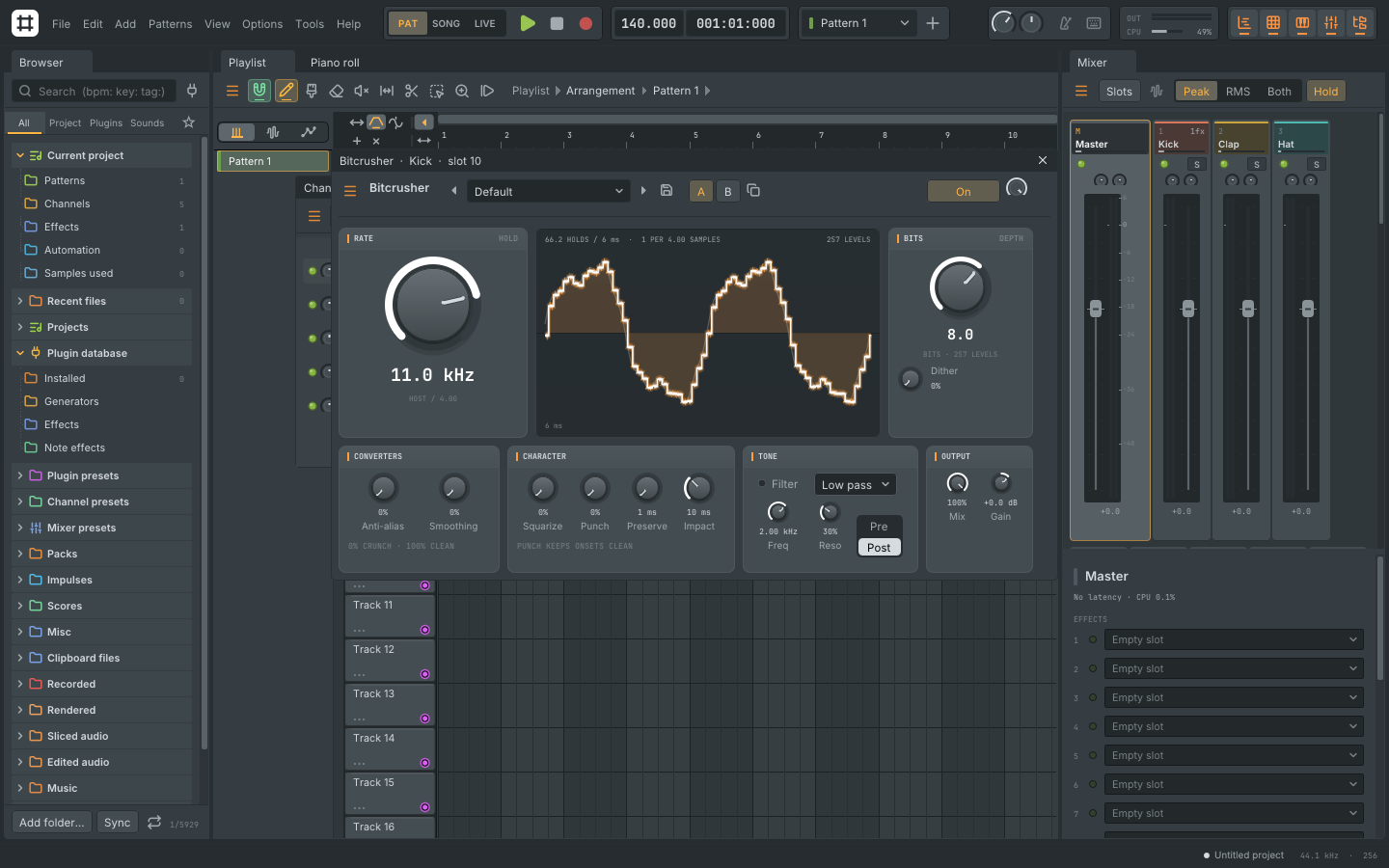
Bitcrusher, rebuilt around the sample rate
The main control is now Rate, in Hz and kHz, from 50 Hz up to off, with smooth sweeps at any rate. Bits sits beside it with Dither, and Anti-alias and Smoothing take the sound from crunchy aliasing to clean lo-fi. A live display shows the stepped waveform as you turn the knobs. Older projects and presets sound exactly as before.
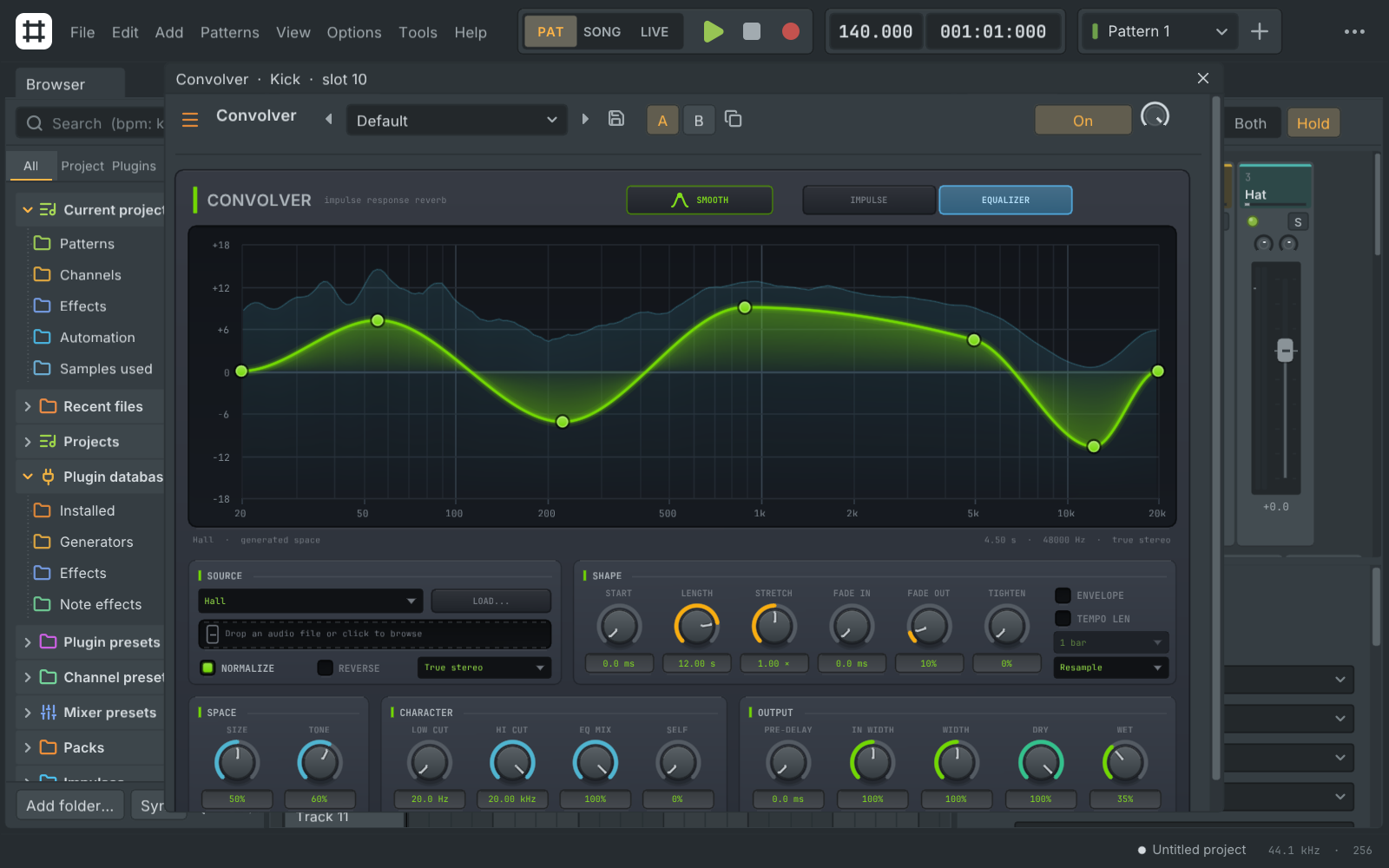
Convolver: points, curves and a new look
The impulse EQ and envelope are edited with points again: click to add one, drag to move it, double-click to delete it. New curves are smooth through every point, and one Smooth / Straight button switches back to straight segments. The editor is redesigned with a large EQ graph over the impulse's spectrum, a waveform view and grouped controls.
Drop to replace on the channel rack
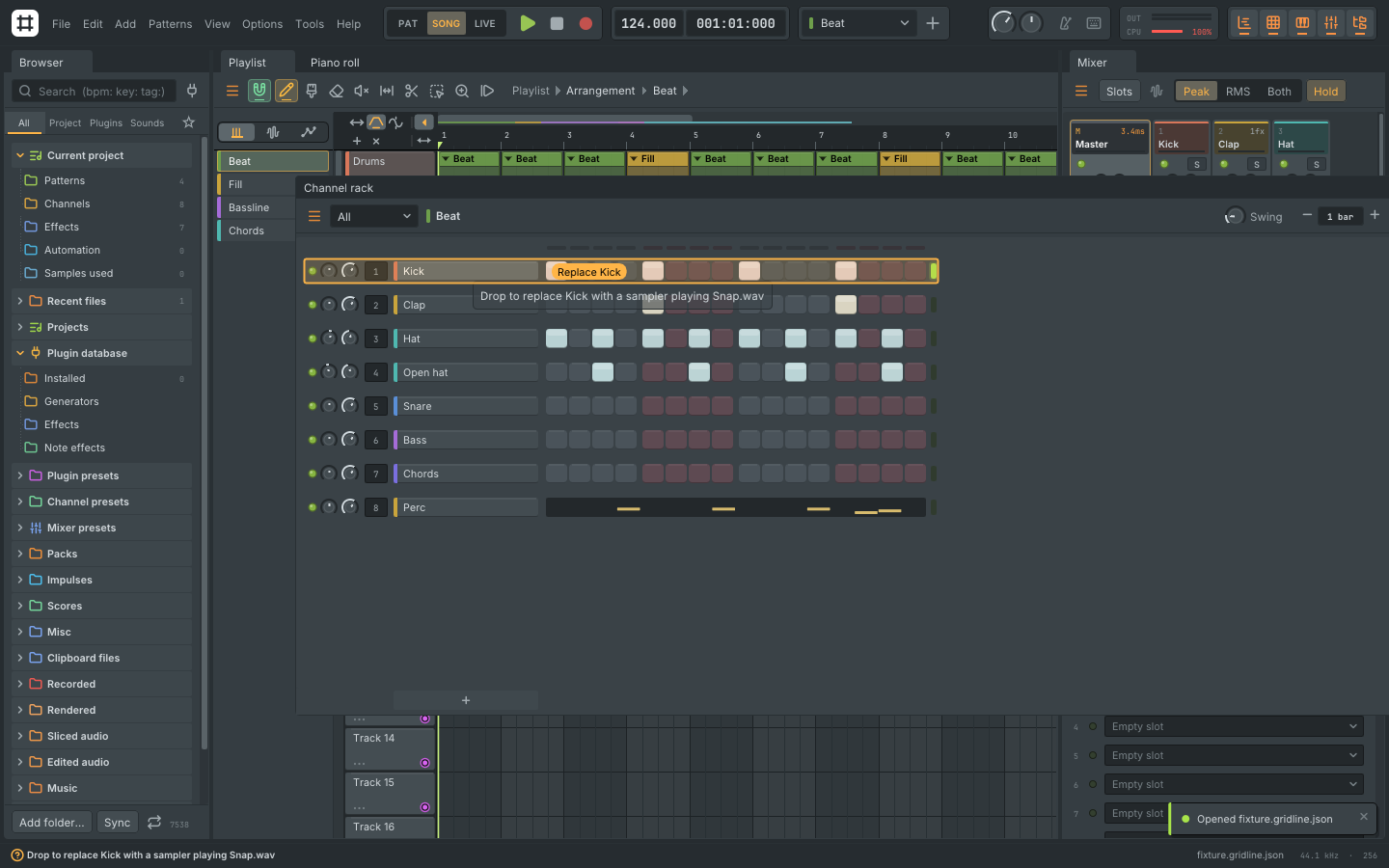
Drop an audio file, an instrument or a preset onto a channel to replace what it plays, keeping its mixer track, volume, pan, steps and notes. Drop on the edge between two channels to insert a new one there. Every drop is one undo step.
Plugins with names of their own
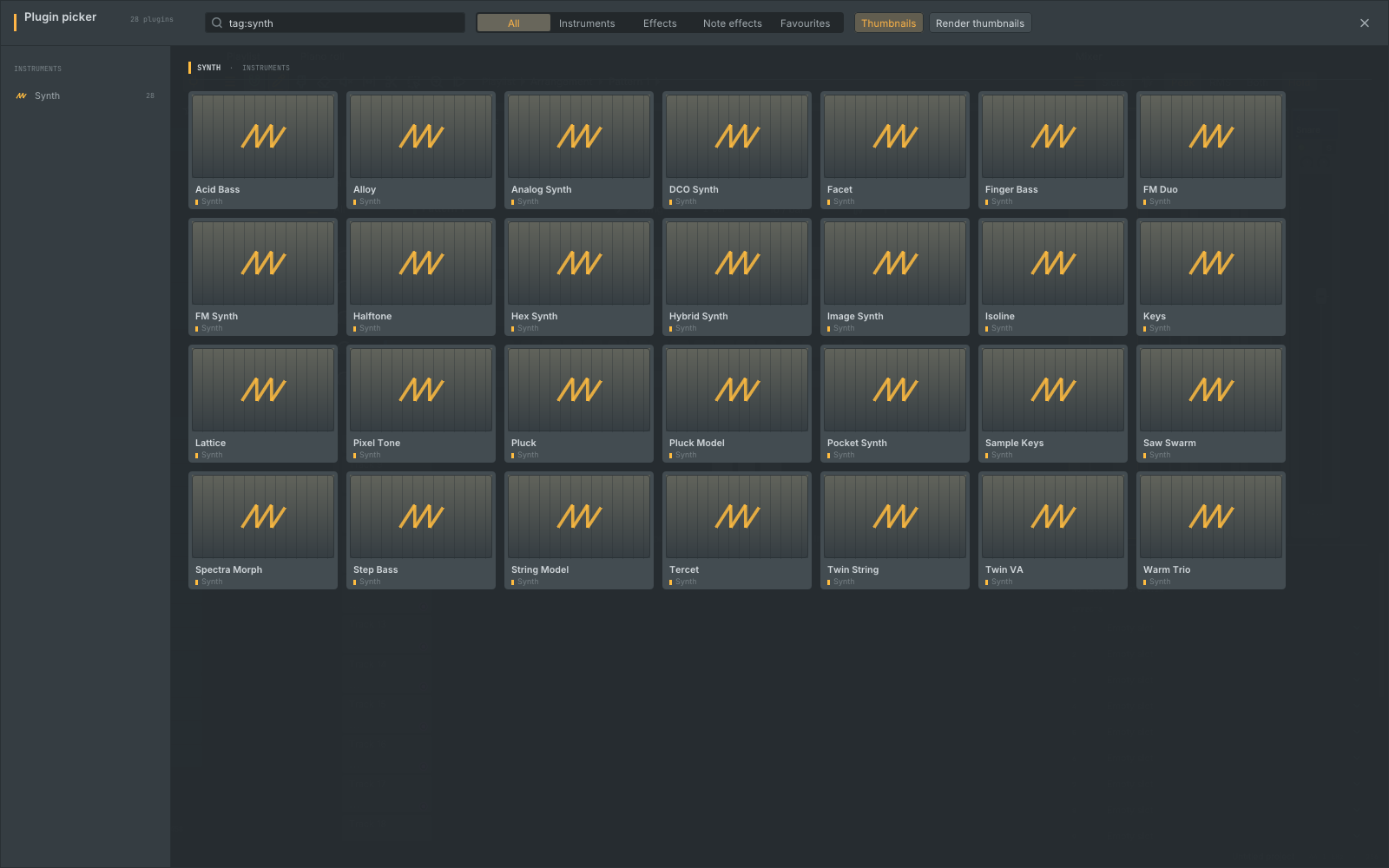
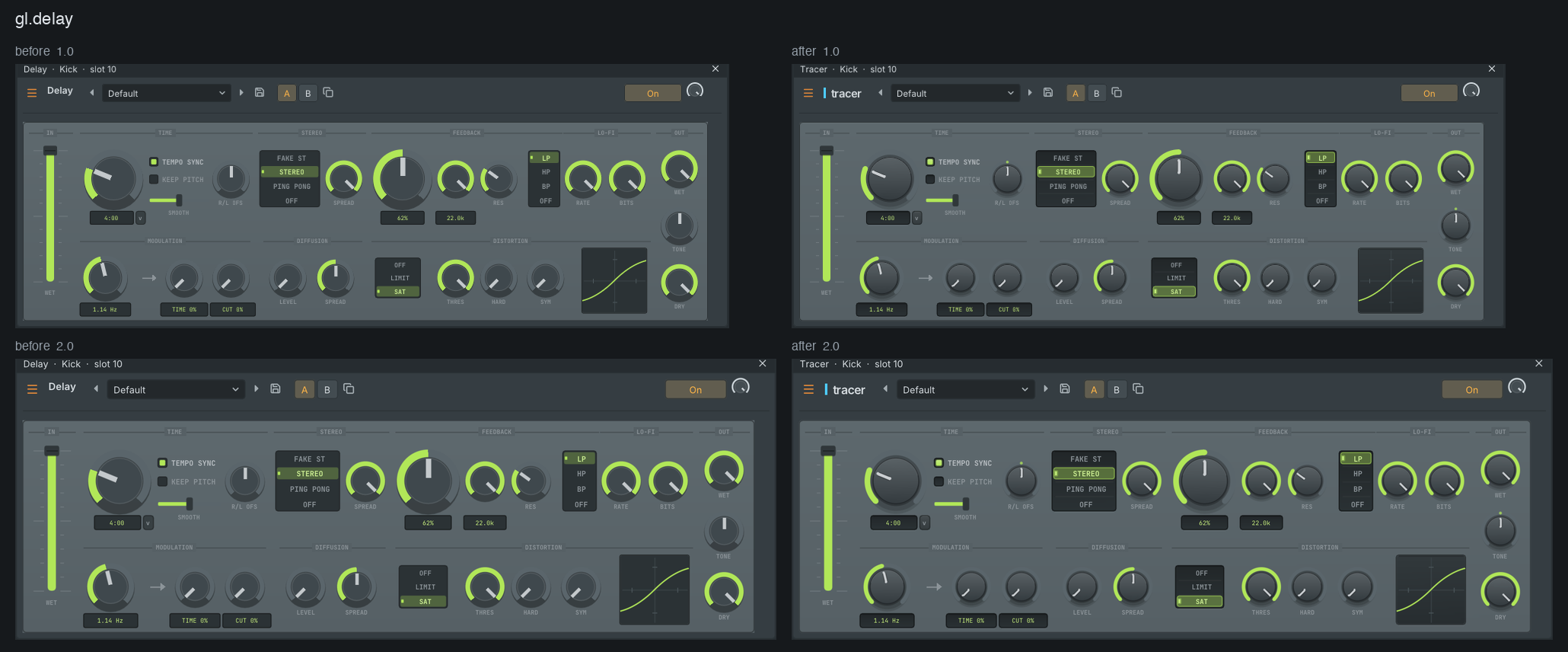
Gridline's flagship plugins now carry their own names and a wordmark in their editor: Tercet, Lattice, Isoline, Facet, Halftone, Abacus, Kerf, Folio, Loupe, Tracer, Cloister, Shuttle, Crest, Cipher, Plumb, Junction and Graticule. Everyday tools keep plain names such as Compressor and Parametric EQ. Former names still find each plugin, and projects, presets and FL Studio imports keep working. The full table is in the changelog below.
Sharper editors and smooth drawing
Every built-in editor shares one refined knob design, section headers, recessed value fields and graphs with gradient fills and readouts under the mouse. Wherever you draw a curve, band levels or a wave with the mouse, the stroke is now gap free and smoothed as you draw; hold Alt to draw raw steps.
Every knob, checked
All built-in plugins and about 13,000 settings were tested for an audible effect, correct wiring, automation and saving. Settings that did nothing now work, crashes are fixed, and a test keeps every control working from now on. Hex Synth and Kick Sculptor now use Gridline's own wavetables and noise sounds, so they sound complete without FL Studio installed, and quitting Gridline while it scans your plugins no longer crashes.
Downloads
All files are on this release page. Pick the one for your system:
| Platform | File | Notes |
|---|---|---|
| macOS 11 or later | Gridline-0.6.1-macos-universal.dmg |
One app for Apple Silicon and Intel, the command line tool and the plugins (VST3, CLAP, AU) |
| Windows 10 / 11, x64 | Gridline-0.6.1-windows-x64-setup.exe |
Installer, can also install the plugins and file types |
Gridline-0.6.1-windows-x64.zip |
Portable: extract and run, no installation | |
| Windows 10 / 11, ARM64 | Gridline-0.6.1-windows-arm64-setup.exe |
Installer for ARM computers |
Gridline-0.6.1-windows-arm64.zip |
Portable | |
| Linux x86_64 | Gridline-0.6.1-linux-x86_64.AppImage |
Runs on most distributions without installing |
Gridline-0.6.1-linux-amd64.deb |
Debian, Ubuntu, Mint and relatives | |
Gridline-0.6.1-linux-x86_64.rpm |
Fedora, openSUSE and relatives | |
Gridline-0.6.1-linux-x86_64.tar.gz |
Install tree, extract anywhere | |
| Linux aarch64 | Gridline-0.6.1-linux-aarch64.AppImage |
64-bit ARM computers, runs on most distributions |
Gridline-0.6.1-linux-arm64.deb |
Debian, Ubuntu and relatives | |
Gridline-0.6.1-linux-aarch64.rpm |
Fedora, openSUSE | |
Gridline-0.6.1-linux-aarch64.tar.gz |
Install tree | |
| FreeBSD 14, x86_64 | Gridline-0.6.1-freebsd-x86_64.tar.gz |
Built and tested on FreeBSD |
| OpenBSD 7, x86_64 | Gridline-0.6.1-openbsd-x86_64.tar.gz |
Built and tested on OpenBSD |
| NetBSD 10, x86_64 | Gridline-0.6.1-netbsd-x86_64.tar.gz |
Built and tested on NetBSD |
| All | Gridline-0.6.1-SHA256SUMS |
Checksums of every file above |
Install notes
macOS
- Open the
.dmgand drag Gridline onto Applications. The app is universal: it runs natively on Apple Silicon and Intel Macs. - The build is not notarized by Apple. The first time, right-click (or Control-click) Gridline in Applications, choose Open, then Open again. You can also allow it in System Settings, Privacy & Security with Open Anyway. If macOS says the app is damaged, run once in Terminal:
xattr -dr com.apple.quarantine /Applications/Gridline.app
- Plugins (optional): the
Pluginsfolder in the disk image holds Gridline as a plugin for other hosts. Copy them to your user plugin folders and clear the quarantine flag the same way:Gridline.vst3to~/Library/Audio/Plug-Ins/VST3Gridline.clapto~/Library/Audio/Plug-Ins/CLAPGridline.componentto~/Library/Audio/Plug-Ins/Components(Audio Unit)
- The command line tool
gridlineis in the disk image too; copy it somewhere on yourPATH, such as/usr/local/bin.
Windows
- Installer (
-setup.exe): installs Gridline inProgram Files(it asks for administrator rights), with optional plugins (VST3 and CLAP intoCommon Files), project file types and a desktop icon. Zip: extract anywhere and rungridline-app.exe; keep theassetsfolder next to it. - The builds are not code signed. If SmartScreen shows "Windows protected your PC", choose More info, then Run anyway.
- Plugins from the zip (optional): copy
plugins\VST3\Gridline.vst3toC:\Program Files\Common Files\VST3, andplugins\CLAP\Gridline.clapwithplugins\CLAP\Gridline-assetstoC:\Program Files\Common Files\CLAP. - Use the ARM64 files on Windows on ARM computer...
Gridline 0.6.0
Gridline 0.6.0 is the first release with ready-made downloads for every desktop system: Windows, macOS, Linux, FreeBSD, OpenBSD and NetBSD, on both x86 and ARM. Every build comes from the same source, is built and tested on each change, and ships the app, the command line tool and Gridline as a plugin (VST3 and CLAP, plus an Audio Unit on macOS). This release also brings a new pitch and time stretching engine, an automatic update check, and everything from the 0.5 series: a song loop marker, a channel rack that scales to long patterns, clip volume lines, Keep / Revert confirmations for risky settings and FL Studio project export that opens cleanly in FL Studio.
Highlights
Downloads for every platform
Installers, disk images, packages and archives for Windows (x64 and ARM64), macOS (one universal app for Apple Silicon and Intel), Linux (x86_64 and aarch64, as AppImage, .deb, .rpm and .tar.gz) and the three BSDs. Each file is listed below with a SHA-256 checksum. Project files, presets and settings are the same everywhere, so a song started on one computer opens on any other.
Pitch and time stretching, rebuilt
A new stretch engine (Signalsmith Stretch, MIT) with a band-limited sinc resampler for pitch. Pitch shifts land within a hundredth of a cent, drum hits stay sharp, the level no longer flutters and pitching up no longer aliases. It drives playlist audio clips, the sampler, the slicers, the audio editor and the pitch shifter, which gains a Hi-fi engine. Five stretch modes (Resample, Auto, Mono / vocal, Transient, Formant keep) are picked per clip or per channel.
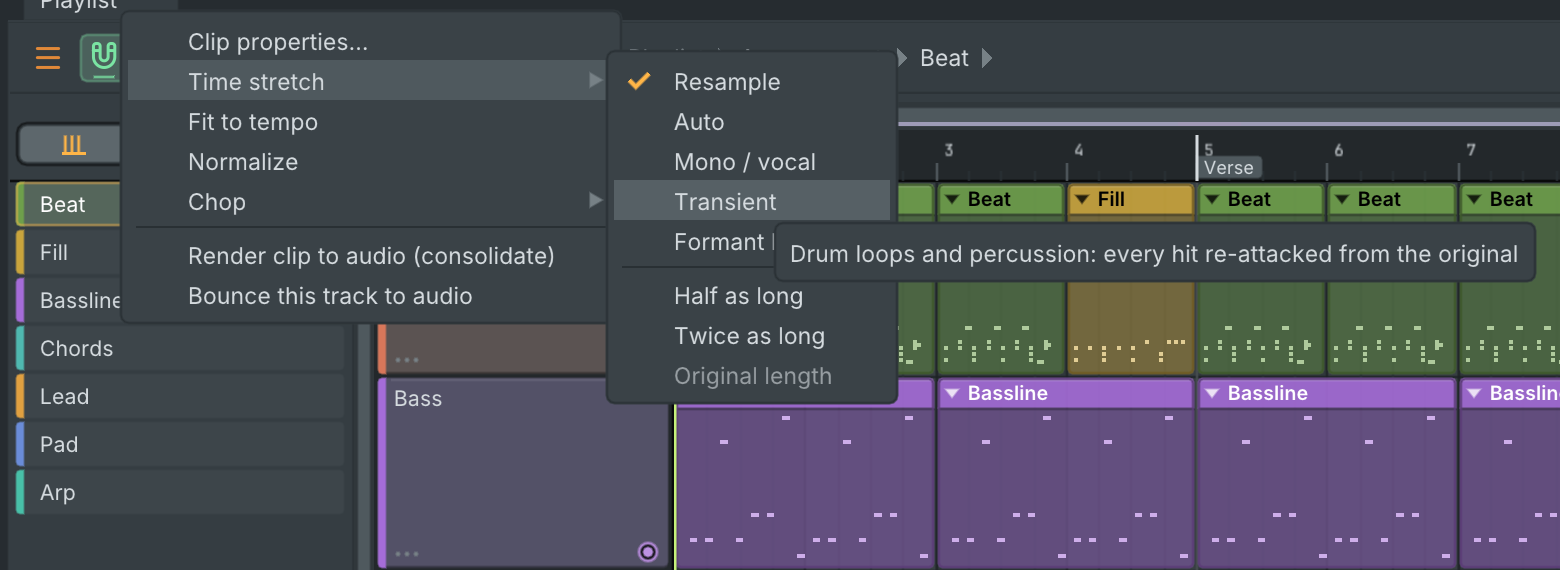
Playlist: loop marker, clip volume and crossfades
One marker now loops the song: playback that reaches the end continues at the loop marker, and every marker action runs inside the audio engine, sample accurate. Audio clips carry a draggable volume line with a dB readout, fades and crossfades have handles, and zero-crossing snapping and time stretching have their own toggles and keys.
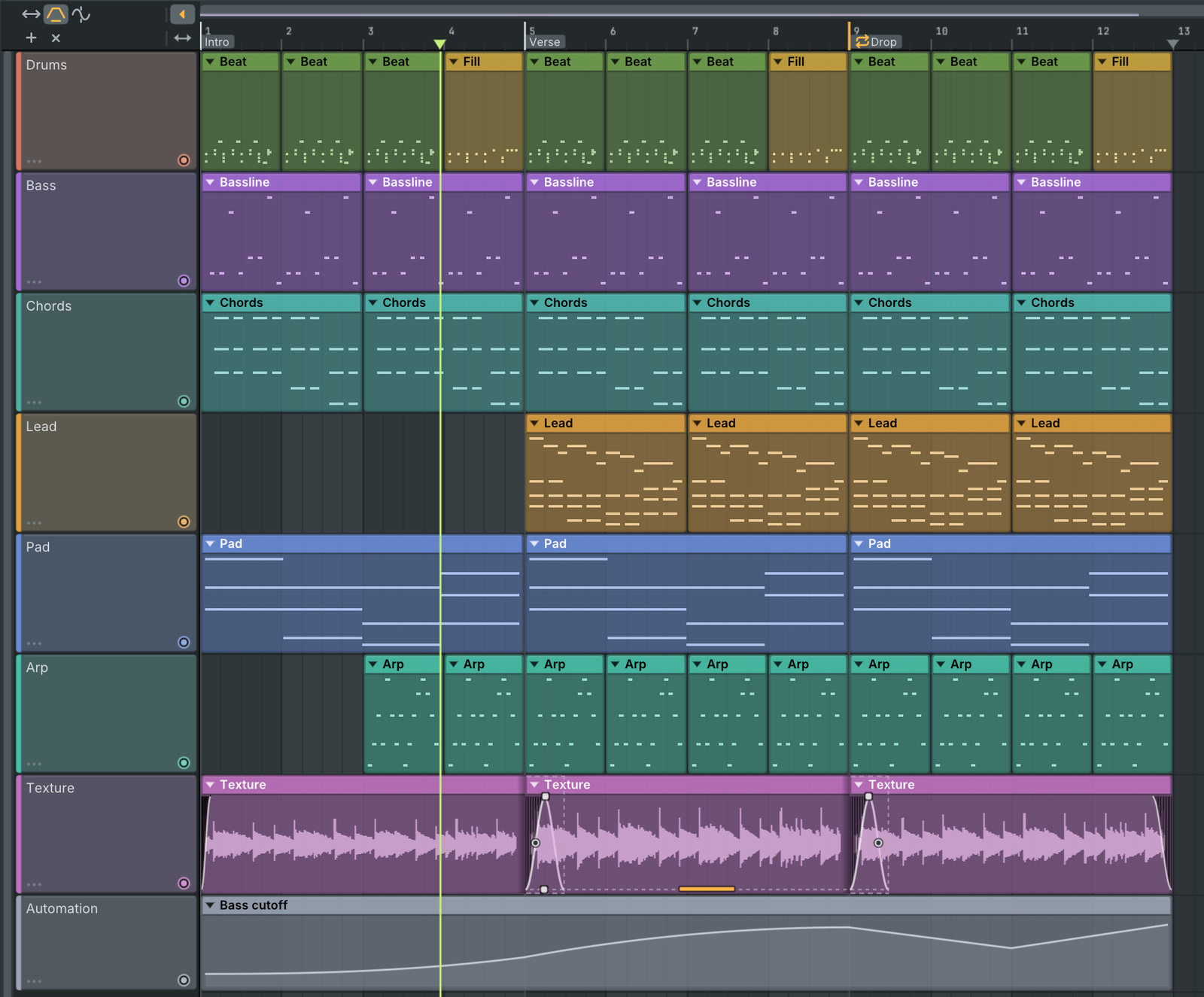
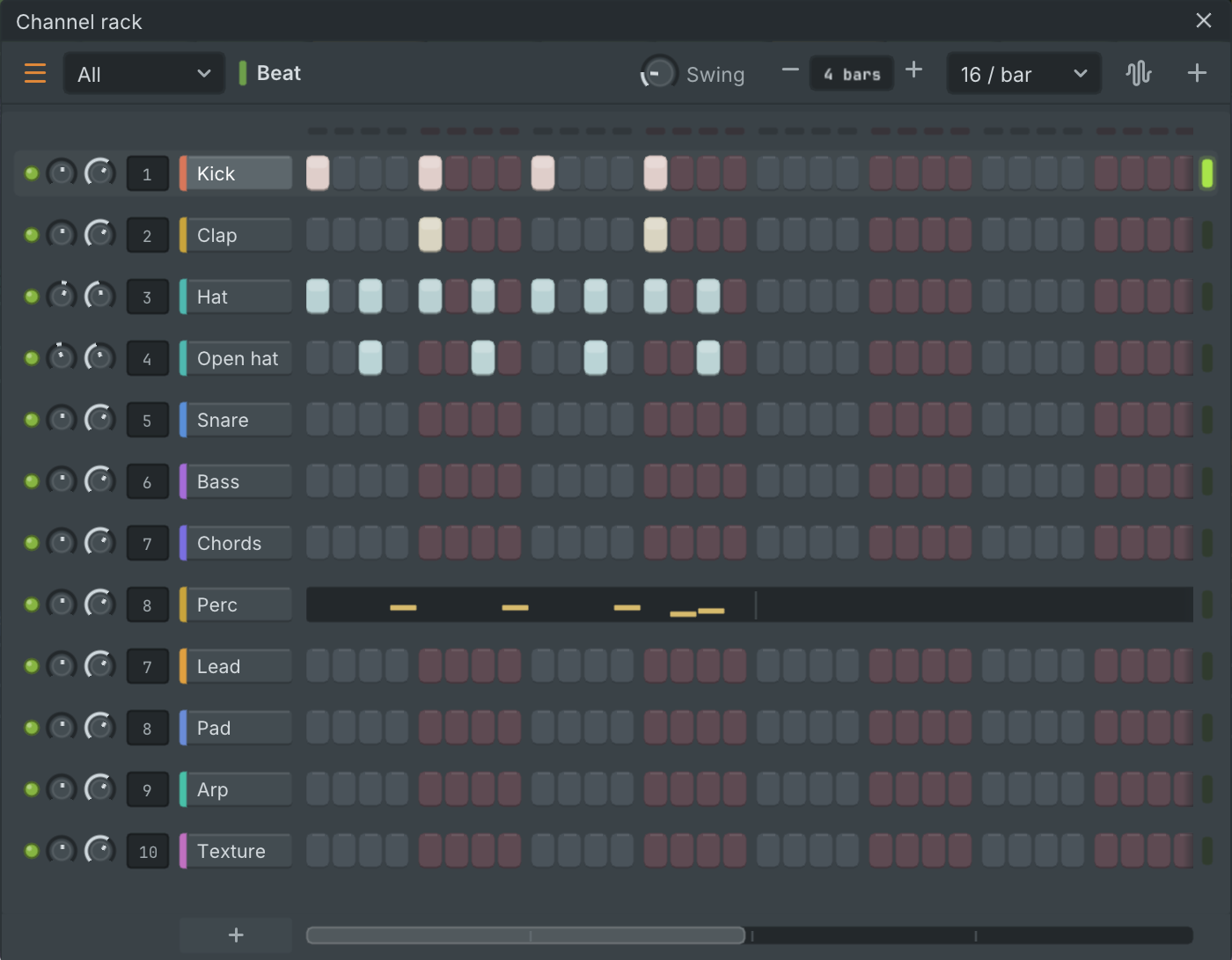
A channel rack for long patterns
Volume and pan knobs, the mute light and the mixer track stay in place however long the pattern is. The step area shrinks, then scrolls sideways with its own scroller, so 64-step patterns are as easy to edit as 16-step ones. On a narrow rack or mixer the mouse wheel scrolls instead of nudging a control.
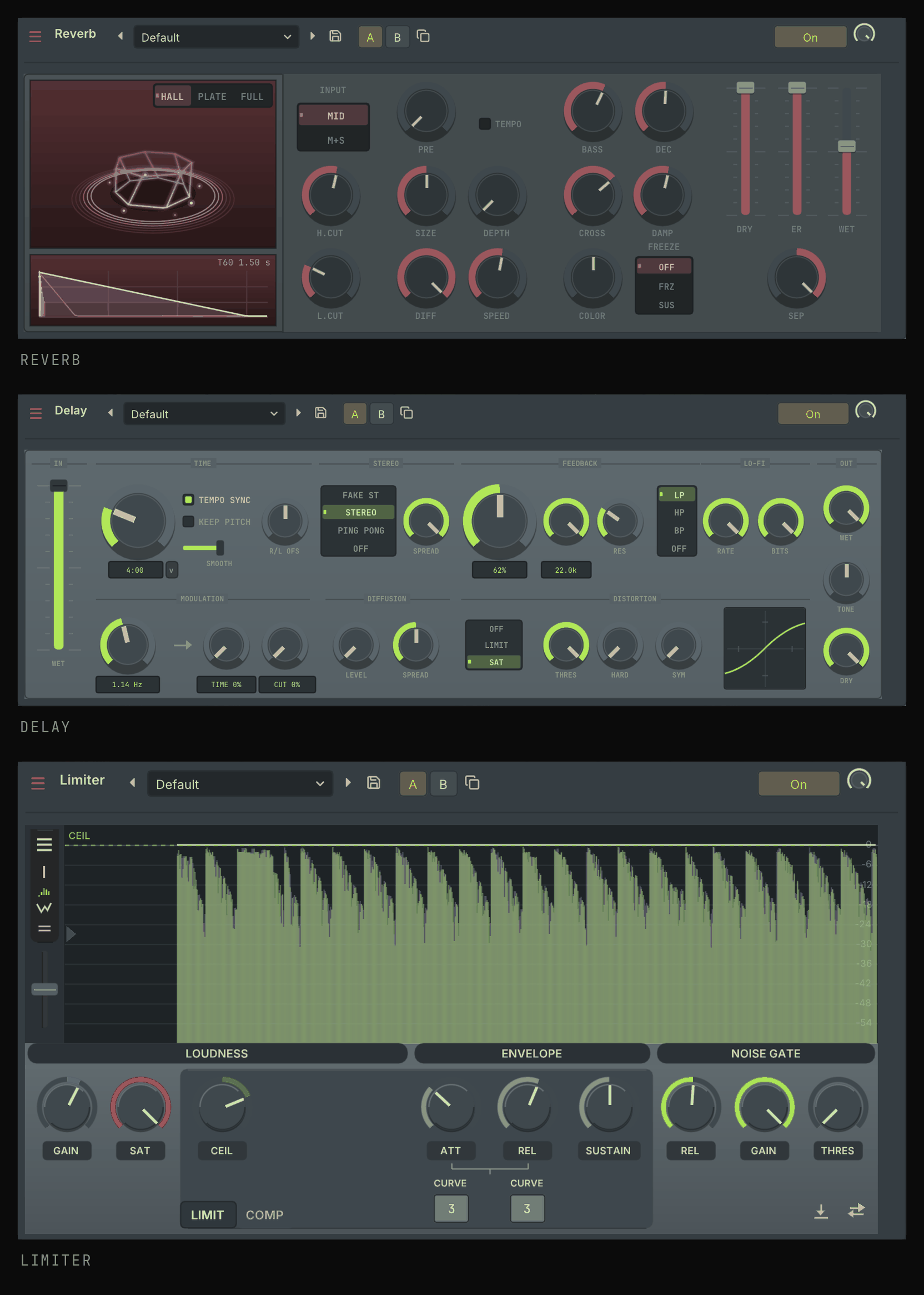
Effects you can watch
Effect editors draw live graphics while the song plays: the reverb shows its room in 3D (drag it up or down to change the room size) with the decay curve under it, the delay draws its saturation curve, and the limiter plots the level against its ceiling.
Automatic update check
Gridline looks for a newer release on GitHub at most once a day and offers to download it, remind you later or skip that version. It sends nothing about you or your projects, and it can be turned off in Settings, General. Help, Check for updates checks right away.
Downloads
All files are on this release page. Pick the one for your system:
| Platform | File | Notes |
|---|---|---|
| macOS 11 or later | Gridline-0.6.0-macos-universal.dmg |
One app for Apple Silicon and Intel, the command line tool and the plugins (VST3, CLAP, AU) |
| Windows 10 / 11, x64 | Gridline-0.6.0-windows-x64-setup.exe |
Installer, can also install the plugins and file types |
Gridline-0.6.0-windows-x64.zip |
Portable: extract and run, no installation | |
| Windows 10 / 11, ARM64 | Gridline-0.6.0-windows-arm64-setup.exe |
Installer for ARM computers |
Gridline-0.6.0-windows-arm64.zip |
Portable | |
| Linux x86_64 | Gridline-0.6.0-linux-x86_64.AppImage |
Runs on most distributions without installing |
Gridline-0.6.0-linux-amd64.deb |
Debian, Ubuntu, Mint and relatives | |
Gridline-0.6.0-linux-x86_64.rpm |
Fedora, openSUSE and relatives | |
Gridline-0.6.0-linux-x86_64.tar.gz |
Install tree, extract anywhere | |
| Linux aarch64 | Gridline-0.6.0-linux-aarch64.AppImage |
64-bit ARM computers, runs on most distributions |
Gridline-0.6.0-linux-arm64.deb |
Debian, Ubuntu and relatives | |
Gridline-0.6.0-linux-aarch64.rpm |
Fedora, openSUSE | |
Gridline-0.6.0-linux-aarch64.tar.gz |
Install tree | |
| FreeBSD 14, x86_64 | Gridline-0.6.0-freebsd-x86_64.tar.gz |
Built and tested on FreeBSD |
| OpenBSD 7, x86_64 | Gridline-0.6.0-openbsd-x86_64.tar.gz |
Built and tested on OpenBSD |
| NetBSD 10, x86_64 | Gridline-0.6.0-netbsd-x86_64.tar.gz |
Built and tested on NetBSD |
| All | Gridline-0.6.0-SHA256SUMS |
Checksums of every file above |
Install notes
macOS
- Open the
.dmgand drag Gridline onto Applications. The app is universal: it runs natively on Apple Silicon and Intel Macs. - The build is not notarized by Apple. The first time, right-click (or Control-click) Gridline in Applications, choose Open, then Open again. You can also allow it in System Settings, Privacy & Security with Open Anyway. If macOS says the app is damaged, run once in Terminal:
xattr -dr com.apple.quarantine /Applications/Gridline.app
- Plugins (optional): the
Pluginsfolder in the disk image holds Gridline as a plugin for other hosts. Copy them to your user plugin folders and clear the quarantine flag the same way:Gridline.vst3to~/Library/Audio/Plug-Ins/VST3Gridline.clapto~/Library/Audio/Plug-Ins/CLAPGridline.componentto~/Library/Audio/Plug-Ins/Components(Audio Unit)
- The command line tool
gridlineis in the disk image too; copy it somewhere on yourPATH, such as/usr/local/bin.
Windows
- Installer (
-setup.exe): installs Gridline inProgram Files(it asks for administrator rights), with optional plugins (VST3 and CLAP intoCommon Files), project file types and a desktop icon. Zip: extract anywhere and rungridline-app.exe; keep theassetsfolder next to it. - The builds are not code signed. If SmartScreen shows "Windows protected your PC", choose More info, then Run anyway.
- Plugins from the zip (optional): copy
plugins\VST3\Gridline.vst3toC:\Program Files\Common Files\VST3, andplugins\CLAP\Gridline.clapwithplugins\CLAP\Gridline-assetstoC:\Program Files\Common Files\CLAP. - Use the ARM64 files on Windows on ARM computers; the x64 files on everything else.
Linux
- AppImage:
chmod +x Gridline-0.6.0-linux-x86_64.AppImage
./Gridline-0.6.0-linux-x86_64.AppImage
- Debian, Ubuntu:
sudo apt install ./Gridline-0.6.0-linux-amd64.deb
- Fedora, openSUSE:
sudo dnf install ./Gridline-0.6.0-linux-x86_64.rpm # or: sudo zypper install ./Gridline-0.6.0-linux-x86_64.rpm - tar.gz: extract anywhere (or into
/usr/local) and runbin/gridline-app. It needs the system's SDL2 and ALSA libraries (JACK is optional). - The packages install Gridline as a plugin in
/usr/lib/vst3and/usr/lib/clap; from the tar.gz, copylib/vst3/Gridline.vst3to~/.vst3andlib/clap/Gridline.clapto~/.clap. - Wayland: Gridline runs natively through SDL. The interfaces of hosted third-party plugins are X11 windows and open through XWayland, which most desktops start on their own.
- On aarch64 use the files with
aarch64orarm64in their name.
FreeBSD, OpenBSD, NetBSD
Extract the archive and run bin/gridline-app (the command line tool is bin/gridline). Install the libraries it needs first:
| System | Packages |
|---|---|
| FreeBSD | pkg install sdl2 sndio libX11 mesa-libs |
| OpenBSD | pkg_add sdl2 (X11, Mesa and sndio are part of the base system) |
| NetBSD | pkgin install SDL2 sndio (with the X11 sets installed) |
Audio goes through SDL (sndio or OSS), MIDI devices through sndio, and plugin interfaces open on X11.
What's new in 0.6.0
Pitch and time stretching
- New stretch engine (Signalsmith Stretch, MIT) with a band-limited sinc resampler for pitch: pitch shifts land within a hundredth of a cent, drum hits stay sharp and the level no longer flutters. Used by playlist audio clips, the sampler, the slicers, the audio editor and the pitch shifter.
- Stretch modes: Resample, Auto, Mono / vocal, Transient and Formant keep. They are read from and written to FL Studio projects.
- Resample mode and sample playback are band-limited, so pitching up no longer aliases.
- The pitch shifter has a new Hi-fi engine.
Platforms
- Gridline builds, tests and ships on Windows (x64 and ARM64), Linux (x86_64 and aarch64), macOS (one universal app for Intel and Apple Silicon), FreeBSD, OpenBSD and NetBSD. Every platform is built and tested on each change.
- Windows: audio through WASAPI, MIDI devices through Windows Multimedia, plugin hosting (VST3, CLAP, VST2, LV2) with the plugins' own interfaces, the plugin sandbox, drag and drop from Explorer and browsers, the assistant token kept in the Windows Credential Manager, settings in
%APPDATA%\gridline....