Repository navigation
MX2 v1.12.0 and MXCMD v1.09

MX2 v1.12.0
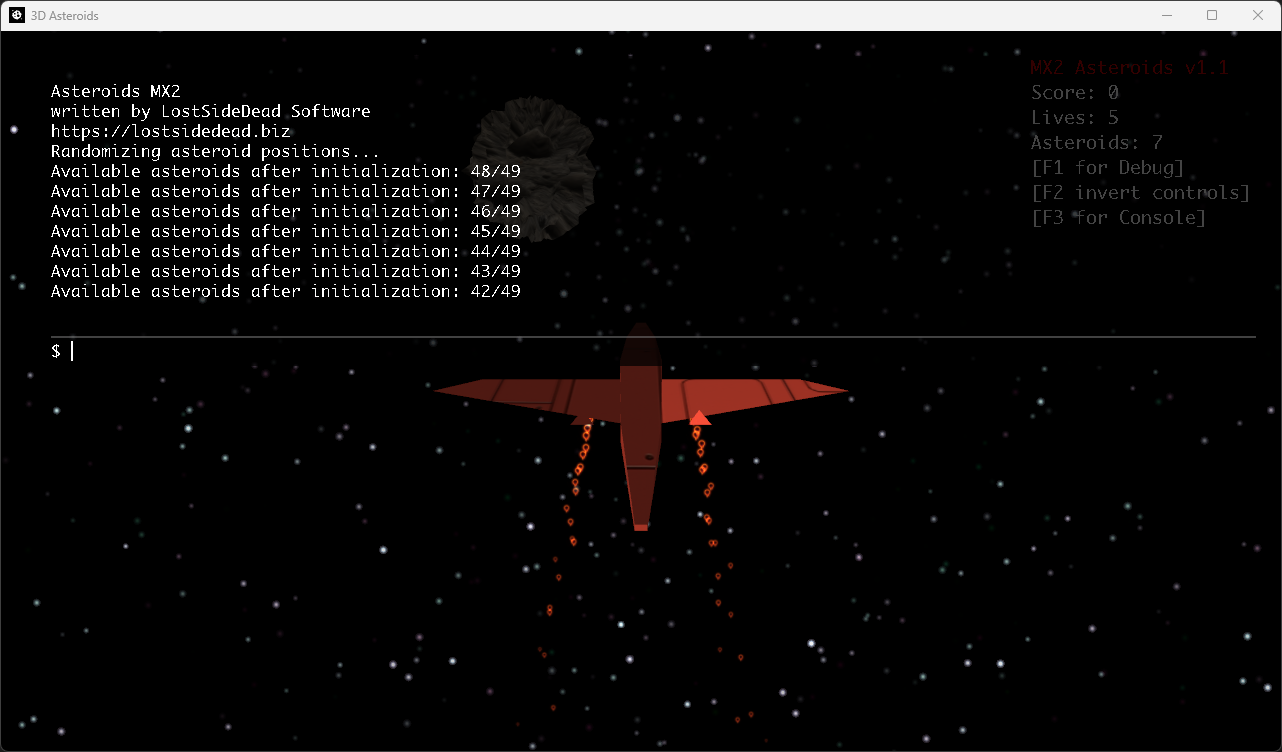
Contains complete source code a zip or tar gz file
MXCMD v1.09 Beta
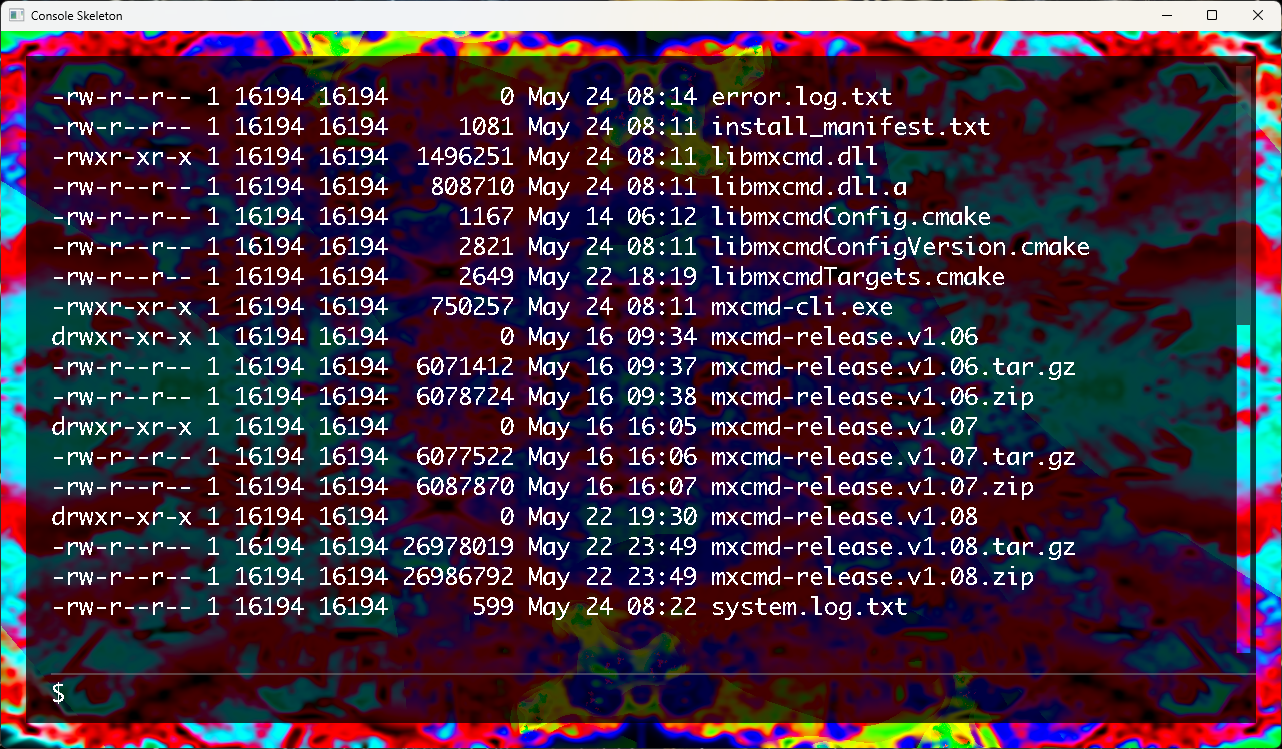
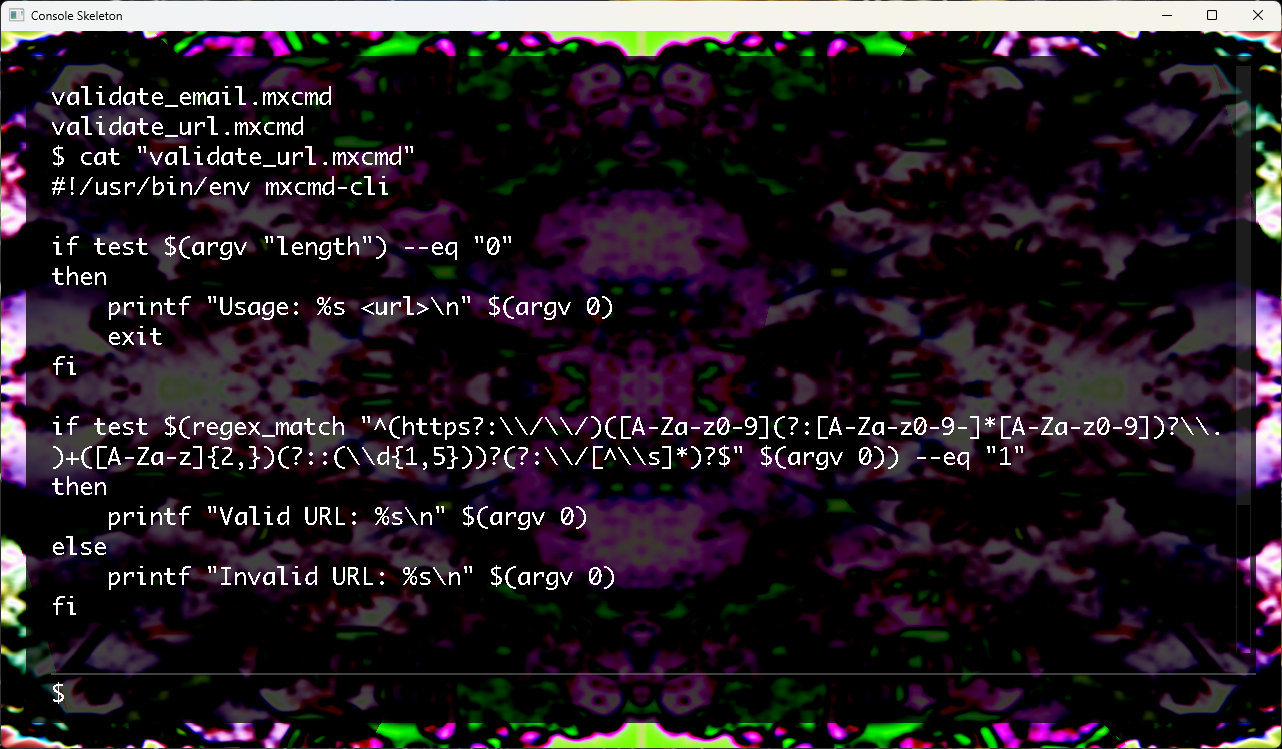
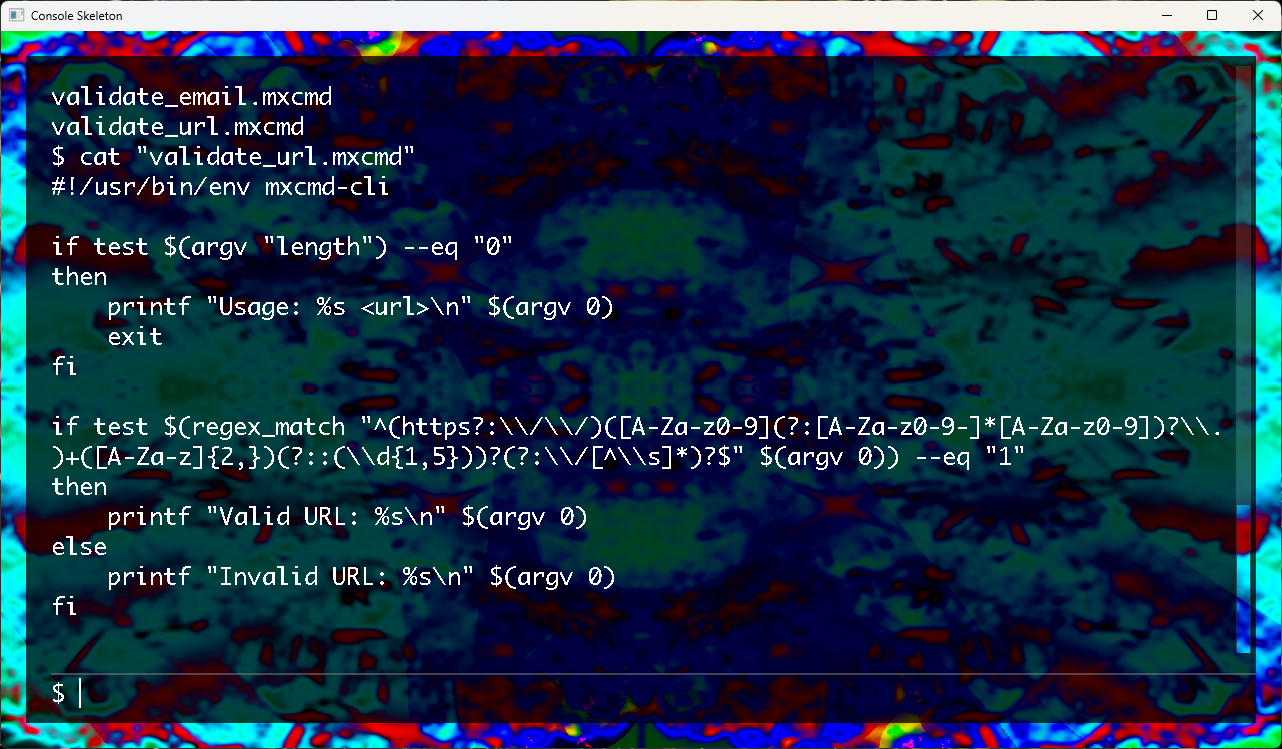
Platform: Windows x64 (MSYS2/MinGW-w64)
We’re pleased to introduce MXCMD Beta—an early release of our command-line interpreter tailored for the MSYS2/MinGW-w64 environment on Windows x64. This beta build is provided strictly for testing and feedback; features are subject to change as we refine the tool.
How to build from source:
Building from Source on Linux/Unix first install the required packages, readline, git, g++, cmake.:
git clone https://github.com/lostjared/libmx2.git --depth 1
cd libmx2/cmd
mkdir build
cd build
cmake .. -DCMD=ON -DSHARED=ON
cmake --build .
sudo cmake --install .
Then at your shell prompt:
$ mxcmd-cli
[mxcmd prompt appears]
or if you have libmx2 installed
git clone https://github.com/lostjared/libmx2.git --depth 1
cd libmx2/cmd
mkdir build
cd build
cmake .. -DCMD=ON -DCONSOLE=ON -DSHARED=ON
cmake --build .
sudo cmake --install .
This package includes the SDL module
examples are in scripts/ under the shell folder
to use this program System wide simply at the shell directory to the system path
This package also includes a GUI using libmx2 for this application.
mxcmd-console.exe
double click run-mxcmd.bat
then enter the shell/scripts directory
$> cd "shell/scripts"
Launch a script:
exec "mxcmd-cli.exe ./script.mxcmd"
Note:
Its important to give the full path to a script when executing
example
mxcmd-cli ./script.mxcmd
mxcmd-cli path/to/script.mxcmd
use
$> pwd
to get current directory
from inside the shell directory
How to launch the GUI console:
$> exec "mxcmd-console.exe -r 1920x1080"
or open shell directory in Windows explorer and double click on mxcmd-console.exe
Press Ctrl + C to interrupt current command while in console
Press Ctrl + R to reload a random shader