Repository navigation
user interactive
Run steiner with no arguments to start the interactive terminal UI (TUI). For command-line flags and subcommands, see CLI reference.
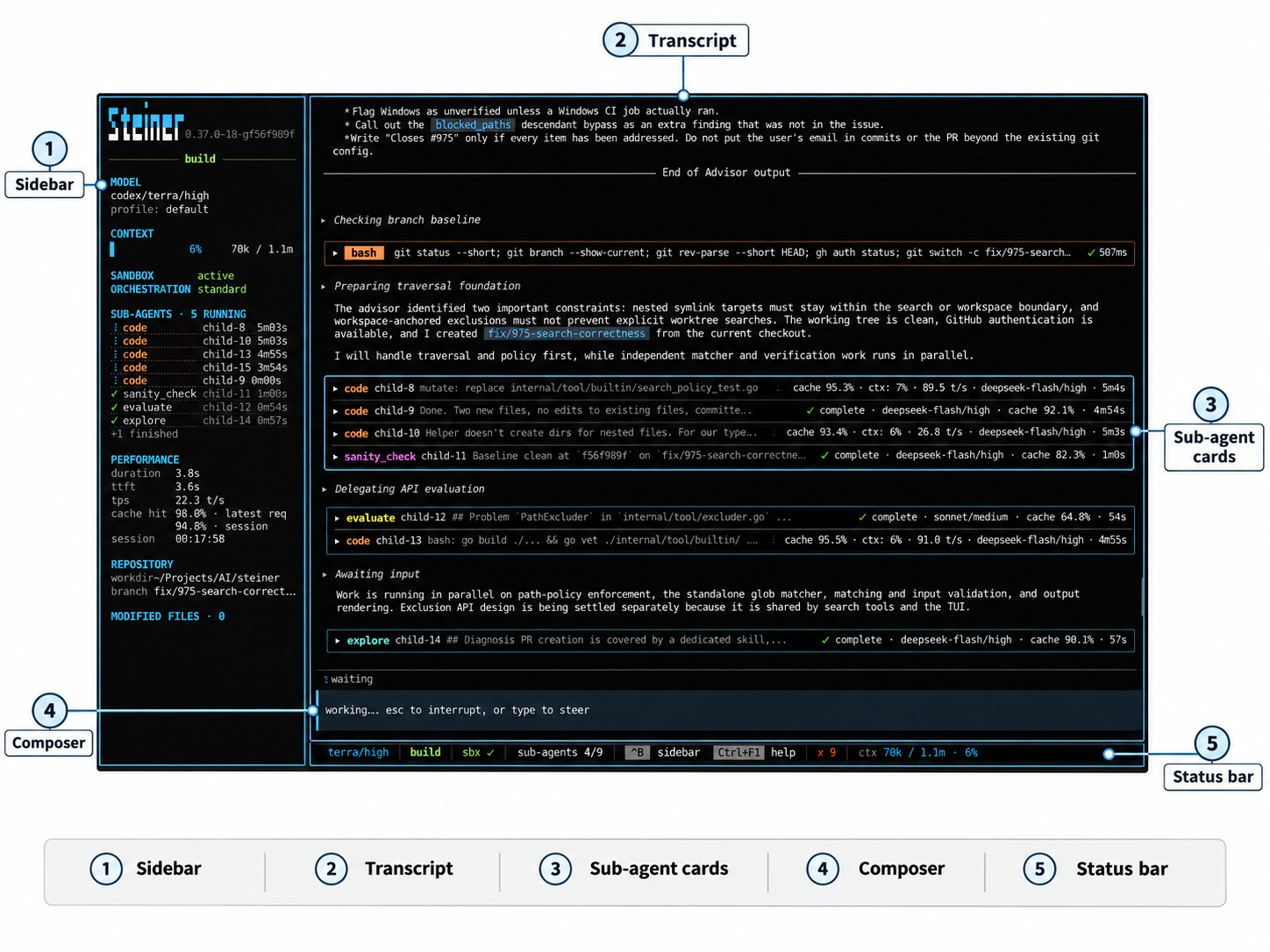
- Transcript: the main pane. It shows your messages, model replies, thinking blocks, tool calls, approval prompts, sub-agent cards and the compaction banner. Click a tool call, thinking block, sub-agent card or the compaction banner to expand or collapse its detail.
- Composer: the input box at the bottom. Queued messages appear in a box above it.
-
Status bar: below the composer. It shows the model, context usage, the execution mode and key hints. Context usage reads
ctx --until a model request reports usage together with a usable context window, and staysctx --if no usable window is reported; after that it shows used / budget tokens with a percentage. -
Sidebar: model and profile, context gauge, sandbox status, orchestration level, active skill, MCP and LSP server counts, sub-agents, performance, session start and active runtime, repository branch and modified files. When a newer release is available, the sidebar shows
↑ <version> · upgrade(see Installation). Pressctrl+bto show or hide it. It is hidden when the terminal is narrower than 100 columns.
Open the help overlay with ctrl+f1 for a short list of key bindings.
| Key | Action |
|---|---|
enter |
Submit. During a run, queue the text as a steer (see Steering a run) |
shift+enter, alt+enter, ctrl+j
|
Insert a newline |
up / down
|
Recall earlier prompts when the cursor is on the first row; otherwise move the cursor |
/ |
Open the slash overlay of commands and skills (when the composer is empty) |
tab |
Cycle completions for a slash command |
@ |
Open the file picker; enter or tab inserts the selected path, esc cancels |
ctrl+a / ctrl+e
|
Move to line start / end |
ctrl+k |
Delete to end of line |
ctrl+w |
Delete the previous word |
ctrl+u |
Delete to start of line |
ctrl+v |
Paste an image (see Images) |
| Key | Action |
|---|---|
ctrl+b |
Toggle the sidebar |
ctrl+t |
Open the context overlay |
ctrl+o |
Open or close the usage dashboard (r refreshes; see Usage) |
ctrl+x |
Expand or collapse the latest delegation output |
ctrl+g |
Take queued steers back into the composer |
shift+tab |
Toggle between plan and build mode (see Execution modes) |
alt+m |
Open the model picker |
alt+p |
Open the profile picker |
alt+e |
Open or close the error log |
alt+r |
Apply a new random accent colour (see Appearance) |
alt+a |
Open or close the sub-agent picker |
alt+. / alt+,
|
Jump to the next / previous running sub-agent |
alt+/ |
Expand or collapse the sub-agent you jumped to |
pgup / pgdn, mouse wheel |
Scroll the transcript |
ctrl+f1 |
Toggle the help overlay (esc also closes it) |
| Key | While a run is active | While idle |
|---|---|---|
esc |
Interrupt the run | Clear the text selection |
ctrl+c, ctrl+d
|
Interrupt the run | Open the exit dialog; press again to exit |
When sub-agents are running, these keys open a stop dialog instead. Depending on what is running, it offers to stop the current turn, one delegate, all delegates, or the entire run. Use the arrow keys to move, enter to confirm and esc to go back.
If delegation worktrees remain when you exit, Steiner asks whether to clean them up first. See Sub-agent delegation.
Scrollable overlays (usage, error log, MCP, LSP and similar reports) scroll with up/down, j/k, pgup/pgdn and home/end, and close with esc or enter. The context overlay (ctrl+t) scrolls with up/down and pgup/pgdn, and closes with esc. Pickers filter as you type, move with up/down, select with enter and close with esc.
Type / in an empty composer to open the overlay of commands and skills. While a run is active, enter queues the composer text as a steer, including text that starts with /. Commands that open a picker, such as /model, still open it when you complete them from the overlay.
| Command | Purpose | Details |
|---|---|---|
/cache-stats |
Show prompt cache hit rate stats | Usage |
/clear |
Start a new, empty session | Sessions |
/compact [focus] |
Compact the conversation, optionally steering the summary | Context management |
/config |
Show the resolved configuration | Configuration |
/errors |
Show the error log (same as alt+e) |
Error log |
/exit |
Quit Steiner | |
/fork |
Fork the current conversation into a new session | Sessions |
/implement |
Pick a plan from .steiner/plans/ and run the implement skill on it |
Skills |
/ls [path] |
List directory contents | |
/lsp |
Show LSP server status | LSP |
/mcp |
Show MCP server status | MCP |
/usage |
Show provider subscription usage (same as ctrl+o) |
Usage |
/model [ref] |
Switch the orchestrator model; no argument opens the picker | Provider and model setup |
/profile [name] |
Switch the profile for future role assignments; no argument opens the picker | Provider and model setup |
/mode [plan|build] |
Set the execution mode; no argument toggles it | Execution modes |
/orchestration [low|standard] |
Set the sub-agent orchestration level; no argument opens the picker | Sub-agent delegation |
/oneshot <task> |
Run an autonomous oneshot task; /oneshot --resume <id> resumes one |
Oneshot |
/oneshot-resume |
Pick a oneshot run to resume | Oneshot |
/agents |
Find and jump to a sub-agent (same as alt+a) |
Sub-agent delegation |
/recall |
Show conversation history archived by compaction | Context management |
/resume |
Open the session picker | Sessions |
/review |
Pick a plan from .steiner/plans/ and run the review skill on it |
Skills |
/skill [+|-]name |
Enable (+name or name) or disable (-name) a skill |
Skills |
/skills |
List available skills | Skills |
/thinking |
Show or hide thinking blocks | Appearance |
/accent [preset] |
Change the accent colour; no argument opens the picker | Appearance |
/<skill> [args] |
Invoke a skill directly | Skills |
While a oneshot run is active in the TUI, only /exit, /thinking and /accent run as commands. Other input is queued as a steer for the running phase.
When a tool call needs approval, an approval prompt appears in the transcript. Sandboxing explains which calls need approval and what approving allows.
| Key | Action |
|---|---|
y |
Approve this call once |
a |
Approve and allow this tool for the rest of the session (for MCP tools, that server's tool) |
n, esc
|
Deny |
arrow keys, tab
|
Move between the options |
enter |
Confirm the selected option |
ctrl+c, ctrl+d
|
Interrupt the run |
When sub-agents are running, esc, ctrl+c and ctrl+d open the stop dialog instead.
While a run is active, type a message and press enter to queue it as a steer. Queued messages appear in a box above the composer. Steiner delivers all queued messages together, merged into one message, the next time the agent takes input. Pending images go with the steer.
Press ctrl+g to take queued steers back before delivery. They are merged with your current draft and placed in the composer for editing.
Steiner saves interactive sessions under ~/.config/steiner/sessions.
-
/resumeopens the session picker. Type to filter by title,enterloads the selected session,fforks it andesccloses the picker. -
steiner --resumeprints saved sessions with their IDs, andsteiner --resume <id>starts the TUI with that session. See CLI reference. -
/forkcopies the current conversation into a new session and switches to it. Forking from the picker does the same for a saved session. The fork is titledFork of: <original title>, and changes in one session do not affect the other./recallin a fork shows only the fork's own compaction archive. -
/clearstarts a new, empty session. It resets enabled skills, queued steers and pending images. The previous session stays saved. - The sidebar's
startedrow records the local time of the first prompt, andruntimecounts how long the session has been working./clear,/forkand/resumereset both. See Usage.
Loading, forking and clearing are refused while a run or sub-agent is still active.
Press ctrl+v to paste an image. Steiner reads an image from the clipboard; if there is none, it uses clipboard text that is a path to an image file. On Wayland, clipboard images are read with wl-paste.
- Supported formats: PNG, JPEG, GIF and WebP.
- Maximum size: 5 MB per image. Images larger than 2048 px on the longest side are resized.
- Each image appears in the composer as a marker such as
[img-3]. You can paste several before sending.Backspaceat the end of a marker orDeleteat its start removes that image. Labels are not reused. - If the current model cannot view images and no vision sub-agent is configured, the paste is ignored with a notice. See Sub-agent delegation.
Image data is removed from the conversation once the model has responded. A text placeholder with the image ID and file path stays in the history, so the model can look at the image again later.
Images are stored under .steiner/tmp/images/<session id>/ in the project. Folders unused for 30 days are removed at startup. --exec and oneshot runs use a temporary folder that is removed on exit. /clear discards images that have not been sent.
Select text in the transcript with the mouse; it is copied when you release the button. Double-click copies a word and triple-click copies a line. In the error log, press y to copy the whole log.
Steiner tries wl-copy (when WAYLAND_DISPLAY is set), then xclip or xsel (when DISPLAY is set). If none succeeds, it sends an OSC 52 escape sequence, which asks your terminal emulator to set the clipboard.
Over SSH, copying usually relies on OSC 52:
- Terminals with OSC 52 support, such as kitty, WezTerm, Alacritty, foot, Ghostty and recent Konsole, work without extra setup.
- VTE-based terminals, such as Terminator, GNOME Terminal, Ptyxis and Tilix, ignore OSC 52. Use X11 forwarding instead: connect with
ssh -X(or setForwardX11 yesin~/.ssh/config), allowX11Forwarding yeson the server, and installxcliporxselon the remote host. - Inside tmux, add
set -s set-clipboard onto your tmux config.
If copied text lands in the remote host's clipboard, WAYLAND_DISPLAY or DISPLAY is set in the remote shell. Unset it before starting Steiner.
Press alt+e or use /errors to open the error log. It lists internal errors and warnings from the session. Press y to copy it, and esc, enter or alt+e to close it.
TUI preferences live in ~/.config/steiner/prefs.yaml, separate from the main configuration. Steiner creates the file when you change a preference from the TUI.
accent: violet
show_thinking: true
sidebar_position: left
sidebar_bg: "#050505"
content_bg: "#000000"| Field | Default | Meaning |
|---|---|---|
accent |
amber |
Accent colour preset, or random for a different preset on each start. Set with /accent or alt+r. |
show_thinking |
true |
Show thinking blocks in the transcript. Toggle with /thinking. |
sidebar_position |
left |
right places the sidebar on the right; any other value places it on the left. Edit the file to change it. |
sidebar_bg |
#050505 |
Sidebar background colour. Edit the file to change it. |
content_bg |
#000000 |
Main pane background colour. Edit the file to change it. |
Accent presets: amber, coral, rose, magenta, gold, violet, indigo, blue, cyan, teal, green, mint, lime, red, pink, sky, lavender, terracotta, yellow, purple. /accent with no argument opens a picker with colour swatches; /accent <preset> sets one directly.
Press alt+r for a new random accent without submitting or clearing your draft; the cursor stays where it was. The preference is saved as accent: random, so each later start also picks a random preset. Press alt+r again for another colour in the same session. A random pick can repeat the current colour.
On macOS, terminals only send alt as Meta when Option is configured to: enable "Use Option as Meta key" in Terminal (Settings > Profiles > Keyboard) or set the Option key to send Esc+ in iTerm2 (Settings > Profiles > Keys). Otherwise Option+R types a character instead of triggering the shortcut.
Background colours must be #RRGGBB. Quote them in YAML, because # starts a comment. Empty or missing values use the defaults. If the file is not valid YAML or a colour is invalid, the TUI does not start and reports the error.
Other TUI settings, such as the frame rate, are in the tui block of the main configuration.