Repository navigation
Web tabs
This page covers web pages in Cablebag: browser profiles for a second tenant or account, the Web view of the sidebar, pinned sites, notifications and unread counts, sleeping tabs, pop-ups and downloads, filling logins, and importing your bookmarks.
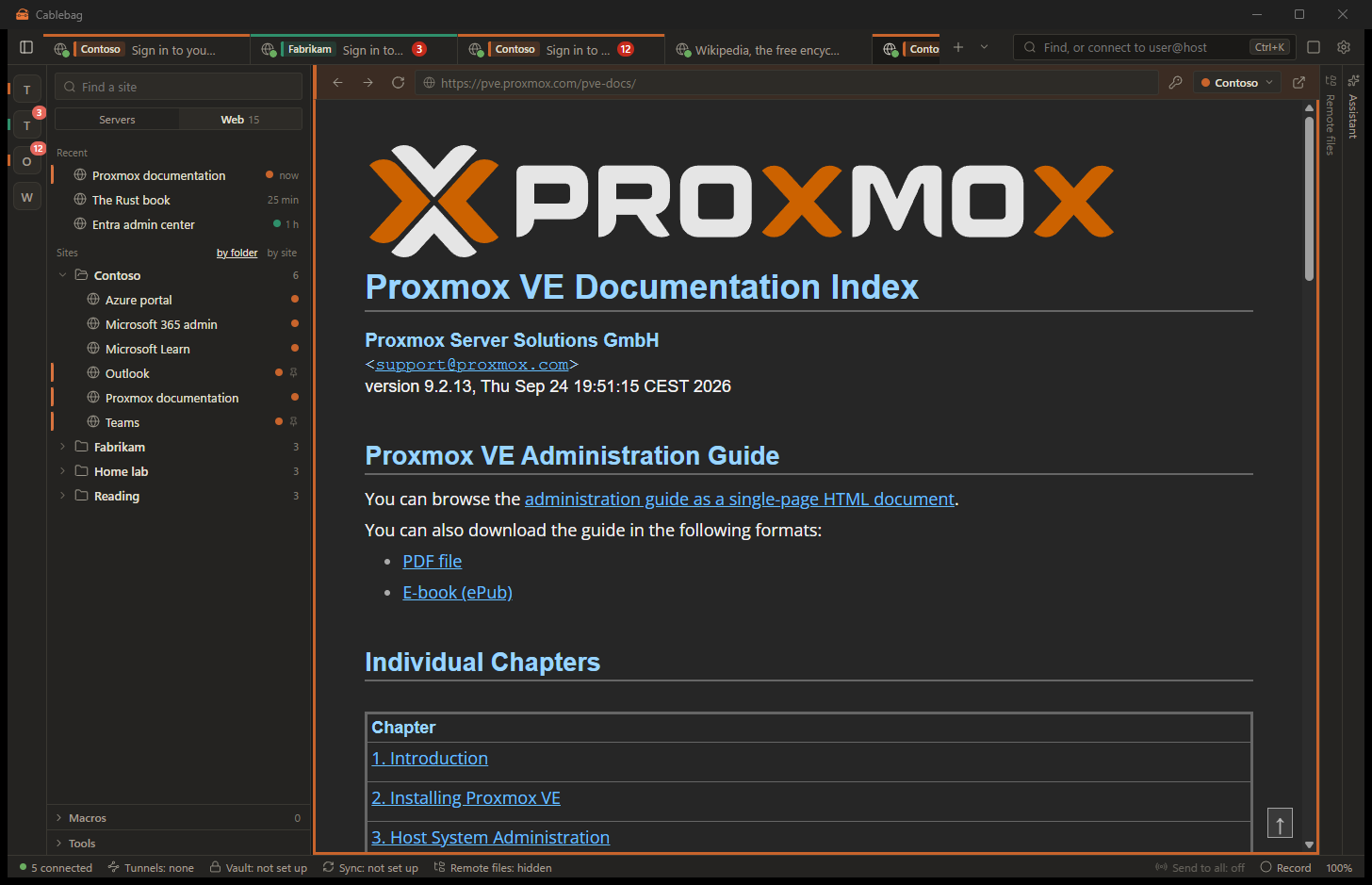
Make one with Ctrl+Shift+N and the type Browser (under Other). It has:
- Web address.
- Network: a WireGuard network, so the page goes through the customer's VPN; see WireGuard per session.
- Browser profile: whose cookies and logins the tab uses, see below.
- Open when Cablebag starts and keep it running: for Teams and other pages whose messages you want to get all day.
The tab has an address bar with Back, Forward and Reload, the profile's name, a key button to fill a login, and Open in the web browser on this PC.
A web browser keeps one set of cookies per site, so you are signed in to one Microsoft 365 tenant, one Teams or one Google account at a time. A browser profile is a set of cookies and logins of its own. Give each tenant or customer a profile and their pages can be open side by side, each signed in to its own account.
-
The profile button in a web tab's address bar is the quickest way. It shows the tab's profile (Default when it has none) and offers:
- Open this page in another profile, a private window or Default, as a tab of its own;
- New profile for this page...: give it a name and the page opens in it;
- Always open this session in...: the profile this session keeps, or follow its folder again;
- For the whole folder ...: the profile of every web session in the folder.
After a choice for the session or the folder, the page opens again in that profile.
-
A folder in the Web view shows its profile's colour. Right-click it for Browser profile for this folder.... A session without a choice of its own uses its folder's; a subfolder can choose another one, or Default to end the choice of the folder above.
-
A new profile needs only a name; the folder's name is suggested, and Cablebag gives it a colour no other profile has. Change the name, colour and notifications later under Settings, Web tabs, Edit. A session's editor and a folder's settings also have the choice.
-
Default is Cablebag's own cookies and logins, for sessions without a profile. A Private window keeps nothing: no cookies, no history.
-
Sign out everywhere (Settings, Web tabs, next to the profile) removes the profile's cookies and logins. Deleting a profile does the same; its sessions and folders go back to Default.
A profile is a separate set of cookies, not a separate person: everything still runs under your Windows account.
Every place a web page shows says which profile it uses:
- the tab and the pane header carry the profile's name in its colour;
- the address bar and the page get a frame in that colour;
- the session tree shows the profile next to each web session and folder.
From a sign-in page, Open this page in opens the session's own address instead, so the other profile starts its own sign-in.
The switch at the top of the sidebar shows either Servers or Web.
- Servers is the session tree without the folders that hold only web sessions, such as imported bookmarks. A web page saved with a server (a Proxmox or router admin page) stays next to that server.
- Web shows your web sessions on their own: Recent (the last few sites you opened), then your folders. Imported bookmarks start at your own folders: Chrome's "Bookmarks" and "Bookmarks bar" levels are left out. by site groups them by site instead (all pages of one SharePoint together), by profile per browser profile (everything of one tenant together). Find a site searches names and addresses.
Pinned sites sit on a strip at the left edge of the window, one square per site with its profile's colour beside it and the unread count of its page. A click goes to the site's tab, or opens it. Drag a square to change the order. The strip only appears once something is pinned.
Pin a site by right-clicking it in the tree, Pin to the strip. A site can be pinned once per profile, so Teams for two tenants is two squares. Pinned sites open when Cablebag starts and keep running in the background, so their unread counts and notifications stay live.
Right-click a web session (in the tree, or on the strip):
- Open, in its own profile (the menu says which).
- Open in...: another profile, Default or a private window, this once (or a new profile). The session keeps its own.
- Pin to the strip or Unpin.
- Always open in...: change the profile the session uses from now on, or follow the folder again.
Tabs that come back when Cablebag starts again (Settings, General, Tabs from last time) keep the profile they were opened in.
- Unread counts: pages that show a count in their title, such as Teams and Outlook, get a badge on their tab and on their pinned square. The total shows on Cablebag's button in the Windows taskbar.
- Notifications from web tabs (a Teams message, for example) show as Windows notifications with the profile's name and the site they came from. Clicking one opens its tab. Switch them off for all tabs under Settings, Web tabs, Notifications from web tabs (do not disturb), or per profile with Show notifications from its web tabs.
Settings, Web tabs, Tabs not looked at go to sleep (Never, after 15 minutes, 30 minutes or an hour) closes the page of a tab you have not looked at for that long, to save memory. Showing the tab opens the page again where it was. Pinned sites, sessions set to keep running and private windows (they would lose their login) never go to sleep.
- A link or button that opens a new tab opens a Cablebag tab, with the same profile and network.
- A sign-in or other pop-up opens as a Cablebag window, titled with the profile and the page, and closes with its tab. A page cannot open more than a few windows at once.
- Finished downloads are announced with the folder they went to.
The key button in the address bar fills a login from your credential sources into the page:
- It offers the logins saved for the page's site. On Microsoft's and Google's sign-in pages it offers those saved for their sites.
- Nothing is filled by itself: you pick the login. A login saved for another site is only filled after you confirm the site.
- Choose another login... searches all logins of your open sources.
- On a page that is not encrypted (http), Cablebag says so after filling, because what you send can be read on the way.
Import sessions... (in the + menu next to the tabs, in the search box, or in the Web view while it is empty) imports the bookmarks of Chrome, Edge and Firefox as web sessions, in their folders. With more than one browser profile in Chrome or Firefox, each becomes a folder. Importing again updates them instead of adding copies. See Importing from other tools.
The list of browser profiles (name, colour, notifications) and your pinned sites travel with Sync. Cookies, logins and history never leave the PC: on another PC you sign in once per profile.