Repository navigation
The Retro Desktop
After the boot screen you land on a small desktop that lives entirely inside the one GamingStack window. It is there for fun - and so there is a reason to open GamingStack again after your PC is set up.
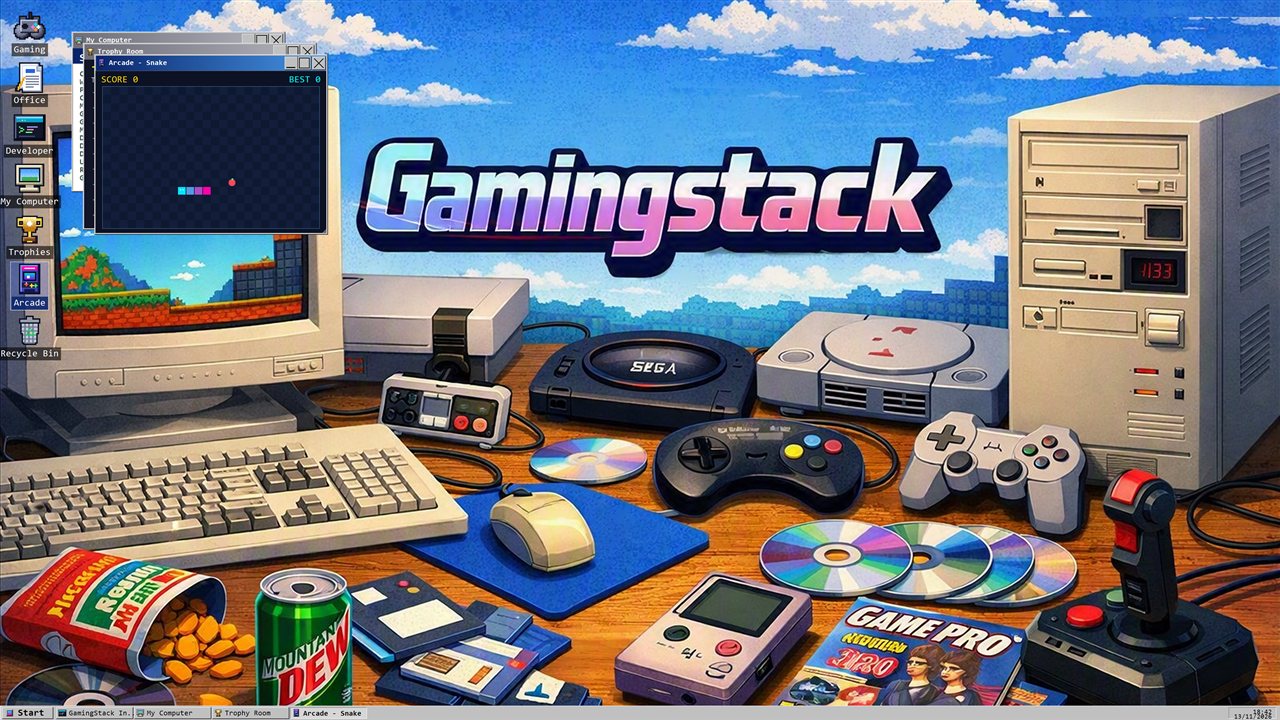
- Windows: drag by the title bar, resize from the bottom-right corner, minimise, maximise (or double-click the title bar) and close. Each open window has a taskbar button.
- Icons: click to select, double-click to open, drag to rearrange (positions are remembered). Right-click the bare desktop for Arrange icons, Display Properties and Command Prompt.
- Start menu: Setup Wizard, My Computer, Trophies, Arcade, Notes, Command Prompt, Display Properties, Setup Logs and Shut Down.
- Gaming / Office / Developer icons: double-click one to start the installer with that setup type.
| App | What it is |
|---|---|
| My Computer | Your real hardware, drive usage bars and session info. Grows when you maximise it. |
| Trophy Room | Your trophies as little cabinet cards, with stats (times opened, streak, apps installed). |
| Arcade | Snake, Minesweeper, Pong and Breakout, each with its own trophy and best score. |
| Notes | A text pad that saves itself. |
| Paint | A small pixel paint program. |
| Disk Defragmenter | A toy that tidies coloured blocks. Your drive is 0% faster. |
| Command Prompt | Real commands (HELP, VER, DIR, NEOFETCH, ...) plus launchers and some secret ones. |
| Display Properties | Boot colours, boot style, UI scale and screensaver delay. |
| Recycle Bin | Empty. Nothing is ever thrown away. |
After a few idle minutes (set in Display Properties) a starfield flies past with a bouncing GAMINGSTACK logo. It never starts while a backup or install is running. Press any key or move the mouse to wake it.
Earned for installing, playing, exploring and coming back on another day. A few are hidden. Stuck on the
secret commands in the Command Prompt? Type HINT for a clue and SECRETS to see your progress.