Repository navigation
Running the Game
Two launchers start the same game:
-
A release package: double-click
Sightline.cmdin the extracted folder. It finds your ROM, opens a 960x720 window and runssightline.exefrom that folder. See Releases for the first-run steps. -
A source checkout:
tools\windows\play.ps1from an ordinary PowerShell prompt at the repository root. It needs a ROM (ROM Setup) and builds first ifbuild\win32\sightline.exeis missing.
.\tools\windows\play.ps1                             # the game's own front end
.\tools\windows\play.ps1 -Level dam -Difficulty 2    # straight into a level (developer)
The controls, settings and file locations below apply to both.
This is the native Windows build: the game code compiled as a 32-bit Windows executable against a thin SDL2 platform layer and an OpenGL renderer, reading level data, models and textures out of your own ROM at run time. No emulator is involved. Original behaviour — Rare's bugs included — is preserved by default; the intentional changes sit behind settings and toggles that default to the original (Original Behaviour and Toggles).
The game boots the way the cartridge does: the boot sequence, then file
select, mission select and difficulty select. The main menu has a fourth,
native row — 4. QUIT GAME — beside Rare's three. play.ps1 -Level skips
the front end and loads a stage directly (a developer option).
The defaults. Every gameplay action can be rebound — see Remapping — and a controller's buttons follow the selected button layout. Button names are shown for an Xbox pad with the PlayStation name in brackets; the game labels them for whichever family is attached.
| Action | Keyboard / mouse | Controller (DEFAULT layout) |
|---|---|---|
| capture the pointer | click in the window | — |
| move | W A S D | left stick |
| look | mouse | right stick |
| fire | left mouse, or F | RT (R2), or RB (R1) |
| aim | right mouse, or Q | LT (L2), or LB (L1) |
| interact | E | A (Cross) |
| reload | R | X (Square) |
| crouch | Left Ctrl — hold, by default | B (Circle) |
| sprint | Left Shift — hold, by default; off until SPRINT is switched on | L3 (left stick click) |
| previous weapon | 1, or wheel up | d-pad left |
| next weapon | 2, or wheel down | d-pad right |
| scope zoom in / out | wheel up / down while aiming with the sniper rifle or the camera | d-pad up / down |
| classic B | Space (use-or-reload, as the cartridge's B) | — |
| watch / pause | Tab or Esc | Start (Options) |
| cycle PRESENTATION (ORIGINAL → COMMUNITY HD → XBLA) | F5 | View (Create) |
| d-pad | arrow keys | — (the pad's d-pad carries the weapon cycle and the zoom) |
| menus | move the mouse to point, left click to select; W A S D or the arrows move, the wheel steps up and down, Enter selects, Esc backs out | left stick, A confirms, B backs out |
| intros | left click, or any button, skips one screen | |
| quit | main menu → 4. QUIT GAME, or close the window (Alt+F4) | 4. QUIT GAME |
Y (Triangle) and R3 are bound to nothing in the DEFAULT layout, and the controller page shows them as UNBOUND rather than hiding them. The bumpers mirror the triggers on purpose: RB is a second fire and LB a second aim. The wheel and the bumpers are contextual sources — a weapon-cycle binding on them is live on foot and a zoom binding is live while aiming with an adjustable scope — so the wheel's default (previous / next weapon, zoom in / out) is two rows of the binding table rather than a special case.
Esc does not quit. Tab and Esc open the watch; QUIT GAME on the main menu or closing the window is the way out.
GoldenEye's own menus have always worked from a cursor. The mouse moves that cursor, so the highlight you see is the game's, and left click is its A button. The pointer is confined to the window there but stays visible. The whole front end is playable with the mouse alone: click through the intros one screen per click, then point and click your way to a level.
In play the pointer is not taken until you click in the window. That first
click only captures — it does not fire, and neither does the click that
started the level. Opening the watch gives the pointer back and closing it
takes it again with no second click; alt-tabbing away releases it until you
come back. SL_MOUSE=0 disables capture entirely and leaves the keyboard
working.
Keyboard and mouse do not go through the N64 stick for movement, and the gamepad is always a modern dual-stick controller: both sticks reach the game through the same native movement channels, and its buttons and triggers go through the binding table. The cartridge's N64 control styles are not offered on the native build.
Two views of one settings store: OPTIONS → SETTINGS on the front end (a tab strip: CONTROL, GAMEPLAY, DISPLAY, PAD) and the SIGHTLINE page in Bond's watch during a mission (its GRAPHICS, GAMEPLAY, DISPLAY and CONTROLS children). A change made in either shows in the other; most take effect on the next frame or the next poll, with no restart.
| Tab | Rows |
|---|---|
| CONTROL | LOOK UP/DOWN (the pad stick's pitch convention, the game's own option), AIM CONTROL (hold / toggle, the game's own option), INVERT MOUSE Y, MOUSE SENSITIVITY, SCOPED SENSITIVITY, BINDINGS |
| GAMEPLAY | SPRINT (OFF / ON), SPRINT MODE (HOLD / TOGGLE), CROUCH MODE (HOLD / TOGGLE) |
| DISPLAY | WINDOW MODE, RESOLUTION, VSYNC, FRAME RATE, SHOW FPS, ASPECT RATIO (4:3 / 16:9 / 21:9 / 32:9), FIELD OF VIEW, WORLD DETAIL (ORIGINAL / ENHANCED), PRESENTATION (ORIGINAL / COMMUNITY HD / XBLA) |
| PAD | BUTTON LAYOUT, STICK LAYOUT, LOOK SENSITIVITY, LOOK DEADZONE, MOVE DEADZONE, CONTROLLER (the attached family, informational), BINDINGS |
In the watch, GRAPHICS holds WORLD DETAIL and PRESENTATION; DISPLAY holds the window, frame-rate, aspect and FOV rows; CONTROLS holds the layouts, the stick tuning, the mouse rows and BINDINGS.
Everything on these pages is persisted in a small, human-readable
key=value file, %LOCALAPPDATA%\sightline\config.ini (the -Demo
build uses %LOCALAPPDATA%\sightline\demo\config.ini). It is written only
when a value changes, through a temporary file and an atomic replace. A
missing file means defaults; a malformed value falls back to that setting's
default. The cartridge's own per-folder options stay in the cartridge save
(eeprom.bin) exactly as Rare wrote them; nothing in the game code reads
config.ini directly.
Since v0.3.0 one setting, PRESENTATION, chooses how the game looks. The simulation is the game's own in every presentation; only what is drawn changes.
| PRESENTATION | What it draws | What it needs |
|---|---|---|
| ORIGINAL (default) | the cartridge's own textures and models, read from your ROM | nothing more |
| COMMUNITY HD | the GoldenEye 007 HD texture pack (by intermissionfb, font textures by GhostlyDark) where it covers a texture | the pack, converted on your machine |
| XBLA | the Xbox 360 remaster's textures and world assets: backgrounds, skies, characters, props and first-person models, across all 20 campaign missions | a texture pack and world assets prepared from your own ROM and your own copy of the remaster |
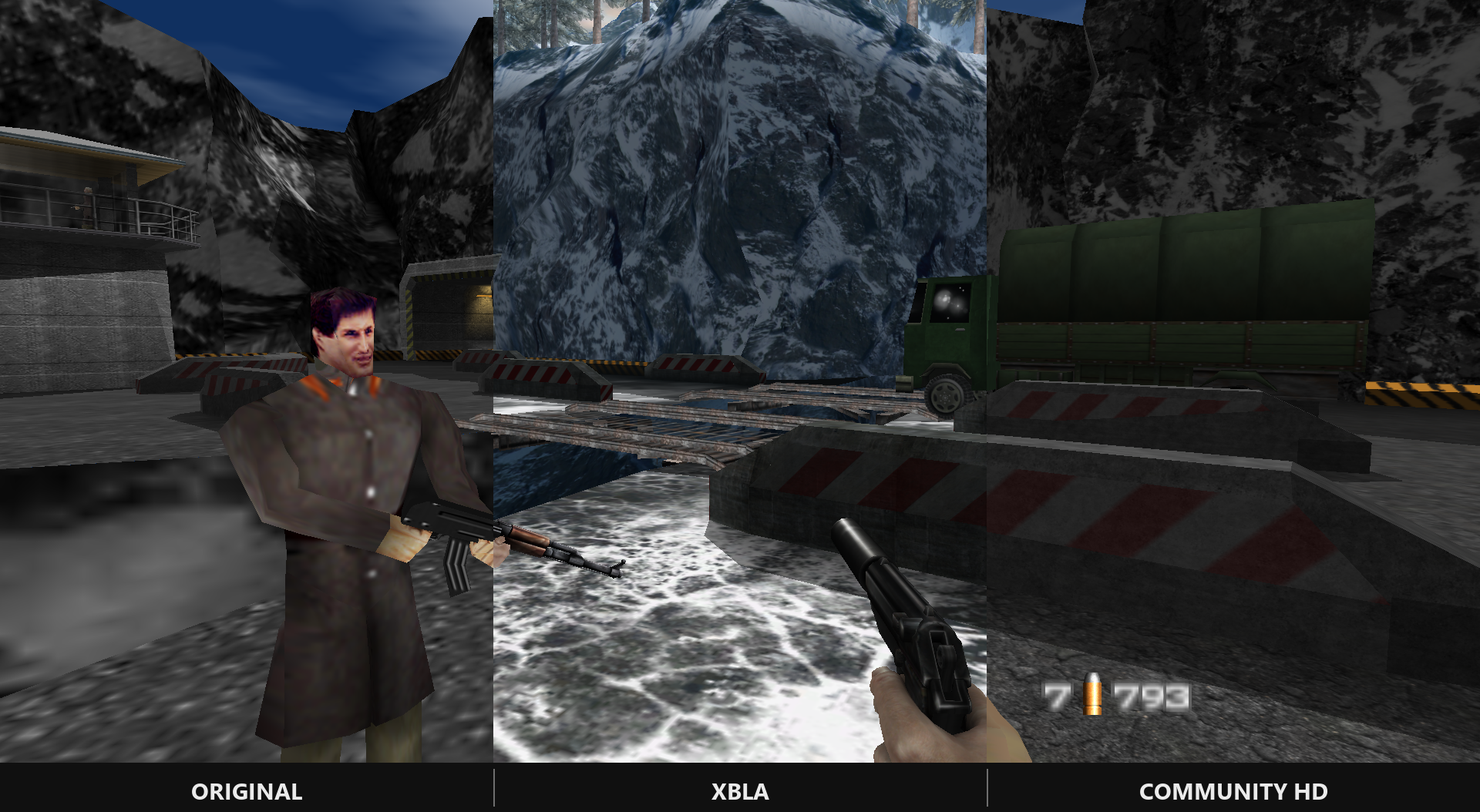
Switching. F5, or View / Create on a controller, cycles ORIGINAL →
COMMUNITY HD → XBLA in a level. The front end has it under OPTIONS →
SETTINGS → DISPLAY → PRESENTATION, the watch under SIGHTLINE →
GRAPHICS; one stored value (presentation in config.ini) serves all
three, and F5 is a binding like any other (the PRESENTATION action).
Where the sets come from.
-
Release package:
Get-Textures.cmdfetches and converts the Community HD pack into%LOCALAPPDATA%\sightline\assets\texpacks\community. The package carries no XBLA tooling. -
Source checkout:
.\tools\windows\prepare-all.ps1prepares both texture packs and every XBLA stage into the checkout'stexpacks\andworldassets\, whichplay.ps1finds by itself. Its-TexturesOutand-WorldOutparameters write the same sets to%LOCALAPPDATA%\sightline\assets\texpacksand...\worldassets, where a release package reads them. See Getting Started step 7 and ROM Setup for the inputs.
Fallbacks. A texture the selected pack does not cover, or a stage or item the prepared XBLA set does not carry, is drawn as the game's own; COMMUNITY HD and XBLA never fall back to each other. With nothing prepared, every presentation looks like ORIGINAL.
Where the remaster and the game disagree, the XBLA presentation follows documented, numbered changes in docs/divergences.md (D-023 onwards) that apply only under XBLA. Per-stage open items are in docs/backlog.md.
OPTIONS → SETTINGS → CONTROL → BINDINGS on the front end, or the watch's SIGHTLINE → BINDINGS child in a mission, open the same editor. It holds one table: for every gameplay action, a PRIMARY and a SECONDARY slot on the keyboard / mouse device and the same two on the controller device.
- Actions: move forward / back, strafe left / right, fire, aim, interact, reload, crouch, sprint, previous / next weapon, zoom in / out.
- Sources: keys, mouse buttons (left, right, middle, X1, X2), wheel up / down; controller buttons, the trigger halves, stick clicks and the four d-pad directions. Analog axes — mouse X/Y and the sticks — are not bindings and never appear in the editor.
-
Capturing: select a slot and press the key or button you want
(
PRESS A KEY/PRESS A BUTTON). Whatever is held at that moment is ignored until released, so the click or confirm that opened the capture cannot become the binding. Backspace or Delete clears the slot; Escape cancels. Escape, Tab, Enter and the mark keys are reserved and cannot be captured. -
Conflicts: a source may sit in one slot only. Binding a source that
another action already holds steals it — the other slot is emptied and
the editor says which action lost it (
TAKEN FROM RELOAD). The exception is the contextual pair above: the wheel or a bumper may hold a weapon-cycle action and a zoom action at once. - RESET DEFAULTS restores every slot to the compiled default. It touches bindings only, not the other settings.
Only slots that differ from the default are written to config.ini, one
line each, as bind.<action>.<device>.<slot>=<token> — for example
bind.move_forward.kbm.1=key:UP or bind.fire.kbm.2=none. The tokens are
stable, human-readable names (key:LSHIFT, mouse:LEFT, wheel:UP,
pad:RT), never raw SDL numbers, so the file survives upgrades: a line
naming an action or source a build does not know is ignored and preserved.
Edit the file only while the game is not running.
The pad is always a modern dual-stick controller. Two presets on the PAD tab decide what the thumbs and the buttons do:
- STICK LAYOUT — which stick moves and which looks: DEFAULT (left moves, right looks), SOUTHPAW, LEGACY (left walks and turns, right pitches and strafes), LEGACY SOUTHPAW. The menu stick is always the left stick.
- BUTTON LAYOUT — seeds every action's two controller slots from a named preset: DEFAULT (the table above), SOUTHPAW (fire and aim swap sides: LT / LB fire, RT / RB aim) and GREEN THUMB (DEFAULT with the right stick's click as the second aim, so the thumb stays on the stick; LB is then unbound). Editing any controller slot in the bindings editor reports the layout as CUSTOM; RESET DEFAULTS puts it back to DEFAULT.
The watch's Control Options page draws the attached controller in place of
the N64 pad when it is an Xbox-family or PlayStation-family pad: the model's
parts move with your hands (sticks tilt, buttons depress, triggers swing),
and beside it the family's own button names — A on an Xbox pad, CROSS
on a DualSense — with the actions currently bound to them, updated live from
the binding table. A control bound to nothing reads UNBOUND. Start is the
watch; View / Create cycles PRESENTATION. With no
pad, or one SDL classifies as another family, the page draws the original
N64 controller.
The two controller models are third-party CC-BY-4.0 work, modified for Sightline — see Custom Boot Models for their attribution.
LOOK SENSITIVITY (25–200 %, default 100), LOOK DEADZONE and MOVE DEADZONE (0–40 %, default 15) tune the sticks; the game's own Look Up/Down option still applies to whichever stick carries pitch.
On the DISPLAY tab:
-
ASPECT RATIO — 4:3, 16:9, 21:9 or 32:9. The selected aspect is a
shape at the current height: widescreen means a wider 3D view at the
same height, never a stretch and never a strip inside the old window. In
windowed mode the window's width becomes height × aspect (960x720 →
1280x720 → 1680x720 → 2560x720), live when the setting changes and at
launch from the saved value;
SL_WINDOW_SIZEnames only the initial window. In a framebuffer that cannot be resized (fullscreen, borderless) the view is pillarboxed or letterboxed to the selected shape. The HUD, the watch, the front end's text and the crosshair stay a centred 4:3 image at the window's height; only the world widens. Nothing in the game code reads the aspect, so gameplay is unchanged at every setting. In split-screen the game stays at 4:3. - FIELD OF VIEW — shown and stepped as the 16:9-equivalent horizontal FOV, 60–110 (default 91, which is the cartridge's own 60° vertical FOV exactly). Applied to the world projection only; the first-person weapon keeps its original projection. The total horizontal view is capped at 140°.
- WINDOW MODE — WINDOWED (the default), BORDERLESS (the desktop at its own mode, no mode switch) or FULLSCREEN (an exclusive display mode).
- RESOLUTION — a list of the display's real modes. In windowed mode only the height is authoritative; the aspect decides the width.
- VSYNC — off (the default: the frame pacer sets the cadence) or on.
- FRAME RATE — ORIGINAL (the default: one presented frame per game frame, the accepted pacing), 30, 60, 120, 144, 165, 240 or UNLIMITED. Above the game's own rate, extra frames are presented between game frames by re-drawing the frame with a camera blended between its two latest positions; the game itself still runs at its own rate, and per-tick traces are byte-identical with and without it. A cap below the game's rate (30) only skips presents. Nothing extra is drawn when in doubt — a camera cut, a teleport or respawn, a level load, a minimised window, or a frame already past its slot — so a view too heavy for an extra frame (dense XBLA views, for one) is presented at the game's own rate. With VSYNC on, a 60 Hz display leaves no room for an extra frame. Applies on the next frame.
- SHOW FPS — OFF (default) or ON: a small counter of frames actually presented per second, in the upper-right corner of the view. Built-in bug-mark and SL_SHOT captures omit it; desktop screenshots can include it.
- WORLD DETAIL — ORIGINAL (default) or ENHANCED. ENHANCED stops the near-fog visibility range from withholding props and characters at the render seam, so they stay drawn until the far-fog cull or the room / portal set removes them. Render only: the simulation's own copy of the test is untouched.
- PRESENTATION — see Presentation.
The widescreen cursor repair (since v0.2.0): at a wide aspect the game's menu pointer is drawn across the whole frame rather than stopping at the edge of the 4:3 image, and a click in a side band confirms nothing.
Known issue, still open in v0.3.0: the gun-barrel / sniper intro's composition is misaligned at widescreen aspects (internal #67).
- MOUSE SENSITIVITY — 10–300 % in steps of 10, default 100. Applies to gameplay mouse look only, never the menu pointer, the buttons or the wheel.
- SCOPED SENSITIVITY — a second percent, multiplied on top of the first only while aiming with an adjustable scope (the sniper rifle or the camera). Plain aiming without such a scope is not scoped.
- INVERT MOUSE Y — the mouse only. The controller's pitch convention is the game's own Look Up/Down option (LOOK UP/DOWN on the CONTROL tab, or Bond's watch).
Mouse look is linear in mouse counts; the stick's squared response curve is bypassed for the mouse (documented as a toggle on Original Behaviour and Toggles).
On the GAMEPLAY tab:
- SPRINT — OFF by default (the cartridge's movement; Left Shift does nothing). ON scales the movement vector, while the SPRINT control is held, to the magnitude the cartridge's own 45° diagonal already reaches — never more. Live input only; it never affects a recorded replay.
- SPRINT MODE and CROUCH MODE — HOLD (the default: the action is down while the control is down) or TOGGLE (a fresh press flips it, the next fresh press flips it back; holding never repeats, releasing never toggles). The toggle is one latch per action, so a keyboard key and a pad button flip the same one. A press made in a menu never flips it, and the latch is dropped when the mode or the action's bindings change, when a new stage begins, or when the window loses focus.
| Parameter | Effect |
|---|---|
-Level <name> |
Developer: direct boot into a level instead of the front end. See the level names below. Overridable with SL_LEVEL. |
-Difficulty <0..3> |
0 Agent, 1 Secret Agent, 2 00 Agent, 3 007. Direct boot only (the front end has its own difficulty select). Default 1. Overridable with SL_DIFFICULTY. |
-Size WxH |
The initial window size. Default 960x720. Overridable with SL_WINDOW_SIZE. The ASPECT RATIO setting then sets the width from the height, so this names the height (and the 4:3 width). |
-Cheats <list> |
Developer: switch on the game's own cheats for a direct-boot level, by the cheat menu's names (allguns, maxammo, invincible, infammo, 2xhealth, dkmode, paintball, tiny, turbo, …) or by number. Direct boot only. A cheated mission is not recorded as completed — the cartridge's own rule. |
-Weapon <name> |
Developer: the item Bond holds in his right hand once the level is in first person (pp7, dd44, klobb, kf7, zmg, d5k, phantom, ar33, rcp90, shotgun, autoshotgun, sniper, cougar, goldengun, laser, grenadelauncher, rocketlauncher, grenade, timedmine, proximitymine, remotemine, taser, …), by ITEM_IDS stem or by number. Added to the inventory with a full load if the level did not hand it out, so -Cheats is not required. Direct boot only. |
-TeleportMark <file> |
Developer: start at the viewpoint saved in a mark file from an earlier run (position, heading, pitch and room, applied once after the level initialises; no input replay). Direct boot only. |
-Presentation <name> |
Start on a named PRESENTATION — ORIGINAL, COMMUNITY or XBLA. It writes the one stored presentation value into the config the run uses, so F5 keeps cycling from there. |
-Quiet |
Skip the controls summary. |
-NoConsoleCapture |
A playable, low-overhead launch: run capture is off and stdout / stderr go to files under %LOCALAPPDATA%\sightline\nocapture (SL_NOCAPTURE_DIR overrides). The run is not recorded. It is not a measurement launch. |
-MeasurementMode |
Developer: the canonical measurement launch — a 960x720 window, a scratch save, every other SL_* variable cleared for the child, exits at frame 1600, streams under %LOCALAPPDATA%\sightline\measurement, and a second console window that is part of the process creation being reproduced. Not for playing; cannot be combined with -NoConsoleCapture. |
Example:
.\tools\windows\play.ps1 -Level surface -Cheats allguns,maxammo -Weapon sniperLevel names are resolved through tools\native\levelstage.py, so play.ps1
needs Python (.venv\Scripts\python.exe, SL_PYTHON, or python.exe on
PATH) whenever -Level is given.
Names accepted by -Level, in campaign order. They are the keys of the
trace harness's own level table (tools/trace/sltrace/levelboot.py), which
play.ps1 resolves through tools/native/levelstage.py.
| Name | Mission | Name | Mission | |
|---|---|---|---|---|
dam |
Dam | archives |
Archives | |
facility |
Facility | streets |
Streets | |
runway |
Runway | depot |
Depot | |
surface |
Surface 1 | train |
Train | |
bunker1 |
Bunker 1 | jungle |
Jungle | |
silo |
Silo | control |
Control | |
frigate |
Frigate | caverns |
Caverns | |
surface2 |
Surface 2 | cradle |
Cradle | |
bunker2 |
Bunker 2 | aztec |
Aztec | |
statue |
Statue | egypt |
Egyptian |
The table also carries three non-campaign keys — citadel, complex and
temple — which the harness excludes from its gate. They resolve, but the
public tree makes no claim about how they behave natively.
The native build keeps everything it writes outside the game folder and outside the repository:
| What | Where | Override |
|---|---|---|
| The cartridge save (EEPROM) | %LOCALAPPDATA%\sightline\eeprom.bin |
SL_SAVE (play.ps1); the binary reads SL_EEPROM_RW
|
| The native settings and bindings | %LOCALAPPDATA%\sightline\config.ini |
SL_CONFIG (developer only) |
The ROM path Sightline.cmd asked for |
%LOCALAPPDATA%\sightline\rom-path.txt |
SL_ROM takes precedence |
Run capture from play.ps1: each launch's input stream, log and crash report (last five kept) |
%USERPROFILE%\.sightline\runs\ |
SL_RUN_DIR; SL_RUN=0 disables. Sightline.cmd sets SL_RUN=0, so a release package records nothing |
Boot models you install with asset-import.ps1
|
%LOCALAPPDATA%\sightline\assets\ |
SL_ASSET_OVERRIDE_DIR |
| Prepared texture packs (COMMUNITY HD, XBLA) read by a release package | %LOCALAPPDATA%\sightline\assets\texpacks\ |
SL_TEXPACK_ROOT; play.ps1 points a checkout at its own texpacks\
|
| Prepared XBLA world assets read by a release package | %LOCALAPPDATA%\sightline\assets\worldassets\ |
SL_WORLDASSET_ROOT; play.ps1 points a checkout at its own worldassets\
|
The Community HD archive Get-Textures.cmd downloaded |
%LOCALAPPDATA%\sightline\cache\ |
— |
Both launchers create the directory if it is missing. Because the save and
the settings live outside the tree, extracting a new release or deleting a
checkout does not touch them. The cartridge's own per-folder options are
stored in the save; the native settings are in config.ini.
Set these in the shell before launching play.ps1 (or before running
Sightline.cmd from a prompt):
$env:SL_MOUSE = "0"           # never capture the pointer
$env:SL_FPS = "30"            # pace to something other than 60
$env:SL_WINDOW_SIZE = "1280x960" # the initial window (the aspect setting decides the width)SL_MOUSE_SENS, SL_MOUSE_INVERT and SL_LOOK_INVERT still exist but are
developer seeds for runs without a config (replay, headless): the settings
pages are the player's controls for sensitivity and inversion, and a player
launch with a config reports SL_MOUSE_INVERT on stderr and ignores it.
SL_LOOK_INVERT inverts the gamepad stick's pitch only.
Other variables play.ps1 honours: SL_ROM, SL_LEVEL, SL_DIFFICULTY,
SL_WINDOW_SIZE, SL_SAVE, SL_PYTHON. Everything else in the environment
is passed through to the game untouched (except under -MeasurementMode).