Repository navigation

Download NookCapture.dmg below, open it, and drag Nook Capture into Applications (replace the old version if asked).
New install? On first launch go to System Settings → Privacy & Security → Open Anyway once. See the README.
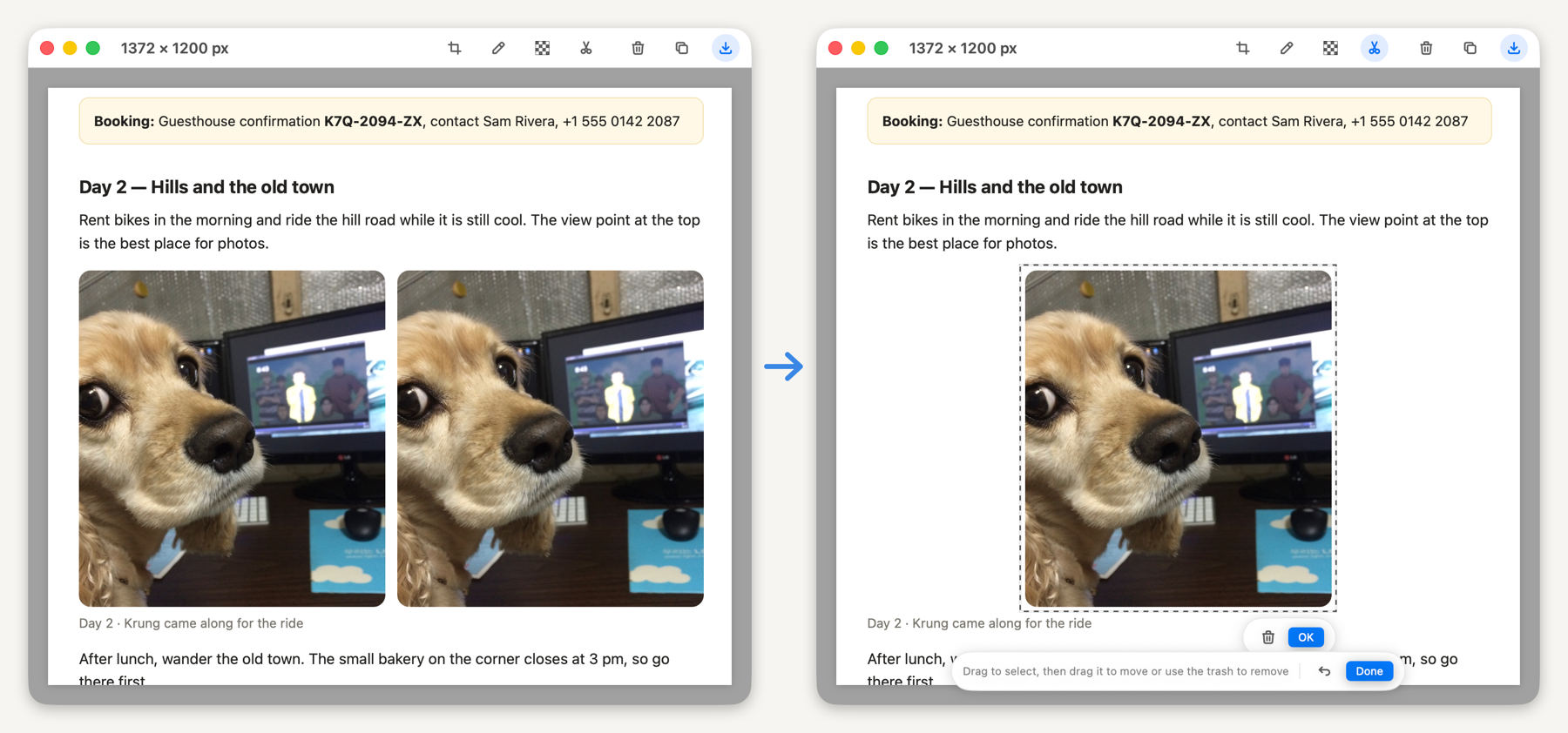
New: Cut Out
A new scissors tool in the preview toolbar.
- Drag to select any part of the capture. The selection shows a moving dashed border.
- Move: drag the selection somewhere else, then click OK (or press ↩).
- Remove: click the trash button next to the selection (or press ⌫).
- The spot left behind is filled with the surrounding background color, so the content disappears and the background stays.
- Esc clears the selection, and ⌘Z undoes a move or removal in one step.
아래 NookCapture.dmg 를 받아 열고 Nook Capture를 Applications로 끌어 놓으세요(기존 버전을 대치하겠냐고 물으면 대치).
처음 설치라면 첫 실행 때 한 번 시스템 설정 → 개인정보 보호 및 보안 → "그래도 열기" 가 필요합니다.
새 기능: 오려내기
미리보기 툴바에 가위 아이콘이 생겼습니다.
- 캡처 안의 원하는 부분을 드래그로 고르면 테두리에 점선이 흐릅니다.
- 옮기기: 고른 영역을 끌어 다른 곳에 놓고 확인(또는 ↩)을 누릅니다.
- 지우기: 영역 옆의 휴지통(또는 ⌫)을 누릅니다.
- 빈자리는 주변 바탕색으로 채워져, 내용만 빠지고 바탕은 그대로 남습니다.
- Esc는 선택만 풀고, ⌘Z는 옮기기·지우기를 한 번에 되돌립니다.