Repository navigation
Releases
Pastora 0.1.2: view any history item

Pastora 0.1.2 lets you look at a history item before you use it.
What's new
- View any history item. Hover a row and click the 👁 icon, right-click → View, or press ⌘Y (Ctrl+Y on Windows/Linux). You see the whole item:
- all of the text, which you can select and copy part of
- the full image, with Save…
- every file path
- From the viewer, Paste (↩) or Copy (⌘↩). Esc closes it.
Fixes
- Settings → Secure Clips → Backup: the "Import backup" text no longer gets squeezed and overlaps the password field. Buttons in Settings no longer wrap their labels.
Download
| Platform | File |
|---|---|
| macOS 11+ (Apple Silicon & Intel) | Pastora_0.1.2_macOS_universal.dmg |
| Windows 10/11 (x64) | Pastora_0.1.2_Windows_x64-setup.exe or .msi |
| Linux (x86_64) | Pastora_0.1.2_Linux_x86_64.AppImage or .deb |
Checksums are in SHA256SUMS.txt.
Updating
- macOS: drag the new Pastora onto Applications and replace the old one. Builds aren't notarized yet, so the first launch may need System Settings → Privacy & Security → Open Anyway. If Pastora shows "can't paste for you yet", click Reset and turn Pastora on again in the Accessibility list.
- Windows / Linux: install over the previous version.
See the 0.1.1 notes for setup details and known limitations.
Pastora 0.1.1: paste setup up front and update notifications
Pastora 0.1.1 makes paste easier to set up and tells you when a new version is out.
Download
| Platform | File |
|---|---|
| macOS 11+ (Apple Silicon & Intel) | Pastora_0.1.1_macOS_universal.dmg |
| Windows 10/11 (x64) | Pastora_0.1.1_Windows_x64-setup.exe or .msi |
| Linux (x86_64) | Pastora_0.1.1_Linux_x86_64.AppImage or .deb |
Checksums are in SHA256SUMS.txt.
What's new
- Paste permission up front (macOS). The welcome screen now asks for Accessibility first, shows whether it's allowed, and has a Reset button for when macOS keeps an old entry after an update.
- No more silent paste failures. If Pastora loses permission to paste (for example after updating), a notice appears at the top of the popup with Allow and Reset, and the menu bar menu shows Allow Accessibility for Paste….
- Update notifications. Pastora checks GitHub once a day for a new version and shows a notice with Download and What's new. You can also check by hand in Settings → About, or turn the check off in Settings → General. This is the only network request Pastora makes; your clipboard never leaves your computer.
Install
macOS
- Open the DMG and drag Pastora onto Applications (replace the old version if you have one).
- This build isn't notarized by Apple yet, so macOS blocks it the first time. Go to System Settings → Privacy & Security and click Open Anyway, or run:
xattr -dr com.apple.quarantine /Applications/Pastora.app - If you're updating, macOS may need you to allow Accessibility again. Pastora will show a notice; click Reset, then turn Pastora on in the list.
Windows
Run the setup .exe (or the .msi). The installer isn't signed yet, so SmartScreen may warn: click More info → Run anyway.
Linux
Make the AppImage executable (chmod +x Pastora_0.1.1_Linux_x86_64.AppImage) and run it, or install the .deb.
Known limitations
- Not signed or notarized yet on any platform.
- Windows and Linux: no fingerprint / Windows Hello unlock, no "Ignored apps" picker, no HEIC images, and global shortcuts don't work on Wayland yet.
- Pastora 0.1.0 can't tell you about this update; from 0.1.1 on, you'll be notified automatically.
Pastora 0.1.0: clipboard manager for Mac, Windows & Linux

The first release of Pastora, a free, open-source clipboard manager for Mac, Windows and Linux.

Download
| Platform | File |
|---|---|
| macOS 11+ (Apple Silicon & Intel) | Pastora_0.1.0_macOS_universal.dmg |
| Windows 10/11 (x64) | Pastora_0.1.0_Windows_x64-setup.exe or .msi |
| Linux (x86_64) | Pastora_0.1.0_Linux_x86_64.AppImage or .deb |
Checksums are in SHA256SUMS.txt.
What's in it
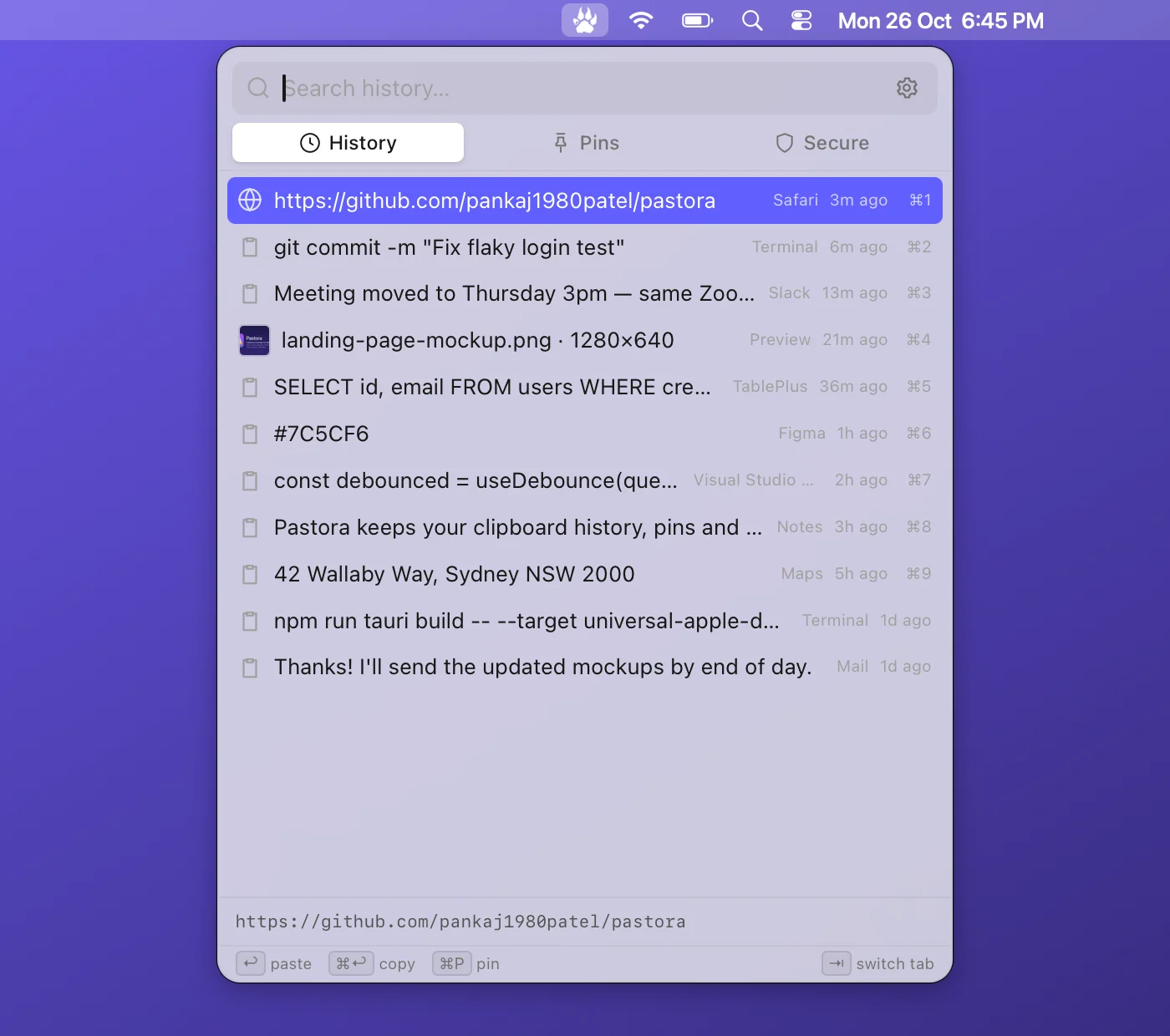
- 📋 Clipboard history for text, images and files. Search it, and click once to paste into the app you were using (or
↩,⌘1–⌘9). - 🖼️ Image clips: copied pictures and screenshot files show a preview, paste as an image, and can be saved with Save Image….
- 📌 Pins: keep snippets forever and drag them up or down to reorder.
- 🔐 Secure Clips: an encrypted vault for logins, API keys, cards, Wi-Fi and notes.
- Unlock with Touch ID on Mac, or your master password.
- Live 2FA codes and a password generator.
- Copied secrets clear themselves from the clipboard.
- 🖱️ Menu bar popup with History, Pins and Secure tabs, a smooth open/close animation, and right-click menus on every item.
- ⚙️ Settings: history size, every keyboard shortcut, ignored apps and patterns, themes, popup size, and start at login.
- 🔒 100% offline: no accounts, no cloud, no telemetry.
Install
macOS
- Open the DMG and drag Pastora onto Applications.
- This build isn't notarized by Apple yet, so macOS blocks it the first time. Go to System Settings → Privacy & Security and click Open Anyway, or run:
xattr -dr com.apple.quarantine /Applications/Pastora.app - Click the 🐾 icon in the menu bar, or press ⌘⇧V.
- To have Pastora paste for you, allow it under System Settings → Privacy & Security → Accessibility. If it's already on but Pastora still asks, use Settings → Paste → Reset and turn it on again.
Windows
Run the setup .exe (or the .msi). The installer isn't signed yet, so SmartScreen may warn: click More info → Run anyway. Open Pastora with Ctrl+Shift+V.
Linux
Make the AppImage executable (chmod +x Pastora_0.1.0_Linux_x86_64.AppImage) and run it, or install the .deb. Open Pastora with Ctrl+Shift+V (global shortcuts work on X11; not yet on Wayland).
Known limitations
- Not signed or notarized yet on any platform, so you'll see the warnings above.
- Windows and Linux are early: no fingerprint / Windows Hello unlock and no "Ignored apps" picker yet, and HEIC images aren't supported there. See the roadmap.