Repository navigation

New features and improvements
Many thanks to @masasj for a large part of this build: the indicator layers and animations grew out of the proposal in #103, and the detailed reports in #99, #100 and #109 led to several of the fixes and to the exit and restart commands.
-
Indicator layers: the indicator can be any number of layers, each a shape with a fill and a stroke:
circle,triangle,rectangle,star,line,cross, apaththrough your own points, ortext. A stroke can be partial, dashed and capped, corners can be rounded, and a layer can be rotated, offset, put at a corner of the cursor or at the center of the screen, or left where it appeared instead of following the mouse.<mode>.indicatoris the main layer and<mode>.<name>-indicatoradds another.normal-mode.ring-indicator.enabled=true normal-mode.ring-indicator.size=40 normal-mode.ring-indicator.fill-opacity=0 normal-mode.ring-indicator.stroke-thickness=2 normal-mode.ring-indicator.stroke-dash-length=6 normal-mode.ring-indicator.stroke-dash-gap=4 normal-mode.ring-indicator.stroke-cap=round
The fill, stroke and shadow colors take gradients, and a color alias can share one gradient between the indicator and the hint boxes.
-
Animations: an animation is a named clock that combos start and stop, and any indicator property can follow it with keyframes, each a time (a percent or milliseconds), a value and an easing.
currentstarts from whatever the property was showing, so one animation picks up where another left off. An animation can repeat, loop or play back and forth, and while it runs it reads as a held key that combos and other properties can react to (#103).click-burst-animation.duration-millis=500 _indicator-mode.click-burst-animation.start=+isleftmousepressing | +ismiddlemousepressing | +isrightmousepressing _indicator-mode.indicator.size=26 | _{clickburstanimation} -> 0% 13; 100% 78 exponential-out-10 _indicator-mode.indicator.stroke-opacity=1 | _{clickburstanimation} -> 0% 1; 250ms 1; 500ms 0 0.7
hide-cursortakes keyframes too. Two easings are new:exponential-out-<n>, fast then settling, andstep, which holds a value until the next keyframe. -
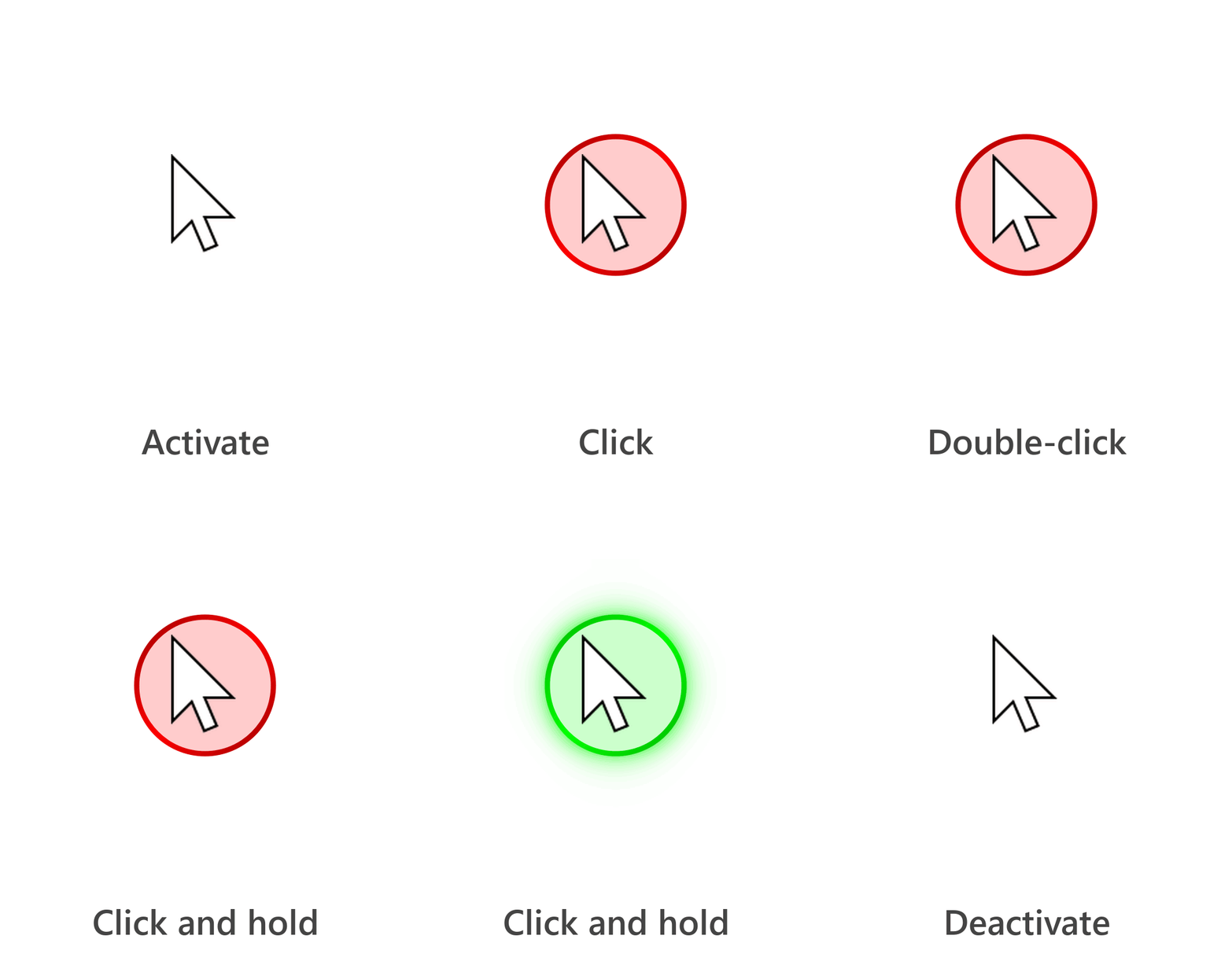
An animated indicator in every shipped configuration: the indicator pops in from a dot when mousemaster is activated and folds back into one when it is deactivated. A click bursts into a thinning ring that fades away, and a button held down keeps a glowing ring until it is released.
-
Cheatsheets: a layer with a text on a shape shows rich text in a box, styled with a CSS
text-style-sheet, and{alias}writes the keys of a key alias. Every shipped configuration now has a cheatsheet of its keys: hold t in neo-mousekeys-ijkl and neo-mousekeys-wasd, or F1 in mouseable, warpd and neru, while mousemaster is active (#107).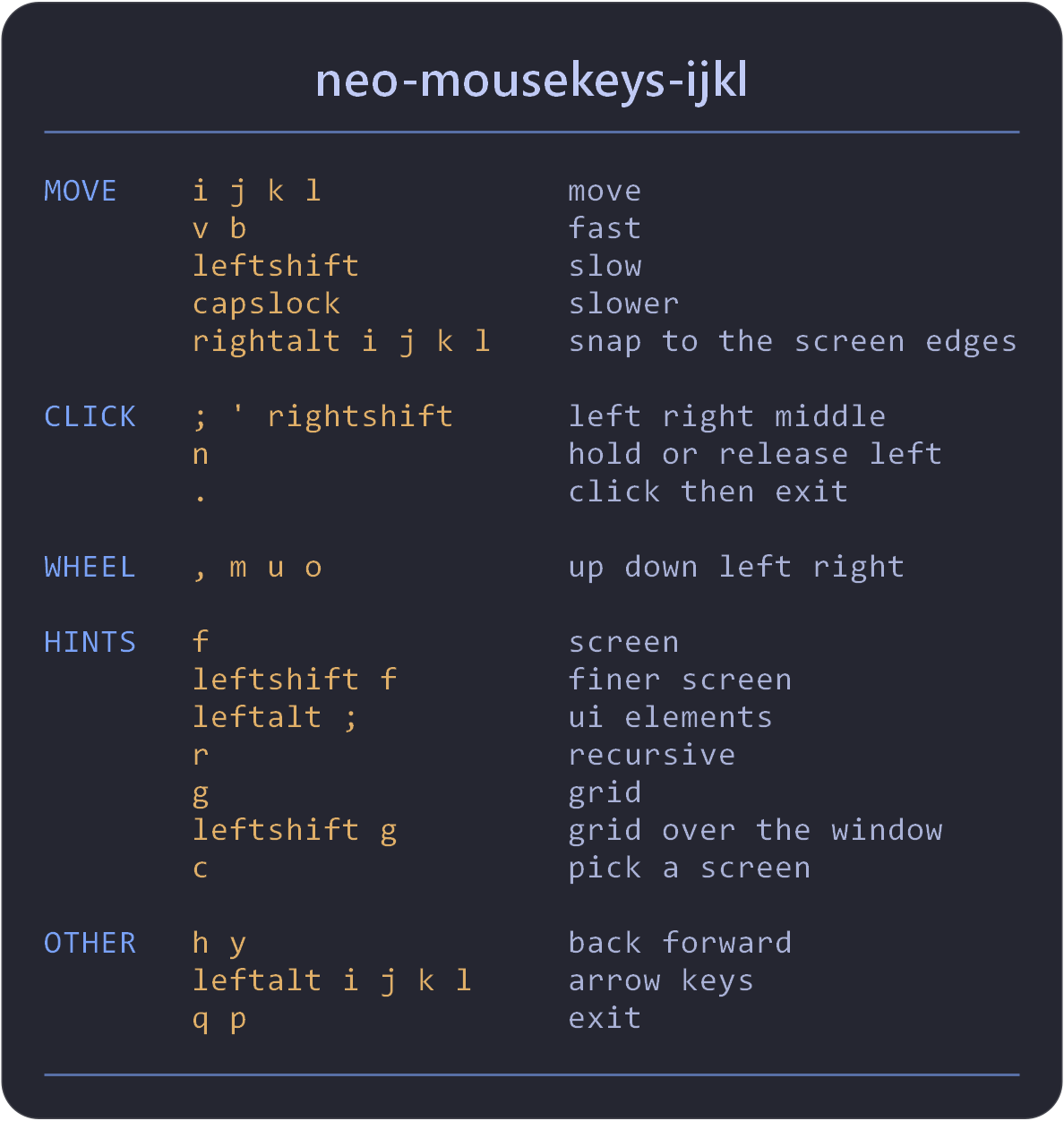
The neo-mousekeys-ijkl cheatsheet, shown while t is held.
-
Exit and restart: the
exitcommand stops mousemaster from a combo, andrestartstarts it again the same way it was launched. Either way, the keys its macros hold and the mouse buttons it pressed are released first (#109).normal-mode.exit=+leftctrl +leftalt +q normal-mode.restart=+leftctrl +leftalt +r
-
The indicator out of screenshots:
indicator.exclude-from-capture=truekeeps the indicator out of screenshots and screen recordings while it stays on screen. Like any indicator property, it can depend on a combo or an animation. -
Vision UI hints in the shipped configurations: neo-mousekeys-ijkl, neo-mousekeys-wasd and neru now show vision hints instead of accessibility hints, and their boxes are colored by one gradient across the screen.
-
Shorter hint labels: UI and position history hints take a single key wherever they can. With a few more hints than hint keys, most hints still take one key instead of all of them taking two.
-
Upgrading: the old indicator properties are refused with a message naming their replacement:
colorandopacityare nowfill-colorandfill-opacity, the outlines are the layer's stroke (a second outline is a second layer),edge-countisshape, the label is ashape=textlayer, and the fades and transitions are animations. -
Fixes:
- A key whose release goes missing is released within a second, so it no longer blocks combos (#100).
- With HDR or Windows' auto color management on, zoom shows the magnified desktop again and vision hints see its real colors (#106). Where the desktop cannot be magnified, the hints are laid out unzoomed instead of over an empty zoom.
- A jump of the mouse while a button is held starts slowly, so a dragged window keeps up with it (#99).
- Logging no longer runs on the keyboard hook, so writing the log cannot delay key events long enough for Windows to drop them. A hook that slow is logged as a warning.
- Vision hints no longer detect the indicator.
-
Also: The indicator documentation covers layers and animations.
Installation on Windows
- Download mousemaster.exe (a portable executable).
- Download one of the existing configuration files:
- neo-mousekeys-ijkl.properties (recommended): an IJKL configuration (see documentation)
- neru.properties: a recursive hint configuration (see documentation)
- neo-mousekeys-wasd.properties: a WASD configuration (see documentation)
- warpd.properties: an HKJL configuration (see documentation)
- mouseable.properties: another HKJL configuration (see documentation)
- author.properties: an IJKL configuration designed to control everything with the right hand only (see documentation)
- Place the executable and the configuration file in the same directory.
- Rename the configuration file to mousemaster.properties.
- Run mousemaster.exe: make sure to run it as administrator if you want the mousemaster overlay to be displayed on top of everything else.
- Feel free to open a GitHub Issue or join the Discord if you need help creating your own configuration. If you have ideas for a better configuration that you would like to share, I'd love to hear from you.
- If you enjoy mousemaster, consider making a donation or stop by the Discord to show your support!
Installation on macOS
mousemaster reads the keyboard through the Karabiner virtual HID device, so that driver and a few permissions are needed.
- Install Karabiner-Elements, which installs the virtual HID device, and allow its system extension when macOS asks.
- Download and unzip mousemaster-macos.zip, then put mousemaster.app in /Applications.
- mousemaster is not signed or notarized, and macOS refuses to start a quarantined app that is not notarized. A browser download marks it as quarantined, so clear that before the first launch:
xattr -dr com.apple.quarantine /Applications/mousemaster.app. Or let macOS refuse it once, then allow it under System Settings > Privacy & Security > Security, where an Open Anyway button appears for it. - Download one of the configuration files above, place it in /Applications next to mousemaster.app, and rename it to mousemaster.properties.
- Run it from a terminal, as root, which the virtual HID device requires. The configuration is read from the working directory, so start it from where you put it:
cd /Applications && sudo mousemaster.app/Contents/MacOS/mousemaster - Grant the permissions macOS asks for, under System Settings > Privacy & Security, then quit and relaunch:
- Input Monitoring, to read the keys you press. Always needed.
- Accessibility, only for UI hints (
hint.type=ui). - Screen Recording, only for zoom (
mode.zoom).
License
mousemaster.exe and mousemaster.app embed Qt and QtJambi, used under the GNU Lesser General Public License. Run mousemaster with --licenses for the third-party notices and the full license texts.
