Repository navigation
UsingTheTypewriter
The typewriter device used with the G-15 was a modified IBM Model B electric typewriter. Various carriage widths were available, ranging from 80 to about 300 columns.
The white area below the Control Panel represents the "paper" of the typewriter.
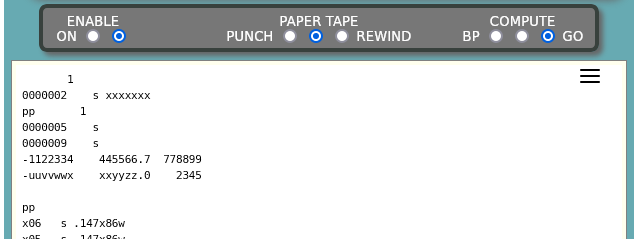
The emulator models a variable-width carriage as specified in the system configuration using the following parameters:
-
Margin Left is the 1-relative column in which printing will begin on a line. Specifying a value less than
1is taken as1and indicates no margin. The default is no margin. -
Columns is the number of printable columns beyond the left margin. Values less than
32are taken as32. The total width of a print line is therfore (Margin-Left + Columns – 1) and must not exceed 255. The default is 132 columns. - Tab Stops are specified as a list of 1-relative column numbers. Tab stops must be in ascending order. Stop numbers are relative to column 1 on the carriage and not to the left margin. Any tab stops at or before the left margin, or at or beyond the configured total line width, are ignored. By default, tab stops are set at every five columns (i.e., 6, 11, 16, 21,... 126).
The width of the paper area will adjust to the width of the browser window, but will not increase beyond the width necessary to display the configured total line width. If the paper area is too narrow to show the full width of the printed text, it will scroll horizontally.
The typewriter operates at a speed of 8.6 characters per second, one character every four G-15 drum cycles. The capacity of the typewriter's output buffer is 10,000 lines, which typically provides several hours of printing. When this limit is exceeded, the oldest lines are discarded.
When the emulator's browser window has the input focus (i.e., it is the currently selected window or tab on your desktop), keystrokes on your workstation keyboard will be echoed on the "paper," but unless the processor is in a state to accept keyboard input, keystrokes will be ignored and the typewriter cursor will flash momentarily.
When the ENABLE switch is in the ON position, the emulator will interpret keystrokes as special commands to the processor or I/O subsystem. Only certain keystrokes are valid with the ENABLE switch; other keystrokes are ignored and will result in a cursor flash. The ESC key can be used like a shift key as a shortcut to turn on the ENABLE switch. See ENABLE Switch on the Control Panel page for information on the switch's use with the keyboard and the keystrokes that are valid with it.
When a program has executed a TYPE IN input/output command, the INPUT-OUTPUT lamps on the Control Panel will have the configuration 01100. If the ENABLE switch is off, keystrokes on your workstation keyboard will be accepted for data entry. Only the 0 through 9, u through z, -, /, s, TAB, and RETURN keys will be recognized in this mode; all other keystrokes are treated as invalid and will result in a cursor flash. When typing letters, upper- and lower-case are equivalent.
Entering data into the system using the typewriter keyboard requires specific actions on your part to manage the buffering of the data on the drum and to terminate the input/output operation. See the G-15 Operating Manual, sections "CONTROL KEYS (with Enable Switch Off)" and "DATA INPUT KEYS," both starting on page 24, for information on using the typewriter keyboard for data entry.
All typed characters will be echoed to the paper, regardless whether they are recognized by the system or not. If the typewriter is not otherwise in use, you can type notes on it and use the RETURN key to insert vertical spacing between lines of output. The backspace key is ignored. Function keys, Ctrl- and Alt-sequences, and navigation keys are passed through to the browser for their customary handling.
To save the contents of the typewriter paper, click the three-bar ("hamburger") menu icon in the upper-right of the paper area. This will open a small panel on top of that icon with additional options to control the typewriter output buffer:

Extract – Opens a temporary window and copies the contents of the typewriter output buffer to that window. From that temporary window you can save the contents of the window to a file or copy/paste the data into another application. If you save directly from the window, make sure you save as text, not HTML. When you are finished, simply close the temporary window.
Print – Opens a standard print dialog to print the contents of the buffer to a local device. Most modern browsers also have an option to print to a PDF file.
Save – Opens a standard save-file dialog to save the buffer contents as a text file on your local system. The dialog provides a default name, which you can change before saving. If your browser saves the file without opening a dialog, check your browser settings – there should be an option to select how downloads are to be saved.
Clear – Clears the typewriter output buffer and closes the panel.
Close – Simply closes the panel.
Finally, note that since the basic G-15 was capable only of hexadecimal input and output, the typewriter cannot be used by G-15 software for general alphanumeric text input and output. The optional AN alphanumeric accessory mentioned above was capable of handling full alphanumeric text. One variant of this accessory, the ANC-2 (which the emulator does not presently support), allowed the typewriter to accept and print full alphanumeric text under program control.
The Typewriter is the primary means for input of instructions and data into the G-15. Many programs, such as PPR (the Program Preparation Routine) and Intercom had special modes for the entry of instructions and data. You could punch this information to paper tape after entering it for easy reloading later, but the information usually had to be typed and corrected on the G-15 first.
As useful as PPR and Intercom were for this task in the 1950s and '60s, they were hardly either easy or quick to use, especially compared to the composing and editing tools we have today. Therefore, it would be nice to be able to prepare some of this input off line using a modern editor and then effectively "paste" it into the Typewriter.
The Typewriter has a feature called Type-O-Matic that supports this concept. It allows you to prepare text representing a sequence of keystrokes using your favorite text editor and then literally copy/paste that sequence into the Typewriter. That sequence will then be "played" by the Typewriter as if you had entered those keystrokes directly. The playback occurs at ten times the Typewriter's speed, or 86 characters/second.
Typically you would enter the text into a standard text editor and copy/paste it into the Typewriter from there. You can of course save the text in a file and open it again later for modification or reentry into the G-15. At present, the Type-O-Matic supports only copy/paste – it will not read a text file directly.
The Type-O-Matic feature works as follows:
- Select and copy to the clipboard the text you want to paste. See below for details on preparing the text.
- Paste that text into the emulator's front panel. In order for this to work, the front panel must have the "focus." You may need to click somewhere in the front panel first to set the focus there. Pasting by means of
Ctrl-Vand the window menu will work, but neither Chrome nor Firefox under Windows support paste using their right-click context menus. - A small panel will appear in the upper-right of the paper area with a progress bar and a couple of buttons. Multiple pastes will append to any existing text in the Type-O-Matic buffer.
- If a G-15 TYPE IN command is currently executing, the pasted text will be submitted automatically, one character at a time, as if it had been typed on the keyboard. The progress bar will move from right to left as the keystrokes are submitted from the paste buffer, indicating the proportional amount of buffered text remaining.
- If a TYPE IN command is not currently executing, the pasted text will remain buffered until one does execute.
- The panel will close once the buffer is empty.
The Type-O-Matic panel that pops up on top of the paper area looks like this:

To manually initiate Typewriter input, enter ENABLE+q on the keyboard. This starts a TYPE IN operation and can be done while the system is running, but make sure that another I/O is neither already in process nor likely to be initiated.
When a TYPE IN command terminates, either by entering an s code or because the I/O was canceled, any Type-O-Matic keystroke submission that is in progress will stop. It will resume automatically once another TYPE IN command is executed.
You can type on the keyboard while Type-O-Matic submission is in progress, but it is best to avoid doing that – if a keystroke is received while the processor is handling a prior keystroke (a time window of several milliseconds), the second keystroke will be ignored.
ENABLE switch commands can be entered at any time, but they are subject to the one-keystroke-at-a-time restriction. The only such command you would normally submit during Type-O-Matic activity is ENABLE+s to cancel a TYPE IN.
You can temporarily suspend automated keystroke submission at any time. To do so, click the Pause button on the Type-O-Matic panel. The button label will change to Resume. Clicking the button again will resume automated submission. Clicking the Clear button on the panel will empty the buffer of pasted text, terminate Type-O-Matic mode, and close the panel.
The text you paste into the Control Panel should consist only of valid G-15 data-entry characters, i.e., 0123456789-uvwxyz.s/, plus the following special keystroke codes:
-
trepresents a Tab keystroke. -
crepresents a Carriage Return keystroke.
All keystroke codes are case-insensitive. Spaces may be included and will be echoed to the typewriter paper, but are otherwise ignored. New-lines are discarded and not interpreted as a Carriage Return code. All other characters are considered invalid, are discarded, and will cause a momentary cursor flash, just as they would if keying them in directly from the keyboard.
ENABLE keystroke commands are not supported in the pasted text.
Comments may be included in the pasted text. A comment begins with a # and terminates with the next new-line – the same convention as for .pti paper-tape image files. Comments are discarded when the paste takes place and are not stored in the paste buffer.
As an example, assume the following sequence of keystrokes representing Intercom 1000DP commands is entered into a text editor. This example illustrates the use of Type-O-Matic #-comments, which are not part of the Intercom commands.
500900ts        # Enable Enter Command mode
421000ts        # 900: Load value at 1000 to accumulator
431002ts        # 901: Add value at 1002 to accumulator
332100ts        # 903: Type accumulator as fixed-point and tab
670000  t  s    # 904: Halt and enter manual mode
511000//ts      # Switch to fixed-point data-entry mode
53/671875ts     # 1000: value 53.671875
5/77ts          # 1002: value 5.77
690900//TS      # Switch to Compute Automatically mode
If that text is then copied and pasted into the Control Panel while Intercom is running in manual mode, Type-O-Matic keystroke submission will start automatically – because Intercom executes a TYPE IN command during manual mode – and the following will appear on the Typewriter:
500900     s
 900  421000    s .0421000
 901  431002    s .0431002
 902  332100    s .0332100
 903  670000    s .0670000
 904  511000//  s
1000  53.671875 s 52.53671875
1002  5.77 s 51.577
1004  690900//  s      59.4418750
Note how the keystroke codes from the pasted text are interleaved with output from Intercom. When Type-O-Matic submits an s code, the Intercom's TYPE IN command terminates. That suspends automated keystroke submission. Intercom processes the input, types a response, and executes another TYPE IN command, which then resumes automated submission of keystrokes.
Note that the Type-O-Matic feature is intended simply to be a convenient way to enter long sequences of keystrokes reliably and repeatedly. It is not intended to be any kind of comprehensive scripting facility for automated operation of the retro-g15 emulator.