Repository navigation
Releases
Overclock 1.0.2

New in 1.0.2: the bottom of the screen now shows both ways out: B saves and quits, Select quits without saving.
From 1.0.1: Miyoo Mini Flip support, and press A on Device to pick your model from a list.
Set your CPU clock without editing a single file. Overclock is a simple app for Onion OS that lets you speed up the systems that need it (arcade, Neo Geo, GBA, PlayStation) and leave the rest alone, with colors that tell you how far is too far.
What it does
-
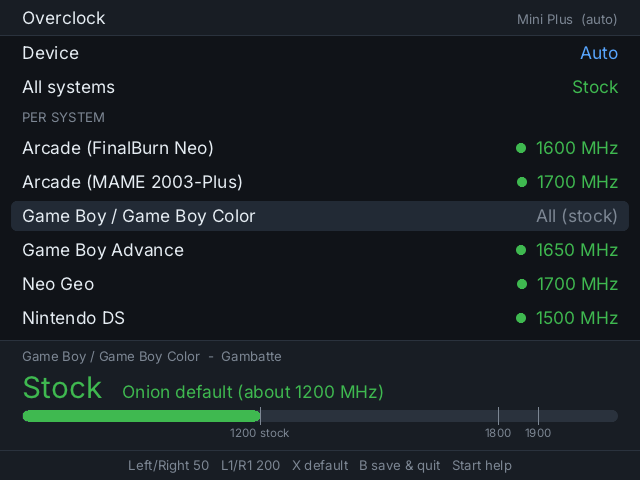
One clock for everything, or one per system. Each system follows your "All systems" setting unless you give it its own.
-
Finds your systems for you. Only systems with games on your card are listed. If one launcher switches emulators per game, like Arcade using MAME 2003-Plus and FinalBurn Neo, each emulator gets its own row.
-
Covers DS too. Systems that set their own speed, like Drastic's DS launcher, are included.
-
Knows your model. It detects the Mini, Mini v4, Mini Flip and Mini Plus automatically. To set it by hand, press A on Device and pick from the list.
-
Green, yellow, orange. The number, a dot and a gauge shift color as you go up, so you can see when a setting is getting risky:
Model 🟢 Recommended 🟡 Onion's max stable 🟠 Likely to crash Mini v1–v4 up to 1600 MHz 1650–1700 above 1700 Mini Plus, Mini Flip up to 1800 MHz 1850–1900 above 1900 -
One-button undo. The first time it runs, it saves every clock your card already has. Restore original clocks puts them all back.
-
Nothing hidden. It writes the same
cpuclock.txtfiles Onion's RetroArch already reads, so your settings keep working even if you delete the app.
| Likely to crash | Model detection | Restore |
|---|---|---|
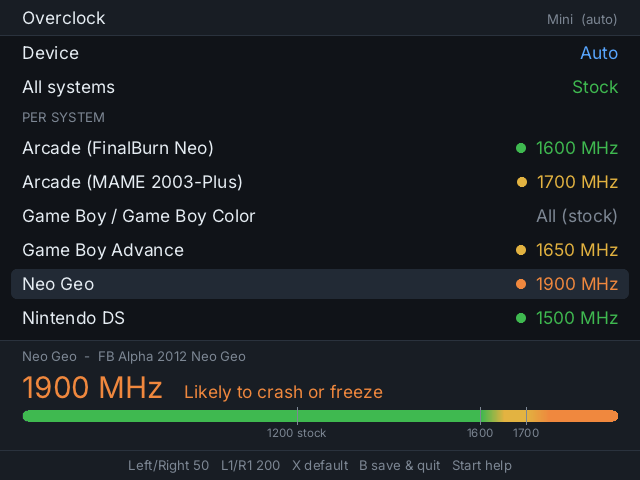 |
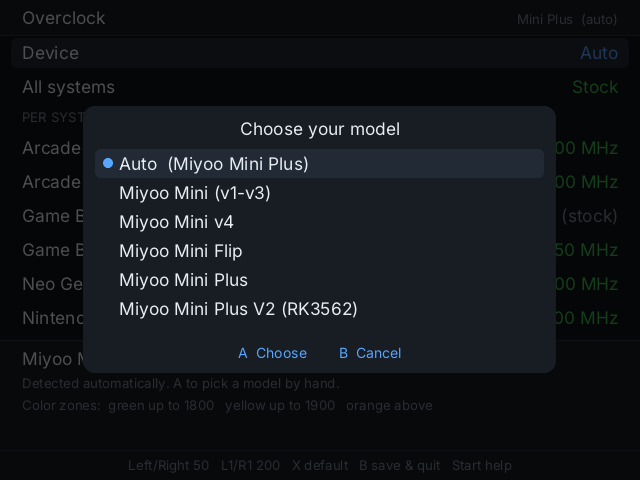 |
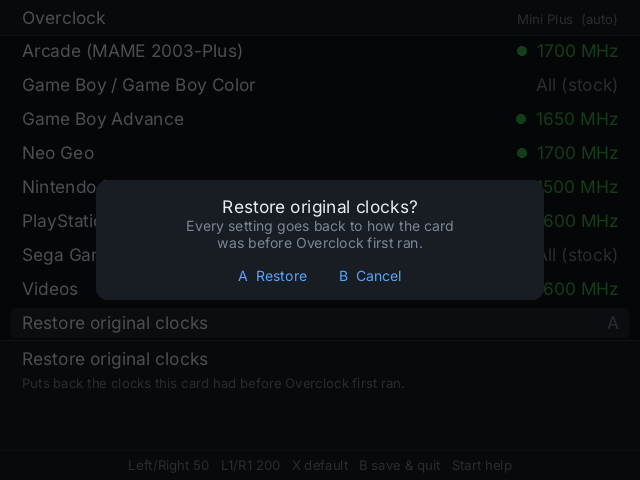 |
⚠ Read this first
Overclocking runs the CPU faster than it was designed for. It can cause crashes and freezes, corrupt a save if a game locks up while saving, add heat, shorten battery life, and could damage your device. Every chip is different: one Mini v3 here froze at 1700 MHz but ran everything at 1600. Use it at your own risk. If a game freezes, hold Power to restart and lower that system's clock.
Install
- Download Overclock-1.0.2.zip below.
- Extract it to the root of your SD card. You'll get
App/Overclock/. - Open Apps → Overclock. New clocks apply the next time a game starts.
Controls
Left / Right change by 50 MHz · L1 / R1 by 200 · X resets a row · B saves and quits · Select quits without saving · Start shows help
Compatibility
- ✅ Tested on the Miyoo Mini Plus (Onion OS).
- The Mini (v1–v3), Mini v4 and Mini Flip are supported (the Flip hasn't been tested on hardware yet).
- Mini Plus V2 is recognized, but Onion OS doesn't run on it yet, so its clocks won't apply. The app tells you so.
Zones are based on the Onion OS FAQ.
Overclock 1.0.1
New in 1.0.1:
- Miyoo Mini Flip support: detected automatically, with the Mini Plus color zones.
- Press A on Device to pick your model from a list, instead of cycling through them one at a time.
Set your CPU clock without editing a single file. Overclock is a simple app for Onion OS that lets you speed up the systems that need it (arcade, Neo Geo, GBA, PlayStation) and leave the rest alone, with colors that tell you how far is too far.
What it does
-
One clock for everything, or one per system. Each system follows your "All systems" setting unless you give it its own.
-
Finds your systems for you. Only systems with games on your card are listed. If one launcher switches emulators per game, like Arcade using MAME 2003-Plus and FinalBurn Neo, each emulator gets its own row.
-
Covers DS too. Systems that set their own speed, like Drastic's DS launcher, are included.
-
Knows your model. It detects the Mini, Mini v4, Mini Flip and Mini Plus automatically. To set it by hand, press A on Device and pick from the list.
-
Green, yellow, orange. The number, a dot and a gauge shift color as you go up, so you can see when a setting is getting risky:
Model 🟢 Recommended 🟡 Onion's max stable 🟠 Likely to crash Mini v1–v4 up to 1600 MHz 1650–1700 above 1700 Mini Plus, Mini Flip up to 1800 MHz 1850–1900 above 1900 -
One-button undo. The first time it runs, it saves every clock your card already has. Restore original clocks puts them all back.
-
Nothing hidden. It writes the same
cpuclock.txtfiles Onion's RetroArch already reads, so your settings keep working even if you delete the app.
| Likely to crash | Model detection | Restore |
|---|---|---|
|
|
|
⚠ Read this first
Overclocking runs the CPU faster than it was designed for. It can cause crashes and freezes, corrupt a save if a game locks up while saving, add heat, shorten battery life, and could damage your device. Every chip is different: one Mini v3 here froze at 1700 MHz but ran everything at 1600. Use it at your own risk. If a game freezes, hold Power to restart and lower that system's clock.
Install
- Download Overclock-1.0.1.zip below.
- Extract it to the root of your SD card. You'll get
App/Overclock/. - Open Apps → Overclock. New clocks apply the next time a game starts.
Controls
Left / Right change by 50 MHz · L1 / R1 by 200 · X resets a row · B saves and quits · Select quits without saving · Start shows help
Compatibility
- ✅ Tested on the Miyoo Mini Plus (Onion OS).
- The Mini (v1–v3), Mini v4 and Mini Flip are supported (the Flip hasn't been tested on hardware yet).
- Mini Plus V2 is recognized, but Onion OS doesn't run on it yet, so its clocks won't apply. The app tells you so.
Zones are based on the Onion OS FAQ.
Overclock 1.0.0
Set your CPU clock without editing a single file. Overclock is a simple app for Onion OS that lets you speed up the systems that need it (arcade, Neo Geo, GBA, PlayStation) and leave the rest alone, with colors that tell you how far is too far.
What it does
-
One clock for everything, or one per system. Each system follows your "All systems" setting unless you give it its own.
-
Finds your systems for you. Only systems with games on your card are listed. If one launcher switches emulators per game, like Arcade using MAME 2003-Plus and FinalBurn Neo, each emulator gets its own row.
-
Covers DS too. Systems that set their own speed, like Drastic's DS launcher, are included.
-
Knows your model. It detects the Mini, Mini v4 and Mini Plus automatically, and you can set it by hand if needed.
-
Green, yellow, orange. The number, a dot and a gauge shift color as you go up, so you can see when a setting is getting risky:
Model 🟢 Recommended 🟡 Onion's max stable 🟠 Likely to crash Mini v1–v4 up to 1600 MHz 1650–1700 above 1700 Mini Plus up to 1800 MHz 1850–1900 above 1900 -
One-button undo. The first time it runs, it saves every clock your card already has. Restore original clocks puts them all back.
-
Nothing hidden. It writes the same
cpuclock.txtfiles Onion's RetroArch already reads, so your settings keep working even if you delete the app.
| Likely to crash | Model detection | Restore |
|---|---|---|
|
|
|
⚠ Read this first
Overclocking runs the CPU faster than it was designed for. It can cause crashes and freezes, corrupt a save if a game locks up while saving, add heat, shorten battery life, and could damage your device. Every chip is different: one Mini v3 here froze at 1700 MHz but ran everything at 1600. Use it at your own risk. If a game freezes, hold Power to restart and lower that system's clock.
Install
- Download Overclock-1.0.0.zip below.
- Extract it to the root of your SD card. You'll get
App/Overclock/. - Open Apps → Overclock. New clocks apply the next time a game starts.
Controls
Left / Right change by 50 MHz · L1 / R1 by 200 · X resets a row · B saves and quits · Select quits without saving · Start shows help
Compatibility
- ✅ Tested on the Miyoo Mini Plus (Onion OS).
- The Mini (v1–v3) and Mini v4 are supported.
- Mini Plus V2 is recognized, but Onion OS doesn't run on it yet, so its clocks won't apply. The app tells you so.
Zones are based on the Onion OS FAQ.