Repository navigation
1.3.0-beta

1.3.0-beta Released! 🚀
We are excited to announce a significant update to the SCOrg.tools Blender Addon! This release focuses on streamlining your workflow by automating the handling of missing files.
 No files manually extracted!

Key Features
🔄 Automatic Extraction & Conversion
The addon now includes the ability to automatically extract and convert missing files directly from within Blender. No more manually hunting for files in StarFab!
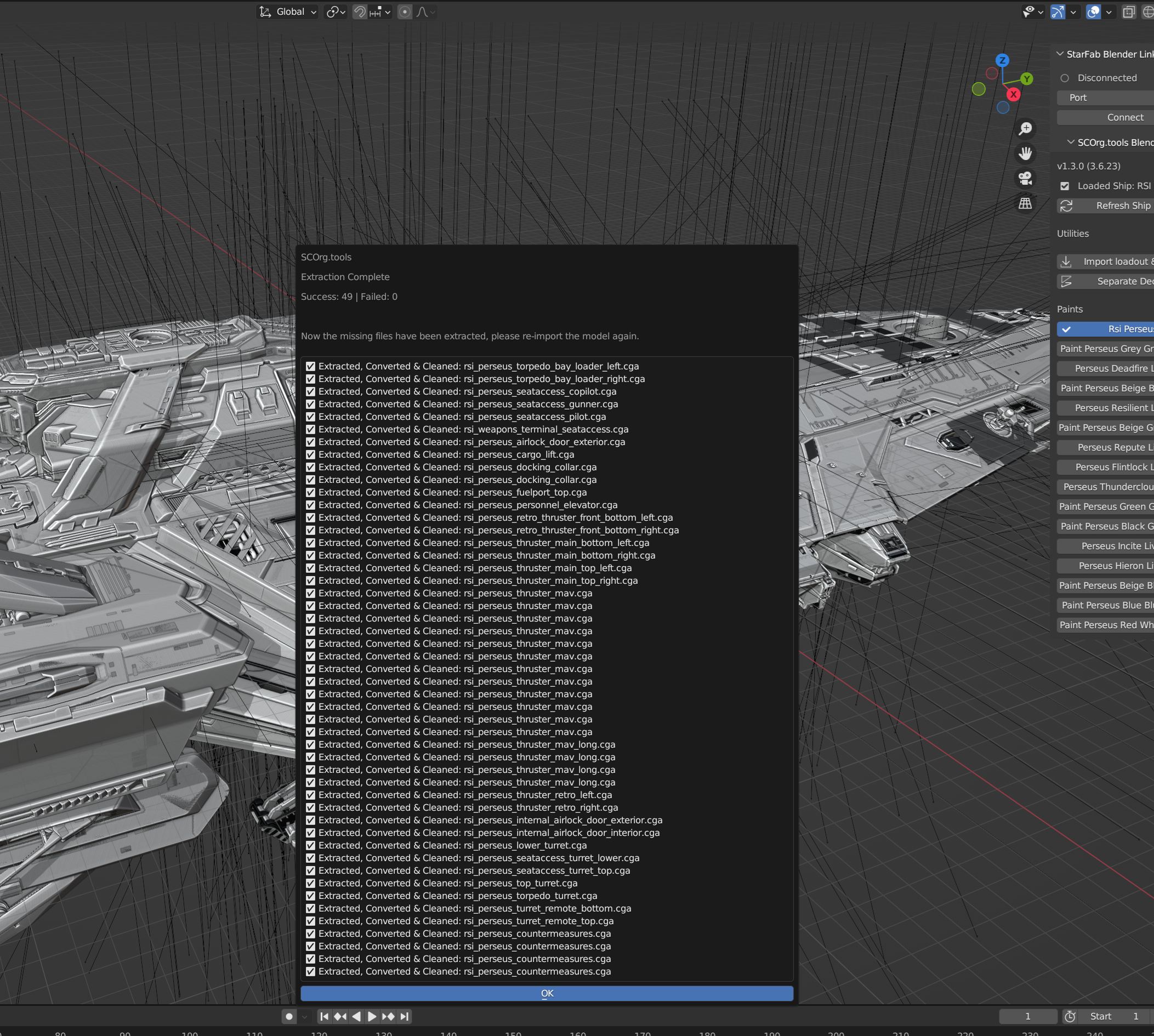
When missing files are detected (e.g., missing geometry or textures), a popup will appear listing them. You can now simply click OK to have the addon:
- Extract the files from your
Data.p4k. - Convert them to the required formats (e.g.,
.cgfto.dae,.ddsto.tif).
📂 Supported File Types
Converted:
- Geometry:
.cga,.cgf,.chr,.skin(converted to.dae) - Textures:
.dds(converted to.tifor.png, depending on what the original StarFab blueprint used)
Extracted:
- Materials:
.mtl
How to Use
- Ensure the "Extract and convert missing files" checkbox is enabled in the addon preferences, and specify the cgf-converter and TexConv paths.
- Import your ship/model as usual.
- If files are missing, the Missing Files popup will appear.
- Click OK. The addon will extract and convert the missing files in the background.
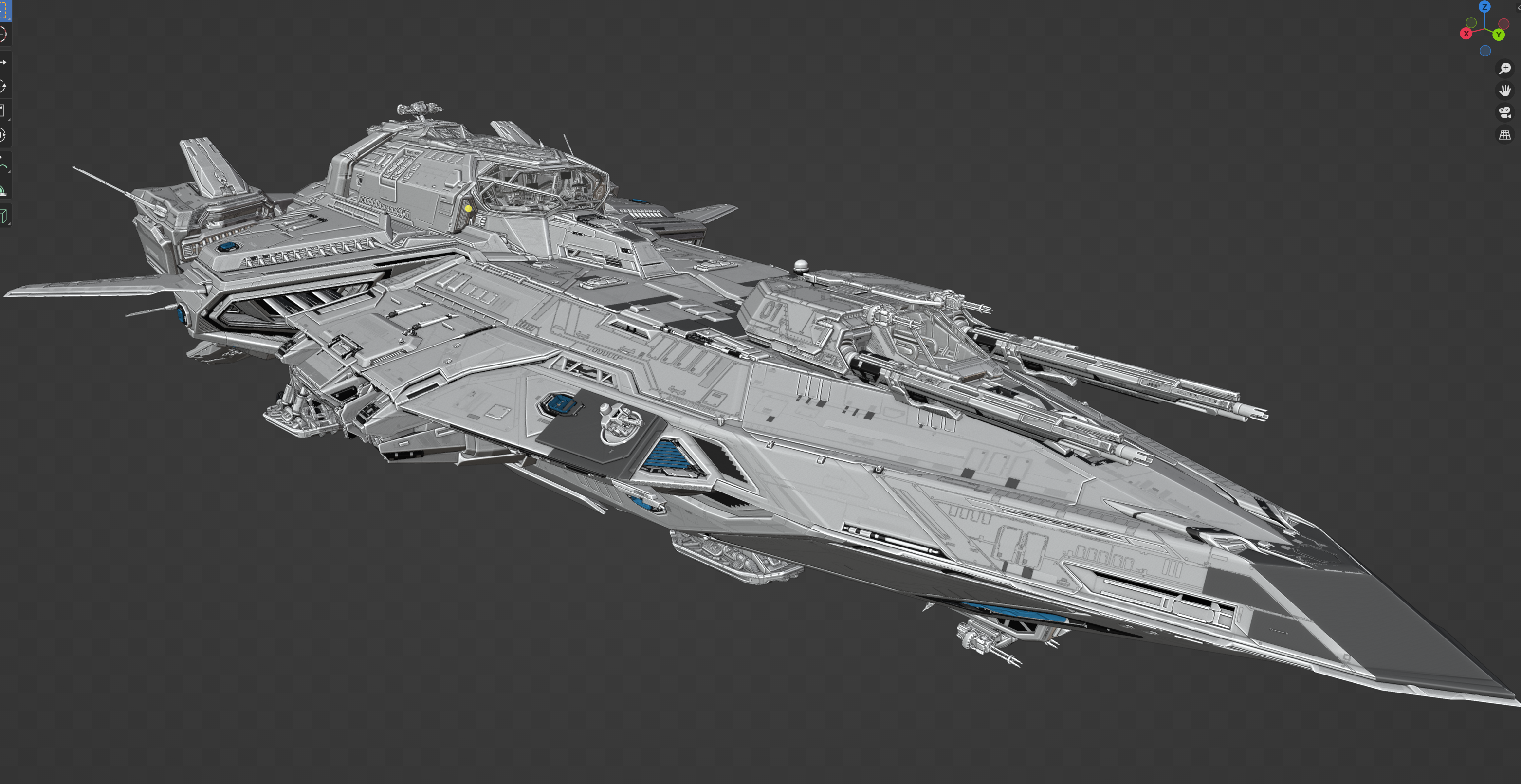
- Once complete, re-import the model to apply the newly extracted assets.
- Run the "Import loadout & mats" operator again if needed to catch any remaining items.
💡 Tip: For larger ships, save your
.blendfile after the "Make Instance Real" step. This allows you to quickly run "Import loadout" and extract any missing files, then revert the file without having to re-import and make instance real again.
Other Improvements
- Missing files popup: If you accidentally close the missing files popup, you can now re-open it using the "Show Missing Files" button in the panel utilities.