Repository navigation
Releases
OpenLauncher v3.0.0-beta.3

Preview - not the stable release
Try it: in OpenLauncher, Updates > Try OpenLauncher v3 (needs OpenLauncher 2.3.4 or newer).
Your workspace and settings are kept.
Go back: in v3, Updates > Back to stable installs the latest stable release.
Without OpenLauncher: download OpenLauncher-Setup.bat from the latest stable release and run it with
the environment variable OCM_SETUP_TAG=v3.0.0-beta.3 set, or extract OpenCAFDMap.zip and run OpenLauncher.bat.
Already on an earlier beta? Updates > Update launcher offers this version.
What's new in v3.0.0-beta.3
New setting: E-Sys UI scale
- If E-Sys's window gets drawn over itself (parts of the tree or the title showing up twice while you scroll), especially on a display that Windows scales (125 %, 150 %, ...), try Settings > E-Sys UI scale > 1 - no scaling, press Save settings and start E-Sys again.
- It only applies to E-Sys started by OpenLauncher. E-Sys's own settings (
config\Esys.properties) aren't changed, and E-Sys default (the default) keeps E-Sys's ownUI.Scale. - Choices: 1, 1.25, 1.5, 2, or type a number.
esys.lognotes the scale when one is set, so mention it in bug reports.
Also
- Launch options: Additional Utilities now says it covers the FA Helper too (Compare NCD, Cheat Sheet and FA Helper).
Everything from beta.2 (FA Helper, shipped FA data, the auto-backup fix) is included.
Full Changelog: v3.0.0-beta.2...v3.0.0-beta.3
OpenLauncher v3.0.0-beta.2
Preview - not the stable release
Try it: in OpenLauncher, Updates > Try OpenLauncher v3 (needs OpenLauncher 2.3.4 or newer).
Your workspace and settings are kept.
Go back: in v3, Updates > Back to stable installs the latest stable release.
Without OpenLauncher: download OpenLauncher-Setup.bat from the latest stable release and run it with
the environment variable OCM_SETUP_TAG=v3.0.0-beta.2 set, or extract OpenCAFDMap.zip and run OpenLauncher.bat.
Already on beta.1? Updates > Update launcher offers this version.
What's new in v3.0.0-beta.2
FA Helper
A vehicle order (FA / VO) editor in E-Sys's OpenLauncher section, under Compare NCD and Cheat Sheet.
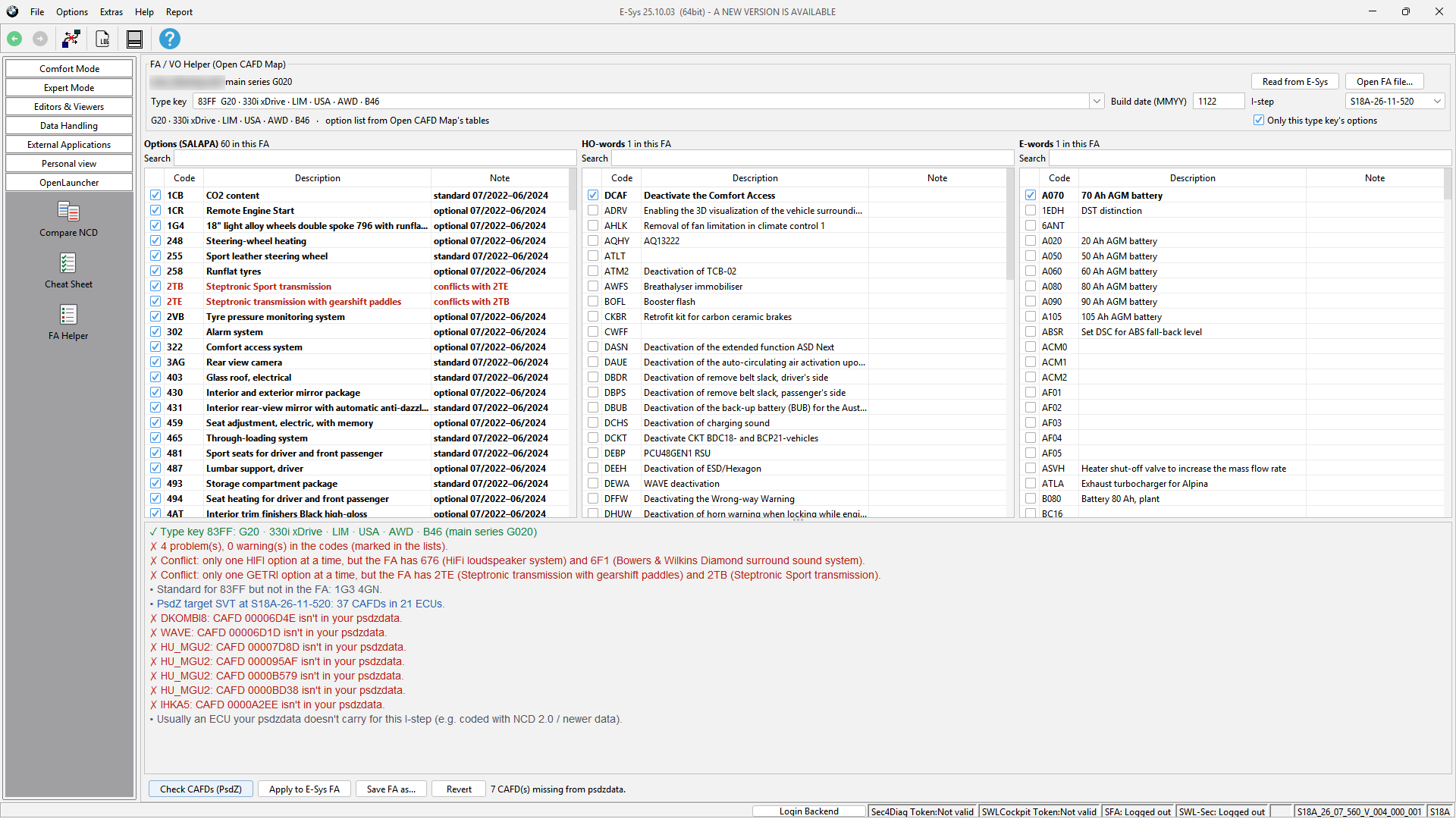
- Tick lists for options (SALAPA), HO-words and E-words, with their titles. Each option shows whether it's standard or optional for the type key, and when.
- Read from E-Sys takes the FA open in Coding or the FA editor (it asks which if both have one); Open FA file... loads one from disk.
- Checked as you edit:
- the type key, and the build date against its production;
- each option against what's offered for that type key and when;
- two options from one class, such as two transmissions (2TE and 2TB) or two sound systems.
- Check CAFDs (PsdZ) calculates the target SVT for the edited FA at the I-step you pick, and lists every CAFD your psdzdata doesn't have, with the option that brought it in.
- Apply to E-Sys FA hands the edited FA back to Coding or the FA editor. E-Sys marks it "File updated, not saved yet" and recalculates the vehicle profile. Saving and writing to the car stay in E-Sys; the helper never writes to the car.
- Save FA as... writes the edited FA to a file. Revert goes back to the FA as read.
- Apply follows the same rule as Cheat Sheet Apply: on E-Sys versions OpenLauncher wasn't tested with, it needs Try anyway.
Guide: FA Helper
FA data that ships with Open CAFD Map
The checks need nothing beyond E-Sys and your psdzdata: everything else is in data\fa\ and arrives through Check for updates, so it doesn't depend on how old your psdzdata is.
- 8,456 type keys with series, model, body, market, drive and engine
- the options each type key offers, standard or optional, with production windows
- option classes for conflicts, and titles for options, HO-words and E-words
Fixes
- FA / SVT auto-backup only saves documents E-Sys read from the car. FAs or SVTs that E-Sys generated or updated (for example by the FA Helper's Apply) are no longer saved as if they were read from the vehicle.
Full Changelog: v3.0.0-beta.1...v3.0.0-beta.2
OpenLauncher v3.0.0-beta.1
Preview - not the stable release
Try it: in OpenLauncher, Updates > Try OpenLauncher v3 (needs OpenLauncher 2.3.4 or newer).
Your workspace and settings are kept.
Go back: in v3, Updates > Back to stable installs the latest stable release.
Without OpenLauncher: download OpenLauncher-Setup.bat from the latest stable release and run it with
the environment variable OCM_SETUP_TAG=v3.0.0-beta.1 set, or extract OpenCAFDMap.zip and run OpenLauncher.bat.
What's new in v3.0.0-beta.1
A new look
- Dark theme with red accents, including a dark title bar on Windows 10 and 11.
- Sidebar with Home, Settings and Activity, plus a link to the project on GitHub.
- Home puts everything on one page:
- Launch: Start E-Sys and the BimmerCode Backup Editor, with your E-Sys version and main series.
- Status cards for E-Sys, psdzdata, E-Sys labels and the Backup Editor, so you can see at a glance what's ready. Definitions are built on demand, so 0 built definitions is no longer shown as a problem.
- Definitions and Updates side by side.
- Folder buttons and the latest activity line (click it for the full log).
- Settings: the main series is a dropdown that lists the cars each series covers. Any other code can still be typed in.
- Activity: the full log, colour-coded.
Launch options
A new Launch options menu under Start E-Sys chooses what E-Sys gets when OpenLauncher starts it. Changes apply from the next E-Sys start.
| Option | What it does |
|---|---|
| Name Injection | Names and value labels in the CAF / FDL trees and the vehicle profile |
| Build labels on demand | New CAFD versions are labelled in the background (needs Name Injection) |
| Additional Utilities | Compare NCD and Cheat Sheet in E-Sys's navigation bar |
| FA / SVT auto-backup | Copies every FA / SVT read from the car to FA\FABak and SVT\SVTBak |
| Clean boot | Troubleshooting: starts your E-Sys.bat exactly as it is, with none of OpenLauncher's features |
Everything is on by default. Turn all features on resets them, and the Start button shows when Clean boot is on.
Updates
- Back to stable under Updates returns to the latest stable release (or switches a git clone back to
main). - Update launcher offers newer previews, and the final v3 release once it's out.
- Git clones on the preview follow
origin/testing.
Under the hood
- Duplicated code in the launcher and its E-Sys start-up removed (one version reader, one set of launch-option defaults). How E-Sys is started is unchanged.
esys.lognotes which launch options were off for that start.
Known issues
- Going back to v2 and saving settings there resets the launch options to all on.
Full Changelog: v2.3.3...v3.0.0-beta.1
OpenLauncher v2.3.5
What's new in v2.3.5
New setting: E-Sys UI scale
- If E-Sys's window gets drawn over itself (parts of the tree or the title showing up twice while you scroll), especially on a display that Windows scales (125 %, 150 %, ...), try Settings > E-Sys UI scale > 1 - no scaling, press Save settings and start E-Sys again.
- It only applies to E-Sys started by OpenLauncher. E-Sys's own settings (
config\Esys.properties) aren't changed, and E-Sys default (the default) keeps E-Sys's ownUI.Scale. - Choices: 1, 1.25, 1.5, 2, or type a number.
esys.lognotes the scale when one is set, so mention it in bug reports.
Fixes
- FA / SVT auto-backup only saves documents E-Sys read from the car. FAs or SVTs that E-Sys generated or updated were sometimes saved as if they had been read from the vehicle.
Also
- The README links to the new documentation site: https://shamair28.github.io/OpenCAFDMap-docs/
Install
- Download OpenLauncher-Setup.bat below and double-click it.
Windows may warn about a downloaded file: choose More info / Run anyway if you trust it. - Pick the install folder (default: %LOCALAPPDATA%\OpenCAFDMap). Setup checks for Python 3.10+
(it can install it with winget), downloads OpenCAFDMap.zip, verifies its SHA-256 and
creates Desktop / Start menu shortcuts. - In OpenLauncher: set your E-Sys folder and press Start E-Sys with Open CAFD Map. No build is needed for E-Sys;
Build definitions is only required for the BimmerCode Backup Editor and the command-line tools.
Upgrading: use Update launcher in OpenLauncher (v2.3.1+), or run setup again; your workspace and settings are kept.
Manual install: extract OpenCAFDMap.zip anywhere and run OpenLauncher.bat.
Definition updates (names) arrive through OpenLauncher's Check for updates without reinstalling.
Full Changelog: v2.3.4...v2.3.5
OpenLauncher v2.3.4
What's new in v2.3.4
Try OpenLauncher v3
- New button under Updates: Try OpenLauncher v3. It installs the newest v3 preview into the same folder. Your workspace and settings are kept, and edited name files are backed up first.
- Git clones switch to the
testingbranch instead. Uncommitted changes go to a git stash and local commits to a backup branch first. - If there's no preview yet, OpenLauncher says so.
- Git clones switch to the
- Going back is one click: in v3, Updates > Back to stable installs the latest stable release (or switches a clone back to
main). - Nothing changes unless you choose it. Previews are GitHub pre-releases, so normal updates and setup keep installing the stable release.
Setup
OpenLauncher-Setup.batcan install a specific release: setOCM_SETUP_TAG(for examplev3.0.0-beta.1). Only releases from this repository, and the checksum is verified as usual.
Git clones
- Force update no longer makes a backup branch for commits that are already on GitHub or already backed up.
- Updates also work in single-branch clones.
Install
- Download OpenLauncher-Setup.bat below and double-click it.
Windows may warn about a downloaded file: choose More info / Run anyway if you trust it. - Pick the install folder (default: %LOCALAPPDATA%\OpenCAFDMap). Setup checks for Python 3.10+
(it can install it with winget), downloads OpenCAFDMap.zip, verifies its SHA-256 and
creates Desktop / Start menu shortcuts. - In OpenLauncher: set your E-Sys folder and press Start E-Sys with Open CAFD Map. No build is needed for E-Sys;
Build definitions is only required for the BimmerCode Backup Editor and the command-line tools.
Upgrading: use Update launcher in OpenLauncher (v2.3.1+), or run setup again; your workspace and settings are kept.
Manual install: extract OpenCAFDMap.zip anywhere and run OpenLauncher.bat.
Definition updates (names) arrive through OpenLauncher's Check for updates without reinstalling.
Full Changelog: v2.3.3...v2.3.4
OpenLauncher v2.3.3
What's new in v2.3.3
Vehicle profile labels for every main series
- The FP (vehicle profile) of a car from another main series is now labelled. For example, an F30 FA in an install set up for G020. Before, its categories and criteria showed only numbers.
- On demand: when E-Sys shows the FP of a series without labels yet, OpenLauncher builds them in the background (a few seconds, from your psdzdata, with the E-Sys that's running). The FP view then relabels itself.
More and better FP criteria labels
-
Every criterion of the FA→FP mapping is now read. A type key sets several criteria at once (drive, body, dev series, engine…), and only the first one used to be read.
- For G020 this adds 127 criteria labels, mostly SA options. Existing labels are unchanged.
-
Type-key criteria are named from ISTA's vehicle data when an ISTA database is set in OpenLauncher, for any series:
- Dev Series
1110= F30 - Engine
2103= B58 - Market
155= EUR
Hand-verified names still take priority.
- Dev Series
-
For your configured series: press Apply names once after updating to get the new labels. Profiles of other series are built on demand.
Install
- Download OpenLauncher-Setup.bat below and double-click it.
Windows may warn about a downloaded file: choose More info / Run anyway if you trust it. - Pick the install folder (default: %LOCALAPPDATA%\OpenCAFDMap). Setup checks for Python 3.10+
(it can install it with winget), downloads OpenCAFDMap.zip, verifies its SHA-256 and
creates Desktop / Start menu shortcuts. - In OpenLauncher: set your E-Sys folder and press Start E-Sys with Open CAFD Map. No build is needed for E-Sys;
Build definitions is only required for the BimmerCode Backup Editor and the command-line tools.
Upgrading: use Update launcher in OpenLauncher (v2.3.1+), or run setup again; your workspace and settings are kept.
Manual install: extract OpenCAFDMap.zip anywhere and run OpenLauncher.bat.
Definition updates (names) arrive through OpenLauncher's Check for updates without reinstalling.
Full Changelog: v2.3.2...v2.3.3
OpenLauncher v2.3.2
What's new in v2.3.2
FA / SVT auto-backup
Every FA and SVT that E-Sys reads from the vehicle is now saved as a copy in E-Sys's data folder (Path.Home, e.g. H:\Data), with no button to press:
- Where:
FA\FABak\<series>_<last 7 of VIN>.xmlandSVT\SVTBak\<series>_<last 7 of VIN>.xml, in E-Sys's own FA/SVT format, so Load opens them. - Covered: Vehicle Order Read and SVT Actual Read (VCM) / Read (ECU) in Coding, plus the FA and SVT editors.
- Not copied: files you Load, and the calculated SVT target.
- History is kept: if a backup for that car already exists with different content, it is renamed to
<name>_<date-time>.xmlfirst. Reading an unchanged car again doesn't add a copy. - Every backup is logged in
agent.log.
Untested E-Sys versions: tried, not blocked
- On E-Sys versions OpenLauncher wasn't tested with (tested: 25.x), the Cheat Sheet window and the FA/SVT backup now run as well. Each switches itself off where E-Sys lacks what it needs.
- Only Cheat Sheet Apply, which edits through E-Sys's FDL Editor, is held back on those versions. Tick the new Try anyway setting in OpenLauncher to allow it.
Install
- Download OpenLauncher-Setup.bat below and double-click it.
Windows may warn about a downloaded file: choose More info / Run anyway if you trust it. - Pick the install folder (default: %LOCALAPPDATA%\OpenCAFDMap). Setup checks for Python 3.10+
(it can install it with winget), downloads OpenCAFDMap.zip, verifies its SHA-256 and
creates Desktop / Start menu shortcuts. - In OpenLauncher: set your E-Sys folder and press Start E-Sys with Open CAFD Map. No build is needed for E-Sys;
Build definitions is only required for the BimmerCode Backup Editor and the command-line tools.
Upgrading: use Update launcher in OpenLauncher (v2.3.1+), or run setup again; your workspace and settings are kept.
Manual install: extract OpenCAFDMap.zip anywhere and run OpenLauncher.bat.
Definition updates (names) arrive through OpenLauncher's Check for updates without reinstalling.
Full Changelog: v2.3.1...v2.3.2
OpenLauncher v2.3.1
What's new in v2.3.1
Launcher updates inside OpenLauncher
The Updates panel now has a launcher row next to the definitions row. It checks for a new OpenLauncher at startup, and Update launcher installs it.
- Release installs: OpenLauncher downloads the latest release's setup and runs it for the folder OpenLauncher is installed in, so a custom install folder is upgraded in place.
- Your workspace and settings are kept.
- Edits you made in
names\,definitions\ordata\are backed up toworkspace\backups\first. - OpenLauncher restarts when the update is done.
- Git clones follow
origin/main:- Update launcher runs
git pull --ff-only. - Force update also works when the clone has local edits or commits. It saves them first, uncommitted changes to a git stash and local commits to an
openlauncher-backup-<time>branch, then movesmaintoorigin/main.
- Update launcher runs
- Safety:
- Updates wait until E-Sys is closed.
- A workspace inside the install folder that isn't named
workspaceblocks the update instead of being removed.
Installs older than v2.3.1 need to run OpenLauncher-Setup.bat once more to get this. After that, updates happen from inside OpenLauncher.
Install
- Download OpenLauncher-Setup.bat below and double-click it.
Windows may warn about a downloaded file: choose More info / Run anyway if you trust it. - Pick the install folder (default: %LOCALAPPDATA%\OpenCAFDMap). Setup checks for Python 3.10+
(it can install it with winget), downloads OpenCAFDMap.zip, verifies its SHA-256 and
creates Desktop / Start menu shortcuts. - In OpenLauncher: set your E-Sys folder and press Start E-Sys with Open CAFD Map. No build is needed for E-Sys;
Build definitions is only required for the BimmerCode Backup Editor and the command-line tools.
Upgrading: use Update launcher in OpenLauncher (v2.3.1+), or run setup again; your workspace and settings are kept.
Manual install: extract OpenCAFDMap.zip anywhere and run OpenLauncher.bat.
Definition updates (names) arrive through OpenLauncher's Check for updates without reinstalling.
Full Changelog: v2.3.0...v2.3.1
OpenLauncher v2.3.0
What's new in v2.3.0
E-Sys 3.x support [Alpha]
Open CAFD Map's names and labels now work in E-Sys 3.x (tested with 3.35.3 on Java 8), not just 25.x:
- Labels in the CAF and FDL views: groups, functions and value names come from the same definitions and name database as 25.x.
- CAF and NCD files: values read from an NCD (Ausgelesen) are labelled too, and those nodes expand normally.
- On-demand definitions: a CAFD version that has no definition yet gets BMW's untrimmed names immediately and full labels a few seconds later, the same as on 25.x.
E-Sys 3.x keeps an open CAFD in an older model, which OpenLauncher recognises separately. E-Sys 25.x is handled exactly as before.
The OpenLauncher section (Compare NCD, Cheat Sheet) still needs E-Sys 25.x, because 3.x has no navigation bar to add it to.
Fixed
- Closing E-Sys shortly after starting it is no longer reported as "E-Sys stopped during startup"; OpenLauncher now says "E-Sys closed."
Install
- Download OpenLauncher-Setup.bat below and double-click it.
Windows may warn about a downloaded file: choose More info / Run anyway if you trust it. - Pick the install folder (default: %LOCALAPPDATA%\OpenCAFDMap). Setup checks for Python 3.10+
(it can install it with winget), downloads OpenCAFDMap.zip, verifies its SHA-256 and
creates Desktop / Start menu shortcuts. - In OpenLauncher: set your E-Sys folder and press Start E-Sys with Open CAFD Map. No build is needed for E-Sys;
Build definitions is only required for the BimmerCode Backup Editor and the command-line tools.
Upgrading: run setup again; your workspace and settings are kept.
Manual install: extract OpenCAFDMap.zip anywhere and run OpenLauncher.bat.
Definition updates (names) arrive through OpenLauncher's Check for updates without reinstalling.
Full Changelog: v2.2.2...v2.3.0
OpenLauncher v2.2.2
What's new in v2.2.2
Fixed
- E-Sys stuck on the splash screen. OpenLauncher started every E-Sys with the launch settings of E-Sys 25.10. Versions laid out differently failed while starting, and the splash screen stayed up with no error. OpenLauncher now reads the launch settings from your E-Sys version's own
E-Sys.bat:- it takes the classpath, working folder, VM options and main class;
- other additions, such as
-javaagent, are left out; - the 25.10 settings are only used if
E-Sys.batis missing or can't be read.
- E-Sys versions on Java 8 (e.g. 3.35.3) now start. Before, an option only newer Java understands stopped them immediately. The background decrypt and definition builds work on Java 8 too.
- The agent no longer reloads itself every second on Java 8, so
agent.logdoesn't fill up with "hot-reloading" lines.
Diagnostics
-
New
workspace\logs\esys.logwith E-Sys's own output. It starts with:- the OpenLauncher, E-Sys and Java versions;
- which launch settings were used;
- the full command.
The previous start is kept as
esys.prev.log. Please attachesys.logandagent.logto bug reports. -
If E-Sys fails while starting, it now closes instead of leaving the splash screen up. OpenLauncher shows the reason with the last lines of
esys.log. -
E-Sys versions on Java 15 or newer can't be started through OpenLauncher. They now get a clear "not supported" message.
Compatibility
- Tested with E-Sys 25.10.03 (Java 11) and 3.35.3 (Java 8).
- The Cheat Sheet window is only enabled on tested versions (25.x), because Apply goes through E-Sys's FDL Editor internals. Labels and Compare NCD stay available on other versions.
Install
- Download OpenLauncher-Setup.bat below and double-click it.
Windows may warn about a downloaded file: choose More info / Run anyway if you trust it. - Pick the install folder (default: %LOCALAPPDATA%\OpenCAFDMap). Setup checks for Python 3.10+
(it can install it with winget), downloads OpenCAFDMap.zip, verifies its SHA-256 and
creates Desktop / Start menu shortcuts. - In OpenLauncher: set your E-Sys folder and press Start E-Sys with Open CAFD Map. No build is needed for E-Sys;
Build definitions is only required for the BimmerCode Backup Editor and the command-line tools.
Upgrading: run setup again; your workspace and settings are kept.
Manual install: extract OpenCAFDMap.zip anywhere and run OpenLauncher.bat.
Definition updates (names) arrive through OpenLauncher's Check for updates without reinstalling.
Full Changelog: v2.2.1...v2.2.2