Repository navigation
Installation and Setup
This page is for whoever puts On Air Record on a machine and gets it running. Once it is running, the user guide covers how to actually use it.
You install it on one computer, the one with the microphone. Everybody else just opens a web address. Nothing has to be installed on the listening devices.
flowchart LR
    mic["Microphone"] --> host["The host computer<br/>runs On Air Record<br/>keeps the recordings"]
    host -- "http://its-address:8080" --> laptop["Laptop"]
    host -- "http://its-address:8080" --> phone["Phone"]
    host -- "http://its-address:8080" --> tablet["Tablet"]
- What you need
- Which way to install
- Docker on Linux, recommended on Linux
- The quick way, the installer for macOS and Windows
- Linux: microphone access, for the installer on Linux
- Stopping it
- Step 1: download
- Step 2: run it
- Step 3: open it
- Logins and accounts
- Choosing a port
- All the settings you can pass at start up
- Where the recordings are written
- Keeping it running: macOS
- Keeping it running: Linux
- Keeping it running: Windows
- Letting other machines reach it
- Upgrading
- Trying a beta
- Uninstalling
- Building from source
- Publishing a release
- Setup problems
- Reporting a problem
- Credits
- A computer that stays switched on: macOS, Linux, or Windows. It does not need to be powerful.
- A microphone it can hear. Built in is fine.
- Disk space. Roughly 330 MB per hour at full quality, or 110 MB per hour at voice quality. How much you need in total depends on how far back you want to be able to listen, and the app works that figure out for you on its settings page.
- A network the listeners are also on.
Nothing else. There is no database to install, no runtime, no web server. The whole thing is one file, or, on Linux, one Docker image.
Choose by the machine the microphone is plugged into:
| The host | Use |
|---|---|
| Linux, including a Raspberry Pi on a 64 bit OS | Docker, recommended |
| macOS | The quick way, the installer |
| Windows | The quick way, the installer |
| Linux without Docker, or a Raspberry Pi on a 32 bit OS | The quick way, after Linux: microphone access; a 32 bit Pi needs building from source |
On Linux, this is the recommended way to run On Air Record. Every release is published as a container
image, ghcr.io/shibbirweb/on-air-record, for 64 bit Intel and AMD machines and for 64 bit ARM, which
includes a Raspberry Pi running a 64 bit OS. It is the same program as the downloads, with nothing added.
Compared with the installer on Linux, it takes away the parts that usually go wrong:
-
No permissions to set up on your account. The container is given the sound devices itself, so there
is no audio group to join, no logging out and back in, and no
sudomistake that leaves recordings it cannot save. - It starts again with the machine, with no systemd unit to write.
- Updating is two commands, which admins are shown in the app when a new version is out.
- A Raspberry Pi gets a ready made build instead of building from source.
- Everything it keeps is in one volume, so nothing else on the machine changes, and removing it removes all of it.
The one cost is installing Docker, once.
- A Linux host. Docker Desktop on macOS and Windows runs containers inside a small virtual machine that has no sound hardware, so there is nothing to pass through and the app would list no microphones. On a Mac or a Windows PC, use the quick way instead.
-
Docker Engine, not Docker Desktop. Docker Desktop for Linux also runs containers in a virtual machine,
with the same result. Install Docker Engine with the Compose plugin by
Docker's instructions for your distribution; they cover
Ubuntu, Debian, Fedora and Raspberry Pi OS. Afterwards
docker compose versionshould answer. -
Permission to run
docker, either withsudoin front of each command or by being in thedockergroup. Membership of that group is as good asrooton the machine, sosudois the careful choice on a shared one.
The same image, with the same tags, is on Docker Hub as shibbirweb/on-air-record. Either works wherever
an image is named below. This page uses ghcr.io because Docker Hub limits how often one address may
download without signing in, which a shared network can run into.
Nearly every problem with this setup is a permission problem, and each one looks the same from the web page: no microphones listed. The next part explains the three things that have to be right, so that the steps after it make sense and the table at the end can tell which one is wrong.
Linux keeps each sound card behind files in /dev/snd. They belong to root and to one group, usually
called audio, and only that group may open them:
$ ls -ln /dev/snd
crw-rw---- 1 0 29 116,  7 Sep 27 09:12 controlC1
crw-rw---- 1 0 29 116,  6 Sep 27 09:12 pcmC1D0c
crw-rw---- 1 0 29 116, 33 Sep 27 09:12 timer
The 29 is the group's number. The program in the container can only record when all three of these hold:
| What it needs | Given by | If it is missing | |
|---|---|---|---|
| 1 | The device files exist inside the container | devices: /dev/snd |
/dev/snd does not exist in the container |
| 2 | The container is allowed to use devices at all |
devices:, and only devices:
|
The files are there, but opening them says Operation not permitted
|
| 3 | The program is in the group that owns the files |
group_add: with that group's number
|
The files are there, but opening them says Permission denied
|
Three things follow from that:
-
The group has to be given by number, not by name. The container has its own list of group names,
and its
audiois 29. The host'saudiois 29 on Debian, Ubuntu and Raspberry Pi OS, but 63 on Fedora and something else again on Arch.group_add: audiowould quietly give the container the wrong one. The steps below read the number from the device files themselves, which is right by definition. -
Your own account does not need to be in the
audiogroup, unlike running the program directly. Docker opens nothing as you; the program inside runs as its own user, number 10001, and is given the group. You only need to be allowed to rundocker, either through thedockergroup or withsudo. Usingsudohere does not cause the ownership problem it causes for a direct install, because the files it creates belong to the container's user either way. -
/dev/sndmust be passed as a device, not as a volume.-v /dev/snd:/dev/sndmakes the files appear, which looks right, but Docker only permits a container to open devices it was given with--deviceordevices:.
These need no special permissions, so they give a straight answer whichever account you use:
uname -s                          # must say Linux
docker compose version            # Docker with the Compose plugin
cat /proc/asound/cards            # the sound cards Linux has found
ls -d /proc/asound/card*/pcm*c    # the ones that can record: one line per microphone input
stat -c '%g' /dev/snd/* | sort -u # the group number that owns them: expect exactly one number-
/proc/asound/cardsis empty, or nopcm...clines, means Linux itself has not found a microphone. Nothing in Docker can fix that: check the cable, try another USB port, and look atdmesgfor a driver message. - The last command prints two numbers, which is unusual. Note both; the compose file can be given more than one, see the table below.
arecord -l is the usual way to list microphones, but it runs as you, and when your account is not in the
audio group it lists nothing even though the card is there. That is fine for Docker, for the reason
above; /proc/asound/cards is the check that is not misled by it.
In an empty folder:
curl -fsSLO https://raw.githubusercontent.com/shibbirweb/on-air-record/master/packaging/compose.yaml

# The group number that owns the sound devices, and your time zone
audio_gid="$(stat -c %g /dev/snd/timer)"
zone="$(timedatectl show -p Timezone --value 2>/dev/null || readlink -f /etc/localtime | sed 's|.*/zoneinfo/||')"
printf 'AUDIO_GID=%s\nTZ=%s\n' "$audio_gid" "$zone" > .env
cat .env

docker compose up -d
cat .env should show a number and a place, such as AUDIO_GID=29 and TZ=Europe/London. If
AUDIO_GID is empty, /dev/snd does not exist on this machine: go back to the checks above.
That .env file sits beside compose.yaml and every docker compose command reads it, so this is done
once. It holds the two things the container cannot work out for itself:
-
AUDIO_GIDis the number from the table above, handed to the container withgroup_add. -
TZ, your time zone. Recordings are filed by calendar day, and a container otherwise thinks it is in UTC, so a recording made at 1 a.m. in Dhaka would land on the previous day.
Add OAR_PORT=9000 to .env to serve on another port. The service inside still listens on 8080; only the
host's side changes.
The container never runs as root. It restarts with the host unless you stop it, and its recordings,
settings and accounts live in a volume called on-air-record_data, which survives removing and recreating
the container.
Before opening the page, confirm all three requirements from inside the running container:
docker exec on-air-record ls -ln /dev/snd     # 1: the device files, with the group number from .env
docker exec on-air-record id                  # 3: that number must be in the groups list
curl -s http://localhost:8080/api/devices     # the microphones the service can actually open
The last one answers until logins are set up, so run it first, on the host, with your port if you changed
it. An empty list, {"devices":[]}, with the
first two looking right means something is holding the microphone or it is not a recording device; see
the table below. A list with names in it means it works: open http://<this machine's address>:8080,
answer the question about logins, and pick the microphone on the settings page.
Then let it run for a minute and check the timeline shows audio, not just that the recorder panel says Recording. New audio appears once each block of recording, 10 seconds by default, is written.
The same thing as one command, with the same three requirements: --device for the first two, and
--group-add with the number for the third:
docker run -d --name on-air-record --restart unless-stopped \
  -p 8080:8080 \
  --device /dev/snd \
  --group-add "$(stat -c %g /dev/snd/timer)" \
  -e TZ="$(timedatectl show -p Timezone --value 2>/dev/null || readlink -f /etc/localtime | sed 's|.*/zoneinfo/||')" \
  -v on-air-record_data:/data \
  --stop-timeout 30 \
  ghcr.io/shibbirweb/on-air-record:latest
--stop-timeout 30 gives it time to close and index the recording it is writing when it is stopped.
Docker's default of ten seconds can cut that short and lose the last few seconds.
There are two places to set things, and they are easy to confuse.
In .env, beside compose.yaml. docker compose reads these on the host to fill in the compose
file. The container never sees them directly.
| Variable | Default | What it does |
|---|---|---|
AUDIO_GID |
29 |
The number of the group that owns /dev/snd, given to the container with group_add so it may open the sound devices. See how the container gets the microphone. |
TZ |
UTC |
Your time zone, such as Europe/London, passed into the container as TZ. |
OAR_PORT |
8080 |
The port on the host: the left side of the port mapping. The service inside stays on 8080. |
In the container. Set these under environment: in compose.yaml, or with -e NAME=value on
docker run. They are what the program itself reads:
| Variable | Default | What it does |
|---|---|---|
TZ |
UTC |
The time zone recordings are filed by. Recordings are kept by local calendar day, so this must be the zone you live in. |
OAR_CHANNEL |
beta in a beta image, stable otherwise |
Which releases the update notices offer, stable or beta. Set it to beta when following the beta tag, because a stable image reached through that tag otherwise offers only stable releases. |
OAR_LOG_LEVEL |
info |
How much the log says: error, warn, info, debug or trace. Use debug when reporting a problem. |
RUST_LOG |
not set | A detailed logging filter that replaces OAR_LOG_LEVEL when set, such as on_air_record=debug,tower_http=info. |
The image sets a few more. Leave them as they are:
| Variable | Set to | Why leave it |
|---|---|---|
OAR_PORT |
8080 |
The port inside the container. To serve on another port, change OAR_PORT in .env instead, which moves only the host's side. Changing this one needs the right side of the port mapping changed to match, and gains nothing. |
OAR_HOST |
0.0.0.0 |
Which connections inside the container are accepted. Port mapping arrives from outside the container's loopback, so 127.0.0.1 makes it unreachable, and the health check still says healthy, because it asks from inside. To limit who can reach it, publish the port on one host address instead, such as 127.0.0.1:8080:8080. |
OAR_DATA_DIR |
/data |
Where recordings, settings and accounts are kept, which is where the volume is mounted. Anywhere else is inside the container and lost when it is recreated. |
OAR_CONTAINER |
docker |
Tells the service it runs in a container, so update notices say to pull the new image, and a microphone it cannot reach is explained in terms of devices: and group_add. |
OAR_STATIC_DIR |
not set | A folder holding a web interface to serve instead of the one built into the program. Only for working on the interface. |
OAR_PORT appears in both lists on purpose, with different meanings: in .env it is only the host's port,
and docker compose does not pass it into the container. For example, a beta follower who wants more
detail in the log adds this to compose.yaml:
    environment:
      TZ: "${TZ:-UTC}"
      OAR_CHANNEL: beta
      OAR_LOG_LEVEL: debug
After changing compose.yaml or .env, run docker compose up -d to recreate the container;
docker compose restart keeps the old settings.
The service diagnoses most of these itself. In a container it looks at its own /dev/snd and says
which requirement is missing and what to change, using the group number it found:
auto start failed, the service is running without capture error=audio device error: device 'default' has
no usable input config: ... The container is not in the group that owns /dev/snd (group 63). Set
AUDIO_GID=63 in .env and run docker compose up -d, or with docker run add --group-add 63.
That text appears in docker compose logs when recording starts automatically, and in the recorder panel
when Start is pressed. With automatic start switched off it is logged once when the container starts.
The table covers the same cases, and the ones it cannot see from inside, such as a muted input. Find the
row that matches, then use the fix beside it.
After changing compose.yaml or .env, run docker compose up -d, which recreates the container;
docker compose restart does not pick up changes to either.
| What you see | Why | Fix |
|---|---|---|
No microphones, and docker exec on-air-record ls /dev/snd says there is no such directory |
The devices were not passed in | Check the devices: lines in compose.yaml, or add --device /dev/snd
|
No microphones, the files are there, and the log says Operation not permitted
|
/dev/snd was mounted as a volume, not passed as a device |
Remove any /dev/snd line under volumes: and use devices:
|
No microphones, the files are there, and the log says Permission denied
|
The container is not in the group that owns them | Compare ls -ln /dev/snd on the host with docker exec on-air-record id, put the right number in AUDIO_GID, docker compose up -d
|
| A microphone plugged in after the container started is missing | The device files are copied in when the container starts | docker compose restart |
The microphone is listed, but starting says Device or resource busy
|
Another program is recording from it; most sound cards allow one at a time | Stop the other program. On a desktop, PipeWire or PulseAudio may hold it while any app records |
| It records, but the timeline shows a flat line | The capture input is muted or turned down in the host's mixer, not a permission problem | On the host, install alsa-utils if needed, then alsamixer -c <card number> (the number from /proc/asound/cards): F4 for the capture controls, Space to switch capture on, arrow keys to raise it. sudo alsactl store keeps it after a reboot |
The container stops as soon as it starts, over and over, with could not start the service error=io error: Permission denied
|
It cannot write its data folder | See the data folder below |
stat printed two group numbers |
The device files do not all share one group | List both under group_add: in compose.yaml, one per line |
With SELinux enforcing, a folder mounted from the host needs relabelling before a container may write to
it: add :Z to the volume, as in - /srv/on-air-record:/data:Z. Only do that for a folder used by this
container alone; :Z on a home folder or a system folder breaks other programs' access to it.
If the group numbers match and the log still says Permission denied on the sound devices, check for a
denial with sudo ausearch -m avc -ts recent. If it names the sound devices, adding
security_opt: ["label:disable"] to the service lifts SELinux for this container. That has not been tried
on a real SELinux host here, so treat it as a lead rather than a known fix.
Rootless Docker and rootless Podman give containers their own range of user and group numbers, so the
host's audio group number usually means nothing inside, and group_add with it does not reach the devices.
Rootless Podman can pass your own groups through instead with --group-add keep-groups, which needs your
account in the host's audio group. Neither has been tried here; ordinary Docker, run by the system
service, is the tested way.
Each of these makes the microphone appear, which is why they get suggested. Each has a cost the proper fix does not:
-
privileged: trueor--privilegedgives the container every device on the machine, including the disks, and turns off most of what keeps it contained. The three requirements above are the whole of what it needs. -
user: root, or--user 0, runs the service as root, which also makes everything it writes belong to root. Being root skips requirement 3, butgroup_addalready covers it. -
chmod 666 /dev/snd/*on the host lets every program and every account on the machine open the microphone, and is undone at the next reboot or replug anyway, so it breaks again later. -
group_add: audio, by name, picks the container's idea of the audio group, which is right on some distributions and silently wrong on others.
The service runs as user number 10001 and must be able to write its data folder. The named volume in
compose.yaml is set up that way from the start, so it needs nothing. A folder of your own, such as one on
a larger disk, has to be given to that user before the container starts:
    volumes:
      - /srv/on-air-record:/data
sudo mkdir -p /srv/on-air-record
sudo chown -R 10001:10001 /srv/on-air-recordWithout the chown, the container stops as soon as it starts, over and over, and docker compose logs
shows could not start the service error=io error: Permission denied. Three kinds of disk need something
different:
-
A USB drive formatted as exFAT or NTFS has no owners to change, so
chownfails withOperation not permitted. Mount it with the owner set instead, by addinguid=10001,gid=10001to its mount options in/etc/fstab, or reformat it as ext4. -
A network share over NFS usually refuses
chownfrom the client. Change the owner on the server that exports it. -
With SELinux, add
:Zas described above.
Running as your own user instead. Rather than giving the folder to 10001, the container can run as
you, with user: "1000:1000" under the service in compose.yaml (id -u and id -g give your numbers).
Everything it writes then belongs to you. That replaces the image's own user, and with it the image's own
audio group, so group_add stays exactly as it is and is now the only way the container reaches the
microphone.
A recordings folder chosen on the settings page follows the same rules: it has to be inside /data, or
inside another folder mounted into the container the same way and owned by the user it runs as, or it is
lost when the container is recreated.
Run these in the folder with compose.yaml:
docker compose logs -f         # watch the log
docker compose ps              # is it running, and is it healthy
docker compose stop            # stop it; it closes and indexes the recording in progress
docker compose start           # start it again
Health. The image checks itself every 30 seconds by asking the service's /api/health, so
docker compose ps and docker ps show it as healthy, or unhealthy after three failed checks in a
row. Healthy means the service is up and answering, not that it is recording: one still waiting for you
to pick a microphone is healthy. To see the recent checks, or to run one yourself:
docker inspect --format '{{json .State.Health}}' on-air-record
docker exec on-air-record on-air-record health
Docker on its own only reports an unhealthy container; restart: unless-stopped restarts it when the
program exits, not when a check fails. Monitoring tools and orchestrators that act on health read the same
status.
Updating. Admins are shown these same steps in the app when a new version is out:
docker compose pull
docker compose up -d
latest always points at the newest stable release. To stay on one version, change the image line to
name it, such as ghcr.io/shibbirweb/on-air-record:0.7.0, and change it again when you want to move.
Betas. Change the image line to end in :beta, and uncomment OAR_CHANNEL: beta below it so the
update notices follow betas too. beta always points at the newest release of any kind, the same as the
installer's --beta, so you get the stable release too once a beta becomes one.
A forgotten admin password, or a lost phone, is reset through the program inside the container:
docker exec on-air-record on-air-record auth reset-password you@example.com
docker exec on-air-record on-air-record auth reset-2fa you@example.com
Uninstalling: docker compose down removes the container. The recordings stay in the volume until you
also run docker volume rm on-air-record_data, which deletes them all.
The installer, for macOS and Windows, and for Linux when Docker is not an option. On Linux, Docker is the simpler choice.
One command does all three steps below. Run it from whatever folder you want the installation to live in.
macOS and Linux, in a terminal:
curl -fsSL https://raw.githubusercontent.com/shibbirweb/on-air-record/master/scripts/install.sh | shWindows, in PowerShell:
irm https://raw.githubusercontent.com/shibbirweb/on-air-record/master/scripts/install.ps1 | iexIt works out which build your machine needs, downloads the latest release, checks it against the published
checksum, asks which port to use, and starts the service. Everything lands in one on-air-record folder
created right there:
on-air-record/
  on-air-record     the program
  start.sh          starts it again with your settings   (start.cmd on Windows)
  config            your settings
  data/             recordings and the database
Nothing is written anywhere else on the machine. To start it again later:
./on-air-record/start.sh # macOS and Linux.\on-air-record\start.cmd # Windows, or just double click it in ExplorerThat reads config, so the port is only chosen once. Useful options:
| macOS and Linux | Windows | What it does |
|---|---|---|
--port 9000 |
-Port 9000 |
Use this port without asking |
--release v0.1.0 |
-Release v0.1.0 |
Install that exact version instead of the newest |
--reconfigure |
-Reconfigure |
Ask for the port again |
--update |
-Update |
Fetch a newer release over the top |
--beta |
-Beta |
Follow beta releases, see Trying a beta |
--stable |
-Stable |
Go back to stable releases |
--no-start |
-NoStart |
Install and configure, but do not start |
--dir <path> |
-Dir <path> |
Install somewhere other than the current folder |
On macOS and Linux, pass them after --:
curl -fsSL https://raw.githubusercontent.com/shibbirweb/on-air-record/master/scripts/install.sh | sh -s -- --port 9000On Windows, iex cannot take parameters, so use the script block form:
& ([scriptblock]::Create((irm https://raw.githubusercontent.com/shibbirweb/on-air-record/master/scripts/install.ps1))) -Port 9000This also sidesteps the "unidentified developer" warning on macOS and SmartScreen on Windows, because a
file fetched with curl or irm is not quarantined the way a browser download is. Windows will still ask
about the firewall the first time the service starts; say yes for private networks.
It will refuse to run on ARM Linux, such as a Raspberry Pi, because there is no prebuilt binary for it. On a 64 bit OS, Docker has a ready made arm64 build; otherwise it needs building from source.
The rest of this section is the same thing done by hand.
Using the installer on Linux? Read Linux: microphone access first. On a server, or any machine
you reach over SSH, your account usually cannot open the microphone until you add it to one group, and the
tempting shortcut of running it with sudo causes a second, quieter problem.
This is for the installer, or any direct install, on Linux. With Docker, none of it applies: the container is given the sound devices itself, and your account needs nothing.
Linux keeps the sound hardware behind device files in /dev/snd, and only root and members of the
audio group may open them. When you sit at a desktop and log in there, you are given access
automatically. When you log in over SSH, which is how most servers are run, you are not.
The web interface loads, but recording will not start. The recorder panel shows an error, and the log says something like:
auto start failed ... device 'default' has no usable input config: ... 'snd_pcm_open' failed with error 'Permission denied (13)'
The giveaway is that it works when started with sudo. To confirm, as your normal user:
id -nG          # the groups you are in right now; is audio one of them?
arecord -l      # does this list your microphone?
sudo arecord -l # and does this?
If arecord -l lists nothing but sudo arecord -l shows your microphone, this is the problem. If neither
lists it, Linux cannot see the microphone at all: check the cable, try another USB port, and look at
dmesg for a driver message. That is outside the app.
Add your account to the audio group, once:
sudo usermod -aG audio "$USER"Then log out and back in. Over SSH, that means disconnecting and connecting again. A new group only applies to logins that start after it was added, so until then nothing changes. Check that it took:
id -nG          # audio should now be in the list
arecord -l      # and your microphone should be listed without sudo
Now start it the normal way, without sudo:
./on-air-record/start.shIt works, which is exactly why it is tempting. The trouble comes later. Everything the program creates while
it runs as root, such as the day folders under data/recordings, belongs to root. The next time you
start it as yourself, even with the group fixed, it can open the microphone but cannot write into those
folders. The recorder panel still says Recording, and the live audio still plays, but nothing is
saved and the timeline stays empty. The only sign is in the log:
could not open a segment file error=io error: Permission denied (os error 13)
Stop the copy that runs as root, give the folder back to your account, and start it again as yourself:
sudo ./on-air-record/stop.sh               # needs sudo, because the running copy belongs to root
sudo chown -R "$USER": ./on-air-record     # take back everything it created
./on-air-record/start.sh                   # no sudo from now on
Without sudo, the stop script is not allowed to stop a process owned by root, so it waits and then
suggests kill -9. Do not use that; run it again with sudo instead.
Then check that recording really works. Leave it running for a minute and look at the timeline, not just the recorder panel. New audio appears once each block of recording (10 seconds by default) is finished and written, so an empty timeline after a minute means something is still wrong.
You may not want it under your own login at all: a shared server, an admin account you would rather keep
separate, or simply wanting the recordings to belong to something other than you. Give it an account of its
own. It needs three things: to be in the audio group, to own the folder it is installed in, and to be the
account that starts it. It never needs root.
The examples call the account onair; any name works.
1. Create the account and let it use the microphone.
sudo useradd --create-home --shell /bin/bash onair
sudo usermod -aG audio onair
2. Install it as that account, so the account owns everything from the start. This puts it in the
account's home folder, /home/onair/on-air-record:
sudo -u onair -H sh -c 'cd ~ && curl -fsSL https://raw.githubusercontent.com/shibbirweb/on-air-record/master/scripts/install.sh | sh -s -- --port 8080 --no-start'If you would rather keep it outside a home folder, such as in /opt, move it there afterwards. Moving
keeps the owner, so nothing else is needed:
sudo mv /home/onair/on-air-record /opt/on-air-recordIf you already have an installation under your own account, hand that over instead of installing again. Stop it first:
./on-air-record/stop.sh
sudo mv ./on-air-record /opt/on-air-record
sudo chown -R onair: /opt/on-air-record
3. Start and stop it as that account, always through sudo -u, using wherever it now lives:
sudo -u onair /home/onair/on-air-record/start.sh    # or /opt/on-air-record/start.sh
sudo -u onair /home/onair/on-air-record/stop.sh
This is not the same as sudo ./on-air-record/start.sh: sudo -u onair runs it as onair, not as
root, so every file it creates belongs to onair and the ownership trap above cannot happen. It also
picks up the audio group straight away, with no logging out, because sudo starts the program with the
account's current groups. Plain sudo, without -u, is still the thing to avoid.
Check it worked the same way as before: leave it running for a minute and look at the timeline.
Starting it this way ties it to your terminal, like any other manual start. To have it run in the
background and come back after a reboot, use the systemd unit below. It already follows this pattern, with
an account of its own called on-air-record.
The systemd unit in Keeping it running: Linux runs as its own
on-air-record account and already joins the audio group, so none of the above applies to it. The same
ownership trap does apply if you ever start the program by hand with sudo against the service's data
directory. Put it right with:
sudo systemctl stop on-air-record
sudo chown -R on-air-record: /var/lib/on-air-record
sudo systemctl start on-air-recordWhile the terminal that started it is still open, Ctrl+C stops it cleanly.
Once that terminal is gone, or if you started it and closed the window without the service noticing, use the stop script that sits beside the program:
./on-air-record/stop.sh # macOS and Linux.\on-air-record\stop.cmd # Windows, or double click it in ExplorerIt only stops the service started from that folder, so a second copy installed somewhere else keeps running. It reports what it stopped, or says nothing was running, which is not an error.
Find it by the port it is serving on:
# Linux
sudo ss -lptn 'sport = :8080'

# macOS
sudo lsof -i :8080

# then, with the process id from that
kill <pid>
# Windows
Get-Process on-air-record | Format-Table Id, Path
Stop-Process -Name on-air-recordUse a plain kill, not kill -9. The service closes and indexes the segment it is part way through
writing when it is asked to stop politely, so the last few seconds stay playable. kill -9 throws them
away. Only force it if a plain kill has had twenty seconds and done nothing.
Windows has no polite equivalent for a console program, so stop.cmd is a hard stop there and does lose
the few seconds not yet written out. Ctrl+C in the window keeps them.
The Stop button in the Recorder panel of the web interface stops recording. The service keeps running and keeps serving the page, so you can still listen back to everything already recorded. That button is for pausing the recorder, not for shutting the machine down.
Go to the Releases page of the repository and download the file for your machine.
| Your machine | File to download |
|---|---|
| Mac with Apple silicon (M1 and later) | on-air-record-<version>-aarch64-apple-darwin.tar.gz |
| Mac with an Intel processor | on-air-record-<version>-x86_64-apple-darwin.tar.gz |
| Linux, 64 bit Intel or AMD | on-air-record-<version>-x86_64-unknown-linux-gnu.tar.gz |
| Windows, 64 bit | on-air-record-<version>-x86_64-pc-windows-msvc.zip |
Not sure which Mac you have? Apple menu, About This Mac. Anything that says Apple M1, M2, M3 or later needs
the aarch64 file.
There is no prebuilt file for ARM Linux, such as a Raspberry Pi. On a 64 bit OS, use Docker, which has an arm64 build; on a 32 bit OS, you have to build it from source.
Each download has a .sha256 file next to it if you want to check it arrived intact:
# macOS and Linux
shasum -a 256 -c on-air-record-<version>-<target>.tar.gz.sha256
# Windows
Get-FileHash on-air-record-<version>-x86_64-pc-windows-msvc.zip -Algorithm SHA256The web interface is built into the program, so there is nothing to unpack beyond the archive itself and nothing to point it at.
tar -xzf on-air-record-<version>-aarch64-apple-darwin.tar.gz
cd on-air-record-<version>-aarch64-apple-darwin
./on-air-record
Two things happen on a Mac the first time, both of them normal:
-
macOS blocks the download. It was not downloaded from the App Store and is not signed, so you get
a warning. Open System Settings, Privacy and Security, scroll to the bottom, and press Open Anyway
next to the message about
on-air-record. Then run it again. - macOS asks for the microphone. Allow it. If you miss the prompt or refuse it, the app runs but sees no microphones at all, which looks like broken hardware. Fix it under System Settings, Privacy and Security, Microphone, then start the app again.
Run it once by hand like this before setting it up to start automatically, because a background service never gets shown that microphone prompt.
Docker is the simpler way on Linux, and needs none of this. By hand:
ALSA is how Linux hands out audio, and the program loads its shared library at run time. Desktop systems
already have it. A minimal server may not, in which case the program fails to start with a message about
libasound.so.2. Install it with whichever name your distribution uses:
sudo apt install libasound2t64 || sudo apt install libasound2   # Debian, Ubuntu, Raspberry Pi OS
sudo dnf install alsa-lib                                        # Fedora, RHEL
Then:
tar -xzf on-air-record-<version>-x86_64-unknown-linux-gnu.tar.gz
cd on-air-record-<version>-x86_64-unknown-linux-gnu
./on-air-record
Check the machine can actually see a microphone with arecord -l. If that lists nothing, the app will list
nothing either, and the problem is the operating system rather than the app.
Your user account has to be in the audio group to reach the sound hardware. Desktop accounts usually are
already; accounts you reach over SSH usually are not. Linux: microphone access
covers how to check, how to fix it, and why running it with sudo instead makes things worse.
Unzip the file, open the folder, and double click on-air-record.exe. A console window opens and stays
open. That window is the service: closing it stops the recording.
Two things to expect:
- SmartScreen warns you. Press More info, then Run anyway.
- Windows Firewall asks whether to allow it. Say yes for private networks, or nothing else on your network will be able to connect. If you dismissed that prompt, see Letting other machines reach it.
Windows is built and tested automatically on every change, but nobody has yet sat at a Windows desktop and listened to it end to end. It should work; you may be the first to find out.
Whatever the platform, the program prints the address it is listening on when it starts:
INFO on_air_record: control room ready on http://0.0.0.0:8080
0.0.0.0 means "every network connection this machine has", not a literal address you can type. On the
machine itself, open:
http://localhost:8080
You should see this:
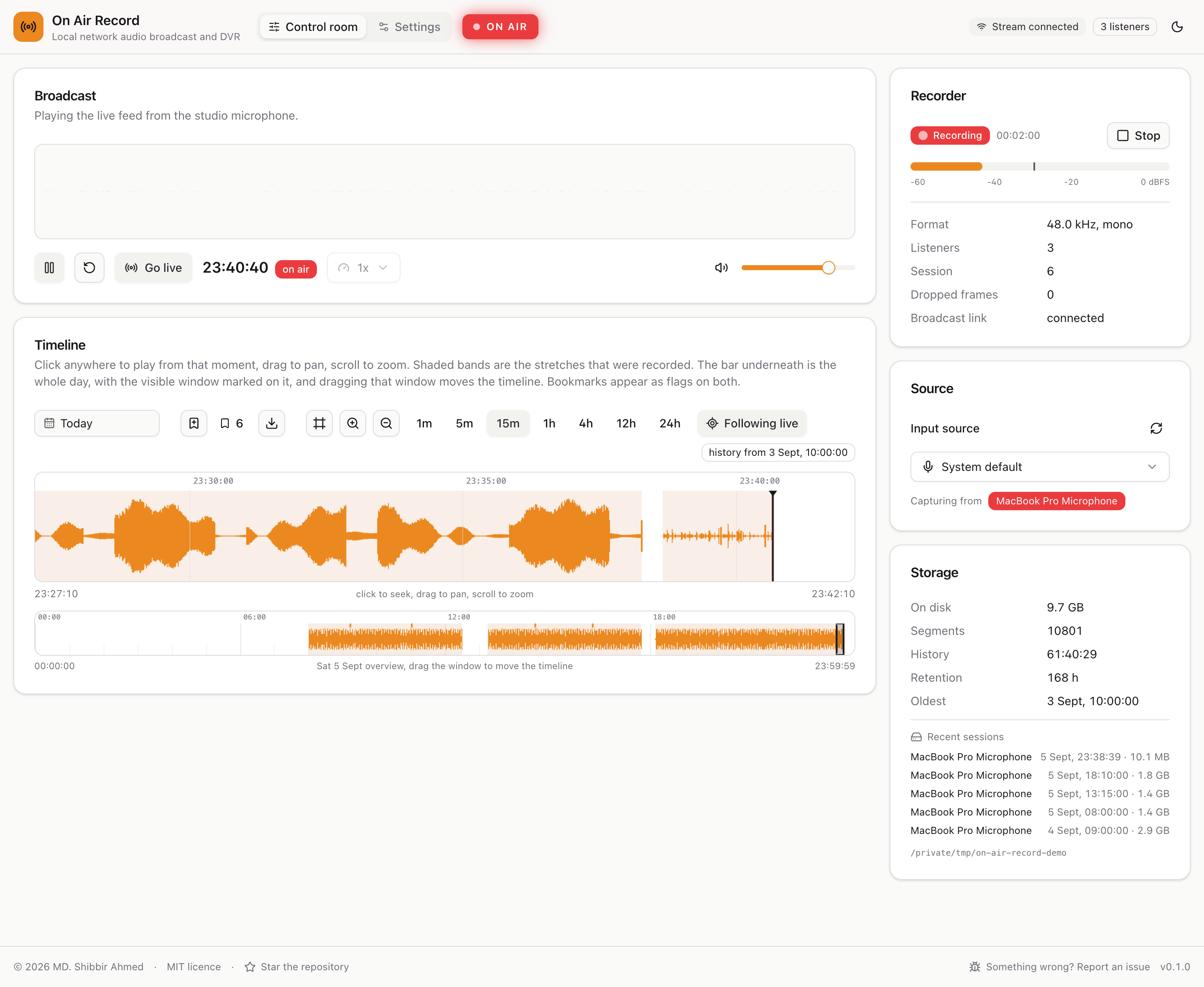
From another device on the same network, use the host machine's address on the network:
# macOS: find the address of whichever interface is actually in use
ipconfig getifaddr "$(route -n get default | awk '/interface:/{print $2}')"

# Linux
hostname -I

# Windows: look for IPv4 Address under your active adapter
ipconfig
Then open http://<that-address>:8080 from the phone, tablet or laptop. Give that address to anyone who
needs to listen.
The first time anyone opens the page, it asks whether to protect the recorder with a login. Be the first to open it, so that you are the one who answers. Logins and accounts explains the choice.
A recorder is a microphone that is always on, so decide who can reach it. The first person to open the page is asked once:
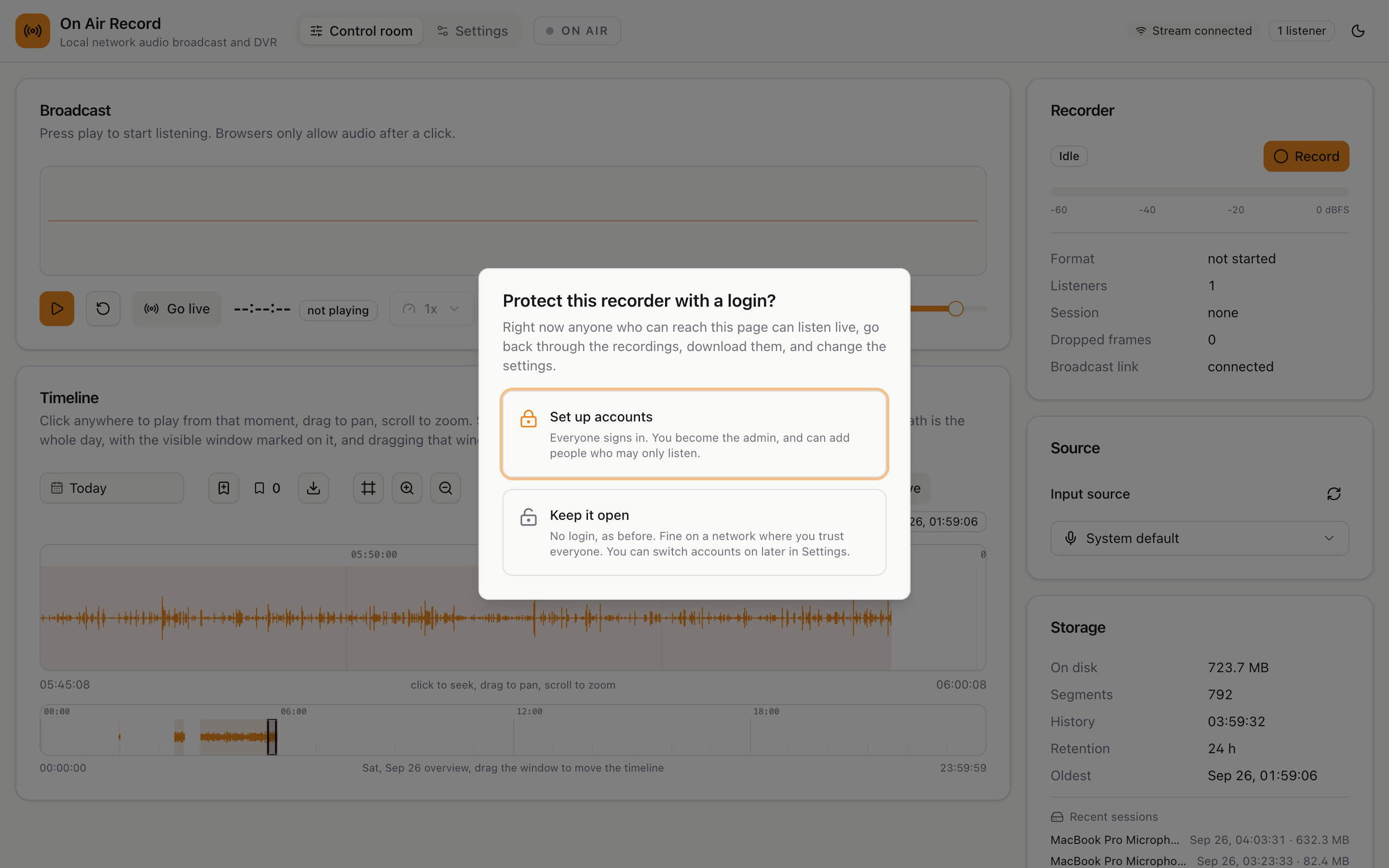
- Set up accounts. They create the admin account on the spot, and from then on everybody signs in.
- Keep it open. No login, as in earlier versions. Anyone who can reach the page can listen, go back through the recordings, download them, and change the settings.
Keeping it open is reasonable on a network where you trust every person and every device. On a shared network, an office, or anywhere reachable from outside, set up accounts. Either way, pages served by other websites are refused, so opening some other site cannot make a browser listen in or press buttons here.
The question is asked by whoever arrives first. On a network with other people on it, open the page yourself as soon as it starts, so that nobody answers it before you do. An existing installation that is upgraded asks the question too, on its next visit.
The user guide walks through every screen of this with pictures: the first visit, signing in, account settings, two factor sign in, and managing accounts.
| Admin | Listener | |
|---|---|---|
| Listen live, scrub back, change day, play faster or slower | Yes | Yes |
| Export audio as WAV | Yes | Yes |
| See bookmarks and jump to them | Yes | Yes |
| Start and stop recording, choose the microphone | Yes | No |
| Add and remove bookmarks | Yes | No |
| Settings, including retention and where recordings go | Yes | No |
| Add, change and remove accounts | Yes | No |
Admins add accounts under Settings, Access, and give each person their email and a first password; there is no mail server, so nobody is emailed anything. Everyone can change their own password under Account settings, in the account menu at the top right. There is always at least one admin: the last one cannot be removed or made a listener.
If you kept it open and change your mind, go to Settings, Access, Set up accounts. Anyone already listening is asked to sign in within a few seconds.
Anyone with an account, admin or listener, can add a second step to signing in: a 6 digit code from an authenticator app on their phone, such as Google Authenticator, Microsoft Authenticator, Authy or 1Password. Someone who learns the password still cannot sign in without the phone. It is recommended for admins, whose accounts can change everything.
Each person switches it on for themselves, under Account settings in the account menu at the top right:
scan the QR code with the app, type the code it then shows, and save the ten recovery codes it hands
out. Each recovery code signs in once in place of a code from the phone. They are shown only at that
moment, so download or copy them and keep them away from the phone. On a plain http:// address the
browser does not allow copying, so use Download.
Codes change every 30 seconds and depend on the clock, so the host and the phone need roughly the right
time. About 30 seconds either way is forgiven. If codes are refused that the phone is showing, check the
host's clock first; timedatectl on Linux shows whether it is kept in sync.
Admins can see who has it, as a 2FA badge next to each account under Settings, Access.
-
With a recovery code: sign in with it in place of the code. Then set up the new phone under Account settings, Two factor sign in: turn it off with your password and set it up again. New recovery codes there replaces a set that is running low.
-
Without recovery codes, when an admin can help: the admin presses the shield button next to the account under Settings, Access. The person then signs in with their password alone.
-
The only admin, without recovery codes: remove it on the host, like a password reset:
./on-air-record/on-air-record --data-dir ./on-air-record/data auth reset-2fa you@example.com
-
A listener, or an admin when another admin can help: an admin opens Settings, Access, and sets a new password with the key button next to the account.
-
The only admin: reset it on the host, with the program itself, against the same data folder. It prints a new password and works whether or not the service is running:
./on-air-record/on-air-record --data-dir ./on-air-record/data auth reset-password you@example.com
For the systemd service, run it as the service account, so the database keeps its owner:
sudo -u on-air-record on-air-record --data-dir /var/lib/on-air-record auth reset-password you@example.com. -
Turn logins off completely, deleting every account, with
auth disablein place ofauth reset-password you@example.com. The page then works without a login, and accounts can be set up again from the settings.
After five wrong passwords or codes from one device, that device has to wait 15 minutes. Restarting the service clears the wait, which is worth knowing if it was you.
Logins work over plain HTTP on your network. If you put the recorder behind a reverse proxy that serves it
over HTTPS, have the proxy send X-Forwarded-Proto: https and pass the original Host header through
unchanged. The first marks the login cookie secure. The second matters because the recorder refuses
changes from any page whose address does not match the one it was reached on, and a proxy that rewrites
Host makes every request look like it came from somewhere else.
8080 is only the default. Change it with --port on the command line:
# macOS and Linux
./on-air-record --port 9000
# Windows
.\on-air-record.exe --port 9000or with the OAR_PORT environment variable, which is the easier one to use with a service manager that
does not let you edit the command line:
# macOS and Linux
OAR_PORT=9000 ./on-air-record
# Windows, for this console window only
$env:OAR_PORT = "9000"
.\on-air-record.exeIf you set both, the command line wins. That is deliberate, so you can override a service's configured port for one run without editing the service.
Reasons to change it:
-
Something else already uses 8080. It is a popular port. If it is taken, the app refuses to start and
says so rather than failing quietly:
Pick another number and try again.
ERROR on_air_record: could not bind the http listener error=Address already in use (os error 48) address=0.0.0.0:8080 - You want a memorable number to give people, such as 8000 or 9000.
- You want to run two copies, for example a test one alongside the real one. Give each its own port and its own data directory, or they will fight over the same database.
Pick a number between 1024 and 65535. Below 1024 needs administrator rights on macOS and Linux and is not worth the trouble.
Whatever you choose, the address becomes http://<host>:<your port>, and it has to be included: browsers
assume port 80 when you leave it out.
Every option can be given as a command line flag or as an environment variable. The flag wins if you use
both. Run on-air-record --help to see this list on the machine itself.
| Flag | Environment variable | Default | What it does |
|---|---|---|---|
--port |
OAR_PORT |
8080 |
The port the web interface is served on. |
--host |
OAR_HOST |
0.0.0.0 |
Which network connections to accept. 0.0.0.0 means all of them. Use 127.0.0.1 to allow only the machine itself. |
--data-dir |
OAR_DATA_DIR |
./data |
Where recordings and the database are kept. |
--static-dir |
OAR_STATIC_DIR |
../frontend/dist |
A folder holding a web interface to serve instead of the built in one. You do not normally need this. |
--log-level |
OAR_LOG_LEVEL |
info |
How much detail is printed: error, warn, info, debug or trace. Use debug when reporting a problem. |
| none | OAR_CHANNEL |
from the version | Which releases the update notices offer: stable or beta. The installers' --beta saves it in their config file. |
| none | RUST_LOG |
not set | A detailed logging filter that replaces --log-level, such as on_air_record=debug,tower_http=info. |
A complete example:
./on-air-record --port 9000 --data-dir /srv/on-air-record --log-level debugThe same thing with environment variables:
OAR_PORT=9000 OAR_DATA_DIR=/srv/on-air-record OAR_LOG_LEVEL=debug ./on-air-recordIn Docker, the image sets some of these for you; Environment variables in the Docker section lists what to set there and what to leave alone.
Everything else, such as which microphone to use, how long to keep recordings and at what quality, is changed on the app's own settings page while it is running. It is remembered between restarts, so it does not belong on the command line. The user guide covers those.
By default, in a folder called data next to wherever you happened to run the program from, not next
to the program itself. Start it from a different folder and it will look like it has lost all its
recordings, when in fact it has made a second empty data folder somewhere else.
Avoid that by always giving it a full path:
# macOS and Linux
./on-air-record --data-dir /srv/on-air-record

# Windows
.\on-air-record.exe --data-dir C:\on-air-record\data
That folder ends up holding:
<data-dir>/
  on-air-record.sqlite     the settings, and the index of what was recorded when
  recordings/              the audio itself, in a folder per day
Point it at a disk with room. If the disk fills up, recording stops. The app's settings page will estimate how much you need for the history you want to keep, and it deletes its own old recordings to stay inside that limit.
The recordings folder can be moved somewhere else later from the settings page without restarting, and without losing what has already been recorded.
For a machine that is always on, run it with launchd.
Run it by hand once first and allow the microphone prompt, otherwise a background job will silently find no microphones.
Create ~/Library/LaunchAgents/com.onairrecord.plist:
<?xml version="1.0" encoding="UTF-8"?>
<!DOCTYPE plist PUBLIC "-//Apple//DTD PLIST 1.0//EN" "http://www.apple.com/DTDs/PropertyList-1.0.dtd">
<plist version="1.0">
<dict>
  <key>Label</key>
  <string>com.onairrecord</string>
  <key>ProgramArguments</key>
  <array>
    <string>/usr/local/bin/on-air-record</string>
    <string>--port</string>
    <string>8080</string>
    <string>--data-dir</string>
    <string>/Users/YOUR-NAME/on-air-record/data</string>
  </array>
  <key>RunAtLoad</key>
  <true/>
  <key>KeepAlive</key>
  <true/>
  <key>StandardErrorPath</key>
  <string>/tmp/on-air-record.log</string>
</dict>
</plist>
Then:
sudo cp on-air-record /usr/local/bin/
launchctl load ~/Library/LaunchAgents/com.onairrecord.plist
Use a LaunchAgent in your own home folder as shown, not a system wide LaunchDaemon. Microphone permission on macOS belongs to a logged in user, and a daemon running as the system has no user to have been granted it. The cost is that recording only runs while you are logged in.
With Docker there is nothing to do. The compose file restarts the container
whenever the machine starts, as long as Docker itself starts at boot, which it does by default once
installed; sudo systemctl enable docker makes sure. The rest of this section is for a direct install.
The repository ships a systemd unit at
packaging/on-air-record.service, and it is included in the Linux
release archive. Its header comment carries the full install sequence. In short:
sudo install -m 755 on-air-record /usr/local/bin/on-air-record
sudo useradd --system --home /var/lib/on-air-record --shell /usr/sbin/nologin on-air-record
sudo usermod -aG audio on-air-record
sudo install -d -o on-air-record -g on-air-record /var/lib/on-air-record
sudo install -m 644 on-air-record.service /etc/systemd/system/
sudo systemctl daemon-reload
sudo systemctl enable --now on-air-record
The usermod -aG audio line is the one people miss. Without it the service starts, serves the web
interface, and lists no microphones at all, which looks like a hardware fault rather than a permissions
one. Do not work around it by starting the program by hand with sudo; see
When it runs as a system service for why, and how to recover.
To change the port or the data directory, edit the Environment= lines in the unit file:
Environment=OAR_DATA_DIR=/var/lib/on-air-record
Environment=OAR_HOST=0.0.0.0
Environment=OAR_PORT=8080
then reload and restart:
sudo systemctl daemon-reload
sudo systemctl restart on-air-record
Useful afterwards:
systemctl status on-air-record     # is it running
journalctl -u on-air-record -f     # watch the log
sudo systemctl stop on-air-record # stop recordingThere is no service wrapper built into the program, because an untested code path would be worse than a documented command. Use one of the two standard tools.
NSSM is the better option. It supervises an ordinary console program properly, restarts it if it stops, and captures its output to a log:
nssm install OnAirRecord C:\on-air-record\on-air-record.exe
nssm set OnAirRecord AppParameters "--port 8080 --data-dir C:\on-air-record\data"
nssm set OnAirRecord AppStdout C:\on-air-record\service.log
nssm set OnAirRecord AppStderr C:\on-air-record\service.log
nssm start OnAirRecord
The built in sc.exe also works, with a caveat:
sc.exe create OnAirRecord binPath= "C:\on-air-record\on-air-record.exe --port 8080 --data-dir C:\on-air-record\data" start= auto
sc.exe start OnAirRecord
Note the space after each =, which sc.exe insists on. It expects a program written to talk to the
Windows service manager, which this is not, so it will report a timeout on start even though the process
is running fine. That is why NSSM is the better choice.
Whichever you use: the Windows audio session belongs to the signed in user. A service running as
LocalSystem may see no capture devices at all. Set the service to run as the account whose microphone you
want to record, under Services, the service's Properties, Log On.
If the app works on the host machine at http://localhost:8080 but nothing else on the network can reach
it, the firewall is almost always the reason. The port has to be open for incoming connections.
# Windows, as administrator, adjust the port to match yours
netsh advfirewall firewall add rule name="On Air Record" dir=in action=allow protocol=TCP localport=8080
# Linux with ufw
sudo ufw allow 8080/tcp
# Linux with firewalld
sudo firewall-cmd --permanent --add-port=8080/tcp && sudo firewall-cmd --reloadmacOS does not usually block this, but if it does, System Settings, Network, Firewall, Options, and allow
incoming connections for on-air-record.
Also check that --host has not been set to 127.0.0.1, which restricts it to the machine itself on
purpose.
Do not forward this port through your router to the internet, even with accounts switched on. Without them, anyone who can reach the address can listen to the microphone and change the settings. With them, a password is all that stands between the internet and the microphone, and the service has not been built or tested to face the open internet. If you need access from elsewhere, use a VPN into that network.
The control room tells admins when a new version is out, with what changed and the commands to update for the way this copy was installed; see the user guide's Updates section. To do it by hand:
- Stop the service.
- Replace the program file with the new one.
- Start it again.
For a folder made by the installer, those three steps are two commands, run as the account that owns the folder:
./on-air-record/stop.sh
curl -fsSL https://raw.githubusercontent.com/shibbirweb/on-air-record/master/scripts/install.sh | sh -s -- --update
Stop it first: --update replaces the program and starts it again, and a copy still running would hold
the port.
Running it in Docker: docker compose pull then docker compose up -d, as in
Docker on Linux.
The update check. Every six hours, and a minute after it starts, the service asks
api.github.com for the list of releases. That is the only request it ever makes to the internet. It
sends nothing about the recorder beyond its version in the user agent, and it never downloads or installs
anything. Turn it off under Settings, Updates, Check for updates automatically. A machine with no
internet access needs no change: the check fails quietly and tries again later.
Leave the data directory alone. Recordings, settings and bookmarks all live there and carry over. The database upgrades itself on first start if the new version needs it.
Upgrading from a version without logins: the next visit to the page asks whether to set up accounts. Open it yourself straight after upgrading, so that you are the one who answers. See Logins and accounts.
Nothing else is written anywhere on the machine, so there is no cache or configuration file to clear.
With Docker, follow betas by changing the image tag, as Day to day describes. The rest of this section is for the installers.
New features are released as a beta first, with a version like 0.4.0-beta.1, for people willing to
try them before everybody else gets them. Betas are tested on all three platforms like any release, but
they are new, so expect the occasional rough edge, and please
report what you find.
Install or switch to betas with the installer's --beta option:
curl -fsSL https://raw.githubusercontent.com/shibbirweb/on-air-record/master/scripts/install.sh | sh -s -- --beta& ([scriptblock]::Create((irm https://raw.githubusercontent.com/shibbirweb/on-air-record/master/scripts/install.ps1))) -BetaThat installs the newest release of any kind, beta or stable, and the folder remembers the choice, so a
later --update fetches the newest beta without needing --beta again. When a beta becomes the stable
release, you get that too.
To go back to stable releases, run the installer with --stable (or -Stable). It does not step
backwards: if the beta you have is newer than the latest stable release, it keeps the beta, because an
older version may not understand the newer one's data, and switches over as soon as a newer stable
release is out. To pin one exact version instead, use --release v0.4.0-beta.1.
A beta's data carries over into the stable release it leads up to, so there is nothing to migrate by hand.
- Stop the service, and remove it:
sudo systemctl disable --now on-air-recordon Linux,nssm remove OnAirRecord confirmorsc.exe delete OnAirRecordon Windows,launchctl unload ~/Library/LaunchAgents/com.onairrecord.pliston macOS. - Delete the program file, and the unit or plist file if you made one.
- Delete the data directory. That is where all the recordings are, so be sure before you do.
In Docker, docker compose down, then docker volume rm on-air-record_data for the recordings.
Needed only for a platform with no prebuilt file or image, such as a Raspberry Pi on a 32 bit OS, or to work on the code.
You need Rust 1.82 or newer and Node.js 22. On Debian based Linux you also need the audio and build headers:
sudo apt install build-essential pkg-config libasound2-devThen:
git clone https://github.com/shibbirweb/on-air-record.git
cd on-air-record

# 1. the web interface, first, because the next step bakes it into the program
cd frontend && npm ci && npm run build

# 2. the program
cd ../backend && cargo build --release
The finished program is backend/target/release/on-air-record. Copy it wherever you like and run it as
above.
The order matters. A release build embeds whatever is in frontend/dist at the moment it compiles, so
building the program against a stale or empty frontend/dist produces a binary serving a stale or missing
interface.
docs/DEVELOPMENT.md has the rest, including how to run it with live reloading while changing the code.
For maintainers. Releases are started from the Actions tab and published by workflows once their pull requests are merged, and the binaries build themselves. Doing it by hand is described after that.
There are two channels, one per branch:
flowchart LR
    feature["feature branches"] -- "pull request" --> develop["develop<br/>beta"]
    develop -- "pull request, when a beta has held up" --> master["master<br/>stable"]
    develop -. "v0.4.0-beta.1, pre-release" .-> betas["beta testers<br/>install --beta"]
    master -. "v0.4.0, release" .-> everyone["everybody else<br/>the default"]
-
Beta, from
develop: a version like0.4.0-beta.1, published as a GitHub pre-release. GitHub never counts a pre-release as the latest release, so the installers do not offer it to anybody who has not asked for betas. -
Stable: the finished version, like
0.4.0, is merged intodeveloplike any other change, thendevelopis merged intomaster, and it is published frommasteras a normal release. Every change, releases included, enters throughdevelop, so after a stable release the two branches are the same.
The steps are the same for both; where they differ it says so below.
A beta can skip all the steps below. develop only takes changes by pull request, so the version bump
arrives as one too, and merging it is the decision to release:
- On GitHub, open Actions, choose Beta release, press Run workflow, leave Use workflow
from on
develop, and run it. It refuses unless CI has passed on the newestdevelopcommit, something has landed since the last release, and no other release is under way. Then it works out the next beta version,0.4.0-beta.1or the next number after the current beta, and opens a pull requestchore:[OAR-N] release 0.4.0-beta.1that changes only the version, with the release notes from the[Unreleased]section ofCHANGELOG.mdin its description. -
Merge that pull request. Once CI passes on
developafterwards, the Publish beta workflow starts by itself: it publishes the pre-release from the commit CI passed on, then builds every platform, attaches the files and installs them on macOS, Linux and Windows, exactly as below.
Close the pull request instead to cancel; nothing is published until it is merged. Tick Dry run in step 1 to see the version, commit and notes in the run summary, with nothing pushed or opened.
It needs one setting, once: Settings, Actions, General, Workflow permissions, tick Allow GitHub Actions to create and approve pull requests. Without it the first step says so and stops.
If publishing fails after the merge, open Actions, Publish beta, and re-run it; it picks up where it left off, and a new beta cannot be started until this one is out.
When a beta has held up, making it the stable release takes one click and two merges:
- On GitHub, open Actions, choose Stable release, press Run workflow, leave Use workflow
from on
develop, and run it. It refuses unless CI has passed on the newestdevelopcommit,developis at a beta that has been published, and nothing that changes the program has landed since that beta (documentation, tests and tooling are fine). Then it finishes the version,0.4.0-beta.2becomes0.4.0, dates the[Unreleased]section ofCHANGELOG.md, and opens a pull requestchore:[OAR-N] release 0.4.0intodevelopwith the release notes in its description. -
Merge that pull request. Once CI passes on
develop, the Promote stable workflow opens a pull request fromdevelopintomaster, titledrelease v0.4.0. -
Merge that one too. Once CI passes on
master, the Publish stable workflow publishesv0.4.0frommasteras the latest release, with its changelog section as the notes, then builds every platform, attaches the files and installs them on macOS, Linux and Windows.
Nothing is published until both pull requests are merged; close either to stop. The develop to master
pull request follows develop, so merge it before merging other work, or that work goes out with the
release. Promote stable refuses to open it if something untried has landed in between. Tick Dry run in
step 1 to see the version, commit and notes without anything being pushed or opened.
It needs the same setting as betas. If publishing fails after the second merge, re-run Publish stable from Actions. Do not also publish the release by hand: it would race the workflow for the tag.
The steps below are what the workflows do, for doing it by hand when you need to.
The version lives in backend/Cargo.toml and nowhere else that matters. It is what the program reports
from /api/health, what --version prints, and what the footer shows, so the release tag has to agree
with it. The same number is recorded in four files, so move it with the script rather than by hand:
make release # or: node scripts/version.mjs bumpThat lists everything that has landed since the last release, suggests whether it is a patch, a minor or
a major from the commit types, and moves all four files once you choose. Run it on a branch cut from
develop. It prints the commit line to paste afterwards and where to merge it. Nothing is committed,
tagged or pushed for you:
git switch -c chore/OAR-N-release-0.4.0 develop
node scripts/version.mjs bump release
git commit -am "chore:[OAR-N] release 0.4.0"
# pull request into develop, then a pull request from develop into master
Bumping to a stable version also dates the changelog: ## [Unreleased] becomes ## [0.4.0] with today's
date, and the compare link at the bottom moves with it. A beta leaves the changelog alone.
Or skip the question:
node scripts/version.mjs bump beta       # 0.3.0 -> 0.4.0-beta.1, then 0.4.0-beta.1 -> 0.4.0-beta.2
node scripts/version.mjs bump release    # 0.4.0-beta.2 -> 0.4.0, then into develop and develop into master
From a stable version, the first beta previews whichever release the commits call for, so feature work
gives 0.4.0-beta.1 rather than 0.3.1-beta.1.
You never have to work out whether a release is due: every CI run says so in its summary, and
make pending answers the same question locally.
To release the version the manifest already carries, there is nothing to do here.
Go to Releases, then Draft a new release.
-
Choose a tag: type
vfollowed by the version, sov0.2.0, and pick Create new tag on publish. -
Target:
masterfor a stable release,developfor a beta. - Title: the version is fine.
-
Notes: leave them empty. The workflow fills them in from the version's section of
CHANGELOG.md, which is what the app shows admins as What's new. Do not press Generate release notes: GitHub's list of pull requests is replaced the same way, but it is not worth the confusion. Anything you do write by hand is kept exactly as it is. - Set as a pre-release: ticked for a beta, unticked for a stable release. The workflow checks this against the version and refuses to build if they disagree, because a beta published as a normal release would be handed to everybody.
- Press Publish release.
The tag is created for you. You never have to run git tag.
Publishing starts .github/workflows/release.yml, which:
- Checks the tag against
backend/Cargo.tomland stops immediately if they disagree. - Builds the web interface once, so every platform ships identical assets rather than four builds that merely ought to match.
- Builds the program for all four targets in parallel, each with that interface compiled in:
aarch64-apple-darwinandx86_64-apple-darwinon a macOS runner,x86_64-unknown-linux-gnuon Linux, andx86_64-pc-windows-msvcon Windows. - Packs each into a
.tar.gz, or a.zipon Windows, with a.sha256alongside. - Attaches all eight files to the release you just published, then fills in the notes from
CHANGELOG.mdif they are empty or are GitHub's generated list. - Installs what it just published, on macOS, Linux and Windows, using the installer scripts exactly as a user would, and checks the service starts and reports the version the archive is named for.
- Alongside all that, builds the container image from the
Dockerfileforlinux/amd64andlinux/arm64, each on its own native runner, and pushes it toghcr.io/shibbirweb/on-air-recordtagged with the version, and to Docker Hub asshibbirweb/on-air-recordwhen its secrets are set up (below). A beta also movesbeta; a stable release moveslatest,betaand its minor line, like0.7. - Verifies the image the way a user gets it, on an amd64 and an arm64 runner, without signing in: pulls it from both registries, checks every tag points at the new image and both registries hold the same one, then runs it from each, and checks it answers as that version and stops cleanly. It also tries to pass a loopback sound card through as this guide says, but GitHub's own runners cannot load one, so that part only warns there; passthrough with a real microphone was checked by hand on an Ubuntu server.
If the image cannot be pulled without signing in, the ghcr.io package is private. New packages can start out private; this one was public from its first release, 0.8.0-beta.1, but the setting is worth knowing. Open the package from the repository's Packages list, then Package settings, Change visibility, Public. The verify the image jobs pull without signing in precisely to catch this, and fail with an error linking to the setting; once it is public, re-run the failed jobs from the run's page.
Docker Hub needs two repository secrets, set once:
- On Docker Hub, signed in as
shibbirweb, open Account settings, Personal access tokens, and create one with Read, Write, Delete access. Pushing images needs only Read and Write, but Docker Hub only lets a token with Delete change the repository's description, which the page below needs. - In this repository on GitHub, Settings, Secrets and variables, Actions, add
DOCKERHUB_USERNAME(shibbirweb) andDOCKERHUB_TOKEN(the token).
Until both are set, releases still publish to ghcr.io and the image tags job warns that Docker Hub was
skipped. Releases published before the secrets existed are not pushed there afterwards; Docker Hub starts
at the next release.
The Docker Hub page is packaging/DOCKERHUB.md, published by
.github/workflows/dockerhub-description.yml. Docker
Hub reads nothing from GitHub, so that file is the whole page. It is documentation for stable users, so it
follows master rather than releases: it publishes whenever a change to it reaches master, which
usually arrives with a stable release, and betas leave it alone. To publish it again without a change,
run the workflow from the Actions tab on master. It never runs as part of a release, so a token without
the Delete scope fails it alone, with Forbidden, and never a release. When a Docker behaviour changes,
update that page as well as the Docker section above.
Expect ten to fifteen minutes, most of it compiling. The release exists and is visible the whole time; the files appear at the end. Notes you wrote yourself are left exactly as they are.
That last step runs after publishing, because there is nothing to install until the files exist. So if it fails, the release is already public and broken. Delete it and its tag, fix the problem, and cut it again.
The build stops in its first job, in seconds, before anything is compiled:
The release is tagged v0.3.0 but backend/Cargo.toml says 0.1.0. Either tag it v0.1.0, or run
'node scripts/version.mjs set <version>', commit, then delete the release and its tag and create it again.
That is the guard against shipping an archive named for one version holding a binary that reports another. Delete the release from its page, delete the tag it created, fix whichever side is wrong, and publish again.
Run the workflow from the Actions tab with Run workflow. It builds the same files and offers them
as downloadable artifacts without touching Releases. They are named for the manifest version plus the
commit, such as on-air-record-v0.1.0-dev-4f5389a-x86_64-unknown-linux-gnu.tar.gz, so a rehearsal can
never be mistaken for a real release. A rehearsal pushes no container image; make docker builds one
locally instead.
Separately, .github/workflows/ci.yml runs on every push and pull request:
formatting, linting and the full test suite on macOS, Linux and Windows, the frontend checks, a check that
the four recorded versions still agree, a run of the installers on all three platforms that starts the
service they produce and confirms it answers, and a build of the container image that runs it, stages
each way the sound cards can be out of reach and checks the service names the right fix, and stops it. It
also tries to pass a loopback sound card in, which GitHub's own runners cannot load, so that step only
warns there. Those Windows jobs are the only thing standing behind the
Windows build, since it cannot be produced or tested from a Mac.
"Address already in use" and it exits immediately.
Something else has the port. Start it on another one with --port 9000. See
Choosing a port.
It starts, but the page will not load. Check the port in the address bar matches the port in the start up log line. If you are on another machine, see Letting other machines reach it.
The page loads but says the web interface has not been built.
Only a build from source can say this, and it means frontend/dist was empty when the program was
compiled. Build the frontend and rebuild. A downloaded release carries its own interface and cannot land
here.
No microphones are listed.
- macOS: permission was refused. System Settings, Privacy and Security, Microphone. Run it in a terminal once, rather than as a background job, so the prompt can appear.
- Linux: the account is not in the
audiogroup, orarecord -llists nothing. See Linux: microphone access. - Windows: the service is running as
LocalSystem. Set it to run as a real user account.
Linux: it only records when I start it with sudo.
Your account cannot open the sound devices. Add it to the audio group and log in again, rather than
carrying on with sudo, which leaves files behind that break later runs. See
Linux: microphone access.
Linux: it says Recording, but nothing appears on the timeline.
Wait a minute first: new audio only appears once each block of recording (10 seconds by default) is
written. If the timeline is still
empty, it was probably started with sudo at some point, and folders it created then now belong to root.
The log will show could not open a segment file ... Permission denied. See
If you already ran it with sudo.
It recorded nothing while I was away. Check that Record on start up is switched on in the app's settings, and that the machine did not go to sleep. A sleeping computer records nothing, and the gap will show as a blank stretch on the timeline.
After a reboot it records silence, but Stop and then Start fixes it. The service started before the microphone was ready, most often a USB microphone on a machine that starts the service at boot. It could not find the chosen microphone, so it recorded from the computer's built in input instead, which usually has nothing plugged in. Set Start up delay in the app's settings to ten or twenty seconds, so recording waits for the microphone to appear.
It stopped after I closed the terminal. That terminal was running it. Set it up as a service so it survives, using the section for your platform above.
I closed the terminal and it is still running.
Closing a terminal usually stops it, but not always: over SSH, or with a terminal that exits without
signalling its children, the service is left serving. Run ./on-air-record/stop.sh from the folder you
installed into, or find it by its port. Both are covered under Stopping it.
Recordings older than a day or two keep vanishing. That is the retention window doing its job, and it defaults to 24 hours. Raise it on the settings page, and look at the storage estimate there before you do.
If something does not work, or the guide is wrong, open an issue:
https://github.com/shibbirweb/on-air-record/issues
Please include:
- What you did, what you expected, and what happened instead.
- Your operating system, and the version number shown in the bottom right corner of the app.
- Anything the program printed in its window or log at the time.
On Air Record is built and maintained by MD. Shibbir Ahmed (portfolio, GitHub).
Released under the MIT licence. Copyright (c) 2026 MD. Shibbir Ahmed.