Repository navigation
User Guide
On Air Record turns any computer with a microphone into a small radio station with a rewind button.
It does two things at the same time, all day, without being asked:
- It broadcasts. Whatever the microphone hears is sent to any web browser on your network, live.
- It records. Everything is saved to the computer's disk, so you can go back and listen to any moment from the past few hours or days.
That combination is what makes it useful. If something happens in the room and nobody was listening at the time, you can still go back and hear it, the same way you would rewind a security camera.
You do not need to install anything to listen. There is no account, no password, and no app. You open a web address in an ordinary browser.
If nothing is running yet, start with the installation guide, which covers downloading and running it on macOS, Linux and Windows. On Linux, the recommended way is its Docker section.
The screenshots in this guide come from a demonstration setup with several days of example recordings already on disk, so the timeline looks busy. A brand new installation starts empty and fills up as it records.
- Opening it
- Signing in
- Your account settings
- The screen at a glance
- The top bar
- Listening to what is happening now
- Choosing which microphone to use
- The timeline
- Going back to an earlier moment
- Playing slower or faster
- Jumping to another day
- Bookmarks: naming a moment
- Saving a piece of audio as a file
- Checking that it is still recording
- Disk space
- Settings
- On a phone or a tablet
- Dark mode
- Questions and problems
- Reporting a problem
- Credits
Two useful terms before we start:
- The host computer is the machine the microphone is plugged into, running the On Air Record program. It does the recording. It has to stay switched on.
- Your browser is wherever you are listening from. That can be the host computer itself, or a laptop, phone or tablet on the same network.
On the host computer, open:
http://localhost:8080
From any other device on the same network, use the host computer's address on the network instead. Whoever set the service up can tell you what it is. It looks something like:
http://192.168.1.24:8080
The 8080 on the end is the port. 8080 is only the default and whoever installed it may have chosen
another number, in which case your address ends in that number instead. Either way the port has to be
included, because a browser assumes a different one if you leave it out. Changing it is covered in the
installation guide.
Whoever set the recorder up chose whether it needs a login. If it does not ask you to sign in, it was left open: anyone who can open the address can listen and change the settings. That is meant for a network you trust, such as a home, and not for the open internet.
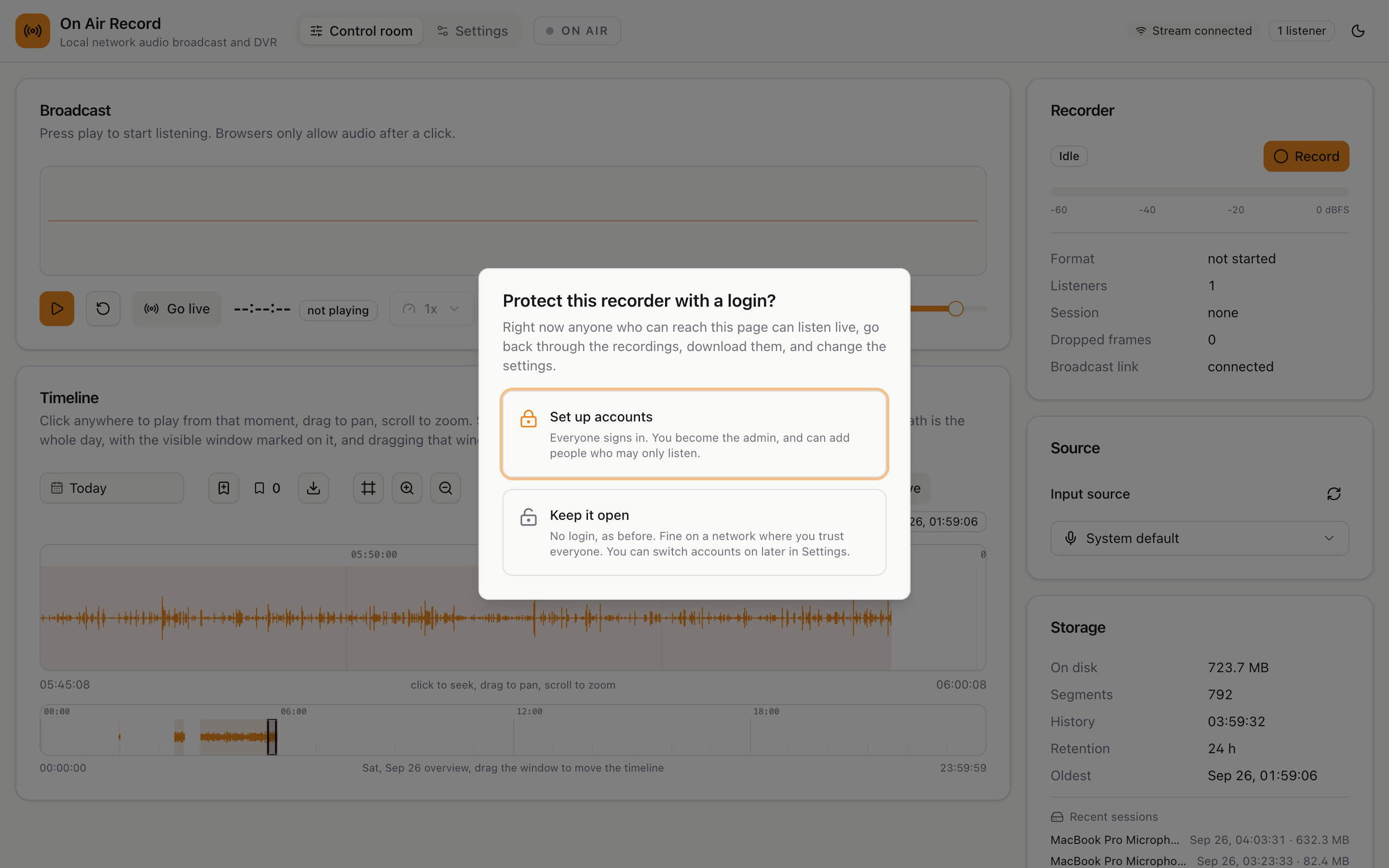
The very first time anyone opens the page, it asks one question, and it does not go away until it is answered:
- Set up accounts: everybody will need to sign in. You create the first account, which becomes the admin, and can add other people afterwards.
- Keep it open: no login, as before. You can still switch accounts on later from the settings page.
Whoever answers first decides, so if other people share the network, open the page yourself first. Logins and accounts in the installation guide helps with the choice.
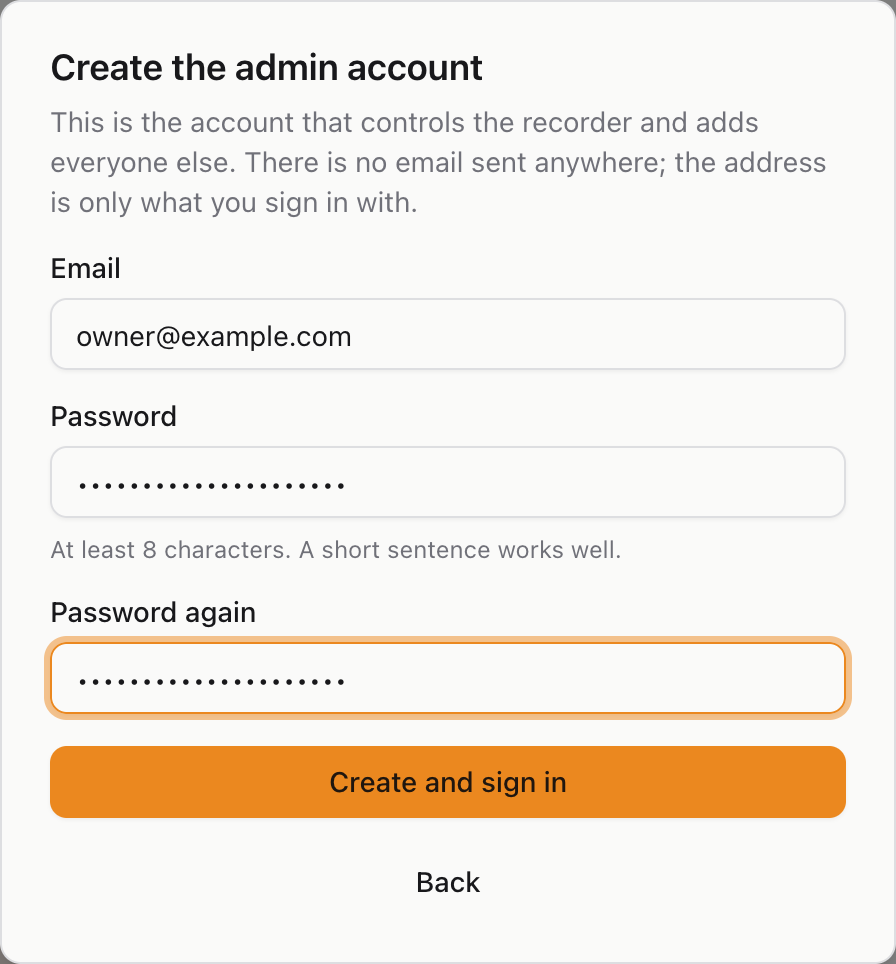
Choosing Set up accounts asks for an email and a password. Nothing is ever sent to the email; it is only the name you sign in with. The password needs at least 8 characters, and a short sentence works well. Create and sign in finishes setup and signs you straight in.
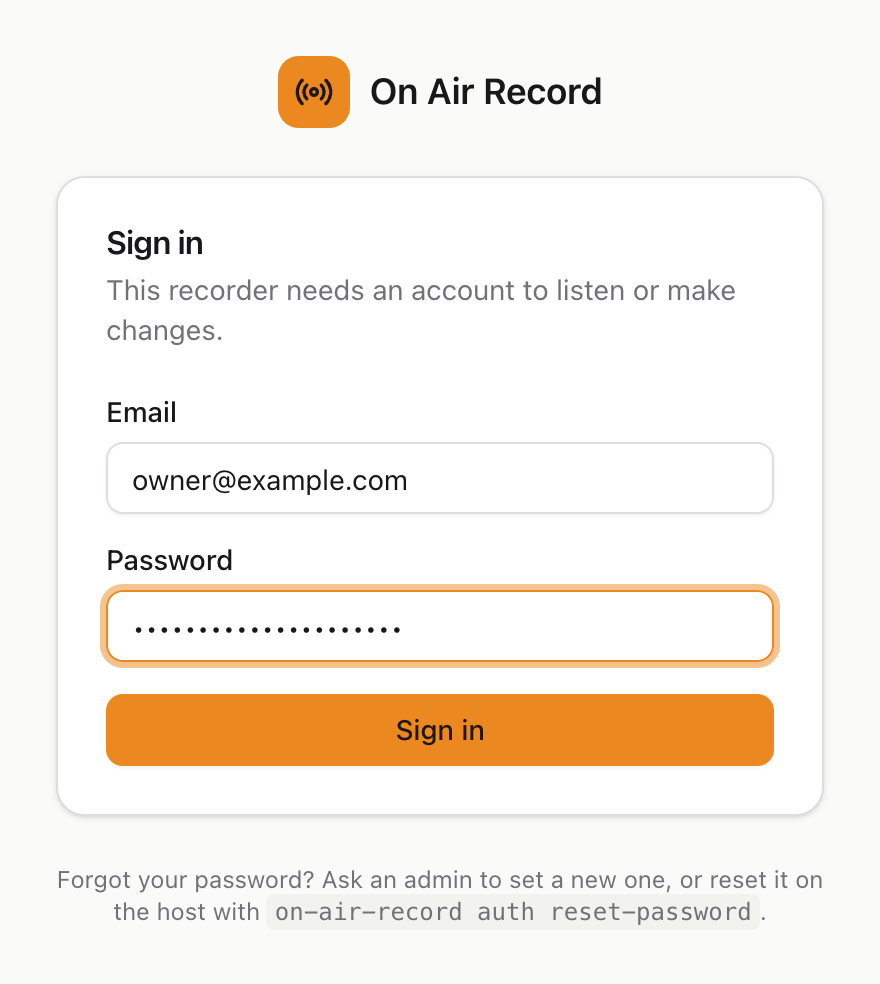
With accounts on, the page asks for your email and password before showing anything else. Use the ones the admin gave you. If you have forgotten your password, ask an admin to set a new one.
After five wrong passwords, the device you are using has to wait 15 minutes before trying again. Other devices are not affected.
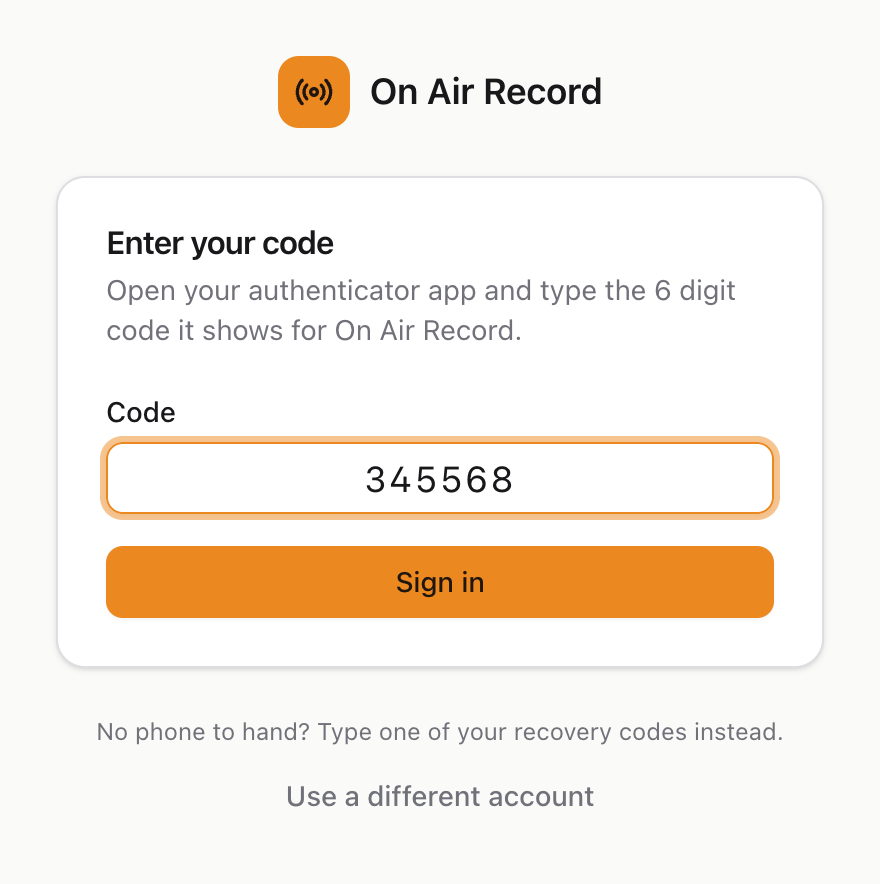
If you have switched on two factor sign in, a right password takes you to a second step. Open your authenticator app, find On Air Record, and type the 6 digit code it shows. No phone to hand? Type one of your recovery codes instead. Use a different account goes back to the password.
There are two kinds of account:
- Admin: everything, including the settings and the list of accounts.
- Listener: listen live, go back through the recordings, change day, play faster or slower, jump to bookmarks, and save audio as a file.
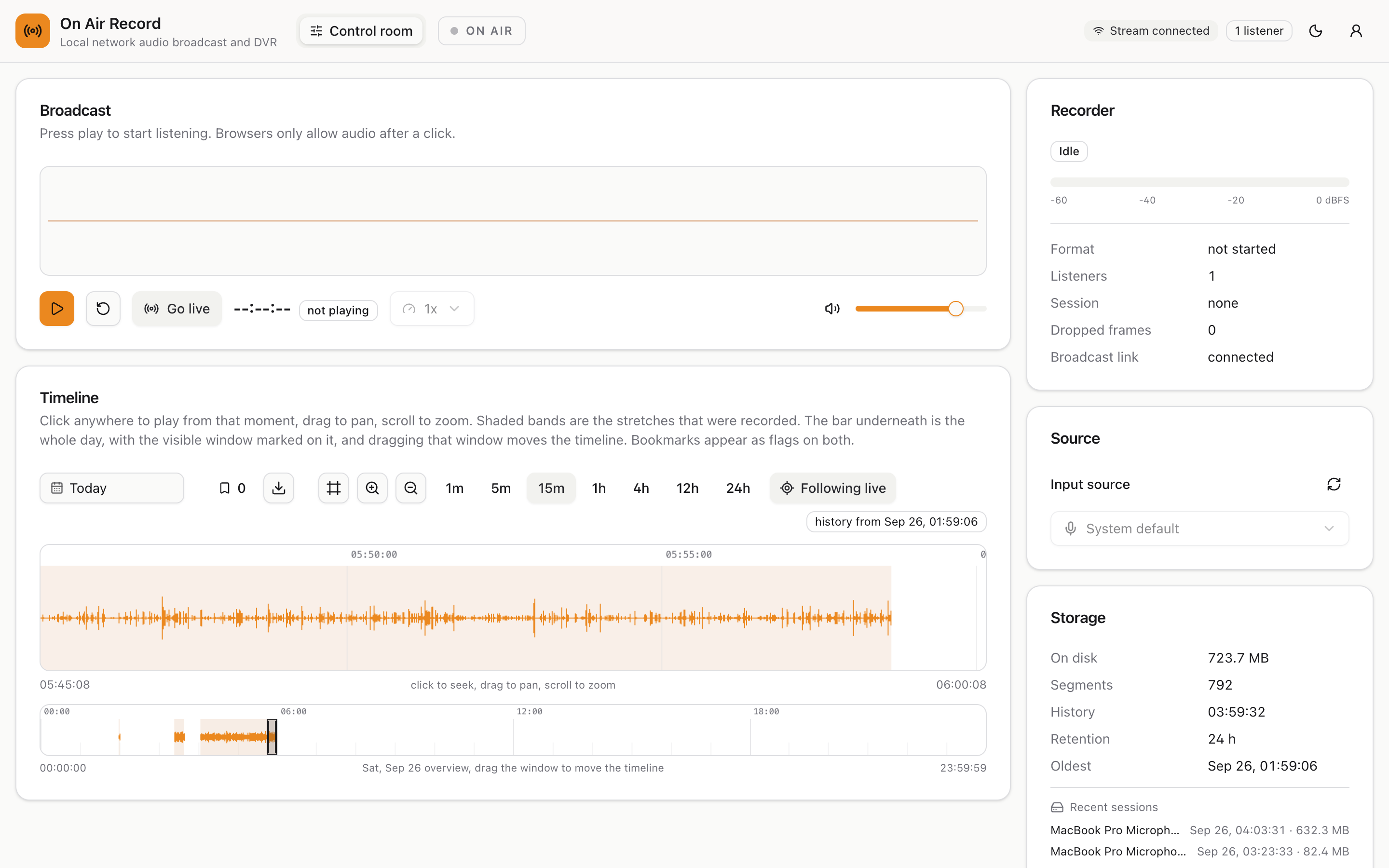
A listener sees the same control room without the things they cannot change. There is no Settings link in the top bar, no Record or Stop button, the microphone choice is greyed out, and bookmarks can be jumped to but not added or removed.
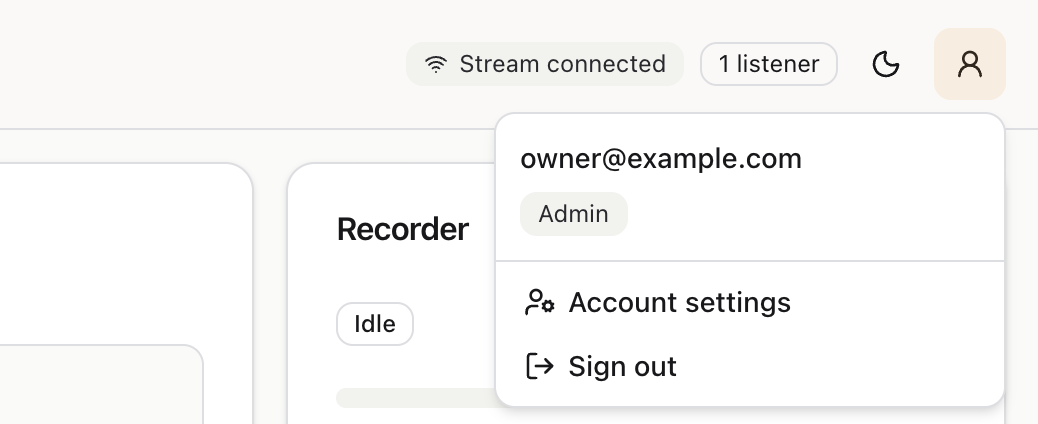
With accounts on, the person icon at the top right is your account. It shows your email and whether you are an admin or a listener, and has Account settings and Sign out.
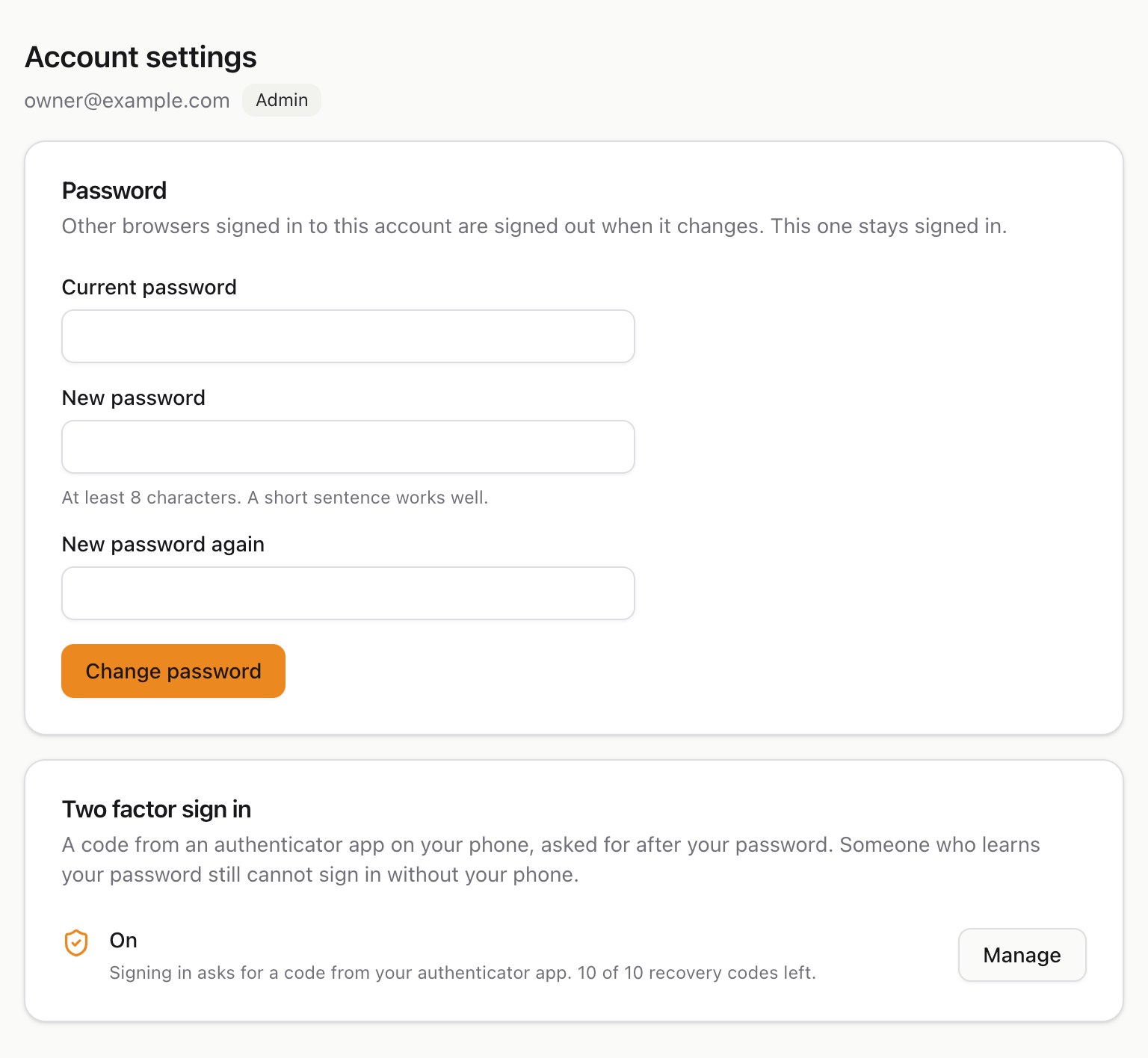
Account settings is yours whatever your role, listeners included. It opens as a page inside the app, so audio you are listening to keeps playing.
To change your password, type the current one and the new one twice, then press Change password. Every other device signed in to your account is signed out, which is the point if you think someone may know the old one. The device you are using stays signed in.
Two factor sign in adds a second step after your password: a 6 digit code from an authenticator app on your phone, such as Google Authenticator, Microsoft Authenticator, Authy or 1Password. Someone who learns your password still cannot sign in without your phone. It is especially worth having on an admin account.
To switch it on, open Account settings and press Set up under Two factor sign in, then Set up again.
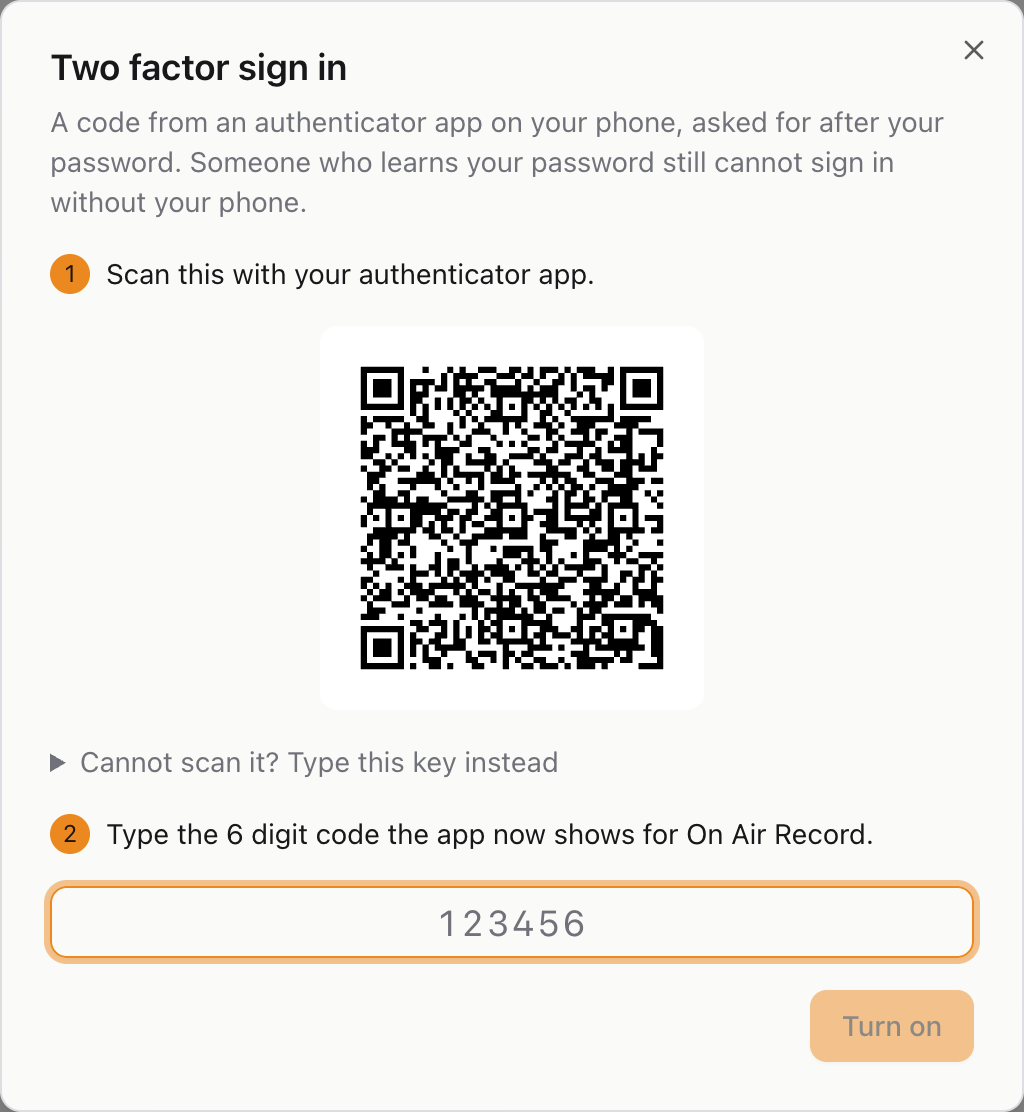
- Scan the QR code with your authenticator app. It appears there as On Air Record with your email. If you cannot scan it, open Cannot scan it? Type this key instead and type the key into the app.
- Type the 6 digit code the app now shows, and press Turn on. Codes change every 30 seconds, so type the current one.
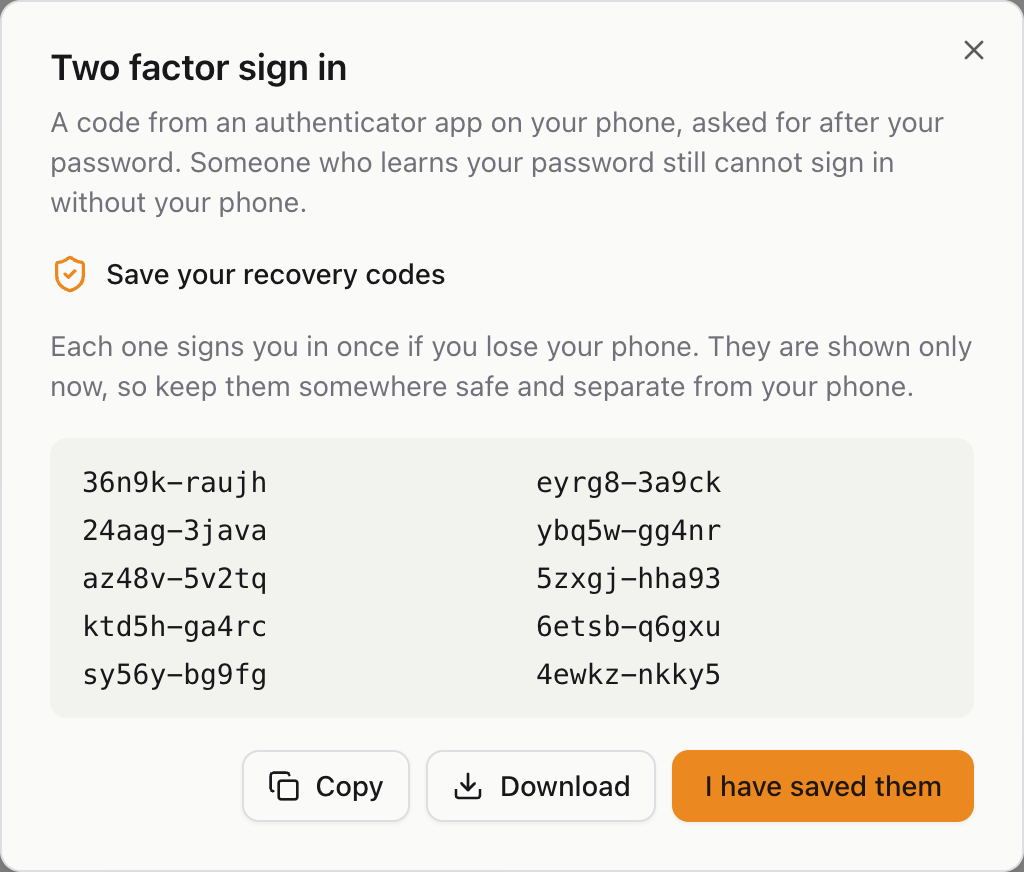
- You are given ten recovery codes. Each one signs you in once, in place of a code from your phone,
for the day your phone is lost or flat. They are shown only now, so press Download and keep the file
somewhere safe and away from your phone, then press I have saved them. On a plain
http://address the browser does not allow Copy, so use Download.
From then on, signing in asks for the code after your password. The Two factor sign in card on Account settings says it is on and how many recovery codes you have left, and Manage opens it again:
- New recovery codes replaces the whole set, for when they are running low or you have lost the file. The old ones stop working. It asks for your password.
- Turn off goes back to signing in with just your password. It asks for your password too.
If you lose your phone: sign in with a recovery code, then open Manage, turn two factor sign in off and set it up again on the new phone. If you have no recovery codes left either, an admin can switch it off for you from the settings page.
Everything you need is on one page, called the control room.
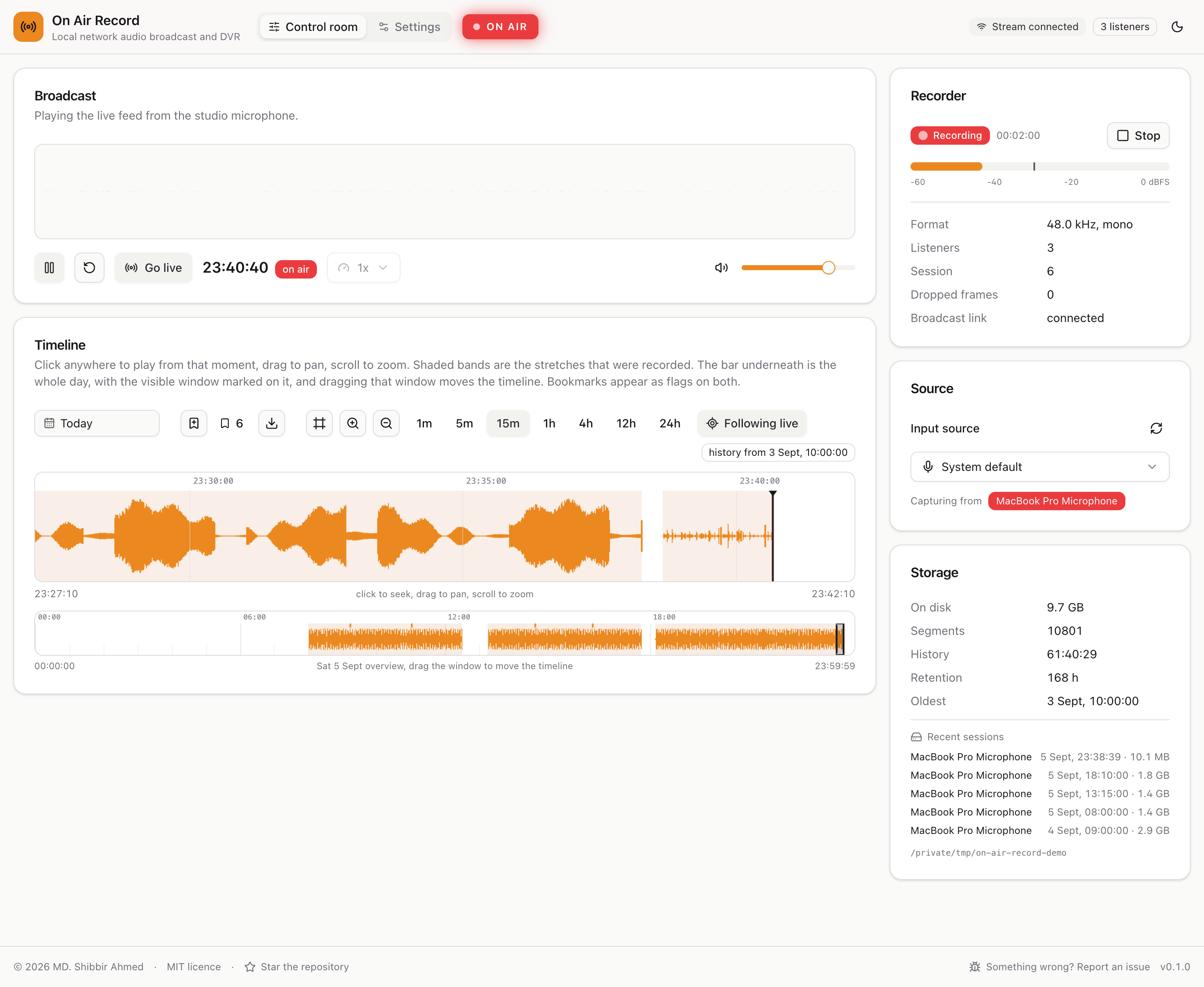
The wide left column is what you use minute to minute:
- Broadcast is the play button and the volume.
- Timeline is the recording history, and how you travel back through it.
The narrow right column is what you glance at occasionally:
- Recorder shows whether it is still recording and how loud the microphone is.
- Source is which microphone it is listening to.
- Storage is how much disk has been used.
Along the bottom of every page is a strip with the licence, a link to the project on GitHub, a link for reporting a problem, and the version number.

Reading from left to right:
- Control room and Settings switch between the two pages. Switching pages does not interrupt what you are listening to.
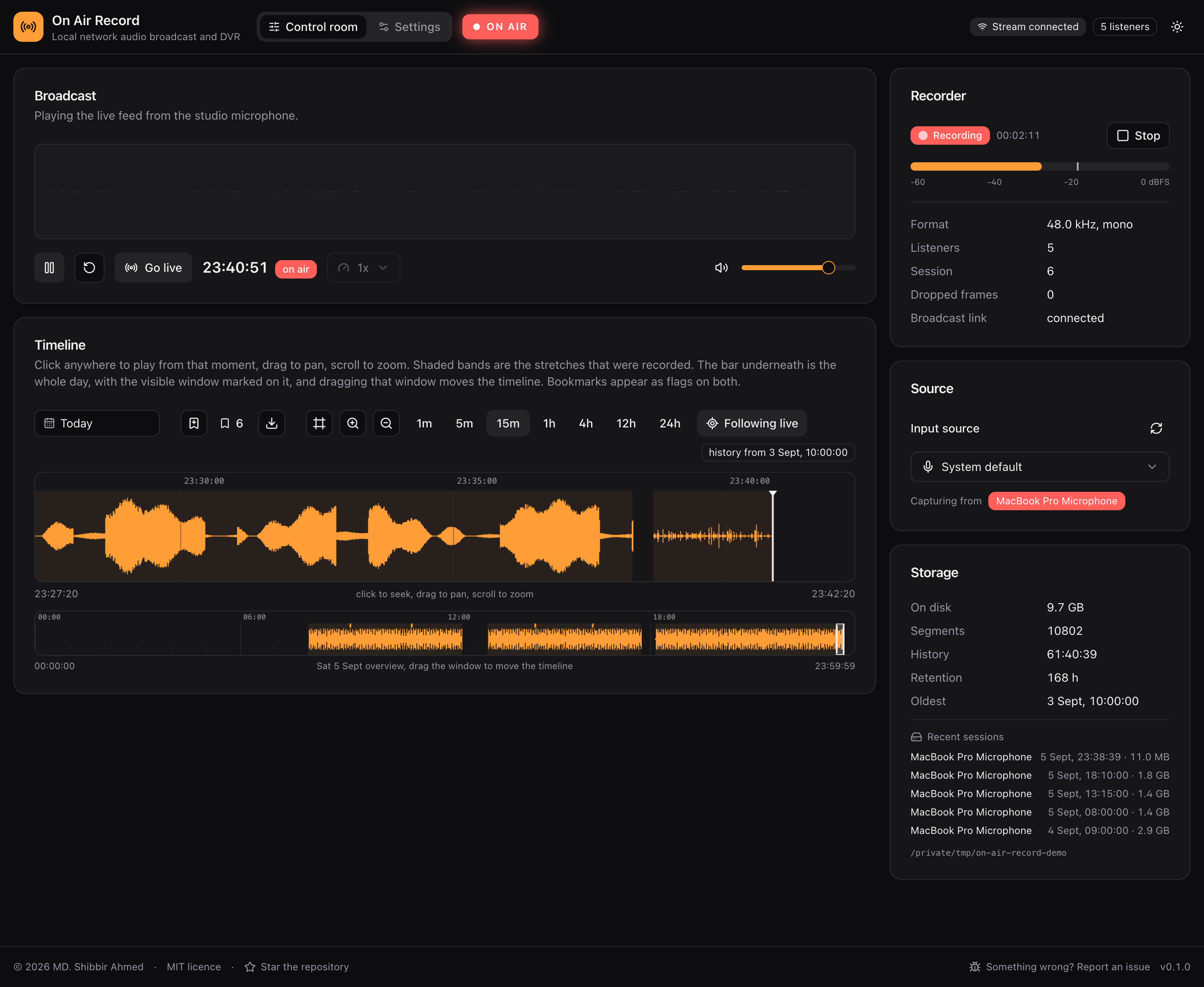
- ON AIR lights up red only when all three things are true: the computer is recording, you have pressed play, and you are listening to the live feed rather than to something from the past. It is a quick way to answer "am I hearing the room right now?".
- Stream connected means your browser is talking to the host computer. If it says disconnected, see Questions and problems.
- The listener count is how many browsers are currently connected, whether they are following the live feed or listening back through history. An admin can see who they are: see Who is listening.
- The moon or sun icon switches between light and dark colours.
- The person icon is your account, when the recorder has logins: see Your account settings. A listener sees no Settings link.
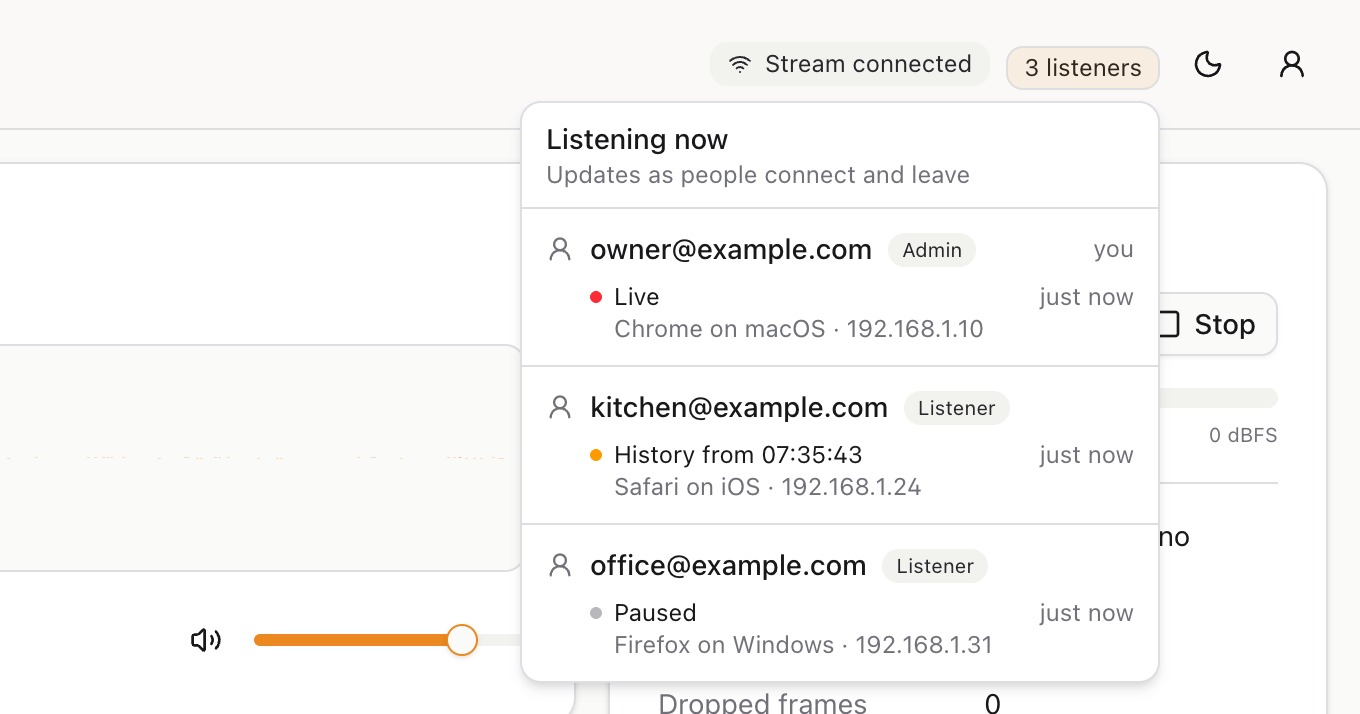
Admins can see who is connected right now. Point at the listener count in the top bar and a list opens underneath it; move the pointer away and it closes. On a phone or tablet, tap the count to open the list and tap it again, or anywhere else, to close it. With a keyboard, move to the count with Tab and press Enter; Escape closes it.
The list keeps itself up to date while it is open. People appear the moment they open the page and vanish the moment they close it, and what each one is doing changes in front of you. There is nothing to reload.
Each person is listed once, by the email they signed in with and their role. Everyone who opened the page more than once, say on a laptop and a phone, has one line per browser tab underneath. Your own account is always at the top, marked you.
Each tab shows three things:
-
What it is doing, with a coloured dot:
Dot Shows Meaning Hollow Not playing The page is open but nobody has pressed play in it Red Live Playing what the microphone hears right now Amber History from 07:35:43 Listening back, from the time they started or last jumped to. The day is added when it is not today Grey Paused Play was pressed, then pause -
The browser and device, such as "Safari on iOS" or "Firefox on Windows", followed by the network address the tab connects from. Point at the line for the browser's full description and the exact time it connected.
-
How long it has been connected, such as "just now", "12 min" or "2 h 5 min".
A tab counts from the moment the page opens, which is why Not playing exists: browsers only start sound after a click, so a page nobody has touched is connected but silent. Reloading a page puts it back to Not playing. A long email is shortened to fit; point at it to read it whole.
Who can see the list. Only admins. A listener sees the same count in the same place, with nothing behind it. If an admin is made a listener while the page is open, their list disappears within about 15 seconds, and it appears just as quickly for a listener who is made an admin.
On a recorder without logins, everyone has admin powers, so everyone sees the list. Nobody has signed in, so people are shown as Guest, one entry for each network address, with that device's tabs underneath:
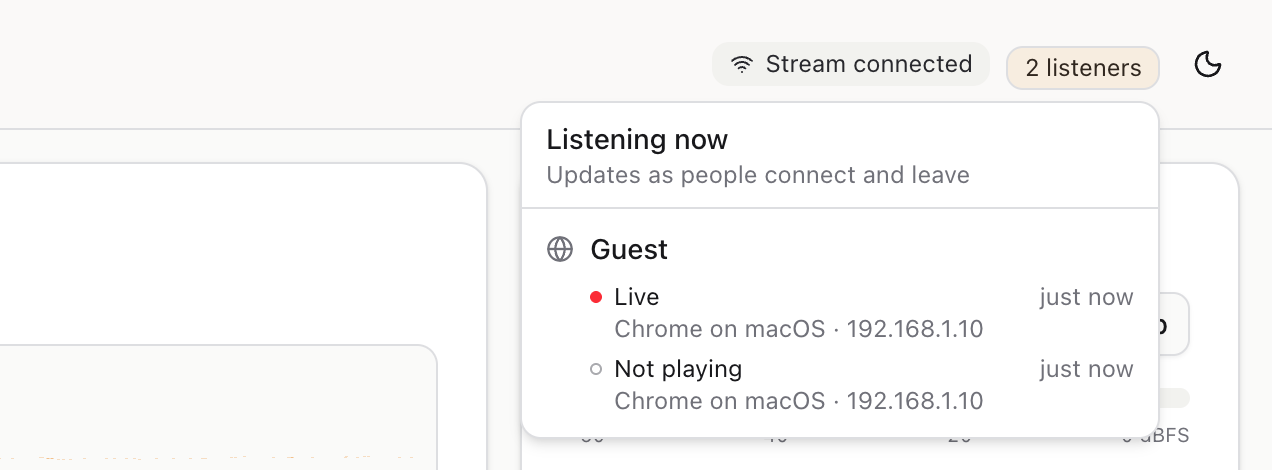
About the network address. It is the address the host computer sees the connection come from. On a home or office network that is the device itself. If the recorder is behind a reverse proxy, every tab shows the proxy's address instead, and on an open recorder they then all collapse into a single guest.
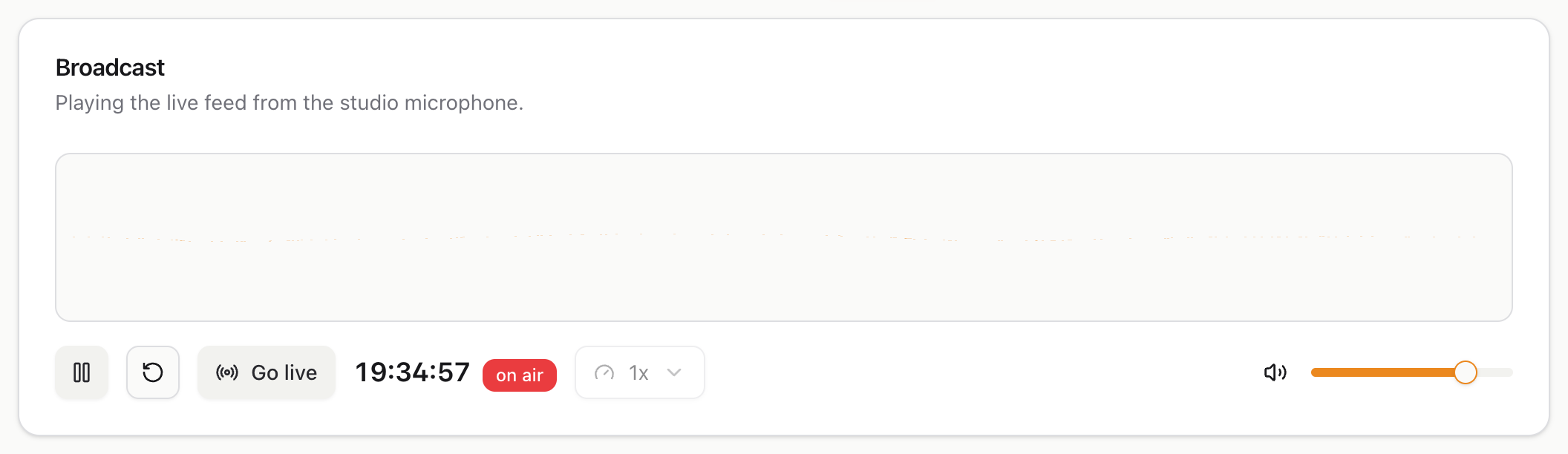
Press the orange play button and you will hear the microphone.
You have to press it. Web browsers refuse to let any page start making noise on its own, so nothing plays until you click. This is a browser rule, not a limitation of On Air Record.
The box above the buttons draws the sound as it arrives, so you can see that audio really is coming through even with the volume turned down.

The row of controls, left to right:
| Control | What it does |
|---|---|
| Play and pause | Starts and stops your listening. It does not stop the recording. |
| Back 30 seconds | Jumps back half a minute. Useful when you half heard something. |
| Go live | Returns you to the present from anywhere in the past. |
| The clock | The time of the audio you are hearing at this instant. |
| on air | A reminder that you are hearing the present, not a recording. |
| Speed | Plays recordings slower or faster. Only works on recordings, not on live audio. |
| Volume | Your own volume. It changes nothing for anyone else and nothing on the recording. |
Pausing only pauses you. The host computer carries on recording the whole time, so nothing is lost while you are away.
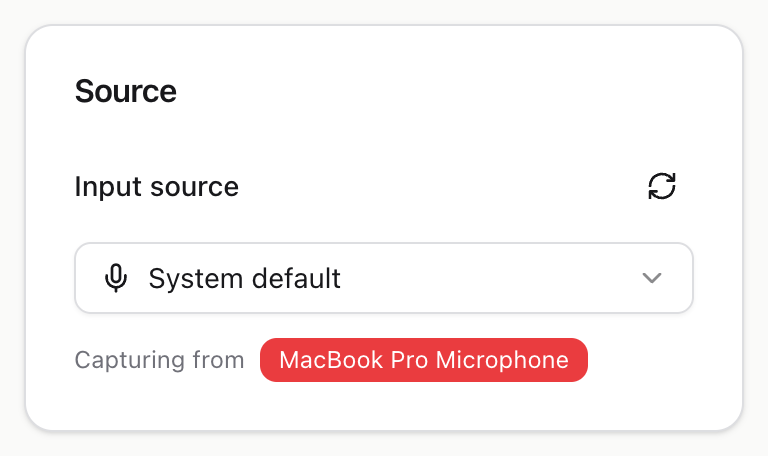
The source panel names the microphone currently being recorded. System default means "whichever microphone the computer itself is set to use", which is usually what you want.
To pick a specific one, open the list:
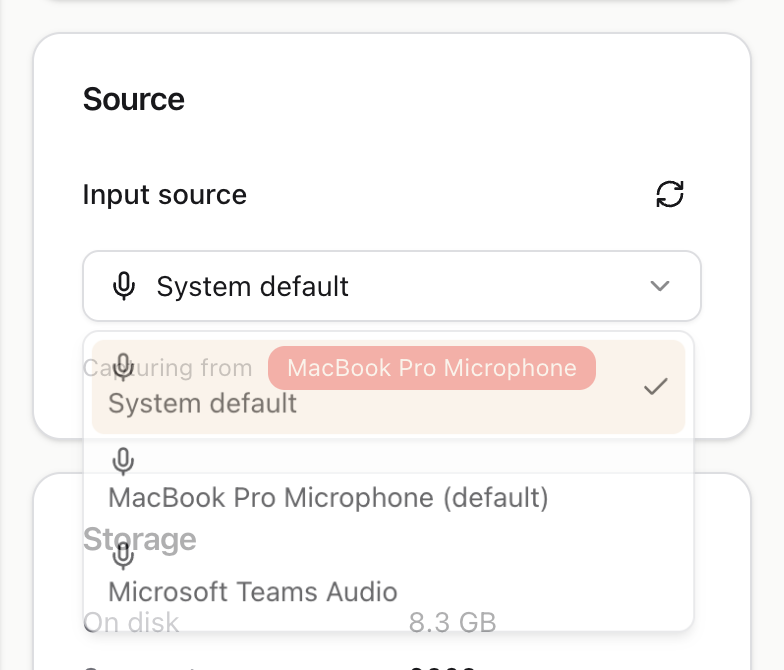
Choosing a different microphone restarts the recording immediately, under the new microphone. Everything recorded before that stays exactly where it is and remains playable.
If you plug in a new microphone while the page is open, it will not appear in the list straight away. Press the circular arrows button next to "Input source" to look again.
This is the part worth understanding properly, because everything else follows from it.
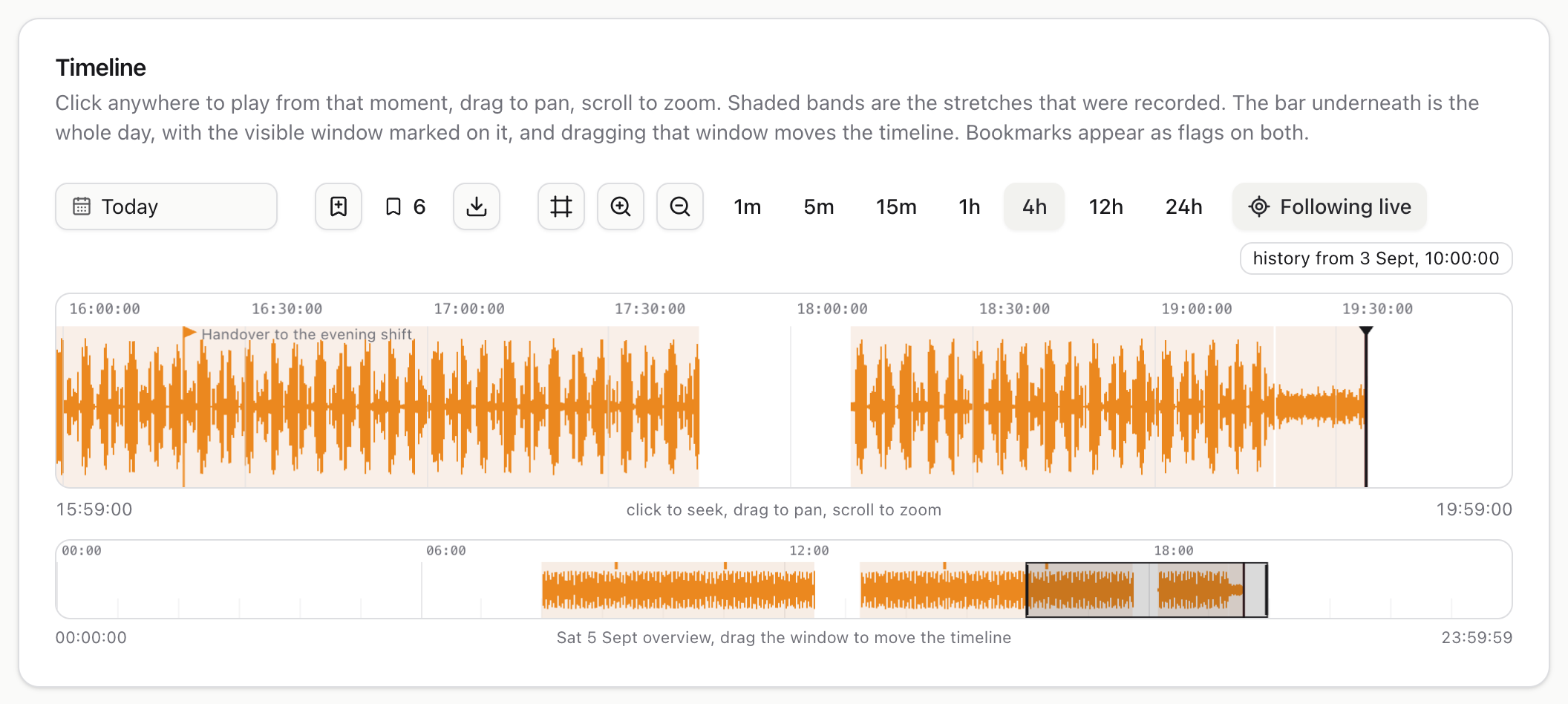
There are two bars, and they show different things.
The big bar in the middle is the part of the day you are looking at closely. In the picture above it covers four hours. The orange shape is the sound itself: tall where it was loud, flat where it was quiet. The pale shaded background marks the stretches that were actually recorded. Where the background is plain white, nothing was recorded, usually because the service was stopped or the computer was asleep.
The thin bar underneath is the whole day, midnight to midnight, always. The small rectangle sitting on it shows which slice of the day the big bar is currently showing. Drag that rectangle and the big bar follows, which is the fastest way to move a long way at once.
Two coloured lines can appear on the big bar:
- A red line is the present moment, the live edge. Nothing exists to the right of it yet.
- A black line is your cue marker, the point you last clicked.
The buttons above the bars:
| Button | What it does |
|---|---|
| Today | Opens a calendar for picking a different day. |
| The bookmark with a plus | Saves a name for the moment you are listening to. |
| The bookmark with a number | Lists the bookmarks you have saved. |
| The download arrow | Saves part of the recording as a file. |
| The frame icon | Resets the view to a sensible standard zoom. |
| Magnifying glasses | Zoom in and out. |
| 1m to 24h | Jump straight to a window of that length. |
| Following live | When switched on, the view slides along on its own to keep up with the present. |
To move around by hand: click to place the cue marker and start playing from there, drag left or right to pan, and scroll to zoom in and out. Zooming always keeps your cue marker in view, so you can zoom right in on a moment without losing it.
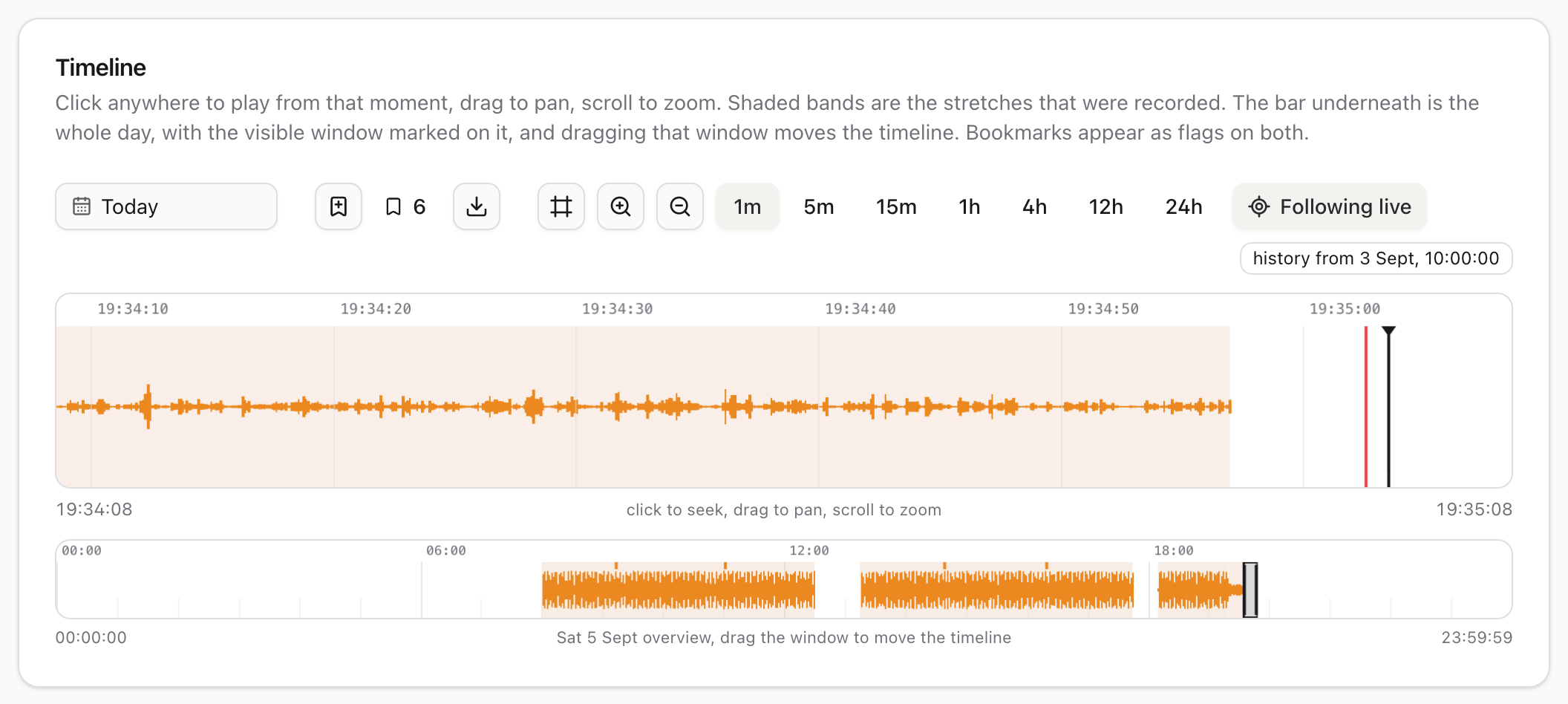
Zoomed all the way in to one minute you can see individual seconds, which is close enough to find one particular noise.
Click anywhere on a shaded part of the timeline. Playback jumps there and carries on from that point.

Once you are listening to the past, the controls change to tell you so. The "on air" badge is replaced by how far behind the present you are, "4m 14s behind" in the picture above, and the clock shows the time of the recording you are hearing rather than the time now.
Press Go live to jump back to the present.
If you simply keep listening, the recording will eventually catch up with the present by itself, and the service will hand you over to the live feed without a gap.
One thing that surprises people: the last few seconds of live audio cannot be rewound to yet. Audio is written to disk in short blocks, and a block only becomes rewindable once it has been finished and closed. The most recent seconds are audible live but are not yet on the timeline. They appear a moment later.
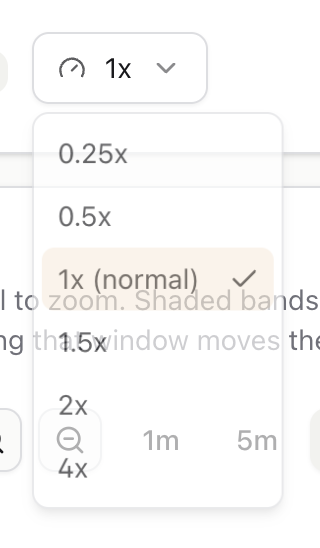
While you are listening to a recording, the speed control lets you slow down to a quarter speed to catch a mumbled word, or speed up to four times to skim a long quiet stretch.
The control is greyed out while you are listening live, because you cannot play the present faster than it is happening.
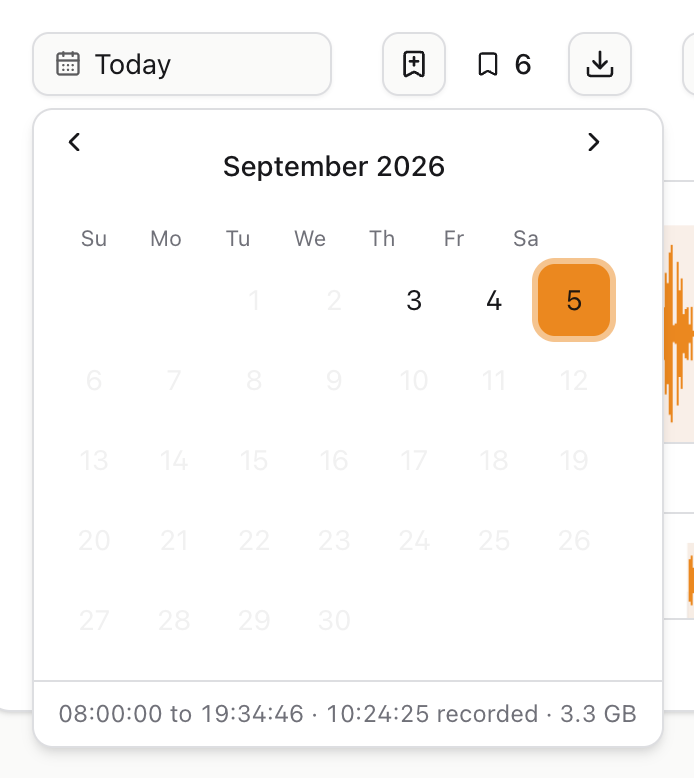
Click Today to open the calendar.
Only days that actually have recordings can be clicked. Everything else is greyed out, so you cannot land on an empty day by mistake. Underneath, the calendar tells you what that day holds: the first and last recording, how much was recorded in total, and how much disk it takes.
Days disappear from this calendar once they pass out of the retention window, because the recordings themselves have been deleted by then. See Settings to change how far back it keeps.
A bookmark is a name pinned to a point in time, so you can find your way back to it later without remembering when it happened.
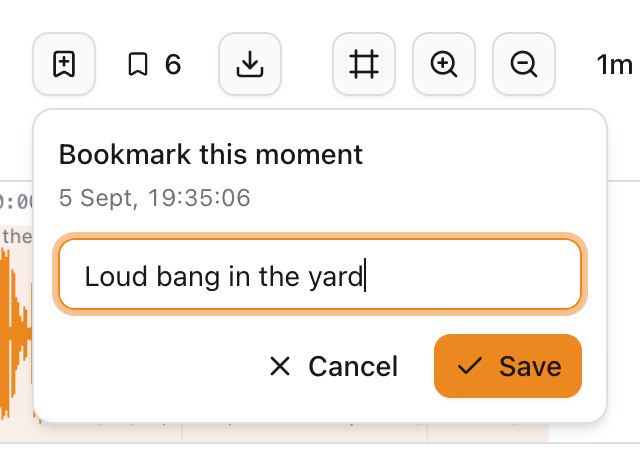
Press the bookmark with a plus. The moment it saves is the moment you are listening to, not the middle of the screen, so you can hear something, press the button, and describe what you just heard. Type a short label and press Save.
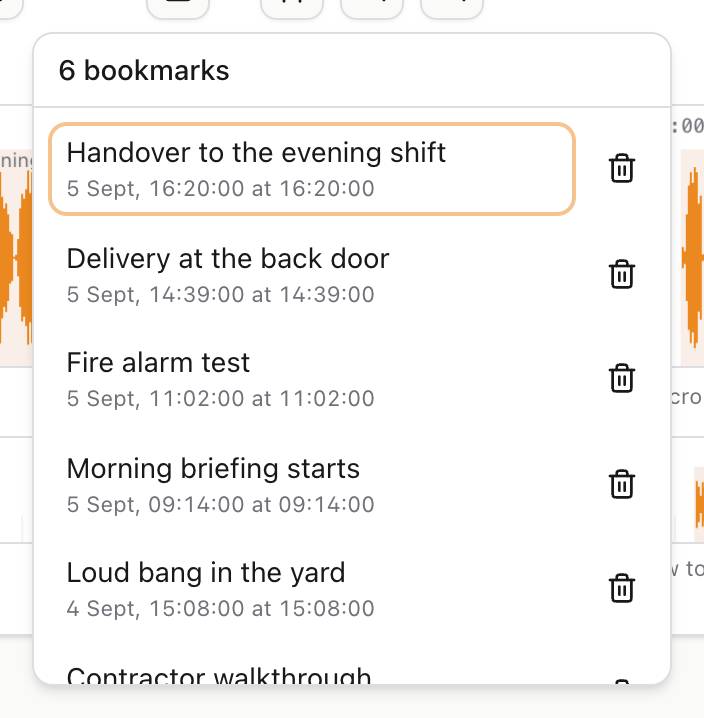
The button next to it shows how many bookmarks exist. Open it and click any one to jump straight there. Newest are at the top, since the one you just made is usually the one you want back.
Bookmarks also show up as small flags on both timeline bars, so you can see them while you scroll.
A bookmark is deleted along with the audio around it when that audio passes out of the retention window. The name on its own would not be much use once the sound is gone.
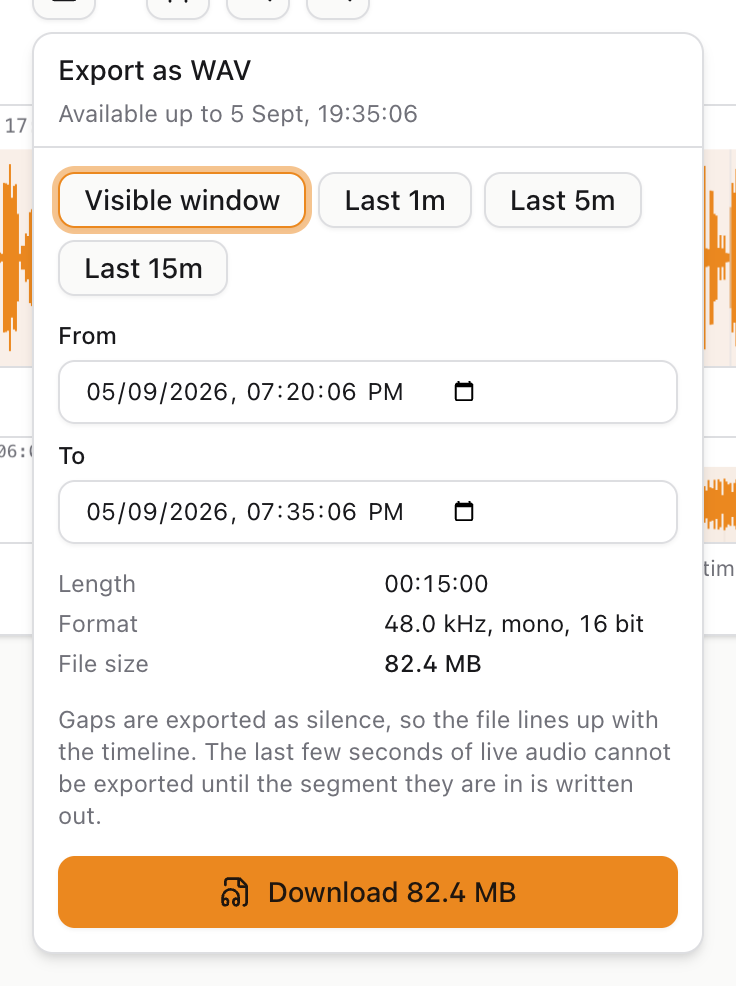
Press the download arrow to save a stretch of recording as a WAV file, which every computer and phone can play and every audio program can open.
You can choose the range in three ways:
- Visible window takes exactly what the timeline is showing.
- Last 1m, 5m, 15m take the most recent minute, five minutes or quarter hour.
- From and To let you type any two times you like.
Before you download anything it tells you how long the clip is and how big the file will be. Audio files are large: a quarter of an hour is around 80 MB, and an hour is around 330 MB. Check the number before you download over a slow connection.
Two things worth knowing:
- If your chosen range covers a stretch where nothing was recorded, that stretch comes out as silence rather than being skipped. This keeps the file the same length as the time range, so times in the file still match times on the timeline.
- The last few seconds before the present cannot be exported yet, for the same reason they cannot be rewound to yet.
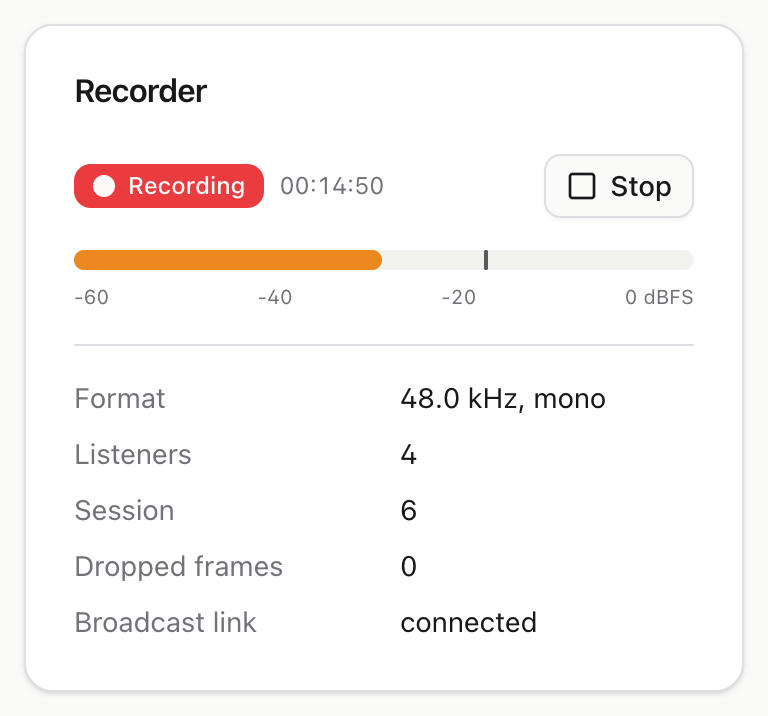
The red Recording badge and the timer next to it are the answer to "is this thing on?".
Below them is the level meter, which shows how loud the microphone is right now. Aim for the bar to sit in the middle most of the time. If it is barely moving the microphone is too quiet or muted; if it is pinned at the right hand end the sound is too loud and will be distorted. Both are fixed by the input gain in Settings, or by moving the microphone.
Stop halts the recording. Nothing is captured while it is stopped, and that period will be a blank gap on the timeline for ever. Press it only when you mean to.
It stops the recording, not the service. The page keeps working and everything already recorded stays playable. Shutting the service down itself is a separate thing, covered in the installation guide.
The remaining rows are for support purposes. Dropped frames should stay at zero; a number climbing there means the computer cannot keep up with the audio.
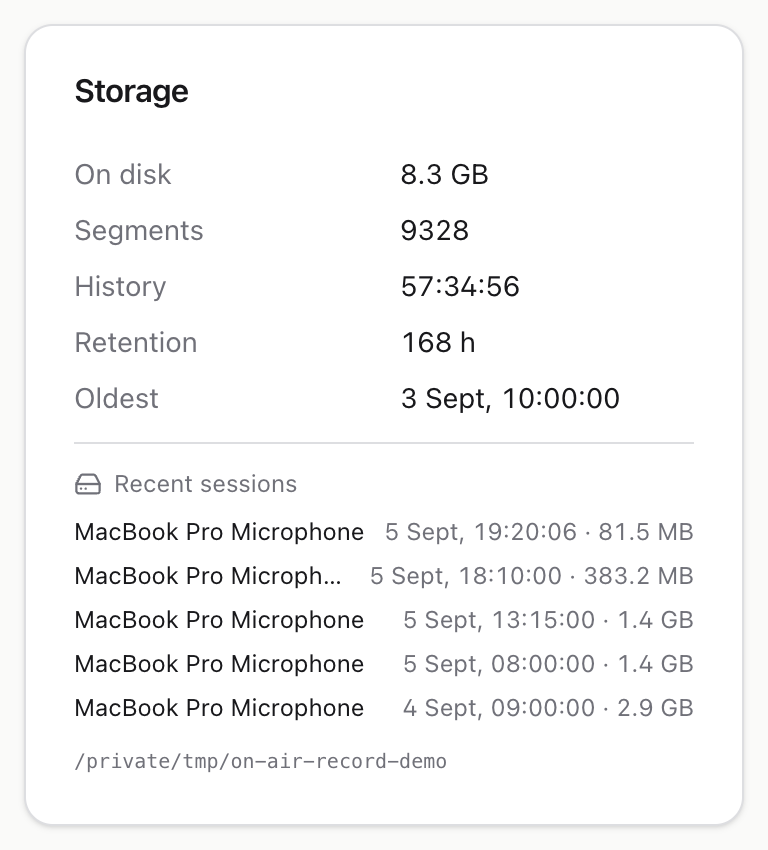
- On disk is how much space the recordings take up right now.
- History is how far back the recordings actually reach.
- Retention is how far back it is allowed to reach before old audio is deleted automatically.
- Oldest is the earliest moment you can still listen to.
Underneath is a list of recent recording sessions, one per time the recorder was started.
The service deletes its own old recordings, so this figure levels off rather than growing for ever. Where it levels off is set by the retention window, described next.
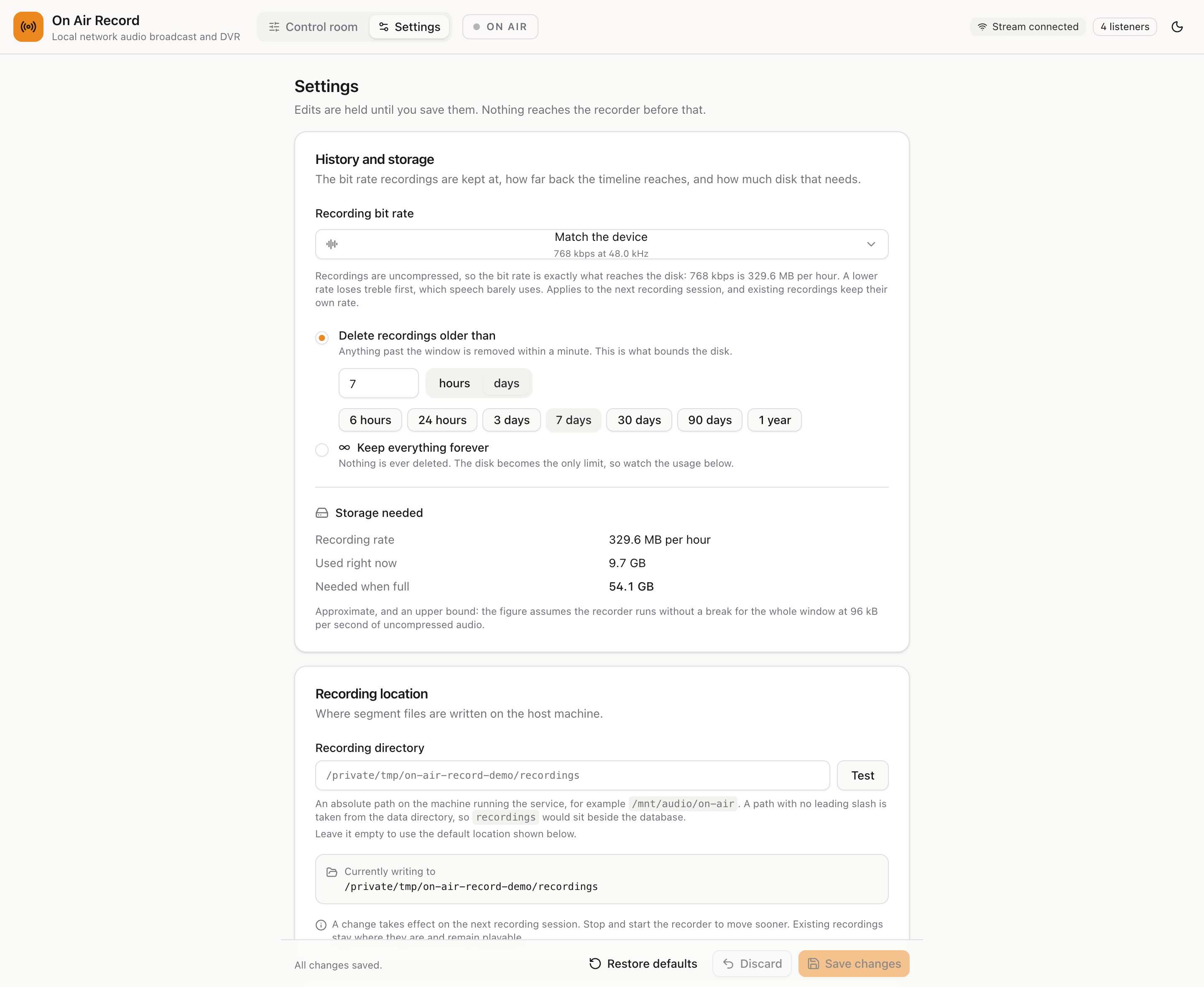
With logins on, only admins have a settings page; listeners never see it.
Settings work differently from the rest of the app: nothing you change takes effect until you press Save changes. A bar appears at the bottom of the page with three buttons.
- Save changes applies everything you have edited.
- Discard throws your edits away and puts the previous values back.
- Restore defaults fills the page with the original settings. It is still only a proposal until you save it, so you can look at what the defaults are and then discard them.
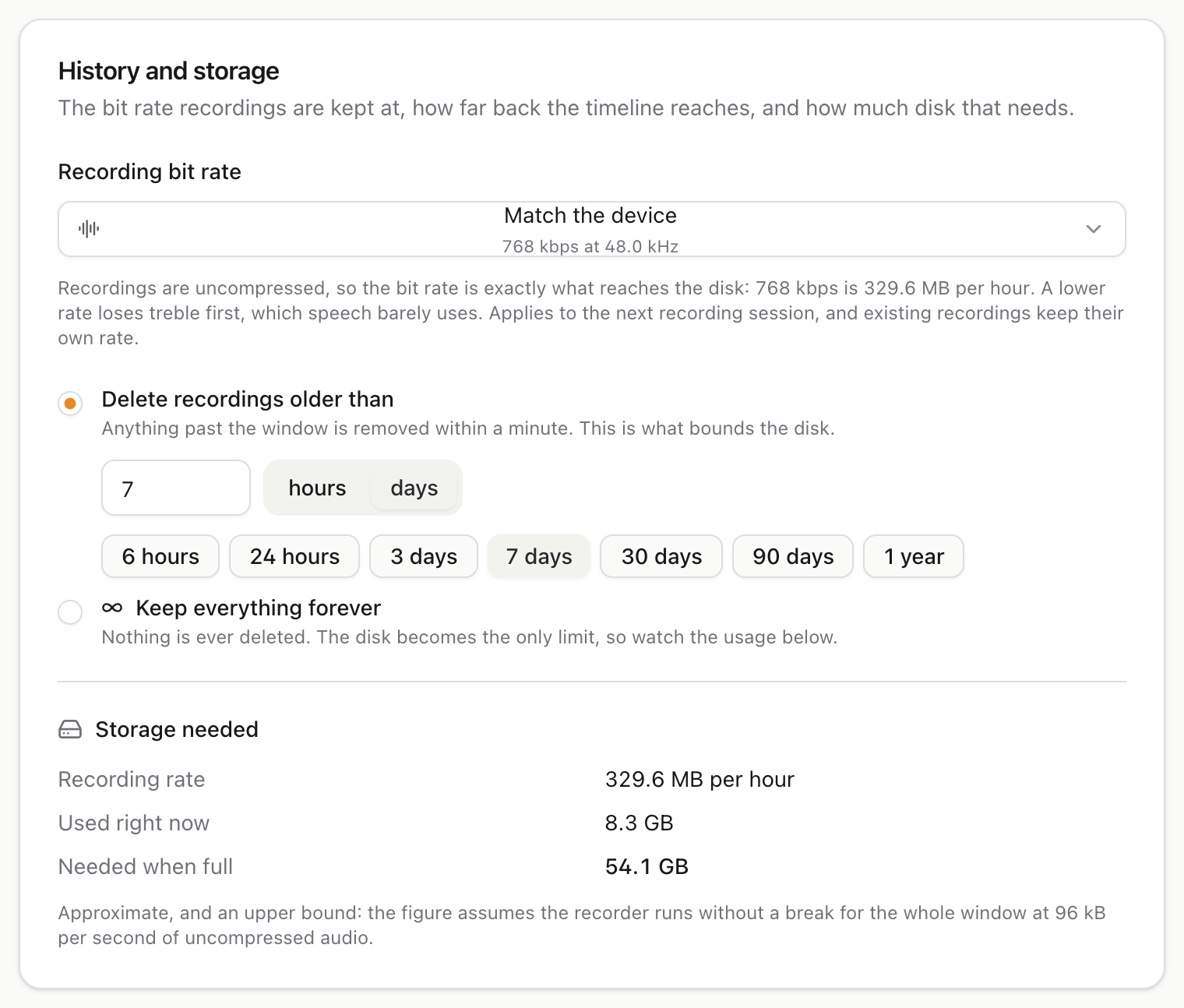
This one card decides how much disk the service will use, which for most people is the only setting that matters.
Delete recordings older than sets how far back the timeline reaches. Anything older is deleted within a minute of passing the limit. Type a number and choose hours or days, or use one of the preset buttons.
Keep everything forever never deletes anything. Only choose this if you are watching the disk yourself, because when the disk fills up the recording stops.
Storage needed does the arithmetic for you. It shows how fast the disk is filling, how much is used today, and how much you would need if the recorder ran non stop for the whole retention window. That last figure is a worst case, so real usage is usually lower.
Recording bit rate trades sound quality for disk space:
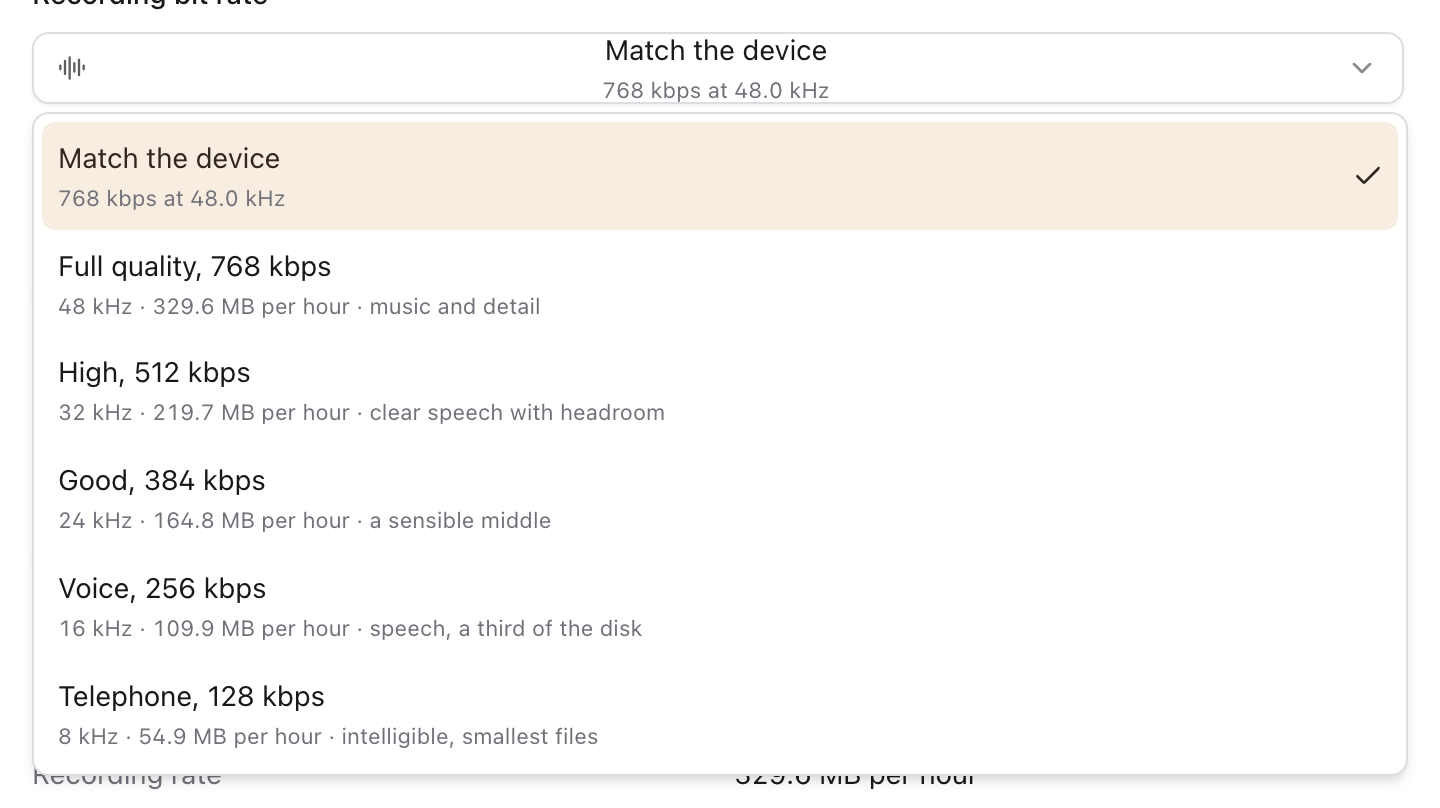
Each option tells you what it costs per hour. Match the device keeps whatever quality the microphone provides. If you are recording speech and want more history out of the same disk, Voice, 256 kbps uses about a third of the space and speech stays perfectly clear. Lower rates lose the high frequencies first, which speech barely uses but music does.
A change of bit rate applies to the next recording session. Recordings already on disk keep the quality they were made at, and still play normally.
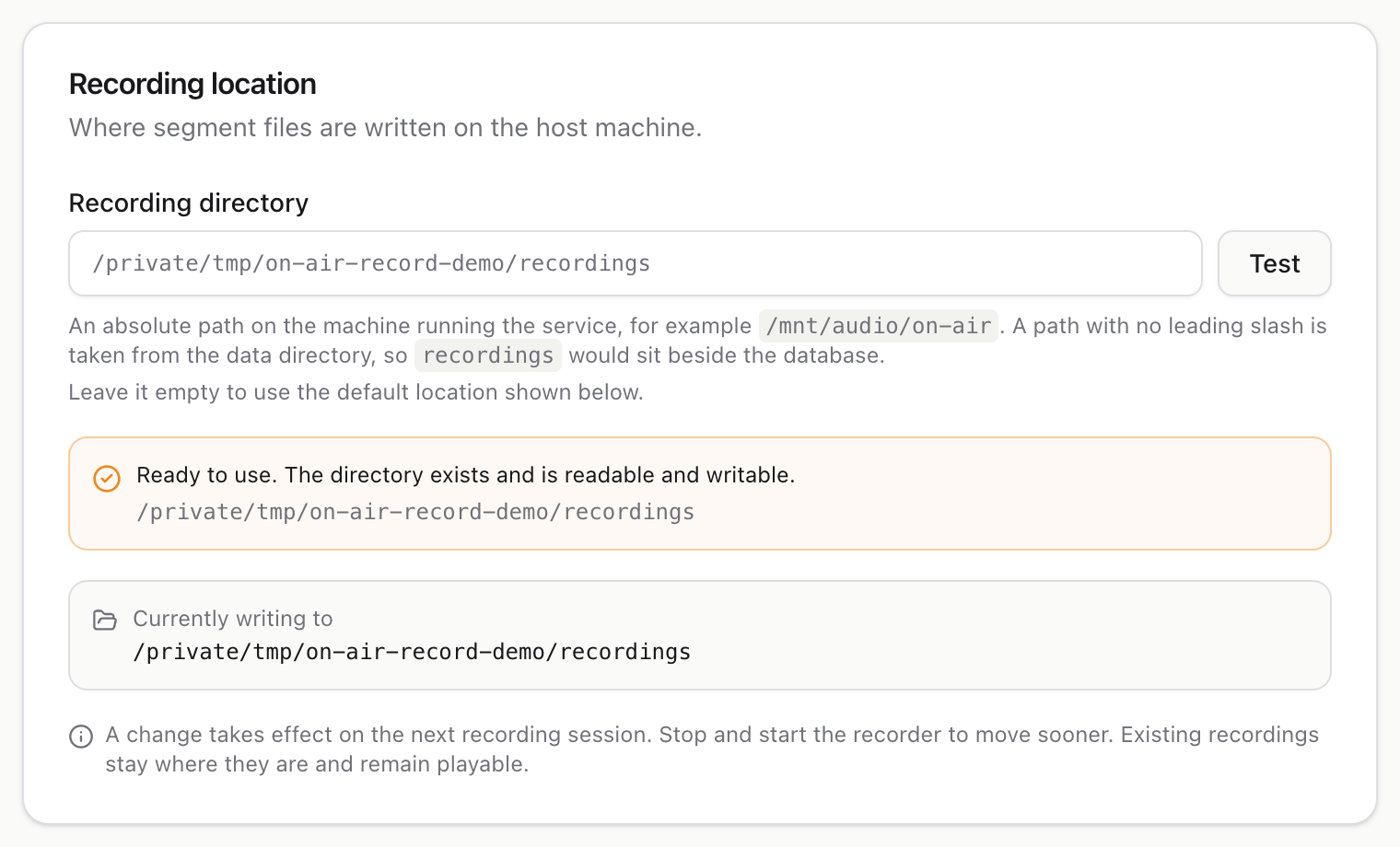
By default recordings sit next to the service's own data. You can send them somewhere else, such as a larger or external drive.
Type the folder path as it exists on the host computer, not on the computer you are sitting at. Press Test before saving and it will tell you whether that folder exists and can be written to, which is much better than finding out later that nothing was recorded.
A change here applies to the next recording session. Recordings already written stay where they are and go on playing normally, so you can move the location without losing history.
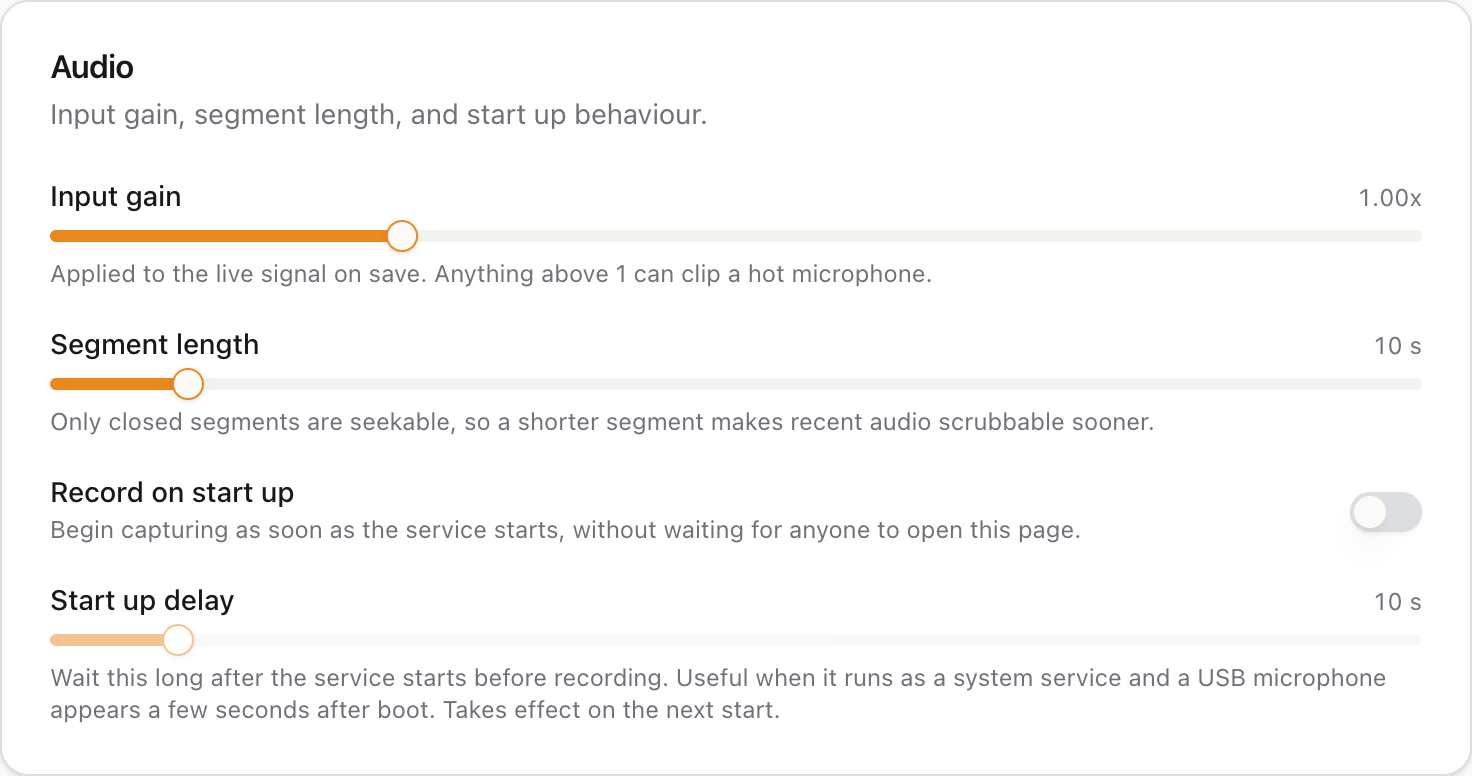
Input gain makes a quiet microphone louder. Watch the level meter on the control room page while you adjust it. Above 1.00x you risk distorting an already loud microphone.
Segment length is how big the blocks are that audio is written to disk in. It has one visible effect: recent audio only becomes rewindable once its block is complete, so a shorter block makes the last few seconds available sooner. Ten seconds suits almost everyone.
Record on start up makes the service begin recording the moment the host computer starts it, without waiting for anyone to open the page. Leave this on if the point is to have a recording running whether or not anyone is watching.
Start up delay makes that automatic start wait a number of seconds first. Leave it at None unless the recording after a reboot turns out silent while pressing Stop and then Start fixes it. That means the microphone was not ready yet when the service started, which is common with USB microphones on a machine that runs the service at boot. Ten to thirty seconds is usually plenty. The page itself is available straight away; only the recording waits.

When a newer version is released, admins see a strip under the top bar saying so. Listeners never see it, since there is nothing they could do about it. What's new and how to update opens the details, and the X hides the strip until the release after that one, in that browser.
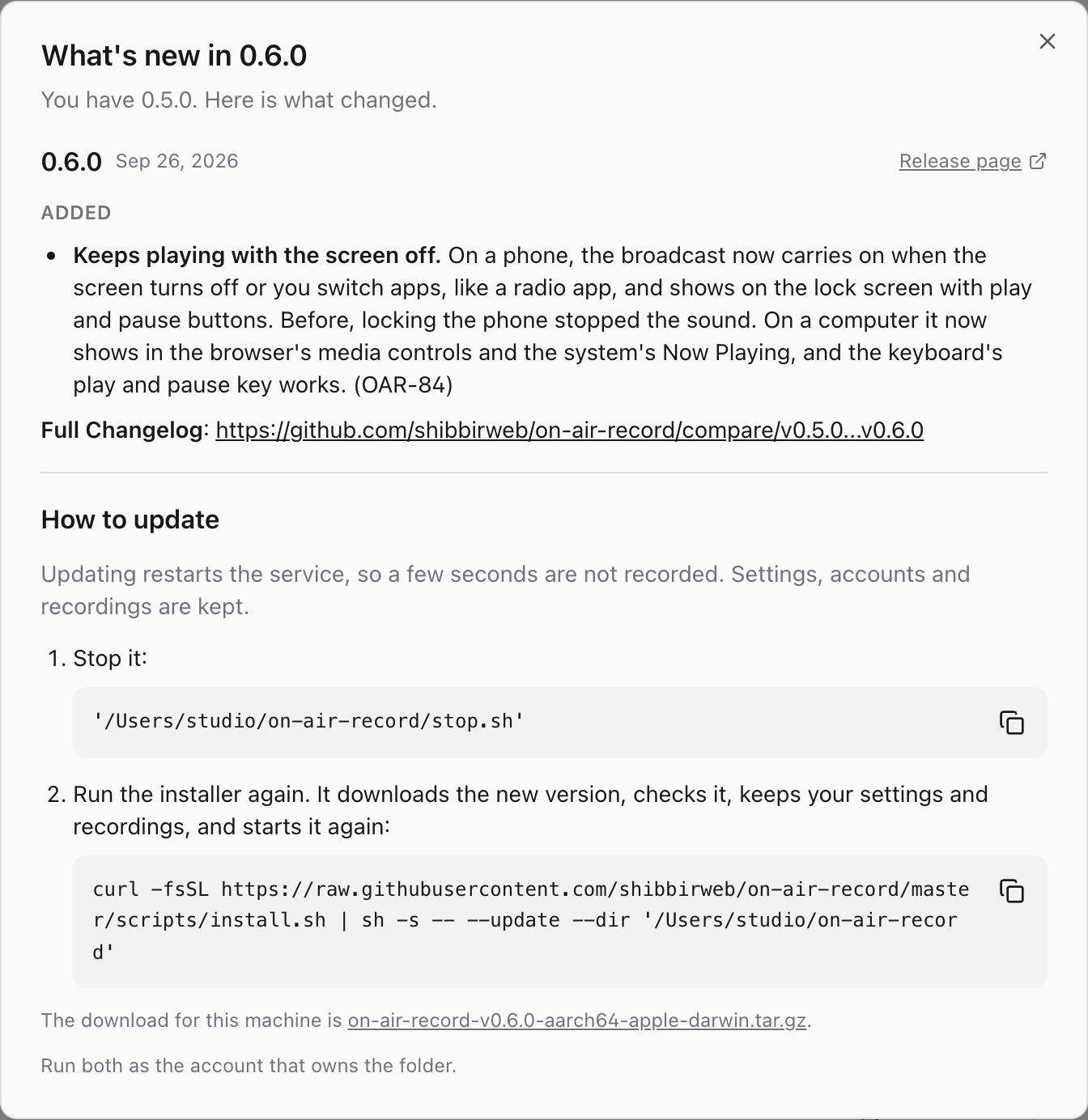
The window lists what changed in every release since yours, not just the newest, so nothing you skipped is missed. Below that are the steps to update, written for how your copy was installed:
- Installed with the installer script: stop it, then run the installer again with the update option. The commands name your install folder, so you can copy them as they are. Your settings, accounts and recordings are kept, and it starts again when it is done.
- Running as a Linux service: commands to download the new version, check it, put it in place and restart the service.
- Running in Docker: the two commands that pull the new image and recreate the container. Recordings, settings and accounts are in the data volume and are kept.
- Anything else: which download to get for your machine.
Updating restarts the service, so a few seconds are not recorded. The recorder never updates itself; it only tells you.
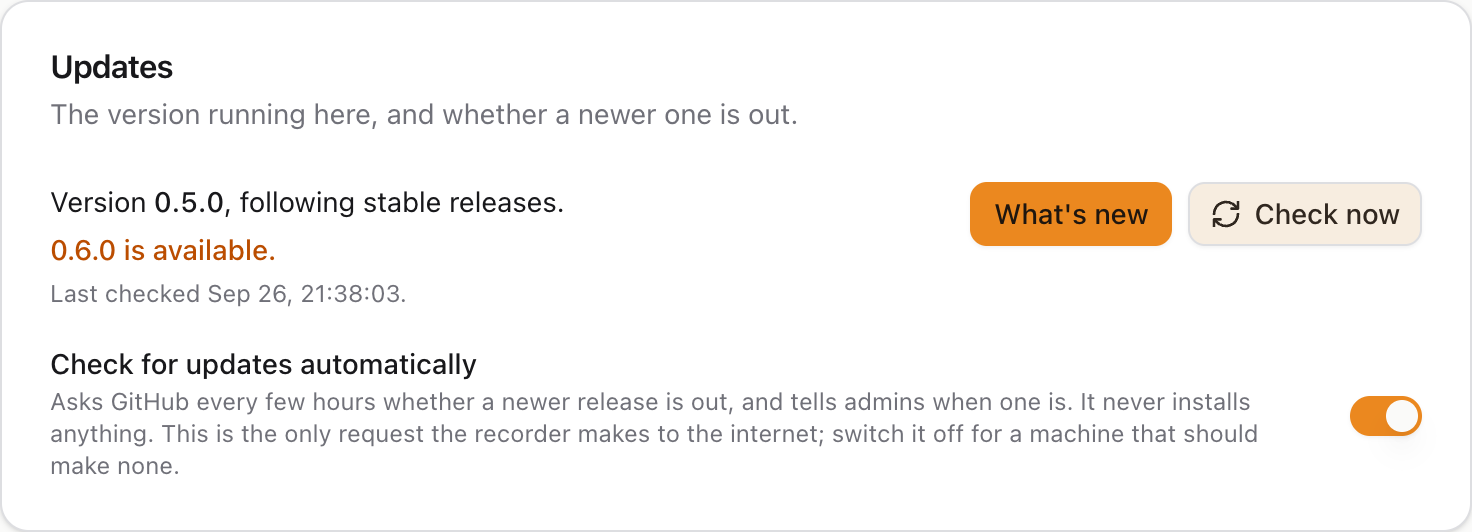
The Updates card on the settings page shows the version you are running, whether it follows stable or beta releases (whichever the installer was told), and when it last checked. Check now asks straight away. Check for updates automatically is on to start with: the recorder asks GitHub every few hours. It is the only thing the recorder ever sends to the internet, so switch it off, and save, for a machine that should not contact anything outside your network. Without internet access it simply finds nothing, and says so under Check now.
The Access card at the bottom of the page is different from the rest: whatever you do there happens at once, without pressing Save.
On a recorder that was kept open, it has a Set up accounts button, which asks for the first admin account exactly as the first visit does. Anyone already listening is asked to sign in within a few seconds.
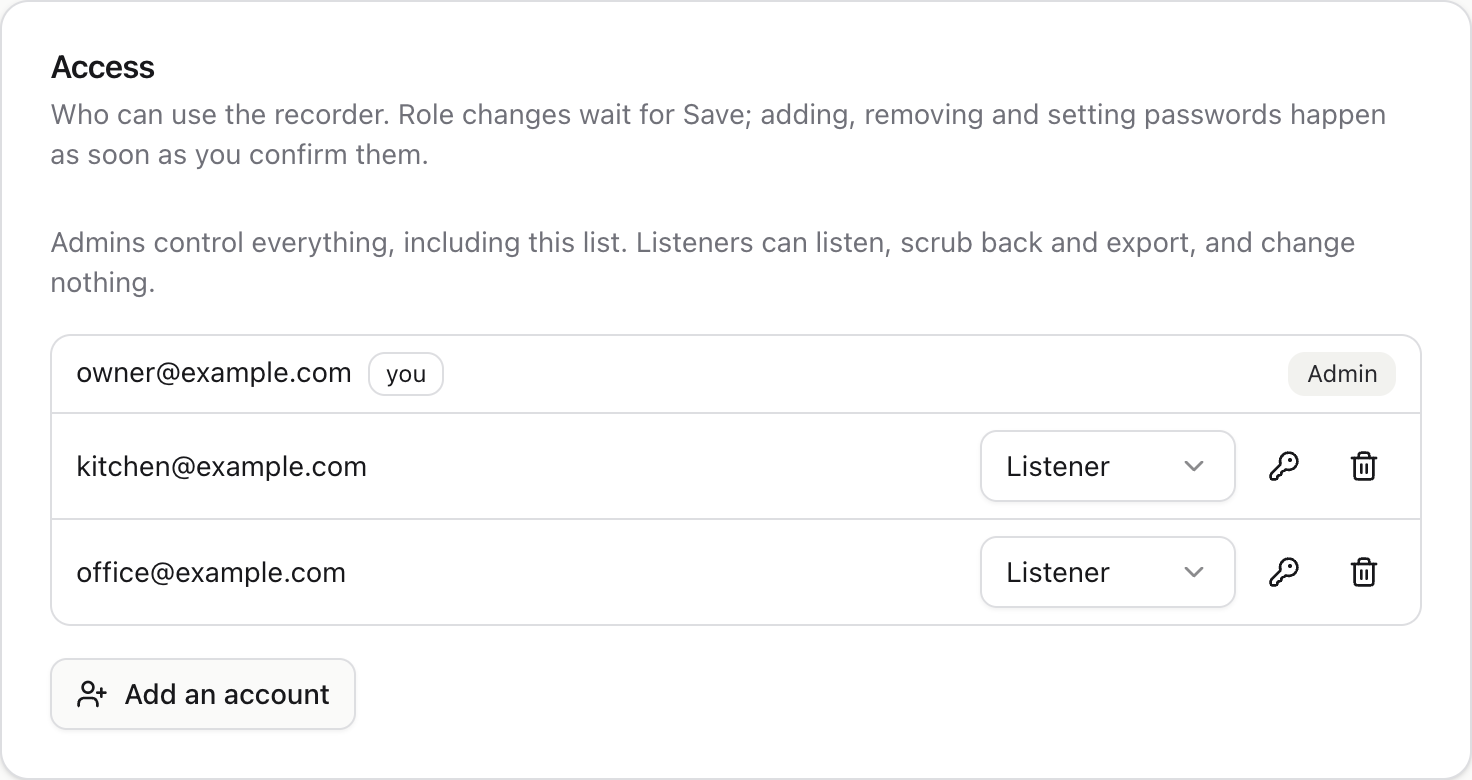
With accounts on, it lists everyone who can sign in. Your own account is marked you, and 2FA marks anyone who uses two factor sign in. For each of the others:
- The role menu makes them an admin or a listener. Like everything else on the settings page, the change waits for Save changes; see below. Once saved it applies without them signing in again, and their page shows the buttons for the new role the next time it loads.
- The key button sets a new password for them, for when they have forgotten theirs. They are signed out everywhere and sign in again with the new one.
- The shield button, shown only for someone using two factor sign in, removes it, for when they have lost both their phone and their recovery codes. They then sign in with just their password.
- The bin button removes the account, after asking you to confirm. They are signed out at once, and anything they were listening to stops within 15 seconds.
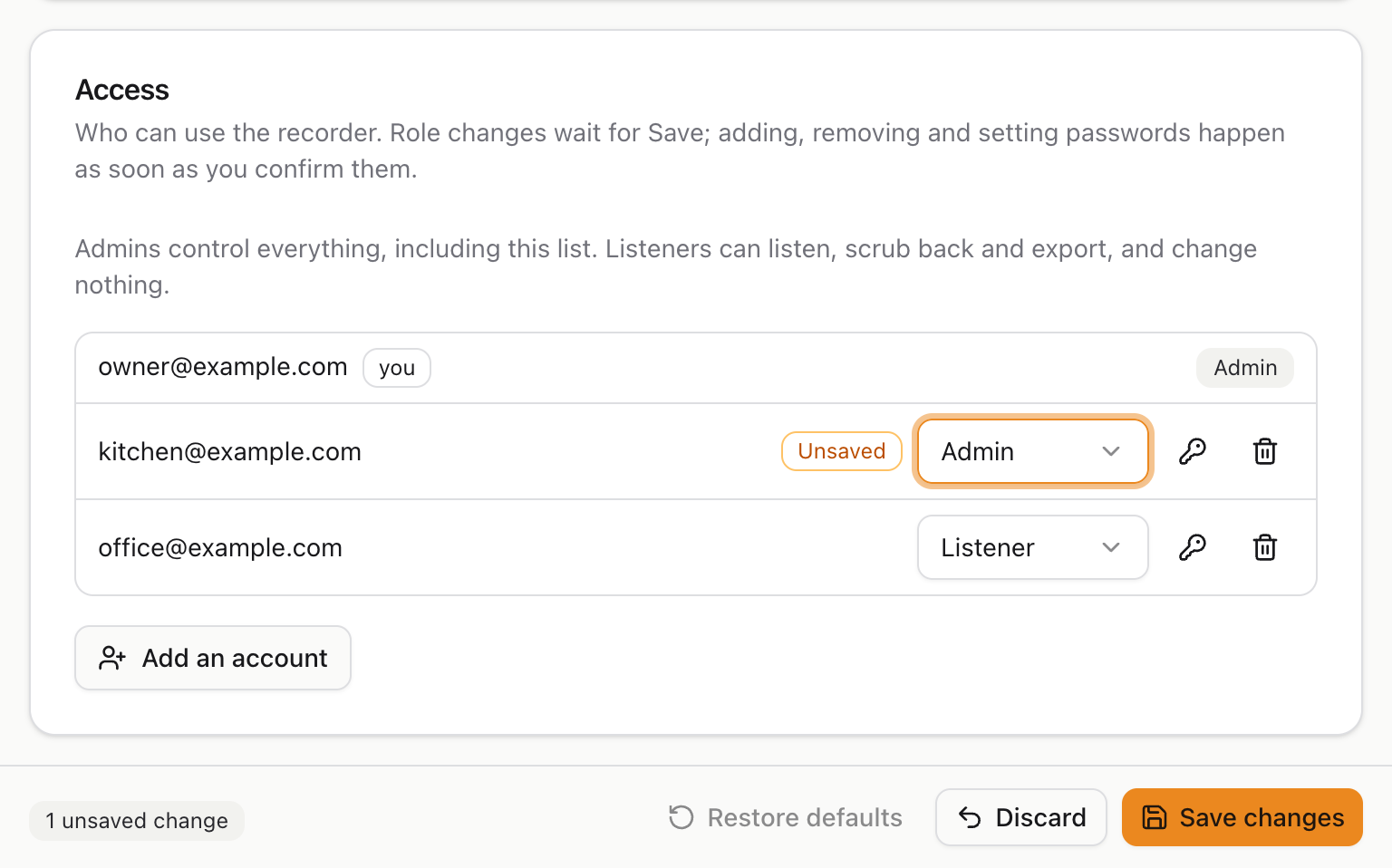
Choosing a new role marks the account Unsaved and adds it to the count in the bar at the bottom of the page, together with any other settings you have changed. Nothing changes for the person until you press Save changes. Discard puts every menu back, and choosing the old role again takes the account out of the count. You can hand the admin role from one person to another in a single save: make the new admin, make the old one a listener, then save. If a change is refused, for example because it would leave nobody as admin, the bar says why and that account stays marked Unsaved.
The other buttons do not wait for Save, because each already asks you to confirm or fill in a form first.
There is always at least one admin: the last one cannot be made a listener or removed. You cannot change your own role or remove yourself here either; another admin does that, so nobody locks themselves out by accident.
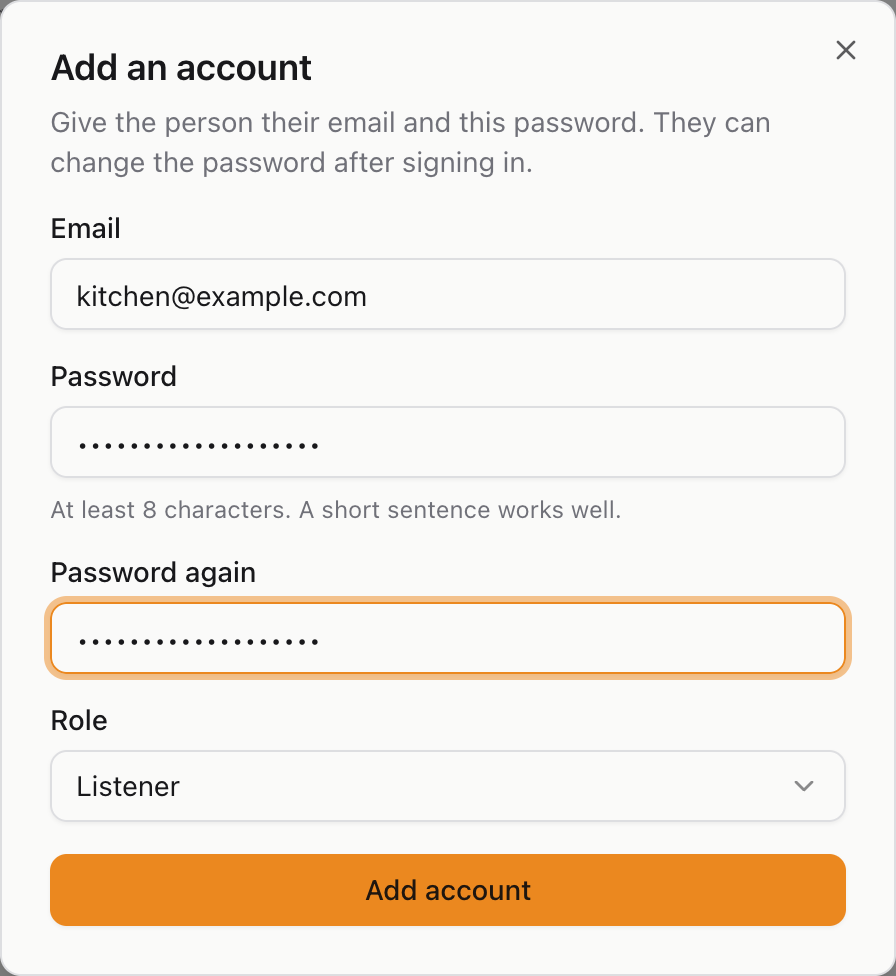
Add an account asks for the person's email, a first password, and whether they are a listener or an admin. Give them the email and password yourself, since nothing is sent to them. They can change the password under Account settings once they are in.

The same web address works on a phone or tablet on the same network. The layout stacks into one column and everything still works, including the timeline, which responds to touch: tap to move, drag to pan, pinch to zoom.
Listening with the screen off. Once you have pressed play, the broadcast keeps playing when the phone's screen turns off or you switch to another app, like a radio app would. On the lock screen, and in the notification area on Android, it shows as On Air Record, Live or Listening back, with the recorder's address underneath and play and pause buttons, so you can stop and start it without unlocking. Pausing from there pauses the page too, and the other way round. On a computer the same controls appear wherever the browser shows media: the media button in Chrome's toolbar, Now Playing on a Mac, and the media overlay on Windows, and the keyboard's play and pause key works too. If another app starts playing sound, or a call comes in, the broadcast pauses; press play again when you are ready.
There is no pointing on a touch screen, so things that open when you point at them with a mouse open with a tap instead. For an admin that includes the list of who is listening: tap the listener count to open it, and tap again to close it.
The moon and sun icon in the top right corner switches between light and dark. Your choice is remembered in that browser, and it affects nobody else.
I pressed play and hear nothing. Check your device volume and the volume slider in the app first. Then look at the level meter in the Recorder panel: if it is not moving, no sound is reaching the microphone, and the problem is the microphone rather than your browser.
It says the stream is disconnected. Your browser has lost contact with the host computer. It retries by itself, so wait a few seconds. If it does not come back, check that the host computer is still switched on and still on the network. Reloading the page is harmless and often enough.
No microphones are listed. On macOS the very first run asks for permission to use the microphone. If that was refused, the service sees no microphones at all. Grant it under System Settings, Privacy and Security, Microphone, then restart the service. Pressing the refresh button next to "Input source" looks for devices again.
The last few seconds cannot be rewound to. That is expected, and it is explained under Going back to an earlier moment.
Old recordings have vanished. They passed the retention window and were deleted automatically. Increase "Delete recordings older than" in Settings if you need to keep more, and check the storage estimate before you do, because a longer window needs proportionally more disk.
The disk is filling up. Either shorten the retention window or choose a lower bit rate. Both are in Settings, and the page shows you what each choice costs per hour.
Somebody else changed a setting. Settings changes affect the recording for everybody. On a recorder left open, everyone who can open the page has the same powers. With accounts, only admins can change settings; if that is too many people, an admin can make some of them listeners under Settings, Access.
I was signed out. Sessions last 30 days. You are also signed out when you change your password on another device, when an admin sets a new password for you or removes your account, and when a recorder that was open is switched to accounts. Sign in again; if your password no longer works, ask an admin.
It stops when my phone's screen turns off. Press play on the page first: the phone only keeps playing sound that was started by a tap. If it still stops, check that the browser is not in a battery saving mode that closes background pages, and that the page is open in the browser itself rather than inside another app's built in browser, which may not allow background audio.
I cannot see who is listening. The list behind the listener count is for admins only; a listener sees just the number. If you are an admin and the count is still plain, the stream is probably reconnecting: the list comes back with the connection, usually within a few seconds. See Who is listening.
Somebody is still listed after they left. Closing the tab or the browser removes them at once. A device that simply drops off the network, such as a phone that lost Wi-Fi or a laptop closed while playing, cannot say goodbye, so the host computer waits a little to be sure: it is removed within about a minute.
Somebody shows as Not playing, but I can hear them in the room. Not playing means nobody pressed play in that browser tab, so the tab is connected but silent. They may be listening on a different device or tab, which has its own line under their name.
It says too many failed logins. After five wrong passwords or codes, that device has to wait 15 minutes before trying again. Other devices are not affected.
The code from my authenticator app is refused. Type the code that is showing now, not one that is about to change. If fresh codes are still refused, the clock on your phone or on the host computer is probably wrong; codes depend on both showing the right time. A recovery code works in place of the app's code.
Can I listen from outside the building? Not directly. Even with accounts, the service is designed for a local network and should not be exposed to the internet as it is. Ask whoever administers it about a VPN.
There is a link at the bottom of every page:

If something does not work, or the guide is wrong, open an issue:
https://github.com/shibbirweb/on-air-record/issues
Please include:
- What you did, what you expected, and what happened instead.
- Your operating system, and the version number from that same strip,
v0.1.0above. - Anything the program printed in its window or log at the time.
On Air Record is built and maintained by MD. Shibbir Ahmed (portfolio, GitHub).
Released under the MIT licence. Copyright (c) 2026 MD. Shibbir Ahmed.