Repository navigation
Schedules
A schedule sends a prompt to a Skipper at set times. The Skipper does the work or hands it on. skiffd starts each run, also while the app is closed. Each run is a row in the ledger.

A schedule has a name, a time (When), a Skipper and a prompt.
- Skipper. The run goes to Admiral, to a fleet Skipper or to a project Skipper. It goes there as a hand-off. When the Skipper does not run, Skiff starts it first.
-
Prompt. The prompt is a file:
schedules/<uid>.mdin the Skiff agent's folder, next totypes/. Skiff reads the file at each run, so a change counts from the next run. The uid stays the same when you rename the schedule. A first line# <name>is the file's heading. It is not part of the prompt.
skiff schedule can also give a schedule a command, a task type or a pane. See Commands. The app shows these and keeps them, but it does not set them.
| Target | When the Skipper does not run | When it runs |
|---|---|---|
| Admiral | Skiff starts Admiral, then sends the hand-off. | Skiff sends the hand-off. |
| A fleet Skipper | Skiff starts the fleet Skipper. Its first message and the hand-off go in one turn. When a project Skipper of that fleet runs, the run fails with the reason. | Skiff sends the hand-off. |
| A project Skipper | Skiff starts the project Skipper. Its first message and the hand-off go in one turn. | Skiff sends the hand-off. When the project is in a fleet and that fleet's Skipper runs, the run goes to the fleet Skipper. |
The rules are the same as for skiff ledger handoff.
Times are in the local time of the computer that runs the schedule.
| When | Example | Cron |
|---|---|---|
| Every day | Every day at 01:30 | 30 1 * * * |
| Weekdays | Weekdays at 08:00 | 0 8 * * 1-5 |
| Every week | Every Mon, Thu at 09:00 | 0 9 * * 1,4 |
| Every month | Every month on day 1 at 06:00 | 0 6 1 * * |
| An interval | Every 30 min, 09:00–18:00, Mon–Fri | */30 9-17 * * 1-5 |
| Custom | 09:00 on day 1 and 15 | 0 9 1,15 * * |
- The intervals are 5, 10, 15, 20 and 30 minutes, and 1, 2, 3, 4, 6, 8 and 12 hours. Each one divides the hour or the day evenly.
- An interval runs all day, or between two whole hours. No run starts at the end hour.
- The day of the month is 1 to 28, so every month has that day.
- Custom takes any 5-field cron line, and also
@hourly,@daily,@weeklyand@monthly.
- One open run. A schedule has at most one open run. When a run is still pending or working at the next time, Skiff skips that time and counts the skip.
-
Missed runs. When the computer sleeps, or
skiffddoes not run, at a run's time, that run does not happen. Skiff does not run it later. The schedule waits for its next time. - A busy pane. When the Skipper's pane is working or waits for the person, the run stays pending. Skiff sends it again every 30 seconds until the pane is idle.
- The run row. The run is a task row with the schedule's name as its title. The hand-off to the Skipper is a row under the run.
- A missing target. When the project, the fleet, the task type or the pane no longer exists, the run fails with that reason. The schedule stays active.
skiffd checks for due schedules every 30 seconds. It runs skiff schedule tick with the skiff CLI that is in the same folder as skiffd. When that folder has no skiff, no schedule runs. SKIFF_SCHEDULES=0 stops the checks.
A schedule belongs to the computer that runs it. With the app on a Host, the Host's skiffd runs the Host's schedules.
The Ledger panel has two tabs: Tasks and Schedules. Each tab shows its count. Both tabs show the scope of the Skipper next to the panel. Beside a fleet Skipper, the Schedules tab shows the schedules of that Skipper and of the fleet's projects. The Tasks tab does not show the run rows. It shows a hand-off until its run closes.

The Schedules tab shows each schedule in two lines:
| Line 1 | Line 2 |
|---|---|
| A dot for the last run, the name, the next run, the last outcome | The When words and the Skipper, such as "Harbor Skipper" |
The dot is grey for succeeded, blue for running, red for failed, and hollow for no run yet or skipped. A paused schedule shows dim, with "paused" in place of the next run.
A click or Enter opens the schedule's runs, newest first. A click on a run opens its result. A click on a hand-off opens the Skipper's pane while the hand-off is open, and its result after that. ← or Esc goes back to the list. The tab changes nothing.
Settings › Schedules is a page of the Host. It lists each schedule with its state, name, When, target, next run and last run.
| Action | Result |
|---|---|
| Add… | Opens the edit page for a new schedule. The new schedule goes to Admiral. |
| Run now | Starts a run now. It is off while a run is open. |
| Pause / Resume | Stops the runs, or starts them again from the next time. |
| Edit | Opens the edit page. |
| − | Deletes the schedule. Skiff asks first. The runs stay in the ledger, and so does the prompt file. |
The edit page has two bands:
| Band | Row | Content |
|---|---|---|
| When | Name | The schedule's name. |
| When | When | A sentence, such as "Every week on Mon, Thu at 09:00". The end column shows the next 3 runs. |
| Agent step | Skipper | The Skipper that takes the run. |
| Agent step | Prompt | The prompt file: a square, its size or "none", and the file name. Edit opens the file. |
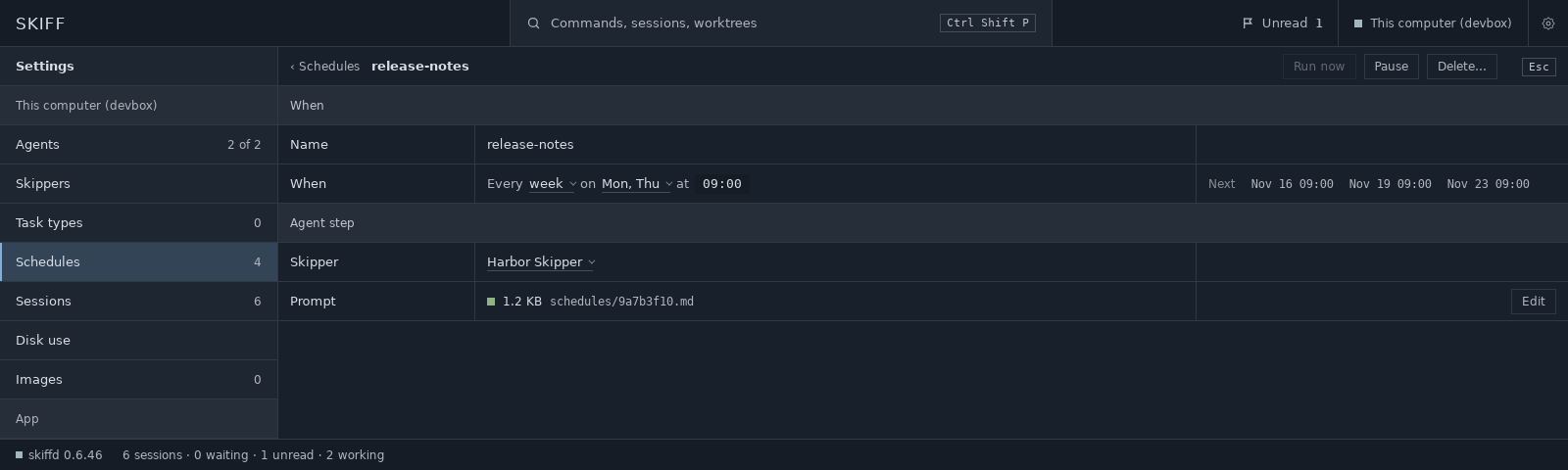
In the When sentence, each value with a faint underline is a picker. A click opens its menu. The first picker sets the rest of the sentence. The days menu stays open while you select days. Type the time as HH:MM. A bad time gets a red underline and an error line in the end column. Custom shows the cron line as a text field.
The Skipper picker lists Admiral, then each fleet Skipper, then the Skipper of each project that is in no fleet, in the order of the tree. Each item shows the Skipper's face. The list has every Skipper, also those that do not run. A project in a fleet is not in the list, because its fleet's Skipper takes its work. A schedule that names such a project shows its fleet's Skipper, and the next change stores the fleet.

Edit in the Prompt row opens the file as Open with › Text files says: a terminal tool runs in the peek, and an app opens its own window. When the file does not exist, Skiff makes it with the # <name> line. The size shows again when the file closes or the window gets the keys back. A new schedule has no file until it saves.
Run now on the edit page first saves the field that you are in. Then it starts the run and goes back to the list, where the row shows the new run. When the run cannot start, the page stays open and shows the error.
A schedule from skiff schedule can have more than the page sets:
- A command shows in a read-only Command row, with its gate and its time limit.
- A task type, a pane or no agent step shows in a read-only Agent row, such as "type fix".
An edit on the page keeps these.
Each field saves when you leave it. A new schedule saves when its name and its When are valid. Each change runs skiff schedule on the Host.
| Command | Description |
|---|---|
skiff schedule add NAME WHEN [options] |
Adds a schedule and writes its prompt file. |
skiff schedule edit NAME [--name NEW] [options] |
Changes a schedule. Only the given flags change. An empty value clears a text field. |
skiff schedule ls [--json] |
Lists the schedules with When, target, next run and last run. |
skiff schedule show NAME [--json] |
Shows a schedule, the path and size of its prompt file, and its last 20 runs, newest first. |
skiff schedule rm NAME |
Deletes a schedule. Its runs stay in the ledger. Its prompt file stays, and the command prints its path. |
skiff schedule pause NAME |
Stops the runs. |
skiff schedule resume NAME |
Starts the runs again from the next time. |
skiff schedule run-now NAME |
Starts a run now. Refused while a run is open. |
WHEN is one of these:
| When | Flags |
|---|---|
| Every day | --every day --at 02:00 |
| Weekdays | --every weekday --at 08:00 |
| Every week | --every week --on mon,thu --at 09:00 |
| Every month | --every month --day 1 --at 06:00 |
| An interval |
--every 30m --between 09:00-18:00 --on mon-fri. Also --every 2h. With no --between, it runs all day. With no --on, it runs every day. |
| Custom | --cron "0 9 1,15 * *" |
The other options:
| Option | Description |
|---|---|
--to skipper |
The run goes to a Skipper. The app sets only this target. |
--skipper NAME |
With --to skipper: Admiral, a project, or fleet:NAME. A name that is both a project and a fleet needs project:NAME or fleet:NAME. The default is Admiral. |
--text TEXT |
Writes TEXT to the prompt file, under its heading. - reads it from stdin. With edit, the file changes only when you give --text. |
--to type|pane|none |
The run starts a new session of a task type, goes to a session by name, or has no agent step. |
--type TYPE |
With --to type: the task type. It also needs --project. |
--project PROJECT |
The project folder for the command and for a new session. |
--pane NAME |
With --to pane: the session's name. |
--command CMD |
A command that skiffd runs first, in the project folder, or in the home folder when the schedule has no project. Its output is the run's result. |
--timeout SECS |
The command's time limit. The default is 600. |
--gate always|on-fail|on-output |
When the agent step runs after the command: after each run, only when the command fails, or only when it prints something. The default is always. |
From a shell outside Skiff, add --person, as with skiff ledger.
Example: a backlog sweep by Admiral at 02:00 each day.
skiff schedule add backlog-sweep --every day --at 02:00 --to skipper \
  --text "Look at the backlog, pick the features you can take, and work on them."
Example: release notes by the Harbor fleet Skipper each Monday and Thursday.
skiff schedule add release-notes --every week --on mon,thu --at 09:00 \
  --to skipper --skipper fleet:Harbor \
  --text "Write the release notes from the pull requests merged since the last tag."