Repository navigation
Releases
StarDraft 2 - v0.8.7 (build c8a1a10)

What is new in 0.8.7
Video: the new features of 0.8.7
Map
- One grid for the whole map: View > Grid has sizes from 2 to 256 pixels. Options > Units, Sprites and Locations each
have Snap to the grid, on or off. - Snap to the grid in the Edit menu and the right-click menu, for selected units, doodads and sprites.
- Magic wand (W), under Select: a click selects connected terrain, Shift+click adds, Ctrl+click removes.
- Terrain mask (experimental): Alt+click terrains or tiles, then painting changes only those.
- Turn and mirror what is on the cursor: R, M and top bar buttons, for terrain, units, doodads and sprites. Turning
is experimental. - Symmetry: a movable center, and Turns from 1 to 8.
- Spray density from 1 to 100%.
- Isometric: the Square and Circle brushes show their own shape, and Select keeps its own shape.
- Rectangle: the brush is in tiles, from 1 x 1.
- Ctrl+V makes custom terrain text on the clipboard the brush.
Data
- Map properties > Players: a save keeps each player's type. The Custom (RGB) color is gone from the color list.
Triggers
- Classic triggers: all the game's AI scripts are in the list, with Turn ON and Turn OFF Shared Vision by name.
- Classic triggers: a scroll past a value no longer changes it.
Fixes
- Selected doodads and sprites keep their boxes when the mouse leaves the map.
- Windows: a drag of a palette window to a screen's edge no longer snaps it to half of the screen.
About StarDraft (0.5 Alpha)
The first public version. This is an alpha: please save often, keep copies of your maps, and report issues.
Start
- Unzip the release's zip file into a folder and run
StarDraft 2.exe. StarCraft: Remastered must be
installed. StarDraft 2 reads the game's files from it (if it does not find them, use Options > Program options >
StarCraft folder). - StarDraft 2 starts with a new project. File > Save asks where to keep it. A project is a folder with
project.stardraft, the map, its scripts and its data changes. Double-clickproject.stardraftto open it. - Build (Ctrl+B) makes the map to play (
<name>_EUD.scx). The first build downloads
euddraft. Copy the map into StarCraft'sMapsfolder to play it.
StarDraft 2 also opens and saves regular maps (.scm, .scx) without a project.
Maps
- Terrain brushes in different shapes and sizes, spray, fill, replace, and copy and paste with symmetry.
- Select terrain in the shape of the brush: diamond, square or circle.
- Units, doodads, sprites and locations, with snap and placement rules (Options menu).
- HD, SD and Carbot graphics.
- A new map with generated terrain (with symmetry), or with the terrain of a map that you have.
- Scenario > Map properties: the title, description, tileset and size. Scenario > Players and forces: the players.
- Show town areas (View menu): the buildable area and the resources around each base.
- Press Q to find a unit, doodad, sprite or tile by its name.
Classic maps
- A classic trigger editor.
- The Data page: the unit, upgrade and technology settings for each player, as in the game.
- Classic maps keep up to 3,400 units, save and load, and replays.
EUD projects
- The Data workspace edits every .dat file, the strings, requirements, button sets and the unit display. Previews
show what each value does: ranges, the image player with its iscript, portraits and the command card. - Triggers are blocks in plain sentences that become epScript: values from the game, loops, keys and the mouse,
text with colors, and the game's countdown timer. A checker marks EUD errors and desyncs, and the code shows beside
the blocks. - Link your own .eps files. StarDraft 2 builds them as they are, and a build error names the file and the line.
- The bug button beside Build turns on debug mode: the triggers check their indexes in the game, and Build writes a
trace file. epTrace (from euddraft) reads it while the map plays and shows which script lines use the most time.
The Project page and the log show its report.
Briefings and sounds
- A mission briefing editor with a preview that plays the briefing as the game plays it.
- The map's sounds play as in the game.
The program
- A light and a dark theme, with eight accent colors.
- Options > Program options (Ctrl+,): the theme, the volume, the unit names, the start options and the StarCraft
folder.
Feedback and crashes
- Right-click buttons, labels, or panes and select "Report feedback on …", or use Help > Report feedback. Feedback is
anonymous. Do not include private information. - If StarDraft 2 crashes, it sends a crash report by itself (the version, Windows, the video card, where it crashed,
the last log lines; no maps). Can be turned off in Program options. - Help > Check for updates gets the newest build. StarDraft 2 also looks for one on start (Options > Program options
to turn it off).
StarDraft 2 - v0.8.6 (build 6b5e33a)
What is new in 0.8.6
A stability release for Windows.
Fixes
- Starting no longer stops the whole computer on older video cards (for example the GeForce GTX 770): drawing now
uses Vulkan first, then Direct3D 12, then software drawing. - When a start does not show its window, the next start uses another graphics driver.
- Too much memory use now ends StarDraft 2 with a crash report; the computer keeps working.
The program
-
Program options > General > Graphics: Automatic, Direct3D 12 or Software. The driver and video card in use show there
and in the Log.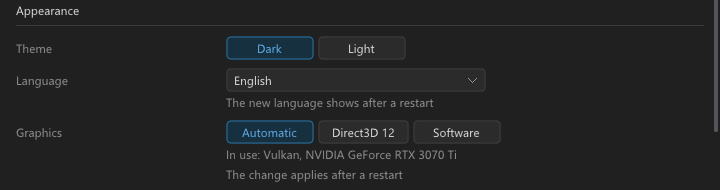
About StarDraft (0.5 Alpha)
The first public version. This is an alpha: please save often, keep copies of your maps, and report issues.
Start
- Unzip the release's zip file into a folder and run
StarDraft 2.exe. StarCraft: Remastered must be
installed. StarDraft 2 reads the game's files from it (if it does not find them, use Options > Program options >
StarCraft folder). - StarDraft 2 starts with a new project. File > Save asks where to keep it. A project is a folder with
project.stardraft, the map, its scripts and its data changes. Double-clickproject.stardraftto open it. - Build (Ctrl+B) makes the map to play (
<name>_EUD.scx). The first build downloads
euddraft. Copy the map into StarCraft'sMapsfolder to play it.
StarDraft 2 also opens and saves regular maps (.scm, .scx) without a project.
Maps
- Terrain brushes in different shapes and sizes, spray, fill, replace, and copy and paste with symmetry.
- Select terrain in the shape of the brush: diamond, square or circle.
- Units, doodads, sprites and locations, with snap and placement rules (Options menu).
- HD, SD and Carbot graphics.
- A new map with generated terrain (with symmetry), or with the terrain of a map that you have.
- Scenario > Map properties: the title, description, tileset and size. Scenario > Players and forces: the players.
- Show town areas (View menu): the buildable area and the resources around each base.
- Press Q to find a unit, doodad, sprite or tile by its name.
Classic maps
- A classic trigger editor.
- The Data page: the unit, upgrade and technology settings for each player, as in the game.
- Classic maps keep up to 3,400 units, save and load, and replays.
EUD projects
- The Data workspace edits every .dat file, the strings, requirements, button sets and the unit display. Previews
show what each value does: ranges, the image player with its iscript, portraits and the command card. - Triggers are blocks in plain sentences that become epScript: values from the game, loops, keys and the mouse,
text with colors, and the game's countdown timer. A checker marks EUD errors and desyncs, and the code shows beside
the blocks. - Link your own .eps files. StarDraft 2 builds them as they are, and a build error names the file and the line.
- The bug button beside Build turns on debug mode: the triggers check their indexes in the game, and Build writes a
trace file. epTrace (from euddraft) reads it while the map plays and shows which script lines use the most time.
The Project page and the log show its report.
Briefings and sounds
- A mission briefing editor with a preview that plays the briefing as the game plays it.
- The map's sounds play as in the game.
The program
- A light and a dark theme, with eight accent colors.
- Options > Program options (Ctrl+,): the theme, the volume, the unit names, the start options and the StarCraft
folder.
Feedback and crashes
- Right-click buttons, labels, or panes and select "Report feedback on …", or use Help > Report feedback. Feedback is
anonymous. Do not include private information. - If StarDraft 2 crashes, it sends a crash report by itself (the version, Windows, the video card, where it crashed,
the last log lines; no maps). Can be turned off in Program options. - Help > Check for updates gets the newest build. StarDraft 2 also looks for one on start (Options > Program options
to turn it off).
StarDraft 2 - v0.8.5 (build 81c0850)
What is new in 0.8.5
Map
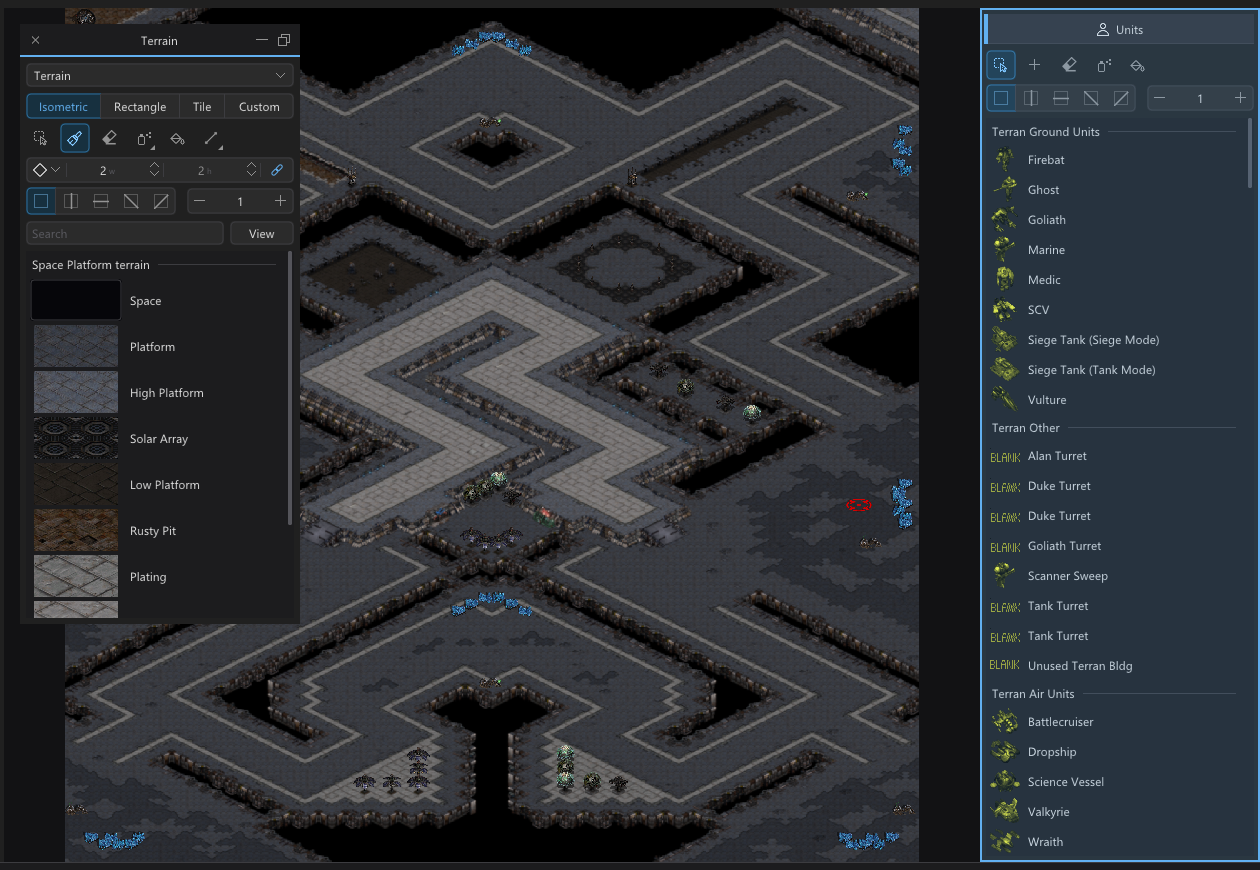
-
Drag a side bar tab out to float it, or onto a side bar to dock it; a blue outline shows where it goes.
-
The status bar shows the mode's count: units and start locations, doodads, sprites, locations used of the slots.
-
Terrain selections show their size; the Isometric paste preview shows the pasted terrain.
-
Rectangle mode: drag copied tiles to paste them along the way.
-
Isometric and Rectangle each keep their own brush shape.
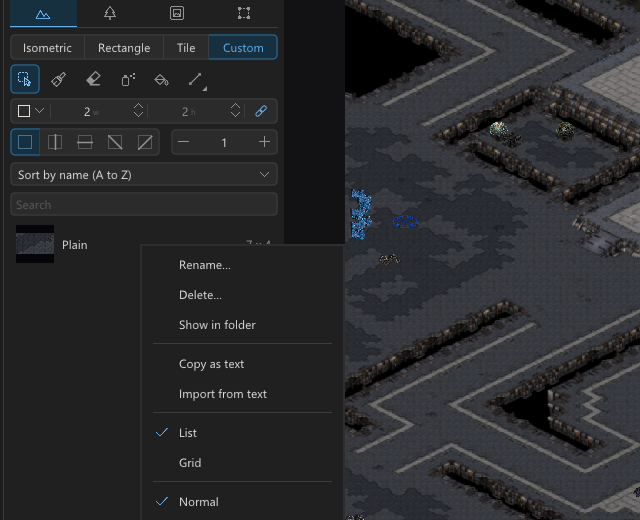
-
Custom list: Copy as text and Import from text, to share custom terrain.
-
The number row picks players 1 to 12 on any keyboard layout; zoom is Ctrl++ and Ctrl+-.
Data
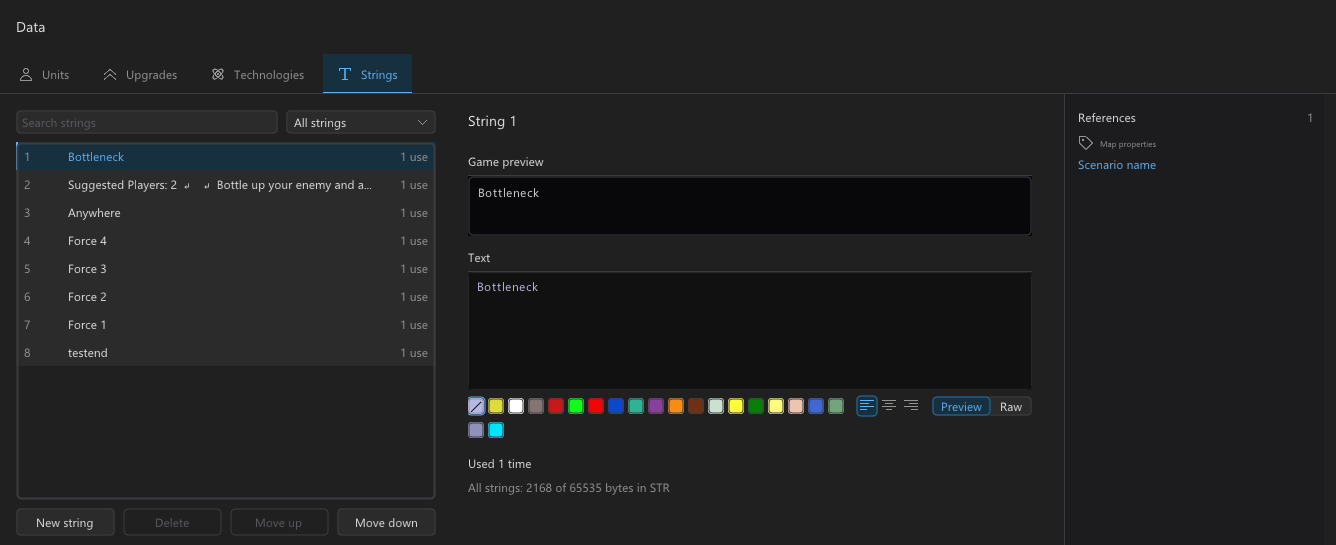
-
Data > Strings for classic maps: edit, add, delete unused strings and change their order; every use follows.
-
Map properties > Players: every player type and race, Type and Race for players 9 to 12, extended colors. Type a
number for a value with no name.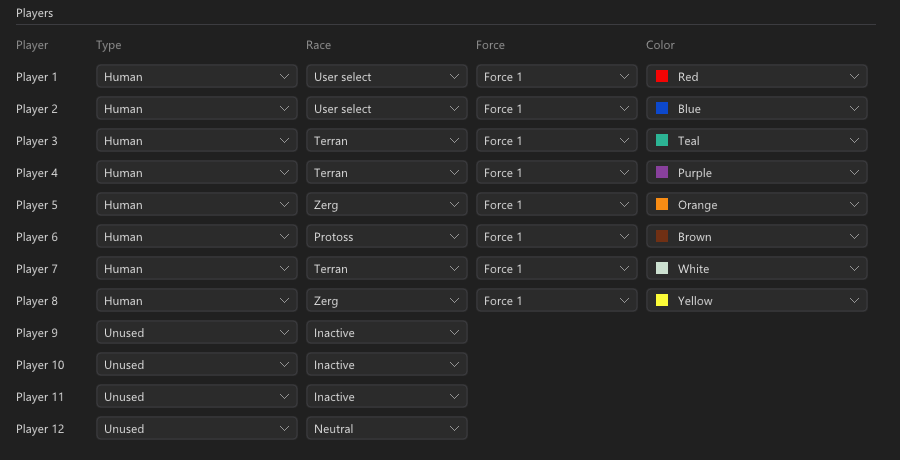
-
Assets: search the map's sounds.
Fixes
- Maps with Computer players that have no start location now start in StarCraft.
- Walkable black tiles no longer show as Zerg creep.
- Scrolling past a dropdown no longer changes it (rest the mouse on it to use the wheel).
- Less CPU and GPU use while the mouse moves.
- Check for updates works with user names in other alphabets and on older Windows 10.
- A held isometric brush no longer paints the same place again and again.
- Arrow keys move buildings up and left; the trigger type list's scroll bar works.
- Requirements with many "Always" entries fit in the map.
About StarDraft (0.5 Alpha)
The first public version. This is an alpha: please save often, keep copies of your maps, and report issues.
Start
- Unzip the release's zip file into a folder and run
StarDraft 2.exe. StarCraft: Remastered must be
installed. StarDraft 2 reads the game's files from it (if it does not find them, use Options > Program options >
StarCraft folder). - StarDraft 2 starts with a new project. File > Save asks where to keep it. A project is a folder with
project.stardraft, the map, its scripts and its data changes. Double-clickproject.stardraftto open it. - Build (Ctrl+B) makes the map to play (
<name>_EUD.scx). The first build downloads
euddraft. Copy the map into StarCraft'sMapsfolder to play it.
StarDraft 2 also opens and saves regular maps (.scm, .scx) without a project.
Maps
- Terrain brushes in different shapes and sizes, spray, fill, replace, and copy and paste with symmetry.
- Select terrain in the shape of the brush: diamond, square or circle.
- Units, doodads, sprites and locations, with snap and placement rules (Options menu).
- HD, SD and Carbot graphics.
- A new map with generated terrain (with symmetry), or with the terrain of a map that you have.
- Scenario > Map properties: the title, description, tileset and size. Scenario > Players and forces: the players.
- Show town areas (View menu): the buildable area and the resources around each base.
- Press Q to find a unit, doodad, sprite or tile by its name.
Classic maps
- A classic trigger editor.
- The Data page: the unit, upgrade and technology settings for each player, as in the game.
- Classic maps keep up to 3,400 units, save and load, and replays.
EUD projects
- The Data workspace edits every .dat file, the strings, requirements, button sets and the unit display. Previews
show what each value does: ranges, the image player with its iscript, portraits and the command card. - Triggers are blocks in plain sentences that become epScript: values from the game, loops, keys and the mouse,
text with colors, and the game's countdown timer. A checker marks EUD errors and desyncs, and the code shows beside
the blocks. - Link your own .eps files. StarDraft 2 builds them as they are, and a build error names the file and the line.
- The bug button beside Build turns on debug mode: the triggers check their indexes in the game, and Build writes a
trace file. epTrace (from euddraft) reads it while the map plays and shows which script lines use the most time.
The Project page and the log show its report.
Briefings and sounds
- A mission briefing editor with a preview that plays the briefing as the game plays it.
- The map's sounds play as in the game.
The program
- A light and a dark theme, with eight accent colors.
- Options > Program options (Ctrl+,): the theme, the volume, the unit names, the start options and the StarCraft
folder.
Feedback and crashes
- Right-click buttons, labels, or panes and select "Report feedback on …", or use Help > Report feedback. Feedback is
anonymous. Do not include private information. - If StarDraft 2 crashes, it sends a crash report by itself (the version, Windows, the video card, where it crashed,
the last log lines; no maps). Can be turned off in Program options. - Help > Check for updates gets the newest build. StarDraft 2 also looks for one on start (Options > Program options
to turn it off).
StarDraft 2 - v0.8.4 (build c21b8d5)
What is new in 0.8.4
The program
- Faster on big maps: scrolling, zooming, placing and dragging units stay smooth with thousands of units.
- Much less CPU and GPU use when idle: the window paints again only when something changes.
- Faster status bar, palette search, minimap, locations and overlays (unit ranges up to 6 times faster).
- Clearer texts in all five languages; dialog buttons name their action (for example Apply).
Triggers
- New EUD conditions: "A unit's order is on a unit" and "A unit was killed by a player".
- New EUD action: "Set a unit variable to a unit's order target".
Fixes
- A quick double-click on a recent map or a trigger command acts once.
About StarDraft (0.5 Alpha)
The first public version. This is an alpha: please save often, keep copies of your maps, and report issues.
Start
- Unzip the release's zip file into a folder and run
StarDraft 2.exe. StarCraft: Remastered must be
installed. StarDraft 2 reads the game's files from it (if it does not find them, use Options > Program options >
StarCraft folder). - StarDraft 2 starts with a new project. File > Save asks where to keep it. A project is a folder with
project.stardraft, the map, its scripts and its data changes. Double-clickproject.stardraftto open it. - Build (Ctrl+B) makes the map to play (
<name>_EUD.scx). The first build downloads
euddraft. Copy the map into StarCraft'sMapsfolder to play it.
StarDraft 2 also opens and saves regular maps (.scm, .scx) without a project.
Maps
- Terrain brushes in different shapes and sizes, spray, fill, replace, and copy and paste with symmetry.
- Select terrain in the shape of the brush: diamond, square or circle.
- Units, doodads, sprites and locations, with snap and placement rules (Options menu).
- HD, SD and Carbot graphics.
- A new map with generated terrain (with symmetry), or with the terrain of a map that you have.
- Scenario > Map properties: the title, description, tileset and size. Scenario > Players and forces: the players.
- Show town areas (View menu): the buildable area and the resources around each base.
- Press Q to find a unit, doodad, sprite or tile by its name.
Classic maps
- A classic trigger editor.
- The Data page: the unit, upgrade and technology settings for each player, as in the game.
- Classic maps keep up to 3,400 units, save and load, and replays.
EUD projects
- The Data workspace edits every .dat file, the strings, requirements, button sets and the unit display. Previews
show what each value does: ranges, the image player with its iscript, portraits and the command card. - Triggers are blocks in plain sentences that become epScript: values from the game, loops, keys and the mouse,
text with colors, and the game's countdown timer. A checker marks EUD errors and desyncs, and the code shows beside
the blocks. - Link your own .eps files. StarDraft 2 builds them as they are, and a build error names the file and the line.
- The bug button beside Build turns on debug mode: the triggers check their indexes in the game, and Build writes a
trace file. epTrace (from euddraft) reads it while the map plays and shows which script lines use the most time.
The Project page and the log show its report.
Briefings and sounds
- A mission briefing editor with a preview that plays the briefing as the game plays it.
- The map's sounds play as in the game.
The program
- A light and a dark theme, with eight accent colors.
- Options > Program options (Ctrl+,): the theme, the volume, the unit names, the start options and the StarCraft
folder.
Feedback and crashes
- Right-click buttons, labels, or panes and select "Report feedback on …", or use Help > Report feedback. Feedback is
anonymous. Do not include private information. - If StarDraft 2 crashes, it sends a crash report by itself (the version, Windows, the video card, where it crashed,
the last log lines; no maps). Can be turned off in Program options. - Help > Check for updates gets the newest build. StarDraft 2 also looks for one on start (Options > Program options
to turn it off).
StarDraft 2 - v0.8.3 (build 1552d64)
What is new in 0.8.3
Map
-
New shape tools: Line, Contour, Polygon, Rectangle, Ellipse and Diamond, outline or filled. Shift locks the angle or
makes a square, circle or map-shaped diamond. Video: https://www.youtube.com/watch?v=rWf2oNXWwzk -
New Jumble tool (X): mixes the terrains under the brush.
-
Erase (E) in every mode: Dirt on Terrain; deletes units, doodads, sprites and locations.
-
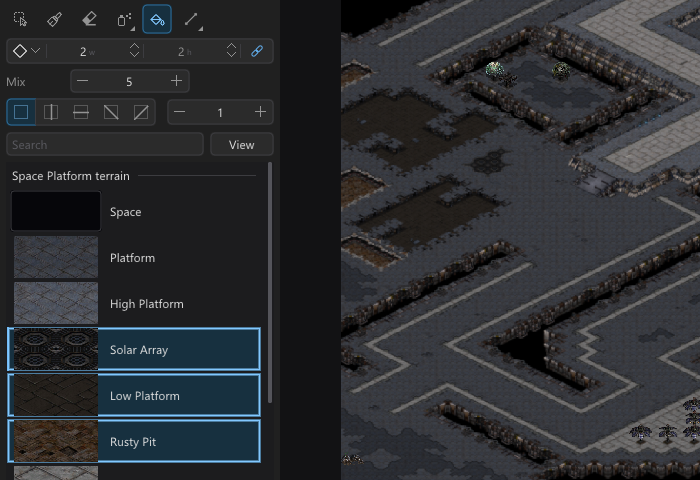
Select several terrains or tiles (Ctrl+click): Spray and Fill use them all; Fill puts them in patches (Mix).
-
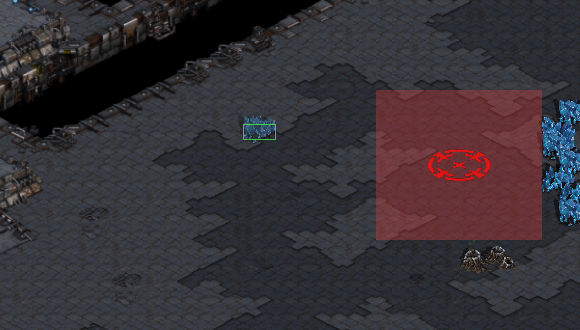
Placing a resource, town hall or start location shows the red ground where it may not go.
-
Isometric Select: Shift+drag adds, Ctrl+drag takes out.
-
Tiles list: Shift adds to the selection, Ctrl takes out.
-
Fill shows a paint bucket pointer; Fill of units and doodads is much faster.
-
Tool strip: Spray/Jumble and the shapes share buttons; a click shows the group's tools.
-
Pasted terrain can hang over any map edge.
-
Protected terrain shows only in Terrain mode.
-
Invalid resource depot and node: overlapping zones show as one area.
-
An expansion's town preview stays on the ground level of its resources.
-
Quick picker: Left and Right move through the grid.
The program
-
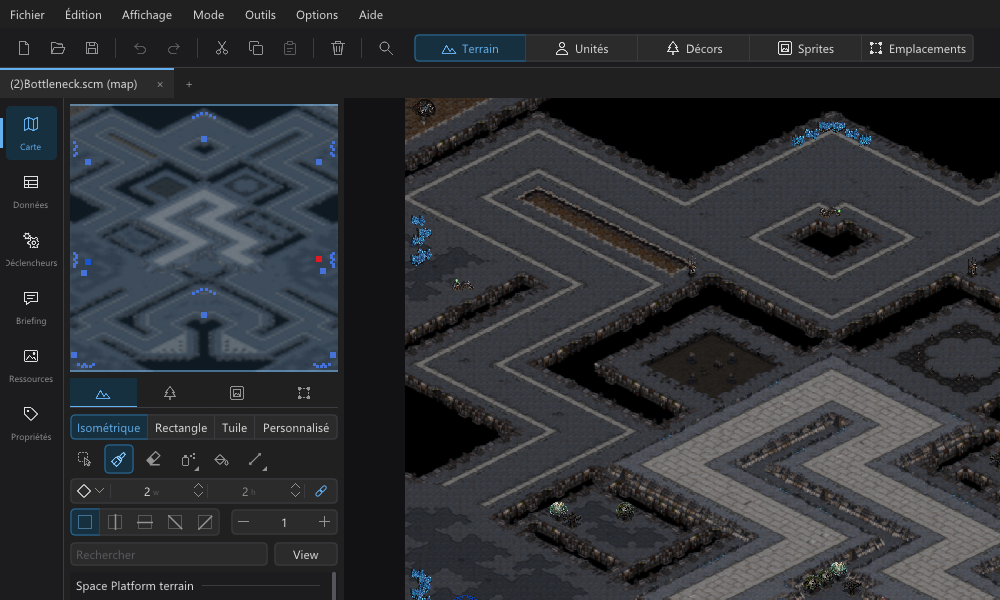
New language: French.
-
Windows: starts on video cards without Direct3D 12 (Vulkan or software).
-
About shows the right version.
-
Map tabs scroll with the mouse wheel when they don't fit.
CMBW mod
- The mod team's terrain fixes for every tileset but Installation: 821 black pieces get tiles.
- Units can belong to players above 12.
- Custom isom terrain editor: Ctrl+E works while the search box is in use.
About StarDraft (0.5 Alpha)
The first public version. This is an alpha: please save often, keep copies of your maps, and report issues.
Start
- Unzip the release's zip file into a folder and run
StarDraft 2.exe. StarCraft: Remastered must be
installed. StarDraft 2 reads the game's files from it (if it does not find them, use Options > Program options >
StarCraft folder). - StarDraft 2 starts with a new project. File > Save asks where to keep it. A project is a folder with
project.stardraft, the map, its scripts and its data changes. Double-clickproject.stardraftto open it. - Build (Ctrl+B) makes the map to play (
<name>_EUD.scx). The first build downloads
euddraft. Copy the map into StarCraft'sMapsfolder to play it.
StarDraft 2 also opens and saves regular maps (.scm, .scx) without a project.
Maps
- Terrain brushes in different shapes and sizes, spray, fill, replace, and copy and paste with symmetry.
- Select terrain in the shape of the brush: diamond, square or circle.
- Units, doodads, sprites and locations, with snap and placement rules (Options menu).
- HD, SD and Carbot graphics.
- A new map with generated terrain (with symmetry), or with the terrain of a map that you have.
- Scenario > Map properties: the title, description, tileset and size. Scenario > Players and forces: the players.
- Show town areas (View menu): the buildable area and the resources around each base.
- Press Q to find a unit, doodad, sprite or tile by its name.
Classic maps
- A classic trigger editor.
- The Data page: the unit, upgrade and technology settings for each player, as in the game.
- Classic maps keep up to 3,400 units, save and load, and replays.
EUD projects
- The Data workspace edits every .dat file, the strings, requirements, button sets and the unit display. Previews
show what each value does: ranges, the image player with its iscript, portraits and the command card. - Triggers are blocks in plain sentences that become epScript: values from the game, loops, keys and the mouse,
text with colors, and the game's countdown timer. A checker marks EUD errors and desyncs, and the code shows beside
the blocks. - Link your own .eps files. StarDraft 2 builds them as they are, and a build error names the file and the line.
- The bug button beside Build turns on debug mode: the triggers check their indexes in the game, and Build writes a
trace file. epTrace (from euddraft) reads it while the map plays and shows which script lines use the most time.
The Project page and the log show its report.
Briefings and sounds
- A mission briefing editor with a preview that plays the briefing as the game plays it.
- The map's sounds play as in the game.
The program
- A light and a dark theme, with eight accent colors.
- Options > Program options (Ctrl+,): the theme, the volume, the unit names, the start options and the StarCraft
folder.
Feedback and crashes
- Right-click buttons, labels, or panes and select "Report feedback on …", or use Help > Report feedback. Feedback is
anonymous. Do not include private information. - If StarDraft 2 crashes, it sends a crash report by itself (the version, Windows, the video card, where it crashed,
the last log lines; no maps). Can be turned off in Program options. - Help > Check for updates gets the newest build. StarDraft 2 also looks for one on start (Options > Program options
to turn it off).
StarDraft 2 - v0.8.2 (build 1cef58b)
What is new in 0.8.2
Map
-
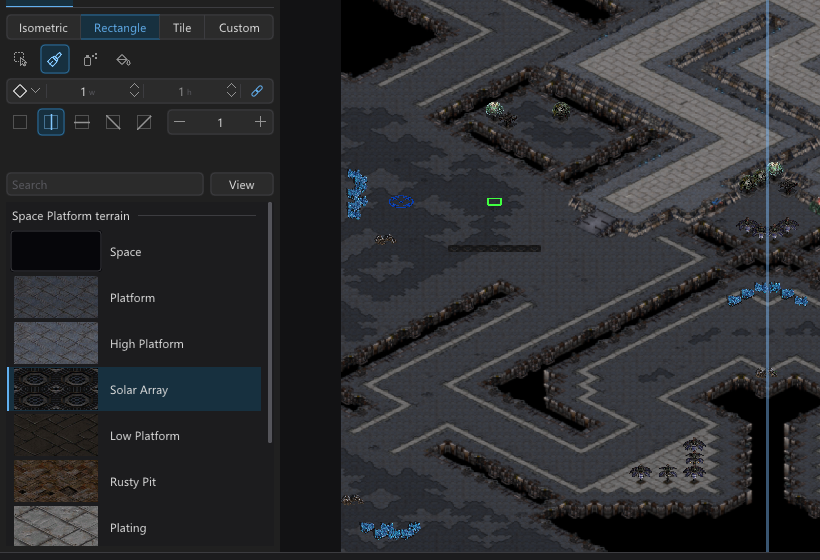
New Rectangle brush: a terrain's inside tiles in 2 x 1 rects, no edges (as in SCMDraft). The old Rectangle is now Tile.
-
Ctrl+Alt+1 to 4 pick Isometric, Rectangle, Tile and Custom.
-
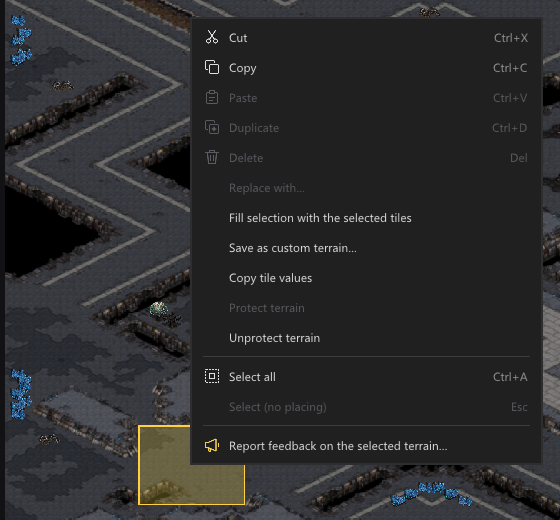
Protect terrain (right-click a selection), shown by View > Layers > Protected terrain.
-
Holding the brush no longer fills the ground with rare tiles.
-
Symmetry keys Alt+0 to 4.
-
View > Overlays: Invalid resource depot and Invalid resource node.
-
Ctrl+arrows move units by 16 pixels; a paste follows the symmetry.
-
The = key picks player 12.
The program
-
Each map opens in its own tab with no save question; a middle click closes a tab.
-
New page: type any size from 16 to 256.
-
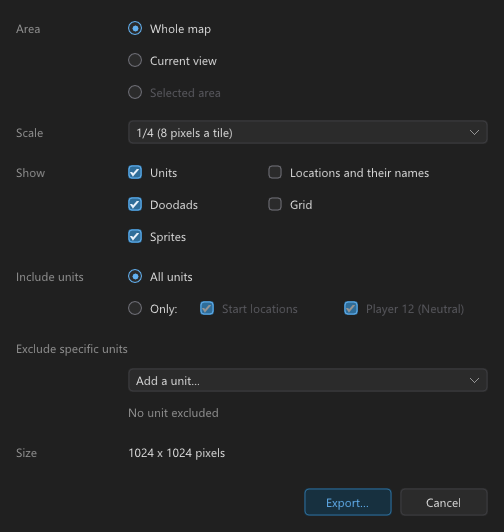
Export map image: choose the units to include or exclude.
CMBW mod
- The custom isom terrain editor's canvas is complete, clean and much faster.
- Snow (High Dirt cliffs) and Dirt (High Dirt cliffs) paint as raised cliffs, not as hollows.
About StarDraft (0.5 Alpha)
The first public version. This is an alpha: please save often, keep copies of your maps, and report issues.
Start
- Unzip the release's zip file into a folder and run
StarDraft 2.exe. StarCraft: Remastered must be
installed. StarDraft 2 reads the game's files from it (if it does not find them, use Options > Program options >
StarCraft folder). - StarDraft 2 starts with a new project. File > Save asks where to keep it. A project is a folder with
project.stardraft, the map, its scripts and its data changes. Double-clickproject.stardraftto open it. - Build (Ctrl+B) makes the map to play (
<name>_EUD.scx). The first build downloads
euddraft. Copy the map into StarCraft'sMapsfolder to play it.
StarDraft 2 also opens and saves regular maps (.scm, .scx) without a project.
Maps
- Terrain brushes in different shapes and sizes, spray, fill, replace, and copy and paste with symmetry.
- Select terrain in the shape of the brush: diamond, square or circle.
- Units, doodads, sprites and locations, with snap and placement rules (Options menu).
- HD, SD and Carbot graphics.
- A new map with generated terrain (with symmetry), or with the terrain of a map that you have.
- Scenario > Map properties: the title, description, tileset and size. Scenario > Players and forces: the players.
- Show town areas (View menu): the buildable area and the resources around each base.
- Press Q to find a unit, doodad, sprite or tile by its name.
Classic maps
- A classic trigger editor.
- The Data page: the unit, upgrade and technology settings for each player, as in the game.
- Classic maps keep up to 3,400 units, save and load, and replays.
EUD projects
- The Data workspace edits every .dat file, the strings, requirements, button sets and the unit display. Previews
show what each value does: ranges, the image player with its iscript, portraits and the command card. - Triggers are blocks in plain sentences that become epScript: values from the game, loops, keys and the mouse,
text with colors, and the game's countdown timer. A checker marks EUD errors and desyncs, and the code shows beside
the blocks. - Link your own .eps files. StarDraft 2 builds them as they are, and a build error names the file and the line.
- The bug button beside Build turns on debug mode: the triggers check their indexes in the game, and Build writes a
trace file. epTrace (from euddraft) reads it while the map plays and shows which script lines use the most time.
The Project page and the log show its report.
Briefings and sounds
- A mission briefing editor with a preview that plays the briefing as the game plays it.
- The map's sounds play as in the game.
The program
- A light and a dark theme, with eight accent colors.
- Options > Program options (Ctrl+,): the theme, the volume, the unit names, the start options and the StarCraft
folder.
Feedback and crashes
- Right-click buttons, labels, or panes and select "Report feedback on …", or use Help > Report feedback. Feedback is
anonymous. Do not include private information. - If StarDraft 2 crashes, it sends a crash report by itself (the version, Windows, the video card, where it crashed,
the last log lines; no maps). Can be turned off in Program options. - Help > Check for updates gets the newest build. StarDraft 2 also looks for one on start (Options > Program options
to turn it off).
StarDraft 2 - v0.8 (build c360923)
What is new in 0.8
New
-
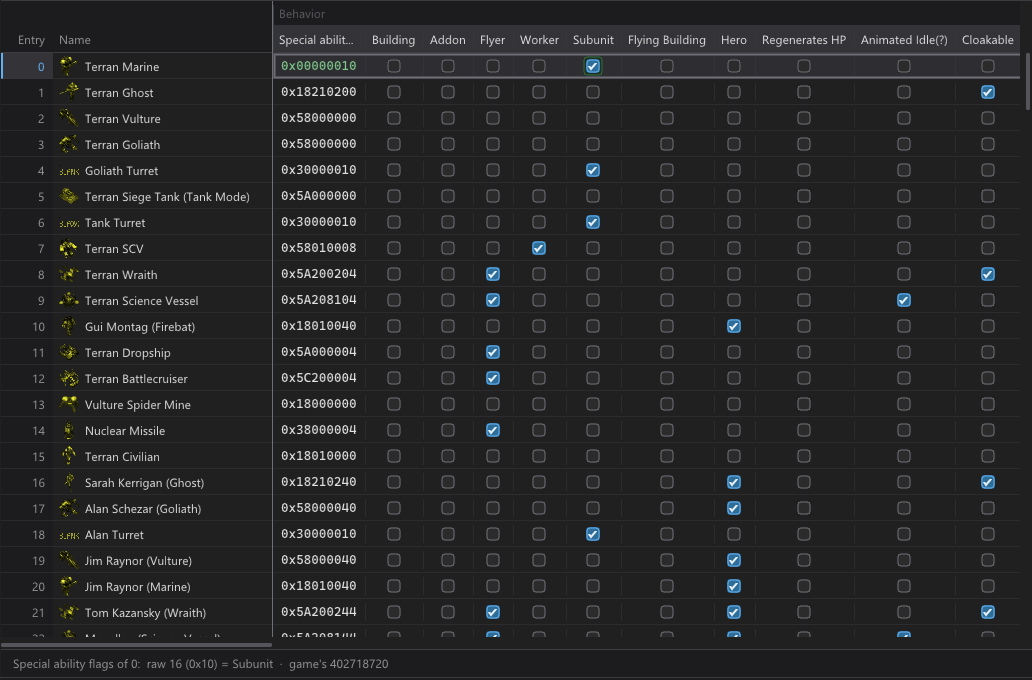
Table view (Ctrl+E): edit a whole .dat file as a spreadsheet, an entry a row and a field a column. Change many cells
at once (type a value, +10, *1.5, fill down), set flags with check boxes, sort, hide and move columns, and copy,
paste, import and export CSV with your spreadsheet program. The bar under the table sums the selected numbers.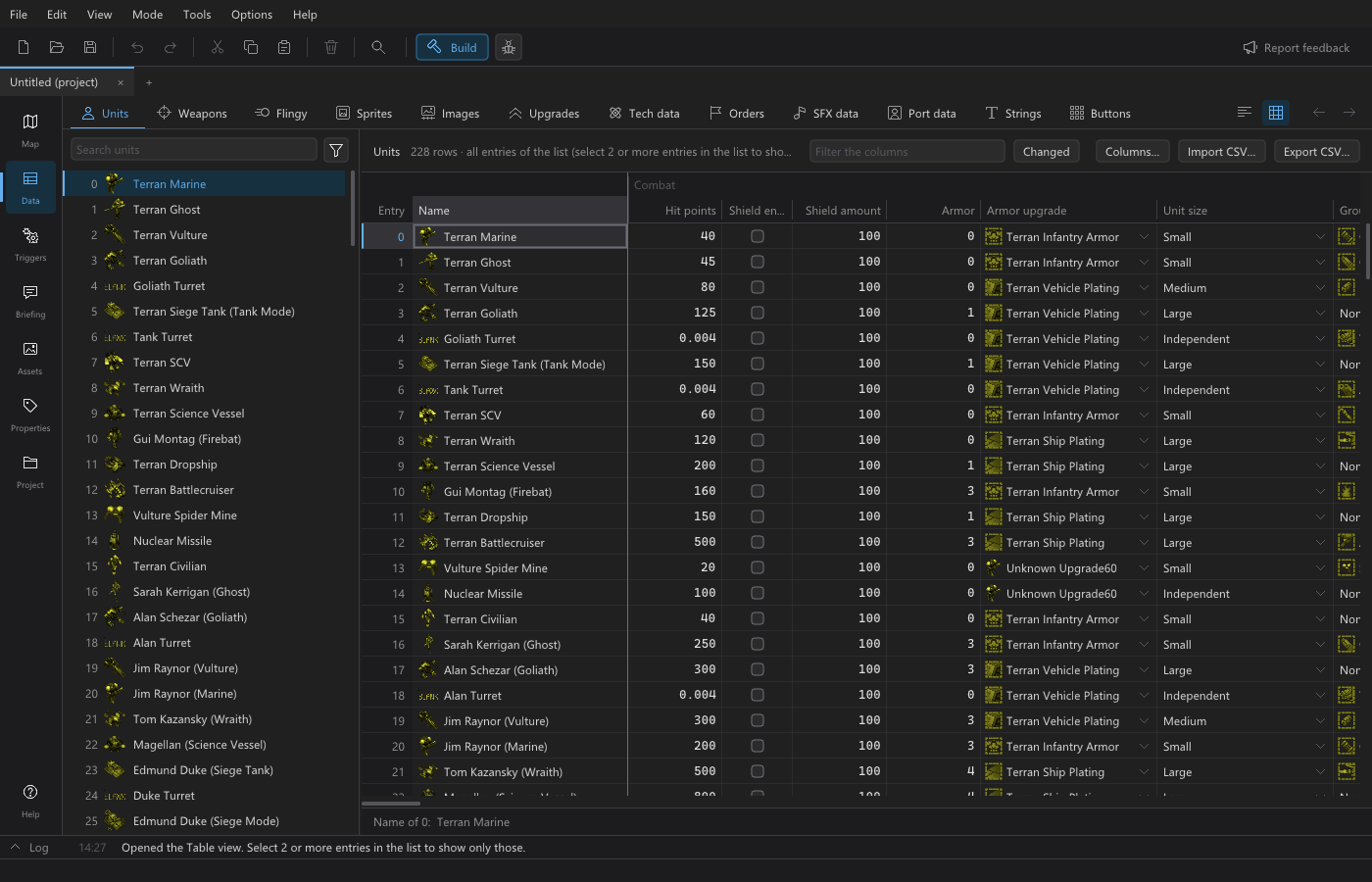
-
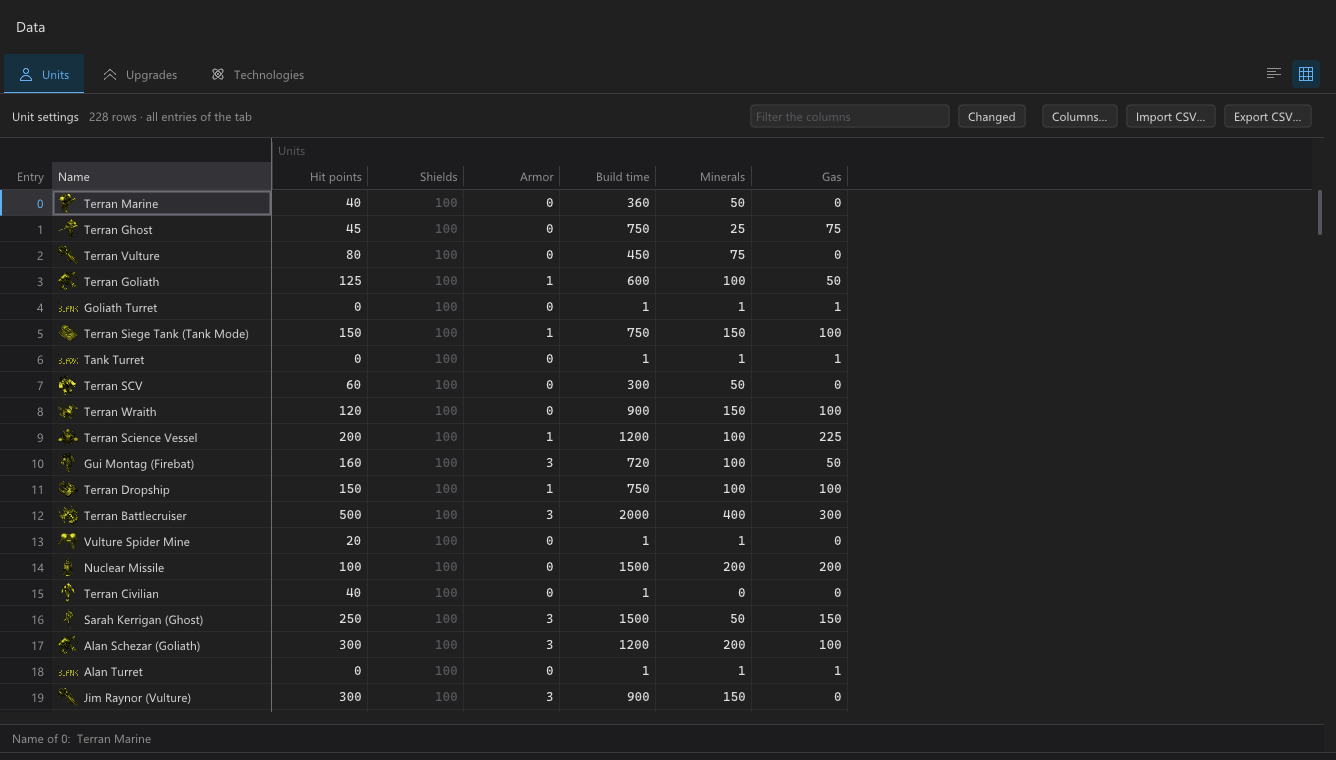
Map data has a Table view too: the unit, upgrade and technology settings of a classic map in one table.
-
Command line: stardraft-cli.exe (in the Windows zip) opens, checks, changes and saves maps, for scripts and AI
agents.stardraft-cli skillprints the guide for agents.
Map
-
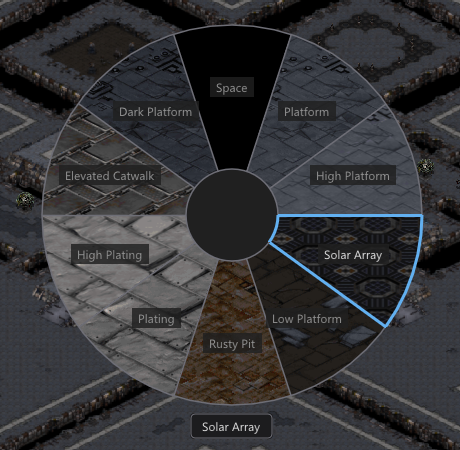
The terrain pie palette (hold Space in Terrain mode) shows each terrain in its slice.
-
Sort the Units, Doodads, Sprites and Locations lists. Ranges show for all selected units (not only 64).
-
Also: a loading view while a map opens, Copy tile values, a search in the player color list, Shift+click for the
second terrain, and a height for the Diamond brush.
Triggers
-
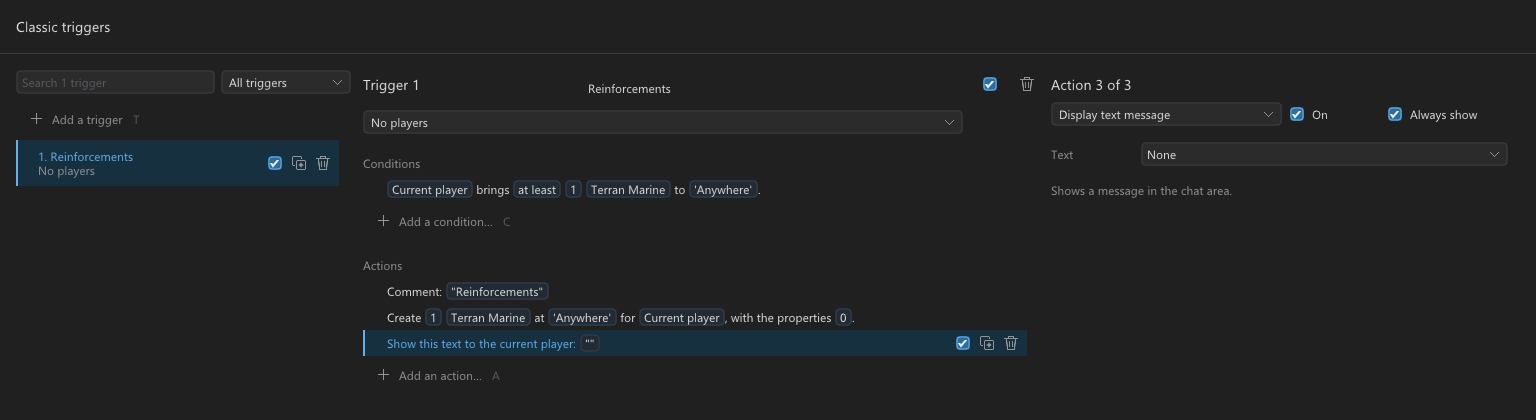
Classic triggers in three columns: the triggers, the selected trigger, and the selected condition or action.
The program
-
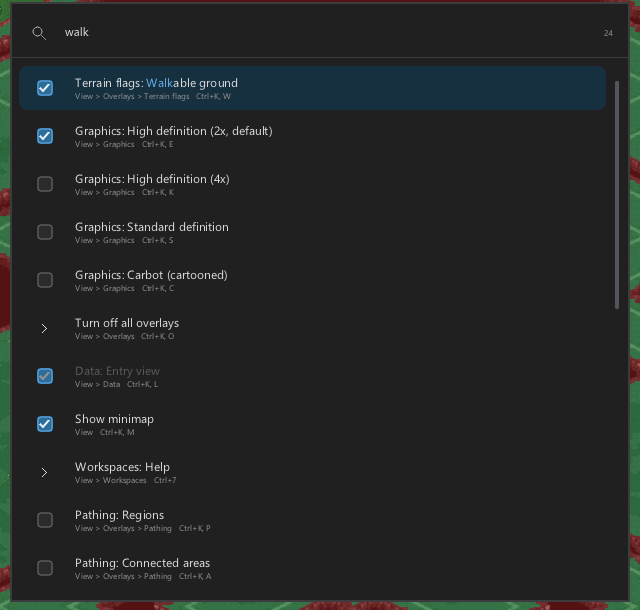
Find a command (Ctrl+P): find and run any menu command by its name.
-
Program options in tabs, with Reset all program settings. New two-key shortcuts (Ctrl+K and Ctrl+Shift+L, then a
letter) are in Help > Keyboard shortcuts. -
Windows: the program is StarDraft 2.exe. From 0.7: unzip the new zip and start StarDraft 2.exe (Check for updates
opens the release page). Your settings stay.
About StarDraft (0.5 Alpha)
The first public version. This is an alpha: please save often, keep copies of your maps, and report issues.
Start
- Unzip the release's zip file into a folder and run
StarDraft 2.exe. StarCraft: Remastered must be
installed. StarDraft 2 reads the game's files from it (if it does not find them, use Options > Program options >
StarCraft folder). - StarDraft 2 starts with a new project. File > Save asks where to keep it. A project is a folder with
project.stardraft, the map, its scripts and its data changes. Double-clickproject.stardraftto open it. - Build (Ctrl+B) makes the map to play (
<name>_EUD.scx). The first build downloads
euddraft. Copy the map into StarCraft'sMapsfolder to play it.
StarDraft 2 also opens and saves regular maps (.scm, .scx) without a project.
Maps
- Terrain brushes in different shapes and sizes, spray, fill, replace, and copy and paste with symmetry.
- Select terrain in the shape of the brush: diamond, square or circle.
- Units, doodads, sprites and locations, with snap and placement rules (Options menu).
- HD, SD and Carbot graphics.
- A new map with generated terrain (with symmetry), or with the terrain of a map that you have.
- Scenario > Map properties: the title, description, tileset and size. Scenario > Players and forces: the players.
- Show town areas (View menu): the buildable area and the resources around each base.
- Press Q to find a unit, doodad, sprite or tile by its name.
Classic maps
- A classic trigger editor.
- The Data page: the unit, upgrade and technology settings for each player, as in the game.
- Classic maps keep up to 3,400 units, save and load, and replays.
EUD projects
- The Data workspace edits every .dat file, the strings, requirements, button sets and the unit display. Previews
show what each value does: ranges, the image player with its iscript, portraits and the command card. - Triggers are blocks in plain sentences that become epScript: values from the game, loops, keys and the mouse,
text with colors, and the game's countdown timer. A checker marks EUD errors and desyncs, and the code shows beside
the blocks. - Link your own .eps files. StarDraft 2 builds them as they are, and a build error names the file and the line.
- The bug button beside Build turns on debug mode: the triggers check their indexes in the game, and Build writes a
trace file. epTrace (from euddraft) reads it while the map plays and shows which script lines use the most time.
The Project page and the log show its report.
Briefings and sounds
- A mission briefing editor with a preview that plays the briefing as the game plays it.
- The map's sounds play as in the game.
The program
- A light and a dark theme, with eight accent colors.
- Options > Program options (Ctrl+,): the theme, the volume, the unit names, the start options and the StarCraft
folder.
Feedback and crashes
- Right-click buttons, labels, or panes and select "Report feedback on …", or use Help > Report feedback. Feedback is
anonymous. Do not include private information. - If StarDraft 2 crashes, it sends a crash report by itself (the version, Windows, the video card, where it crashed,
the last log lines; no maps). Can be turned off in Program options. - Help > Check for updates gets the newest build. StarDraft 2 also looks for one on start (Options > Program options
to turn it off).
StarDraft 2 test build 2026-10-28

Test build with CMBW support as plugin
StarDraft 2 - v0.7 (build 29f7df4)
What is new in 0.7
New
-
The simulation is an experimental, early feature. It is StarDraft's own approximation of how StarCraft plays,
not the game itself, so its results can differ from the game. It will take more adjustments to get it right: when
something looks wrong, use Report feedback in the simulation's bar. -
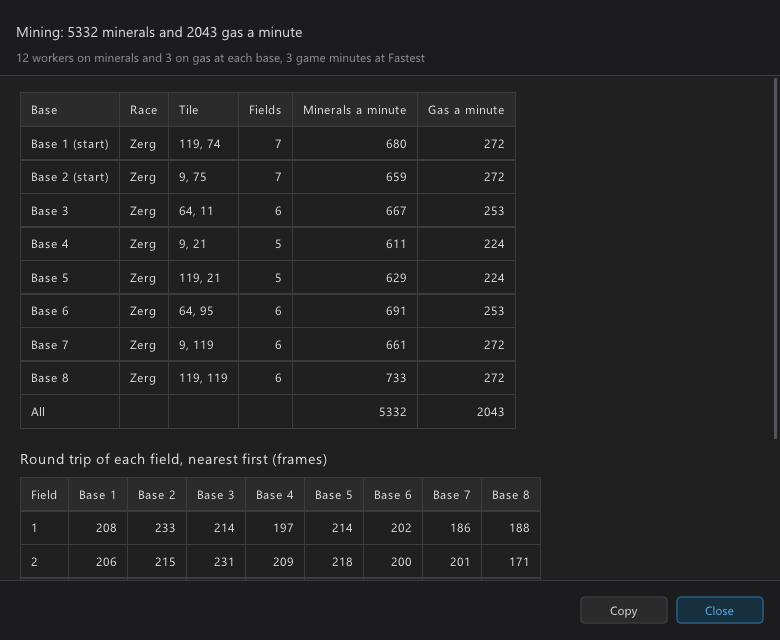
Simulate melee mining (experimental): Tools > Simulate melee mining plays a melee game on the map with workers at
each start location, and gives the minerals and gas a minute of each base, its race and each field's round trip.
The bar's gear sets the workers on minerals and on gas.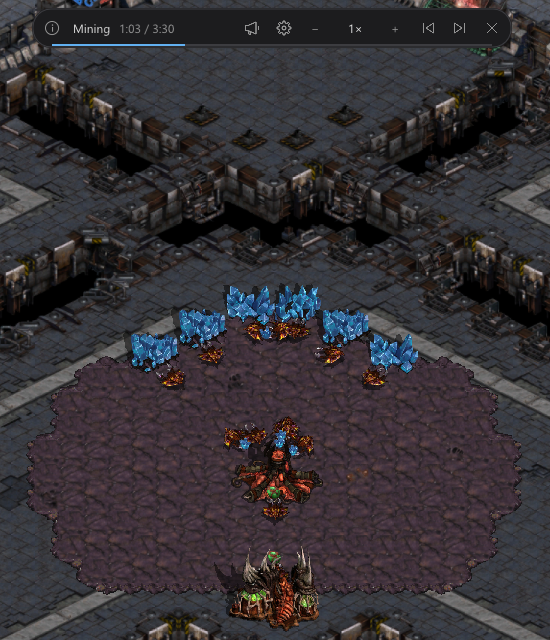
-
Simulate combat (experimental): select units in Units mode, then Tools > Simulate combat of the selected units.
The units fight on the map; the report gives the winner, the time, each side's losses and the trade. The bar's gear
sets who fights whom: the computers together, the map's forces, humans against computers, free for all, or every
unit against every other.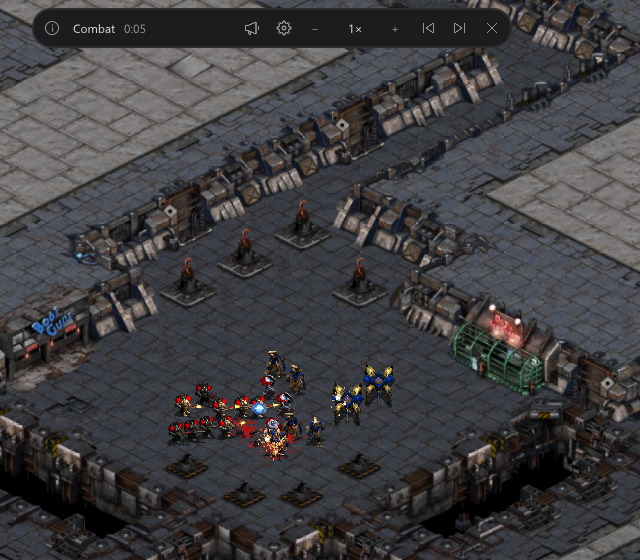
-
While a simulation plays: speed from 0.25x to 64x, Skip to the end, Restart, the report, and Report feedback. Units,
attacks, hit effects, deaths, burning buildings and creep show as in the game, with the game's sounds. -
In an EUD project, the simulation plays with the project's .dat edits: custom units, weapons and graphics fight and
mine as you set them up. -
Video of the simulation, mining and combat, also with EUD changes: https://youtu.be/CVhCDOOUxCM
Map
-
View > Layers > Creep: the creep of the map's Zerg buildings, with the soft creep edges of the tileset, in SD, HD2,
HD and Carbot. The creep moves with a building while you drag it.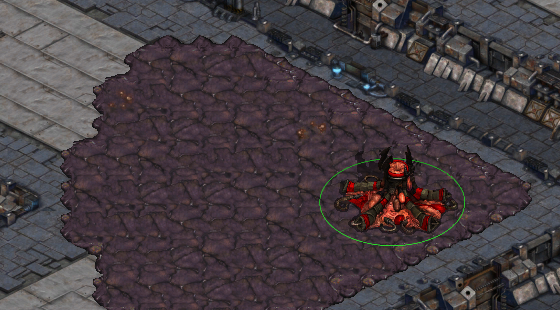
-
Mineral fields show how much is left, as in the game: full from 750 minerals, fewer crystals below that.
-
Tools is a menu of its own: the map checks, doodads where they fit, the map revealers and the simulation.
-
Paste units (Ctrl+V): press 1 to 9 to give the copy to that player before you place it. Paste lets the selected
units go.
Triggers
- The unit type of Create units (and the other blocks with a unit type) can come from a number variable, a constant,
or one player's value of a player array of unit types ("heroType of Player 3").
Data
-
New graphics for preplaced units (Project page): preplaced units whose graphics the .dat edits change are made
again at the start of the map, in their places, for their owners and with their values, so they show the new
graphics. Units in a transport, linked to an add-on or a Nydus Canal, of a type above 227, or on the map's edge keep
the old graphics; the Log says how many and why. -
Hit points show and are typed in hit points (40 for the Marine), not in 1/256 of a hit point as units.dat
stores them. The arrows and the mouse wheel step one hit point. -
The map shows each unit's image with the draw function that images.dat gives it, as the game draws it: cloaked,
cloaking and decloaking, EMP shockwave, glow, shadow, warp texture, hallucination and warp flash. A change in Data
shows on the map at once.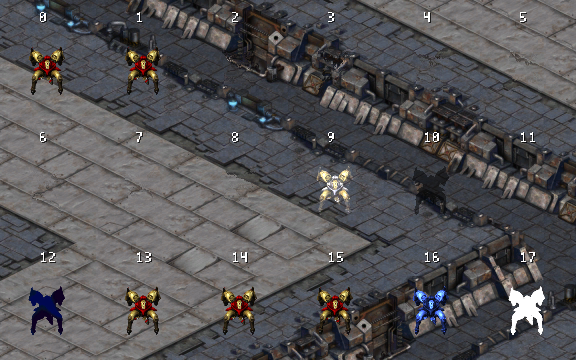
-
Help: the .dat pages tell what more fields, flags and values do in the game, with new pages for sfxdata.dat and
portdata.dat (wording from the StarCraft DAT page of Darkened Fantasies, with credit).
The program
- Terrain brush strokes on large maps with many units are about 3 times as fast (a 256x256 map with 5000 units:
11 ms a step instead of 39 ms). - Switching between map tabs of the same tileset, and opening a second map of that tileset, are about 2 times as fast.
- The Triggers workspace opens and checks large trigger sets faster (1000 triggers: 0.1 s instead of 0.19 s).
- About and the README say that StarDraft 2 is a fan-made tool, not made, approved or endorsed by Blizzard
Entertainment.
About StarDraft (0.5 Alpha)
The first public version. This is an alpha: please save often, keep copies of your maps, and report issues.
Start
- Unzip the release's zip file into a folder and run
stardraft.exe. StarCraft: Remastered must be
installed. StarDraft 2 reads the game's files from it (if it does not find them, use Options > Program options >
StarCraft folder). - StarDraft 2 starts with a new project. File > Save asks where to keep it. A project is a folder with
project.stardraft, the map, its scripts and its data changes. Double-clickproject.stardraftto open it. - Build (Ctrl+B) makes the map to play (
<name>_EUD.scx). The first build downloads
euddraft. Copy the map into StarCraft'sMapsfolder to play it.
StarDraft 2 also opens and saves regular maps (.scm, .scx) without a project.
Maps
- Terrain brushes in different shapes and sizes, spray, fill, replace, and copy and paste with symmetry.
- Select terrain in the shape of the brush: diamond, square or circle.
- Units, doodads, sprites and locations, with snap and placement rules (Options menu).
- HD, SD and Carbot graphics.
- A new map with generated terrain (with symmetry), or with the terrain of a map that you have.
- Scenario > Map properties: the title, description, tileset and size. Scenario > Players and forces: the players.
- Show town areas (View menu): the buildable area and the resources around each base.
- Press Q to find a unit, doodad, sprite or tile by its name.
Classic maps
- A classic trigger editor.
- The Data page: the unit, upgrade and technology settings for each player, as in the game.
- Classic maps keep up to 3,400 units, save and load, and replays.
EUD projects
- The Data workspace edits every .dat file, the strings, requirements, button sets and the unit display. Previews
show what each value does: ranges, the image player with its iscript, portraits and the command card. - Triggers are blocks in plain sentences that become epScript: values from the game, loops, keys and the mouse,
text with colors, and the game's countdown timer. A checker marks EUD errors and desyncs, and the code shows beside
the blocks. - Link your own .eps files. StarDraft 2 builds them as they are, and a build error names the file and the line.
- The bug button beside Build turns on debug mode: the triggers check their indexes in the game, and Build writes a
trace file. epTrace (from euddraft) reads it while the map plays and shows which script lines use the most time.
The Project page and the log show its report.
Briefings and sounds
- A mission briefing editor with a preview that plays the briefing as the game plays it.
- The map's sounds play as in the game.
The program
- A light and a dark theme, with eight accent colors.
- Options > Program options (Ctrl+,): the theme, the volume, the unit names, the start options and the StarCraft
folder.
Feedback and crashes
- Right-click buttons, labels, or panes and select "Report feedback on …", or use Help > Report feedback. Feedback is
anonymous. Do not include private information. - If StarDraft 2 crashes, it sends a crash report by itself (the version, Windows, the video card, where it crashed,
the last log lines; no maps). Can be turned off in Program options. - Help > Check for updates gets the newest build. StarDraft 2 also looks for one on start (Options > Program options
to turn it off).
StarDraft 2 - v0.6.1.6 (build 8bc0bfb)
What is new in 0.6.1.6
New
-
Custom terrain: save your own pieces of terrain and place them again, as doodads. Terrain > Custom lists the pieces
of the map's tileset, with a picture of each. A "_" in a name makes a heading ("Jungle_Bridges_Left": Left under
Bridges under Jungle). Sort by name or newest first. Click a piece, then click on the map to place it; drag to place
it again; right-click or Esc stops. Q finds them too.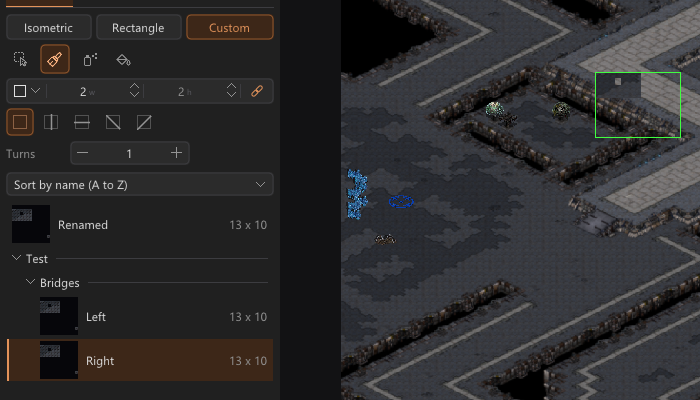
-
To save a piece: select tiles (Shift+drag adds tiles, Ctrl+drag removes tiles), right-click, Save as custom terrain.
Right-click a piece in the list to rename or delete it.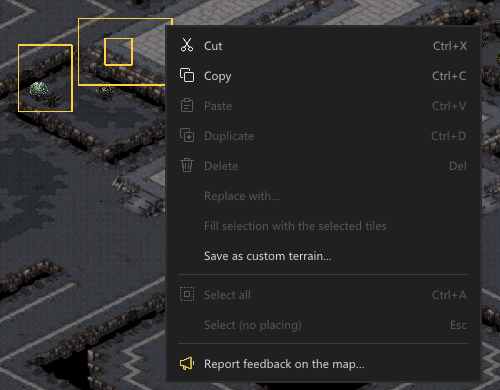
Map
-
Map properties > Crop or extend: change the map's size on a picture of the map, as with an image editor's crop
tool. Drag the edges and corners to change the size; drag inside to move the map; drag past the edges to make the
map larger. The picture shows the map as it will be, with the new ground at the edges; the parts that go are dim.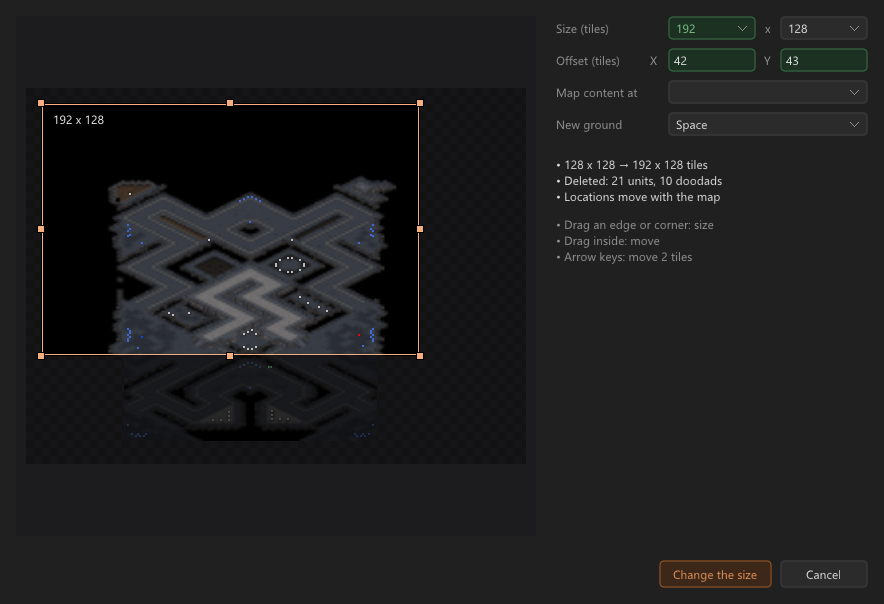
-
Locations: Paste (Ctrl+V) puts the copy on the mouse, as in the other modes. Each click places it again;
right-click or Esc stops. Each pasted location gets a name of its own (" copy1", " copy2" and so on).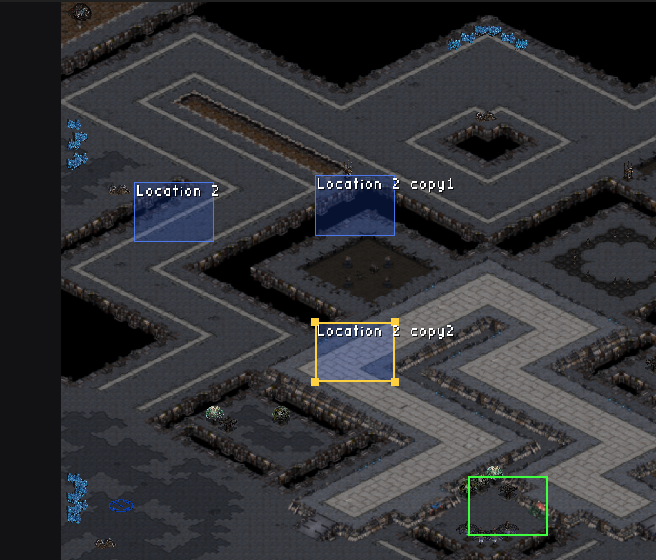
-
Locations show only in Locations mode by default. View > Show locations in all modes shows them in the other modes
too.
The program
- Keyboard: Tab and Shift+Tab go through all parts of the main window that you can click, in screen order: the menu
bar, the top bar, the tabs, the rail, the side bars, the map and the Log. Enter or Space presses the part, and Esc
gives the keyboard back to the map. An outline shows the part after Tab. Tab also goes through all controls of the
dialogs and of the "Save changes to the map?" question. - Menus on Windows look like the system's menus. While a menu is open, move the mouse over another menu's name to
open that menu. Submenus open next to their menu.
Fixes
- Data > SFX data: the sounds play with StarCraft: Remastered's data too.
About StarDraft (0.5 Alpha)
The first public version. This is an alpha: please save often, keep copies of your maps, and report issues.
Start
- Unzip the release's zip file into a folder and run
stardraft.exe. StarCraft: Remastered must be
installed. StarDraft 2 reads the game's files from it (if it does not find them, use Options > Program options >
StarCraft folder). - StarDraft 2 starts with a new project. File > Save asks where to keep it. A project is a folder with
project.stardraft, the map, its scripts and its data changes. Double-clickproject.stardraftto open it. - Build (Ctrl+B) makes the map to play (
<name>_EUD.scx). The first build downloads
euddraft. Copy the map into StarCraft'sMapsfolder to play it.
StarDraft 2 also opens and saves regular maps (.scm, .scx) without a project.
Maps
- Terrain brushes in different shapes and sizes, spray, fill, replace, and copy and paste with symmetry.
- Select terrain in the shape of the brush: diamond, square or circle.
- Units, doodads, sprites and locations, with snap and placement rules (Options menu).
- HD, SD and Carbot graphics.
- A new map with generated terrain (with symmetry), or with the terrain of a map that you have.
- Scenario > Map properties: the title, description, tileset and size. Scenario > Players and forces: the players.
- Show town areas (View menu): the buildable area and the resources around each base.
- Press Q to find a unit, doodad, sprite or tile by its name.
Classic maps
- A classic trigger editor.
- The Data page: the unit, upgrade and technology settings for each player, as in the game.
- Classic maps keep up to 3,400 units, save and load, and replays.
EUD projects
- The Data workspace edits every .dat file, the strings, requirements, button sets and the unit display. Previews
show what each value does: ranges, the image player with its iscript, portraits and the command card. - Triggers are blocks in plain sentences that become epScript: values from the game, loops, keys and the mouse,
text with colors, and the game's countdown timer. A checker marks EUD errors and desyncs, and the code shows beside
the blocks. - Link your own .eps files. StarDraft 2 builds them as they are, and a build error names the file and the line.
- The bug button beside Build turns on debug mode: the triggers check their indexes in the game, and Build writes a
trace file. epTrace (from euddraft) reads it while the map plays and shows which script lines use the most time.
The Project page and the log show its report.
Briefings and sounds
- A mission briefing editor with a preview that plays the briefing as the game plays it.
- The map's sounds play as in the game.
The program
- A light and a dark theme, with eight accent colors.
- Options > Program options (Ctrl+,): the theme, the volume, the unit names, the start options and the StarCraft
folder.
Feedback and crashes
- Right-click buttons, labels, or panes and select "Report feedback on …", or use Help > Report feedback. Feedback is
anonymous. Do not include private information. - If StarDraft 2 crashes, it sends a crash report by itself (the version, Windows, the video card, where it crashed,
the last log lines; no maps). Can be turned off in Program options. - Help > Check for updates gets the newest build. StarDraft 2 also looks for one on start (Options > Program options
to turn it off).