Repository navigation
OBS Studio
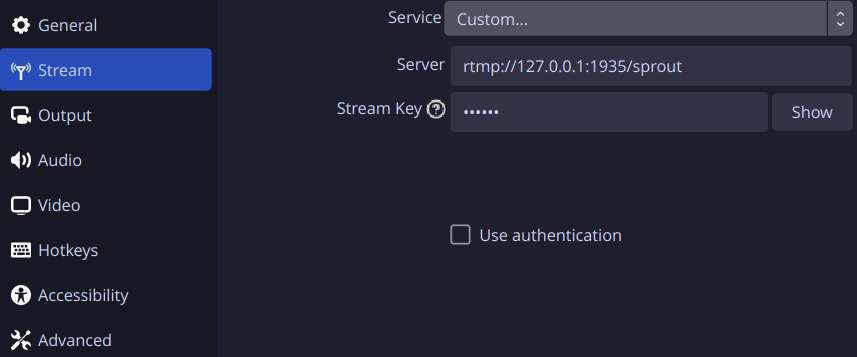
Connect OBS Studio to Stream Sprout as a custom RTMP service so one broadcast reaches every enabled destination in stream-sprout.yaml.
-
Open OBS Studio.
-
Open
Settings>Stream. -
Select
Customfrom theServicedropdown. -
Enter your Stream Sprout ingest URL in
Server. With the defaultserver:values instream-sprout.yaml, enter:rtmp://127.0.0.1:1935/sprout -
Enter your
server.keyvalue fromstream-sprout.yamlinStream Key(leave it blank ifkeyis unset). -
Click
ApplyandOK.
- Start
stream-sproutin a terminal or container. - Click Start Streaming in OBS Studio. Stream Sprout logs the incoming audio and video details and begins forwarding to every enabled service.
- Click Stop Streaming in OBS Studio when you finish. Stream Sprout finalises any local archive, reloads
stream-sprout.yaml, and waits for the next stream. - Press Ctrl+C in the terminal to stop
stream-sprout.
Stream Sprout copies the video and audio streams (-c:v copy -c:a copy) without transcoding. Every enabled platform receives the exact bitrate, resolution, frame rate, and keyframe interval that OBS Studio produces.
Choose OBS Studio output settings that all enabled destinations accept. A 2-second keyframe interval, H.264 video, AAC audio, and a bitrate within the lowest platform limit (for example 6,000 kbps for Twitch) work reliably across Twitch, YouTube, Owncast, and PeerTube.
Stream Sprout works best on the same machine as OBS Studio, bound to 127.0.0.1. When you run Stream Sprout on a separate machine, match the OBS Studio Server field to how you reach that host:
-
Over a private VPN (recommended): Set
server.ipinstream-sprout.yamlto the host's VPN IP address and set OBS StudioServertortmp://<vpn-ip>:1935/sprout. -
Over an SSH tunnel: Keep
server.ip: 127.0.0.1on the remote host, forward port1935to your local machine, and leave OBS Studio pointed atrtmp://127.0.0.1:1935/sprout. -
Over a trusted LAN: Set
server.ipto the host's LAN IP address (or0.0.0.0to listen on all interfaces) and set OBS StudioServertortmp://<lan-ip>:1935/sprout.
Warning
Do not expose the Stream Sprout RTMP port to the public internet. FFmpeg accepts any incoming stream on the listening port even when server.key is set. Follow the hardening steps in Security and limitations.