Repository navigation
Chat Windows
Every answer opens in a window where you read it, reply, copy or save it, and change how it looks. This page covers the chat window's buttons and long-presses, replying, streaming, the Minimal Popup for short answers, the view modes, window size, selecting text inside a window, and the Sources and Reasoning viewers.
- Chat window: chats and most actions. Its buttons are described below.
- Dictionary windows (the compact popup and the full-size window) and the translate window: they have their own button rows, described on Dictionary and Translation. Their → Chat button opens the answer in a full chat window.
- Artifact windows: summaries, analyses, a book's About, AI Wiki entries, pinned answers, X-Ray versions and the like. Their buttons (→ Chat, Info, Regenerate, Delete and others) are on Artifacts and Caching.
- Minimal Popup: a small popup for short answers, with no buttons (below).
The chat, dictionary, translate and artifact windows share the gear menu, the MD ON / TXT ON toggle, the long-press on Close and text selection. All of them but the compact dictionary popup follow the window size setting.
The title bar has the gear icon on the left (the gear menu) and × on the right. Two rows of buttons sit under the answer.
| Button | Tap | Long-press |
|---|---|---|
| ↩️ Reply (Reply without emoji icons) | Opens the Reply box (Replying) | |
| Copy | Copies the chat in the form set by Settings → Chat & Export Settings → Content Format → Copy Content | Asks what to copy this time |
| Save to Note | Saves the answer as a KOReader note attached to your highlight. Highlight chats only; see Contexts and Chat | Asks what to put in the note this time |
| Notebook | Add Chat to Notebook, Add (choose format)..., and once the book has a notebook, View Notebook and Edit Notebook. Grayed out in general and library chats | Same as tap |
| Pin / ★ (📌 / ⭐ with emoji icons) | Pin Last Response as Artifact (or Unpin from Artifacts) and Star Conversation (or Unstar Conversation) | A one-line hint |
| # (🏷️ # with emoji icons) | Add or manage this chat's tags | A one-line hint |
| Save / Autosaved | Saves the chat. Reads Autosaved when auto-save already keeps it | Closes everything (below) |
| MD ON / TXT ON | Switches this chat between Markdown and Plain Text (view modes) | The Display menu: the default view mode and other display options |
| Hide Quote / Show Quote | Hides or shows your highlighted text in this chat. Grayed out when there is none | The quote defaults for new chats (Quotes) |
| ⇱ / ⇲ | Jumps to the top or the end | Closes everything |
| Close | Closes the window | Closes everything |
Saving, tags, pinning and starring are explained on Conversations, Notebooks and Export.
Hold to close everything: a long press on Close or on the title bar's X in any KOAssistant window (in the chat window also on Save, ⇱ and ⇲) closes that window, any dictionary windows under it, and the highlight menu, taking you straight back to the page in one gesture.
Other ways to close a window: × in the title bar, a tap outside the window, the Back key, or any multiswipe.
Moving around: swipe left or right on the text to turn its pages. A swipe up or down on the text refreshes the whole screen (handy against e-ink ghosting).
Links: in Markdown view, tapping a link (plain web addresses become links too) opens KOReader's external link dialog: Copy, Show QR code, Open in browser, and any registered plugin actions (e.g., Add to Wallabag). When no book is open, a basic version of the dialog is shown: Copy and Show QR code, plus Add to Wallabag when that plugin is installed and Open in browser when the device can open links.
Tap the gear icon in the title bar:
- Font Size: 12 to 32 (default 20). It sizes the Markdown view (Plain Text uses a fixed size) and the text of the streaming window.
- Alignment: cycles Auto → Left → Justify → Right. Auto, the default, follows each paragraph's own direction (left for LTR, right for RTL) instead of forcing one side, so RTL answers align right; Left and Right put every paragraph on that side, right-to-left ones included.
- Reset to Defaults: font size 20 and Auto alignment.
- Window Size: Standard or Expanded, the same setting as Display Settings (Window size and rotation). Not offered on compact dictionary popups.
- Show Excerpt (dictionary windows only): the same setting as Settings → Dictionary Settings → Show Excerpt; see Dictionary and Translation.
- Export: writes the chat to a file (Copy and export).
- Show Reasoning and Show Sources: see Show Sources and Show Reasoning.
- Show Debug / Hide Debug: shows what was sent to the AI in this window and its replies only; the Settings → Advanced → Show Debug in Chat setting stays as it is. See Advanced Configuration and Development.
Font size and alignment persist across opens, artifact and X-Ray windows included, so you only set them once. Artifact windows leave out Export, Show Reasoning and Show Sources: they have their own Export button.
Reply opens a box over the window. Above its Close and Send buttons sits a row of chips for this chat:
- Web (🌐 with emoji icons): web search for your next replies, on or off. It reads Web N/A when your provider cannot search; tap it to see which providers can.
- Tools (🔍): AI Book Tools for your next replies. Only in book chats with the book open. It reads Tools N/A when your provider cannot use them, when text extraction is not allowed, and in X-Ray chats; tap it for the reason.
- Quick (⚡): the speed parts of the Quick Answer preset for your next replies (the model, reasoning, web search and book tools; the shorter-answer instruction stays as the chat started). It reads Quick ON or Quick (⚡ ON or ⚡ OFF with emoji icons).
- Attach (📎): stages a notebook, artifact, chat, file or note to go with your next reply; the label shows the count.
A tap changes this chat only, without touching your saved settings, and keeps your draft. A long press opens the same pickers as the input dialog's chips: the per-book and global defaults for Web and Tools, the Quick answer default and Preset settings… for ⚡, and the staged items for Attach. What each chip does is on Contexts and Chat.
Send with another model: type your message, then long-press Send for your model buttons, No reasoning and More models…. The pick applies to this reply and the rest of the chat, and a chat you resume later keeps it. Favorite models are explained on Providers and Models.
The Reply box keeps what you type for as long as the chat window stays open. You can:
- close the box (Close, or a tap outside it) and reopen it later: your draft is still there
- switch between the answer and the box while composing, or toggle a chip
- copy text from the AI's response and paste it into your reply, or quote it with Add to reply (Selecting text)
- rotate the device
The draft is cleared when you send the message or start a new chat. Closing the chat window drops it.
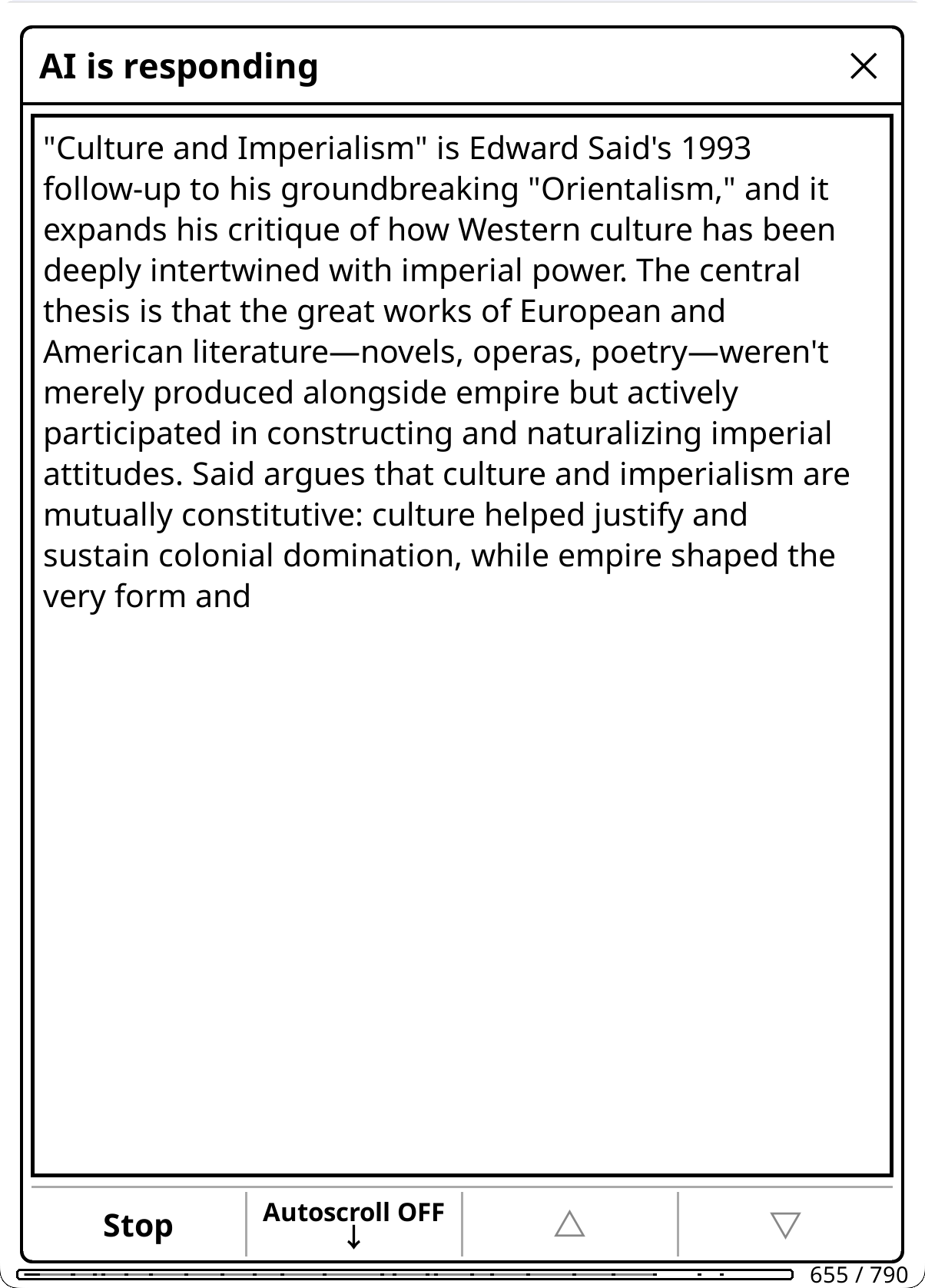
With streaming on (the default), responses appear in real time as the AI generates them. It works with all providers that support streaming. The window's title names the action being run, or reads "AI is responding" for a question you typed.
Buttons:
- Stop cancels the request.
- Autoscroll ON ↓ / Autoscroll OFF ↓: tap to stop or start auto-scrolling.
- ⚡ (Quick without emoji icons): drops this answer and asks again with your Quick Answer preset's speed settings (by default reasoning, web search and book tools off), and the chat's replies stay quick. It is shown for questions you type and for actions that accept Quick Answer, not for X-Ray and other artifact actions, and is grayed out when the request already runs quick.
- △ / ▽ scroll the text.
How the text moves:
- Auto-scroll (default): follows new text as it appears. It pauses when you swipe, use page buttons, or tap the scroll controls: the first step up stops the page where it is (the next one scrolls back), a step down pauses it only when the view actually moves, and dragging pauses it where you let go. Tap Autoscroll to follow again.
- Page-based scroll (default): text fills the current page top-down, then advances to a blank page when full, minimizing full-screen e-ink refreshes. Turn it off for continuous bottom-scrolling. It needs Auto-scroll.
- Keep your place: if auto-scroll is off or paused and you keep reading while the rest streams in, the finished chat opens at your spot instead of jumping to the newest reply (in Markdown it opens on the page holding your line; in Plain Text your line starts the view).
While the AI searches the web, the window shows "Searching the web..." and then each query, with a "Found:" line naming the sites that turn up (🔍 and 🔗 prefixes with Emoji Menu Icons). Any prose the AI writes before searching stays visible, followed by an inline [Searched the web] marker, so you can see where the search happened.
Hidden output: a quiz streams behind "Generating quiz" so its answers stay hidden, and an AI merge behind "AI merge in progress". Tap Show to watch the text arrive.
With streaming off, a notice names the provider and model (and says "Reasoning enabled" when it is) until the answer arrives. Tap it to cancel.
Settings → Chat & Export Settings → Streaming:
- Enable Streaming, Auto-scroll Streaming, Keep Reading Position and Page-based Scroll (e-ink), all on by default: the behavior above.
- Large Stream Dialog (on): the streaming window takes the size of a chat window. Off, it is a smaller window you can move.
- Stream Poll Interval (ms): how often to check for new stream data (default 125 ms, range 25 to 1000). Lower values are snappier but use more battery.
- Display Refresh Interval (ms): how often to refresh the display during streaming (default 250 ms, range 100 to 500). Higher values improve performance on slower devices.
Dictionary and translate lookups have their own switches (Settings → Dictionary Settings → Enable Streaming, Settings → Translate Settings → Enable Streaming), and Minimal Popup answers never stream.
Short answers can skip the full-screen window entirely. With the minimal popup on (default: When it fits), answers from its registered actions land in a small popup with no buttons, anchored right at your selection (in EPUBs; centered elsewhere), instead of opening their usual window.
- Which actions: Translate, Quick Define and Quick Explain by default. Pick the set under Settings → Minimal Popup (its Actions Using Minimal Popup row). Any highlight action that answers with text can join.
- When (the Minimal Popup View row): When it fits (default) uses the popup only when the whole answer fits in it (the popup is up to about half the screen tall); longer answers open the usual window directly. Always keeps even long answers in the popup, trimmed, with a muted "Tap to show the full response" hint. Off disables the feature.
- Tap to expand: tapping the popup opens the answer in the action's usual window (the translate window for Translate, the compact dictionary window for Quick Define, the chat window for Quick Explain), where replies and all the usual buttons live.
- Dismiss: tap outside the popup, or press a page-turn or Back key.
- No streaming: these requests skip the streaming window. A small notice in the corner ("Translating…", or the action's name) keeps the page visible while the request runs; a tap, a key press or a swipe cancels it. Replies in the expanded window follow your streaming setting again.
- It applies only to actions run on a highlight, and never to full-page translation.
- The popup shows the answer as plain text, following Apply Markdown Stripping and the right-to-left rules of Markdown and plain text.
- The popup stands aside automatically when a dictionary window is covering the book.
- A Quick Settings tile (Minimal Popup: On / Off) toggles the whole feature and remembers whether you had When it fits or Always. Hold the tile for the mode and the per-action toggles.
KOAssistant offers two view modes for displaying AI responses.
Markdown view (default)
- Full formatting: bold, italic, headers, lists, code blocks, tables
- Best for most users with Latin scripts
Plain Text view
- Uses KOReader's native text rendering with proper font fallback
- Recommended for Arabic and other RTL/non-Latin scripts
- Markdown is stripped to keep the text readable (Settings → Display Settings → Rendering → Plain Text Options → Apply Markdown Stripping, on by default; turn it off to see the raw markdown):
- Headers → hierarchical symbols (
▉ **H1**,◤ **H2**,◆ **H3**) - Bold → renders as actual bold
-
Italics (asterisks) → preserved as
*text*for prose readability - Italics (underscores) → bold (for dictionary part of speech)
- Lists → bullet points (•)
- Code →
'quoted' - Line spacing tuned to match the visual density of the Markdown view
- Headers → hierarchical symbols (
- BiDi support: mixed RTL/LTR content (e.g., Arabic headwords with English definitions) displays correctly; RTL-only headers align naturally to the right
How to switch:
- This chat: tap MD ON / TXT ON in the window's bottom row. The choice stays with the chat: replies, closing it and reopening it keep it.
- Your default: Settings → Display Settings → Rendering → View Mode, or long-press MD ON / TXT ON and tap Default view mode. Every chat you have not switched follows it.
Long-pressing MD ON / TXT ON opens the Display menu: Default view mode, Latest reply on new page, Font Size, Alignment, Strip markdown in text mode and Auto RTL mode for Chat, the same settings as in the gear menu and Display Settings.
If text doesn't render correctly in Markdown view, switch to Plain Text: KOReader's HTML renderer has no per-character font fallback, while Plain Text uses KOReader's native text rendering. See Troubleshooting.
Math formulas: in Markdown view, LaTeX math in responses ($...$, $$...$$, \(...\), \[...\]) is shown as readable formulas: Greek letters and operators as real symbols, superscripts and subscripts, vector arrows and hats, roots, fractions as a/b, and $$ blocks on their own centered line. This is display-only: saved chats, copies, exports and notebook entries keep the original LaTeX, which apps like Obsidian render fully. Plain Text view shows the LaTeX as written. Toggle it under Settings → Display Settings → Rendering → Render Math Formulas (on by default; grayed out while Plain Text is your default). True typesetting (stacked fractions, matrices) is not possible in the window's renderer; those flatten to a/b and (a, b; c, d).
Right-to-left text in the Markdown view. Every paragraph, heading, list item, quote and table cell is laid out in its own direction, decided by the majority of its words (the first word when they tie), so a chat that mixes directions reads right block by block: an Arabic answer with a Latin name in it, an English answer quoting Arabic, an earlier right-to-left reply above a later English one. Arabic, Persian, Urdu, Syriac and the other right-to-left scripts all count. A right-to-left quote mirrors its border, and the Left and Right alignments keep their side for both directions. Left-to-right lists are real lists (nested ones indented); a list with a right-to-left item is shown as marked lines, since the renderer draws no markers for a right-to-left list.
Right-to-left text (all under Settings → Display Settings → Rendering):
- Auto RTL mode for Chat (on): chat and artifact windows switch to RTL mode (right-aligned text and Plain Text) when the latest response has more right-to-left letters (of any right-to-left script) than Latin ones. English text referencing Arabic stays in Markdown, and your Markdown or Plain Text preference holds for everything else. Turning it off removes all automatic RTL adjustments. Grayed out while Plain Text is your default.
- Text Mode for Dictionary (off): dictionary windows always use Plain Text, regardless of your view mode, for better font support with non-Latin scripts.
- Text Mode for RTL Dictionary (on): dictionary windows use Plain Text when your dictionary language is RTL (Arabic, Classical Arabic, Persian or Urdu). Grayed out when Text Mode for Dictionary is on.
- Text Mode for RTL Translate (on): the translate window uses Plain Text when your translation language is RTL.
The languages themselves are set on Languages.
Where a chat opens (also under Settings → Display Settings → Rendering):
- Latest Reply on New Page (on): presents the newest reply from the top of a fresh page. Markdown chats get a real page break before it (older exchanges stay compact; the break moves forward with each reply and never touches saves or exports); Plain Text chats align the view so the reply starts the screen. Chat window only.
- Open Chats at Latest Exchange (on): when you open a saved chat, it jumps to the newest question and reply instead of the top. Replies always land on the newest exchange regardless. Independent of Latest Reply on New Page, which changes the page layout rather than the starting point.
In a highlight chat the window shows the text you highlighted above the conversation.
- Tap Hide Quote / Show Quote to hide or show it in this chat (useful for long selections).
- Long-press it for Quote display (new chats): Hide quotes by default, and Auto-hide long quotes (used only while the first is off).
- The same defaults live under Settings → Display Settings → Highlights: Hide Highlighted Text (off), Hide Long Highlights (on) and Long Highlight Threshold (default 280), the length above which a quote counts as long.
- The translate window has its own Show Original / Hide Original button; see Dictionary and Translation.
Window Size (Settings → Display Settings → Window Size, also on each window's gear menu) sets how much of the screen chat, artifact, translate, dictionary and quiz windows take:
- Standard (default): 95% of the screen.
- Expanded: only a hairline around them, keeping KOReader's status bar visible while a book is open. It fits more text but leaves less room to tap outside.
Changed from the gear menu, it redraws the window you are in where it can; otherwise it applies from the next window, and the notice says so. The streaming window follows it while Large Stream Dialog is on.
Some windows size themselves to their text:
- Translate and artifact windows fit their text as laid out, up to the full height, without a band of empty space at the bottom.
- The compact dictionary popup opens at 60% of the screen height and grows to fit a long answer, up to 80%. Window Size leaves it alone, so there is always room to tap outside it.
Rotation: KOAssistant automatically resizes windows when you rotate your device, adapting the chat window and the input dialog to the new orientation. The chat window keeps your place, its view mode and your reply draft, and a compact popup stays compact, fitted to its text again.
Text selection works the same in every KOAssistant window: chat, artifact, X-Ray browser, quiz, compact, dictionary and translate windows.
| Selection | Short hold | Long hold |
|---|---|---|
| 1 word | Dictionary lookup | Selection popup |
| 2+ words | Selection popup | Selection popup |
A single word opens KOReader's built-in offline dictionary, or your KOAssistant dictionary action when the dictionary bypass is on (Dictionary and Translation), in artifact windows too. The current window stays open underneath: the dictionary popup opens on top, and you return to your window when you close it. Long-pressing a single word shows the selection popup instead, giving access to Copy, Translate and the rest. A run of more than four Chinese, Japanese or Korean characters counts as a selection, not a word, since such text has no spaces.
A long hold is about three times KOReader's long-press interval: 1.5 seconds with KOReader's default of 500 ms. The interval is set in KOReader's gear menu → Taps and gestures → Gesture intervals → Long-press interval.
The selection popup (two columns; tap outside it to dismiss):
| Button | Action |
|---|---|
| Copy | Copy to clipboard |
| Dictionary | KOReader's offline dictionary lookup |
| Wikipedia | KOReader's Wikipedia lookup (when the reader offers it) |
| Look up in X-Ray | Search the book's X-Ray for the selected text. Shown when the window's book has an X-Ray. The only entity lookup available from a chat opened out of the file browser, and the only one that handles multi-word names |
| Translate | Translate via KOAssistant's Translate action |
| Add to Notebook | Append the text with a timestamp to the book's notebook (created if needed). Book chats only, not general or library chats |
| Add to reply | Quote the selected text into your reply draft and open the Reply box. Full chat windows only |
- Highlight clearing: the selection's highlight clears automatically after any action or when you dismiss the popup.
- Chaining lookups: look up a word, see an unfamiliar word in the AI response, select it to look that up too. The window stays open underneath throughout.
- Selection, Copy and Export also work inside the Show Sources and Show Reasoning viewers, so you can pull a cited URL or a reasoning excerpt straight out of them.
In KOReader's own viewers: turn on Settings → Menus & Buttons → Enhance text selection (under "Text selection in viewers") to bring the same behavior to KOReader's own viewers: dictionary popups, Wikipedia results, the bookmark viewer and any other KOReader text viewer. Same rules: single word → dictionary, long-press single word or multi-word → selection popup. Off by default; requires a restart.
The usage line. Above an answer that used reasoning, web search or AI Book Tools, one line in italics says so, for example [Reasoning/Thinking and Web search were used. Tap the gear icon to review details]. Book lookups read "Book search (N lookups)", or "Book text read in full" when the AI was sent the whole text. Only the first such line in a chat carries the gear hint. Dictionary windows leave reasoning out of the line (Show Reasoning still has it), and artifact windows show the line too. Each part has its own switch, all on by default: Settings → Advanced → Reasoning → Show Indicator in Chat, Settings → Advanced → Web Search → Show Indicator in Chat and Settings → Advanced → AI Book Tools: Show Indicator in Chat.
Show Sources (gear menu; grayed out unless the chat used web search or AI Book Tools) opens Sources & Lookups, which lists for each response:
- the web search queries the AI ran and the web sources it consulted, page titles linked to their URLs (tap one for the link dialog). Gemini's Google redirect links show as titles only. When a provider reports no sources, the viewer says so ("Web search was used, but this provider/response did not report sources.").
- the book lookups the AI performed ("Book lookups: N"), with the pages where each search hit.
The sources persist with the chat. Pre-search prose is preserved behind an inline [Searched the web] marker rather than being discarded.
Show Reasoning (gear menu; grayed out unless the chat has reasoning) opens AI Reasoning: the model's reasoning for each response, in Plain Text to keep its line breaks. OpenAI does not expose reasoning content, so its entries only say that reasoning was requested (and at what effort). Chats from older versions may say reasoning was used but its content was not captured.
Both viewers support text selection, Copy, Export (a .txt file in a folder you pick) and the MD ON / TXT ON toggle, like the main chat. Artifact windows have neither row; their Info button says whether reasoning or web search was used. How reasoning, web search and book lookups work is on Reasoning, Web Search and Book Tools.
- Copy (chat window) copies the chat in the form set by Settings → Chat & Export Settings → Content Format → Copy Content; long-press it to choose each time. Dictionary and translate windows follow their own Copy Content rows.
- Export (gear menu) writes the chat to a file: the content Save to File Content names, as Markdown or plain text per Export Style (both under Settings → Chat & Export Settings → Content Format), into the folder set by Settings → Chat & Export Settings → Save Location. It writes a file only; use Copy for the clipboard. The copy-or-save chooser belongs to the Chat History browser.
- Artifact windows have their own Copy and Export buttons; both add a header with the artifact's details, and Export asks for a folder.
-
The Sources and Reasoning viewers export a
.txtfile to a folder you pick.
Formats, file names and folders are explained on Conversations, Notebooks and Export.
Settings → Display Settings holds the window options explained above: Rendering (Markdown and plain text), Highlights (Quotes) and Window Size (Window size and rotation). The rest:
-
Emoji: three switches, all off by default.
- Emoji Menu Icons: emoji icons in the plugin's menus and buttons. The settings menu (💬 Chat & Export Settings, 🤖 the model row, 📖 Reading & Library, 🔒 Privacy & Data and others); chat history (💬 general, 📚 library and 📖 book entries, 💬 on each chat, 🏷️ on tags); the notebook browser (📓) and the artifact browser (📖); the X-Ray browser's categories (👥 Characters, 🌍 Locations, 💭 Themes, 📖 Lexicon, 📅 Timeline, 📍 Current State or Current Position, 🏁 Conclusion and more), which is where the icons help most; the chat window (↩️ Reply, 🏷️ Tag, 📌 / ⭐ Pin / Star) and the Reply box chips (🌐 Web, 🔍 Tools, ⚡ Quick, 📎 Attach); and the streaming window (🔍 Searching the web, 🔗 Found).
- Emoji Panel Icons: icons on the Quick Settings and Quick Actions panel buttons (🔗 Provider, 🎭 Behavior, 📜 Chat History and so on).
- Emoji Data Access Indicators: marks after action names showing what data the action may send (📄 document text, 🔖 highlights, 📝 annotations and the rest); the legend is on Privacy and Data. Independent of Emoji Menu Icons: you can enable either or both.
- All three need an emoji font, which KOReader does not ship. If icons appear as question marks or blank squares, your device has no compatible emoji font; see Troubleshooting.
- Panel Alignment: Align Quick Settings (on) and Align Quick Actions (off) left-align the button text in those panels instead of centering it; each panel's gear menu has the same switch. See Setup, Gestures and Panels.
- Plugin UI Language: the language of the plugin's menus and dialogs, not of AI responses: Match KOReader (default), English, or one of 26 translations. Requires a restart. See Languages.
Every row with its default is listed on Settings Reference.
A Book Hub, a group's page and the artifact browser can open chats and artifacts of a book other than the one you have open. Such a window belongs to that book:
- A chat started there uses that book's title, AI title, settings and saved reading position, and it is saved with that book. With Settings → Privacy & Data → Book info set to "Title, author & position", it includes that book's saved reading position. AI Book Tools stay off in such a chat, since they can only search the open book.
- An artifact made from such a chat (X-Ray (Simple), for example) is saved with that book, not among the open book's artifacts.
- A window showing another book's artifact deletes, regenerates and chats about that book. Regenerating rebuilds that book's artifact and never overwrites the open book's copy.
How chats are framed is on Contexts and Chat; artifacts are on Artifacts and Caching.
- Contexts and Chat: how a chat starts, the input dialog and its chips.
- Conversations, Notebooks and Export: saving, chat history, export formats, notebooks, tags, pins and stars.
- Dictionary and Translation: the dictionary and translate windows and their buttons.
- Artifacts and Caching: artifact windows and the View / Update / Redo popup.
- Reasoning, Web Search and Book Tools: what feeds Show Reasoning and Show Sources.
- Settings Reference: every Display Settings and Streaming row with its default.