Repository navigation
Printing Labels
Nestarr can print QR code labels for your items and locations. Stick them on shelves, boxes, or individual items — scanning the QR code with your phone instantly shows you what's there.
- Items — stick a label on an appliance, tool, or piece of equipment
- Locations — stick a label on a shelf, drawer, room door, or storage box
- Containers — attach a label to a box or bin so scanning it shows its contents
Nestarr supports two types of printers:
| Printer Type | Best For | Setup Required |
|---|---|---|
| NIIMBOT Thermal Printer | Dedicated, peel-and-stick label printing | Bluetooth or USB connection |
| System Printer (CUPS) | Any regular printer (paper labels, etc.) | Printer must be on the network |
NIIMBOT printers produce small, peel-and-stick thermal labels — perfect for home inventory labelling.
Nestarr supports these NIIMBOT models:
D101, D110, D110_M, D11_H, B1, B18, B21, B21_Pro, M2_H
This method works directly in your browser — no server-side setup needed:
- Make sure your NIIMBOT printer is on and nearby
- In Nestarr, go to an item or location and click Print Label
- Choose Web Bluetooth or Web Serial connection
- Click Connect Printer — your browser will ask you to select the printer
- Select your NIIMBOT from the list
- Click Print
⚠️ Web Bluetooth only works in Chrome or Edge browsers. It does not work in Firefox or Safari.
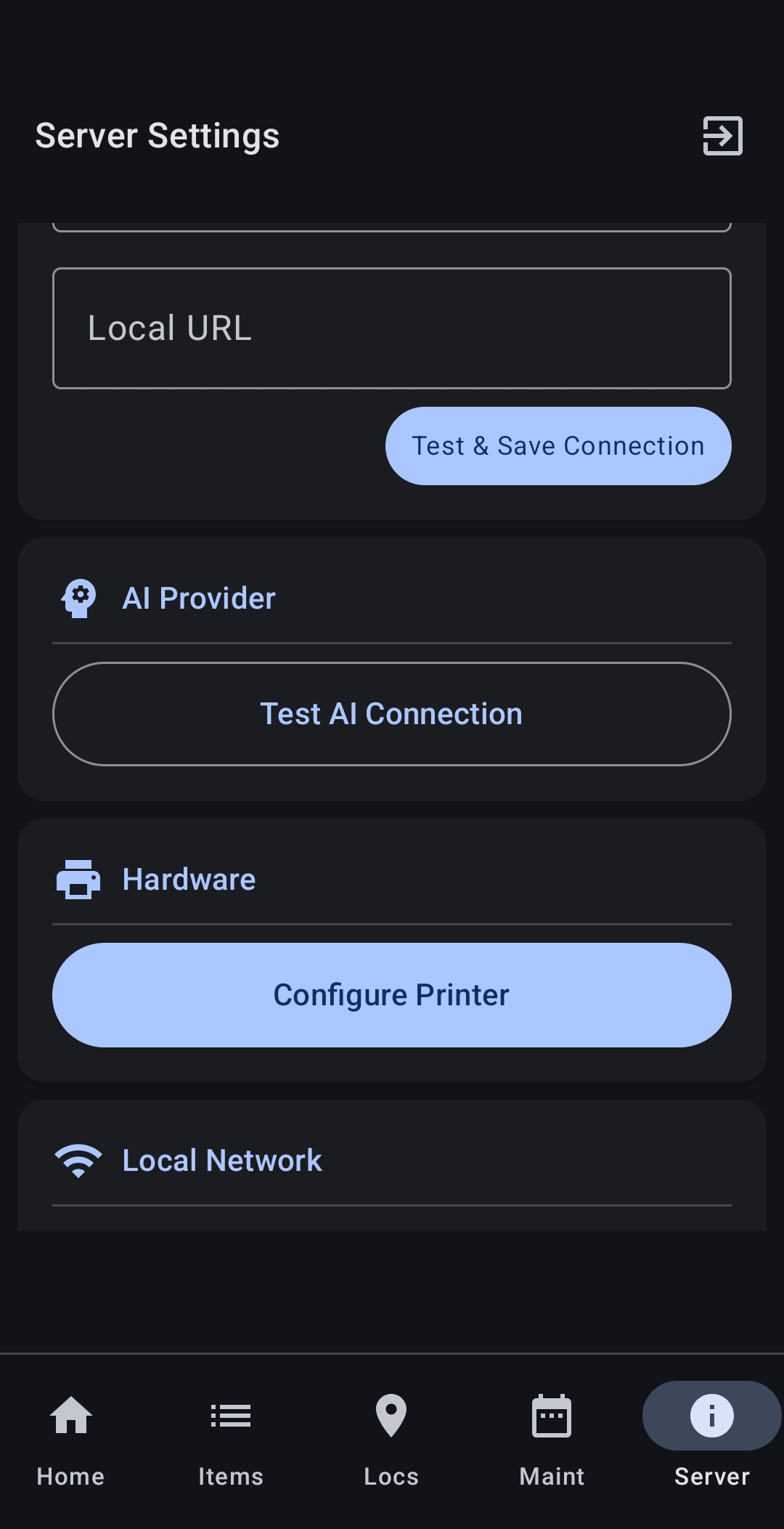
If your Nestarr server has a NIIMBOT physically connected (via USB or Bluetooth), you can configure it in Admin Settings:
- Go to Admin → Server Settings
- Find the NIIMBOT Printer section
- Choose connection type: Bluetooth or USB/Serial
- Enter the connection details (Bluetooth MAC address or serial port path)
- Click Test Connection
- Once connected, printing happens automatically when you click Print Label
Different NIIMBOT models use different label stock:
- Go to Admin → Server Settings → NIIMBOT Printer
- Set the Label Width and Label Height to match your label roll
- Save
If you want to print to a regular printer (laser, inkjet, or networked office printer), Nestarr uses the CUPS printing system.
- A printer configured and accessible via CUPS on the same server Nestarr runs on
- CUPS is standard on Linux systems
- Open an item
- Click Print Label
- Select System Printer
- Choose your printer from the list
- Click Print
A page with the item's name, QR code, and details will be sent to the printer.
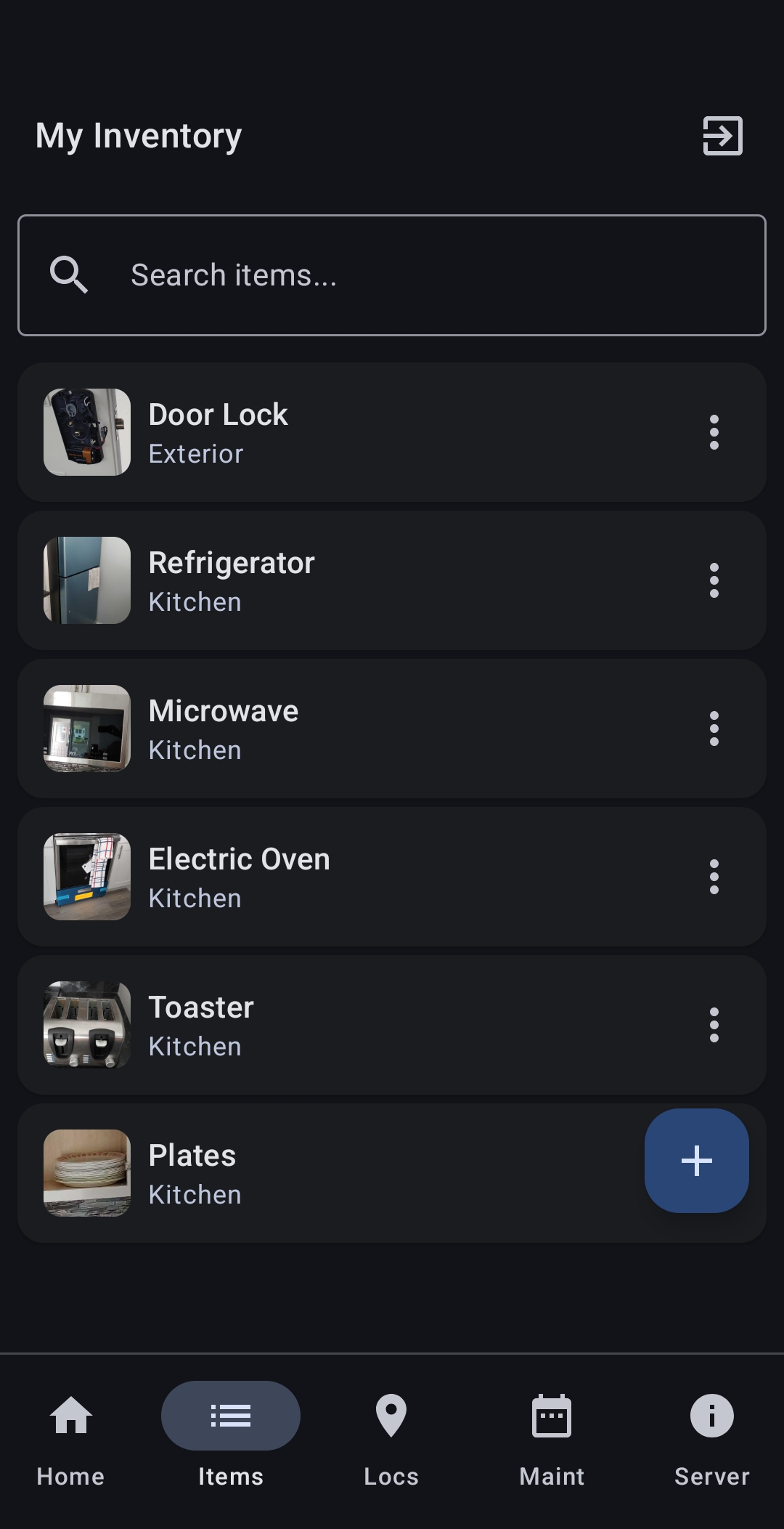
The Nestarr mobile app also supports printing:
- Open an item or location in the app
- Tap the Print icon
- Choose your connection method
Any QR reader app works, or use the Nestarr mobile app:
- Open the mobile app
- Tap the Scan icon
- Point at a QR label
- Nestarr opens the item or location directly
Nestarr remembers your last-used connection type and settings between sessions, so you don't need to reconfigure each time you print.
| Problem | Solution |
|---|---|
| Printer not found via Bluetooth | Make sure printer is on and in range; try restarting the printer |
| Label is the wrong size | Check label size settings in Admin → Server Settings |
| Print failed silently | The printer may be out of paper or have a low battery — check the printer status before printing |
| Web Bluetooth not available | Use Chrome or Edge browser; Firefox and Safari don't support Web Bluetooth |