Repository navigation
User Accounts and Roles
Nestarr supports multiple users with different levels of access. An admin can invite family members, housemates, or trusted contacts and control what each person can do.
There are three roles in Nestarr:
| Role | What They Can Do |
|---|---|
| Admin | Full access — manage settings, users, and all data |
| Editor | Can add, edit, and delete items and locations |
| Viewer | Read-only — can browse inventory but cannot make changes |
💡 Use Viewer for people you want to share your inventory with but not let them change anything. Use Editor for trusted family members who help maintain the inventory.
Admins can create accounts for other people:
- Go to Admin → User Management
- Click ➕ Add User
- Fill in:
- Email address — the user's email
- Full name
- Role — Admin, Editor, or Viewer
- Password — a temporary password they can change later
- Click Save
The new user can now log in with their email and password.
By default, new users created by an admin are active immediately. If your settings require approval, the admin must approve the account before the user can log in.
- Go to Admin → User Management
- Click on a user
- Change the Role dropdown
- Save
- Go to Admin → User Management
- Click on the user
- Click Reset Password or enter a new password
- Save — share the new password with the user
By default, all users can see all locations. Admins can restrict a user so they can only see specific properties:
- Go to Admin → User Management
- Click on a user
- Under Location Access, select which properties they can see
- Save
This is useful if you manage multiple properties and want to limit access.
If your admin has configured Google login, users can sign in with their Google account instead of a password:
- On the login page, click Sign in with Google
- Choose your Google account
- You'll be redirected back to Nestarr, logged in
ℹ️ Your admin needs to enable Google OAuth in Admin Settings first.
Nestarr also supports OIDC providers like Authelia and Keycloak. If your home network uses one of these, your admin can configure Nestarr to use it for login. Contact your admin if you need SSO set up.
Each user can generate a personal API key for use with home automation tools or scripts:
- Click your name/avatar in the top-right
- Go to Profile / User Settings
- Scroll to API Key
- Click Generate or Regenerate
- Copy and store the key securely — it is only shown once
⚠️ Keep your API key private. Anyone with your key can access your inventory.
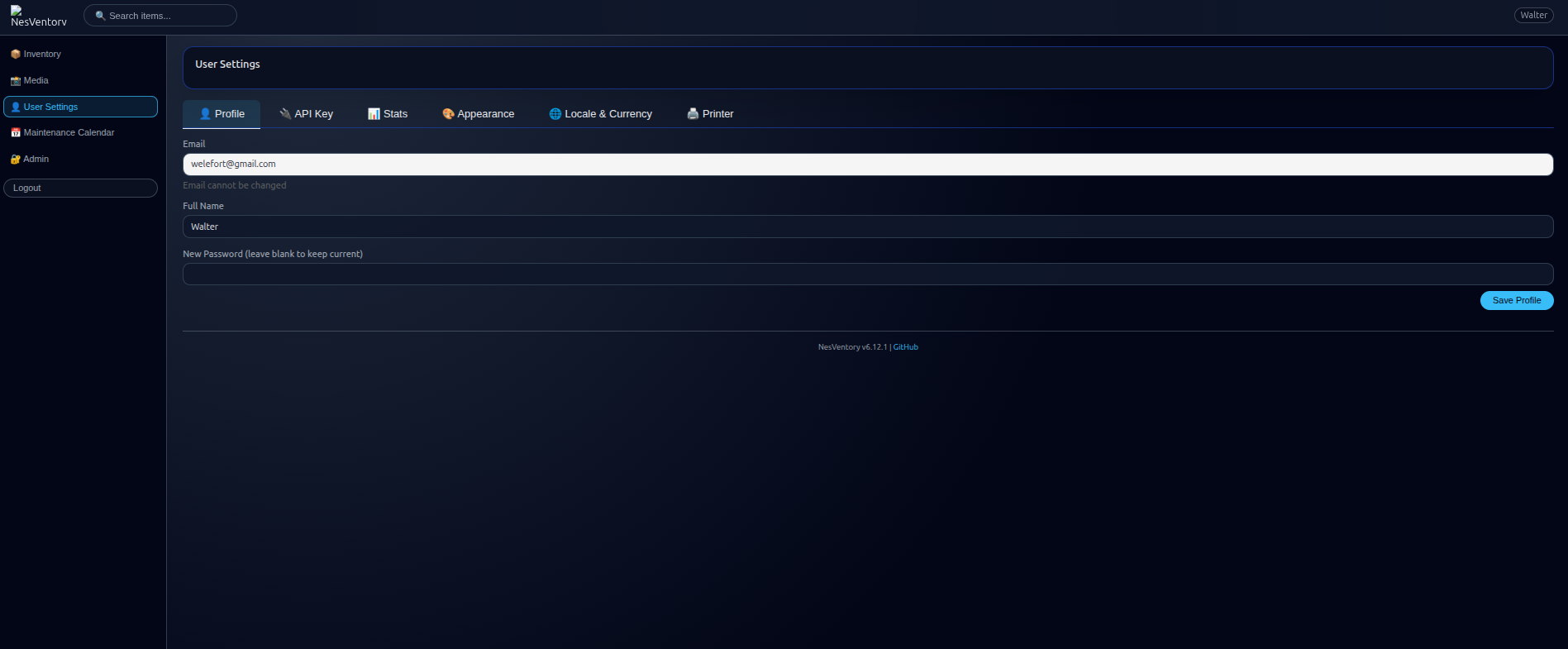
- Click your name/avatar in the top-right corner
- Select Profile or User Settings
- Update your name, email, password, or preferences
- Save
- Go to Admin → User Management
- Click on the user
- Click Delete User
- Confirm
⚠️ This cannot be undone. The user's account is removed but their items and locations remain in the inventory.