Config
Plugin configuration files are split into separate files to organize options. The main config is config.yml for sure.
All the config files are automatically reloaded, please read here.
Config files are not translatable but the language file and all the GUIs are.
Config files don't automatically add new options for outdated configs, they use the default option if an option is missing.
Kingdoms configs don't support advanced YAML features such as explicit tags, directives, explicit document start and ends, and a few others. 99% of the time, people don't even bother which these features when dealing with configuration files, so there's no issue.
All the configs except GUIs (due to the reasons specified in the following link) support auto config updates.
Most of the config options are explained in their config, however here we'll take a look at some basic and advanced features that Kingdoms plugin allows you to use for the config options.
- Setting a message option to
~ornullwill not send that message, if you set it to""it'll still send an empty line. - Most numeric options can be disabled by setting their value to 0 (or lower) unless specified otherwise. This disables any side effects that the option might have (such as sending messages)
- You can use
\nline break to break lines for messages. - All the Minecraft materials can be found here.
- Sounds are parsed using the
[~]<sound>, [volume], [pitch]format. All the Minecraft sounds can be found here. Minecraft volumes start from0.0to1.0Any number higher than that will just increase the radius the player can hear the sound from, normal is1.0. Pitch starts from0.5to2.0normal is1.0You can also test this by using the /k admin testSound command. Where~is also an optional prefix to play the sound at the player's location rather than to the player only so other nearby players can hear it too. - Options that you can specify commands for always take one or multiple commands.
- Singular like
commands: "k admin rp %kingdoms_name% add 100"orcommands: [ "k admin rp %kingdoms_name% add 100" ] - Multiple like
commands: [ "give %player% diamond 10", "give %player% grass 4" ] - The slash at the beginning of the commands are optional, but if you ever had to use a plugin which uses 2 slashes (such as
//wand) you have to use 3 slashes insteadcommands: "///wand" - There are two command directive prefixes that change the executor of the command:
-
OP:By default commands are executed as if the player executed them. Using this directive will make the player execute the commands as op. -
CONSOLE:This tells the server to execute the command from console. This is preferred over OP directive. - E.g.
commands: [ "CONSOLE:give %player% diamond 10", "OP:give %player% diamond 10" ]
-
- Singular like
- Surprisingly one thing that some people don't know, is that you can use Ctrl + F to search for something in a file. This is useful for searching for config options or language entries. If you didn't know this, Google Ctrl + Z and Ctrl + R as well.
- Most of the config options in the config that represent a time, support time suffixes. The default time suffix is seconds. Please also note that most of the cooldown options in the config are temporary, meaning that the timer will reset after server restarts. Some time suffixes:
- You might see some config options that only support ticks. In Minecraft each second is 20 ticks.
-
s,sec,secs,second,seconds -
m,min,mins,minutes,minutes -
h,hr,hrs,hour,hours -
d,day,days -
Example:
time-limit: 10days
Boss bars are the progress bars that you usually see on the top of your screen when fighting withers and the ender dragon.
You can see both of them in this image:
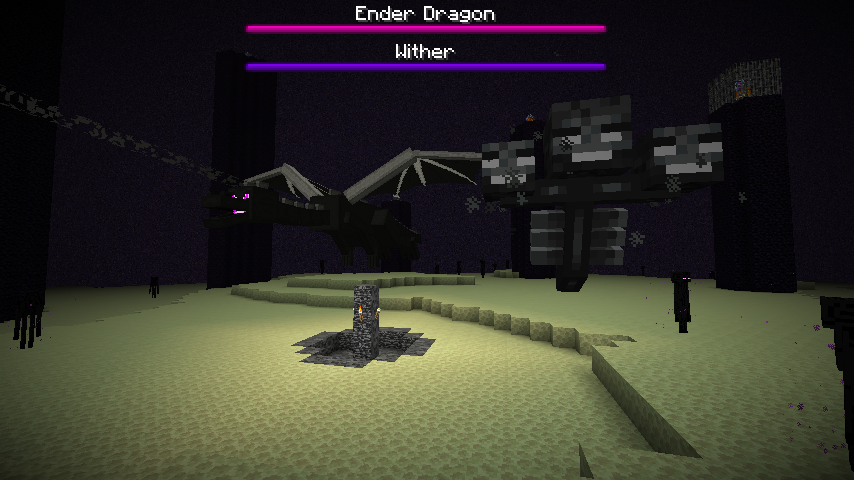
Options:
-
enabledUsually this option is present to determine whether the bar should be shown at all or not. -
titleThe title of the bar which supports colors (including hex colors) and placeholders, but they do not support line breaks. -
colorThe color of the bar. You can find all the colors here. -
styleThe style of the bar. Bars can be either a solid line just like the ones shown in the image above, or segmented with indicators that divide the bar with small vertical lines. You can find all the styles here. -
flagsA list of cool visual side-effects. You can find all the flags here.
- Note that these rules apply to all the math equations in any configs.
- Supports all the mathematical operators such as
+,-,/,*,%,(),^, etc...-
/You should know this one! It's the division operator. Fractional numbers! -
%in computers meanmodulowhich is basically theremainderof a division. For example4 / 3has a remainder of1so4 % 3is1and4 / 2has a remainder of0so4 % 2is0 -
*in computers meanmultiply -
^in computers usually refer to bitwise operators, but itexponentiateshere. E.g.2^3=2³=2 * 2 * 2=8 - They support Order of operations (Operator Precedence). Bitwise operator precedence are the same as Java's. E.g.
2 + 2 * 100is2 + 200and not4 * 100
-
- Placeholder support depending on the context. For example, in some cases only the kingdom is present with no player. That means you can use
%kingdoms_name%, but not%kingdoms_rank_name%because there are no players present. Some equations provide custom placeholders that should be explained above the equation in configs. For example,lvlis a custom placeholder commonly used in equations. - You can test your equations with the /k admin evaluate command.
- They support integers, decimals and hexadecimals.
- They also support all the Java Math functions (other than the functions with
exactin their name which are useless anyway). You're definitely familiar with functionsf(x), but here we will use meaningful names other thanfto use functions. In order to understand this document, simply ignore the header description, just scroll down to read the method names. You'll see stuff likeint,long,floatanddoublenext to the parameter names, they're all basically representing a number.intandlongare numbers without decimals, andfloatanddoubleare numbers with or without decimals. If a function requires an integer, it'll automatically convert into an integer if the passed parameter is a decimal by rounding it. - Some options rarely support equations for time formats. In these equations you can represent the time by surrounding it with square brackets. E.g.
lvl * [1 day] -
Special Functions:
- random(min, max) Get a random decimal number between the given minimum and the maximum numbers.
- randInt(min, max) Get a random integer number between the given minimum and the maximum numbers.
-
whatPercentOf(x, y) Finds X is What % of Y which is equivalent to
(x / y) * 100 -
percentOf(x, y) Gets X percent of Y which is equivalent to
(x / 100) * y - naturalSum(n) Calculates the natural sum from 1 to the given number.
- They support Bitwise Operations too. This is a more simplified version specifically for Java. However, some of them use a different operator since the operator system in the math evaluator works per a character. They might conflict if used in conditional GUIs.
-
&Bitwise AND operator -
|Bitwise OR operator -
!Bitwise XOR operator^ -
~Bitwise Compliment Operator -
>Bitwise Binary Right Shift Operator>> -
<Bitwise Binary Left Shift Operator<< -
$Bitwise Shift Right Zero Fill Operator>>>
-
When we say a math equation you'll normally expect to see something like the common Quadratic equation or a simpler Polynomial equation such as x + 3 = 10 (which would be x = 10 - 3), but in configs, the core concept is represented a little differently.
Let's say there's an option for the max number of members that can join your kingdom.
max-members: 10Obviously this doesn't look really fun because a kingdom can only have 10 members no matter how big it is, so for this option, we're going to spice things up a little and use a math expression. So how would we write this? We can use the %kingdoms_max_members% placeholder as our variable that the equation is going to be solved for and %kingdoms_lands% as a factor for the equation. Let's say we want kingdoms to have 2 members for every one land that they claimed.
max-members: %kingdoms_max_members% = %kingdoms_lands% * 2While this looks logical, it's just redundant. If you look at the option name, it's already named max-members so it's like you're writing
maxMembers = maxMembers = lands * 2if this was on paper, so the important point is that the option name itself is the variable that we're solving. We can rewrite this as:
max-members: %kingdoms_lands% * 2Now if we wanted to get a little more advanced and say we want to cap this value at 50 members, we can use the function feature.
max-members: min(%kingdoms_lands% * 2, 50)Now even if a kingdom claimed 100 lands (100 * 2 = 200) they'll only have 50 max members, because that's what the min() function is doing.
Functions are just like normal math functions f(x) the only difference is that their name is a little more obvious.
min(x, y) function is really simple. It says I'll take both x and y inputs and give you the minimum of the two values as the output. So for example min(3, 1) gives you 1 obviously because 1 < 3
The plugin provides a lot more operators and functions that you can use, but most of the time you don't need to use them all.
You can use the new 1.16 custom hex colors. There are various formats to use hex colors. We'll go through them all. Note that all the formats below are case-insensitive.
-
&#<hex>where<hex>is a 6-digit hexadecimal color in the form ofRRGGBBe.g.ʒb9e-A -
{#<hex>}where<hex>can either be a 3 or 6 digit hexadecimal color in the form ofRGBorRRGGBBe.g.{#68e}-{#62231a} -
{#<color>}where<color>is a predefined color name inchat.ymle.g.{#Navy}-{#Maroon} -
{#<r>, <g>, <b>}it's the simple RGB format. E.g.{#255, 0, 0}-{#120, 0, 120}The format to do this is&#<hex>the<hex>is a hex 6-character code for RGB colors. You can pick one from here
Example:&2The bffa5quick {#754646}&lbrown {#c82}&ofox {#255, 0, 0}&mjumped {#Navy}&nover &rȓb52the alazy 񢩈&kdog
Note: Hex colors aren't supported for Windows terminal. Only Spigot can fix this.
Complex Messages, Hover Messages, or Raw JSON Text messages are messages that use modern Minecraft messaging features which allows you to do different things when hovering on a text in a message. In addition to hover features, complex messages have a few more useful functions that we will talk about in a moment.
This feature doesn't work on Bukkit servers. It only works on Spigot and forks of Spigot such as Paper.
To send a complex message, you must add @ at the beginning of that message. This is required so the plugin can know this message must be parsed using an advanced parser, which means if it's not specified, the plugin can handle the message normally for more performance.
After specifying the tag, you can now use hover:{} anywhere in the message.
The default format for hover is hover:{Chat Message;Hover Message (Lore);Action} they all support color codes and placeholders inside them. Note that every space (or any other character) before and after the separators ; are also displayed in the message (except for the Action, read below for more details)!
- Chat Message: The message shown in the chat like the normal messages.
-
Hover Message: The message shown when you hover on
Chat Messagein the chat using your cursor. -
Action: The action performed when you click on
Chat Messagein the chat.-
Commands: Execute a command or send a message in chat. Not using a
/slash will send a chat message instead as if the player sent this message normally themselves. -
Suggestions: Put the text in player's chat box. Instead of
/you have to use| -
URL: Open a link in the player's browser (with their consent after they've been prompted by a message on their screen). Instead of
/you have to useurl:
-
Commands: Execute a command or send a message in chat. Not using a
Example: @&2Hey hello hover:{&cthis;&2Jeff;Hello Jeff!} &2is my name.\nCome hover:{&emeet;&2Click To Meet\nmaybe not.;/tp Jeff} &2me here. hover:{&lphone number;&2Click to copy;|911} &2my hover:{&9website;&cClick To Open;url:https://www.nasa.gov/}
There's another form of complex messages supported in the language file. If one of the language entries is a section instead of just text, you'll be able to benefit from several features:
# before
message-entry: "@Hello I'm a normal complex message"

# after
message-entry:
  # Sound played to the player when the message is sent.
  sound: BLOCK_NOTE_BLOCK_BASS, 1, 1

  # Actionbar shown to the player for a short period of time ~3 seconds
  actionbar: "I support colors and placeholders too."

  # Refer to titles section below to learn how these work.
  titles:
    title: "I support colors and placeholders as well"
    subtitle: "Me too"
    fade-in: 30
    stay: 15
    fade-out: 30

  message: "I'm a complex message, but notice how I don't need the @ anymore to be counted as one"
Complex messages also have a feature called color backreferences.
Imagine you have a message like this
&2Added %rank% &2to player &6%player%Possible values for %rank% are [&6Admin] &c, [&eModerator] &e and ...
What if you wanted to change %player% color according to the last color captured by %rank%?
In this case, it'd be either &c or &e. You can't simply do %rank%%player% because %rank% would be replaced by the enter rank text, we only want the last color.
That's where color backreferences will be useful.
&2Added %rank% &2to player {%rank% & -1}%player%{%rank% & -1} will be translated to the last color captured by the %rank% placeholder.
E.g. if %rank% is &8[&cAdmin&8] &6 using this special format gives you &6
The syntax for a color backreference declaration is {%placeholder% [& index]}
- Where %placeholder% is simply the placeholder name, you should not put any space between { and the placeholder.
- Where index is an optional position that the color should be retrieved from. Omitting this option (e.g. {%rank%}) is the equivalent of {%rank% & -1} which gives you the last color.
The position can be either positive or negative. Positive positions means that the search should start from the beginning of the placeholder while negative positions mean that the color search should start from the end of the string.
Note that a color in this case is considered a group of color codes that when used together can change how the message is displayed. color here also includes formatting codes (&l, &n, &k and etc)
So for example in a message like if %msg% placeholder value is &2&lHello &c&3world doing {%msg% & 1} will give you &2&l not &l
This is because when &2 is mixed with &l it preserves the previous code (&2) and make a new format out of it. In this case a bold green text, but doing {%msg% & 2} on the same message gives you &c and not &c&3 this is because &3 does not preserve &c and it completely changes the color of the text, thus making the previous code unnecessary, although it's questionable why someone would format their messages in this way...
You can test all the chat features using the /k admin test command.
The default language file is en.yml which is not saved in the plugin, it's generated automatically.
Language files automatically add new entries to their list, however they don't remove any old ones. If a translated language file is missing an entry, it'll copy one from the original (English) version into the file instead. Language entries don't have any explanation, they're mostly easy to understand. If you couldn't find the usage for an entry, you can always ask.
You can change the language by changing lang option in config.yml to one of the supported language codes (specified above the option)
and then use /k reload command.
The language entry format for all the commands are commands -> [groups...] -> <name> where [groups...] are the main command names of that command and <name> is the main command name of that command. The group and names are explained in the permissions section.
All the language entries support:
- Chat Colors and 1.16 Hex Colors
- Line Breaks \n (It also keeps the color for the next line.)
- Complex Messages (90% of the non-GUI messages)
- Internal & External Placeholders (for external placeholders you need PlaceholderAPI)
- Complete Removal (by setting it to an empty text string:
''or"") - If
prefixoption is enabled in config, you can useNOPREFIX|at the beginning of a message to exclude it, or if the option is disabled, you can usePREFIX|to use the prefix for that specific message.
All community translations are welcomed. You can also improve existing translations. You can translate the language file and all the GUIs located in the guis folder, but plugin configs are not translatable.
Here are some rules when translating the plugin. These rules apply to GUI translations as well.
- Obviously don't just drop them in Google Translate and paste them back to the file. Translate them manually.
- You shouldn't change how the sentences are phrased and add or remove a part of the description unless it makes it easier to understand in that particular language.
- You can change the colors, but do not use 1.16 hex color codes.
- You shouldn't change the plugin prefix. Anywhere that the name
Kingdomsis used that is referring to the plugin and not the name itself, shouldn't be translated. - Make sure to validate your files.
- You can change the GUI design as long as it has all the functional options used.
- You can give credits, but only at the beginning of the file. No IPs are allowed unless you have a domain that redirects to an appropriate website with SSL certificate (HTTPS).
- You can add explanations anywhere in the file if you want.
After translating your language file, place your translated file in the plugin's folder.
The file's name should be the same as the option below without the .yml file extension.
Some of these language files are outdated.
Standard way of naming this is to follow IETF language tags from IETF use ISO-639-1 codes. If you can't find it, or don't feel like it, don't bother.
If you translated the plugin, you can contact me and I'll add it to the plugin.
All the language files are translated by the community. They're not guaranteed to be 100% accurate or complete. Developers and translators are not responsible to update the language files. Latest available translations can be found here and GUI.