3. VSCode & extensions
In this section, you'll install and configure Visual Studio Code (VSCode), an open-source IDE we love :)
- Download & install Visual Studio Code.
- Go to Extensions (Ctrl+Shift+X) and install "Remote-WSL". Wait for it to complete.
- Open the Command Palette (Ctrl+Shift+P). This is a useful shortcut that provides access to many VSCode commands. Type and choose "Remote-WSL: New WSL Windows". Wait for it to complete (make sure it says "WSL: Ubuntu" at the bottom-left of the window).
- Go to Extensions (Ctrl+Shift+X) and install "C/C++ Extension Pack". Wait for it to complete.
- Open the Terminal (Ctrl+`) and run these commands. Put the email you signed up to GitHub with.
git config --global user.email "you@example.com"
git config --global user.name "Your Name"
- Go to Source Control (Ctrl+Shift+G), and choose "Clone Repository", and then "Clone from GitHub". Sign in.
- Open the Command Palette (Ctrl+Shift+P), type "Clone from GitHub", then copy and paste your repository link from GitHub, as shown in the image.
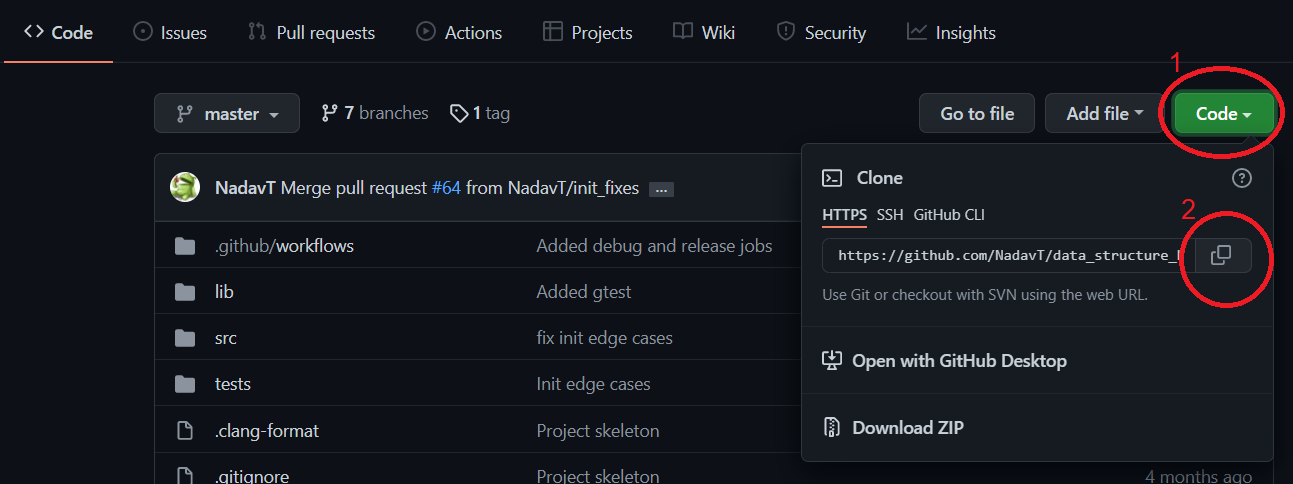
- You'll be asked where you'd like to clone your repository to. Choose
/home/<your username>. Open your project folder in VSCode.
Now that you have cloned the repository, let's practice making another contribution to the project, this time using VSCode. We'll install and configure Clang-Format, an extension that would automatically format your files when you save them.
- Install the "Clang-Format" extension.
- Go to File -> Preferences -> Settings. Search for the setting "Default Formatter" and set it to "Clang-Format", then search for the setting "Format On Save" and enable it.
- Download .clang-format, put it in your project directory and upload it to GitHub (you can do it all from VSCode, using the Source Control window (Ctrl+Shift+G)).
- Check out other recommended extensions: "Python", "Clang-Tidy", "GitLens".