3. VSCode & extensions
In this section, you'll install and configure Visual Studio Code (VSCode), an open-source IDE we love :)
- Download & install Visual Studio Code.
- Go to Extensions (Ctrl+Shift+X) and install "Remote-WSL". Wait for it to complete.
- Open the Command Palette (Ctrl+Shift+P). This is a useful shortcut that provides access to many VSCode commands. Type and choose "Remote-WSL: New WSL Windows". Wait for it to complete (make sure it says "WSL: Ubuntu" at the bottom-left of the window).
- Go to Extensions (Ctrl+Shift+X) and install "C/C++ Extension Pack". Wait for it to complete.
- Open the Terminal (Ctrl+`) and run these commands. Put the email you signed up to GitHub with.
git config --global user.email "you@example.com"
git config --global user.name "Your Name"
- Go to Source Control (Ctrl+Shift+G), and choose "Clone Repository", and then "Clone from GitHub". Sign in.
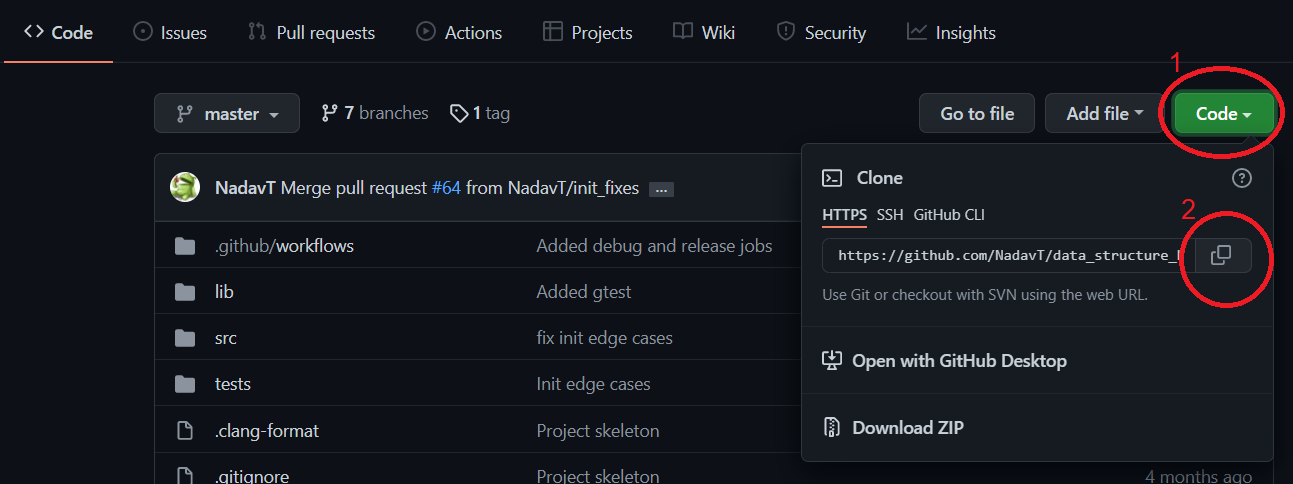
- Open the Command Palette (Ctrl+Shift+P), type "Clone from GitHub", then copy and paste your repository link from GitHub, as shown in the image.
- You'll be asked where you'd like to clone your repository to. Choose
/home/<your username>. Open your project folder in VSCode.
Now that you have cloned the repository, let's practice making another contribution to the project, this time using VSCode.
If your project isn't already open, open it (File -> Open Folder).
- Install another extension: "Clang-Format". This extension will allow you to completely forget about formatting (indentation, blank lines, ...). Instead, you'll create a file specifying your desired conventions, and the code will be reformatted on every save.
- Download .clang-format and put it in your project directory.
- Upload those files. You can do it all from VSCode, using the Source Control window (Ctrl+Shift+G).
- Check out other recommended extensions: "Python", "Clang-Tidy", "GitLens".